

Alerts
If you’d like to automatically create incidents from Datadog monitors, we’d recommend using our Alerts product. To do that, head into the dashboard and choose Alerts in the left hand bar (or open the Alerts page directly). Here, you can create a new alert source using Datadog, which will walk you through a series of steps to create a webhook in Datadog that triggers alerts. Once you’ve created your alert source and connected it to a route, you should be set to automatically create incidents.Legacy Triggers
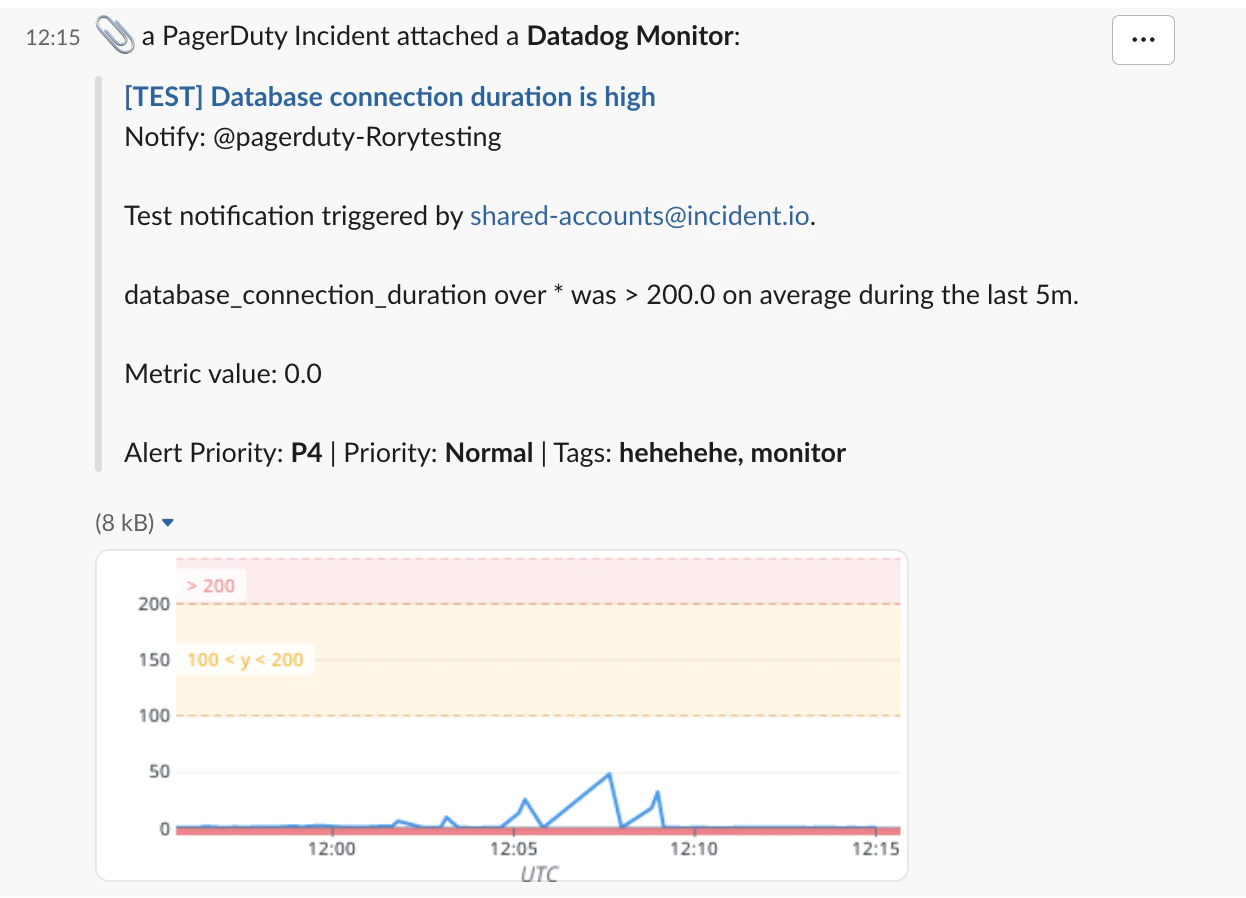
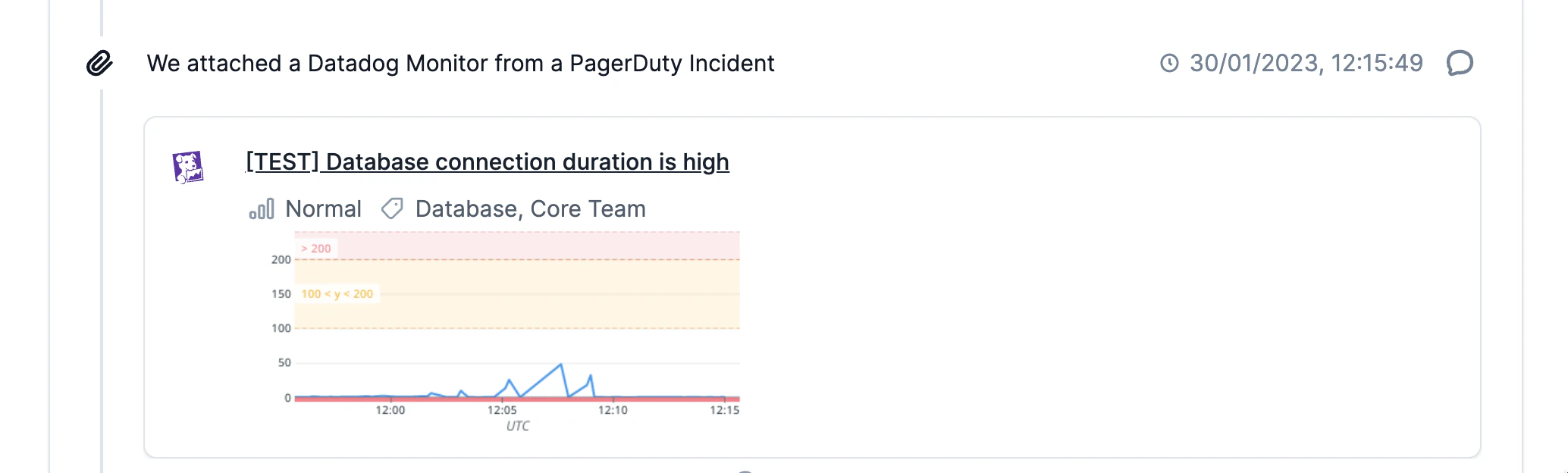
If you’d rather route Datadog through PagerDuty or OpsGenie to notify someone before creating an incident, you can do that and incident.io automatically pulls through information about any Datadog monitors that triggered the escalation. This means that when you join an incident channel, everything you need is right there:- The name of the triggering monitor, with a link to see more
- Up to 500 characters of the body of the trigger monitor. This means you can link things like runbooks in your monitors and have access to them in your incident channel.
- The Alert Priority and Priority of your Datadog monitor
- Any tags on your Datadog monitor
How do I set it up?
To get started, you need to first send your Datadog monitors to either PagerDuty or OpsGenie - if you’ve not done that, you can find instructions on Datadog’s site ( PagerDuty, OpsGenie ). Once you’ve installed those integrations, you can tag whichever service you want inside a Datadog monitor using something like@pagerduty-growth-team. This will mean that when your monitor triggers, you’ll page the service you’ve tagged.
The final piece to set up is to configure incident.io to trigger incidents when a PagerDuty/OpsGenie alert occurs - details on how to do this can be found in our guide on auto-creating incidents.
Once you’ve completed the above steps, that’s you! incident.io will now automatically pull through the originating Datadog monitor when an incident is created.