

- Suggested summaries and suggested updates
- Summaries and updates drafted by @incident
- The Generate button in the dashboard
- AI summaries when you declare an incident from a Slack message
- Agents using the MCP server
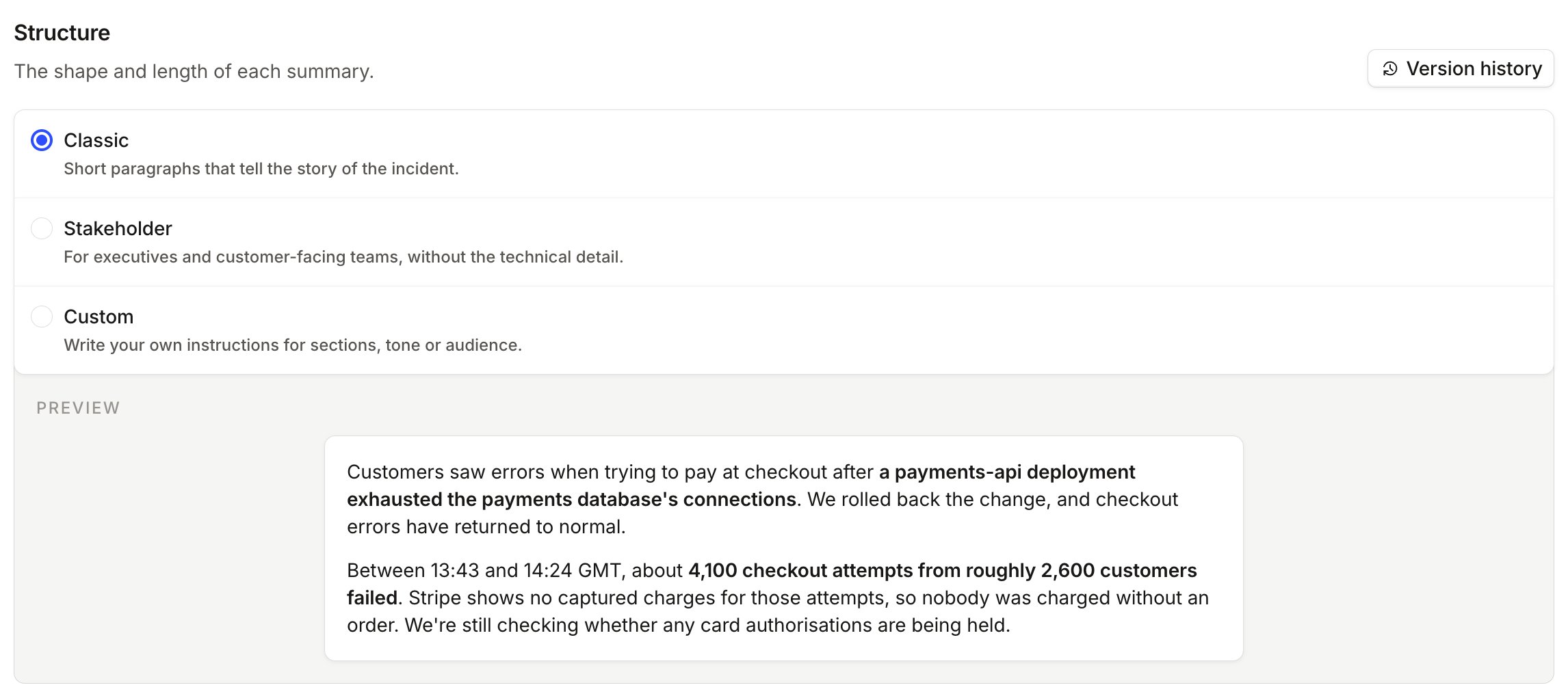
Summaries
Set the summary format from Settings → Summaries:- Classic (the default): for responders and anyone following the incident. It tells the story in short paragraphs, includes the cause, and stays under 150 words.
- Stakeholder: for exec or customer-facing channels. It describes the impact as customers see it in under 100 words, and doesn’t name infrastructure or explain the cause.
- Custom: when you need your own sections, tone or audience.
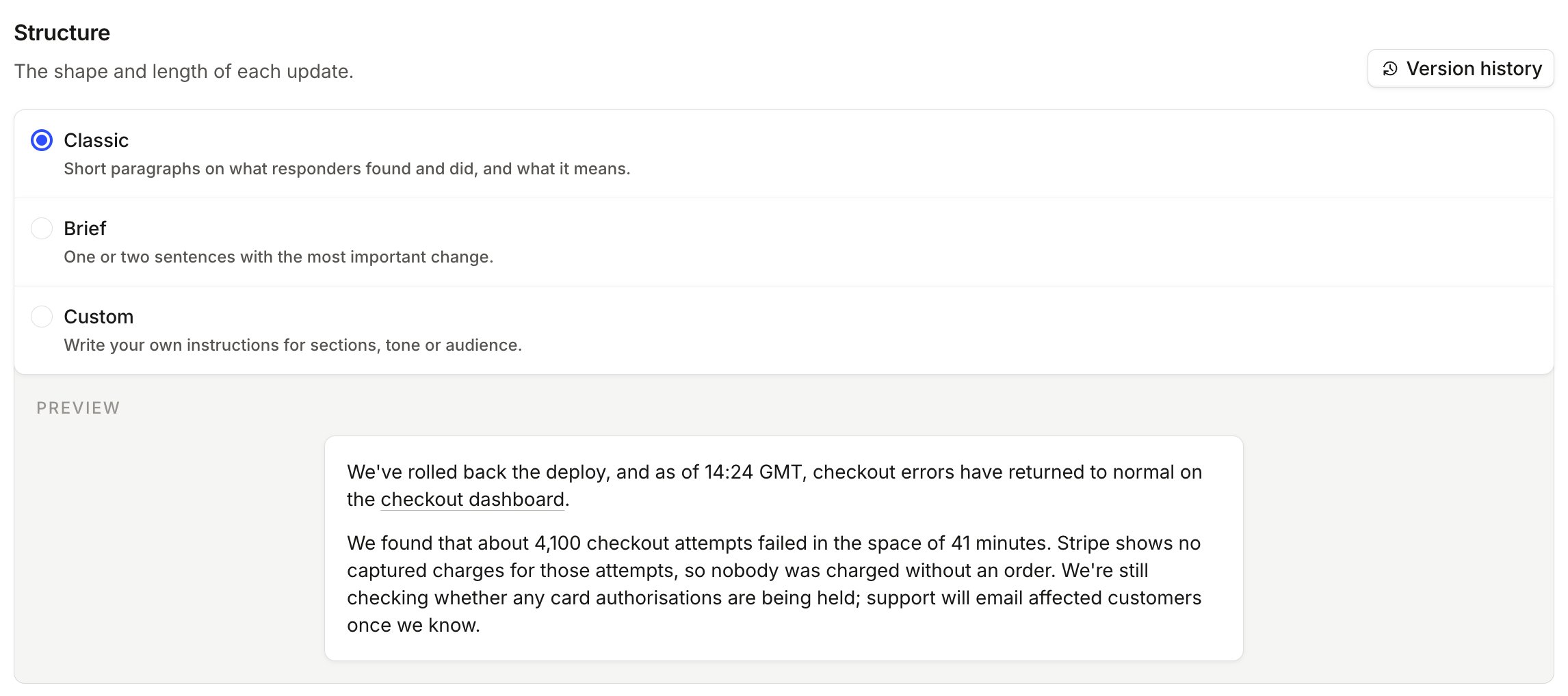
Updates
Set the update format from Settings → Updates:- Classic (the default): for most teams. It covers what responders found and did and what’s next, in under 120 words.
- Brief: for teams that post updates often. Each update is one or two sentences on the most important change.
- Custom: when you need your own sections, tone or audience.
Writing custom instructions
Custom instructions are free text. Use them to describe what the summary or update should look like: its structure, sections, tone and audience. When you choose Custom, the editor opens with our default instructions. They show how to write structured instructions:- Summaries: four bold sections (Problem, Impact, Causes and Steps to resolve), with a sentence or two each and “Unknown” for a section that has nothing yet
- Updates: two sections, “What’s happened” and “What’s next”, in under 120 words
Example custom instructions
- Only include what responders have said or shared
- Leave out findings from the investigation agent until a responder approves them
- Write summaries in the incident’s language
- Headings and tables. Slack and Microsoft Teams don’t show them, but bold, lists and links work.
- Detail that won’t be known yet. Early in an incident there’s often no cause or fix to report, so ask for sections that can say “Unknown” rather than ones that must be filled.
- Instructions about running the incident, such as “check the fix works before writing an update”. Keep instructions about the writing itself.
Preview and version history
The page shows a preview of each structure. For Custom, click Preview and we write a summary or update for a sample incident from your instructions, so you can check the result before you save. Every save creates a new version. Open Version history to see earlier versions and restore one. Changes are also recorded in your audit logs.Availability
The summary format is available on every plan with suggested summaries: Team, Pro and Enterprise. The update format is available on Pro and Enterprise, the same as suggested updates.FAQs
Should I use a skill to change the format?
Should I use a skill to change the format?
No. Use Settings → Summaries and Settings → Updates. Suggested summaries and suggested updates don’t read skills, so a skill only changes what @incident writes.
Can I go back to an earlier format?
Can I go back to an earlier format?
Yes. Open Version history on the settings page and restore an earlier version.