Alert rules are in beta and replace alert routes. We’re turning them on for some organizations first, and details may change. Get in touch if you’d like early access!
Alert rules let you configure what should happen when an alert arrives: who gets paged, which channels hear about it, whether an incident starts, and whether an investigation runs. Each team can set its own rules, and your organization can set rules that apply to everyone as well as default rules. Find them under On-call → Alert routing → Rules.

The three kinds of rules

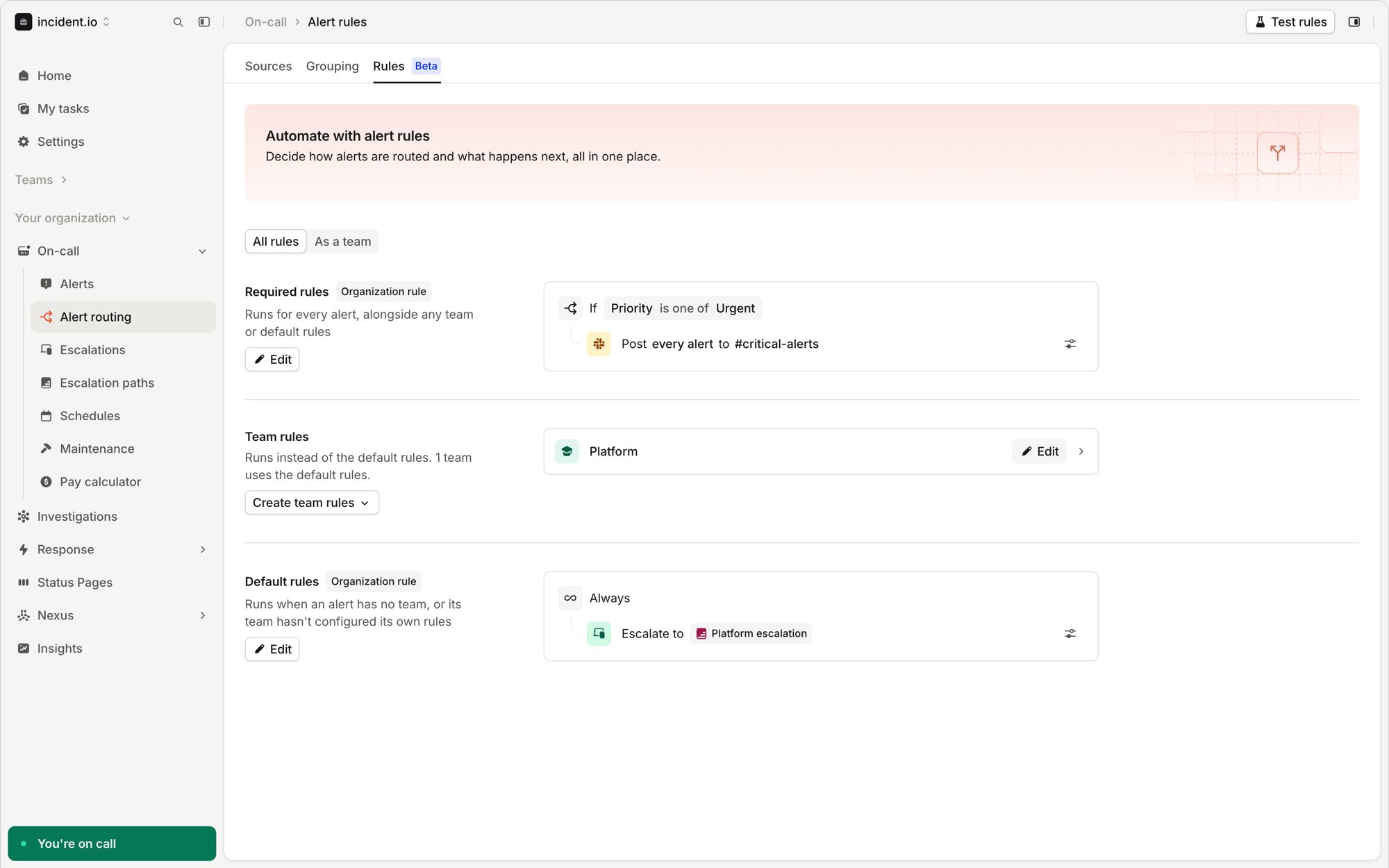
The Rules tab showing required rules that post urgent alerts to a channel, rules for the Platform team, and default
rules that escalate to an escalation path
An alert’s team comes from its team attribute. If the attribute holds more than one team, the alert has no single team, so the default rules run for it. Use required rules for things that must always happen, such as posting every critical alert to a shared channel.

Build rules

Rules are made of blocks. Each block is an If/else: it checks its branches in order and runs the first one whose conditions match. The last branch, Else, runs when nothing above it matched. A block with no conditions is Always, and runs for every alert.
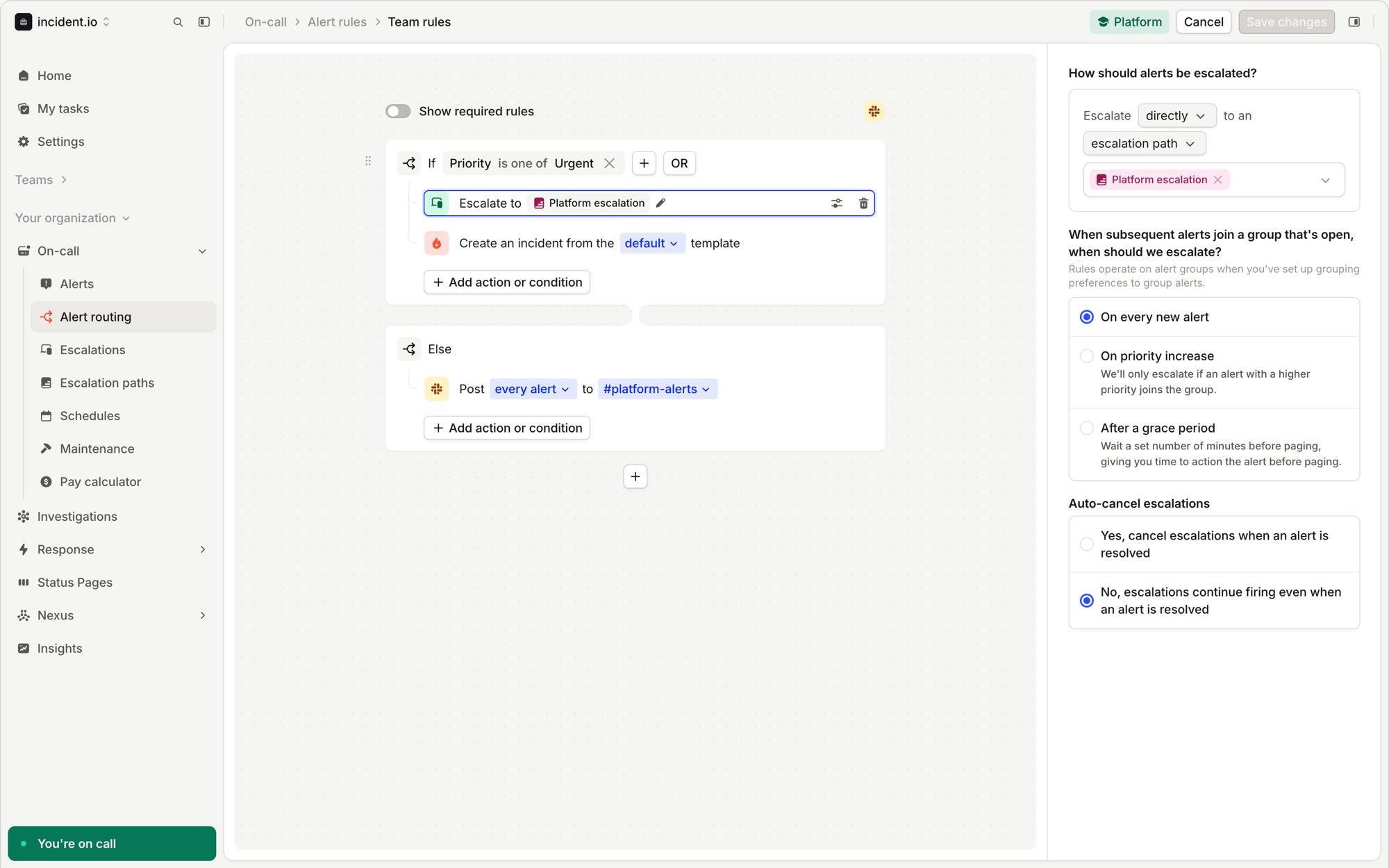
A team's rules in the editor: if the priority is Urgent, escalate and create an incident, otherwise post to a
channel. The escalate action's settings are open on the right
Every block in a set of rules runs, so you can use several blocks to act on the same alert. For example, one block decides who to page, and another decides which channel to post in. Conditions can check any alert attribute, the alert’s title, description, source, and priority, and catalog lookups such as the service’s owning team. Use Filter by alert source to only match alerts from some sources. A branch can hold conditions of its own, one level deep. Use this for an action that only applies some of the time, such as paging the team for every alert and also posting to a channel when the priority is high.
Start from one of the Suggested blocks, such as “Escalate and create incident”, and edit it to fit.

Actions

Select View advanced options on an action for its settings:
  • Escalate: whether grouped alerts escalate On every new alert or On priority increase, an optional grace period, and whether to cancel escalations when the alert resolves.
  • Post: whether to post Every alert or A summary of the group, and which message template to use. To post to a private Slack channel, enter its channel ID.
  • Create incident: whether the incident is private, which teams can access it, and whether to decline it if its alerts resolve before anyone accepts it.
A private alert never posts to a public Slack channel or to Microsoft Teams, and the incidents it creates are always private.

Grouping

Grouping is set separately from your rules. Each team sets its own grouping, and teams without one use the organization’s Default grouping. An alert is only grouped when one of your rules matched it. See grouping alerts for the grouping options.

Test your rules

On All rules, select Test rules, pick some recent alerts, and run the test. You’ll see which branches each alert matched and every action your rules would take, without paging anyone.
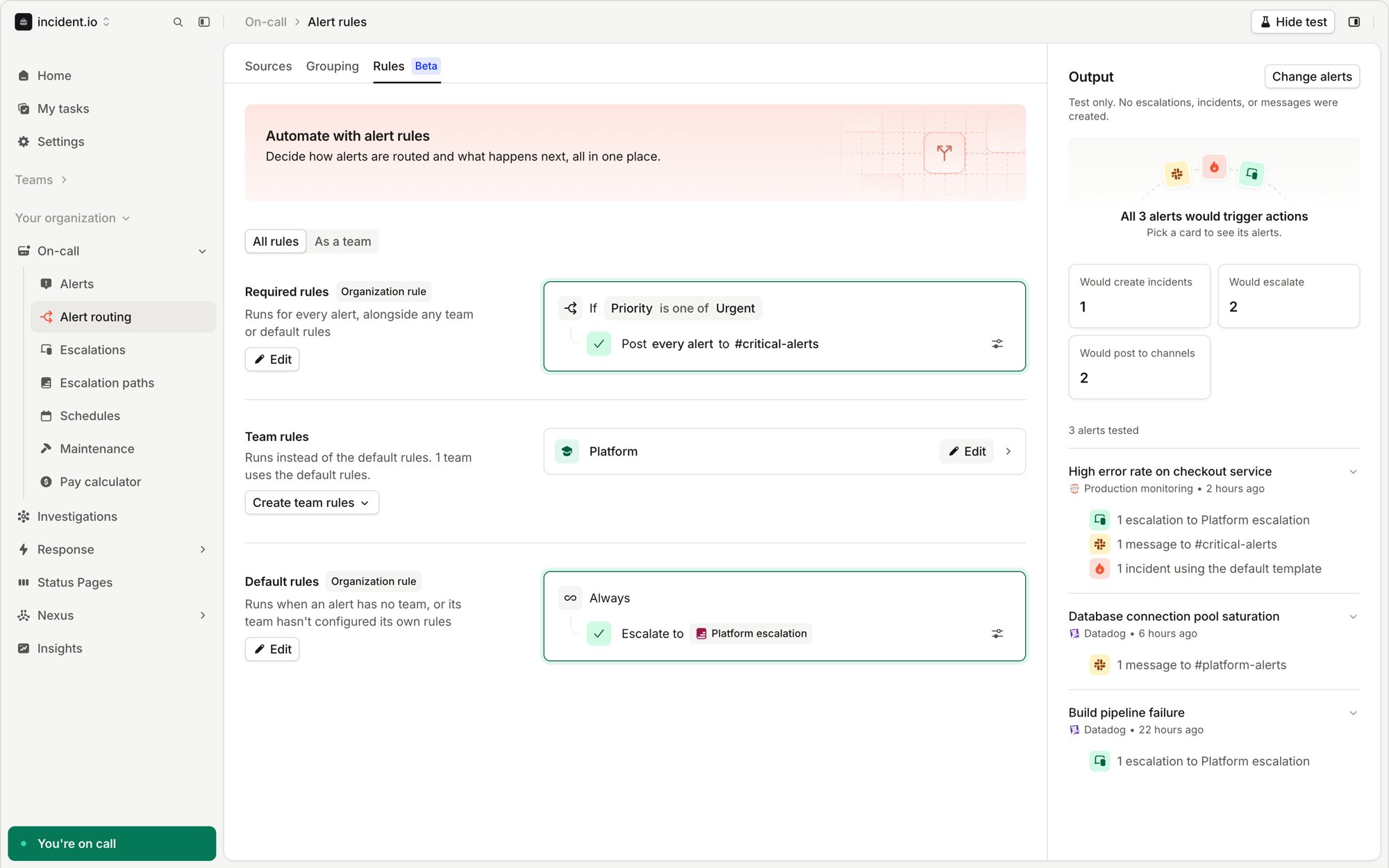
A test of three alerts, showing the rules each alert matched and the escalations, messages and incidents they would
create

Version history

Every save creates a new version. Select Restore previous versions to see earlier versions of a set of rules and restore one.

Coming from alert routes

Each part of an alert route maps to rules like this: For how your organization moves from alert routes to alert rules during early access, see migrating from alert routes.