

- Escalation paths belonging to a team are automatically linked in Catalog, so each team can control what it means to page them
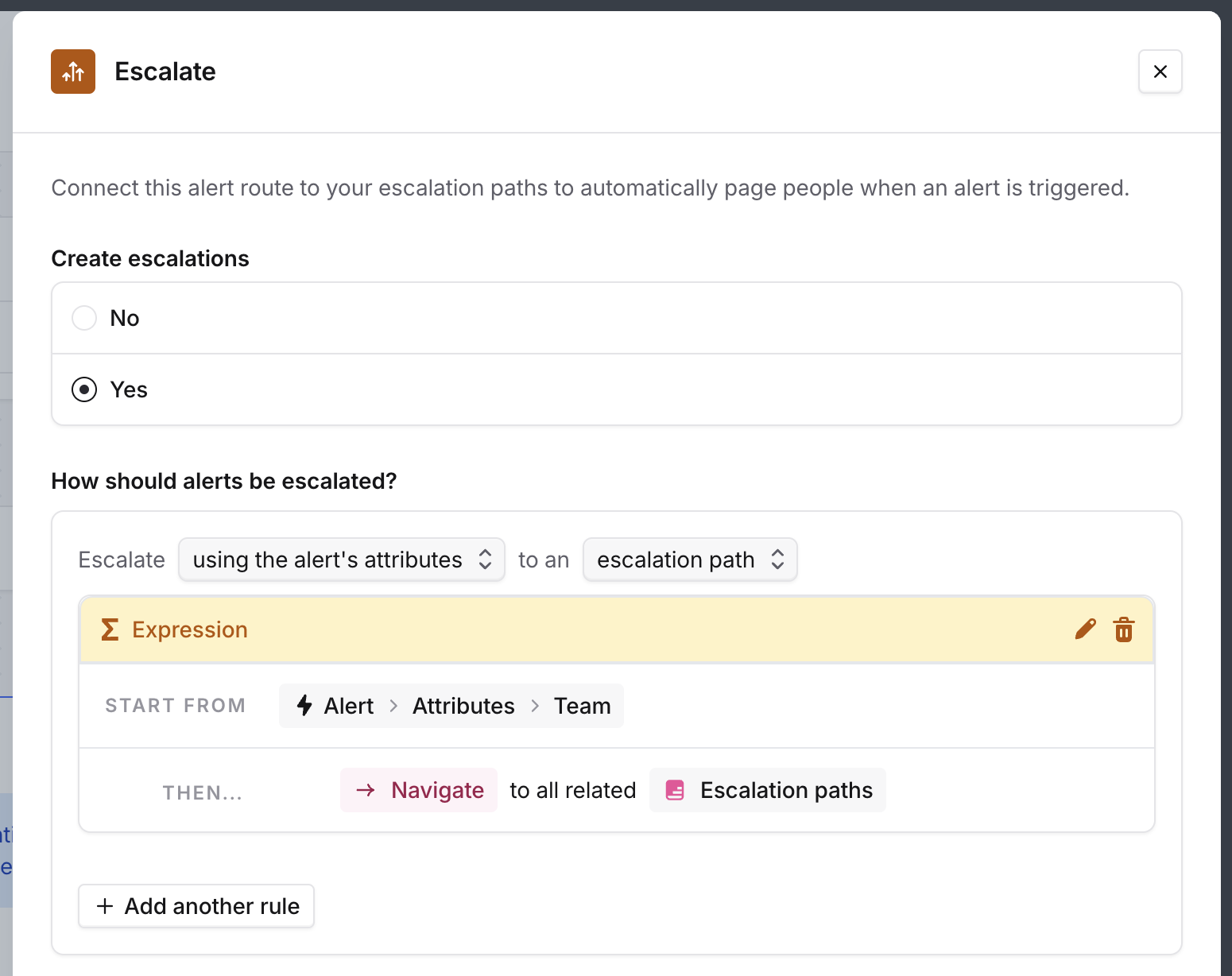
- With alert routes and workflows, you don’t need to set up loads of new configuration for each team; Instead, use attributes on your teams to adjust where alerts and messages go. Learn more about alert routing and workflows.
- When viewing escalation paths and schedules, those owned by your team will always appear at the top of the list — super useful if you’re a manager who’s not on-call but wants to keep an eye on your team’s rota!
- When browsing incidents and alerts, we’ll only show those related to your team
- Resources like schedules, escalation paths, and workflows can be owned by a team, so each team can manage their own config without managing everyone else’s. See Team resources and Team roles.
Creating teams
In Settings → Teams, open the Configuration tab and click 3-step wizard to start the team setup wizard. First, tell us about any existing teams configuration you have, that you’d like us to use. If you’re already managing team memberships in another system, we can sync them across.You can sync teams and their members from:
- An identity provider or HR system like Okta or HiBob using SCIM
- Backstage
- Cortex
- Linear
- Opslevel
- Slack
- Microsoft Teams

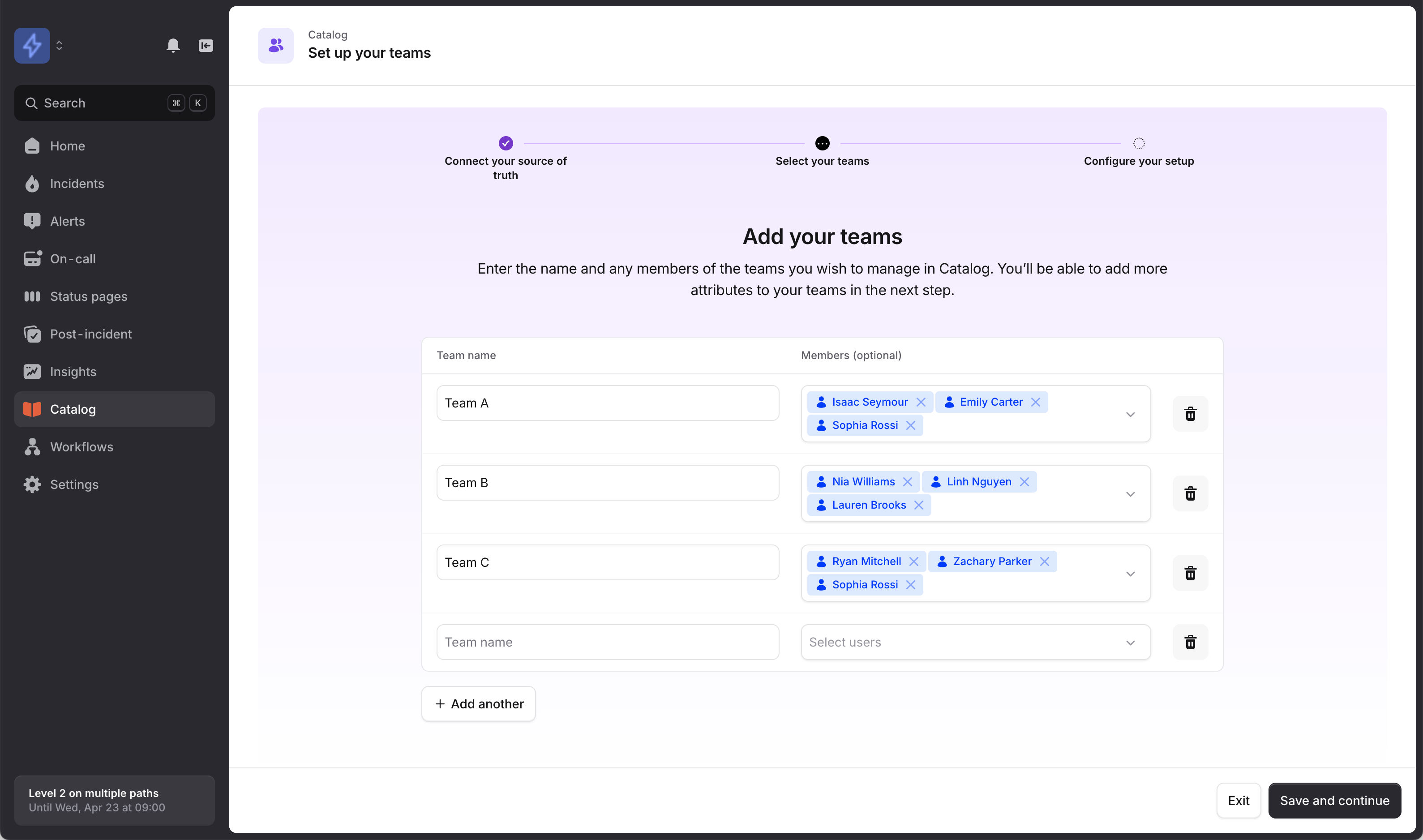
If you want to migrate to using SCIM to manage team memberships later, you can run this wizard again from Settings → Teams → Configuration.
Parent and sub-teams
If your organization has teams within teams — like an Engineering division with Platform, Backend, and Frontend teams — you can set up parent and sub-team relationships. A parent team’s page automatically shows incidents, schedules, and other data from all of its sub-teams. Set this up by configuring a parent attribute in Settings → Teams → Configuration. Read more in Team structure.Managing your teams
There are three different ways you can manage teams:1. Manually in incident.io
If you just have a few teams, this is the quickest way to get started. You can add, remove, and manage members of teams from Settings → Teams, and change which schedules and escalation paths they own: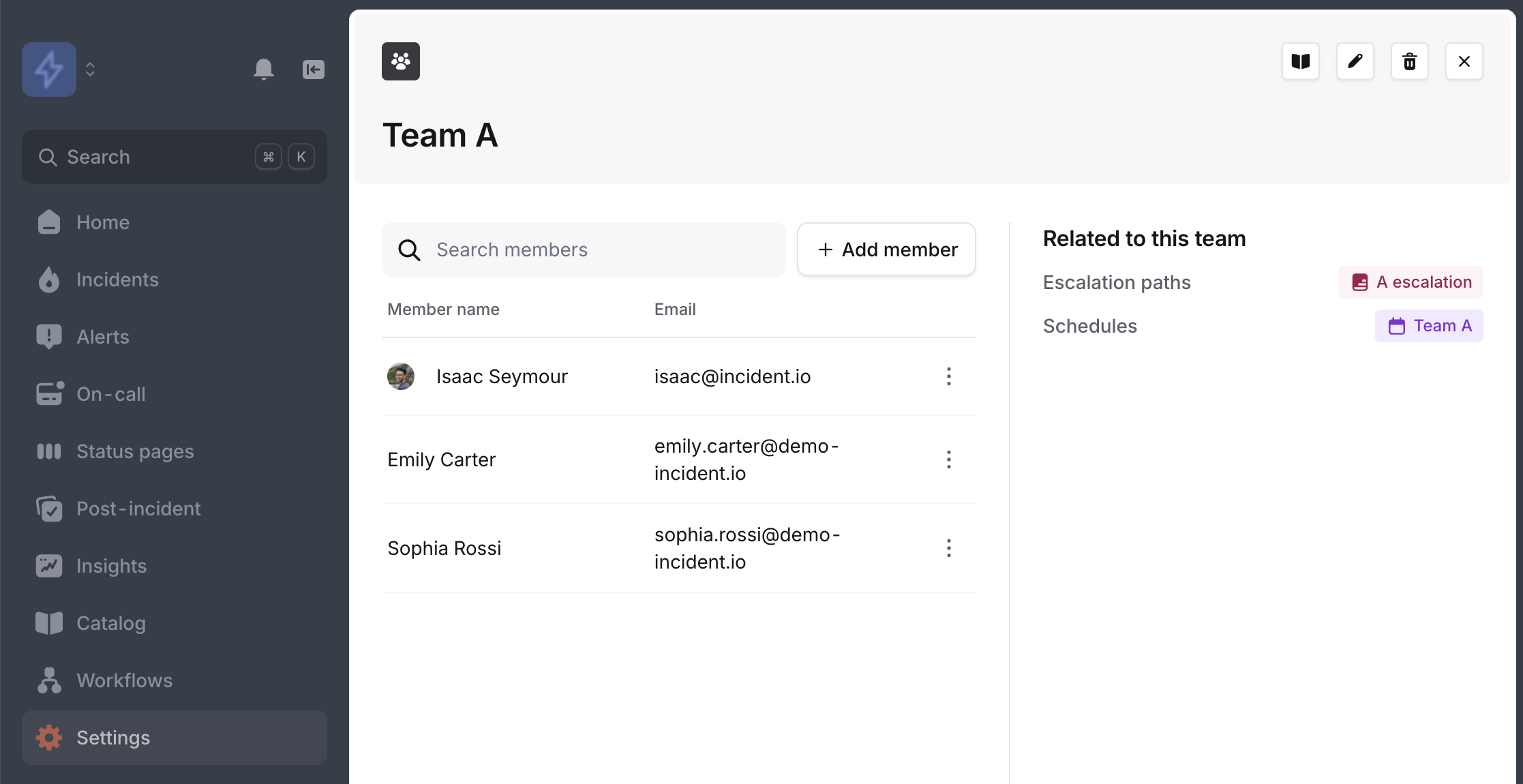
2. With SCIM, or another integration
If you’ve got your team memberships managed in a SCIM-compatible provider like Okta, Google Workspace, or Microsoft Entra ID, we will automatically sync changes to team members. You can create new teams linked to SCIM Groups in Settings → Teams, and change which schedules and escalation paths they own, but you’ll need to add and remove members in your SCIM provider.3. Using catalog-importer or Terraform
If you’re already using catalog-importer or Terraform to manage your Catalog, you can also use this to manage teams and their members! This is really powerful if you have this data in code already, and want to manage relationships between teams, services, and other infrastructure components in code. You can read more about using catalog-importer here. You won’t be able to manage your teams and their members in Settings → Teams, but you can still link them to schedules and escalation paths here.Attributes that power teams
When you set up teams, some attributes on your Team catalog type start powering team features across incident.io: the attribute holding each team’s members, and the one linking teams to their escalation paths. These are usually called Members and Escalation paths. Filtering by team, routing escalations to the right place, and team-based permissions all depend on them. To protect your team configuration, we lock the schema of these attributes while they’re in use. You can’t delete them or change their type, whether you’re working in the dashboard, the API, catalog-importer, or Terraform. Attempting it returns an error likeCannot update attribute "Members" as it's used to power teams. Renaming them is fine.
If you’ve hit this error, you have three options:
- Keep the attribute powering teams: update your catalog-importer or Terraform config so it no longer manages that attribute’s schema. You can carry on managing the rest of your Team type in code.
- Change which attributes power teams: choose different attributes in Settings → Teams → Configuration. Once an attribute is no longer powering teams, you can change it freely.
- Undo a setup you didn’t intend: if teams got turned on while you were testing, review what’s configured in Settings → Teams → Configuration, or contact support and we’ll help you unwind it.
Filtering by team
Once you’ve set up teams, you can use team filters to focus incident and alert lists on the teams you care about. For example, filtering by the “Payments” team shows incidents and alerts associated with Payments.Incidents and alerts
Incident filters use the “Affected teams” custom field, and alert filters use the “Team” attribute. You can change which custom field and alert attribute we use, or disable this entirely, in Settings → Teams → Configuration.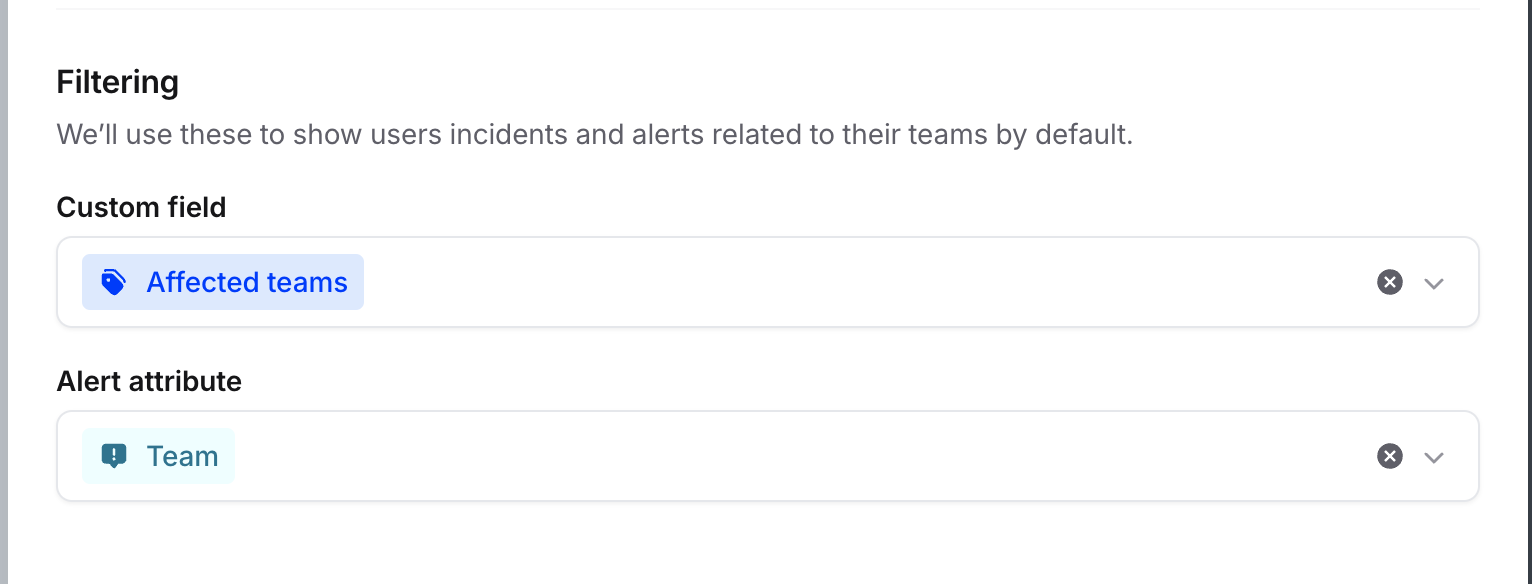
Escalation paths and schedules
If you’re using incident.io On-call, you can link your teams to escalation paths and schedules when setting them up. You can change this later when editing the schedule or escalation path, or when editing the team.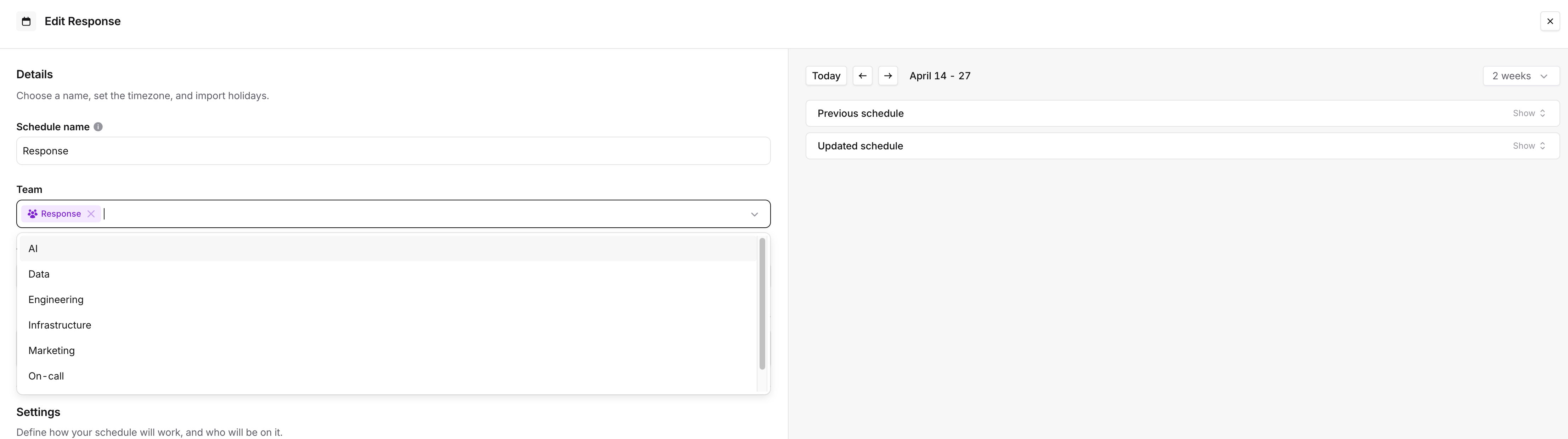
If you’re managing schedules or escalation paths with Terraform, you’ll need to also set the
team_ids attribute, and you won’t be able to manage this in the incident.io dashboard.Routing alerts and escalations to teams
To make alert routing to escalation paths easier, when you attach an escalation path to a Team, we’ll automatically link that back in Catalog: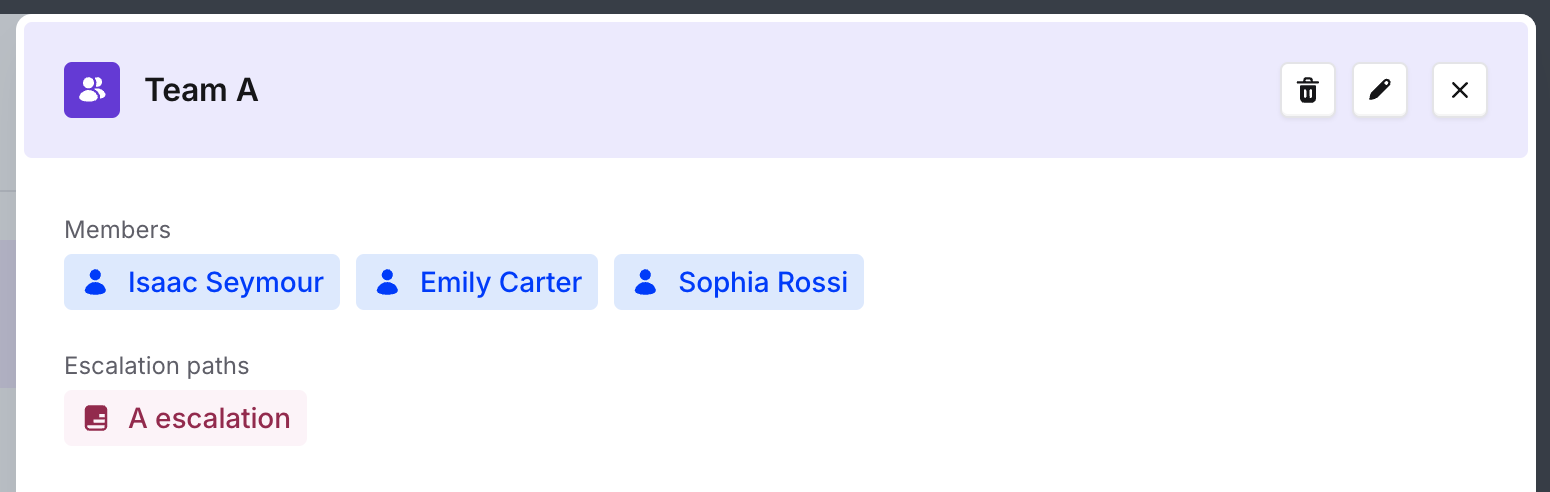
Tracking your team’s work
Each team has its own page in incident.io. The Overview tab pulls together what the team needs to act on, with two summary panels:- Follow-ups: open follow-ups from the team’s incidents, grouped by incident, including how many are in violation of a follow-up policy.
- Open tasks: outstanding post-incident tasks and policy findings for the team, with a breakdown by team and policy.