

Getting started
Step 1: Connecting SCIM
Firstly, you’ll want to head over to Settings > Integrations, and then select your SCIM provider. Some examples of providers we support are:- Microsoft Entra ID (formerly Azure AD)
- CyberArk
- JumpCloud
- Okta
- OneLogin
- PingFederate
- Rippling
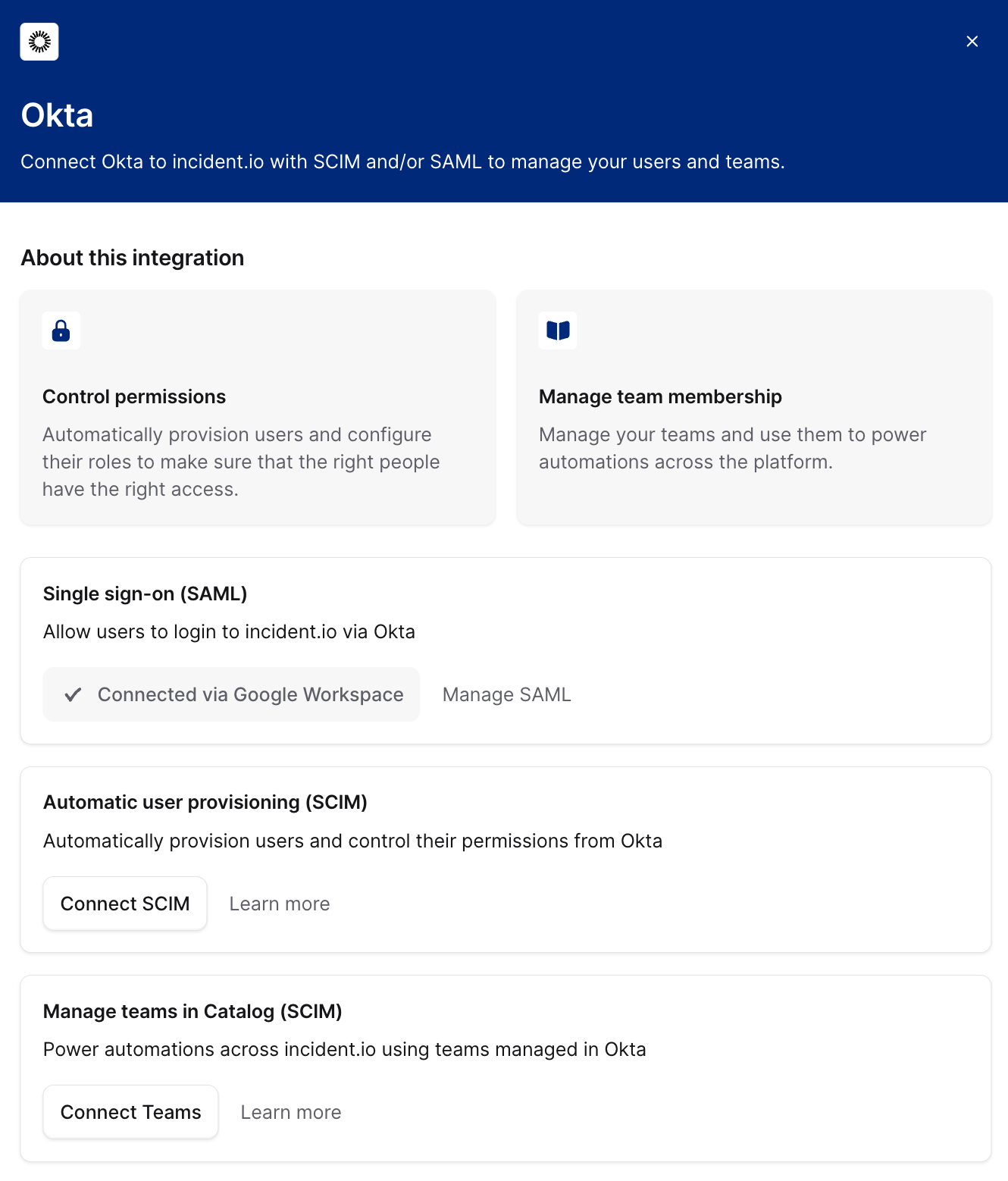
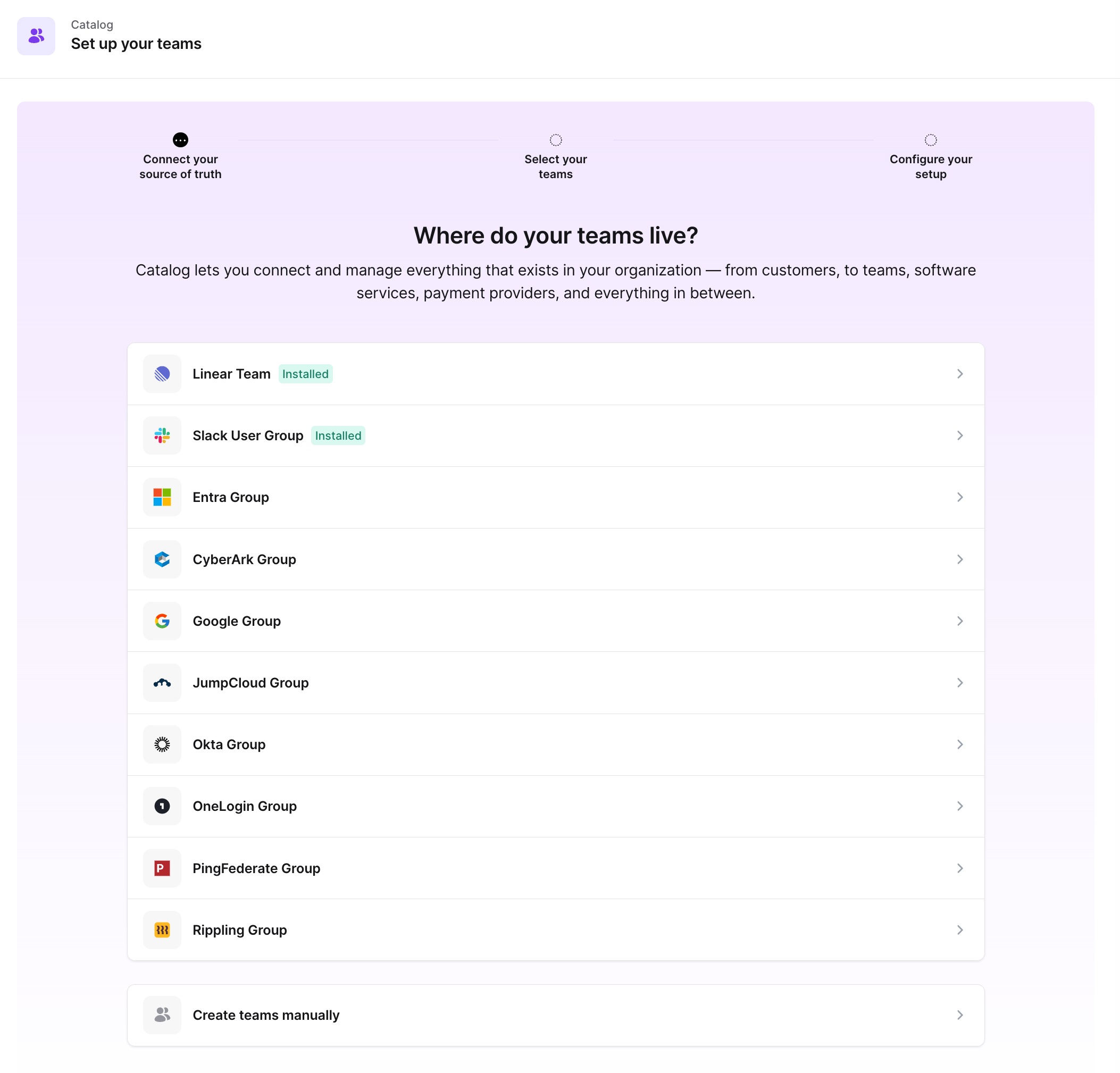
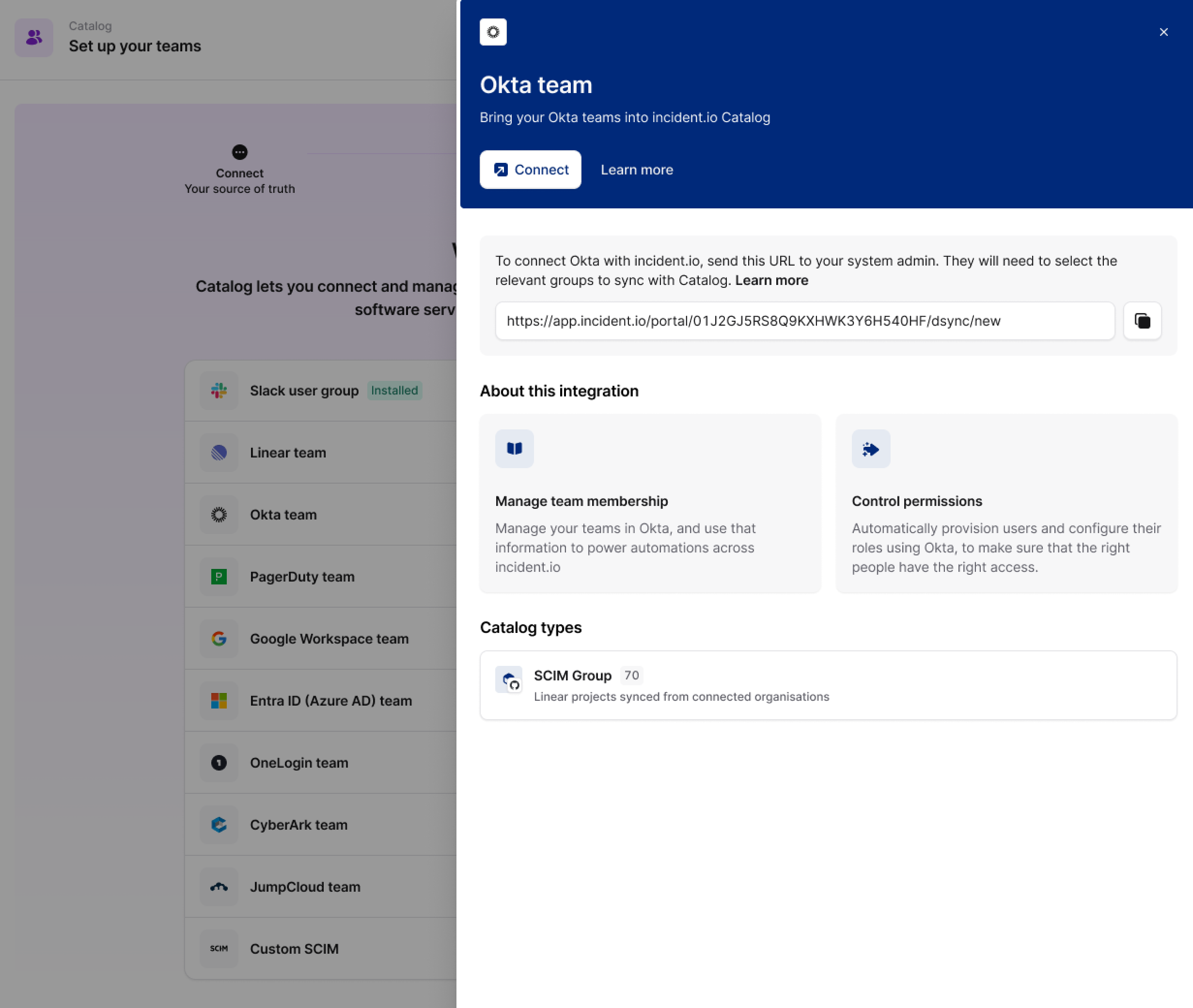
- If you haven’t installed this provider before, a drawer then opens asking you to “Connect” your Okta provider. After pressing “Connect” you’ll be guided through a setup process for connecting SCIM. Note: You can follow the instructions in this guide on how to connect your SCIM provider correctly.
- If you’ve already installed, this you’ll proceed straight to Step 2 (below).
Step 2: Selecting your teams
Once you have a SCIM provider connected (or if you’ve already configured it), you’ll then be presented with the option to choose from the relevant groups that have been pushed to incident.io from your SCIM provider. If you do not see the groups you’d expect, please read the FAQ.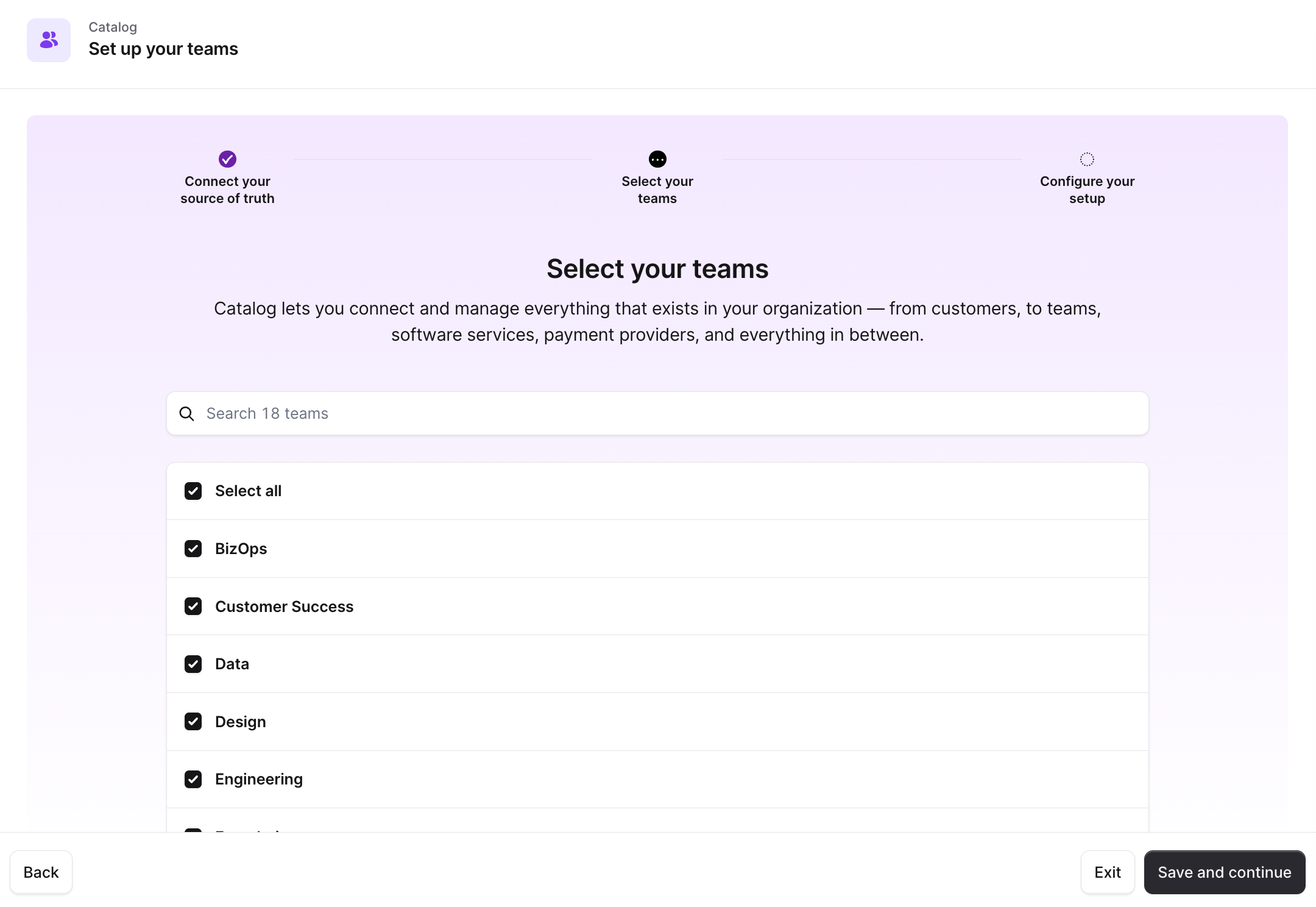
Step 3: Adding attributes
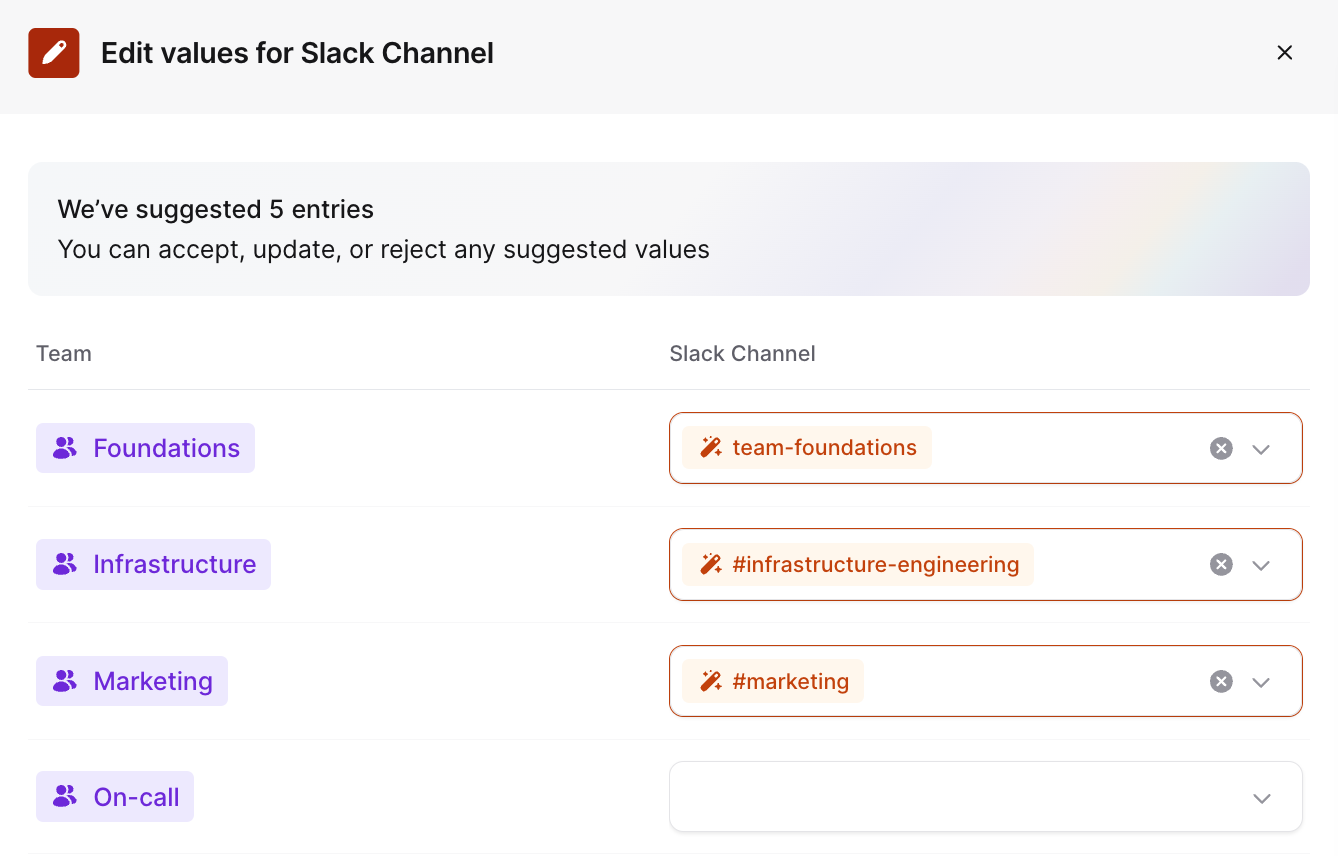
Now it’s time to associate information from other integrations with our new Team catalog type.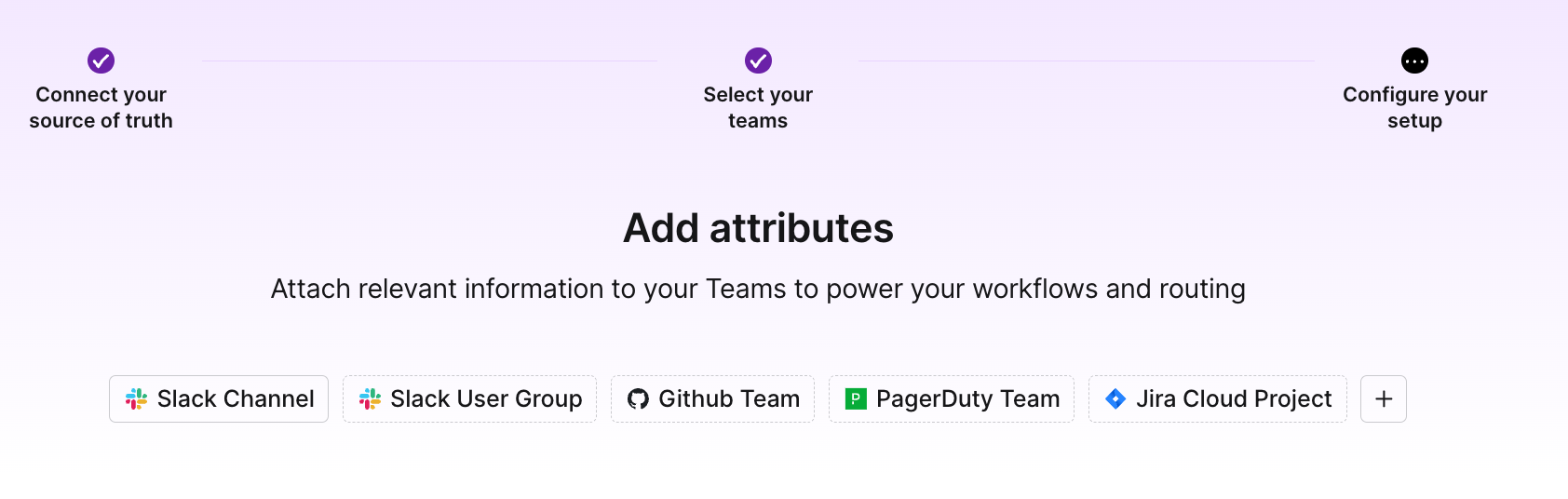
FAQs
Why aren't my SCIM groups showing up?
Why aren't my SCIM groups showing up?
SCIM is a push-based protocol and incident.io will only ever be able to sync the groups that you choose to push. Creating new groups in your SCIM provider will typically require an additional step to push them to incident.io.
- For Okta, you can follow this article.
- For Google Groups, you can follow this article.
- For others, please check the help center for your given provider.