

Looking to see holidays from Google Calendar in your on-call schedules? You can set that up using calendar feed subscriptions
Installation
1. Installing the integration
Go to Settings → Integrations, find Google Calendar and click Install. Click Install and you’ll be redirected to the installation flow within Google Workspace. Review the permissions we’re requesting and click Next.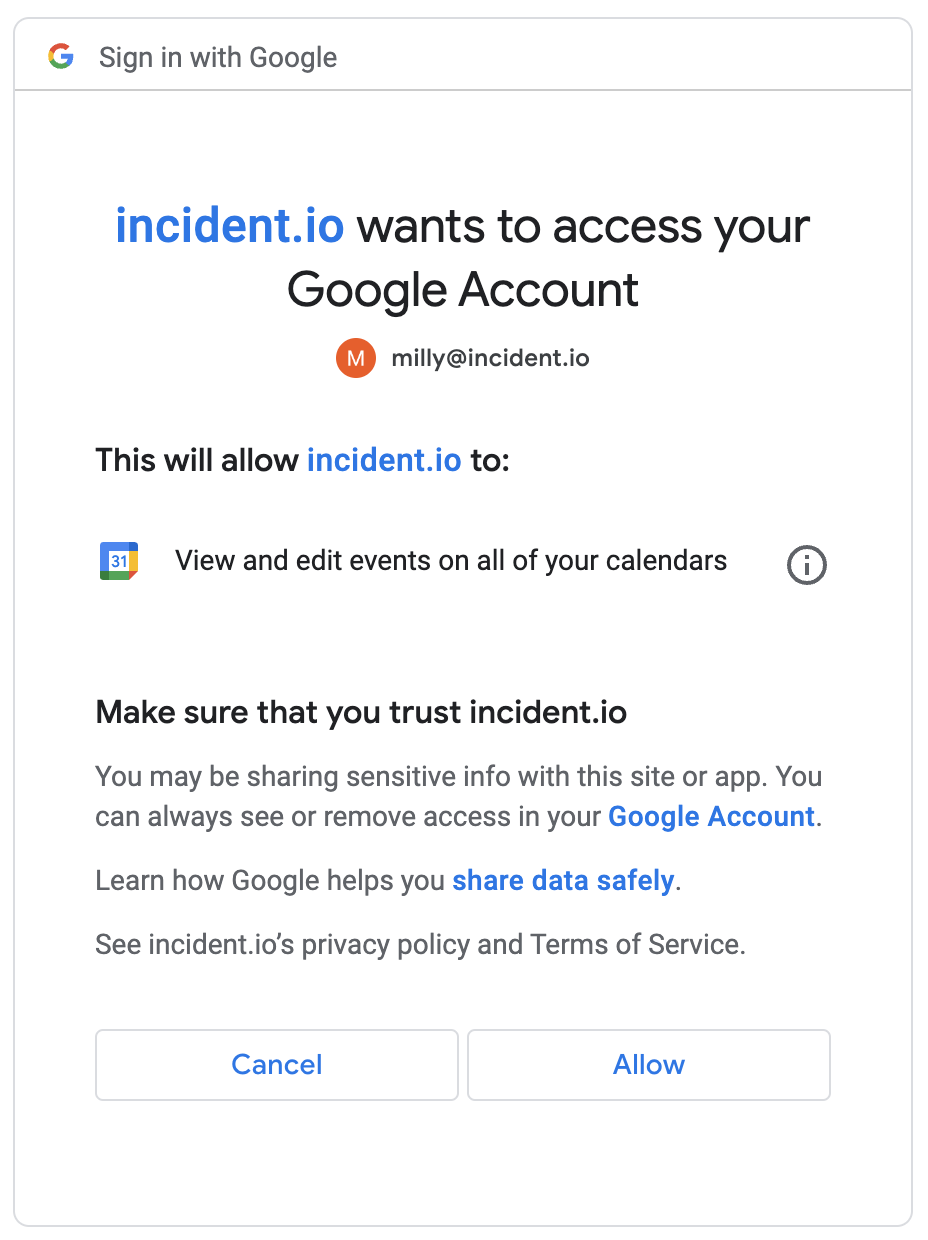
2. Adding a subscribed calendar (optional)
Our integration works by listening for events that invite the connected user OR are created within a specific Google calendar, and attaching them if they’re related to an incident. Therefore, you can declare which calendars you’d like us to additionally look for events in (even if they don’t invite the connected user), for example:Engineering Shared Calendar.
Important : you will need to make sure that the account used to set up your integration in Step 1 also has access to this shared calendar. See Share your calendar with someone for more details about sharing permissions.
- Head to Google Calendar
- Under My calendars or Other calendars in the left sidebar, find your chosen calendar, click the three dots and select Settings and Sharing.
- Copy the Calendar ID from the Integrate Calendar section.
- Paste it into the “Add calendar” section of the Google Calendar configuration page.
What happens next?
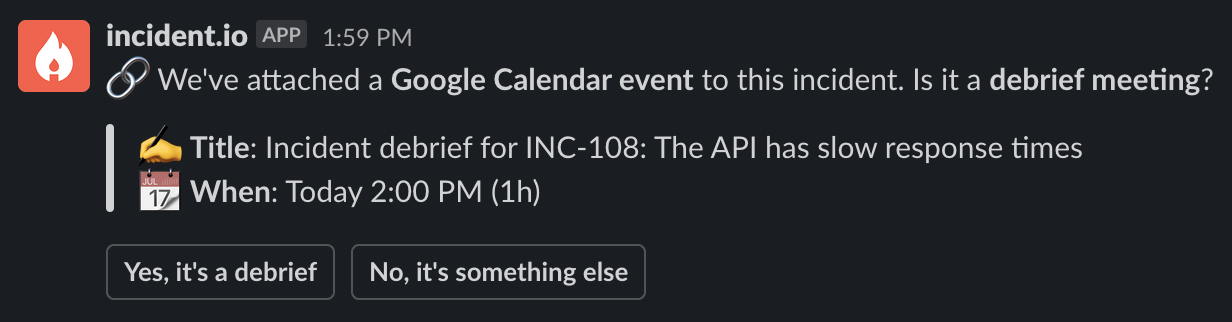
Now that you’re all set up, you just need to create an event in Google Calendar which:- Has the incident identifier (e.g. INC-123) in the title or description
- Invites the connected user or is created within one of your subscribed calendars
Can I undo this?
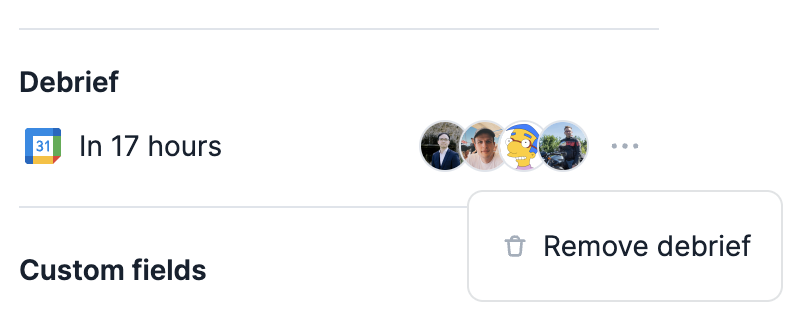
If we automatically attach an event which should not be linked to your incident, you can unlink it by heading to the attachments tab on the incident homepage, and clicking the unlink button:
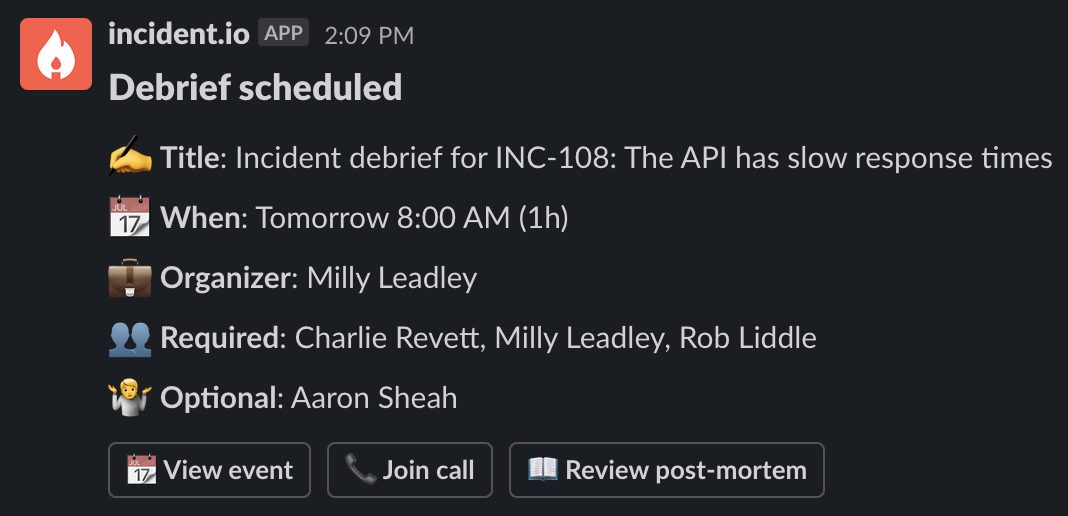
Debrief scheduled message from Slack or from the sidebar on the incident homepage:
One last thing
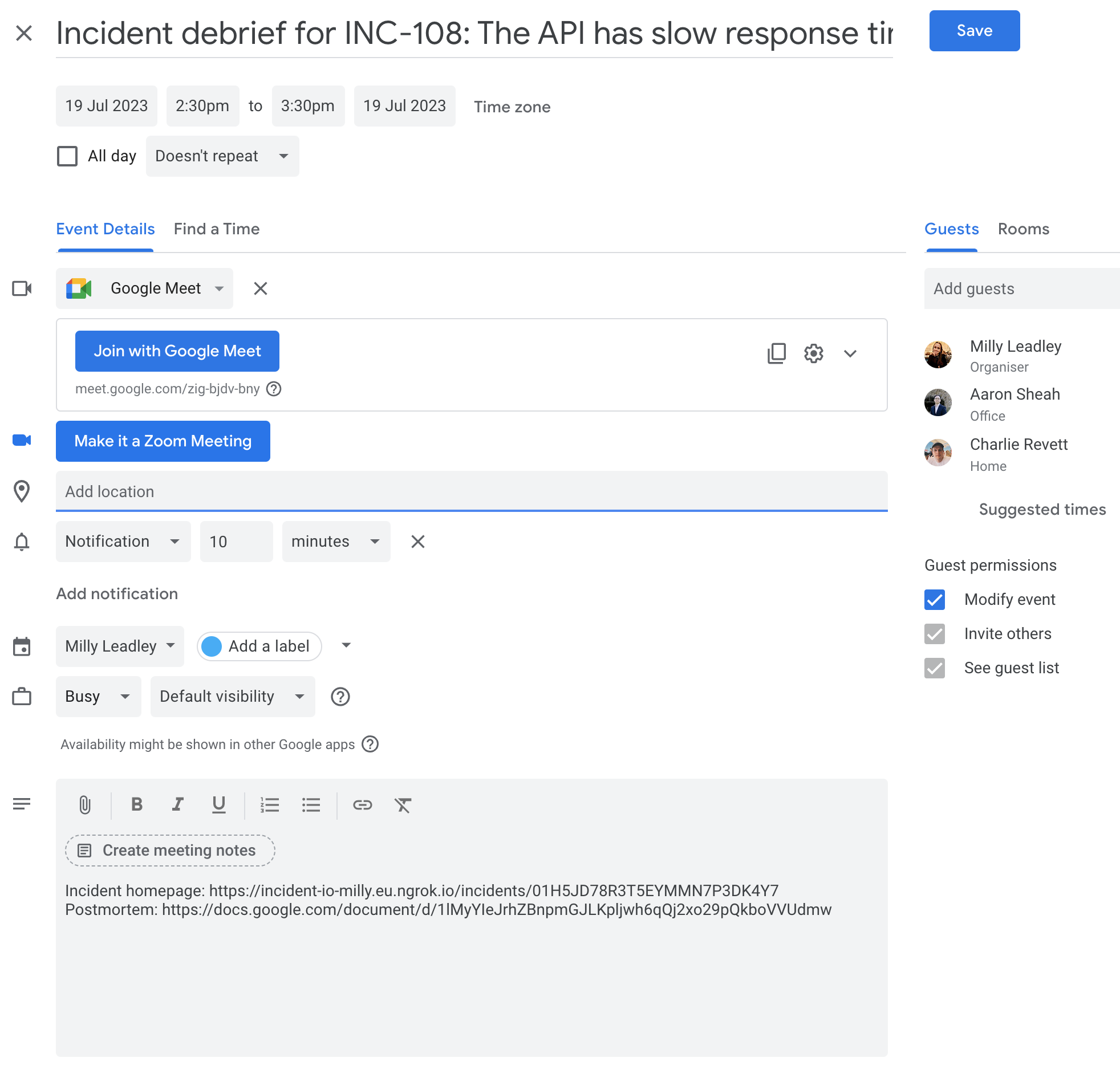
Did you know that we can help with creating your debrief meeting? We can build a Google Calendar event which has been pre-filled with the incident participants and other useful information - you just need to fill in the rest. Once your incident has been resolved, you’ll notice a new option toSchedule a debrief from the sidebar:
FAQs
Why do I need to enter a calendar ID to link my Google Calendar events?
Why do I need to enter a calendar ID to link my Google Calendar events?
Our Google Calendar integration listens for relevant meetings created within Google calendars we’re subscribed to. Simply referencing an incident ID (e.g.
INC-108) in a meeting title or description attaches the meeting to that incident.To set this up, we need the ID of the Google calendar so we can create the subscription and listen for new events. We deliberately took this path to protect your privacy and limit the permissions we request from your Google account: the only permission we need is https://www.googleapis.com/auth/calendar.events, which lets us read event details in a specific calendar and create new events (e.g. generating a Google Meet call when an incident is created).This keeps it in your control which calendars we look at for incident-related events, rather than us checking every calendar the connected user is subscribed to.