Cover me
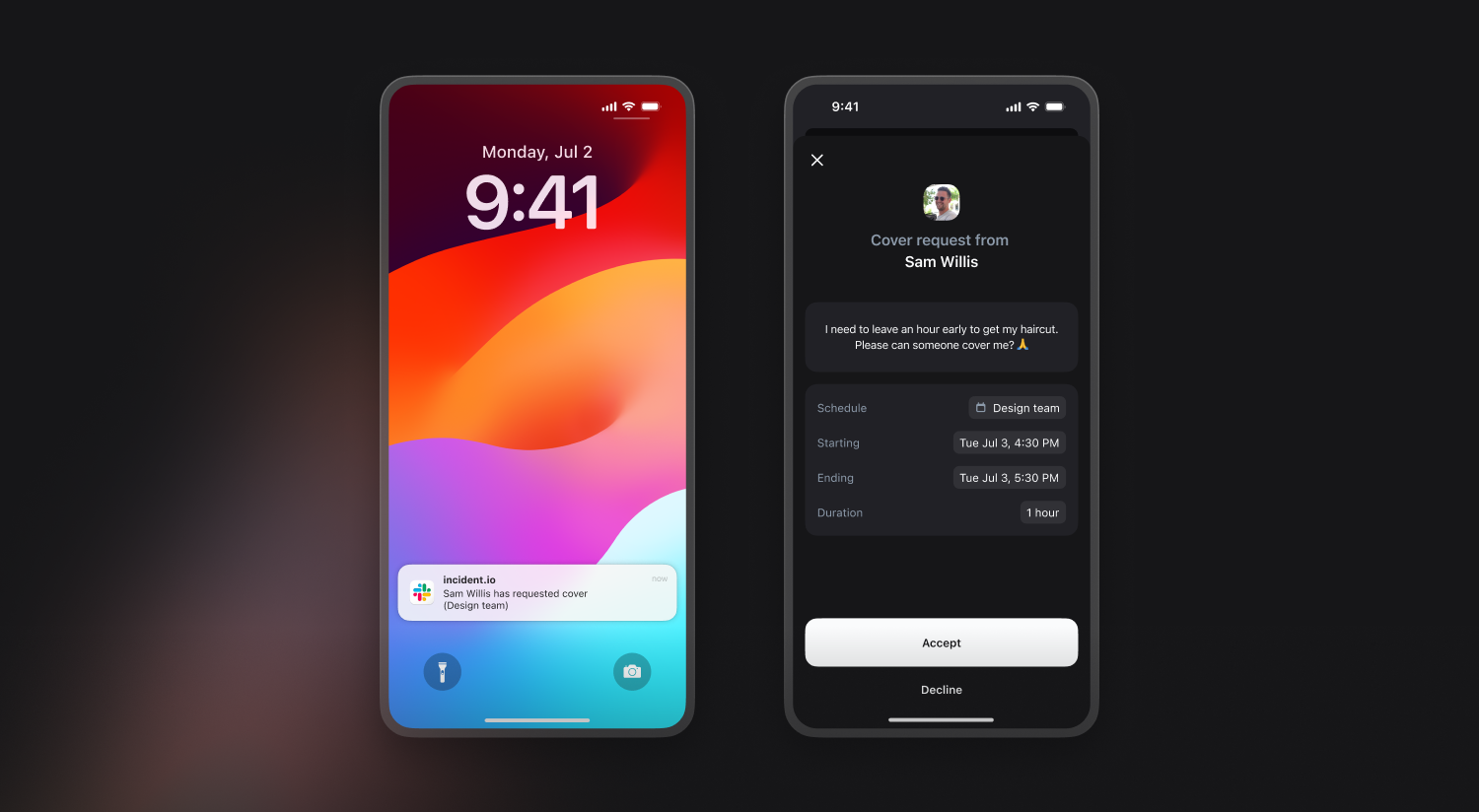
Ask for cover for a shift and we’ll send notifications to the people in your schedule to ask, and if they say yes - we’ll let you know it was accepted! If accepted, an override is created automatically. When requesting cover, the cover request will be sent to all people in the schedule. When someone has accepted the request, we will remove the possibility from others accept it and you will get a confirmation who has taken the shift. You can request for cover for partial hours too.Slack
- Type
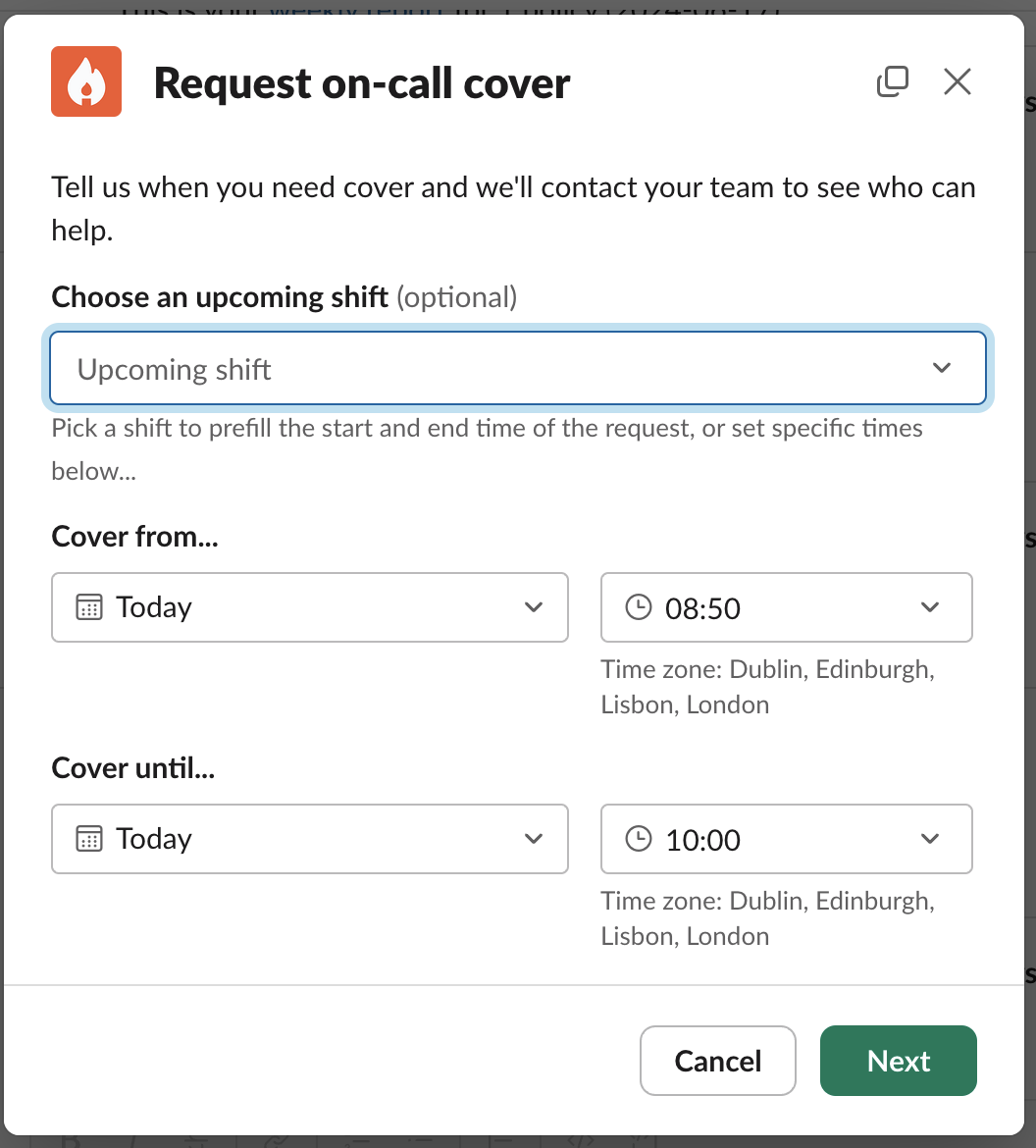
/inc cover meto any channel the incident.io slackbot is in.
- This will then open up a screen to add details of the shift you want covering for
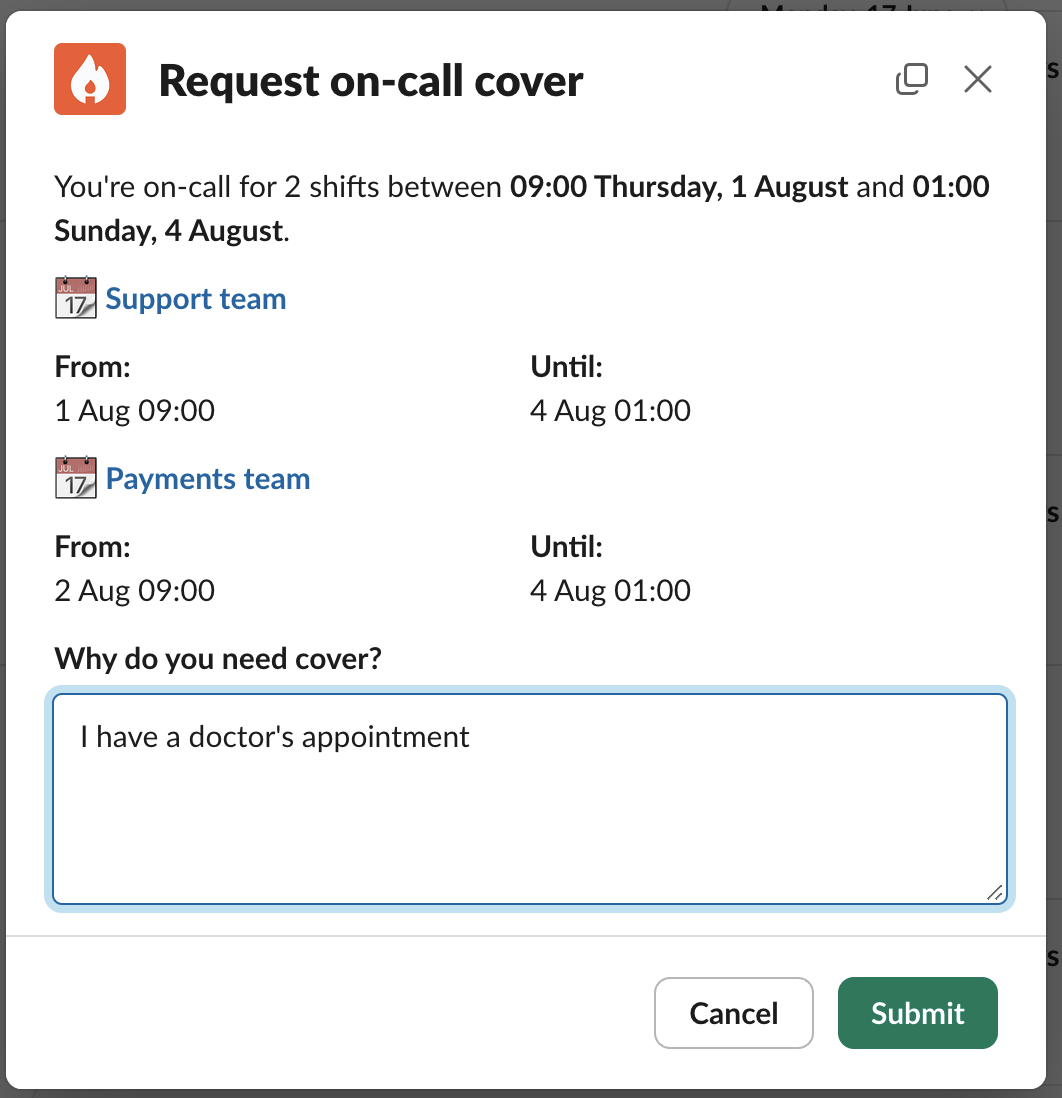
- Add more details why you need cover
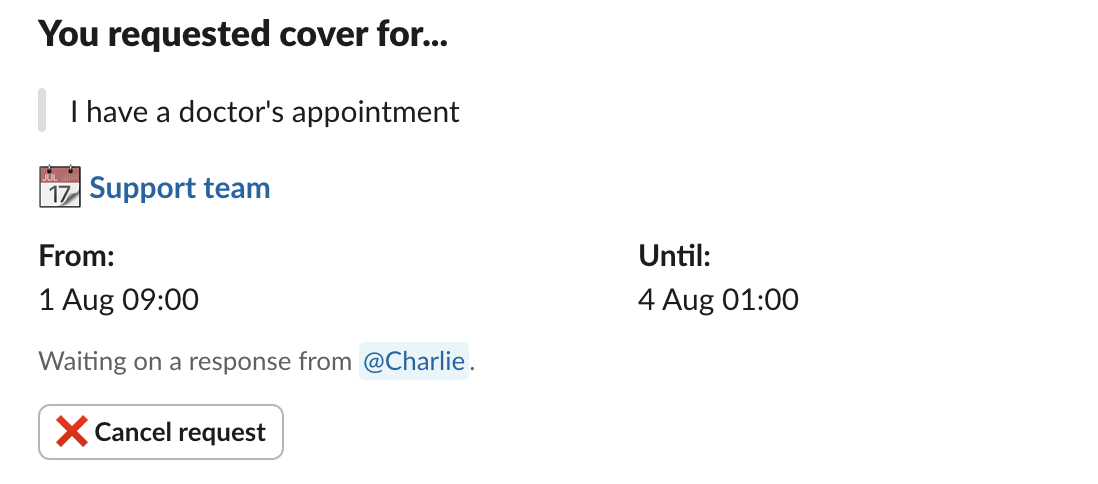
- Receive a confirmation of the request
Mobile
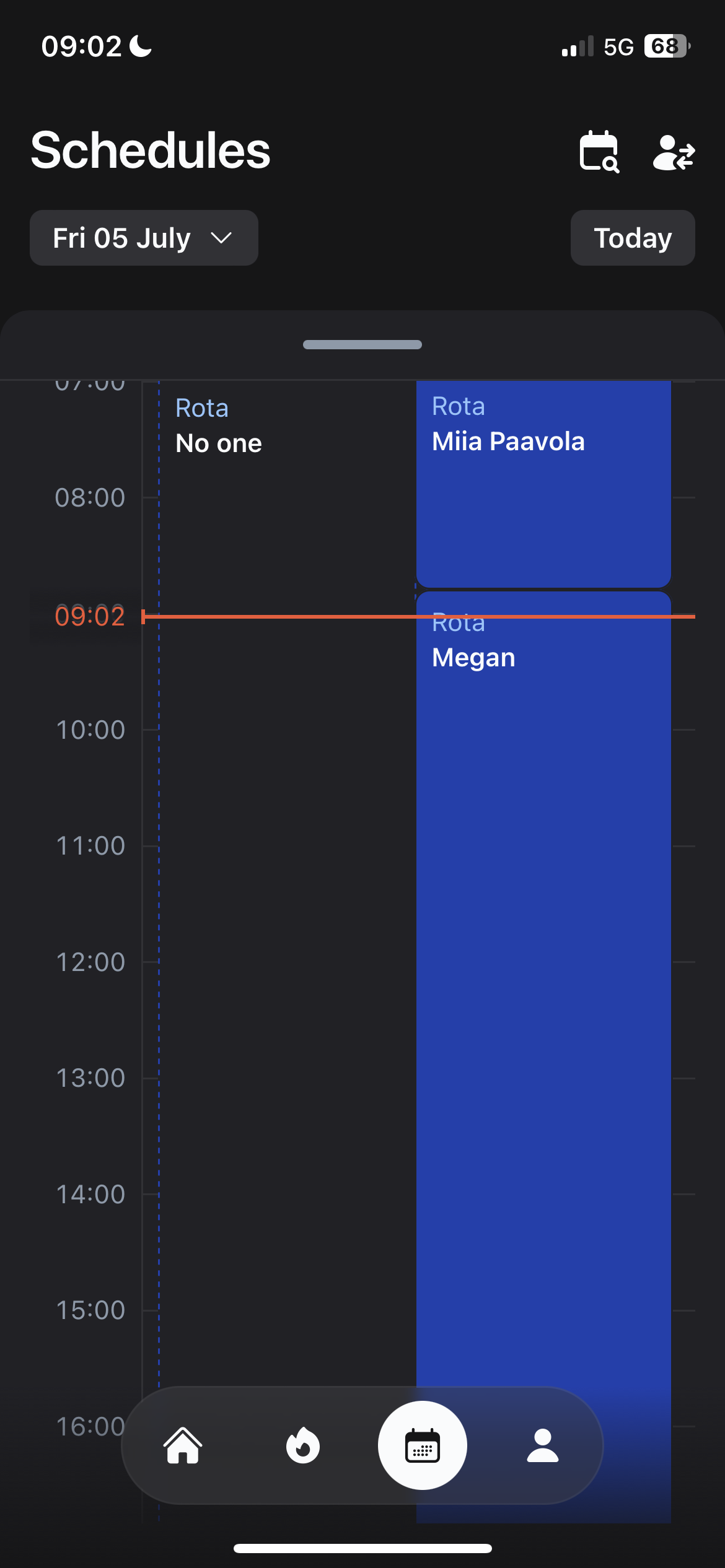
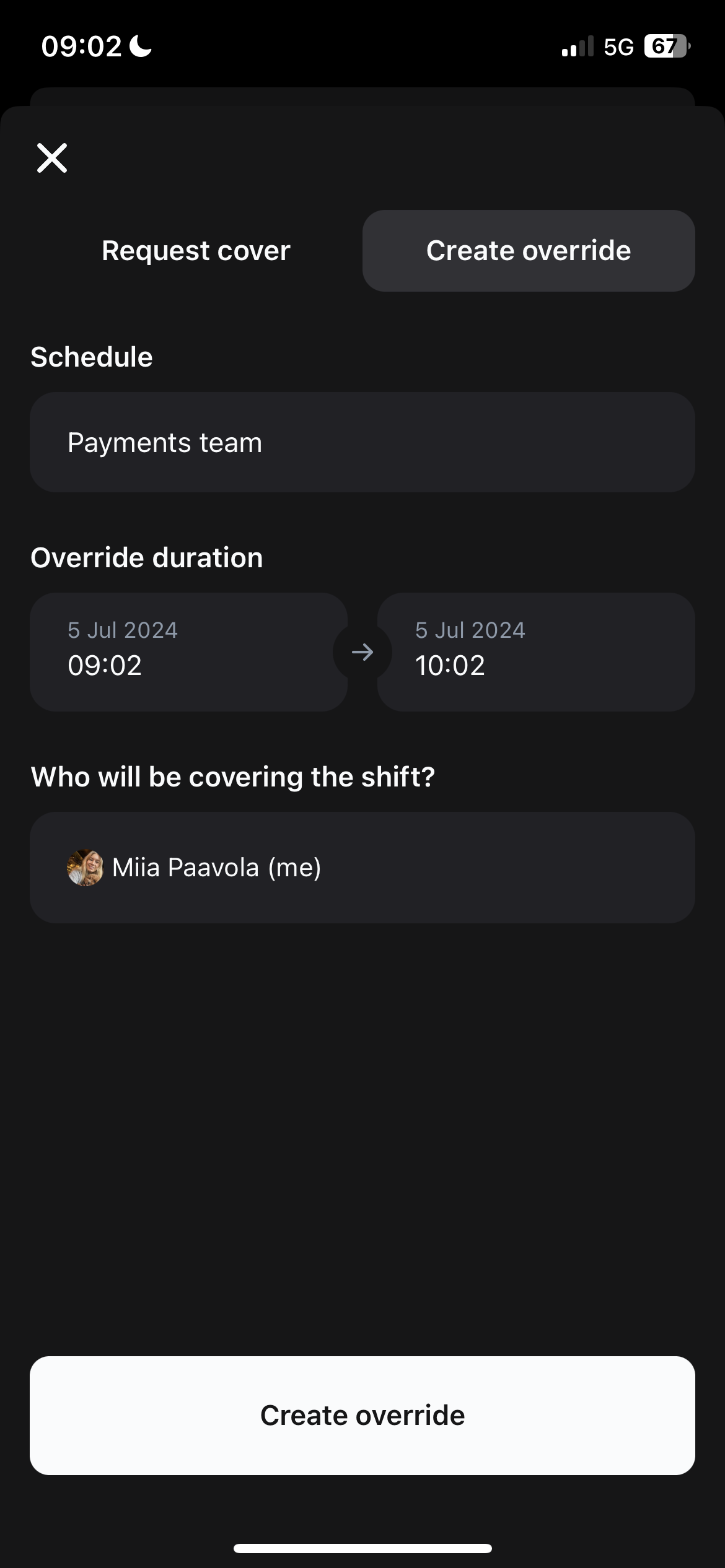
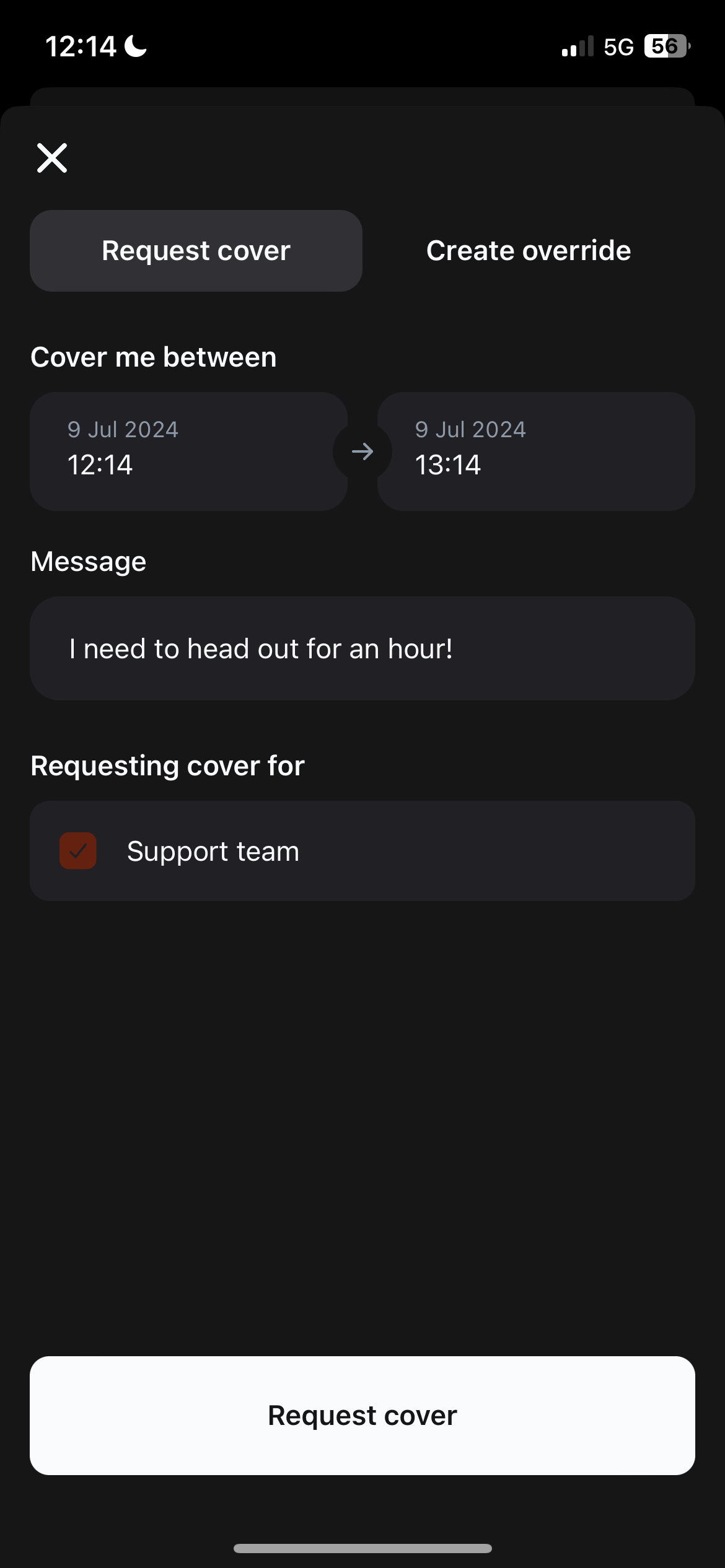
To request cover in mobile, head to Schedule view. You can either:- Click the top right icon and choose the ‘Request cover’ -tab.
- Click a shift, and drag the section you want to request cover for.
Dashboard
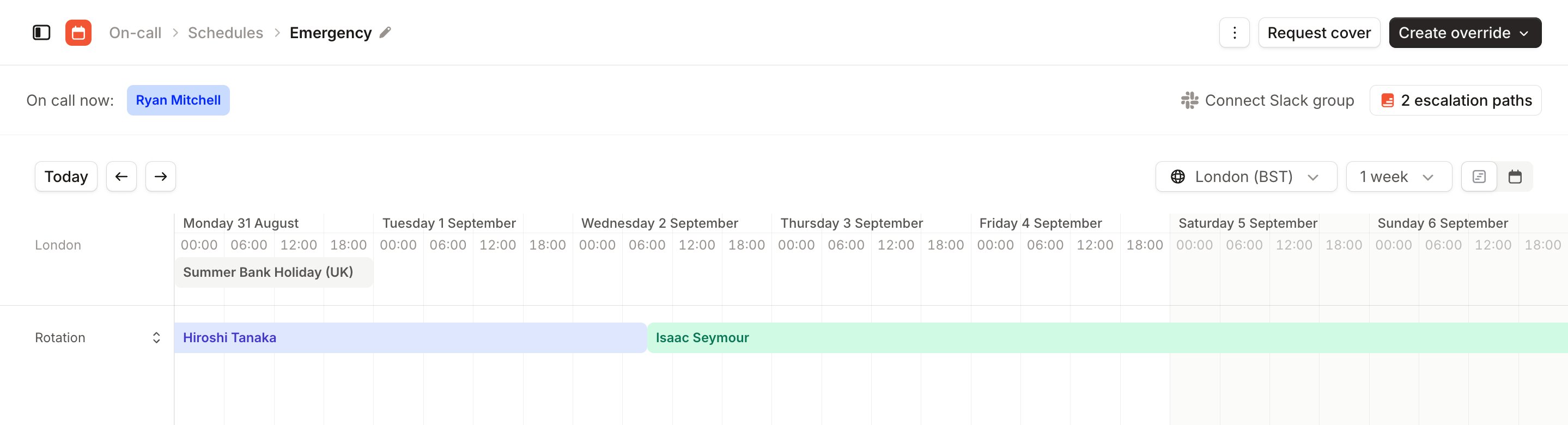
- You can view, create and respond to cover requests in the dashboard
- You can ‘offer to cover’ for some or all of the requested time, with a message attached
- You can send a reminder from an open cover request, which will send a push notification to those who haven’t responded yet
- You can add more people to a cover request after creating it, if you forgot someone who might be available
Overrides
If someone can’t make a shift because they are on holiday or have an appointment, anyone can create an override by choosing when and who they want to override the shift with. This can be done via mobile, the dashboard, or the API. When you create an override or a cover request, we’ll flag anyone who has paused their notifications during the shift, since they won’t be paged if they take it.Dashboard
- To create an override, you can:
- Click Create override from the top right of a schedule
- Click on the shift you want to override
- Like on mobile, drag and drop the section of a schedule you want to override
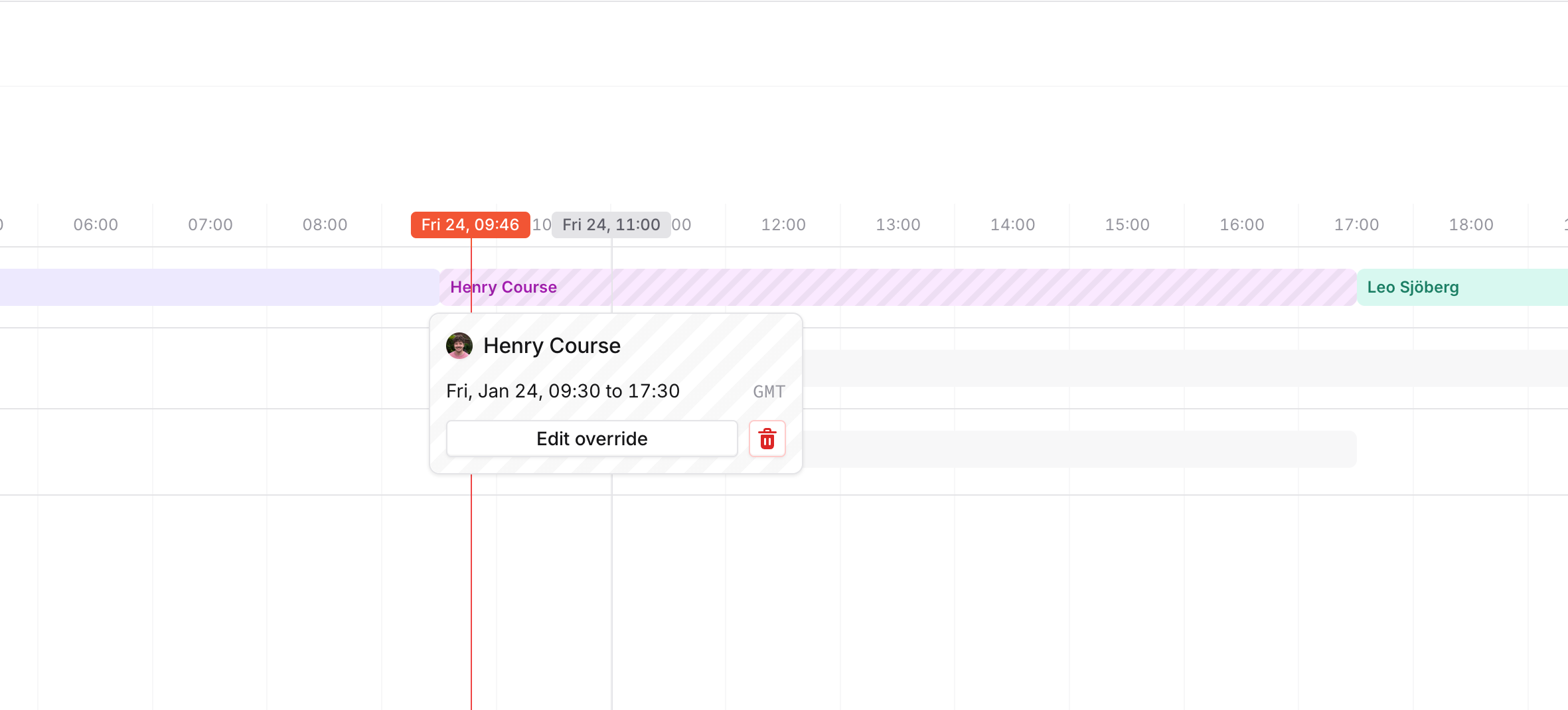
- To edit an override, click on the overridden shift you want to edit
- To delete an override, you can do it from the edit screen, or by selecting “Delete” on the tooltip
Mobile
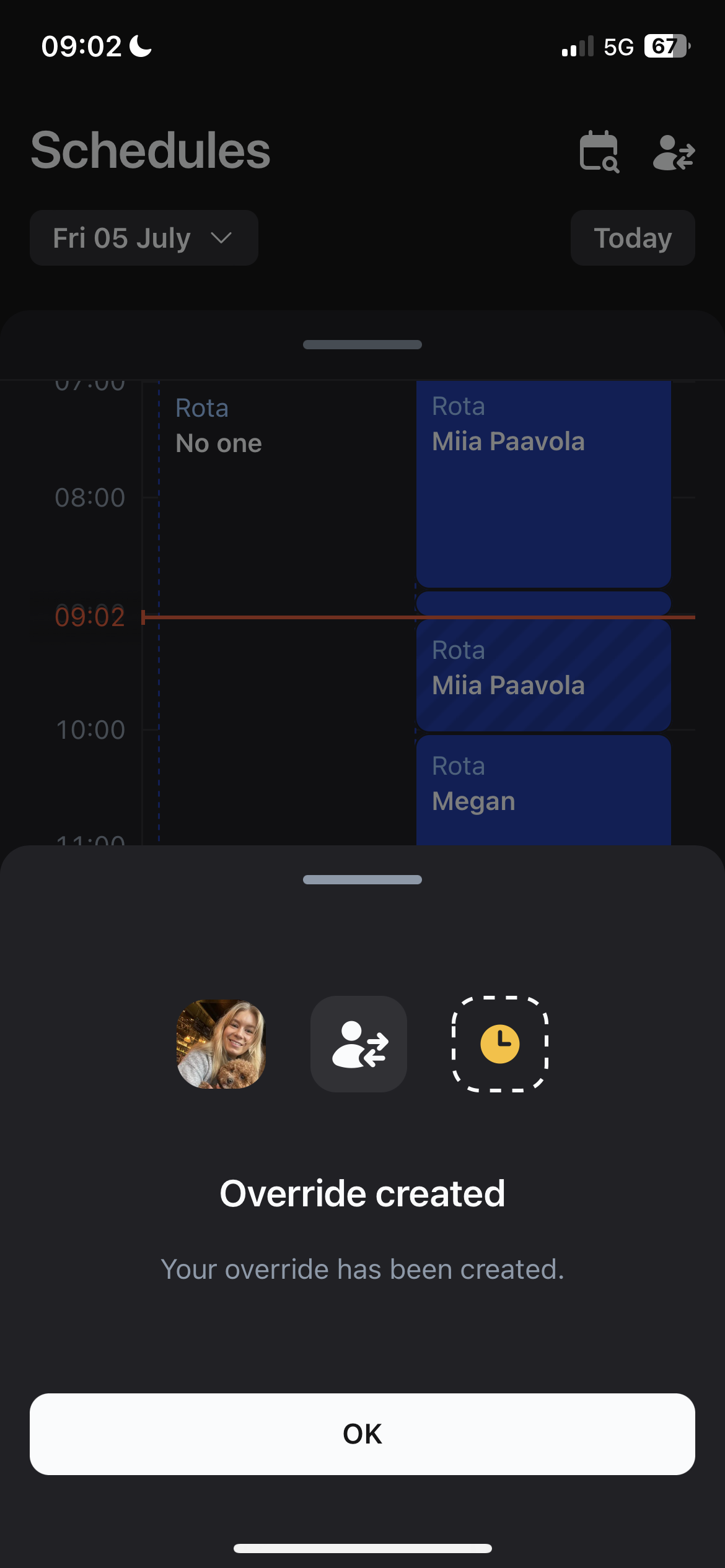
To create an override in mobile, head to Schedule view. You can either:- Click the top right icon and select the ‘Create override’ -tab.
- Drag and drop the portion of a shift you want to create an override for