

When to use this feature
Some situations where you may want to temporarily remove Scribe from your calls include:- Discussing sensitive customer data or PII
- Whenever you need to have “off the record” conversations during an incident
How to add or remove Scribe during a call
You can now easily add or remove Scribe transcription at any point during an incident call using the web dashboard, Slack, or Microsoft Teams.Scribe currently supports Zoom, Google Meet & Microsoft Teams integrations.
Managing Scribe for Zoom and Google Meet calls
Web dashboard
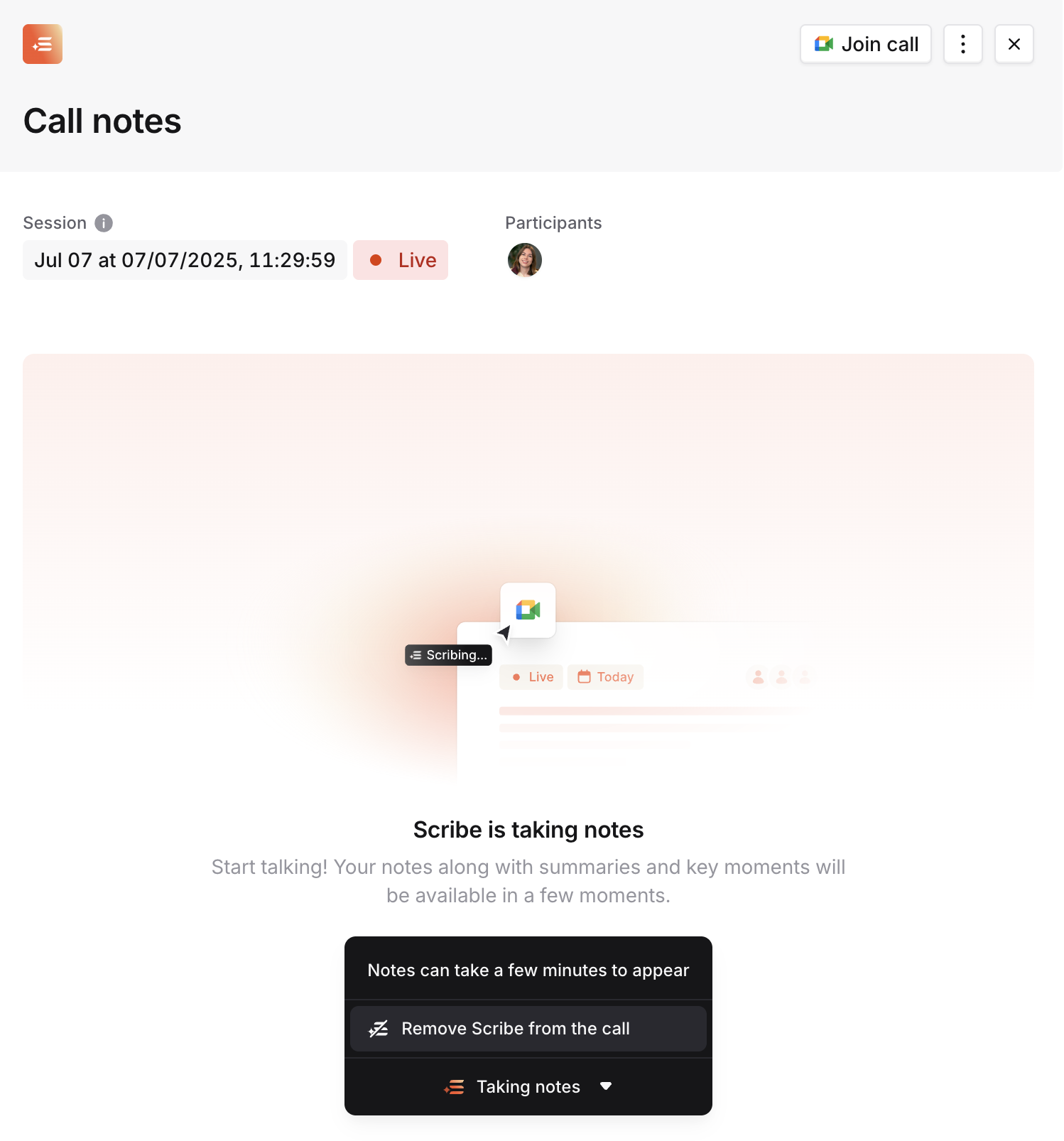
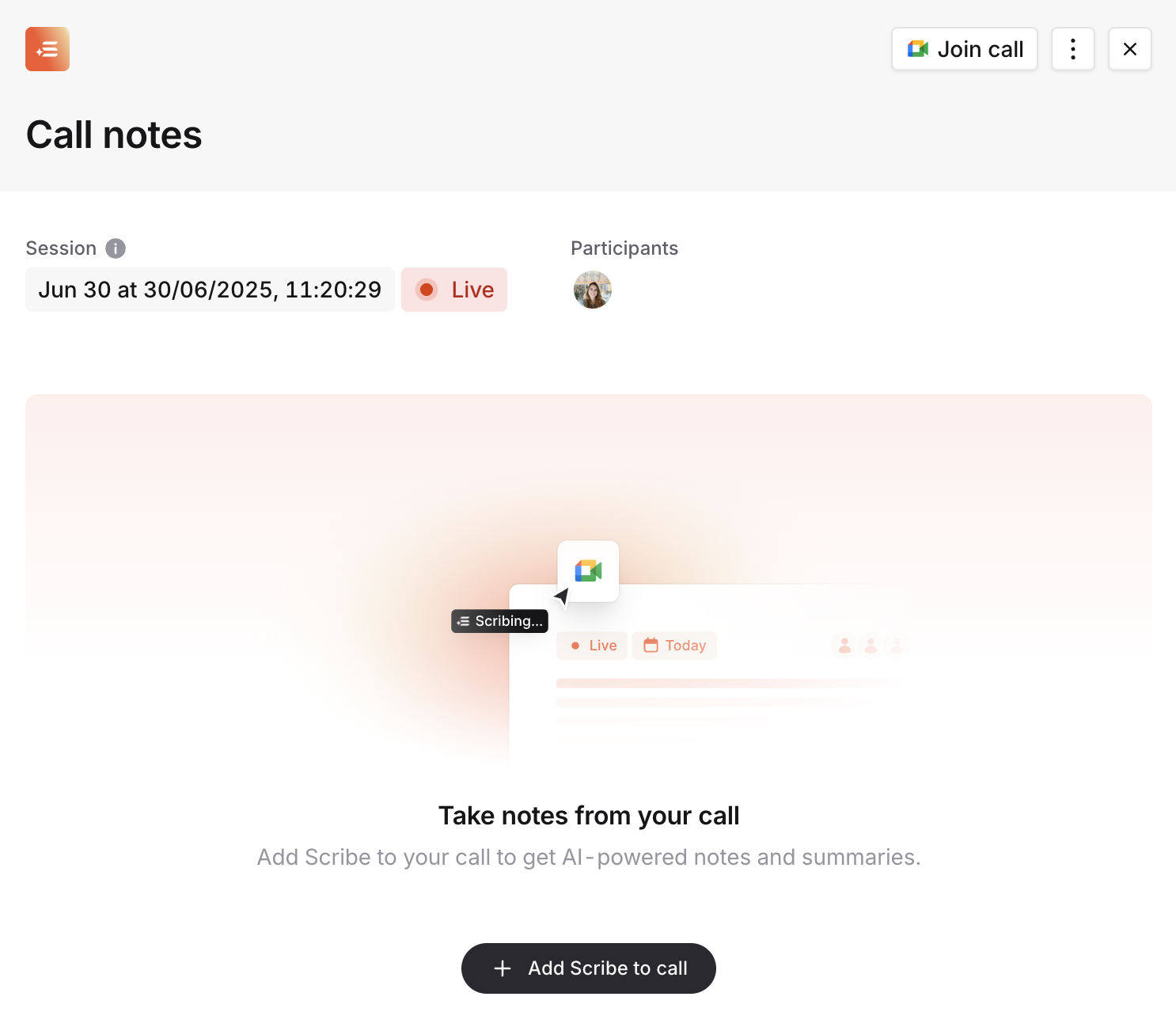
- During an incident call, open the call notes drawer from the incident page
- Click on the toolbar to expand it, and click ‘Remove Scribe from the call’
- To add scribe back, simply click ‘Add Scribe to call’ in the same toolbar
Slack
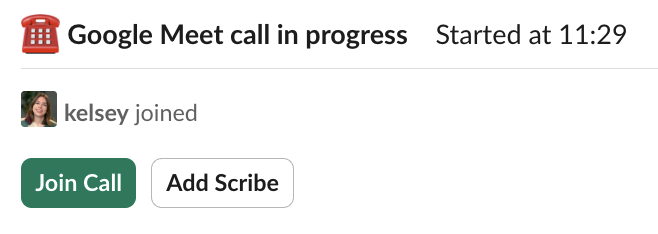
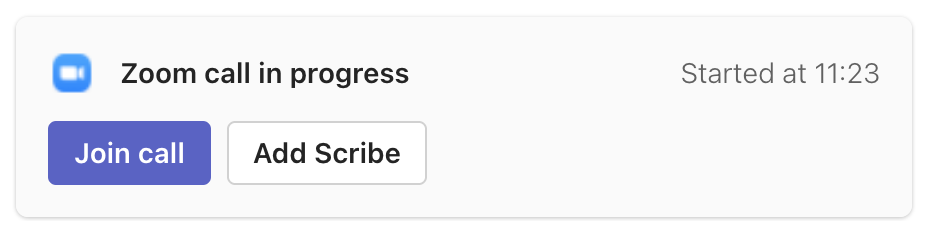
While an incident call is active, we’ll show you buttons to add or remove Scribe based on the current status of Scribe in your call.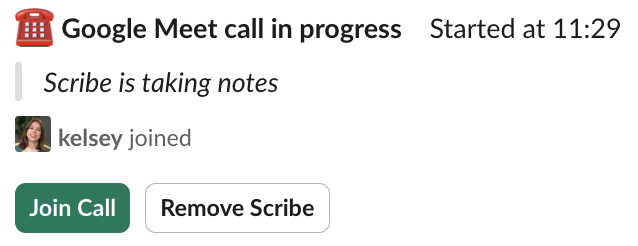
Microsoft Teams
As in Slack, when an incident call is active, we’ll show you buttons to add or remove Scribe based on the current status of Scribe in your call.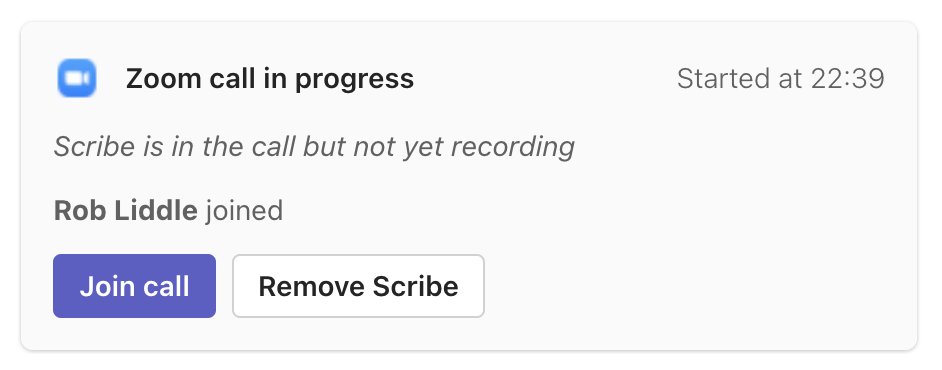
Managing Scribe for Microsoft Teams online meetings
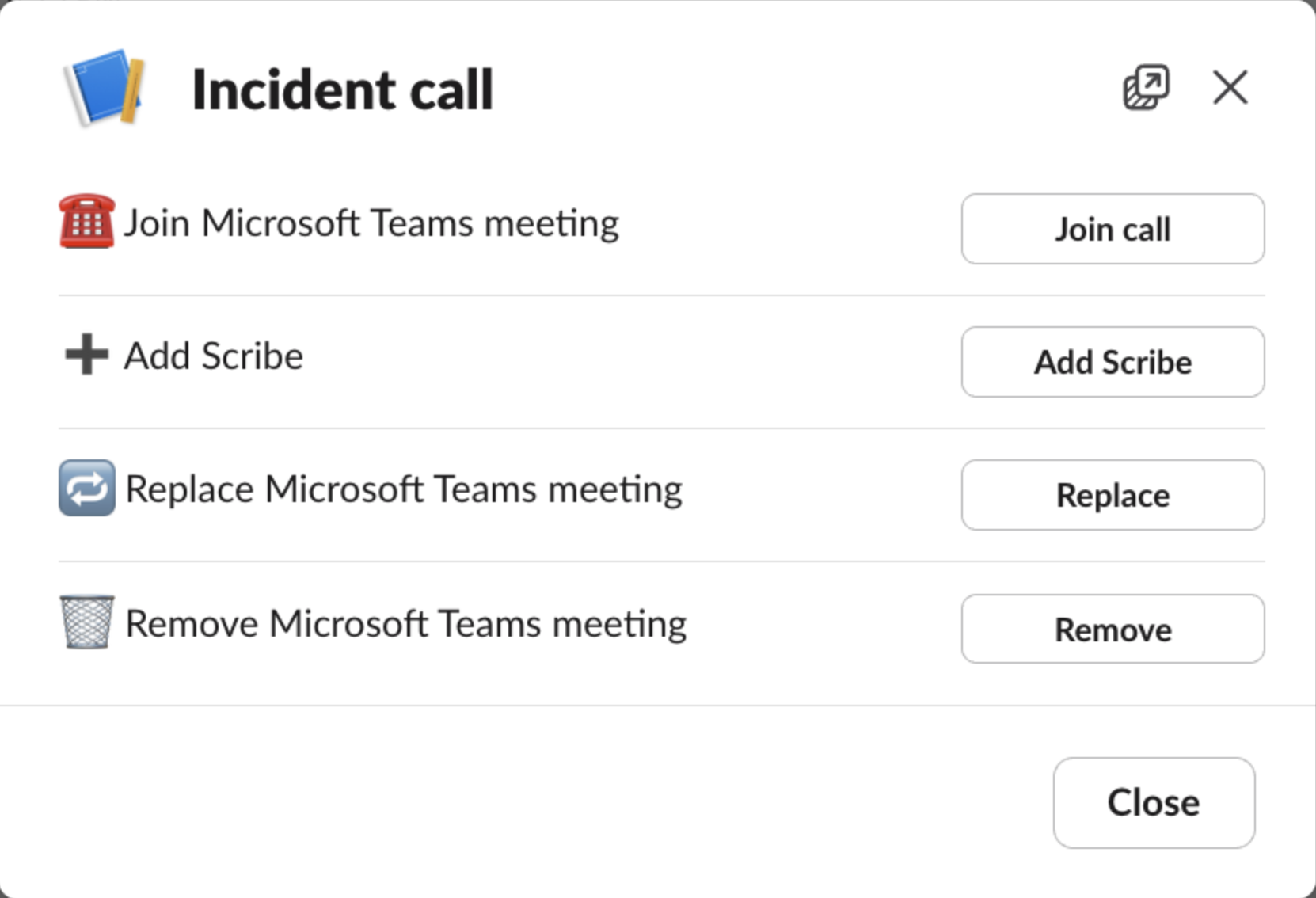
We don’t track live call information for Microsoft Teams online meetings, so Scribe can only be manually added.Web dashboard
You can add Scribe to a call using the “Add Scribe” button on the incident details page.
Slack
You can add Scribe to a call from the incident call modal, which can be accessed via/inc call or /inc scribe
Deleting incident call notes
In the event that sensitive or private information is accidentally transcribed, call notes can be easily deleted, removing trace of the information from the dashboard, Slack and Microsoft Teams.Web dashboard
Navigate to the relevant incident and select the call notes containing sensitive information. The call notes drawer will open.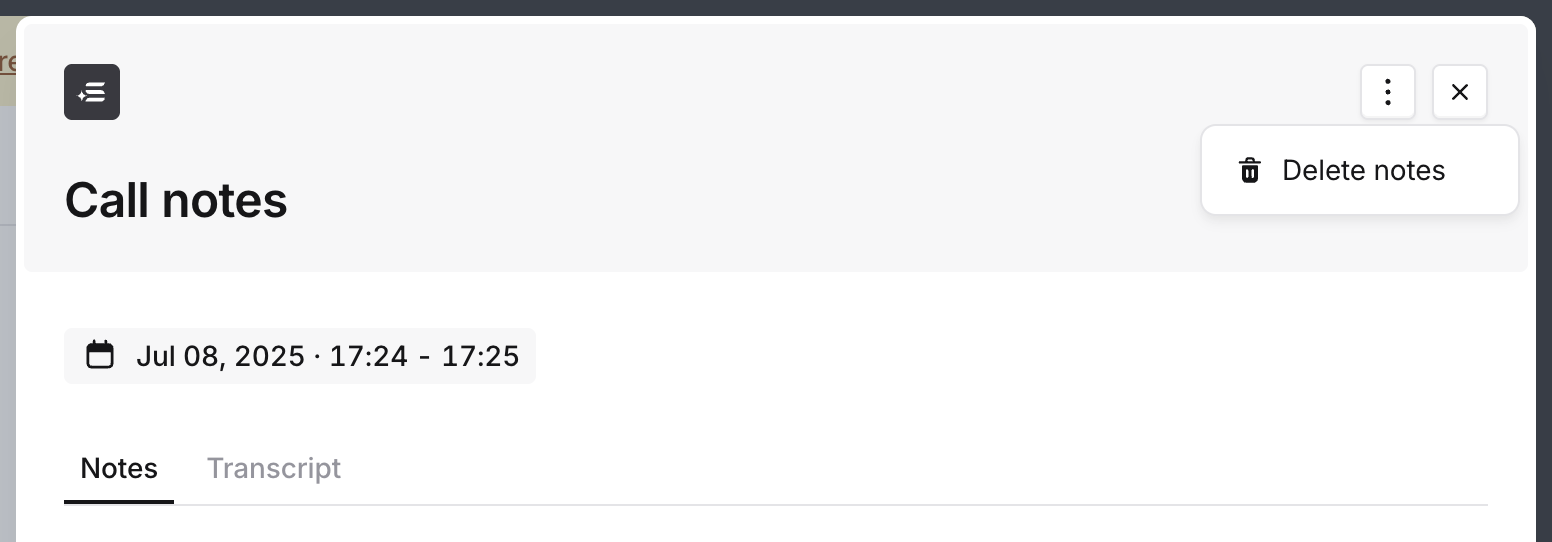
- Transcripts and summaries will no longer be visible via the dashboard
- Any call recordings will be permanently deleted
- Summaries and key call information posted in incident channels will be deleted or re-rendered without the deleted notes
- Scribe will be removed if currently active in the incident call

Accessing transcripts via the API
You can export call sessions and their transcripts programmatically, for example to archive them or analyze them in your own tooling. First, create an API key in API keys with the View call transcripts permission (call_transcripts_viewer). Keys with this
permission can read transcripts for any incident they can access: that means public
incidents, unless the key is also granted access to private ones.
Exporting is a two step process:
- List an incident’s call sessions using the Call Sessions endpoint
- For each session, page through its transcript using the Call Transcript Entries endpoint
after value from
pagination_meta until the response no longer includes one, at which point you have
the full transcript.
A few things to be aware of:
- If your organization has turned off transcript viewing in Scribe settings, the API returns empty results, matching the dashboard
- Deleted call notes are gone from the API too, in the same way they’re removed from the dashboard, Slack and Microsoft Teams
- A live call’s transcript is available while the call is ongoing, so you can also poll for new entries rather than waiting for the call to end