

/incident escalate to directly page users in Slack — no need to log in to PagerDuty, search around and find the right place!
You can also use the PagerDuty integration to attach related PagerDuty incidents, pull information onto your timeline, and even auto-create incidents from PagerDuty!
Setting Up
You can connect PagerDuty to incident.io in just a few clicks.- Go to Settings > Integrations
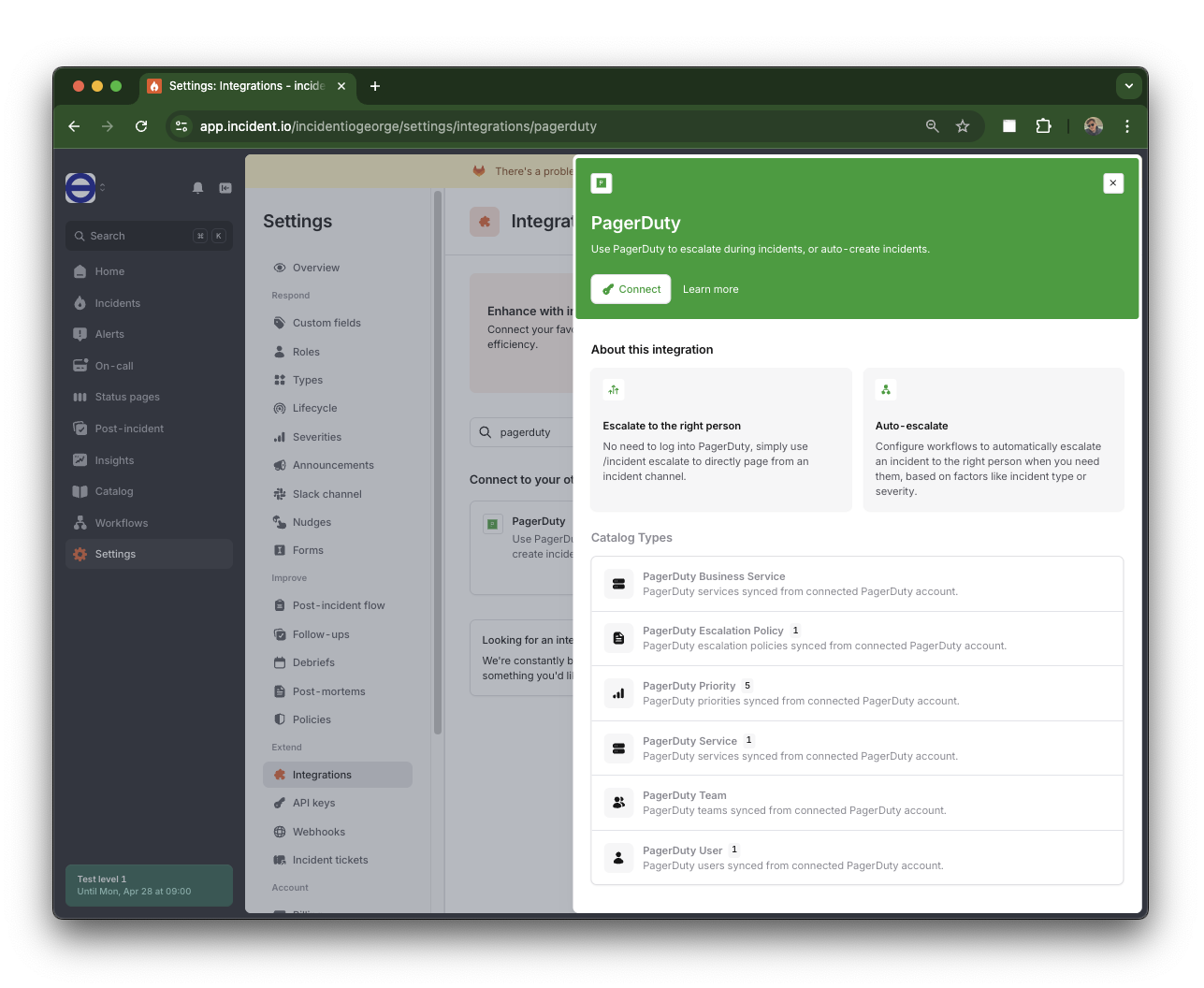
- Search for PagerDuty and click its card.
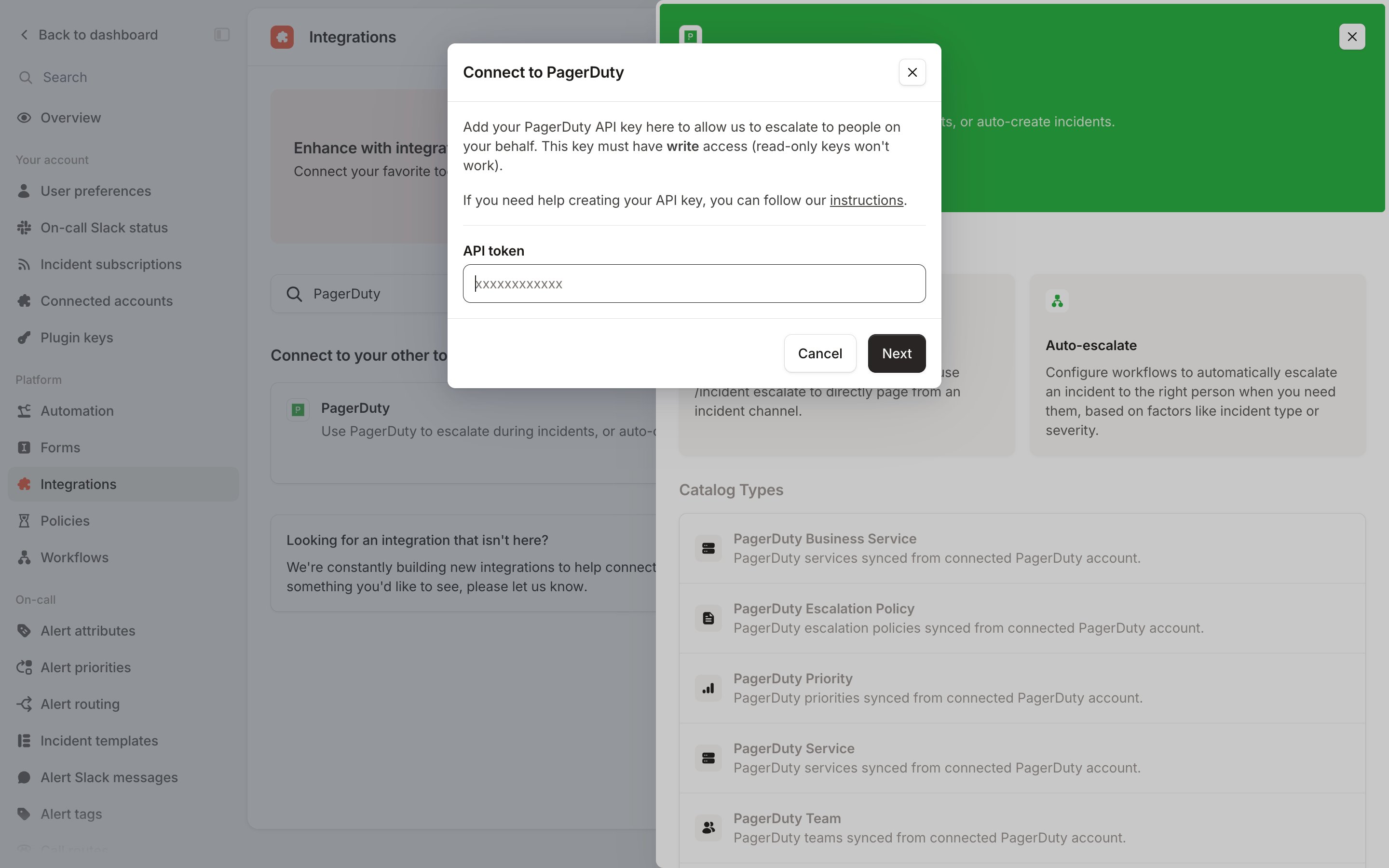
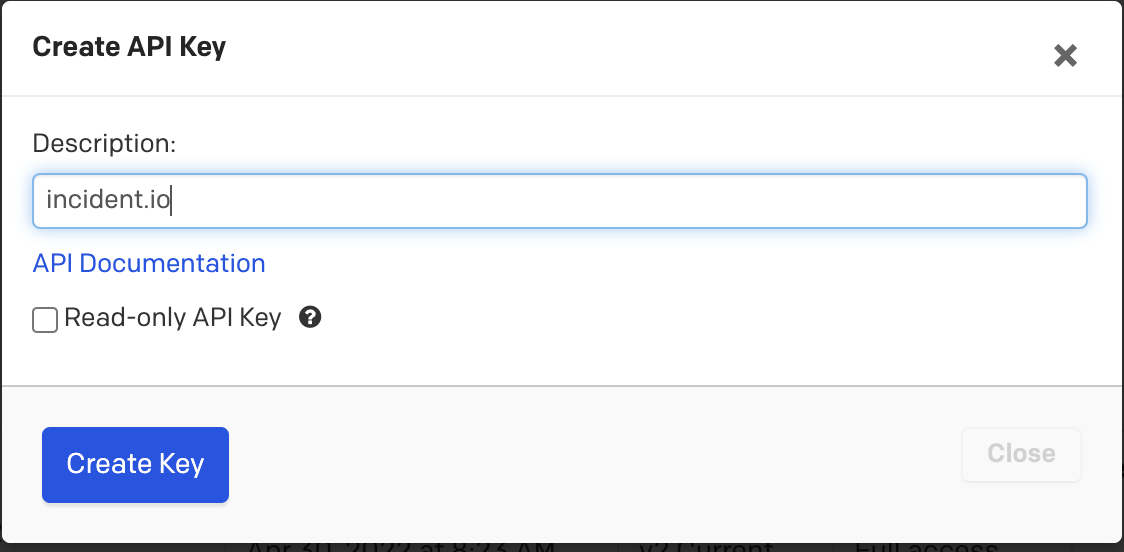
- Fetch your API key from PagerDuty
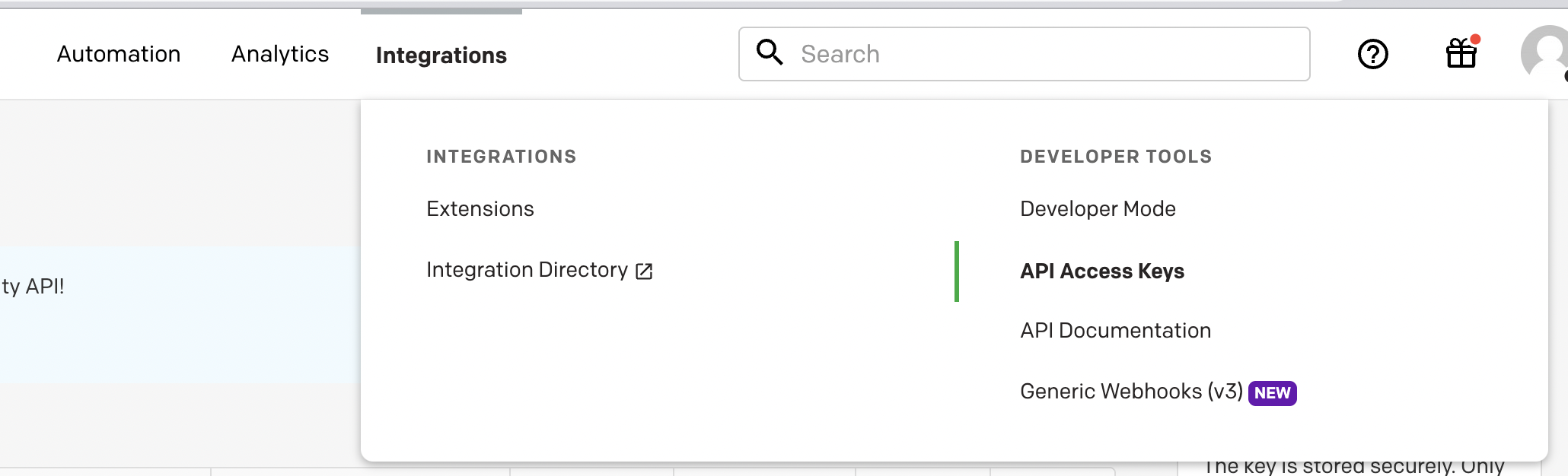
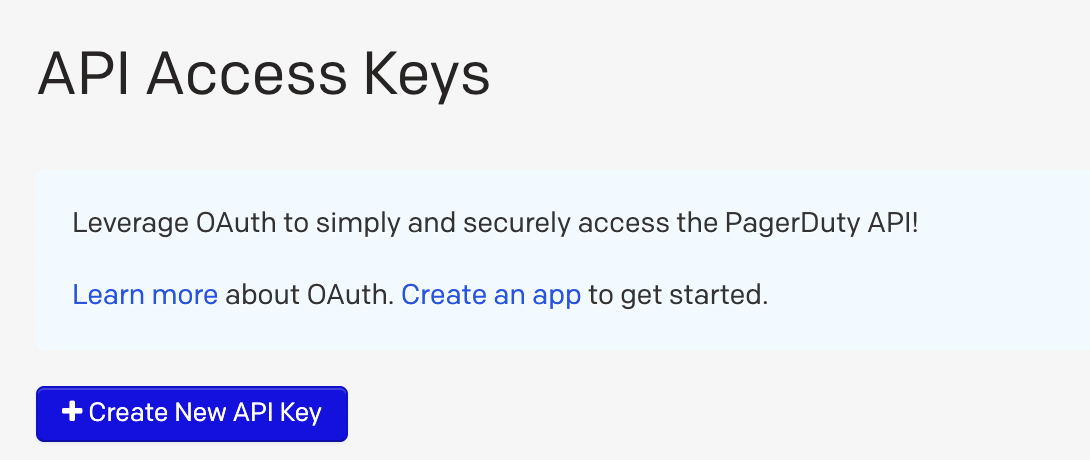
- Call it “incident.io”
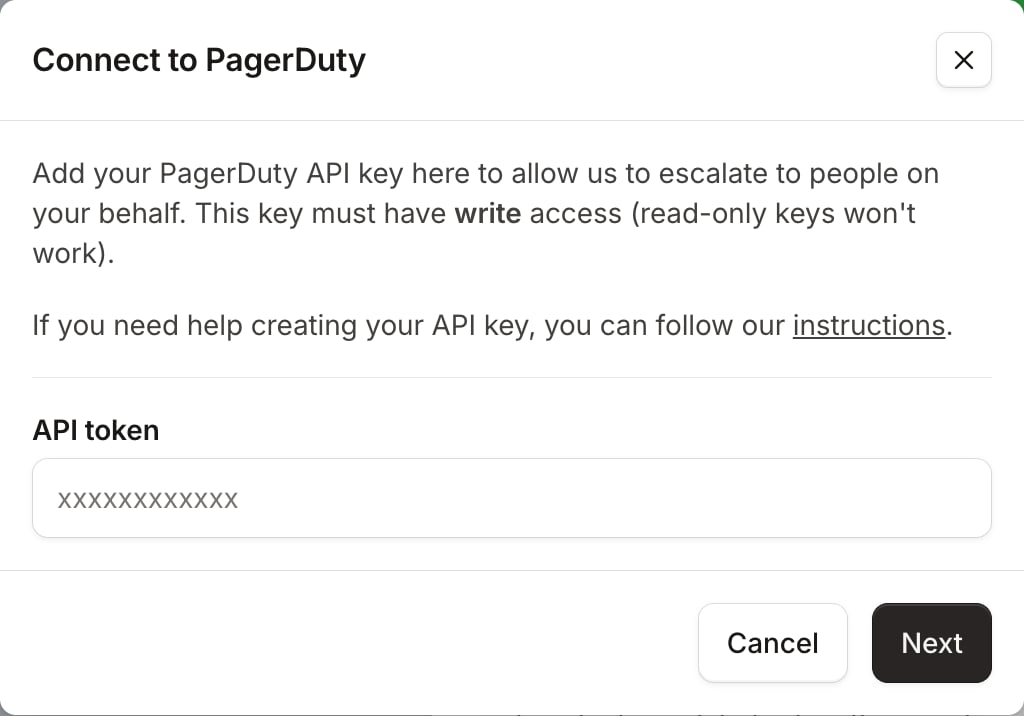
- Paste the API key from your clipboard into the API token field, then click Next
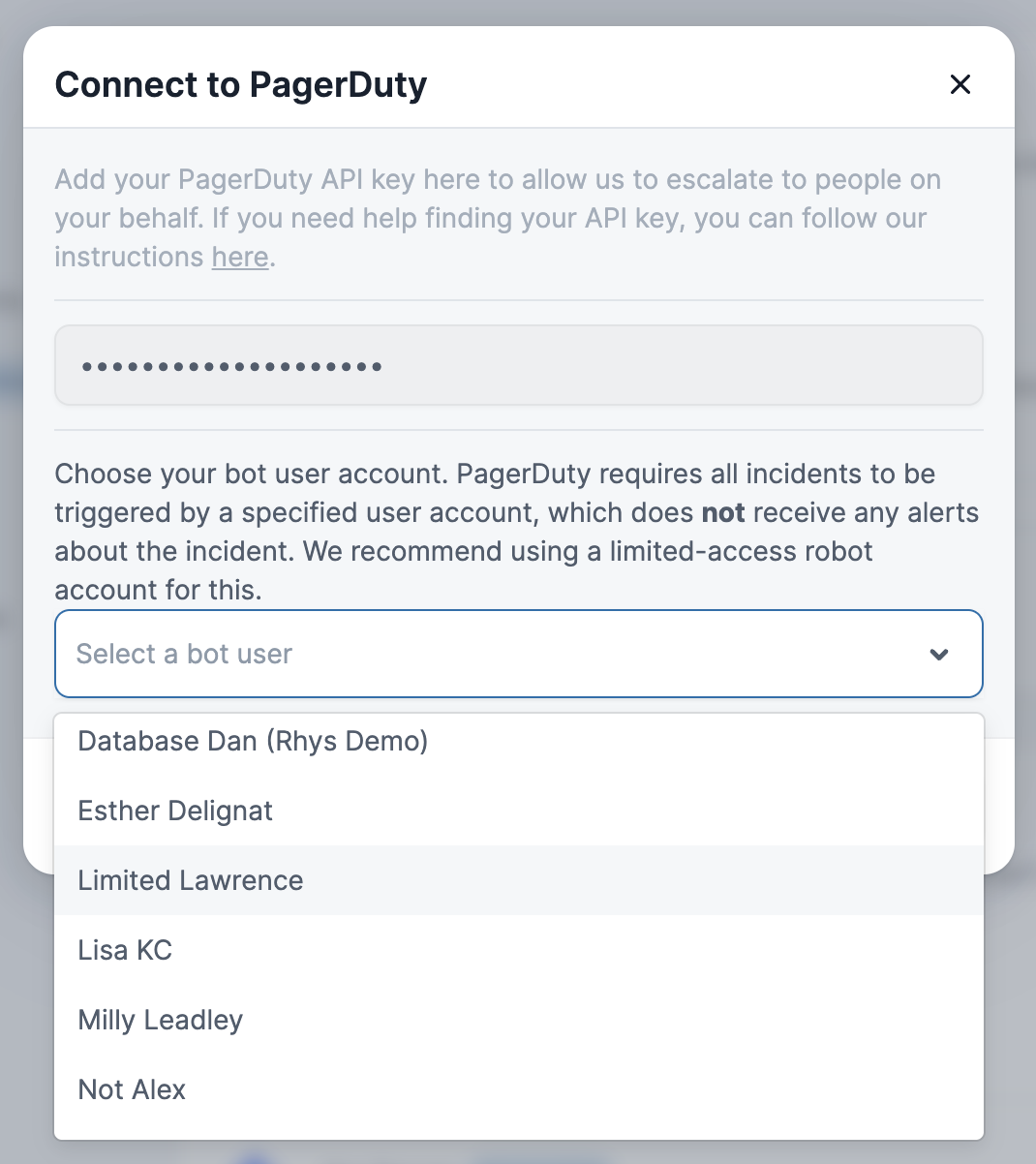
- Choose your bot account
Escalating an incident
Just head over to the incident’s Slack channel and hit/incident escalate.
Who can I page?
- An escalation policy : a way to notify on-call users about an incident that relates to a service or system, and have the right people notified at the right time.
- Any user on PagerDuty : sometimes, you know that special someone that can help you out when you get stuck. Escalate to them directly, and bring them in to help.
- Both the above at once! In the middle of a particularly gnarly incident? You can page multiple teams and individuals all at once
Things to know
All escalations will originate from the email of the user that you selected when connecting PagerDuty to your incident.io account. This is unfortunately a limitation of the PagerDuty API. When you create an incident, it must always be associated with the email of a valid PagerDuty user, as bots (i.e., us) are not allowed to create incidents on their own. If you’d rather not have incidents attached to a user’s email, you could create a dedicated account in PagerDuty and connect that to incident.io. However, be aware PagerDuty will charge you for the extra seat. To automatically create incidents from PagerDuty, set up PagerDuty as an alert source. You’ll need to connect PagerDuty as an integration first.Catalog
When you install the PagerDuty integration, we also sync data from PagerDuty in to the catalog so that you can set up Workflows and other automations that use it. Installing the integration will create the following types and attributes in the catalog: PagerDuty User- Name
- Role
- Job title
- Timezone
- incident.io User (we match based on the email)
- Name
- Description
- Members (this links to the PagerDuty User type)
- Name
- Description
- Status
- Escalation policy (this links to the PagerDuty Escalation Policy type)
- Teams (this links to the PagerDuty Team type)
- Name
- Description
- Name
- Description
- Teams (this links to the PagerDuty Team type)
FAQs
When will incident.io automatically acknowledge the PagerDuty incident?
When will incident.io automatically acknowledge the PagerDuty incident?
We auto-acknowledge incidents when:
- Someone manually goes “Yes, that PD incident is related to this incident”
- When a triage incident is accepted
- If the PagerDuty incident has already been acknowledged, do nothing
- If the actor doing the trigger action is not a human (e.g. a workflow), we do nothing
- If the human was not paged by this escalation (or we can’t match them to a PD user), we do nothing. In this case, we post a message with a button saying “want to acknowledge this?”
Can I control which services or escalation policies sync with incident.io?
Can I control which services or escalation policies sync with incident.io?
Yes! For any given service, you can add
incident-io-ignore anywhere within the description and we’ll no longer pull this into our platform.Similarly for an escalation policy you can add incident-io-ignore as a tag.Can we change the user sending PagerDuty emails?
Can we change the user sending PagerDuty emails?
No - see Things to know above for why all escalations originate from the connecting user’s email.