Configuring the Post-Incident Flow
To define the steps that you’d like to take to learn from your incidents, head into your Settings → Improve → Post-incident flow. By default, we create a flow with two parts:Documenting and Reviewing.
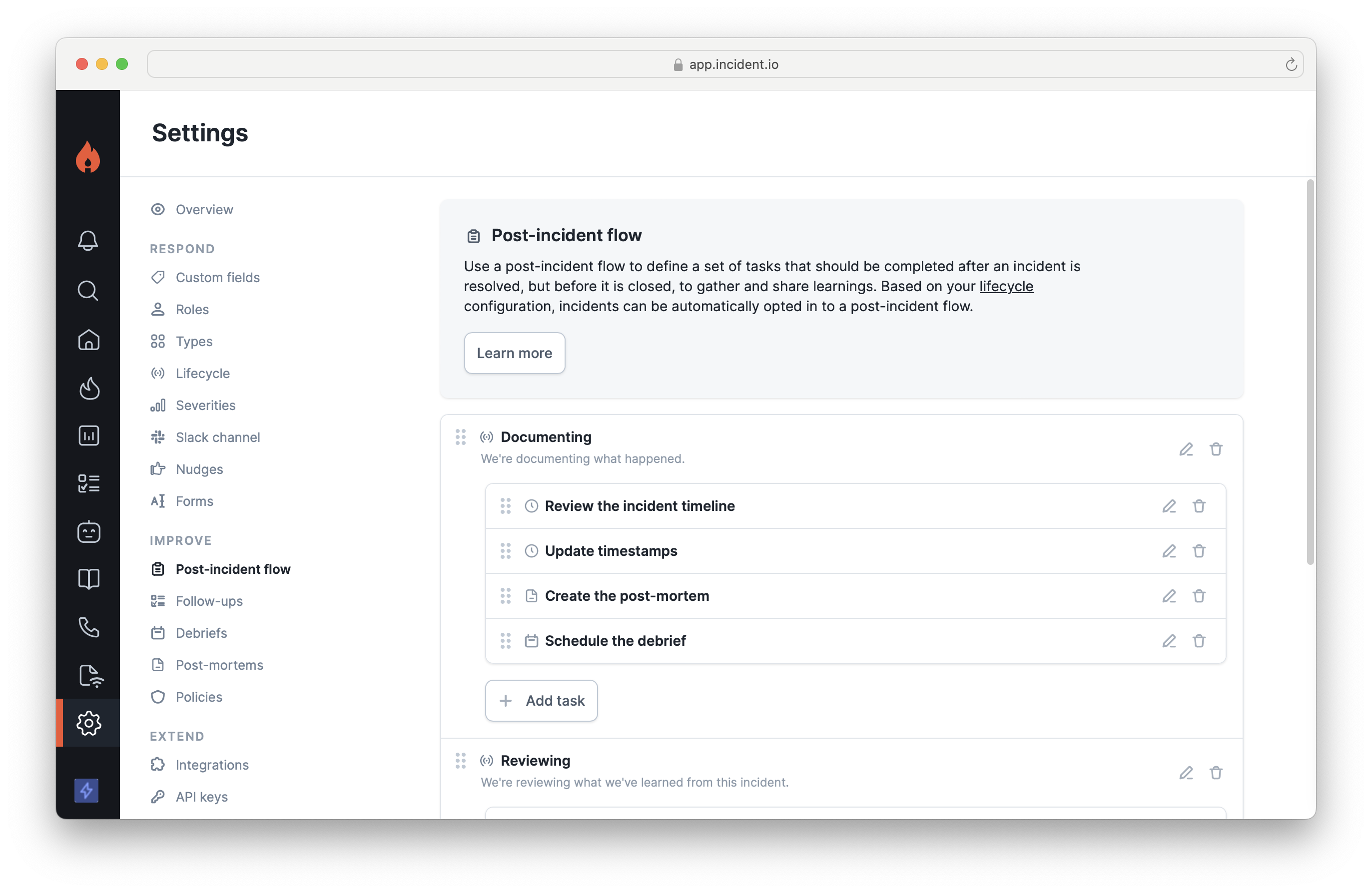
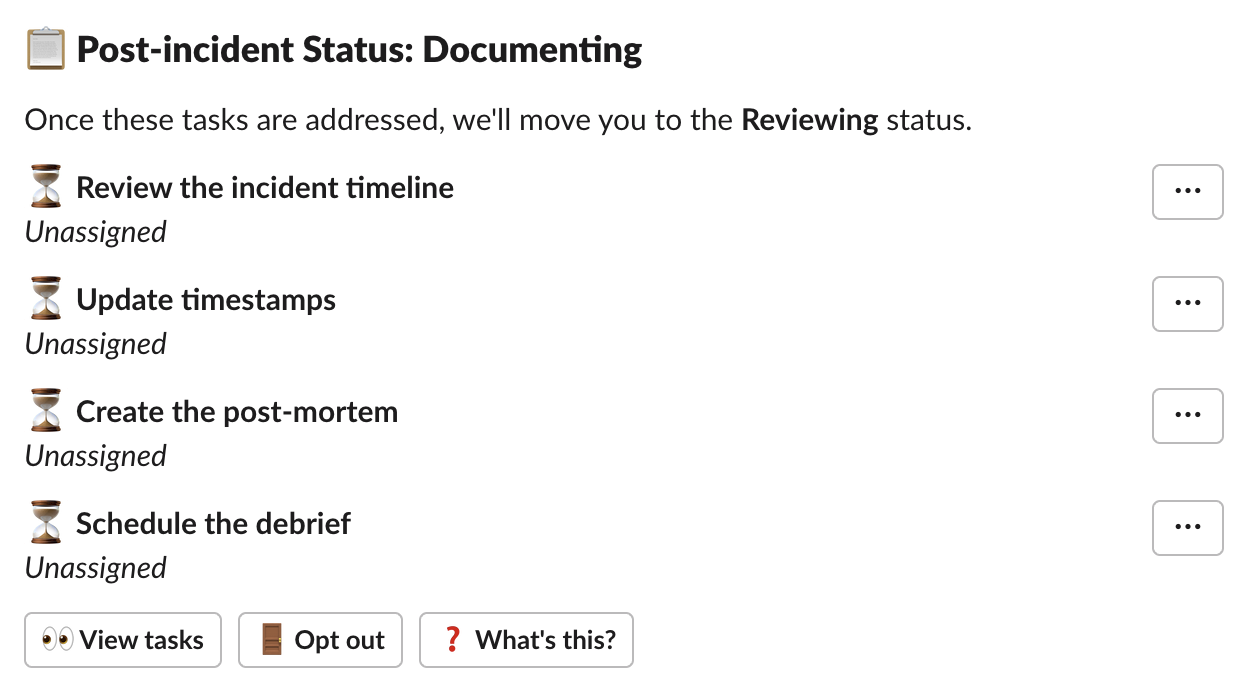
Statuses in the post-incident section are unlike other statuses. They have the following key differences: 1. Post-incident statuses have tasks associated with them. These are things like “Create a post-mortem”, or “Schedule a debrief”. 2. Users don’t manually move through post-incident statuses using
/inc update. Instead, incidents are automatically moved through the statuses as their tasks are completed or skipped.Customers on our Pro and Enterprise plans can also create fully-custom tasks, with their own title and description. On Enterprise, you can additionally configure different post-incident flows for different incident types.
- Reviewing the incident timeline - which contains a link to jump to the incident timeline.
- Creating a post-mortem document - which will be automatically completed when a post-mortem document is attached to the incident.
- Schedule the debrief - which contains a button to create a Google calendar event with all the users involved in the incident.
- Mark the post-mortem document as complete - which will be automatically completed when the post-mortem document is marked as complete
- Share the debrief document - which is automatically completed when you share the post-mortem to a Slack channel
- Review follow-ups - which contains a link to open the incident’s follow-ups
- Assign the {insert role} role - which allows you to choose an incident role that must be assigned
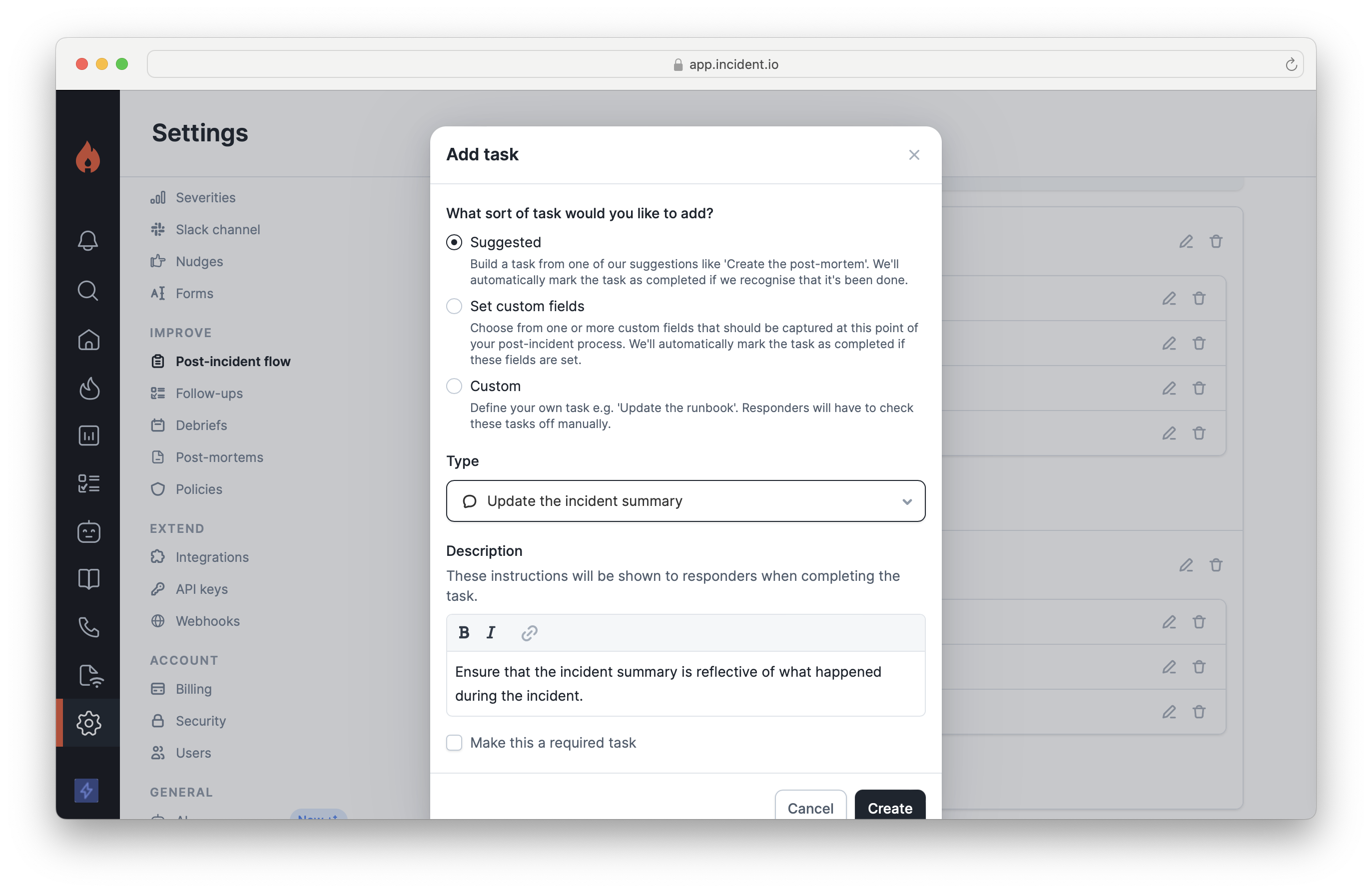
Please note that if you add new tasks, these will only apply to future incidents going into the post-incident flow. Existing incidents will only contain tasks that were defined when that incident entered the post-incident flow. If an incident’s post-incident tasks are deleted, it’ll no longer automatically move to the next status. In these cases, you can manually move the incident to the next status via the dashboard.
Requiring incidents to go through the post-incident flow
When closing an incident, users will get the option to opt-in to the post-incident flow. However, you can choose to automatically enter certain types of incidents into the post-incident flow. In Settings → Response → Lifecycle, open the lifecycle you want to change. Turn on Enable post-incident flow for incidents in this lifecycle to automatically put all of that lifecycle’s incidents through the post-incident flow, then add rules if you’d like this to only apply to certain kinds of incidents.
Using the post-incident flow
When closing an incident, responders will be prompted as to whether or not they’d like to go through the post-incident flow for this incident.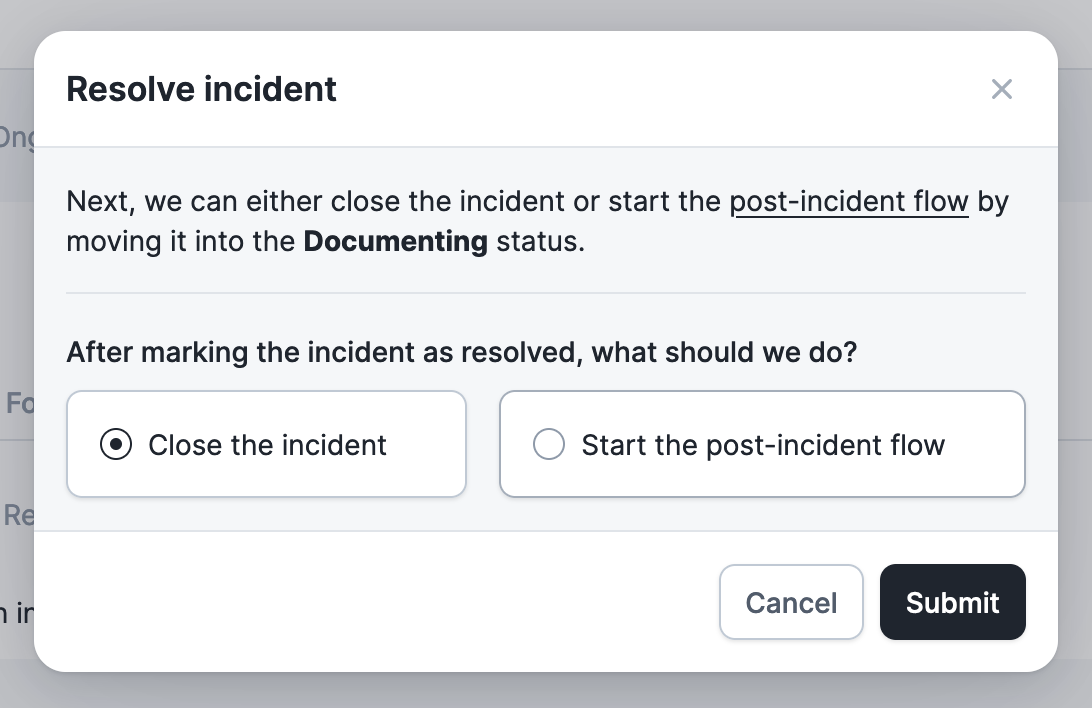


Setting deadlines, owners, and reminders
Each task can carry a deadline, an owner, and a rule about whether it can be skipped. Set these per task in Settings → Improve → Post-incident flow by opening a flow and editing the task. The Task reminders toggle on that same page switches reminders on for every task at once.
Set how long a task should take, in hours, counted from when the incident enters that task’s status. Tasks in your
second status don’t start their clock until the incident reaches it. The maximum is 30 days (720 hours), and anything
longer is set to 30 days instead.Use a fixed number of hours, or an expression so that a
Critical incident gets a tighter deadline than a minor one. We
show a visual indicator on the task once it’s overdue. See task due dates and reminders.Mark a task as required and the Skip option disappears for responders, including in bulk actions. The incident
can’t move to the next status until somebody completes it.
Assign a task automatically to a user, an incident role (the lead, or a
Debrief scheduler role), or an expression
that picks a different person depending on the incident. We re-evaluate the assignee whenever the incident changes. As
soon as somebody sets an assignee by hand, we stop assigning that task automatically. See task
assignees.Turn this on and we’ll direct message the assignee, on Slack or Microsoft Teams, at the point their task becomes due.
You can also chase somebody yourself with Send reminder on the task.Reminders go to the assignee, so a task with nobody assigned won’t produce one. We send one automatic reminder per task,
grouped per person, so somebody with three overdue tasks gets a single message rather than three.
How a status advances
When every task in a status is completed or skipped, the incident moves to the next post-incident status. Once the last one is done, the incident closes. The flow can move backwards: if a task in an earlier status becomes outstanding again, the incident returns to that status. An incident also won’t close while it still has an open stream, so it closes when you close the last one.Opting an incident out of the post-incident flow
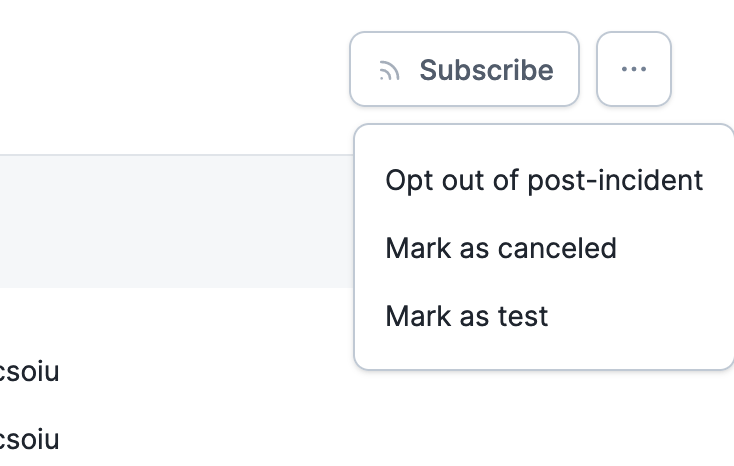
If an incident enters the post-incident flow, but you’ve decided that it’s not worthwhile for this incident, you can opt-out. You can do this by typing in/inc close into your incident channel, or by selecting Opt out of post-incident in the overflow menu at the top right of the incident in the dashboard.
An incident never closes itself while tasks are outstanding. We tell you how many you’re about to skip, and ask for a reason.
That reason goes into the incident channel alongside the closure and onto the incident timeline as Opted out of post-incident flow. Insights tracks how often incidents leave the flow early, and you can filter your incident list on it. Bulk closes and API closes record the exit but not a reason.
Admins can remove opting out altogether with the Opt out of post-incident flow permission in Settings → Roles, which leaves finishing the flow as the only route to closed. Automations that close incidents aren’t subject to it.
Opting out is recorded per incident, not permanently. Moving an incident back into a post-incident status clears the
recorded opt-out and its reason.