> ## Documentation Index
> Fetch the complete documentation index at: https://docs.incident.io/llms.txt
> Use this file to discover all available pages before exploring further.
# Using loops in Workflows
*If you haven't worked with Workflows before, check out our* [Getting Started with Workflows guide](/workflows/getting-started)
Workflow loops allow you to repeat a step multiple times for all values in a multi-valued custom field or expression.
## Adding a Workflow loop
To add a Workflow loop, simply click "Add a step" and then choose the "Create a loop" option.
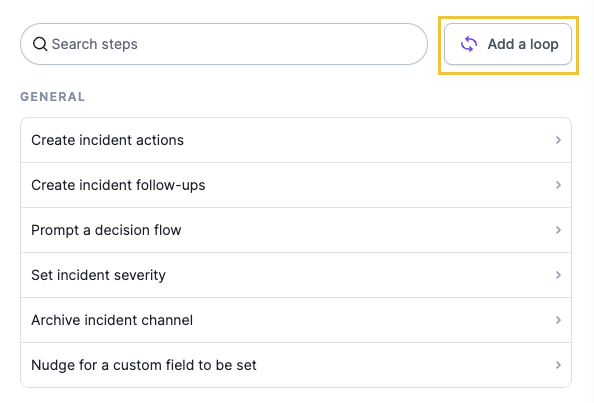 Returning to the main workflow screen, you will see a new loop block has appeared in your steps.
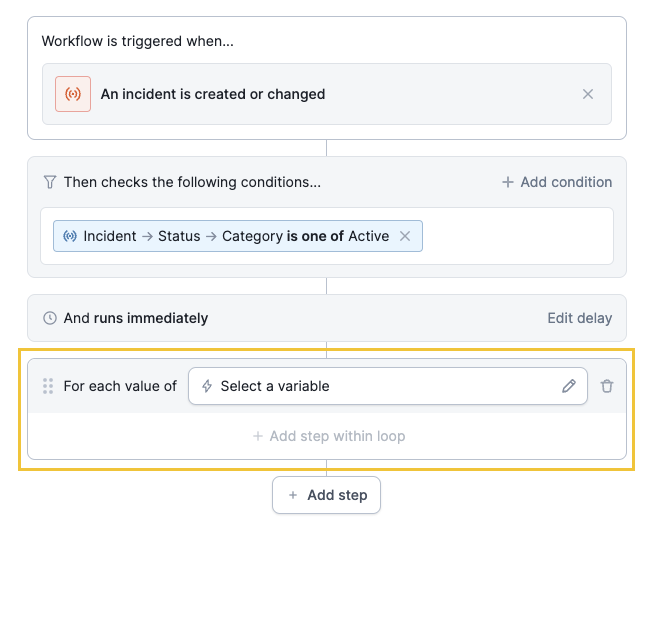 ## Selecting a resource to loop over
The "Select a variable" dropdown will give you available resources you can loop over. This can be one of:
* A multi-select custom field
* An [expression](/workflows/expressions) that returns a list of values.
## Selecting a resource to loop over
The "Select a variable" dropdown will give you available resources you can loop over. This can be one of:
* A multi-select custom field
* An [expression](/workflows/expressions) that returns a list of values.
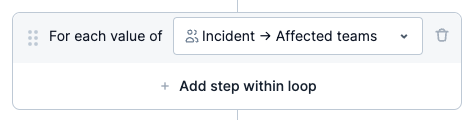 ## Adding steps to a Workflow loop
Once you've picked what you want to run your steps over, you can add Workflow steps to your loop using the "Add a step to this loop" button.
This works just like adding a regular workflow step, and you can reference the value you are looping over in the step - you'll find these at the top of any relevant menus, prepended by "Each". In this example, we are looping over the custom field "Impacted surface":
## Adding steps to a Workflow loop
Once you've picked what you want to run your steps over, you can add Workflow steps to your loop using the "Add a step to this loop" button.
This works just like adding a regular workflow step, and you can reference the value you are looping over in the step - you'll find these at the top of any relevant menus, prepended by "Each". In this example, we are looping over the custom field "Impacted surface":
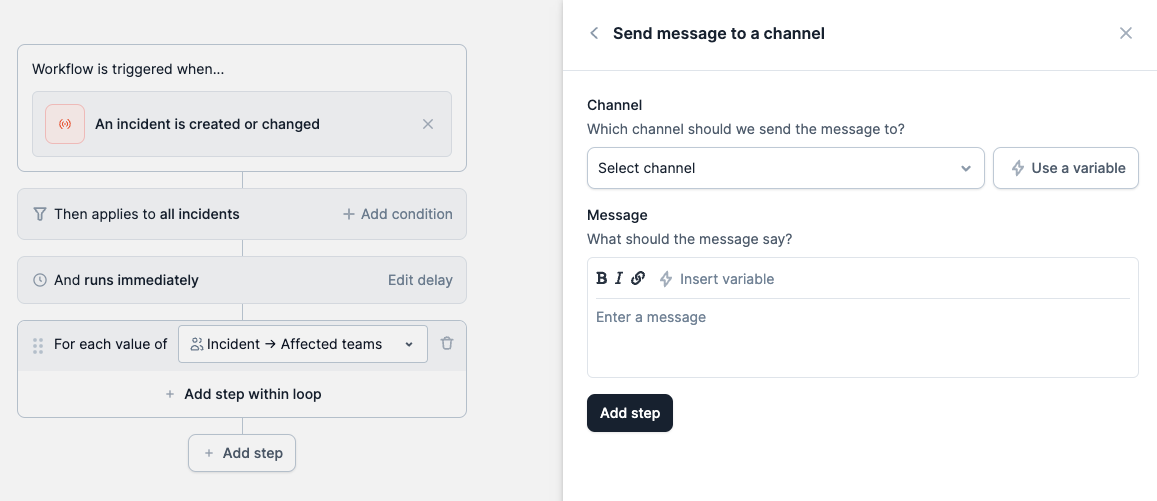 You can add as many steps as you would like to a loop and re-order them by dragging and dropping, just like steps. They cannot be moved out of the loop, though.
## How often will workflow loops run?
Workflow loops function slightly differently from regular workflow steps - if the custom field or expression you are looping over changes, the loop will run its steps on any new values.
Let's elucidate this with an example:
Imagine you have set up a workflow to run once per incident when the incident severity is critical or higher. You've got two steps:
* Announce the incident in `#product`
* For each team in the `Affected Teams` custom field:
* Page the relevant escalation policy in PagerDuty
This workflow will function as follows:
1. A critical incident is declared, affecting teams `A` and `B`. The workflow runs, posting the announcement and escalating following `Policy-A` and `Policy-B`.
2. The `Affected Teams` custom field is updated to now include Team `C`
3. The first step, posting the announcement, will *not* be re-run, since it has already been executed for this incident. **However**, the second, looping step will "catch up" with the new `Affected Teams` value by escalating to `Policy-C`.
You can add as many steps as you would like to a loop and re-order them by dragging and dropping, just like steps. They cannot be moved out of the loop, though.
## How often will workflow loops run?
Workflow loops function slightly differently from regular workflow steps - if the custom field or expression you are looping over changes, the loop will run its steps on any new values.
Let's elucidate this with an example:
Imagine you have set up a workflow to run once per incident when the incident severity is critical or higher. You've got two steps:
* Announce the incident in `#product`
* For each team in the `Affected Teams` custom field:
* Page the relevant escalation policy in PagerDuty
This workflow will function as follows:
1. A critical incident is declared, affecting teams `A` and `B`. The workflow runs, posting the announcement and escalating following `Policy-A` and `Policy-B`.
2. The `Affected Teams` custom field is updated to now include Team `C`
3. The first step, posting the announcement, will *not* be re-run, since it has already been executed for this incident. **However**, the second, looping step will "catch up" with the new `Affected Teams` value by escalating to `Policy-C`.