> ## Documentation Index
> Fetch the complete documentation index at: https://docs.incident.io/llms.txt
> Use this file to discover all available pages before exploring further.
# Setting up sub-pages
Not sure what sub-pages are? [Read our FAQ](/status-pages/sub-pages).
Using sub-pages makes it possible to only share incidents on a status page where it's relevant – if an incident only impacts a system/component used by your customers in North America, you don't want that incident to show up for customers in Europe.
To get started, head over to [Status pages](https://app.incident.io/~/status-pages) hit **Create a new status page** > **Public status page** > **Create with sub-pages**.
## 1. Basic details
The first decision you have to make is what you'll call your status page.
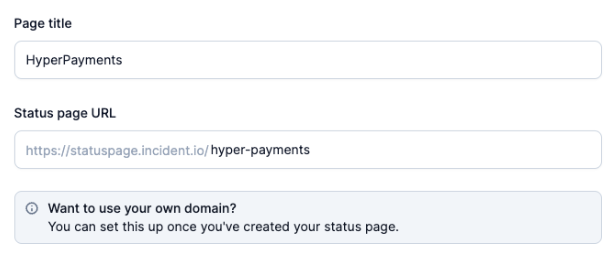 This name will be used as the page heading for both your parent and sub-pages, so we recommend using something sensible, like your company name. Note: you don't need to write "status" or "status page" at the end of your page title - we'll take care of that for you.
## 2. Sub-pages (Catalog)
Sub-pages are powered by [Catalog](https://app.incident.io/~/catalog). This means that most of what you build whilst configuring your sub-pages can be leveraged in other features, like [Workflows](/workflows/getting-started).
The first decision in this section is to choose what your sub-pages represent. This is often Regions that you operate in, or Products that you sell. It could be anything you want though!
This name will be used as the page heading for both your parent and sub-pages, so we recommend using something sensible, like your company name. Note: you don't need to write "status" or "status page" at the end of your page title - we'll take care of that for you.
## 2. Sub-pages (Catalog)
Sub-pages are powered by [Catalog](https://app.incident.io/~/catalog). This means that most of what you build whilst configuring your sub-pages can be leveraged in other features, like [Workflows](/workflows/getting-started).
The first decision in this section is to choose what your sub-pages represent. This is often Regions that you operate in, or Products that you sell. It could be anything you want though!
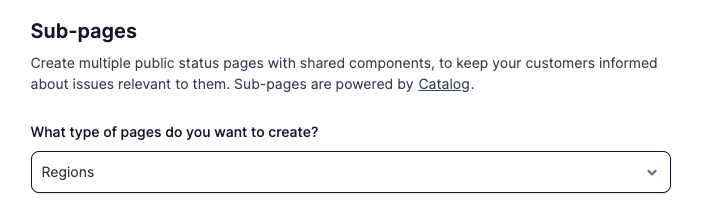 As you've already learnt, sub-pages are powered by Catalog. Once you've decided on the type of pages you want, there are two options to choose from:
1. Create a new catalog type
2. Use an existing catalog type
### Catalog Option 1 (default): Create a new catalog type
Under Sub-page components, you should enter all of the different systems, services, components, or features that you want to map to some (or all) of your sub-pages.
As you've already learnt, sub-pages are powered by Catalog. Once you've decided on the type of pages you want, there are two options to choose from:
1. Create a new catalog type
2. Use an existing catalog type
### Catalog Option 1 (default): Create a new catalog type
Under Sub-page components, you should enter all of the different systems, services, components, or features that you want to map to some (or all) of your sub-pages.
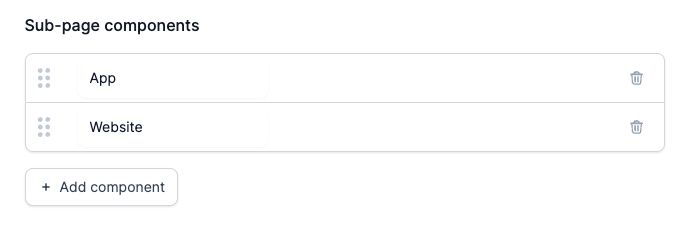 Now we can create some pages. Here we've mapped the App component to the UK region:
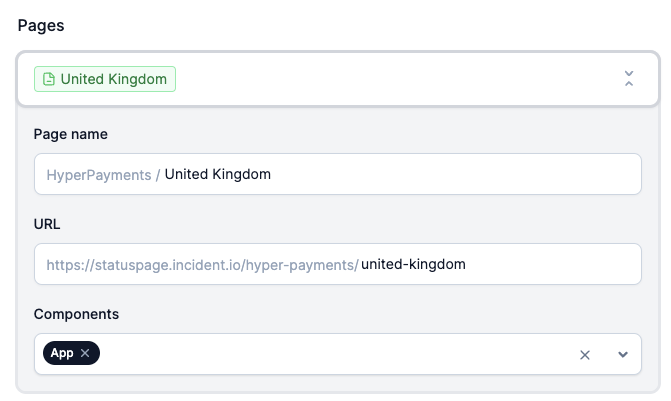 After you've created your sub-page, these new catalog types will show up [in your Catalog](https://app.incident.io/~/catalog/01H9G0TFFK5VXFN6C3E6QETZWG) as Region and Components.
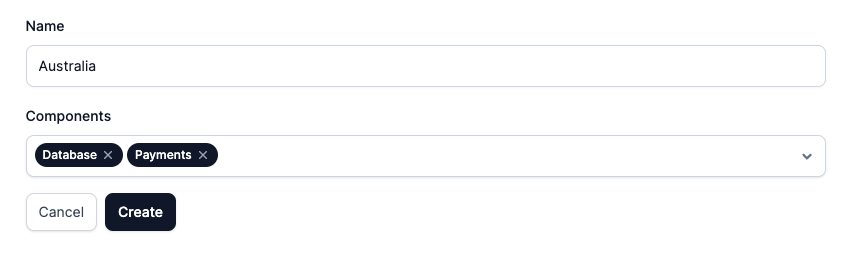
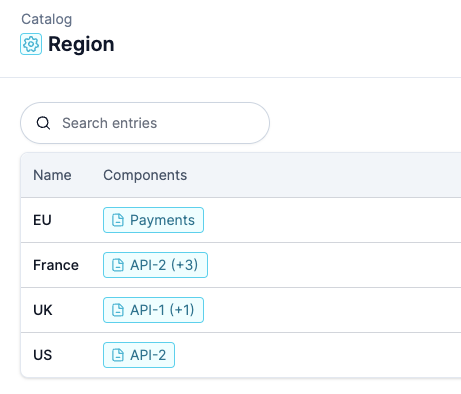 If you want to add more Regions, feel free to do so from the Catalog UI. Head over to the Region catalog type, hit "Create entry" and choose the relevant components.
 ### Catalog Option 2: Use existing catalog types
For sub-pages, you'll need two catalog types: one for your sub-pages (e.g. Regions), and one for your components (e.g. Components, Features, or Feature Areas).
If you've already imported catalog types from an external system like Backstage, Cortex, or OpsLevel, or you've just manually created them independently of sub-pages - you can just reuse those in your setup of sub-pages!
If not, you may need to either [Create a new catalog type](/status-pages/sub-page-setup) or adjust your existing catalog types.
At a minimum, your Component catalog type should look like this:
### Catalog Option 2: Use existing catalog types
For sub-pages, you'll need two catalog types: one for your sub-pages (e.g. Regions), and one for your components (e.g. Components, Features, or Feature Areas).
If you've already imported catalog types from an external system like Backstage, Cortex, or OpsLevel, or you've just manually created them independently of sub-pages - you can just reuse those in your setup of sub-pages!
If not, you may need to either [Create a new catalog type](/status-pages/sub-page-setup) or adjust your existing catalog types.
At a minimum, your Component catalog type should look like this:
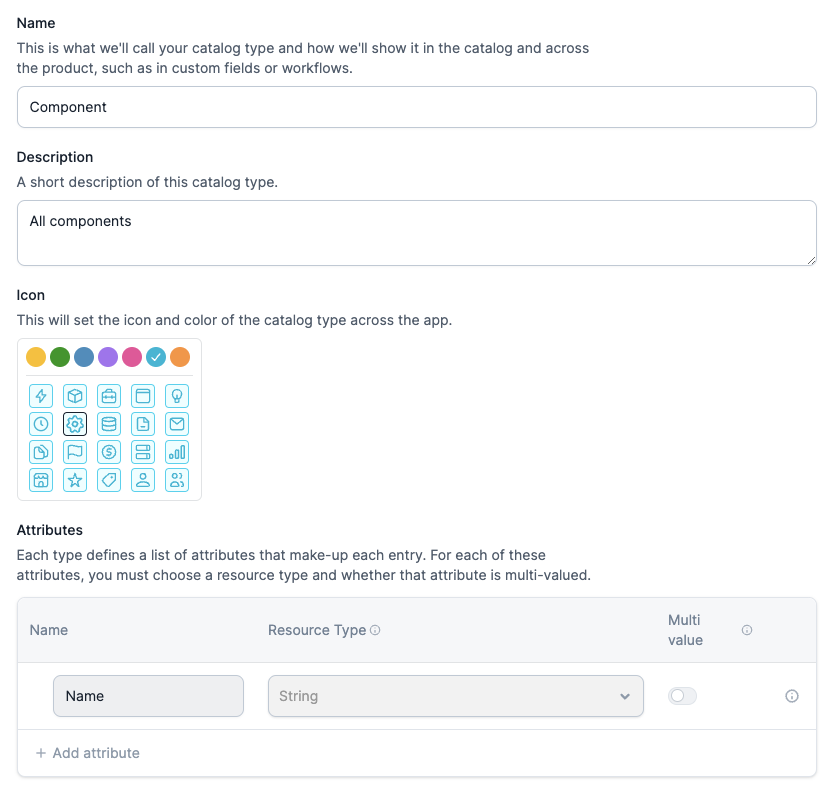 *Feel free to add any additional attributes that better describe the Component, e.g. the Owning Team, a Description, and so on.*
And your Region catalog type should look something like this:
*Feel free to add any additional attributes that better describe the Component, e.g. the Owning Team, a Description, and so on.*
And your Region catalog type should look something like this:
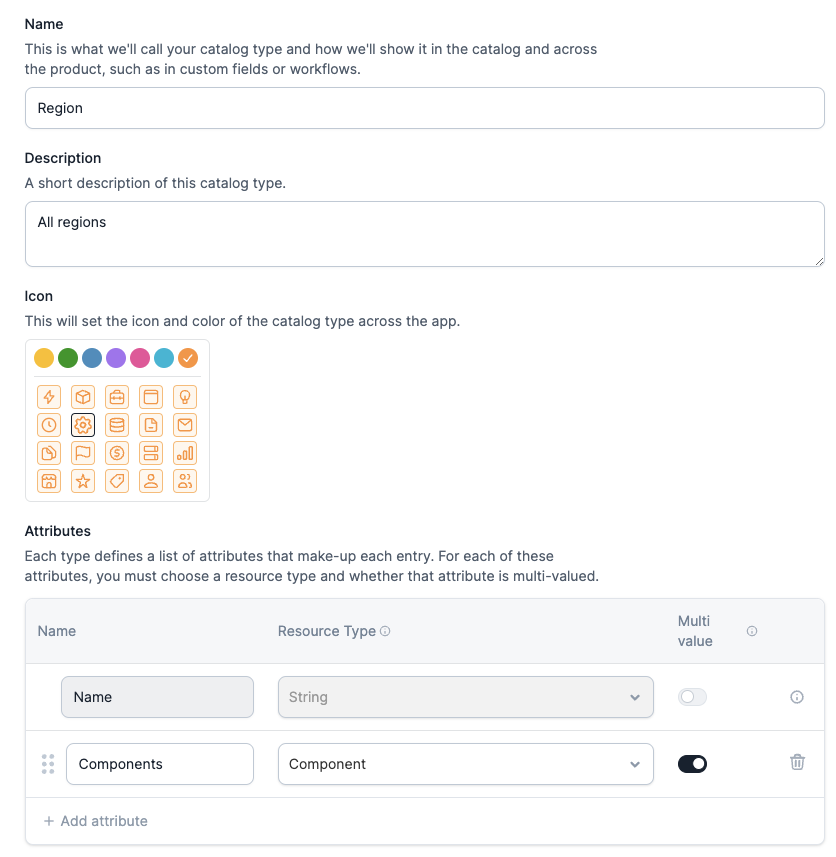 *It's very important that the Region catalog type has an attribute with Resource Type = Component as this is what we'll use to route status page updates to the correct page.*
Ensure that "Multi value" is selected for the Components attribute as this will allow you to associate multiple components to each Region. For example, the UK might rely on both the API and Website components.
Now that you have a "sub-page compatible" Region and Component catalog type, we need to ensure that each Region has a number of Components mapped to it.
An entry for the Region catalog type should look something like this:
*It's very important that the Region catalog type has an attribute with Resource Type = Component as this is what we'll use to route status page updates to the correct page.*
Ensure that "Multi value" is selected for the Components attribute as this will allow you to associate multiple components to each Region. For example, the UK might rely on both the API and Website components.
Now that you have a "sub-page compatible" Region and Component catalog type, we need to ensure that each Region has a number of Components mapped to it.
An entry for the Region catalog type should look something like this:
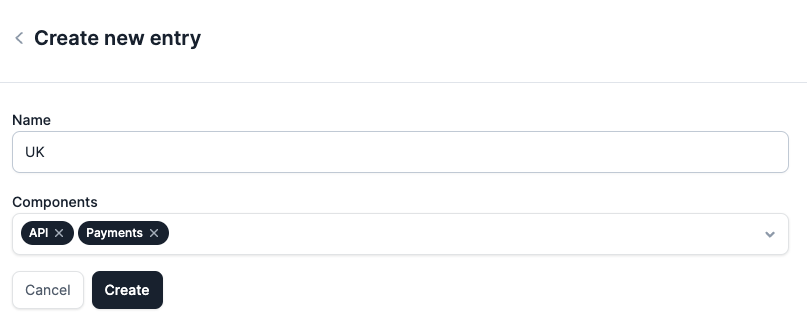 The result will look something like this:
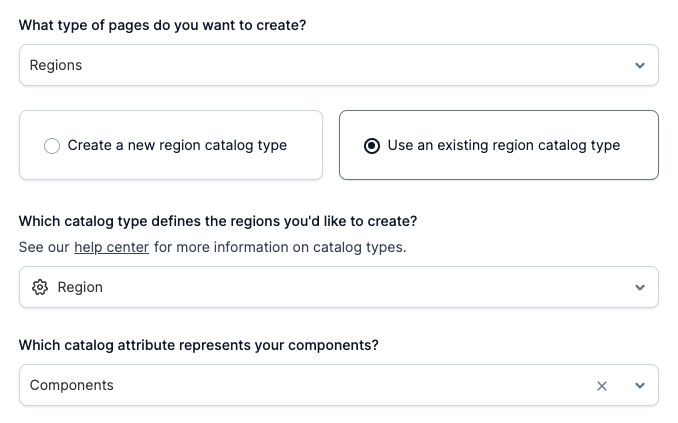
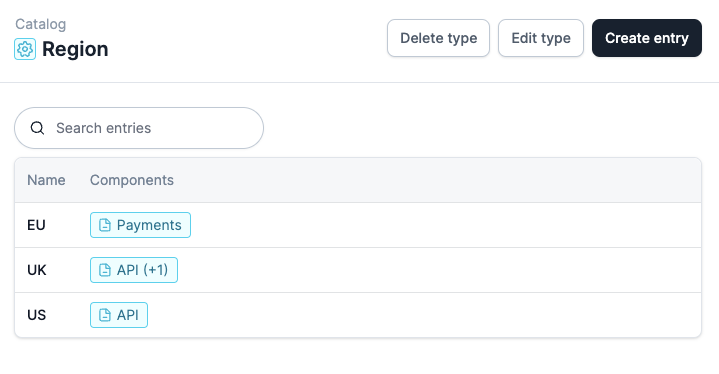 You can now complete the sub-page setup wizard with compatible catalog types.
 You may optionally configure *grouping* of your components as well. This can be useful if you have a large number of components and want to group them on each of the sub-pages, and will show up as expandable groups on each sub-page's system status.
You can choose to create/not create some pages. If you don't create them during setup, you can always enable them later in the sub-page settings.
You may optionally configure *grouping* of your components as well. This can be useful if you have a large number of components and want to group them on each of the sub-pages, and will show up as expandable groups on each sub-page's system status.
You can choose to create/not create some pages. If you don't create them during setup, you can always enable them later in the sub-page settings.
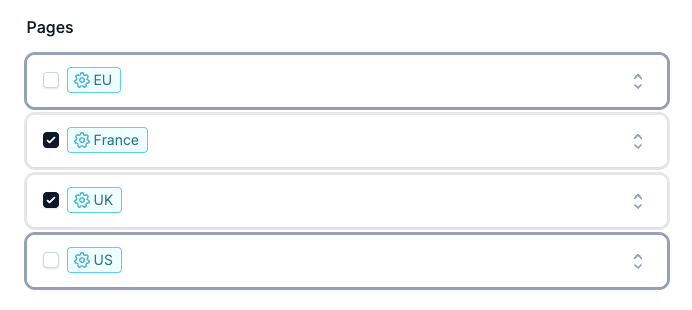 In this example, we have *Regions* to represent our different pages, and *Components* to represent our components. In your organization, you might use *Products* instead of *Regions*, and *Features* instead of *Components*. We support any version that works for you!
### Component Ordering
2 options for the ordering of components:
* Alphabetically
* Ranked
more info in this [article](/status-pages/component-ordering).
## 3. Branding
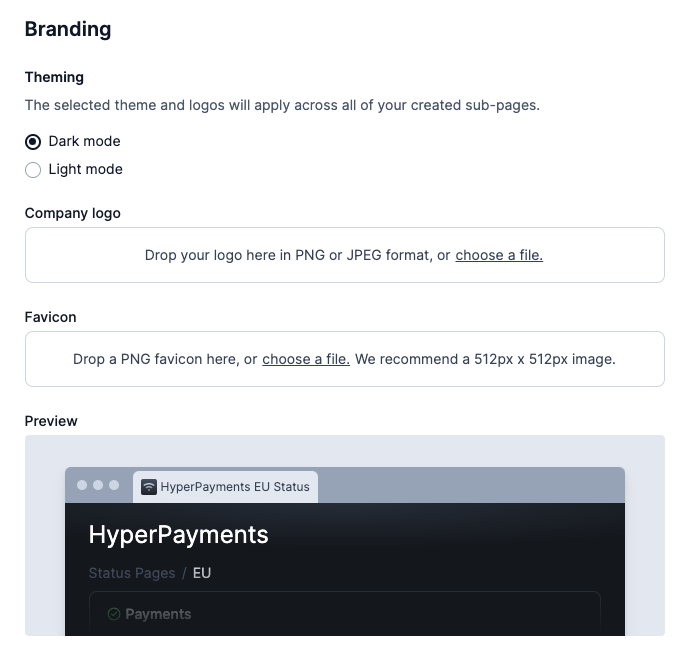
Choose between light and dark mode and add your logo, and you're ready to go!
In this example, we have *Regions* to represent our different pages, and *Components* to represent our components. In your organization, you might use *Products* instead of *Regions*, and *Features* instead of *Components*. We support any version that works for you!
### Component Ordering
2 options for the ordering of components:
* Alphabetically
* Ranked
more info in this [article](/status-pages/component-ordering).
## 3. Branding
Choose between light and dark mode and add your logo, and you're ready to go!
 ## → What's next?
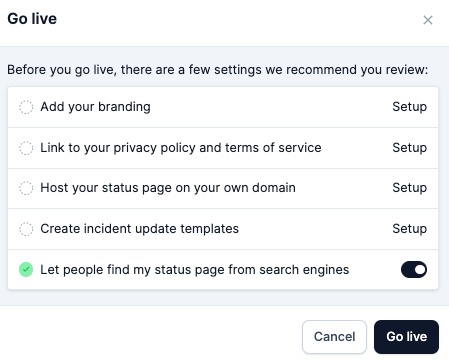
You're now ready to **Go live** !
## → What's next?
You're now ready to **Go live** !
 Depending on your configuration, there will be a number of items you'll want to check off before going live. Feel free to do those following the in-app instructions.
 Now, the only thing left is to publish incidents. When you publish an incident (from the dashboard, or using `/inc sp` in Slack) and publish to your parent page, the incident will automatically appear on all sub-pages where your impacted components are visible.
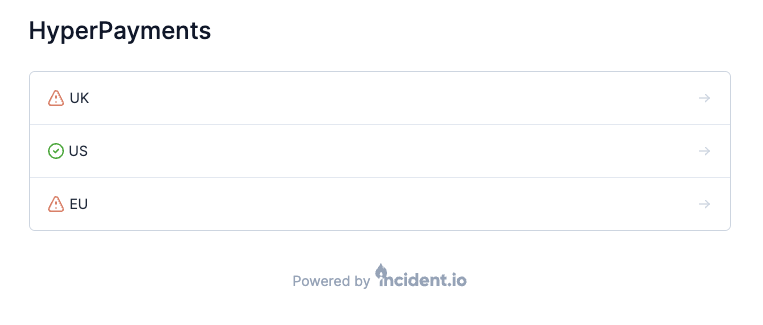 If you want to reconfigure anything, or add more sub-pages, head over to the Settings tab.