> ## Documentation Index
> Fetch the complete documentation index at: https://docs.incident.io/llms.txt
> Use this file to discover all available pages before exploring further.
# Ordering status page components
**Status pages backed by Catalog types:**
* [Internal Status pages](/status-pages/create-internal)
* [Sub-pages](/status-pages/sub-page-setup)
* [Customer pages](/status-pages/customer-overview)
These status pages are backed by catalog types, you can choose from two ordering options.
1. Alphabetically ordered **(Default Setting)**
2. This is done by default in catalog types if no ranking is selected.
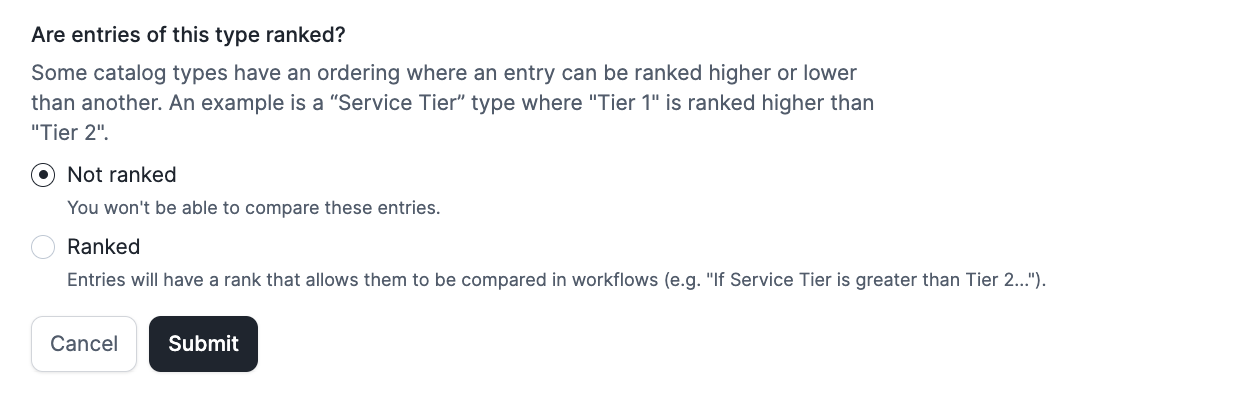
3. Ranked
4. You can choose to rank the values in the catalog types by clicking the edit button on the catalog type and choosing the rank option at the bottom.
 **Status pages NOT backed by Catalog types:**
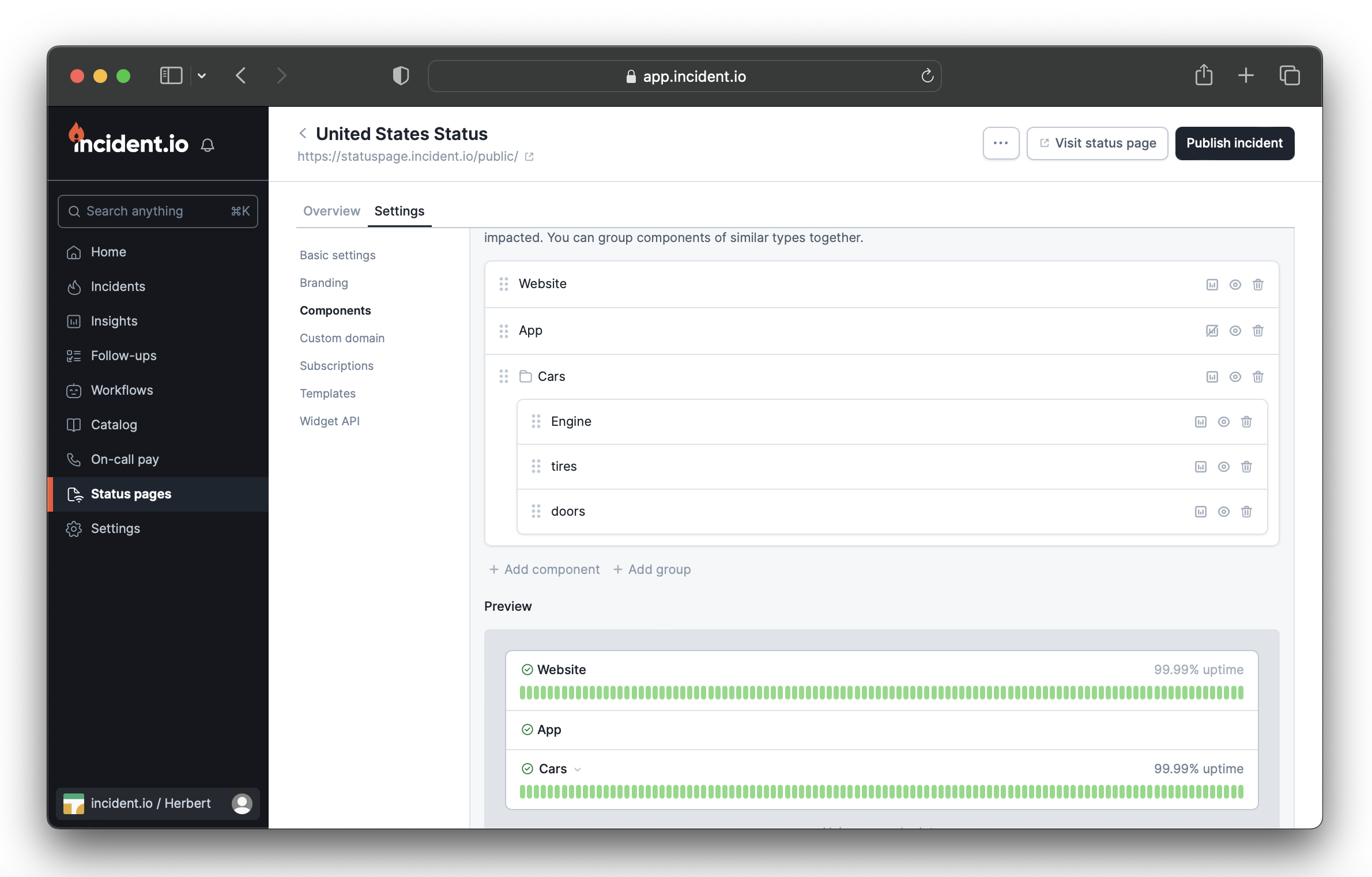
For single-page status pages that are not backed by a catalog type, the ordering is handled by dragging components in the order you would like, under
Status page → Settings → Components.
**Status pages NOT backed by Catalog types:**
For single-page status pages that are not backed by a catalog type, the ordering is handled by dragging components in the order you would like, under
Status page → Settings → Components.