> ## Documentation Index
> Fetch the complete documentation index at: https://docs.incident.io/llms.txt
> Use this file to discover all available pages before exploring further.
# Follow-ups
We believe you create two types of actions during an incident – those that **need doing now** and those that should be followed up after an incident has been closed.
Actions that **need doing now** might be:
* Reboot that server
* Send some comms to an affected customer
While **follow-ups** could be:
* Improve test coverage of a given codepath
* Share the debrief document with all affected customers
You can learn more about actions [here](/incidents/actions).
## How do I create follow-ups?
There are three ways you can do this:
1. **React** with the `:fast_forward:` emoji to any Slack message within the incident channel
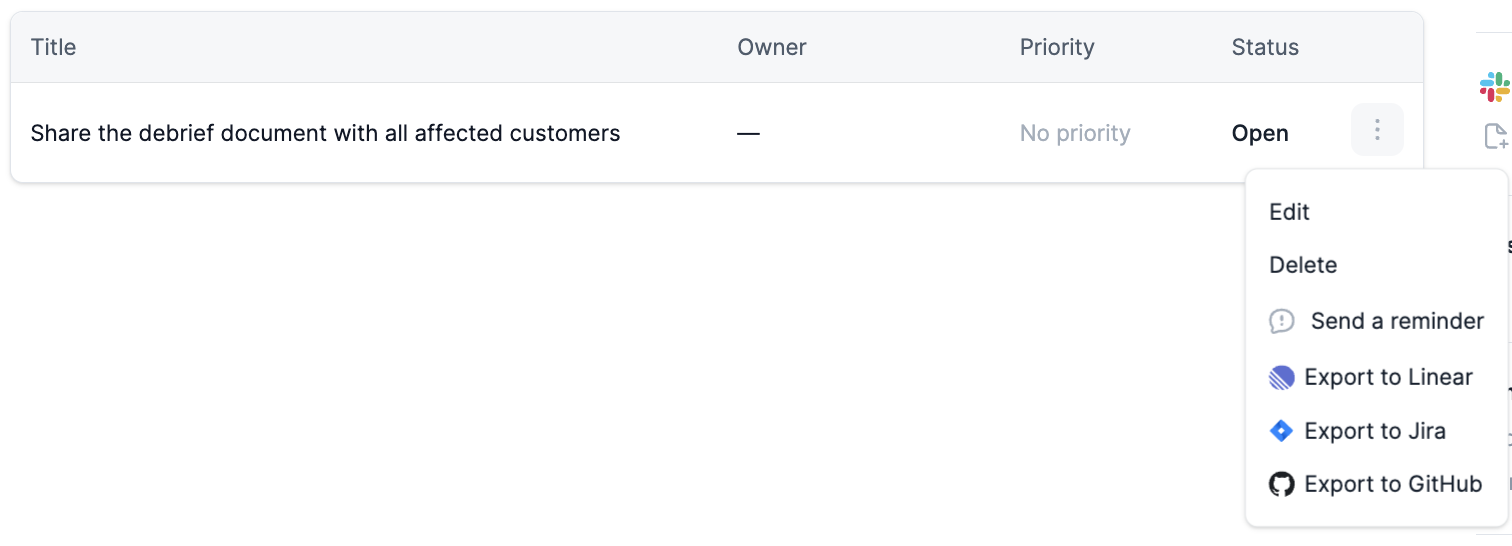
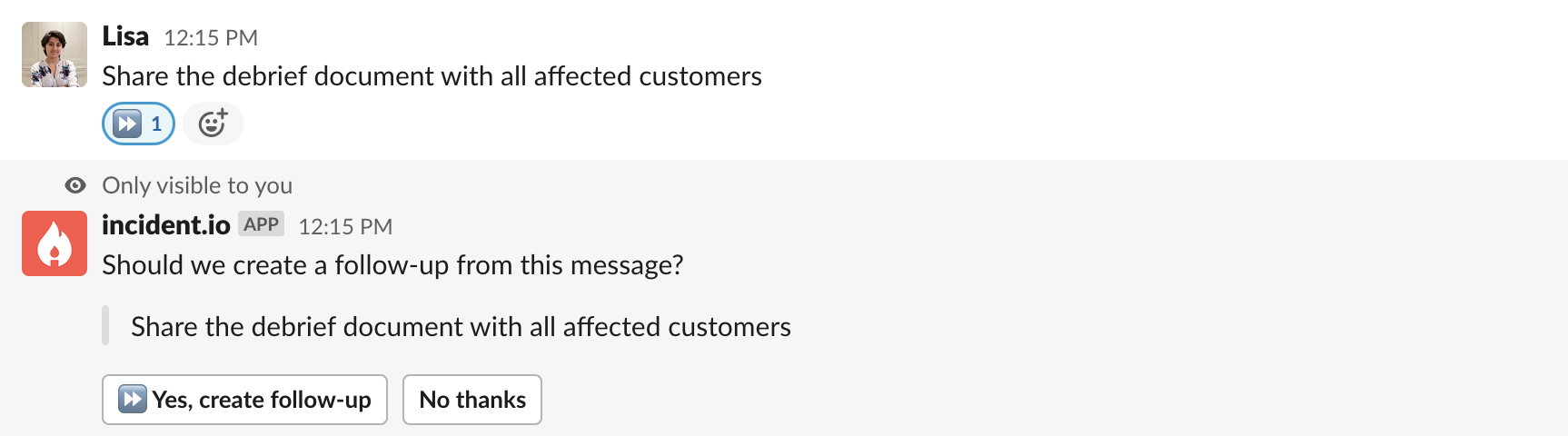 You can then export the follow-up to an issue tracker, via the Incident Homepage (or directly in Slack for any connected issue tracker).
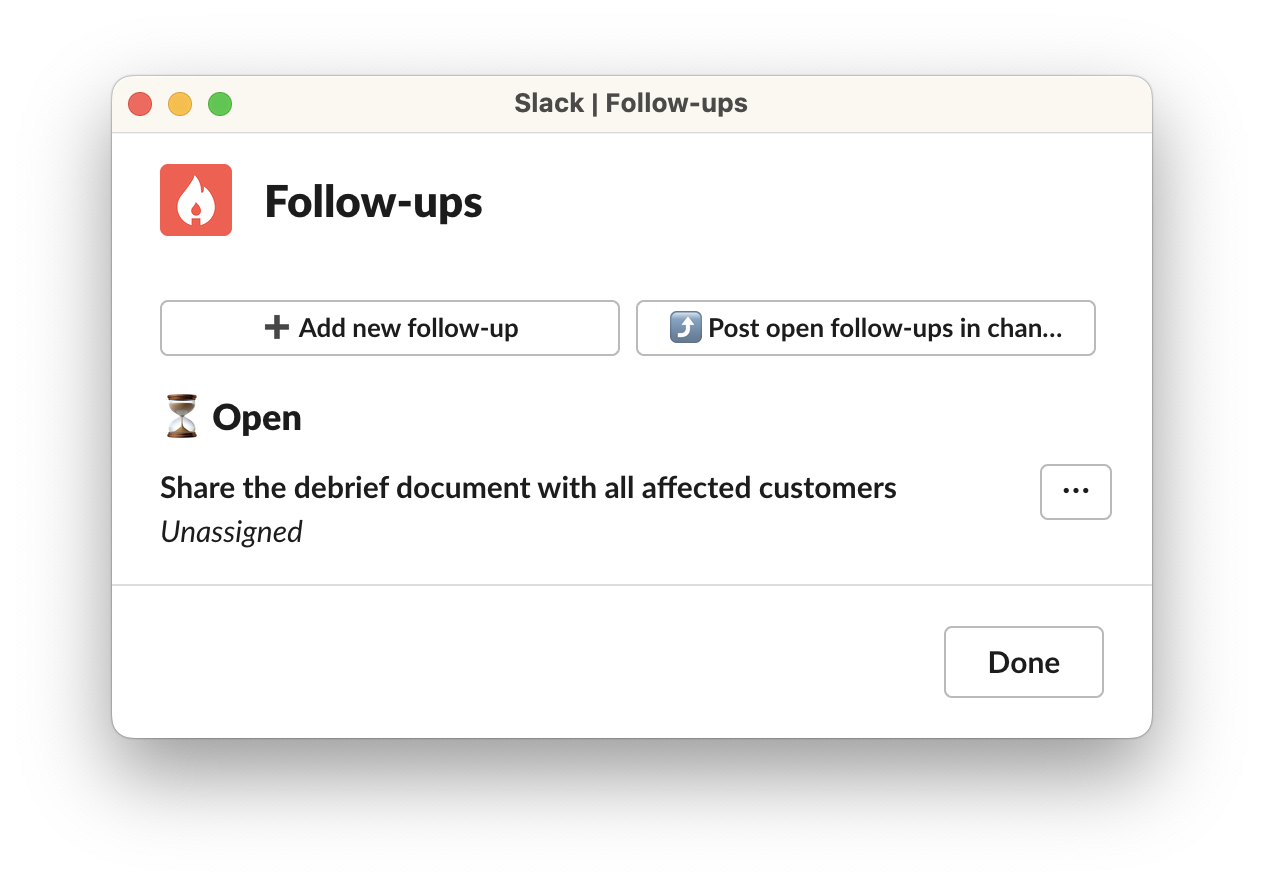
 2. Use the command **/inc follow-up,** to create new follow-ups and post any open follow-ups within the channel
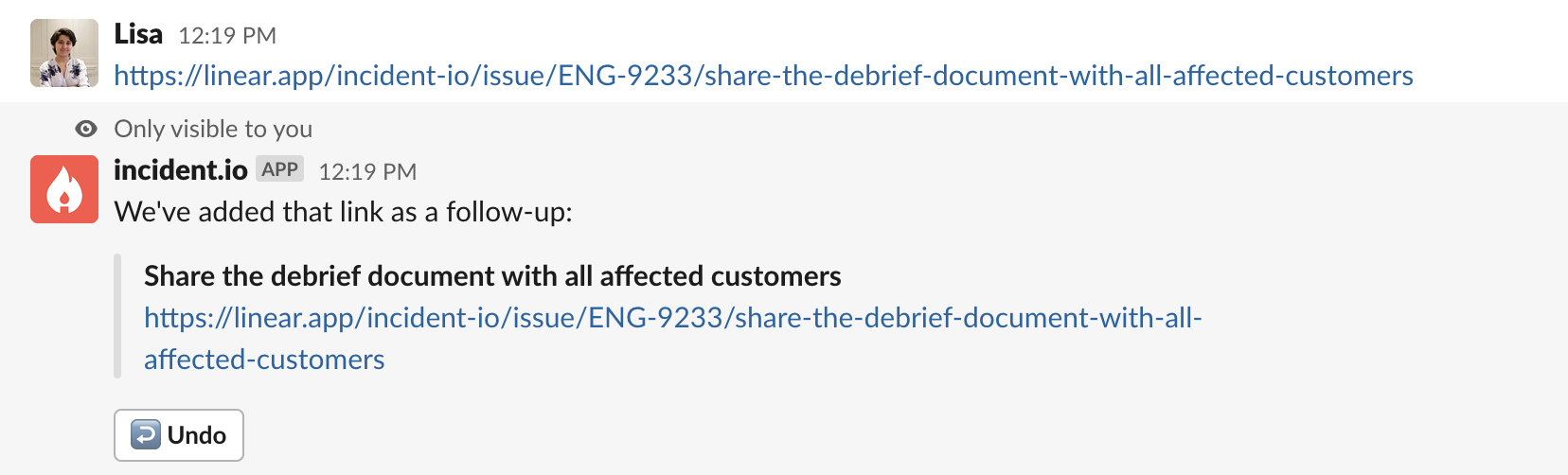
 3. Create the follow-up directly in your issue tracker, and paste a link into the Slack channel
 4. **Import** an existing ticket from your issue tracker as a follow-up, from the incident homepage in the dashboard
## What can I do with follow-ups?
## Editing follow-ups
If a follow-up is exported to an external issue tracker like Jira, we'll listen for changes and keep the follow-up in line on our side.
If it isn't, you can manage it via Slack (using `/inc follow-ups`) or via the incident homepage from the Follow-ups tab.
You can also assign a **Priority** to a follow-up, to help drive Policies and communicate the difference between follow-ups. You can read more about [Follow-up Priorities](/post-incident/follow-up-priorities).
You can assign follow-ups to a **Team** as well as an individual user, which is useful when you know which team owns the work but not yet who will do it. Follow-ups can also be tagged with **Labels**, which sync with your issue tracker and can be used for filtering.
## Tracking follow-ups
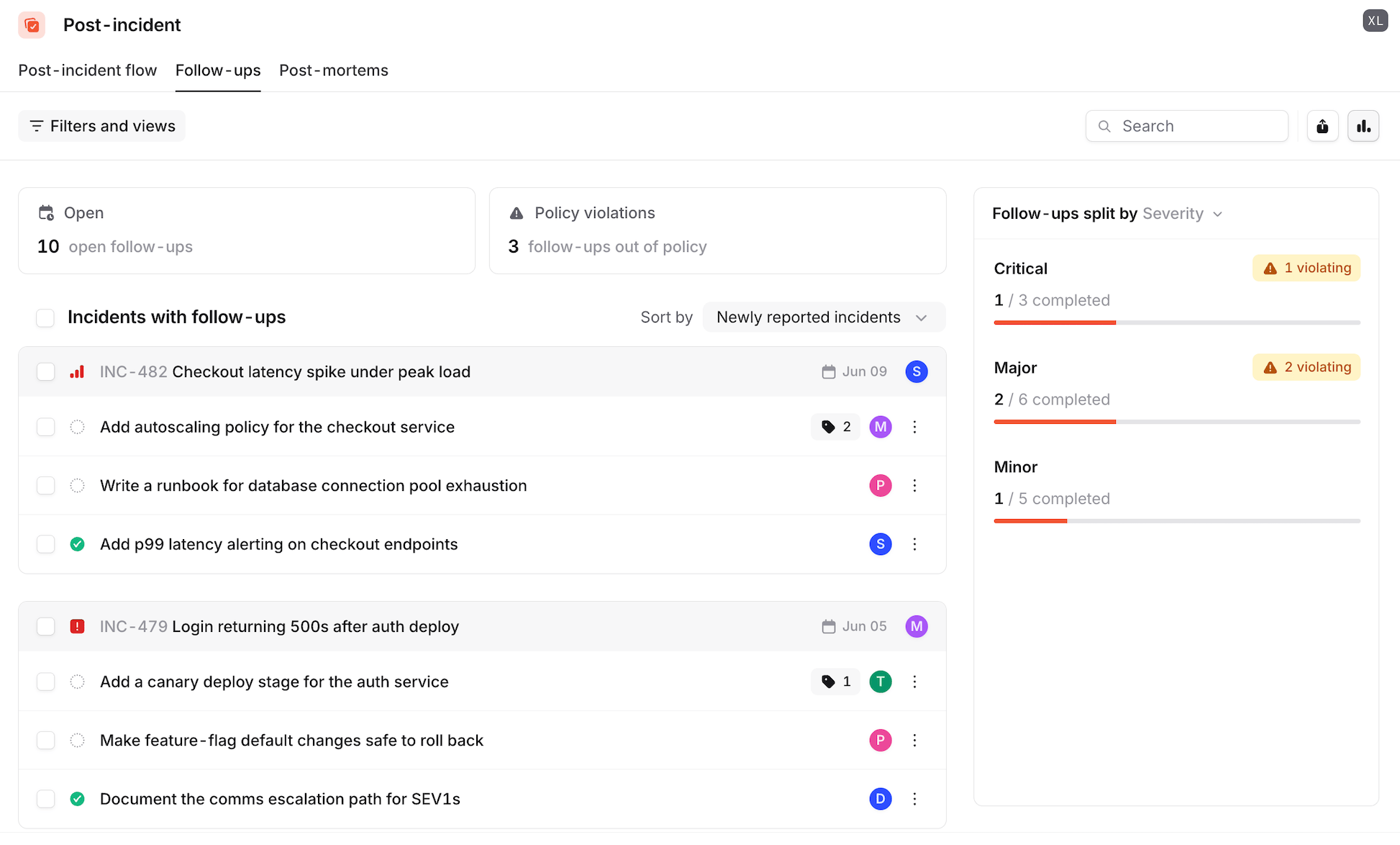
You can track follow-ups from the [Follow-ups](https://app.incident.io/~/follow-ups) page in the web dashboard. This allows you to see the status of follow-ups across all your incidents, as well as take actions such as sending reminders and bulk-editing follow-ups.
4. **Import** an existing ticket from your issue tracker as a follow-up, from the incident homepage in the dashboard
## What can I do with follow-ups?
## Editing follow-ups
If a follow-up is exported to an external issue tracker like Jira, we'll listen for changes and keep the follow-up in line on our side.
If it isn't, you can manage it via Slack (using `/inc follow-ups`) or via the incident homepage from the Follow-ups tab.
You can also assign a **Priority** to a follow-up, to help drive Policies and communicate the difference between follow-ups. You can read more about [Follow-up Priorities](/post-incident/follow-up-priorities).
You can assign follow-ups to a **Team** as well as an individual user, which is useful when you know which team owns the work but not yet who will do it. Follow-ups can also be tagged with **Labels**, which sync with your issue tracker and can be used for filtering.
## Tracking follow-ups
You can track follow-ups from the [Follow-ups](https://app.incident.io/~/follow-ups) page in the web dashboard. This allows you to see the status of follow-ups across all your incidents, as well as take actions such as sending reminders and bulk-editing follow-ups.