{caption}
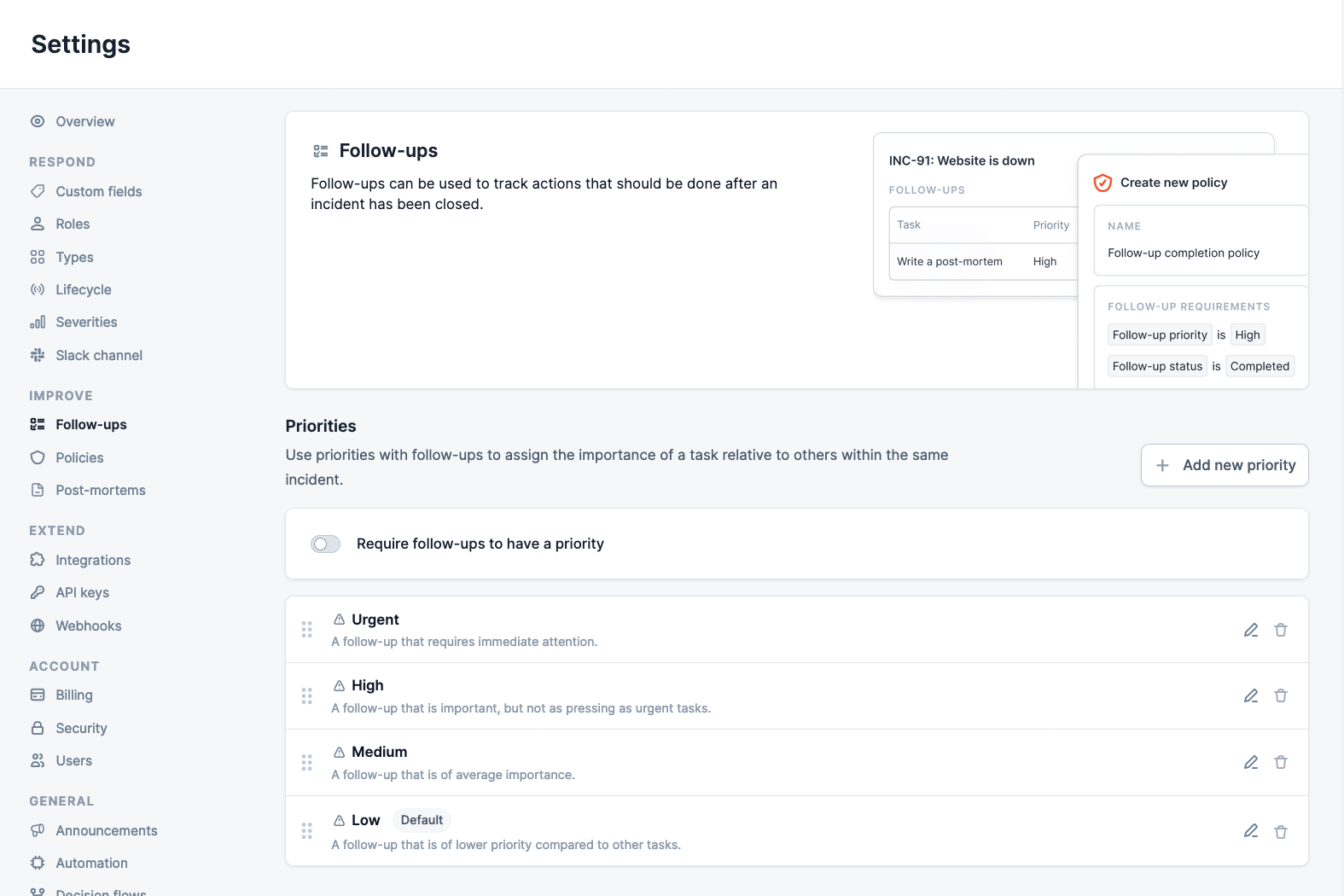
} ; }; [Follow-ups](/post-incident/follow-ups) are a way for your team to capture something that needs to be done after an incident is closed. These will come in all shapes and sizes, from an urgent task such as reverting a temporary workaround, to a low priority task such as investigating how to move to a new cloud provider. You are able to assign each follow-up a priority, to capture this level of importance within [incident.io](https://incident.io/). In this article, we will show you how to configure and assign priorities to your follow-ups, as well as how they work with [policies](/admin/policies), [workflows](/workflows/getting-started), and reporting. ## Assigning a Priority Set the priority via the dropdown in either the web or Slack experience.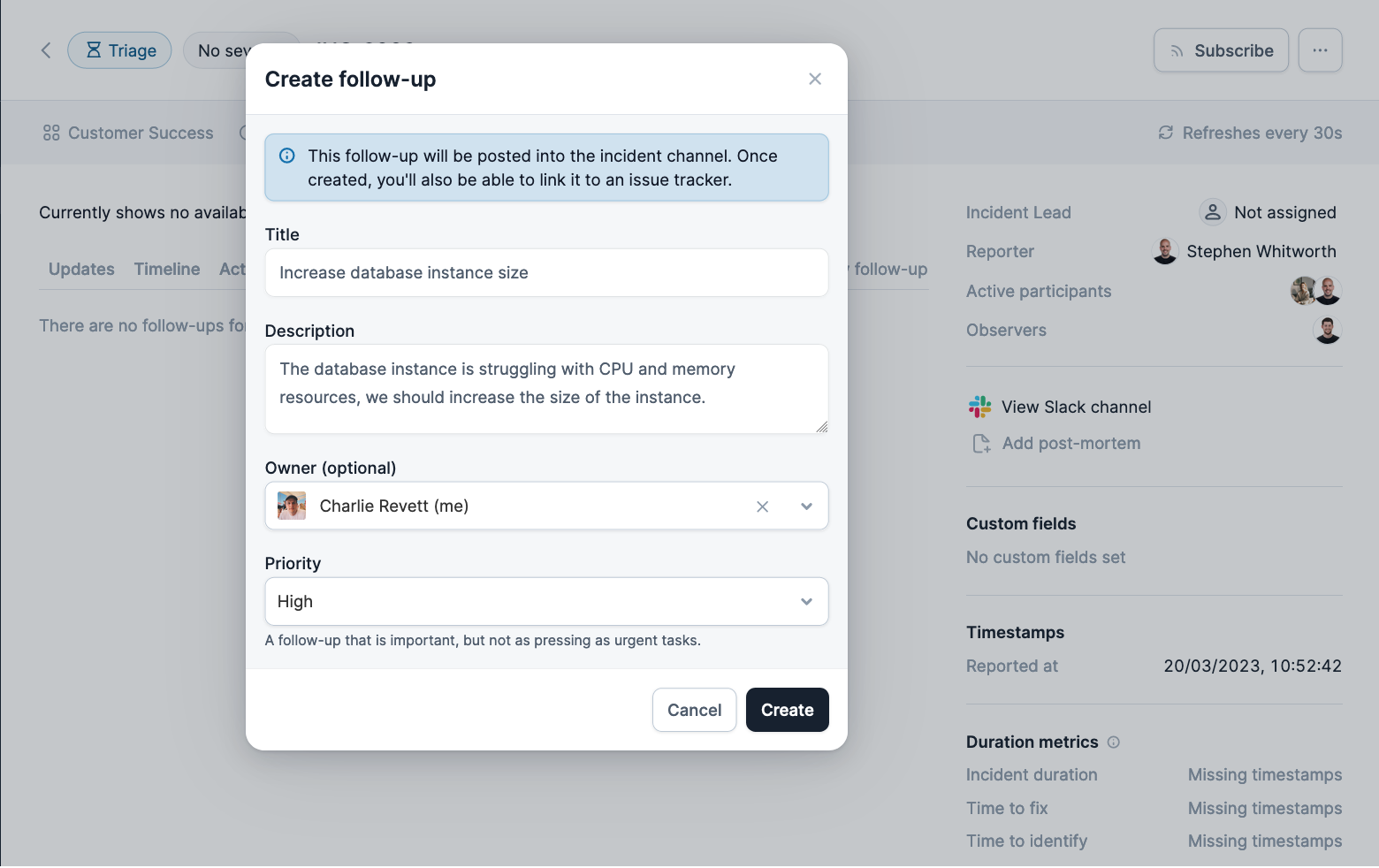
 ## Using Priorities with Policies
Navigate to the [Settings → Policies](https://app.incident.io/~/settings/policies) page, and select **New Policy** and then choose **Follow-ups** as the **Policy type**.
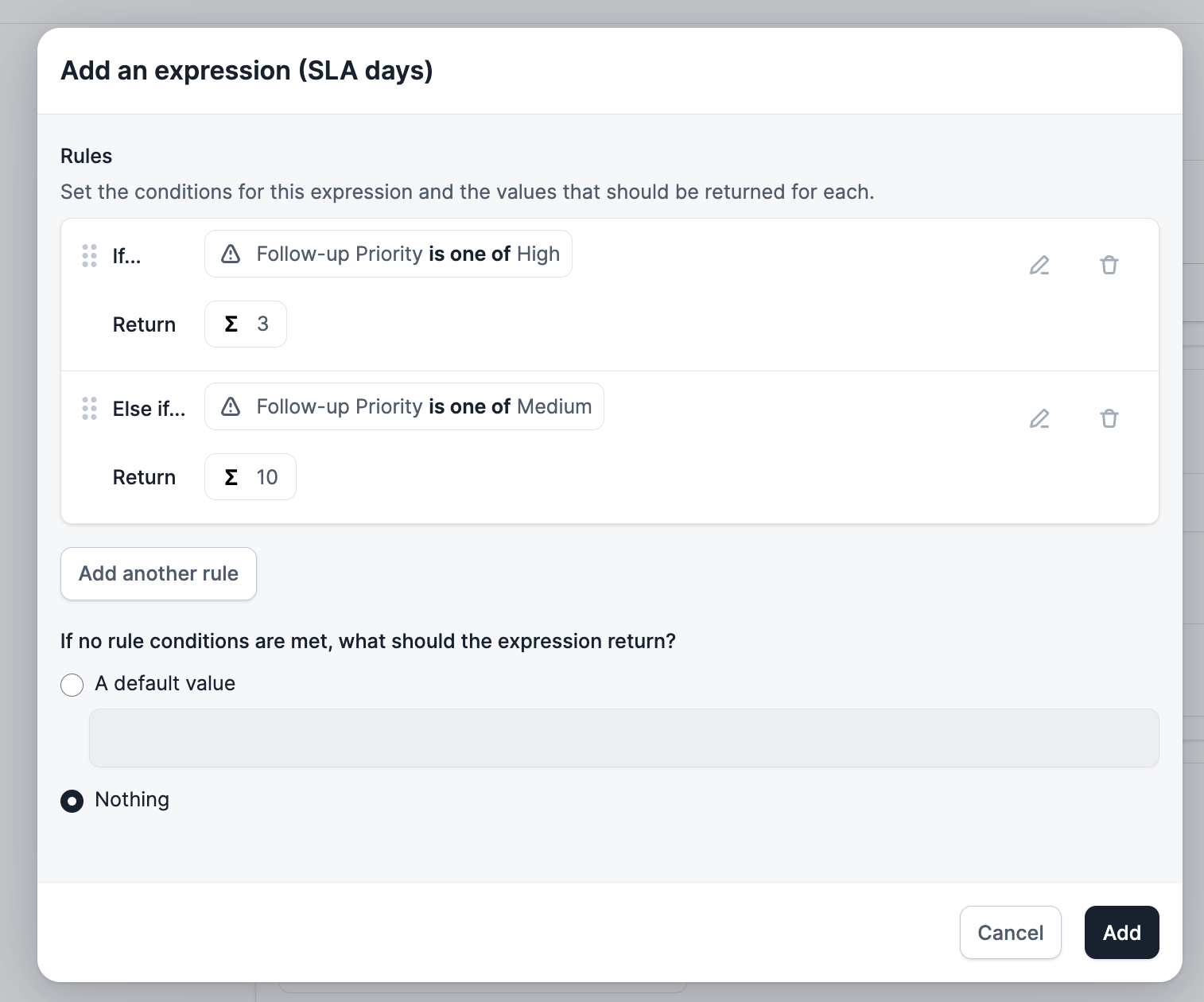
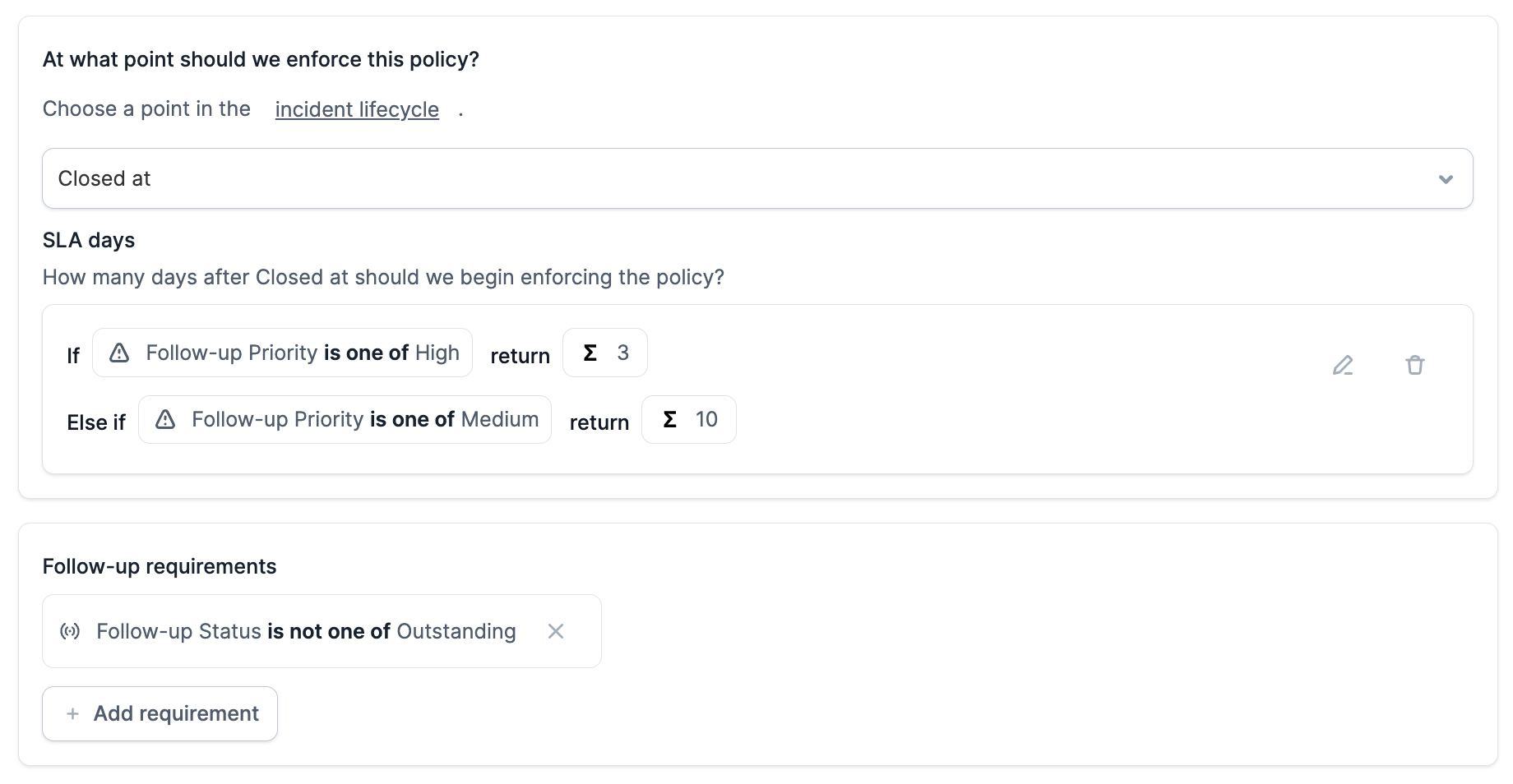
Within the **Follow-up requirements** section, you are able to use **Follow-up Priority** alongside **Expressions** to determine the SLA that you want to set, allowing you to build a policy that says:
* "All high priority follow-ups must be completed within 3 days, medium priority follow-ups within 10 days".
* Note that in this example, Low priority follow-ups will have no SLA, so won't trigger a violation.
## Using Priorities with Policies
Navigate to the [Settings → Policies](https://app.incident.io/~/settings/policies) page, and select **New Policy** and then choose **Follow-ups** as the **Policy type**.
Within the **Follow-up requirements** section, you are able to use **Follow-up Priority** alongside **Expressions** to determine the SLA that you want to set, allowing you to build a policy that says:
* "All high priority follow-ups must be completed within 3 days, medium priority follow-ups within 10 days".
* Note that in this example, Low priority follow-ups will have no SLA, so won't trigger a violation.
 ## Using Priorities with Workflows
Navigate to the [Workflows configuration page](https://app.incident.io/~/workflows), and select **New Workflow** and your workflow trigger (e.g. " **When a follow-up is created or changed"** ).
Click **Add condition** and choose **Follow-up Priority** to require that this workflow is conditional on the priority of a follow-up, thus allowing for workflows such as:
* "When a follow-up is created or changed, and the priority is set to urgent, then email the tech lead."
## Using Priorities with Reporting
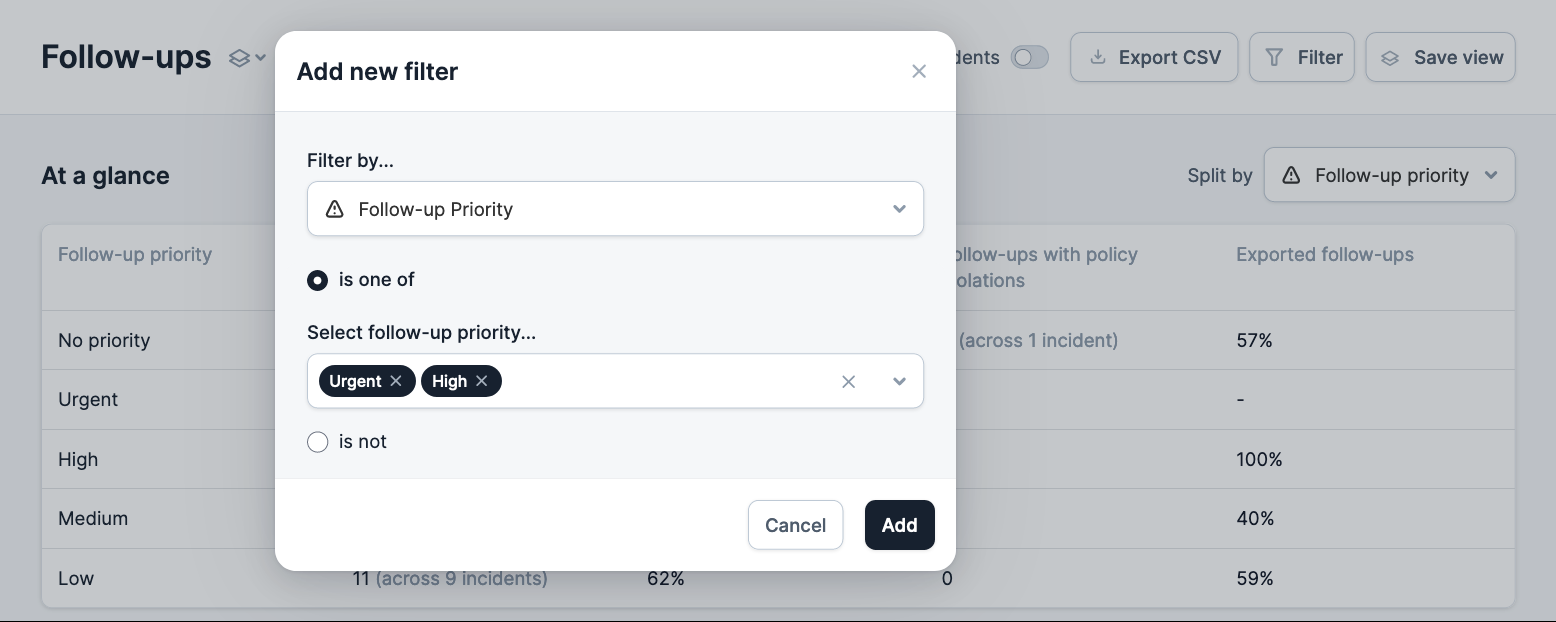
Navigate to the [Follow-ups reporting page](https://app.incident.io/~/follow-ups), and select **Follow-up Priority** from the **Split By** dropdown in the top-right of the screen, this will update the **At a glance** table.
## Using Priorities with Workflows
Navigate to the [Workflows configuration page](https://app.incident.io/~/workflows), and select **New Workflow** and your workflow trigger (e.g. " **When a follow-up is created or changed"** ).
Click **Add condition** and choose **Follow-up Priority** to require that this workflow is conditional on the priority of a follow-up, thus allowing for workflows such as:
* "When a follow-up is created or changed, and the priority is set to urgent, then email the tech lead."
## Using Priorities with Reporting
Navigate to the [Follow-ups reporting page](https://app.incident.io/~/follow-ups), and select **Follow-up Priority** from the **Split By** dropdown in the top-right of the screen, this will update the **At a glance** table.
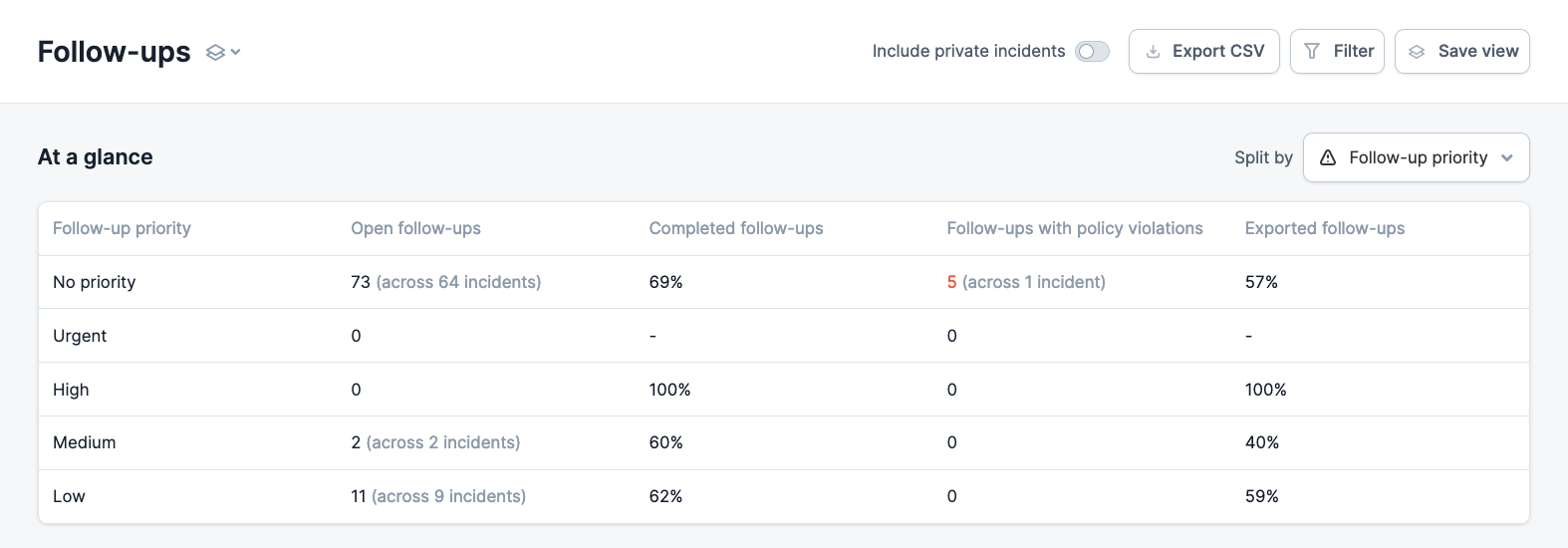 You can also make use of the **Follow-up Priority** filter on this page, by clicking **Filter** in the top-right of the screen.