> ## Documentation Index
> Fetch the complete documentation index at: https://docs.incident.io/llms.txt
> Use this file to discover all available pages before exploring further.
# How do I set up Slack notifications for on-call schedule changes?
## Context
Teams often need to notify members when on-call schedules change, including who is coming on/off duty. Setting up automated Slack notifications helps keep everyone informed of these schedule changes.
## Answer
You can configure automated Slack notifications for on-call schedule changes using workflows. Here's how to set it up:
1. Navigate to Workflows and create a new workflow
2. Select "An On-call schedule shift changes" as the trigger
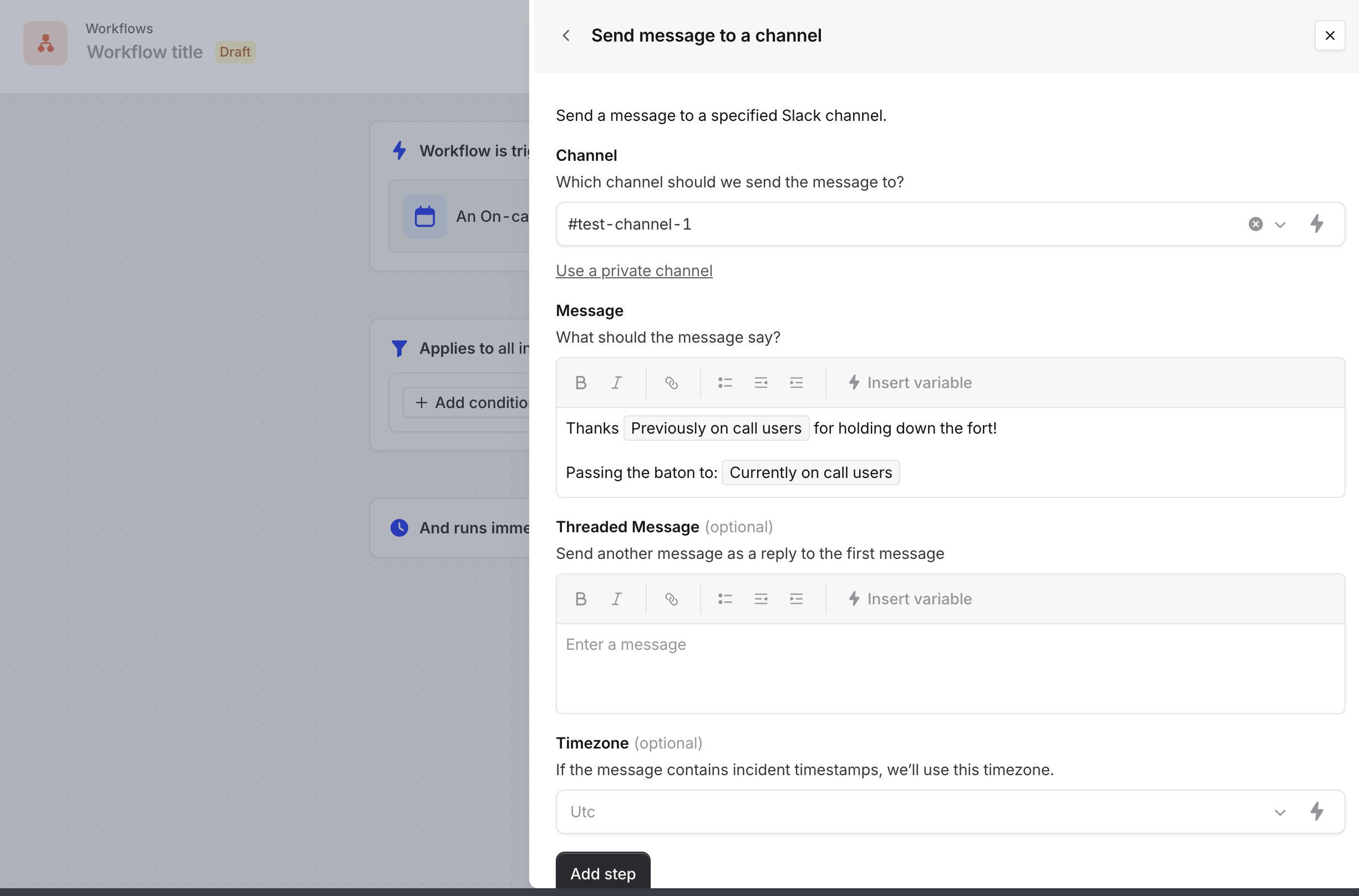
3. Add a Slack message action and choose your destination channel
4. In the message, you can use these variables to display shift information:
* "Previously on-call users" - Shows who was on call
* "Currently on-call users" - Shows who is now on call
 Important notes:
* Individual users can set up personal notifications through User Preferences for shift notifications
Important notes:
* Individual users can set up personal notifications through User Preferences for shift notifications