> ## Documentation Index
> Fetch the complete documentation index at: https://docs.incident.io/llms.txt
> Use this file to discover all available pages before exploring further.
# Sync on-call shifts to your calendar
> See your on-call shifts in Google Calendar, Outlook, or any calendar app that can subscribe to a feed
Subscribe to a calendar feed of your on-call shifts so they sit alongside everything else in your week. We generate a standard iCal feed, which works in Google Calendar, Outlook, Apple Calendar, and any other app that can subscribe to a calendar URL. Once you're subscribed, rotation changes and overrides flow through without you doing anything.
Looking for holidays and time off rather than shifts? That's a separate feature. See [Import holidays with calendar feeds](/on-call/calendar-feeds).
## Get a feed of your own shifts
1. Head to [Schedules](https://app.incident.io/~/on-call/schedules) and click **Sync calendar**
2. On the **Your shifts** tab, copy the feed URL, or use the Google Calendar or Outlook buttons to [subscribe directly](#subscribe-in-google-calendar-or-outlook)
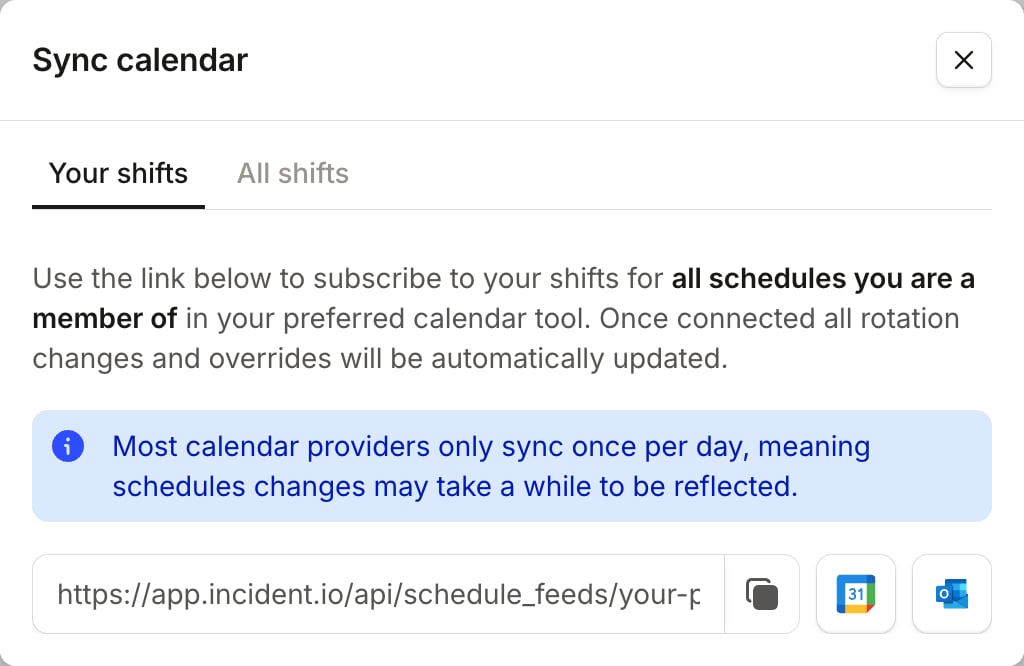 This one feed covers every schedule you're on, whether you're in a rotation or only covering an override. You don't need to update it when you join or leave a schedule.
## Get a feed for a single schedule
To follow one schedule instead, open it and choose **Sync to calendar** from the **...** menu in the top right.
## Include everyone's shifts
Both dialogs have an **All shifts** tab, which gives you a feed of the whole rotation rather than just your own shifts. Each event names the person on call, so this is the feed to use for a shared team calendar.
On a single schedule, **All shifts** covers every shift on that schedule. From the **Schedules** list, it covers every shift on the schedules you're a member of, not every schedule in your organization. To follow a schedule you're not on, open that schedule and take its feed.
## Subscribe in Google Calendar or Outlook
**Google Calendar**: click the Google Calendar button in the dialog. Google Calendar opens with the feed ready to add, so you only need to confirm.
**Outlook**: click the Outlook button to open Outlook's **Add calendar** screen, then choose **Subscribe from web** and paste the feed URL.
In any other app, add the URL as a new calendar subscription. Apps label this differently: Apple Calendar calls it **New Calendar Subscription**, and others use wording like "Subscribe from URL".
## What's in the feed
The feed covers a rolling window from one month ago to three months ahead, and moves forward as time passes. Shifts further out appear as the window reaches them, so use the schedule timeline in the dashboard to look further ahead.
Each shift becomes one event:
* Events are titled **On-call for Primary**, using the schedule's name. On an **All shifts** feed they name the person too, as in **Ed Amame on-call for Primary**.
* When a schedule is running more than one rotation, we add the rotation's name, as in **On-call for Primary Shadow**.
* The event description links back to the schedule in incident.io, and the event location is the schedule's timezone.
* Back-to-back shifts for the same person merge into a single event, so a week of daily handovers doesn't become seven events.
* Stretches where nobody is on call are left out.
Anyone with the feed URL can read the shifts in it without signing in to incident.io. Treat the URL like a password, and share it only with people who should see the schedule.
## FAQs
Most calendar apps only refresh a subscribed feed periodically, often around once a day, and you usually
can't force them to refresh sooner. A new override or a rotation change can take a while to appear. The
feed itself is always current, so opening the feed URL in your browser shows you what your calendar app
will pick up next.
Subscribe to the **All shifts** feed from the calendar you want the shifts to land in, such as a shared
Google Calendar or an Outlook group calendar. We never write events into a calendar ourselves, so the
subscription lives in your calendar tool rather than in incident.io, and whoever sets it up doesn't need
an incident.io account.
Want a heads-up before a shift rather than a calendar entry? Set up [on-call notifications](/on-call/notifications) instead.
This one feed covers every schedule you're on, whether you're in a rotation or only covering an override. You don't need to update it when you join or leave a schedule.
## Get a feed for a single schedule
To follow one schedule instead, open it and choose **Sync to calendar** from the **...** menu in the top right.
## Include everyone's shifts
Both dialogs have an **All shifts** tab, which gives you a feed of the whole rotation rather than just your own shifts. Each event names the person on call, so this is the feed to use for a shared team calendar.
On a single schedule, **All shifts** covers every shift on that schedule. From the **Schedules** list, it covers every shift on the schedules you're a member of, not every schedule in your organization. To follow a schedule you're not on, open that schedule and take its feed.
## Subscribe in Google Calendar or Outlook
**Google Calendar**: click the Google Calendar button in the dialog. Google Calendar opens with the feed ready to add, so you only need to confirm.
**Outlook**: click the Outlook button to open Outlook's **Add calendar** screen, then choose **Subscribe from web** and paste the feed URL.
In any other app, add the URL as a new calendar subscription. Apps label this differently: Apple Calendar calls it **New Calendar Subscription**, and others use wording like "Subscribe from URL".
## What's in the feed
The feed covers a rolling window from one month ago to three months ahead, and moves forward as time passes. Shifts further out appear as the window reaches them, so use the schedule timeline in the dashboard to look further ahead.
Each shift becomes one event:
* Events are titled **On-call for Primary**, using the schedule's name. On an **All shifts** feed they name the person too, as in **Ed Amame on-call for Primary**.
* When a schedule is running more than one rotation, we add the rotation's name, as in **On-call for Primary Shadow**.
* The event description links back to the schedule in incident.io, and the event location is the schedule's timezone.
* Back-to-back shifts for the same person merge into a single event, so a week of daily handovers doesn't become seven events.
* Stretches where nobody is on call are left out.
Anyone with the feed URL can read the shifts in it without signing in to incident.io. Treat the URL like a password, and share it only with people who should see the schedule.
## FAQs
Most calendar apps only refresh a subscribed feed periodically, often around once a day, and you usually
can't force them to refresh sooner. A new override or a rotation change can take a while to appear. The
feed itself is always current, so opening the feed URL in your browser shows you what your calendar app
will pick up next.
Subscribe to the **All shifts** feed from the calendar you want the shifts to land in, such as a shared
Google Calendar or an Outlook group calendar. We never write events into a calendar ourselves, so the
subscription lives in your calendar tool rather than in incident.io, and whoever sets it up doesn't need
an incident.io account.
Want a heads-up before a shift rather than a calendar entry? Set up [on-call notifications](/on-call/notifications) instead.