> ## Documentation Index
> Fetch the complete documentation index at: https://docs.incident.io/llms.txt
> Use this file to discover all available pages before exploring further.
# Rotation calculation in Schedules
Understanding how Rotations work is important when it comes to adding or removing users from an On-call schedule.
## How are Rotations calculated?
Rotations are calculated based on the Handover time of a Schedule's rota, this means that if you add a new user to a schedule, it may affect the order of the users on the schedule.
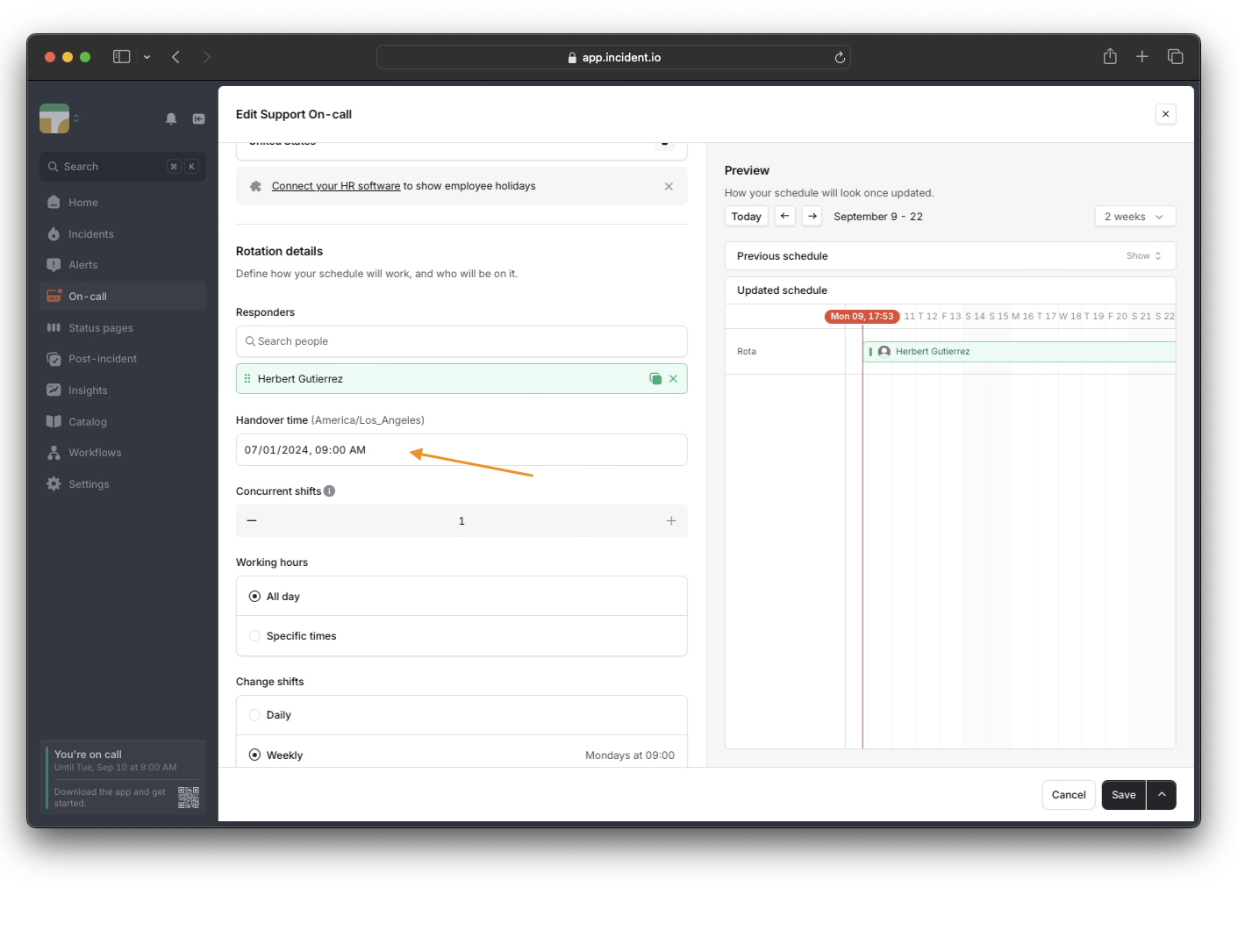 You can see below that if I try to add two new users to this schedule it changes the person that is currently on-call.
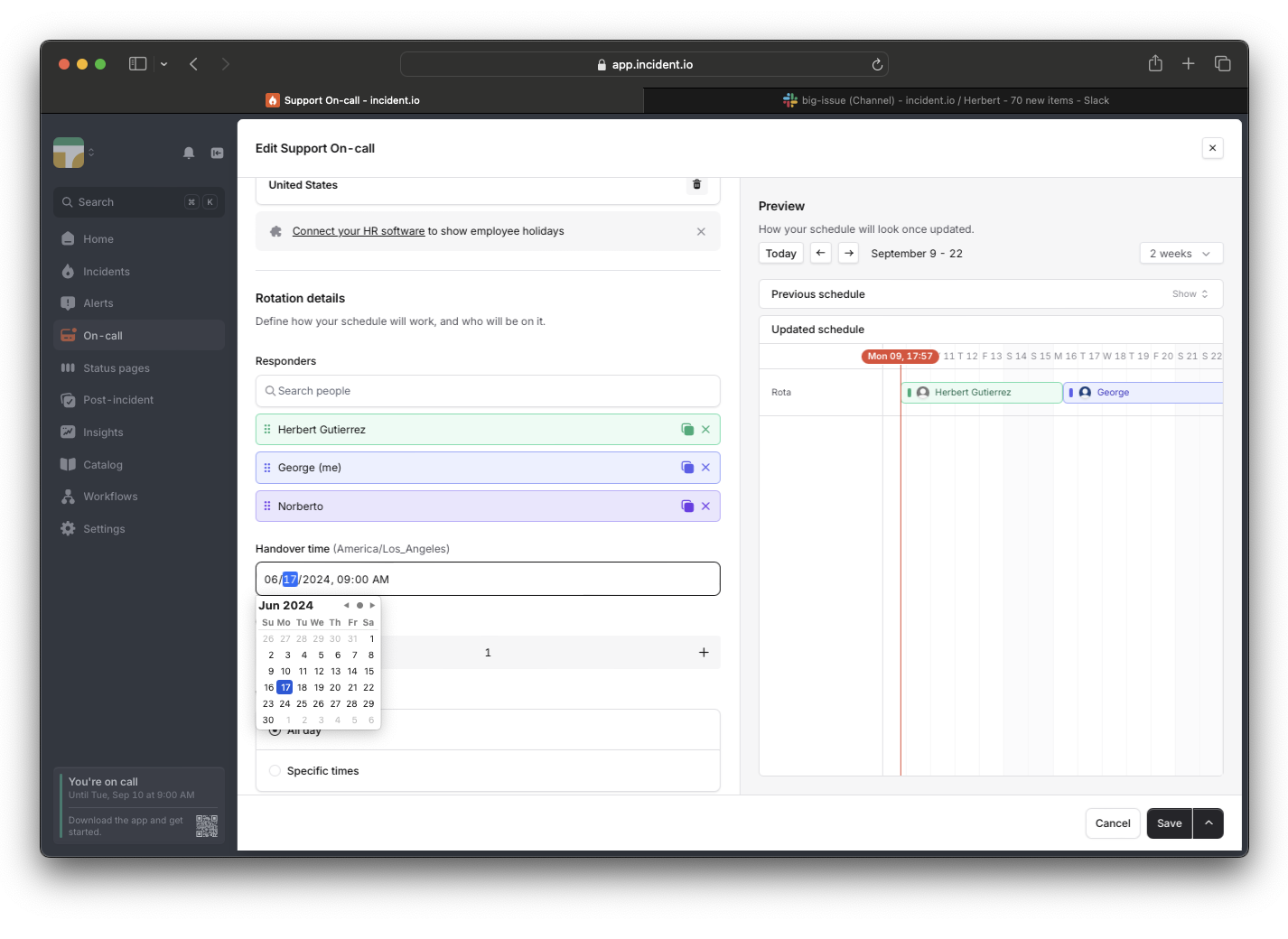
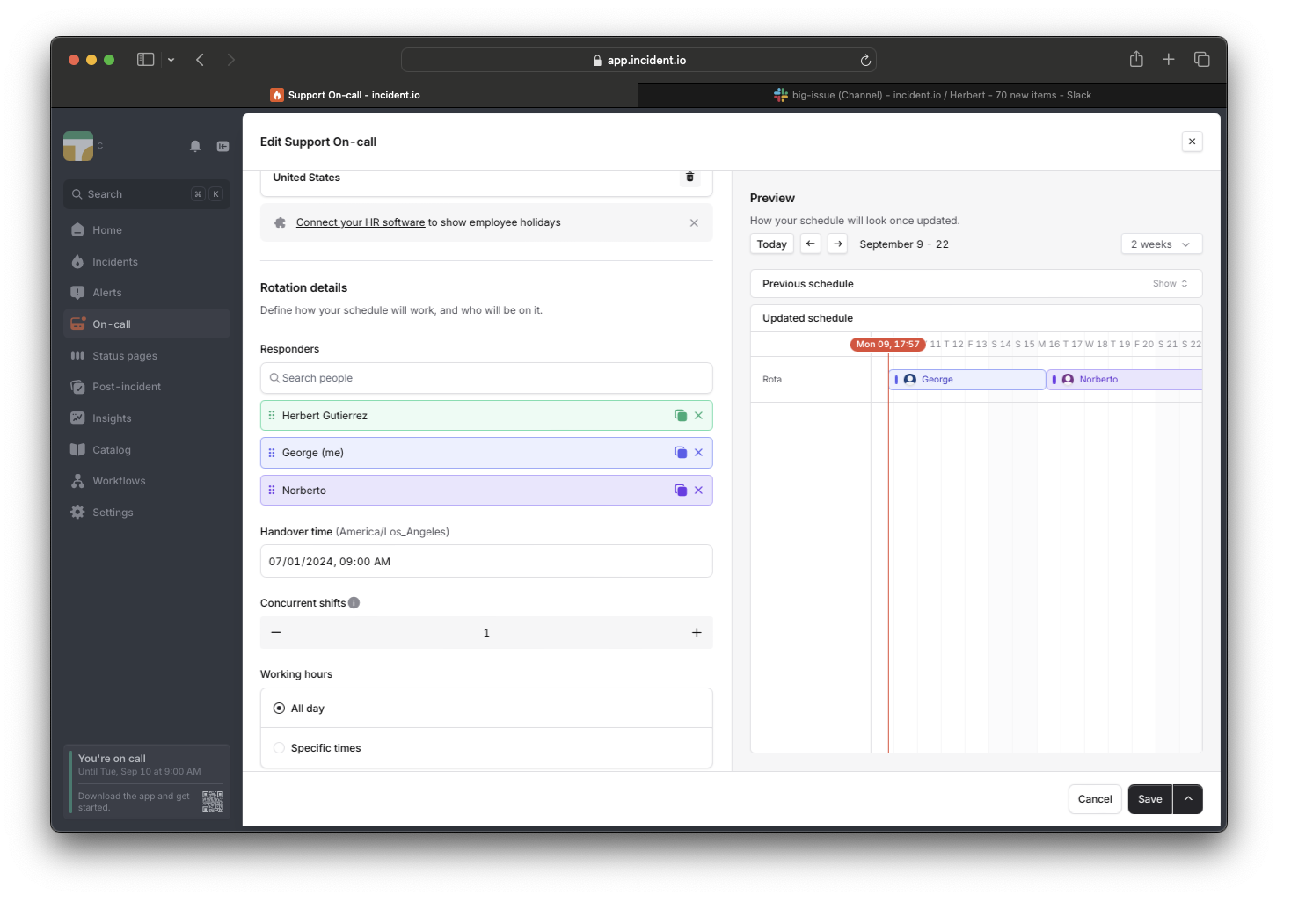 To offset this change, you need to change the handover time back 2 weeks as we are generating the new rotation based on the handover time.
 ## How to delay changes?
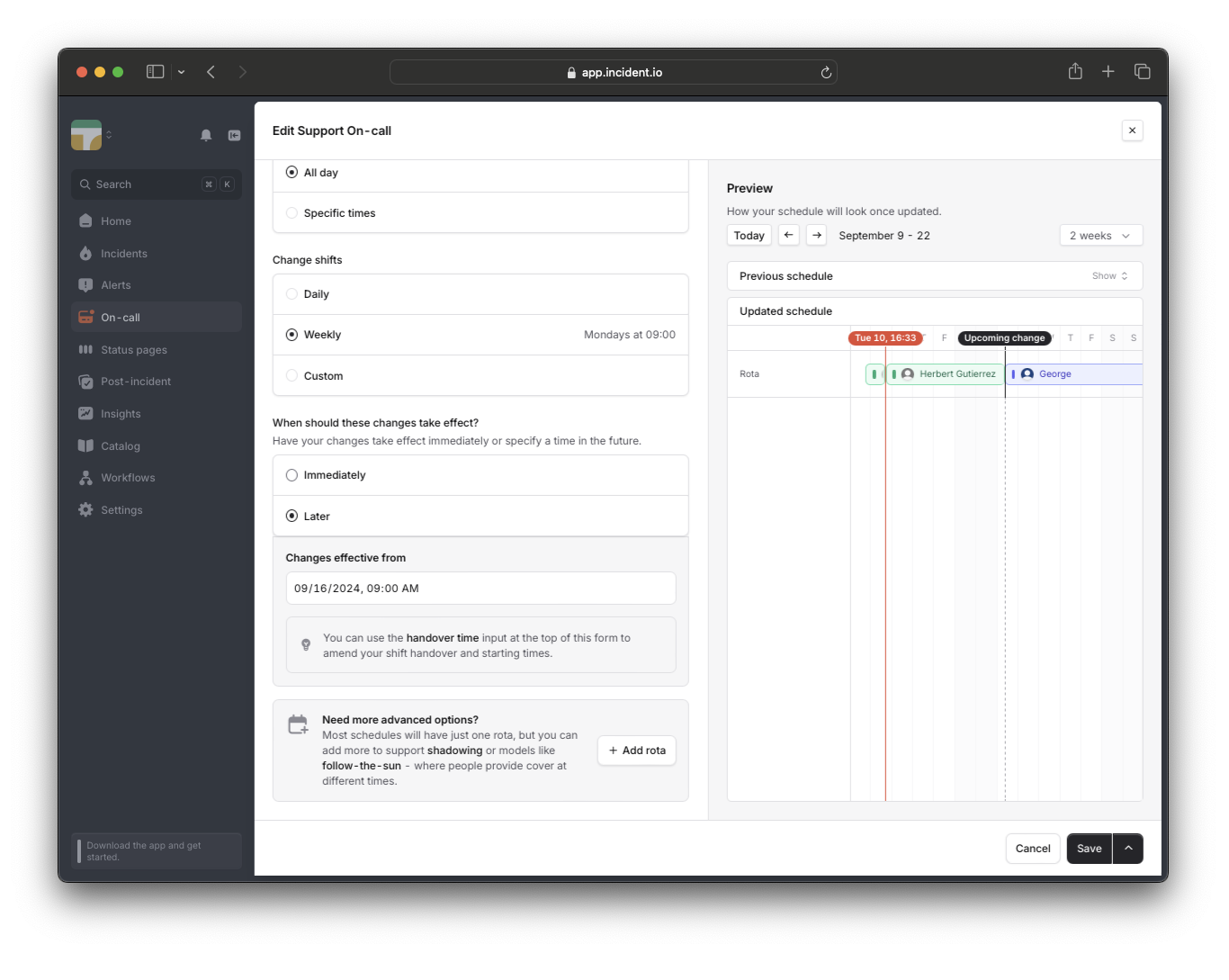
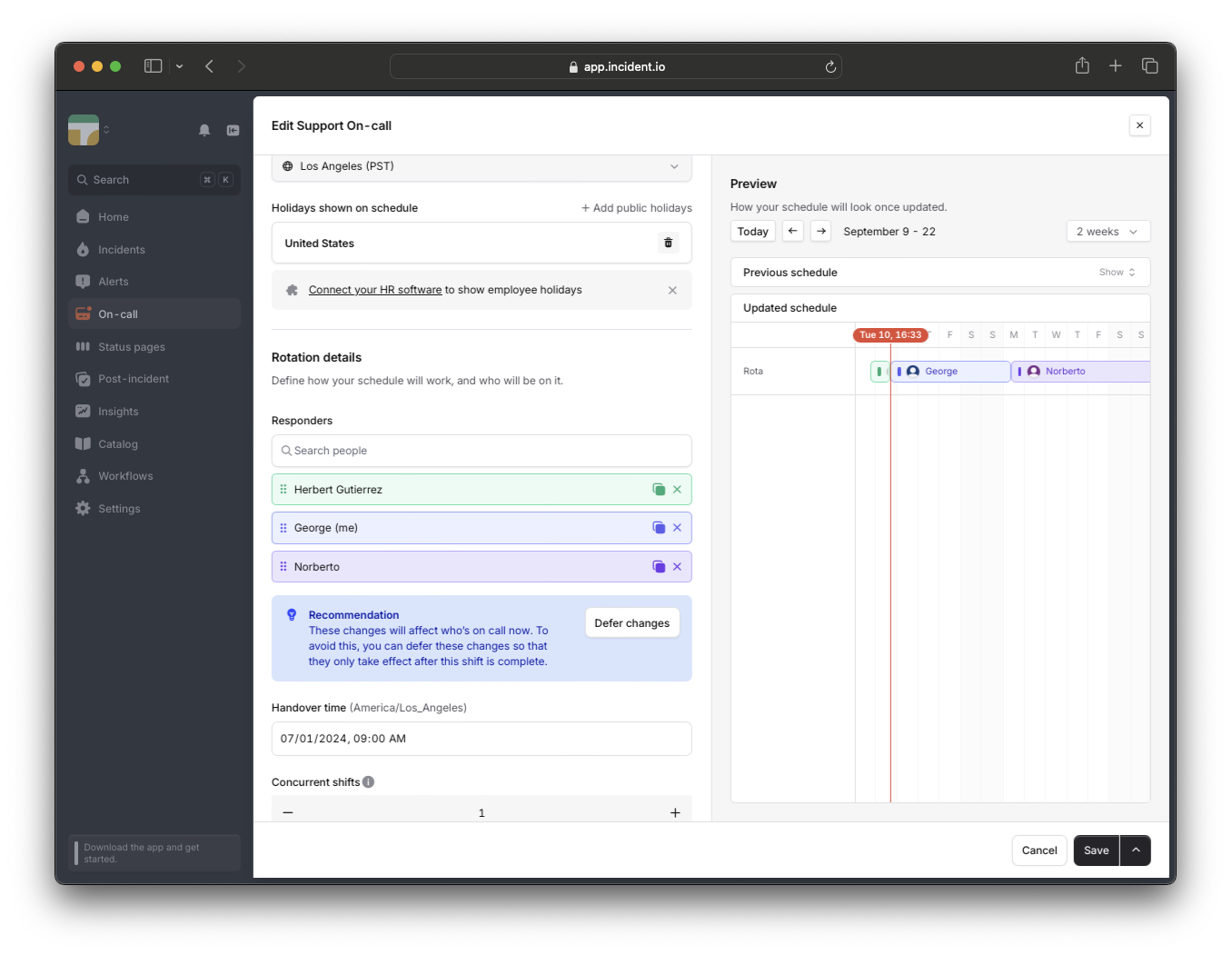 Alternatively, and the recommended way, to make sure the current on-call user is not affected by adding a new user, you can delay the change to happen after the current rotation has ended. Using the example above, we will prompt you to delay changes as this will affect the current user on-call, and we will automatically set the delay for you.
 ## Using Terraform to manage your schedule?
If you are using Terraform to manage your schedules it can be a bit hard to see what your upcoming changes will do, so to best utilize delaying your changes to make sure the current on-call user is not affected, use `effective_from` to delay changes. More details in our [Terraform provider](https://registry.terraform.io/providers/incident-io/incident/latest/docs/resources/schedule#example-usage).
## Using Terraform to manage your schedule?
If you are using Terraform to manage your schedules it can be a bit hard to see what your upcoming changes will do, so to best utilize delaying your changes to make sure the current on-call user is not affected, use `effective_from` to delay changes. More details in our [Terraform provider](https://registry.terraform.io/providers/incident-io/incident/latest/docs/resources/schedule#example-usage).
