> ## Documentation Index
> Fetch the complete documentation index at: https://docs.incident.io/llms.txt
> Use this file to discover all available pages before exploring further.
# Get started as an On-call responder
Being on-call is a critical responsibility, and we’re here to make sure you're fully prepared. This quick guide will help you get set up with the right configuration and easily manage your on-call shifts in the future!
## How to set up
When you’re invited to be an on-call responder, you’ll receive an email from us. After that, it’s time to set everything up! Here’s what we recommend:
1. **Download the mobile app**
2. **Check your notification settings**
3. **Learn how to request cover and create overrides**
4. **Know how to acknowledge (ack) when you get paged**
***
## 1. Downloading the mobile app
1. To get started, download our app from your phone’s app store:
* [Apple Store](https://apps.apple.com/ie/app/incident-io/id6471268530)
* [Google Play Store](https://play.google.com/store/apps/details?id=com.incidentio.incidentio\&hl=en_GB\&pli=1)
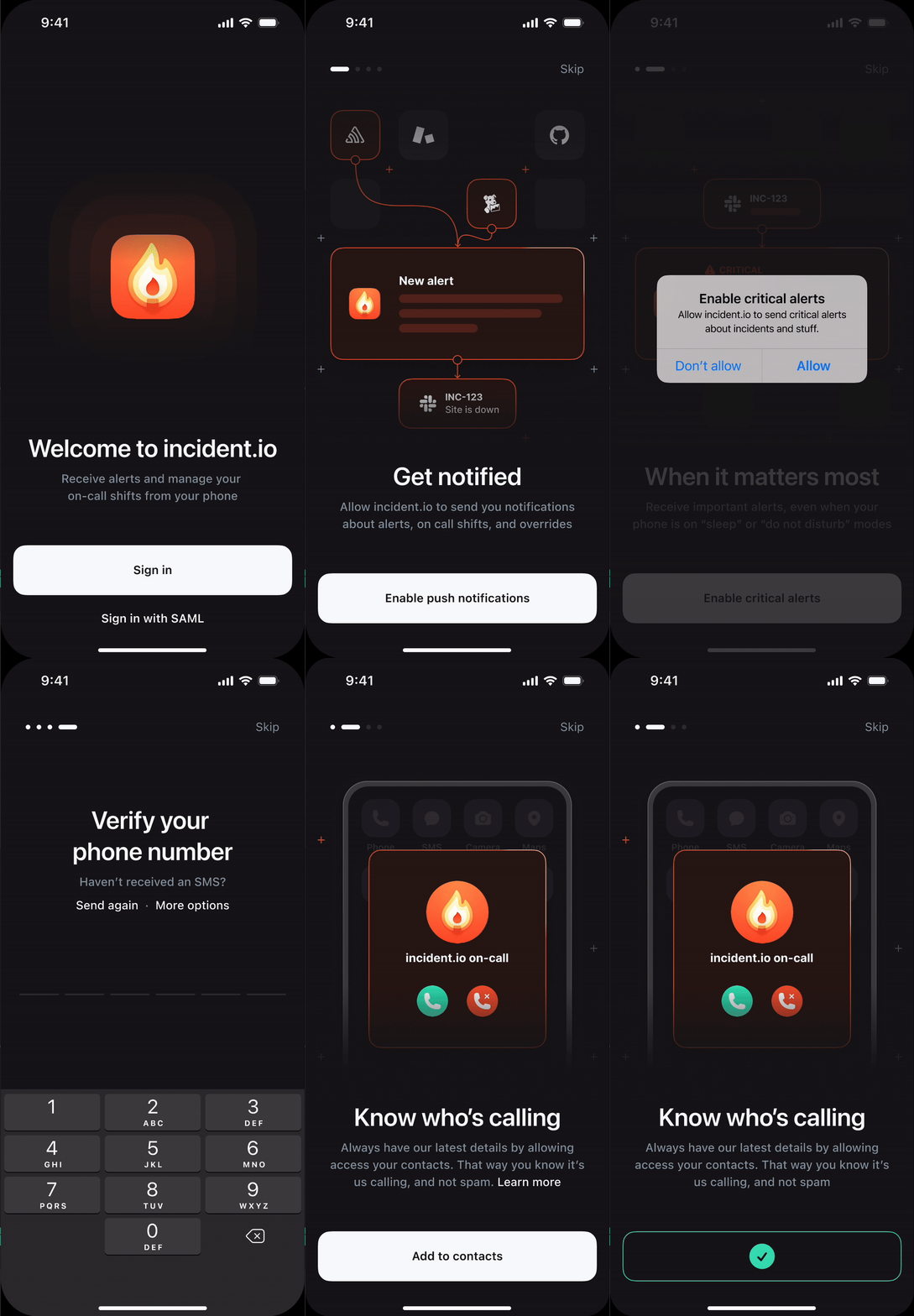
2. Once the app is installed:
* **Sign in**
* Enable **push notifications**
* Enable **critical alerts**
* **Verify your phone number**
3. Discover the app Explore the app to get familiar with these key features:
* **View incidents** and escalations
* **See your schedules**
* **Test notification sounds**
 After you have enabled all permissions, we create sensible defaults in your notification settings. These are:
**High Urgency**
* Immediately via App and Slack/MS teams
* After 1 minute via phone
* After 3 minutes via SMS
* After 5 minutes via email
**Low Urgency**
* Immediately via email and Slack/MS teams
## 2. Checking your notification settings
Want to customize your notifications? You can easily adjust the order of how you get alerted by going to [Preferences](https://app.incident.io/~/user-preferences/on-call-notifications) in the web dashboard.
You can also add more contact methods and change how you want to be notified about upcoming shifts.
## 3. Request cover and create overrides
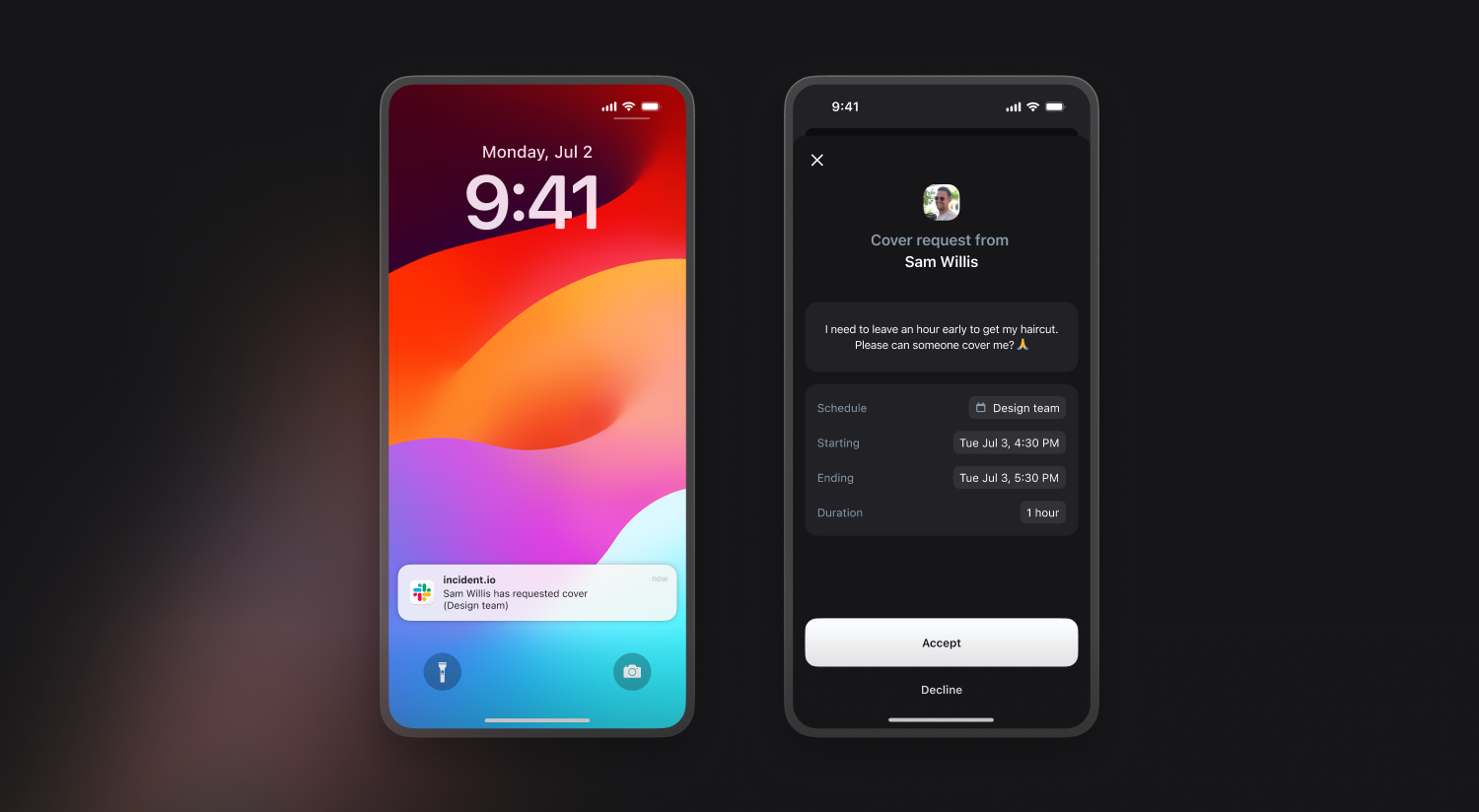
Managing your shifts is simple through the **web dashboard**, mobile app, or Slack/MS Teams.
* **Create an override** to swap out your scheduled shift
* **Send a cover request** to ask another team member to cover your shift
Read more about managing schedules, overrides and cover requests [here](/on-call/overrides) !
After you have enabled all permissions, we create sensible defaults in your notification settings. These are:
**High Urgency**
* Immediately via App and Slack/MS teams
* After 1 minute via phone
* After 3 minutes via SMS
* After 5 minutes via email
**Low Urgency**
* Immediately via email and Slack/MS teams
## 2. Checking your notification settings
Want to customize your notifications? You can easily adjust the order of how you get alerted by going to [Preferences](https://app.incident.io/~/user-preferences/on-call-notifications) in the web dashboard.
You can also add more contact methods and change how you want to be notified about upcoming shifts.
## 3. Request cover and create overrides
Managing your shifts is simple through the **web dashboard**, mobile app, or Slack/MS Teams.
* **Create an override** to swap out your scheduled shift
* **Send a cover request** to ask another team member to cover your shift
Read more about managing schedules, overrides and cover requests [here](/on-call/overrides) !
 ## 4. Acking a page
When you receive a page, you can **acknowledge** it through any method. This lets you jump straight to the incident channel and start investigating.
If you have multiple escalations for related issues, you can **bulk acknowledge** them in the mobile app. Read more about bulk and auto acking [here](/on-call/bulk-acknowledge).
## Other useful commands
* `/inc` or `/incident` - Creates a new incident
* `/inc cover me` - Create a cover request for your shift
* `/inc whoisoncall` - See who is on-call
## 4. Acking a page
When you receive a page, you can **acknowledge** it through any method. This lets you jump straight to the incident channel and start investigating.
If you have multiple escalations for related issues, you can **bulk acknowledge** them in the mobile app. Read more about bulk and auto acking [here](/on-call/bulk-acknowledge).
## Other useful commands
* `/inc` or `/incident` - Creates a new incident
* `/inc cover me` - Create a cover request for your shift
* `/inc whoisoncall` - See who is on-call