> ## Documentation Index
> Fetch the complete documentation index at: https://docs.incident.io/llms.txt
> Use this file to discover all available pages before exploring further.
# Reassigning escalations
> Move an escalation to a different path or set of people when the wrong team was paged.
Reassign when an escalation went to the wrong people or path. This creates a **new** escalation to the right targets, linked to the original. You can optionally resolve the original so the first group stops being paged.
Reassigning is available from the dashboard, Slack, Microsoft Teams, and the mobile app.
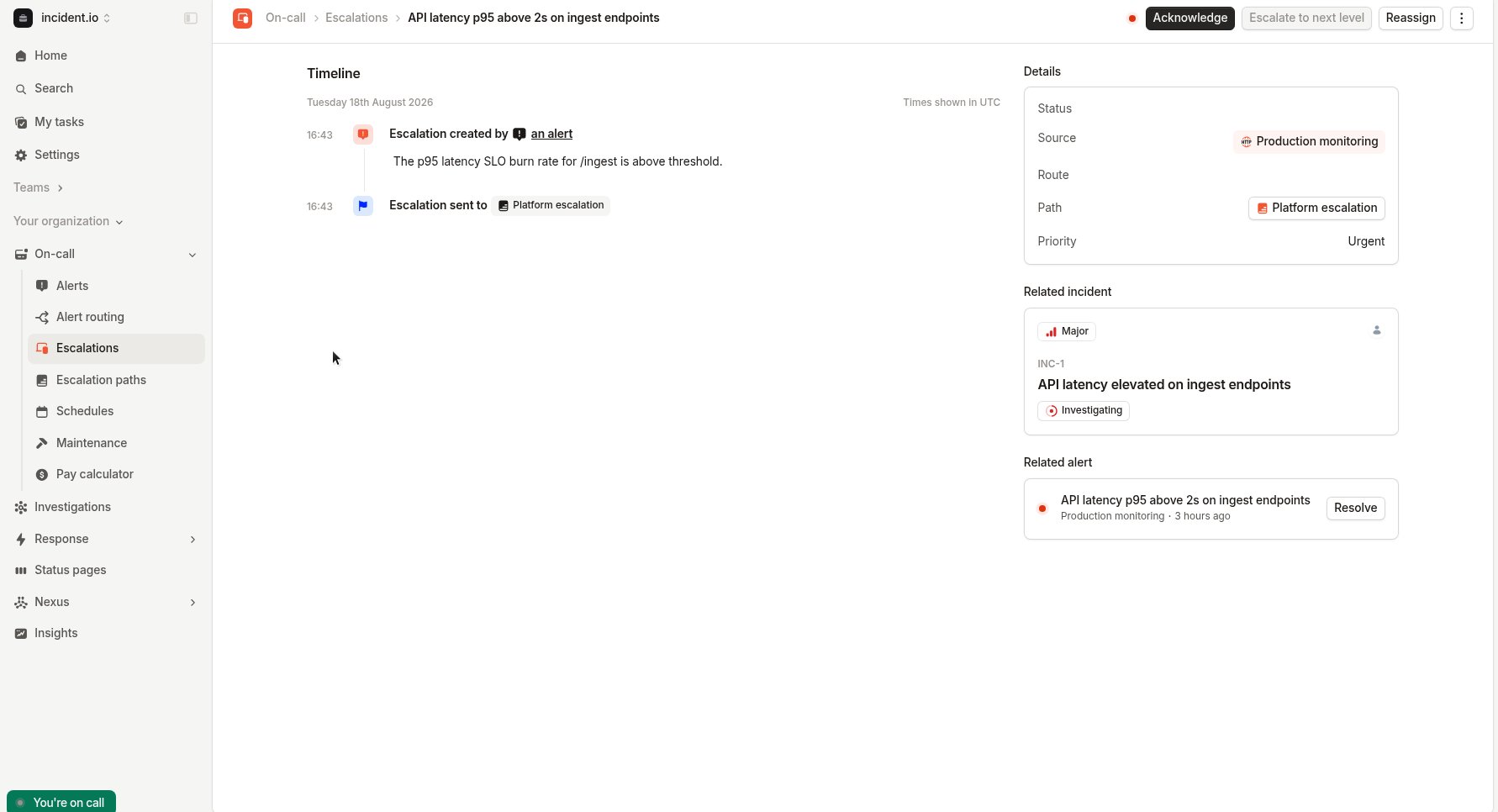 ## Reassign from the dashboard
1. Open the escalation
2. Click **Reassign**
3. Choose who to page (escalation path, users, or a Catalog entry)
4. Optionally edit the title or description
5. Choose whether to **Resolve the original escalation** (on by default)
6. Click **Reassign**
## Reassign from the dashboard
1. Open the escalation
2. Click **Reassign**
3. Choose who to page (escalation path, users, or a Catalog entry)
4. Optionally edit the title or description
5. Choose whether to **Resolve the original escalation** (on by default)
6. Click **Reassign**
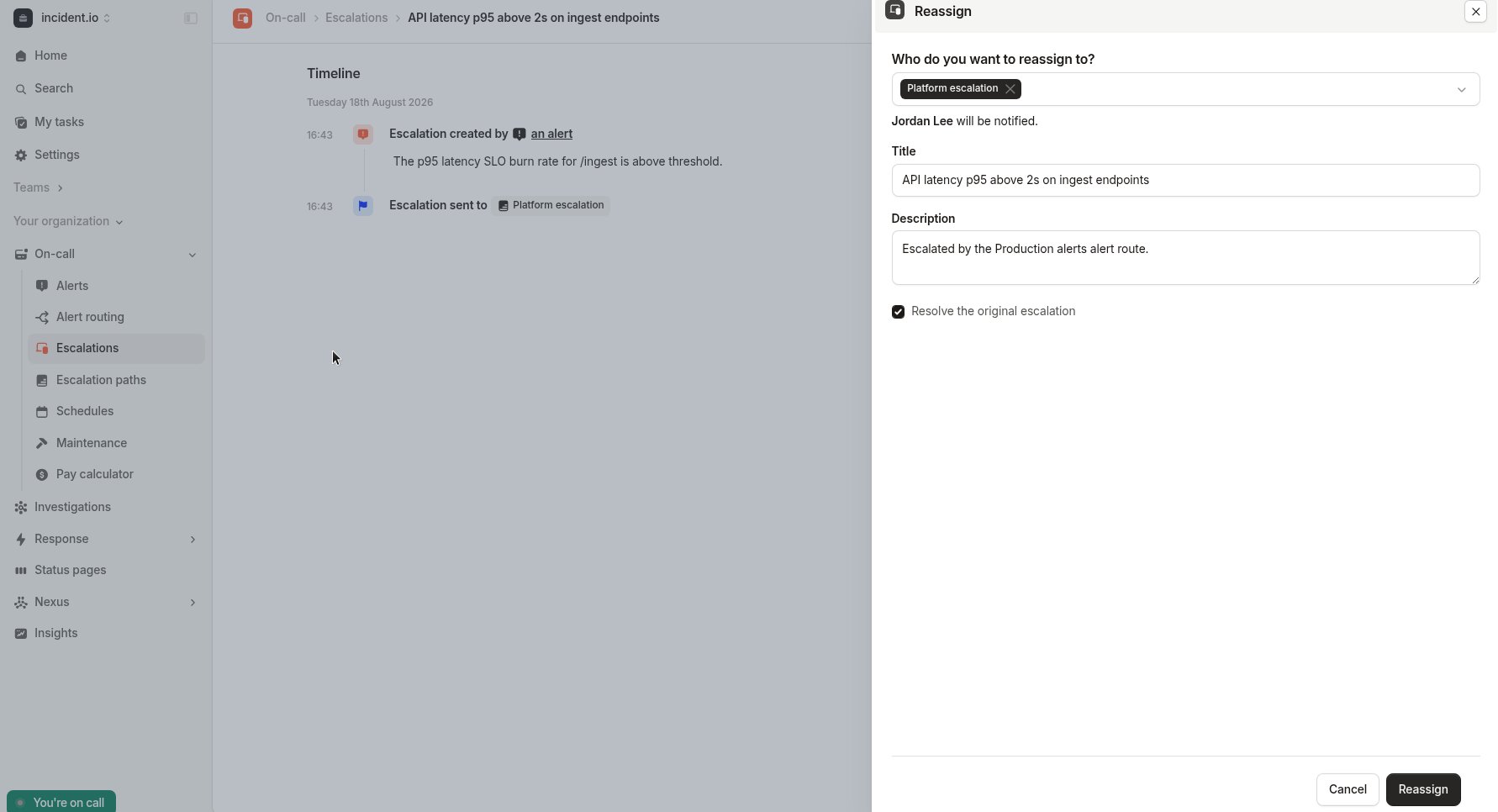 You land on the new escalation. The original shows as **Reassigned**, with a link to the new one.
## Reassign from Slack
On the escalation message, click **Reassign**, fill in the modal, and submit.
The original message updates to show where it was reassigned, and the Reassign button is removed.
## Reassign from Microsoft Teams
**Reassign** opens the dashboard form (Teams has no in-chat modal). Complete it there, then return to Teams.
## Rules
* An escalation can only be reassigned **once**. To redirect again, reassign from the new escalation or create a manual escalation.
* You can reassign to incident.io escalation paths, users, or Catalog entries that resolve to those. You cannot reassign to external providers (PagerDuty, Opsgenie, etc.).
* Reassigning requires permission to **create** escalations. See [team-based permissions](/admin/restrict-escalation-response) if your organization restricts this by team.
* Your organization needs an escalate form configured (**Settings → Forms → Escalate**).
Reassigning is different from **Escalate to next level**, which advances the *same* escalation to the next tier in its
existing path.
You land on the new escalation. The original shows as **Reassigned**, with a link to the new one.
## Reassign from Slack
On the escalation message, click **Reassign**, fill in the modal, and submit.
The original message updates to show where it was reassigned, and the Reassign button is removed.
## Reassign from Microsoft Teams
**Reassign** opens the dashboard form (Teams has no in-chat modal). Complete it there, then return to Teams.
## Rules
* An escalation can only be reassigned **once**. To redirect again, reassign from the new escalation or create a manual escalation.
* You can reassign to incident.io escalation paths, users, or Catalog entries that resolve to those. You cannot reassign to external providers (PagerDuty, Opsgenie, etc.).
* Reassigning requires permission to **create** escalations. See [team-based permissions](/admin/restrict-escalation-response) if your organization restricts this by team.
* Your organization needs an escalate form configured (**Settings → Forms → Escalate**).
Reassigning is different from **Escalate to next level**, which advances the *same* escalation to the next tier in its
existing path.