> ## Documentation Index
> Fetch the complete documentation index at: https://docs.incident.io/llms.txt
> Use this file to discover all available pages before exploring further.
# Pausing notifications
> Stop getting paged while you're on holiday or leave, without leaving the rotation or arranging cover for every shift.
Pause your notifications to stop being paged for a set period, such as a holiday, parental leave, or a sabbatical. While you're paused, escalations skip you and move on to the next person, and you keep your place on every schedule and rotation.
Use a [cover request or override](/on-call/overrides) to hand a specific shift to someone else. Use a pause when you shouldn't be paged at all, including by levels that page everyone on a schedule or use [round robin](/on-call/round-robin).
## Schedule a pause
1. Go to [**Settings → Your account → User preferences**](https://app.incident.io/~/user-preferences/account) and find **Notification pauses**.
2. Click **Schedule a pause**.
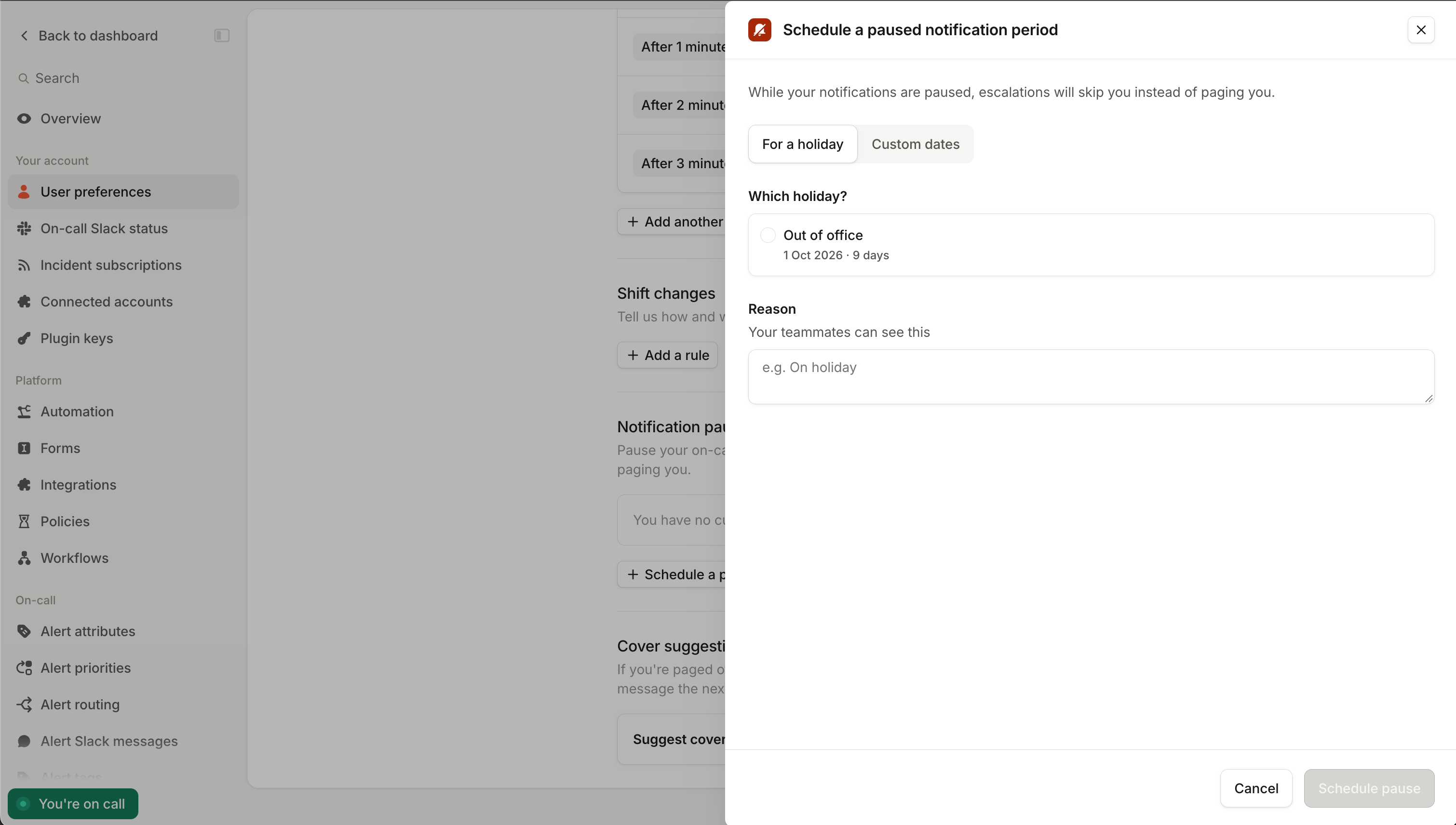
3. Set when the pause runs. If you have synced holidays, the drawer opens on **For a holiday**, so switch to **Custom dates** to set:
* **Start**: now, or a time in the future.
* **End**: when you want to be paged again.
4. Add a **Reason** (optional). Your teammates can see this, e.g. On holiday.
5. Click **Schedule pause**.
A pause can last up to 6 months. Pauses can't overlap, so extend an existing pause rather than adding another.
To schedule a pause from chat, ask incident.io's AI assistant, or any agent connected to the [remote MCP server](/ai/remote-mcp), e.g. "Pause my notifications until Monday at 9am".
### Fill in a pause from a holiday
If your time off is synced from a [HR tool or calendar feed](/on-call/holidays), choose **For a holiday** and pick one of your holidays in the next 6 months. We fill in the dates and reason for you. To adjust the dates, switch to **Custom dates**, which starts from the holiday's dates.
 The pause doesn't follow the holiday, so updating your holiday won't update your pause. If your plans change, edit or cancel the pause.
## Edit, cancel, or resume a pause
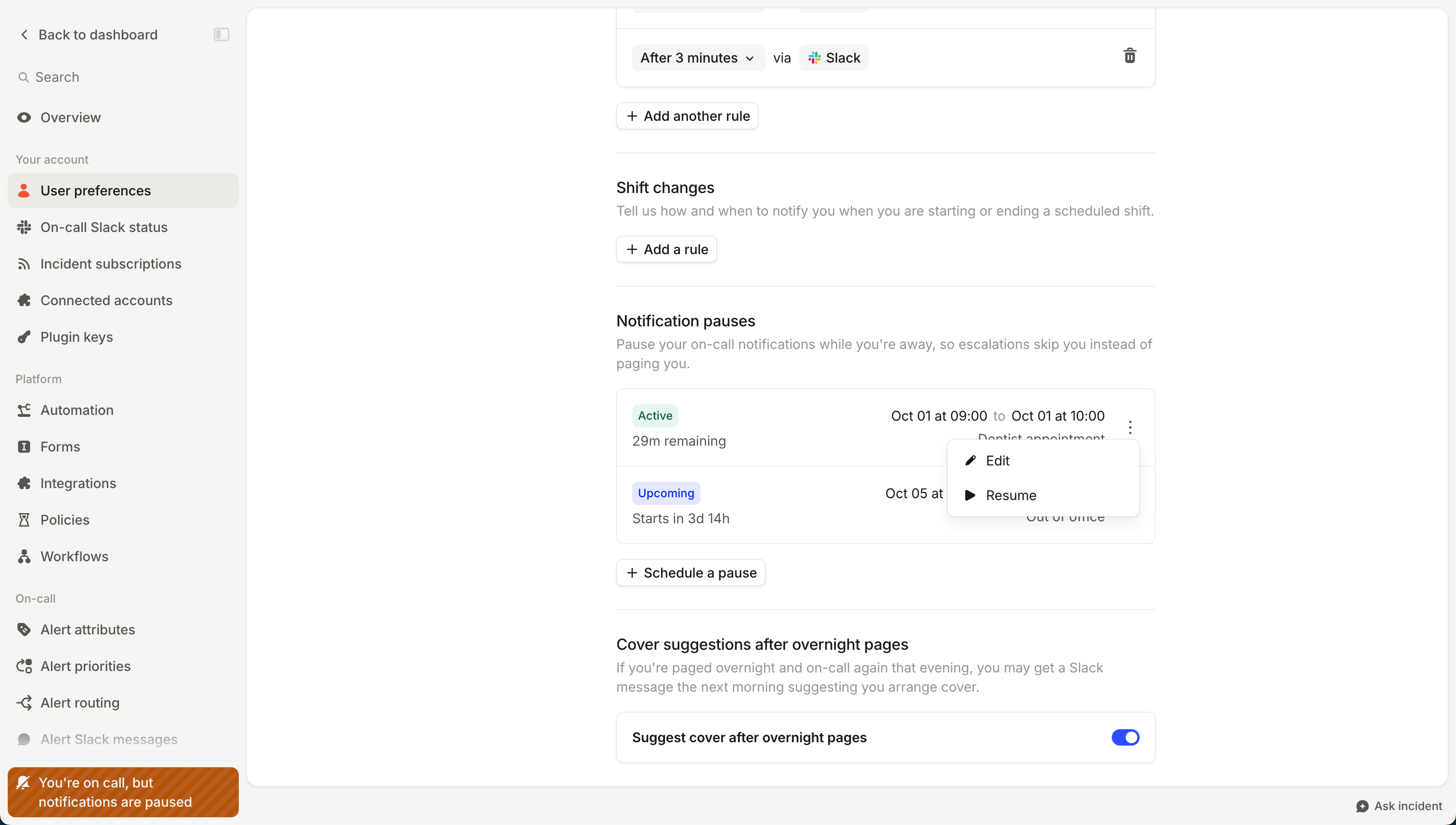
**Notification pauses** lists your current and upcoming pauses, with the time left or the time until each starts. Open the menu on a pause to:
* **Edit** its dates or reason.
* **Cancel** an upcoming pause before it starts.
* **Resume** your notifications early, ending an active pause.
The pause doesn't follow the holiday, so updating your holiday won't update your pause. If your plans change, edit or cancel the pause.
## Edit, cancel, or resume a pause
**Notification pauses** lists your current and upcoming pauses, with the time left or the time until each starts. Open the menu on a pause to:
* **Edit** its dates or reason.
* **Cancel** an upcoming pause before it starts.
* **Resume** your notifications early, ending an active pause.
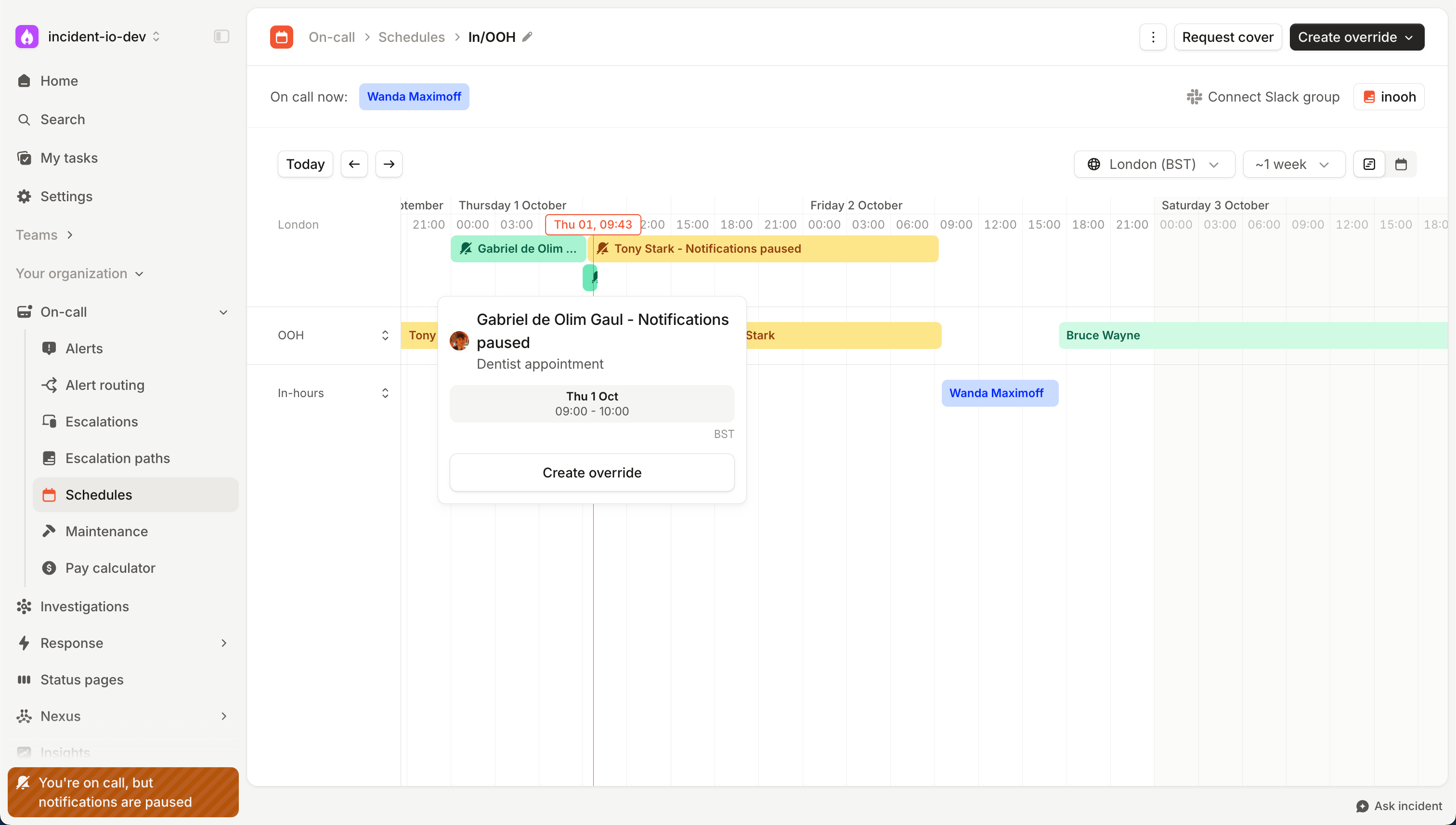
 While a pause covers one of your shifts, the on-call card in the dashboard sidebar and on the incident.io app home screen reads **You're on call, but notifications are paused**. Choose **Resume notifications** there to end the pause.
In the incident.io app, you can see and cancel your pauses, and request cover for any shift a pause overlaps. Schedule and edit pauses from the dashboard.
When a pause starts and ends, we send you a push notification, or a Slack or Microsoft Teams message if you don't have the app.
## What happens while you're paused
### Escalations skip you
When an escalation reaches you, we skip you instead of paging you, and treat it as if you'd declined:
* If nobody else is paged at that level, the escalation moves to the next level straight away.
* On a [round robin](/on-call/round-robin) level, the escalation moves on to the next person in the rotation.
* On a level that pages everyone on a schedule, everyone else is still paged. With **Everyone must ack**, the level completes once everyone who wasn't skipped has acknowledged.
If there's nobody left on the escalation path after you, the escalation expires without paging anyone. Arrange
[cover](/on-call/overrides) for your shifts before you go.
Each skip is recorded on the escalation timeline and in the escalation's Slack or Microsoft Teams message, e.g. "Skipped Flo Rentine because their notifications are paused".
If we can't confirm whether you're paused, we page you anyway rather than risk a missed incident, and note this on the escalation timeline.
### Nobody can page you directly
While you're paused, nobody can [escalate to you manually](/on-call/manual-escalation), whether from the dashboard, Slack, Microsoft Teams, the API, or an AI agent. In the dashboard and Slack, you'll still appear when someone chooses who to page, marked as paused. Anyone who tries to page you is told when your pause ends.
Paging an escalation path that includes you still works, and skips you.
### What still reaches you
A pause only stops pages. You'll still get shift reminders, cover requests, and your other notifications.
## How your team sees a pause
* **Schedules**: the schedule timeline shows the pause alongside holidays, with the reason on hover.
* **Team pages**: pauses are listed under **Upcoming time off and pauses**.
* **Profiles**: your profile shows your current and upcoming pauses.
* **Cover requests and overrides**: people with notifications paused are flagged when someone chooses who should cover a shift. You can still be picked.
* **Coverage policies**: [schedule coverage policies](/on-call/coverage-policies) count paused time on a shift as a gap, so the policy's assignees are reminded to arrange cover.
While a pause covers one of your shifts, the on-call card in the dashboard sidebar and on the incident.io app home screen reads **You're on call, but notifications are paused**. Choose **Resume notifications** there to end the pause.
In the incident.io app, you can see and cancel your pauses, and request cover for any shift a pause overlaps. Schedule and edit pauses from the dashboard.
When a pause starts and ends, we send you a push notification, or a Slack or Microsoft Teams message if you don't have the app.
## What happens while you're paused
### Escalations skip you
When an escalation reaches you, we skip you instead of paging you, and treat it as if you'd declined:
* If nobody else is paged at that level, the escalation moves to the next level straight away.
* On a [round robin](/on-call/round-robin) level, the escalation moves on to the next person in the rotation.
* On a level that pages everyone on a schedule, everyone else is still paged. With **Everyone must ack**, the level completes once everyone who wasn't skipped has acknowledged.
If there's nobody left on the escalation path after you, the escalation expires without paging anyone. Arrange
[cover](/on-call/overrides) for your shifts before you go.
Each skip is recorded on the escalation timeline and in the escalation's Slack or Microsoft Teams message, e.g. "Skipped Flo Rentine because their notifications are paused".
If we can't confirm whether you're paused, we page you anyway rather than risk a missed incident, and note this on the escalation timeline.
### Nobody can page you directly
While you're paused, nobody can [escalate to you manually](/on-call/manual-escalation), whether from the dashboard, Slack, Microsoft Teams, the API, or an AI agent. In the dashboard and Slack, you'll still appear when someone chooses who to page, marked as paused. Anyone who tries to page you is told when your pause ends.
Paging an escalation path that includes you still works, and skips you.
### What still reaches you
A pause only stops pages. You'll still get shift reminders, cover requests, and your other notifications.
## How your team sees a pause
* **Schedules**: the schedule timeline shows the pause alongside holidays, with the reason on hover.
* **Team pages**: pauses are listed under **Upcoming time off and pauses**.
* **Profiles**: your profile shows your current and upcoming pauses.
* **Cover requests and overrides**: people with notifications paused are flagged when someone chooses who should cover a shift. You can still be picked.
* **Coverage policies**: [schedule coverage policies](/on-call/coverage-policies) count paused time on a shift as a gap, so the policy's assignees are reminded to arrange cover.
 ## Manage pauses for someone else
If a teammate forgot to pause before going away, or needs a pause ended early, open their notification preferences from the team members page and use **Notification pauses** as you would your own.
Managing someone else's pauses requires the **Manage all users' notification pauses** permission. Owners have it by
default. Everyone can see a teammate's pauses.
Everyone can pause their own notifications by default, through the **Pause own notifications** permission. To change which roles have it, see [user roles and permissions](/admin/user-permissions).
## FAQs
No. [Snoozing](/on-call/snoozing-escalations) delays a single escalation you've already been paged for. Pausing your
notifications stops you being paged by any escalation until the pause ends.
No. The shifts stay yours on the schedule, but you won't be paged for them. Use a [cover request or
override](/on-call/overrides) to hand them to someone else.
They have their notifications paused. Their profile shows when the pause ends. Page someone else in the meantime.
Up to 6 months. For a longer absence, schedule another pause that starts when the first one ends.
## Manage pauses for someone else
If a teammate forgot to pause before going away, or needs a pause ended early, open their notification preferences from the team members page and use **Notification pauses** as you would your own.
Managing someone else's pauses requires the **Manage all users' notification pauses** permission. Owners have it by
default. Everyone can see a teammate's pauses.
Everyone can pause their own notifications by default, through the **Pause own notifications** permission. To change which roles have it, see [user roles and permissions](/admin/user-permissions).
## FAQs
No. [Snoozing](/on-call/snoozing-escalations) delays a single escalation you've already been paged for. Pausing your
notifications stops you being paged by any escalation until the pause ends.
No. The shifts stay yours on the schedule, but you won't be paged for them. Use a [cover request or
override](/on-call/overrides) to hand them to someone else.
They have their notifications paused. Their profile shows when the pause ends. Page someone else in the meantime.
Up to 6 months. For a longer absence, schedule another pause that starts when the first one ends.