> ## Documentation Index
> Fetch the complete documentation index at: https://docs.incident.io/llms.txt
> Use this file to discover all available pages before exploring further.
# Importing and duplicating schedules
When it comes to on-call, being consistent with schedules is important with any team. We do recommend building schedules in incident.io from scratch, but if you have tens of schedules for your teams you can either duplicate or we'll guide you to migrate your current schedules to incident.io.
## Duplicating schedules
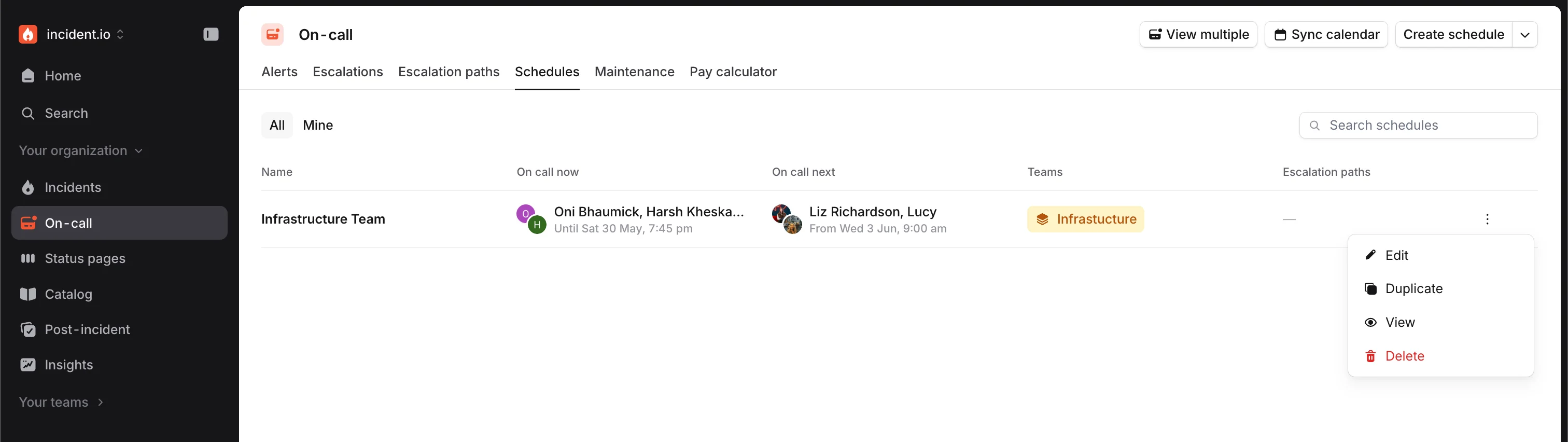
To duplicate schedules, just head to your [Schedules](https://app.incident.io/~/on-call/schedules), click the menu on the right side and find the 'Duplicate' -button in the menu.
 ## Importing schedules
At the moment we help you to bring schedules over from PagerDuty and OpsGenie.
1. Head to your Schedules and choose 'Import schedules' from the top right.
## Importing schedules
At the moment we help you to bring schedules over from PagerDuty and OpsGenie.
1. Head to your Schedules and choose 'Import schedules' from the top right.
 2. See all your schedules that are available for importing and choose a schedule from the list
3. After choosing schedule we will open it up in our editor where you can review the schedule and then save it
When importing schedules, you can choose whether to send "first time on-call" emails to the users being added. Disable
this to avoid a flood of emails during bulk migrations.
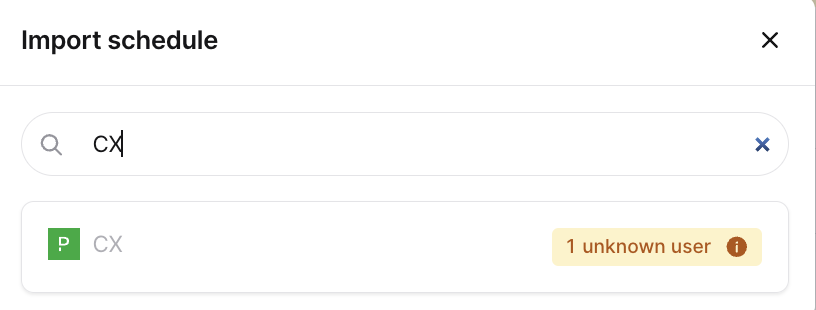
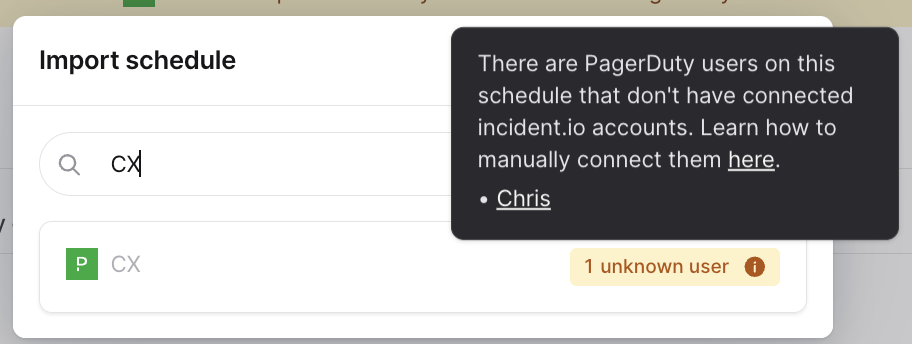
If you are getting an error, it might be due to some users not existing at incident.io - Please review the error message and if there are still challenges, please contact us via [support@incident.io](mailto:support@incident.io)
2. See all your schedules that are available for importing and choose a schedule from the list
3. After choosing schedule we will open it up in our editor where you can review the schedule and then save it
When importing schedules, you can choose whether to send "first time on-call" emails to the users being added. Disable
this to avoid a flood of emails during bulk migrations.
If you are getting an error, it might be due to some users not existing at incident.io - Please review the error message and if there are still challenges, please contact us via [support@incident.io](mailto:support@incident.io)
 **Looking for an integration to bring over your schedules that isn't there?** We're constantly building new integrations and helping customers to get their schedules over. If there's something you'd like to see, please send a message to [support@incident.io](mailto:support@incident.io) !