> ## Documentation Index
> Fetch the complete documentation index at: https://docs.incident.io/llms.txt
> Use this file to discover all available pages before exploring further.
# Import holidays with calendar feeds
> Import your team's time-off from any calendar or HRIS that provides an iCal feed
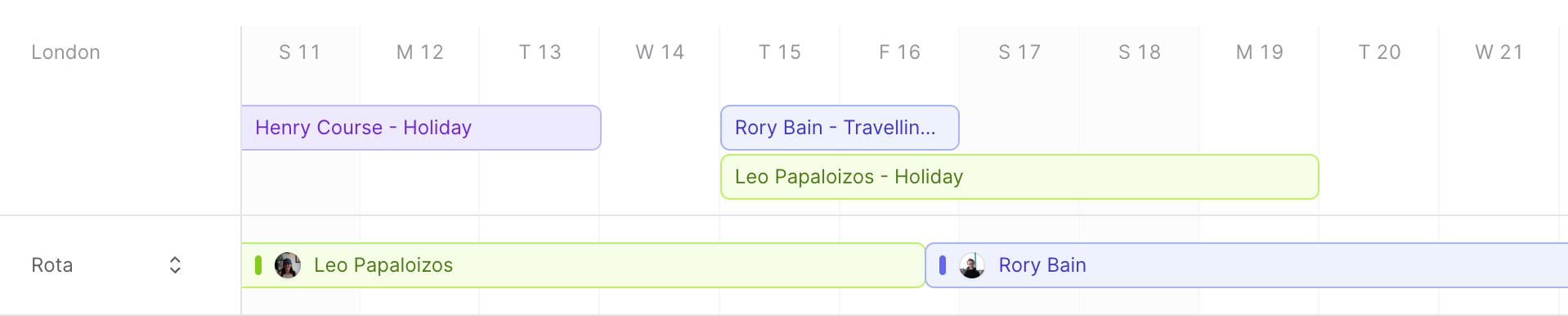
If your calendar system or HRIS provides an iCal feed, you can import your team's personal holidays (time-off, vacation, PTO) into incident.io. We'll then surface those holidays alongside your On-call schedule shifts.
If you're on the Enterprise plan and use Workday, HiBob, or BambooHR, you can connect them directly instead of managing a calendar feed. See [Workday](/on-call/hris-workday), [HiBob](/on-call/hris-hibob), or [BambooHR](/on-call/hris-bamboohr). Otherwise, a calendar feed works on any plan.
## Add a calendar feed
To get started, you'll need a URL for the calendar feed that contains your team's holidays. We provide tips on how some popular systems let you set up calendar feed subscriptions [below](#getting-a-calendar-feed-url).
You'll need the **Manage vacation user feeds** permission to add or edit calendar feeds.
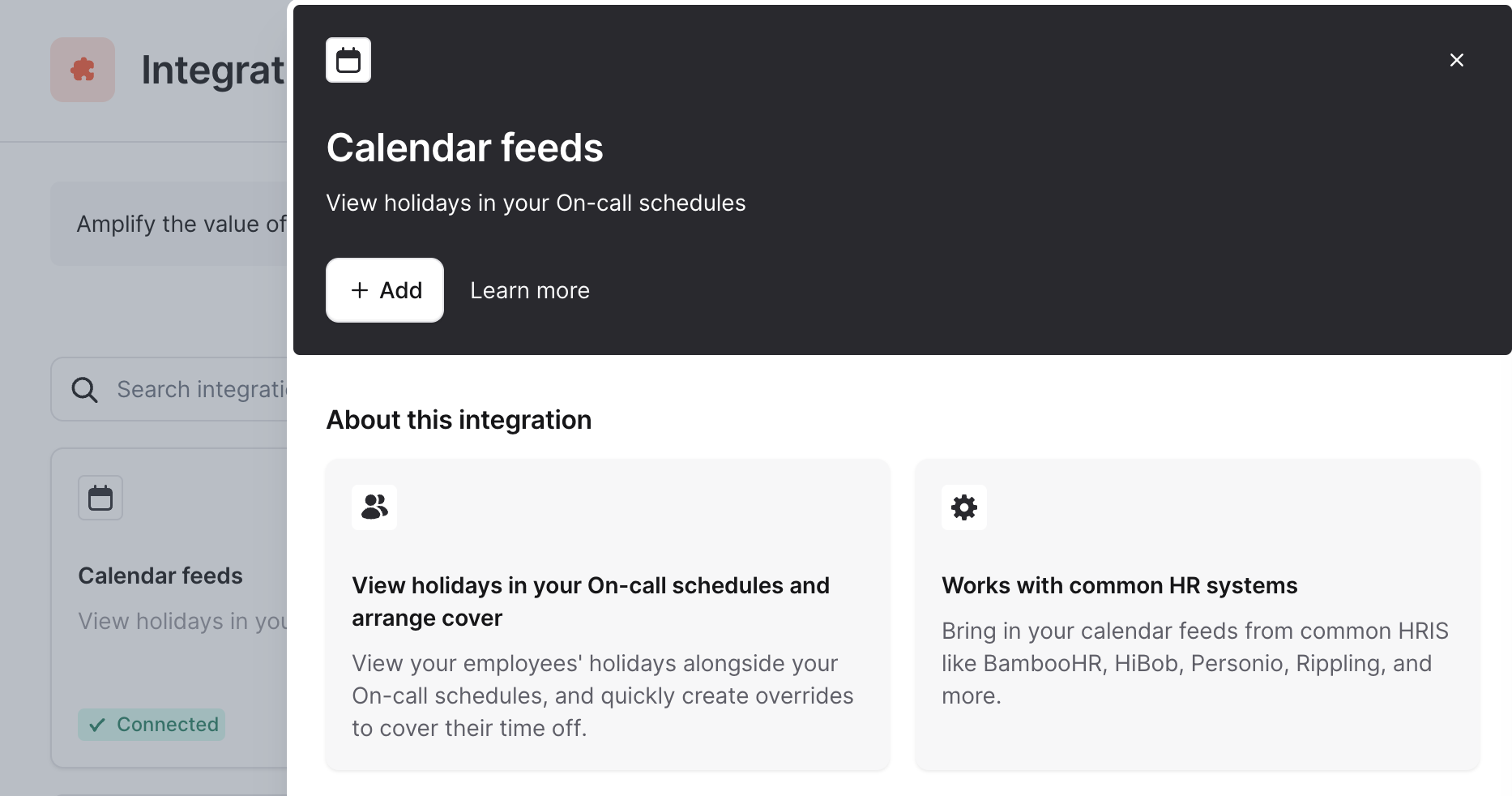 1. Head to **Settings > Integrations** and select [Calendar feeds](https://app.incident.io/~/settings/integrations/calendar_feeds)
2. Click **Add calendar feed** and enter the URL of the calendar feed you've generated in your HRIS or calendar system, and a name for the feed.
3. That's it. Your calendar feed is parsed and ready to be used within schedules! If we find a holiday that matches a responder on your schedule, we'll surface that event in the timeline view.
We match users to holiday events by email where they're listed as an invitee on the event. When a feed doesn't include emails, we fall back to matching by name. Name matching is best-effort, so users might not always match perfectly.
If you're not seeing a holiday alongside your On-call schedule as expected, please [let us know](mailto:support@incident.io) and we'll take a look!
1. Head to **Settings > Integrations** and select [Calendar feeds](https://app.incident.io/~/settings/integrations/calendar_feeds)
2. Click **Add calendar feed** and enter the URL of the calendar feed you've generated in your HRIS or calendar system, and a name for the feed.
3. That's it. Your calendar feed is parsed and ready to be used within schedules! If we find a holiday that matches a responder on your schedule, we'll surface that event in the timeline view.
We match users to holiday events by email where they're listed as an invitee on the event. When a feed doesn't include emails, we fall back to matching by name. Name matching is best-effort, so users might not always match perfectly.
If you're not seeing a holiday alongside your On-call schedule as expected, please [let us know](mailto:support@incident.io) and we'll take a look!
 Once your feed is set up, see [Acting on time off](/on-call/acting-on-holidays) to arrange cover.
***
## Getting a calendar feed URL
To help you get set up, we've detailed how to get a calendar feed URL from some popular systems below.
#### BambooHR
* See [Connect BambooHR](/on-call/hris-bamboohr) for how to import time-off via a calendar feed
#### CharlieHR
* Follow the steps in [this help article](https://help.charliehr.com/en/articles/839648-importing-your-time-off-calendar-to-google-calendar) to get a calendar feed URL
* Follow the steps above to use this calendar feed in incident.io!
#### HiBob
* See [Connect HiBob](/on-call/hris-hibob) for how to import time-off via a calendar feed
#### Personio
* Follow the steps in [this help article](https://support.personio.de/hc/en-us/articles/360000286117-Add-a-Personio-Calendar-via-an-iCal-link) to get a calendar feed URL
* Follow the steps above to use this calendar feed in incident.io!
#### Rippling
* Follow the steps [in this video tutorial](https://www.youtube.com/watch?v=XWZsfwbF0jg) to get a calendar feed URL
* Replace the webcal:// protocol with the https\:// protocol in the URL
* Follow the steps above to use this calendar feed in incident.io!
#### Google Calendar
* If you have a custom calendar in Google Calendar, you can also bring it in!
* In the sidebar, hover over the calendar you care about and open its options menu
* Select **Settings**
* At the bottom of the page, in the **Integrate calendar** section copy the URL shown under **Public address in ical format** - note that you might [need to configure this calendar to be public](https://support.google.com/calendar/answer/37083?sjid=15786370471486530353-EU#link\&zippy=%2Cshare-a-link) for this to appear.
* Follow the steps above to use this calendar feed in incident.io!
Google Calendar Embed URLs (which look like `https://calendar.google.com/calendar/embed?src=...`) are for displaying a calendar on a webpage and won't work as a calendar feed. The correct public iCal URL will look like `https://calendar.google.com/calendar/ical/.../basic.ics`.
Other systems may support calendar feeds, as we don't have access to all their documentation. If you use a system which isn't listed here, and are successful with this feature, please [let us know](mailto:support@incident.io)! We'd love to know how you end up using it.
Once your feed is set up, see [Acting on time off](/on-call/acting-on-holidays) to arrange cover.
***
## Getting a calendar feed URL
To help you get set up, we've detailed how to get a calendar feed URL from some popular systems below.
#### BambooHR
* See [Connect BambooHR](/on-call/hris-bamboohr) for how to import time-off via a calendar feed
#### CharlieHR
* Follow the steps in [this help article](https://help.charliehr.com/en/articles/839648-importing-your-time-off-calendar-to-google-calendar) to get a calendar feed URL
* Follow the steps above to use this calendar feed in incident.io!
#### HiBob
* See [Connect HiBob](/on-call/hris-hibob) for how to import time-off via a calendar feed
#### Personio
* Follow the steps in [this help article](https://support.personio.de/hc/en-us/articles/360000286117-Add-a-Personio-Calendar-via-an-iCal-link) to get a calendar feed URL
* Follow the steps above to use this calendar feed in incident.io!
#### Rippling
* Follow the steps [in this video tutorial](https://www.youtube.com/watch?v=XWZsfwbF0jg) to get a calendar feed URL
* Replace the webcal:// protocol with the https\:// protocol in the URL
* Follow the steps above to use this calendar feed in incident.io!
#### Google Calendar
* If you have a custom calendar in Google Calendar, you can also bring it in!
* In the sidebar, hover over the calendar you care about and open its options menu
* Select **Settings**
* At the bottom of the page, in the **Integrate calendar** section copy the URL shown under **Public address in ical format** - note that you might [need to configure this calendar to be public](https://support.google.com/calendar/answer/37083?sjid=15786370471486530353-EU#link\&zippy=%2Cshare-a-link) for this to appear.
* Follow the steps above to use this calendar feed in incident.io!
Google Calendar Embed URLs (which look like `https://calendar.google.com/calendar/embed?src=...`) are for displaying a calendar on a webpage and won't work as a calendar feed. The correct public iCal URL will look like `https://calendar.google.com/calendar/ical/.../basic.ics`.
Other systems may support calendar feeds, as we don't have access to all their documentation. If you use a system which isn't listed here, and are successful with this feature, please [let us know](mailto:support@incident.io)! We'd love to know how you end up using it.