> ## Documentation Index
> Fetch the complete documentation index at: https://docs.incident.io/llms.txt
> Use this file to discover all available pages before exploring further.
# ServiceNow
We have a ServiceNow integration to keep your incidents in sync with incident.io.
For teams running their operations in ServiceNow, we know how important it is to preserve the structured record-keeping you rely on. This integration closes the loop between fast-moving incident response in Slack or Microsoft Teams and the structured processes in ServiceNow, so you get the best of both worlds without duplicate effort.
This document will explain how to connect ServiceNow to [incident.io](http://incident.io/).
## Connecting ServiceNow
incident.io connects to ServiceNow using an **OAuth app** and **Web Service user account**. Sync is bi-directional: updates made in ServiceNow flow back to incident.io, not just the other way. Installing our ServiceNow app makes that back-sync real-time, so we recommend it. If you'd rather not, grant the service account the `admin` role instead.
You will need a ServiceNow Admin to complete these steps.
## 1. Install the ServiceNow app
Install the **incident.io** [app from the ServiceNow Store](https://store.servicenow.com/store/app/2ee3e7b697a9cbd8fe857a121153af21).
To skip the ServiceNow app installation, grant the `admin` role in [step 3](#3-create-a-web-service-account) instead.
## 2. Create an OAuth App
Log in to ServiceNow and search for "**OAuth**" in the filter navigation:
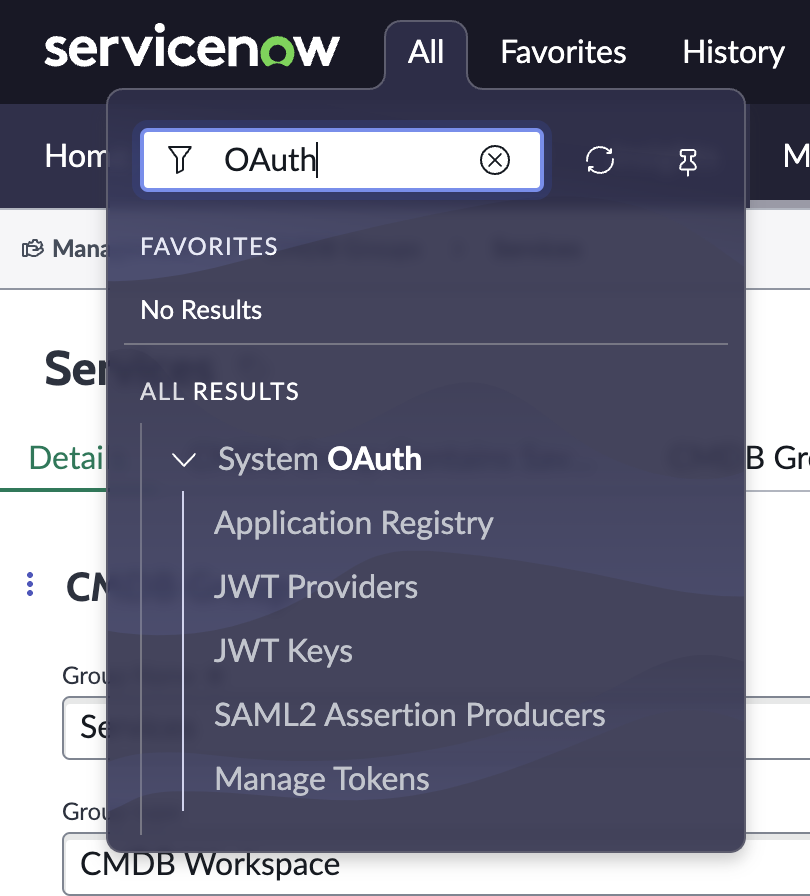 Select **Application Registry**, and click **New**.
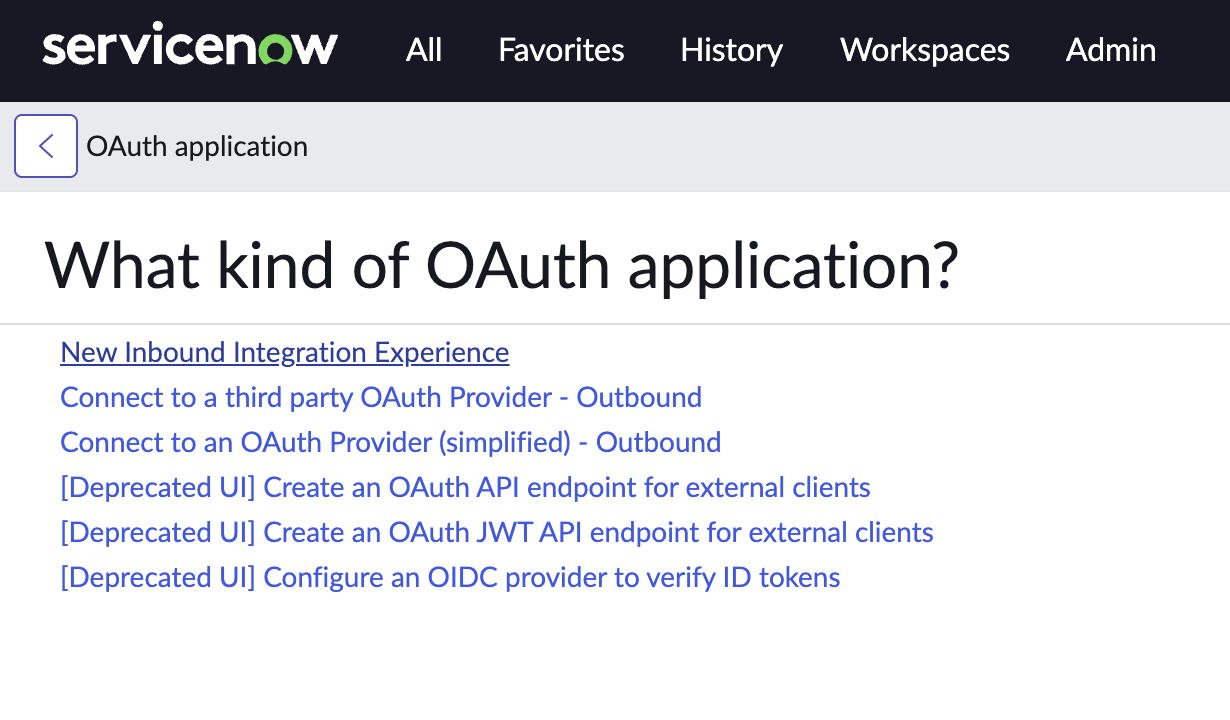 Select **New Inbound Integration Experience**.
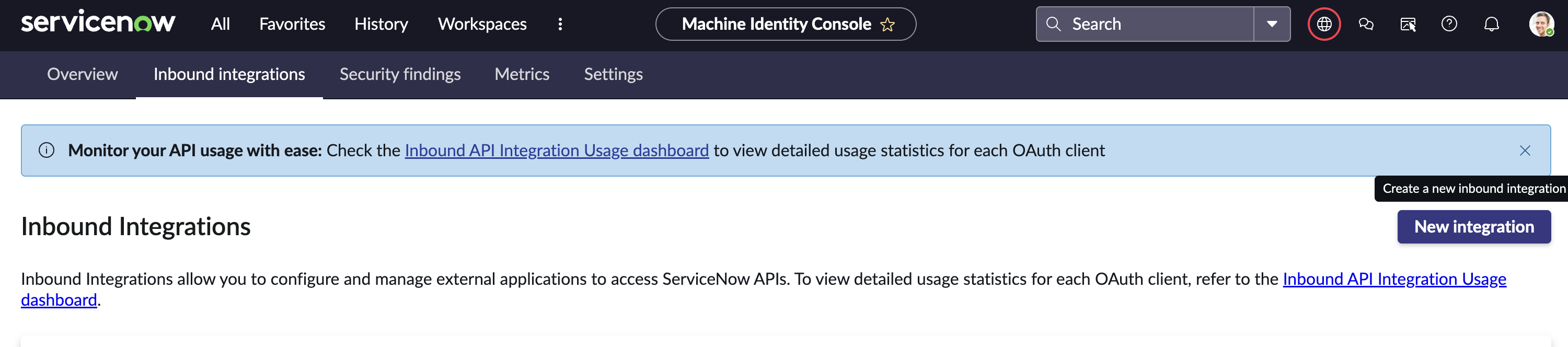 Click **New Integration.**
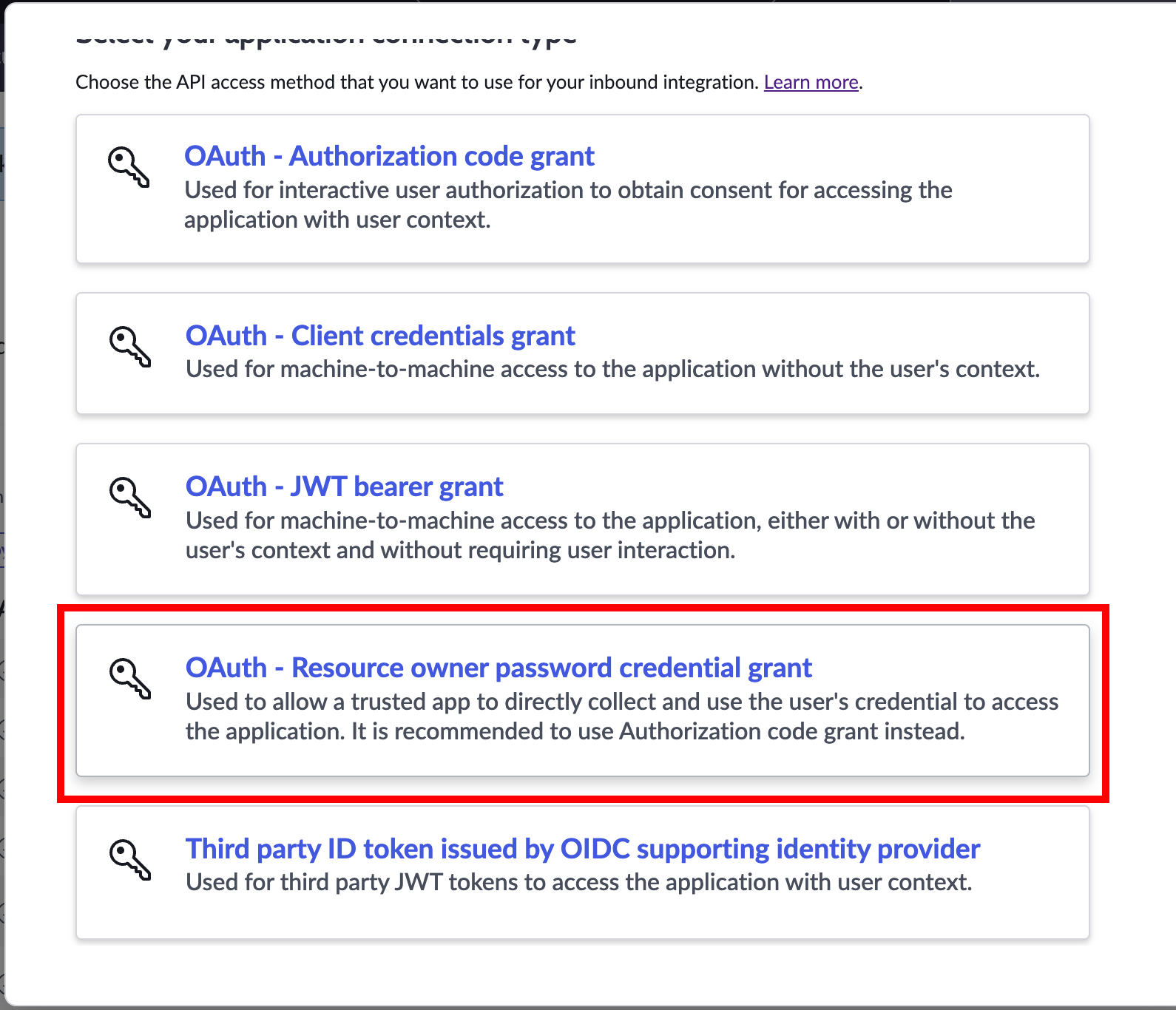 Click **OAuth - Resource owner password credential grant.**
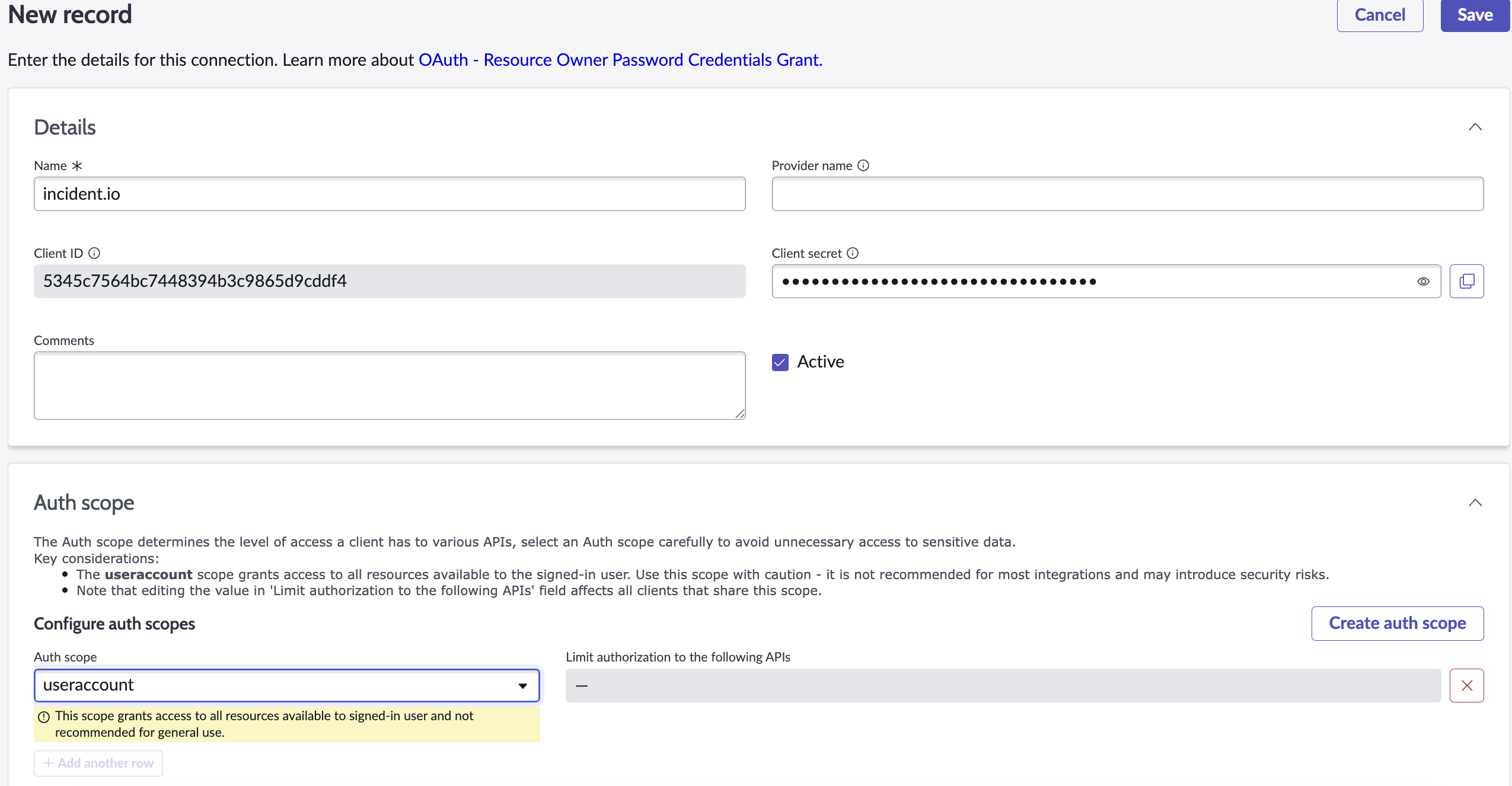
Enter 'incident.io' for the name, and add 'useraccount' to the Auth Scopes section. Leave other options as the defaults:
Click **OAuth - Resource owner password credential grant.**
Enter 'incident.io' for the name, and add 'useraccount' to the Auth Scopes section. Leave other options as the defaults:
 Find the app you've just created in the list. Copy the **Client ID** and **Client Secret** values: we'll need them later!
## 3. Create a Web Service Account
Any ServiceNow user account can be used so long as it has the relevant roles assigned. However, any actions taken by incident.io in ServiceNow will appear as being taken by this user account, so we strongly recommend creating a user for this purpose only.
In ServiceNow, search for '**User Administration**' in the filter navigation:
Find the app you've just created in the list. Copy the **Client ID** and **Client Secret** values: we'll need them later!
## 3. Create a Web Service Account
Any ServiceNow user account can be used so long as it has the relevant roles assigned. However, any actions taken by incident.io in ServiceNow will appear as being taken by this user account, so we strongly recommend creating a user for this purpose only.
In ServiceNow, search for '**User Administration**' in the filter navigation:
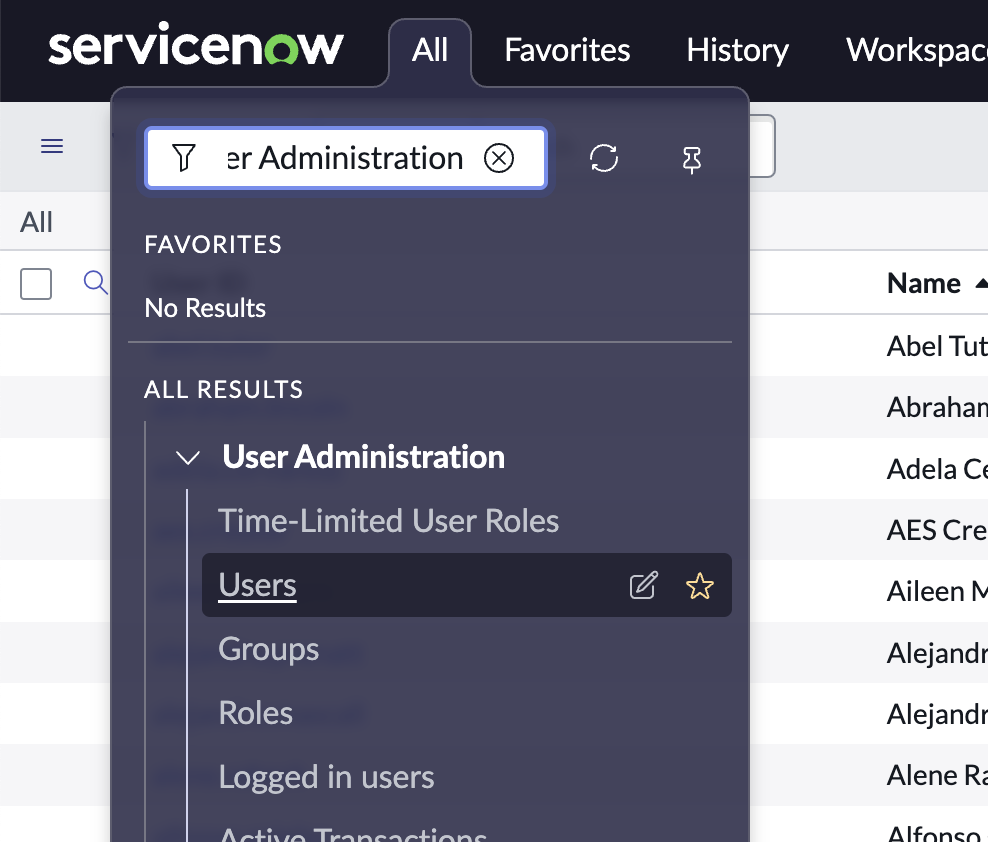 Select **Users**, then click **New** in the top-right.
Select a **username** and **email**, for example 'incident.io' and '[incidentio-service@my-domain.com](mailto:incidentio-service@my-domain.com)':
Select **Users**, then click **New** in the top-right.
Select a **username** and **email**, for example 'incident.io' and '[incidentio-service@my-domain.com](mailto:incidentio-service@my-domain.com)':
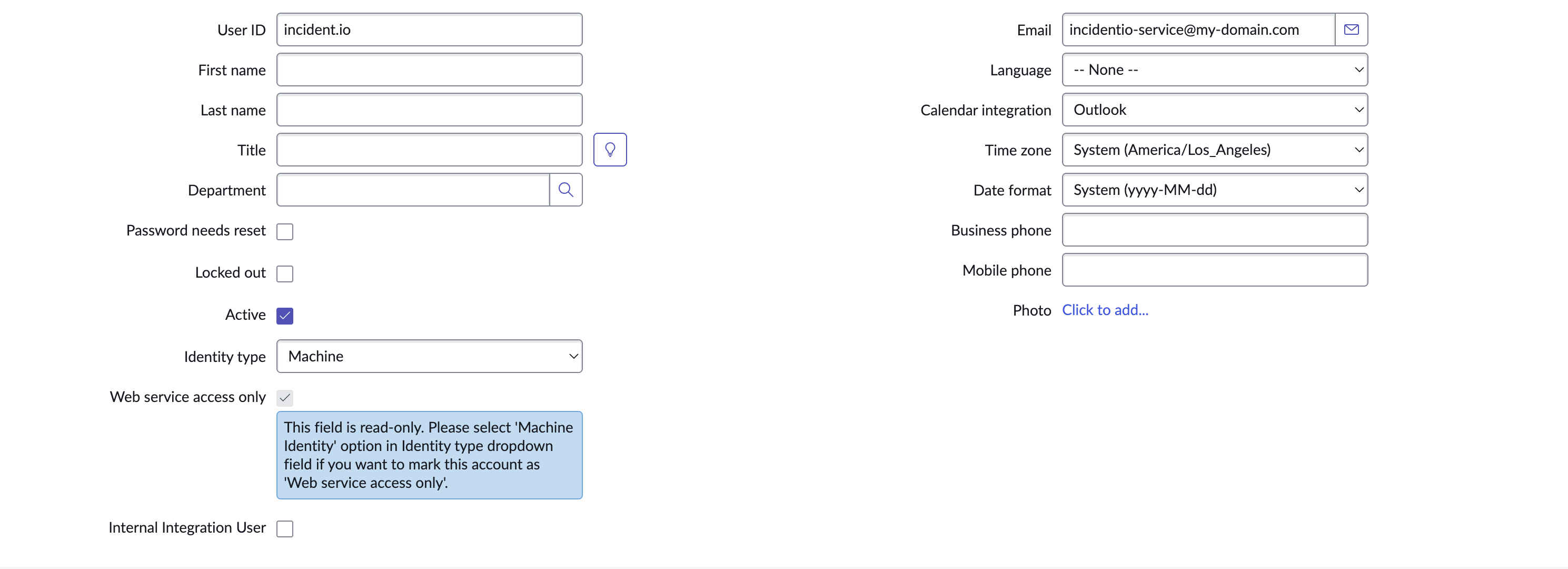 Make sure **Password needs reset** and **Locked out** are not selected, and **Active** is selected.
Change the identity type to **Machine.**
Click **Submit**, then navigate to the newly-created user.
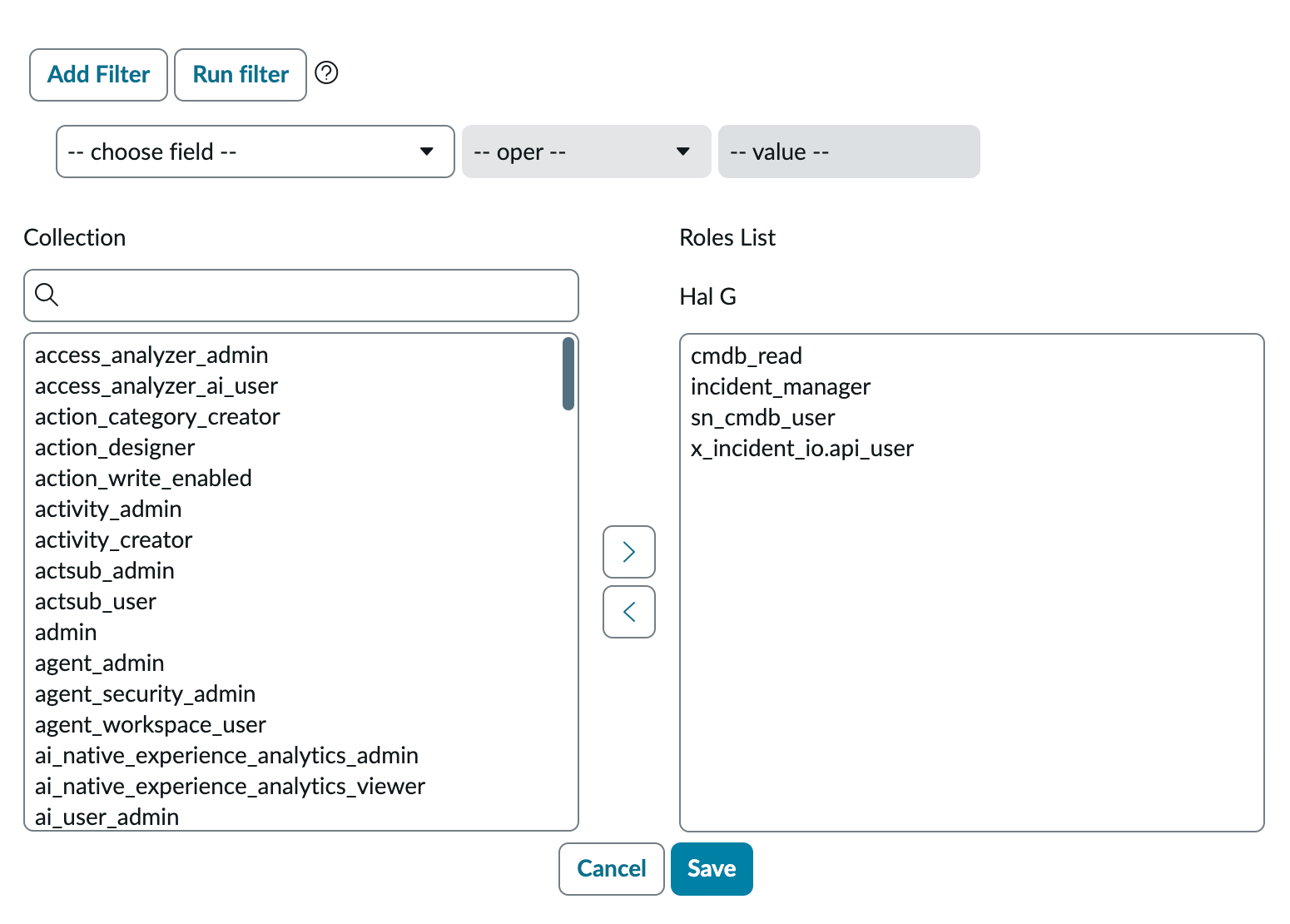
At the bottom, select the **Roles** tab, then **Edit...** Add the roles for the path you're following.
If you installed the app in step 1, add:
* `x_incident_io.api_user`: shipped by the app. Grants incident.io the API access it needs for sync configuration and incident writes.
* `cmdb_read`: allows us to read data from your Configuration Management Database.
* `sn_cmdb_user`: allows us to read information about users and groups in your ServiceNow account.
* `incident_manager`: allows us to sync incident data into ServiceNow incident records.
If you're not installing the app, add the `admin` role instead, which gives incident.io full access to your ServiceNow instance.
Make sure **Password needs reset** and **Locked out** are not selected, and **Active** is selected.
Change the identity type to **Machine.**
Click **Submit**, then navigate to the newly-created user.
At the bottom, select the **Roles** tab, then **Edit...** Add the roles for the path you're following.
If you installed the app in step 1, add:
* `x_incident_io.api_user`: shipped by the app. Grants incident.io the API access it needs for sync configuration and incident writes.
* `cmdb_read`: allows us to read data from your Configuration Management Database.
* `sn_cmdb_user`: allows us to read information about users and groups in your ServiceNow account.
* `incident_manager`: allows us to sync incident data into ServiceNow incident records.
If you're not installing the app, add the `admin` role instead, which gives incident.io full access to your ServiceNow instance.
 Click **Save** to apply these changes and return to the user page.
Click **Set Password**, then **Generate**, then **Save Password**.
Click **Save** to apply these changes and return to the user page.
Click **Set Password**, then **Generate**, then **Save Password**.
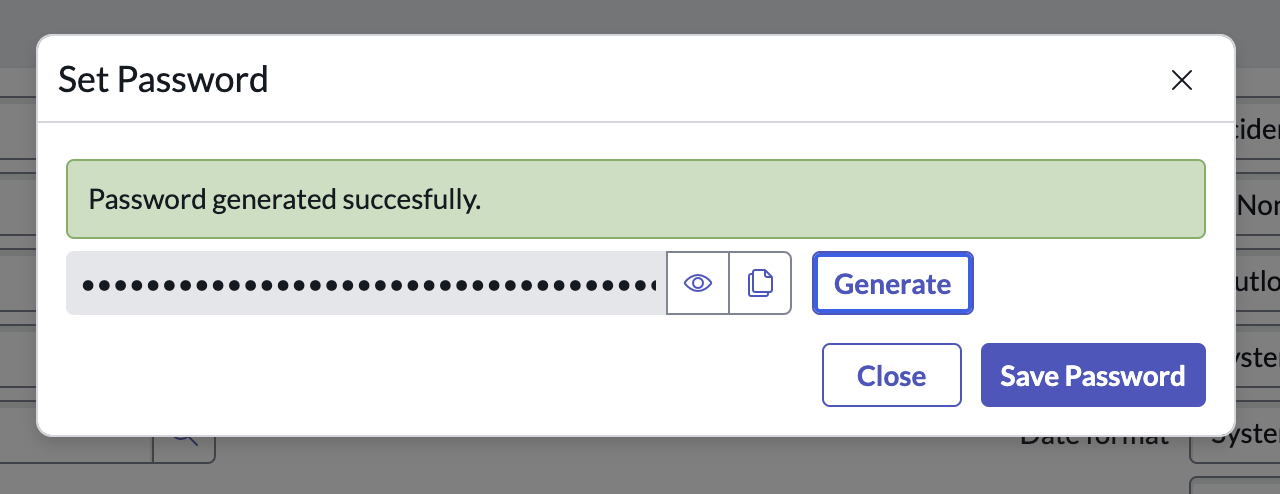 Copy the newly-generated password, we'll need it shortly! Make sure to update the record before going back to the [dashboard](https://app.incident.io/).
## 4. Create ACLs
If you granted the `admin` role in step 3, you can skip this step, as admin already covers it.
incident.io creates, reads, and updates follow-ups on the `task` table, so the service account needs **create**, **read**, and **write** access (the app doesn't grant access to `task` itself).
To add ACLs, you first need to elevate your user to Security Admin. Click your profile icon and select '**Elevate role**'.
Copy the newly-generated password, we'll need it shortly! Make sure to update the record before going back to the [dashboard](https://app.incident.io/).
## 4. Create ACLs
If you granted the `admin` role in step 3, you can skip this step, as admin already covers it.
incident.io creates, reads, and updates follow-ups on the `task` table, so the service account needs **create**, **read**, and **write** access (the app doesn't grant access to `task` itself).
To add ACLs, you first need to elevate your user to Security Admin. Click your profile icon and select '**Elevate role**'.
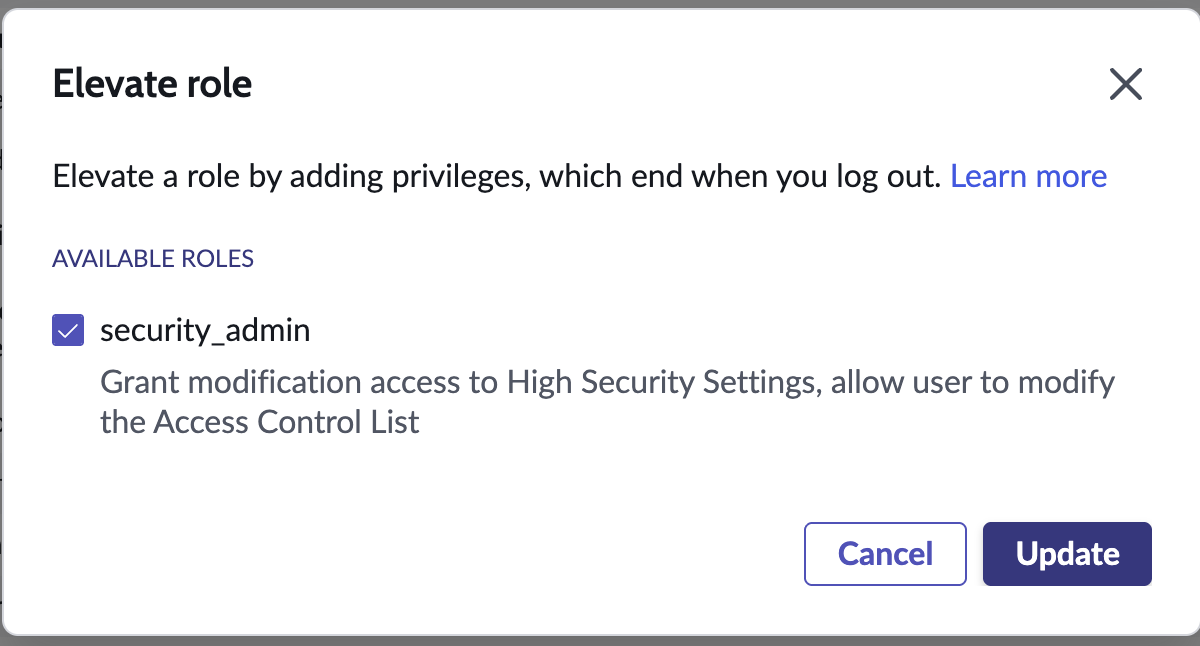
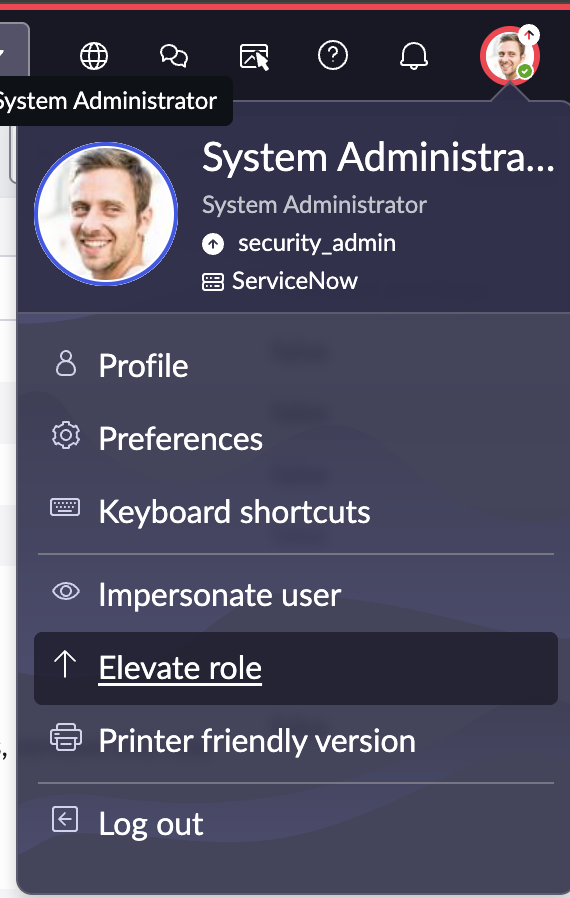 Click '**security\_admin**' and then '**Update**'.
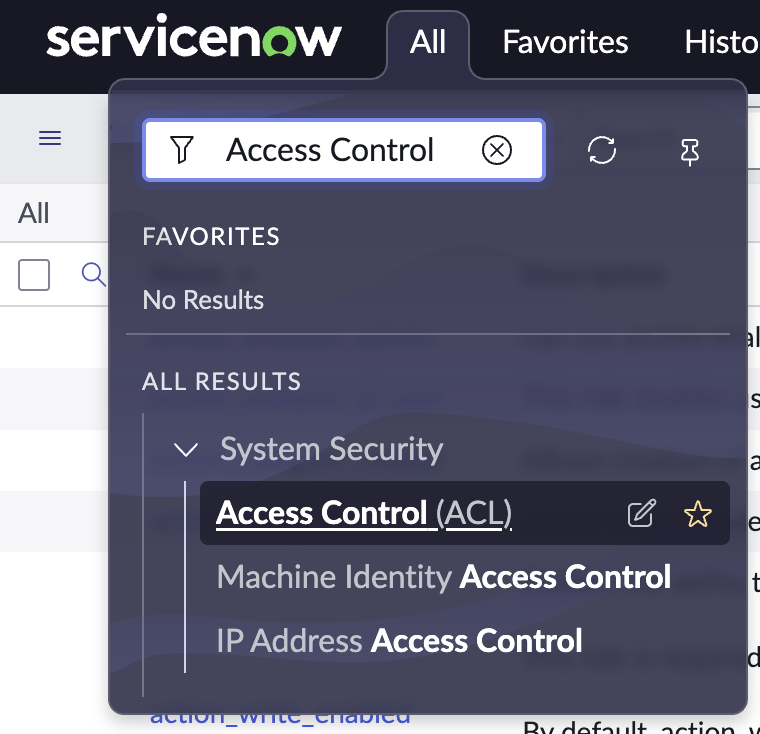
 Search for '**Access Control**' and select '**Access Control (ACL)**' under 'System Security'.
 Select '**New**'.
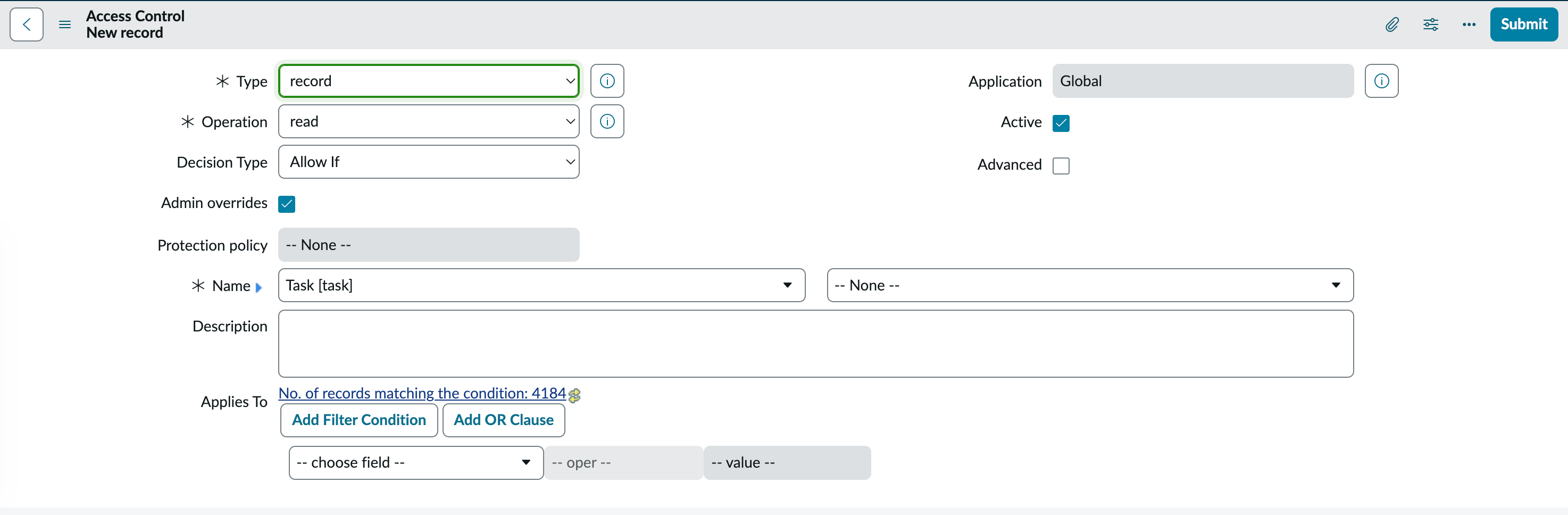
 Create an Access Control record with the following properties:
* **Type**: `record`
* **Operation**: `read`
* **Application**: `Global`
* **Active**: checked
* **Decision Type**: `Allow If`
* **Admin overrides**: checked
* **Name**: select `task` in the first dropdown, and leave the second as `-- None --`.
Create an Access Control record with the following properties:
* **Type**: `record`
* **Operation**: `read`
* **Application**: `Global`
* **Active**: checked
* **Decision Type**: `Allow If`
* **Admin overrides**: checked
* **Name**: select `task` in the first dropdown, and leave the second as `-- None --`.
 Click '**Submit**'. When prompted to select a role, choose `x_incident_io.api_user`.
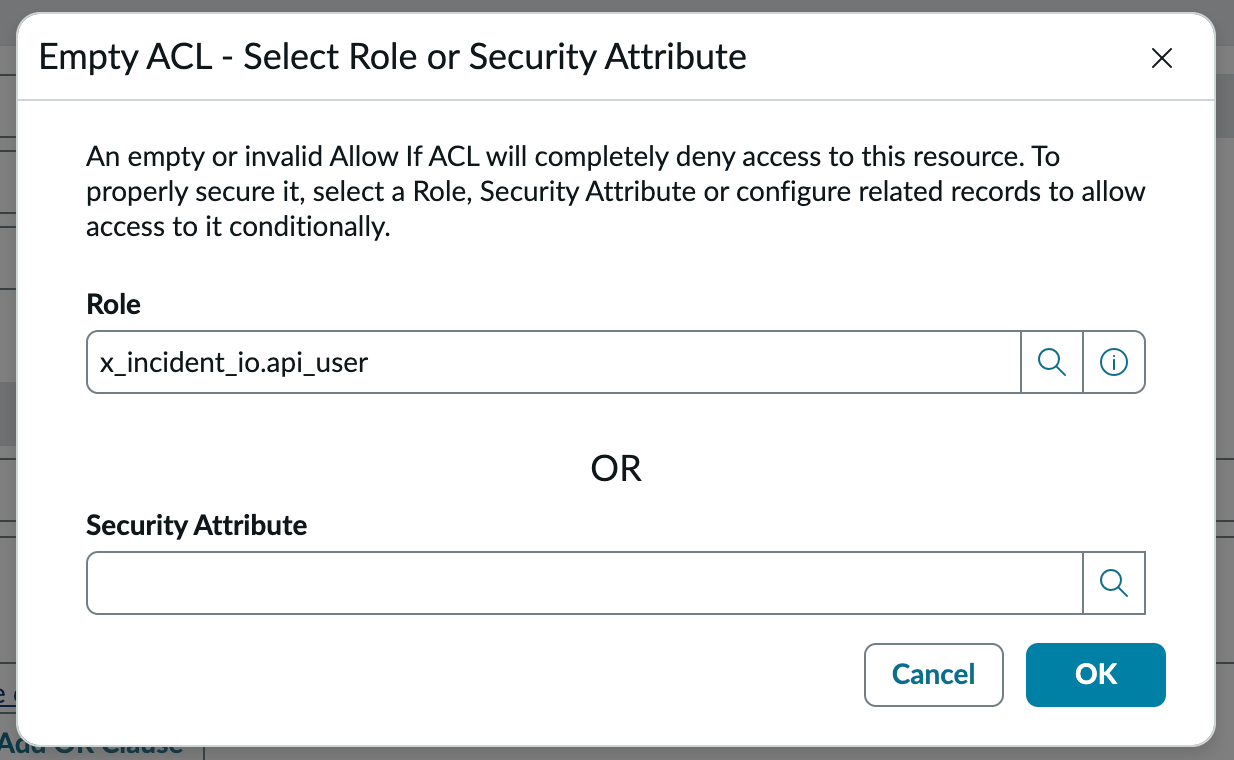 Click '**OK**' and then '**Update**' to save the ACL.
Repeat for the **create** and **write** operations, so that you have three `task` ACLs assigned to `x_incident_io.api_user`.
## 5. Installing the integration
We're now ready to install the ServiceNow integration in incident.io.
Go to [Settings → Integrations](https://app.incident.io/~/settings/integrations/servicenow), and click on **ServiceNow**, then **Connect**.
Click '**OK**' and then '**Update**' to save the ACL.
Repeat for the **create** and **write** operations, so that you have three `task` ACLs assigned to `x_incident_io.api_user`.
## 5. Installing the integration
We're now ready to install the ServiceNow integration in incident.io.
Go to [Settings → Integrations](https://app.incident.io/~/settings/integrations/servicenow), and click on **ServiceNow**, then **Connect**.
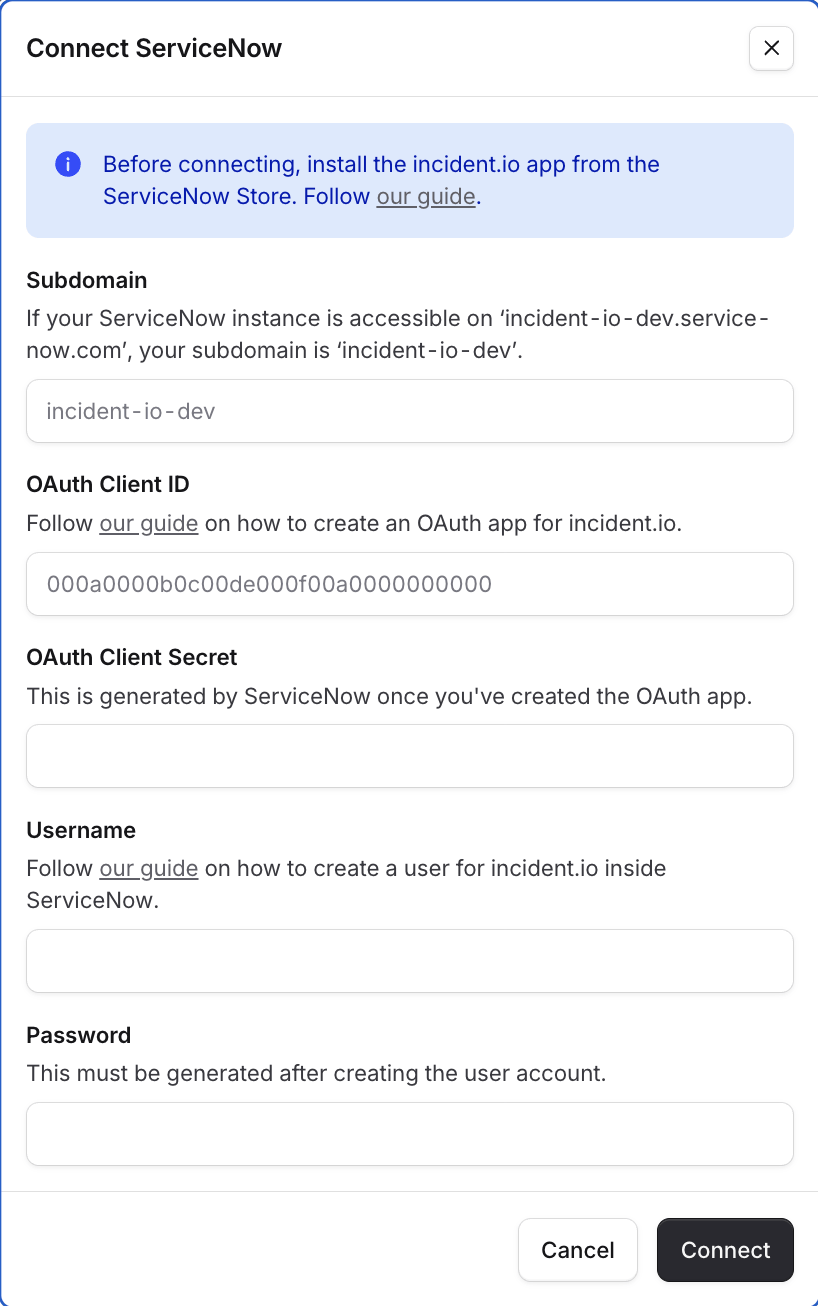 Use the following details:
* Your **subdomain** is the part of the URL where you log in to ServiceNow. For example, if your ServiceNow instance is accessed at `hyper-payments.service-now.com`, your subdomain is `hyper-payments`.
* Your **OAuth Client ID** and **OAuth Client Secret** are the credentials you created in [step 2](#2-create-an-oauth-app).
* Your **Username** and **Password** are the credentials for the service account you created in [step 3](#3-create-a-web-service-account).
* Click **Connect** to verify your credentials and complete the connection
Next, you'll want to set-up your incident ticket to sync incidents to ServiceNow, which you can view steps to complete [here](/integrations/servicenow-sync).
Use the following details:
* Your **subdomain** is the part of the URL where you log in to ServiceNow. For example, if your ServiceNow instance is accessed at `hyper-payments.service-now.com`, your subdomain is `hyper-payments`.
* Your **OAuth Client ID** and **OAuth Client Secret** are the credentials you created in [step 2](#2-create-an-oauth-app).
* Your **Username** and **Password** are the credentials for the service account you created in [step 3](#3-create-a-web-service-account).
* Click **Connect** to verify your credentials and complete the connection
Next, you'll want to set-up your incident ticket to sync incidents to ServiceNow, which you can view steps to complete [here](/integrations/servicenow-sync).