> ## Documentation Index
> Fetch the complete documentation index at: https://docs.incident.io/llms.txt
> Use this file to discover all available pages before exploring further.
# Opsgenie
In an incident, at the boundaries of your knowledge and need help to figure something out? We've all been there.
With [incident.io](http://incident.io/), you can use `/incident escalate` **to directly page users in Slack** — no need to log into Opsgenie, search around and find the right place!
You can also [automatically trigger incidents](/incidents/auto-create) when an alert fires in Opsgenie using our Incident Triggers feature.
***
## Setting Up
You can connect Opsgenie to [incident.io](http://incident.io/) in just a few clicks.
*For this integration to work, your Opsgenie account will need to be on the 'Standard' or 'Enterprise' plan. This is a* [limitation of Opsgenie](https://docs.opsgenie.com/docs/essentials-plan-restrictions#serviceincident-operations-through-api) *, where they restrict access to the Incidents API to these tiers.*
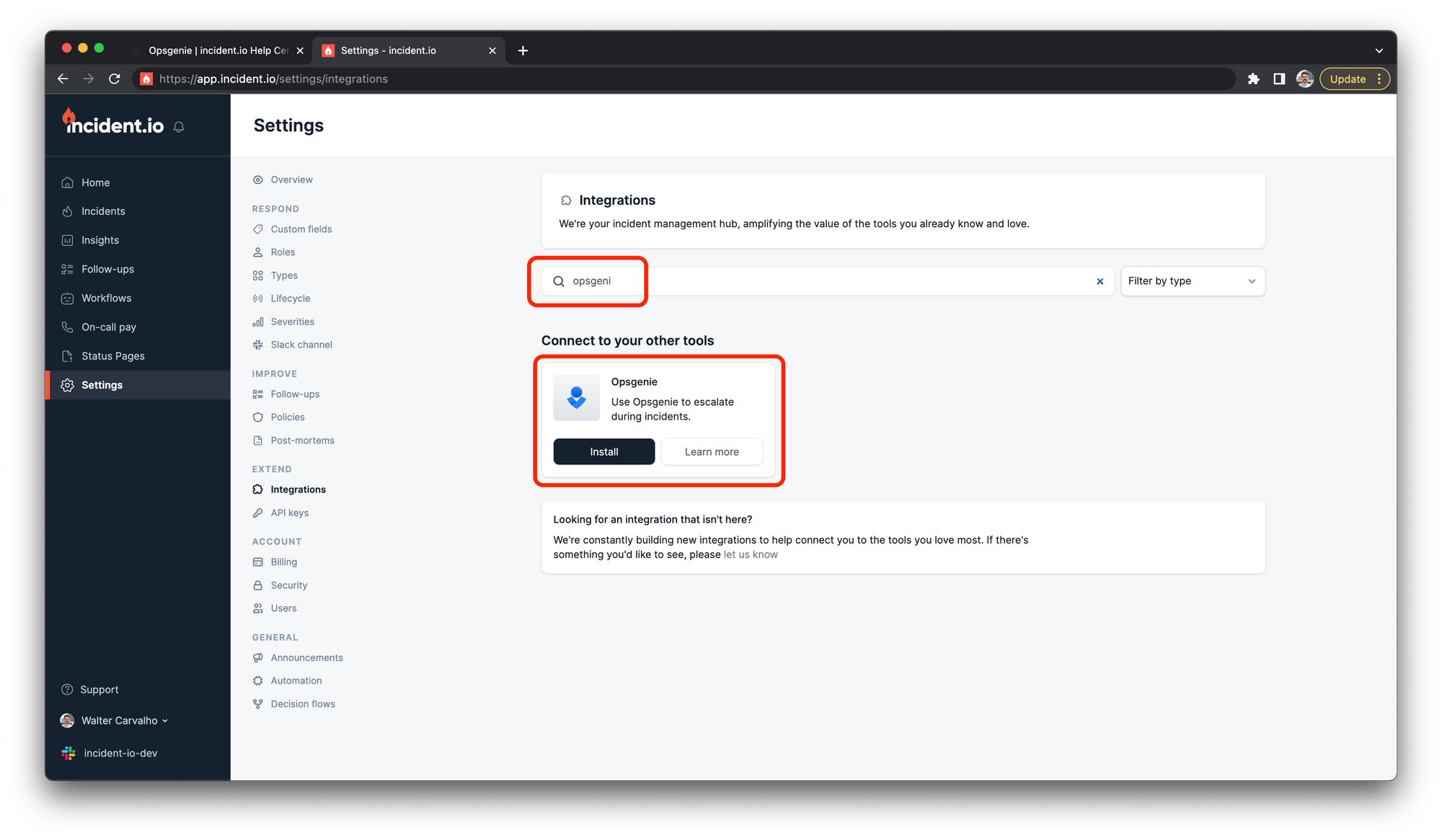
1. **Go to Settings >** [Integrations](https://app.incident.io/~/settings/integrations)
2. **Press 'Install' next to Opsgenie**
 3. **Fetch your API key from Opsgenie**
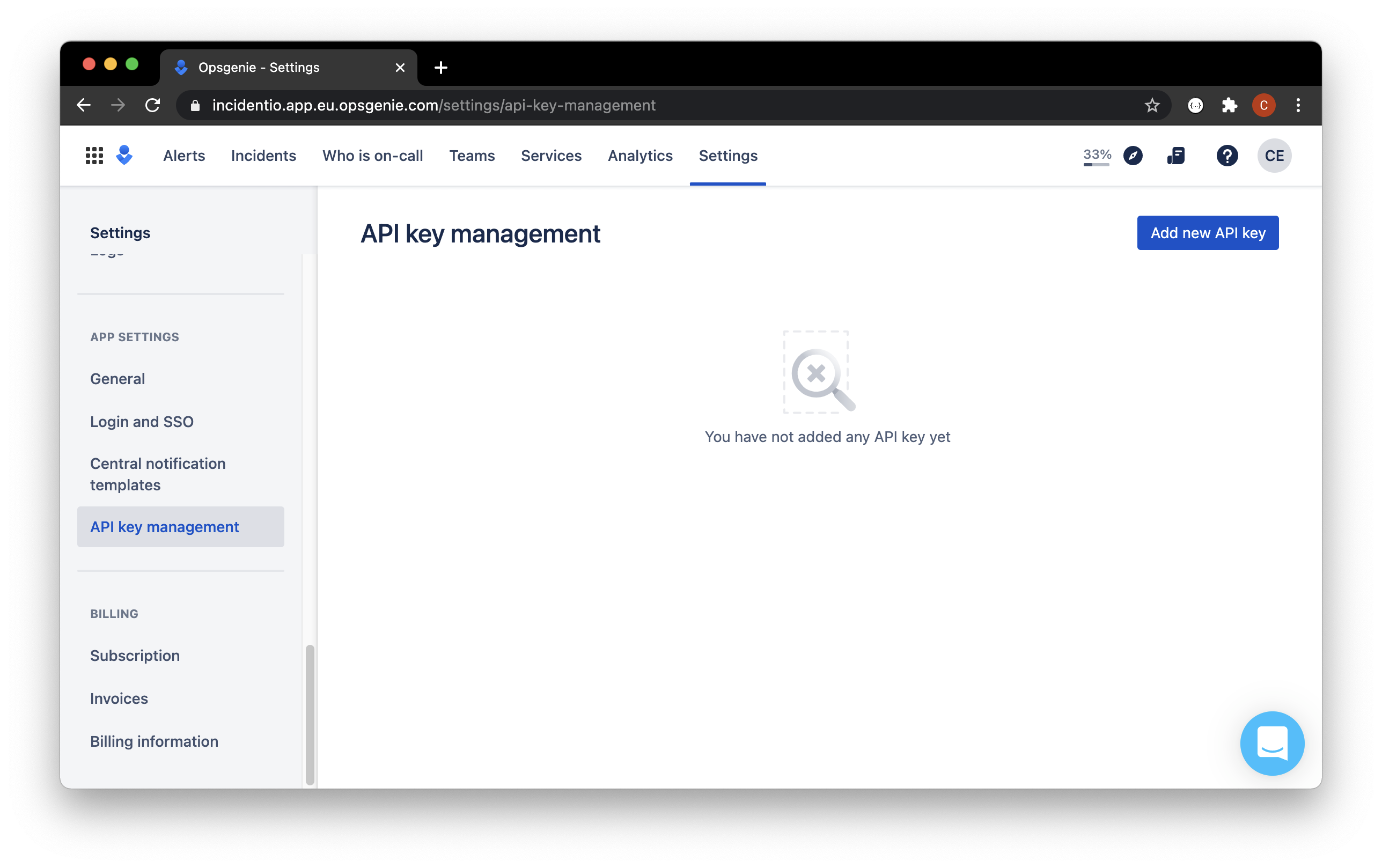
You'll need to create an API key by heading to the settings page of [your Opsgenie account](https://app.opsgenie.com/auth/login).
You can find this by heading to 'Settings' and then scrolling down to 'API key management'. The page will look something like this:
3. **Fetch your API key from Opsgenie**
You'll need to create an API key by heading to the settings page of [your Opsgenie account](https://app.opsgenie.com/auth/login).
You can find this by heading to 'Settings' and then scrolling down to 'API key management'. The page will look something like this:
 Click *Add new API key*
* Call it " [incident.io](http://incident.io/) "
* Set access rights:
* We require Read, Create, Delete, Update and Configuration access
* We require a 'Global integration' API Key
* We don't delete resources that aren't managed by incident.io
* We will create 2 integrations one of type `API` and another of type `Webhook`: we need the deletion permission so that we can clean up any resources we create if you were to uninstall the Opsgenie integration
Click *Add new API key*
* Call it " [incident.io](http://incident.io/) "
* Set access rights:
* We require Read, Create, Delete, Update and Configuration access
* We require a 'Global integration' API Key
* We don't delete resources that aren't managed by incident.io
* We will create 2 integrations one of type `API` and another of type `Webhook`: we need the deletion permission so that we can clean up any resources we create if you were to uninstall the Opsgenie integration
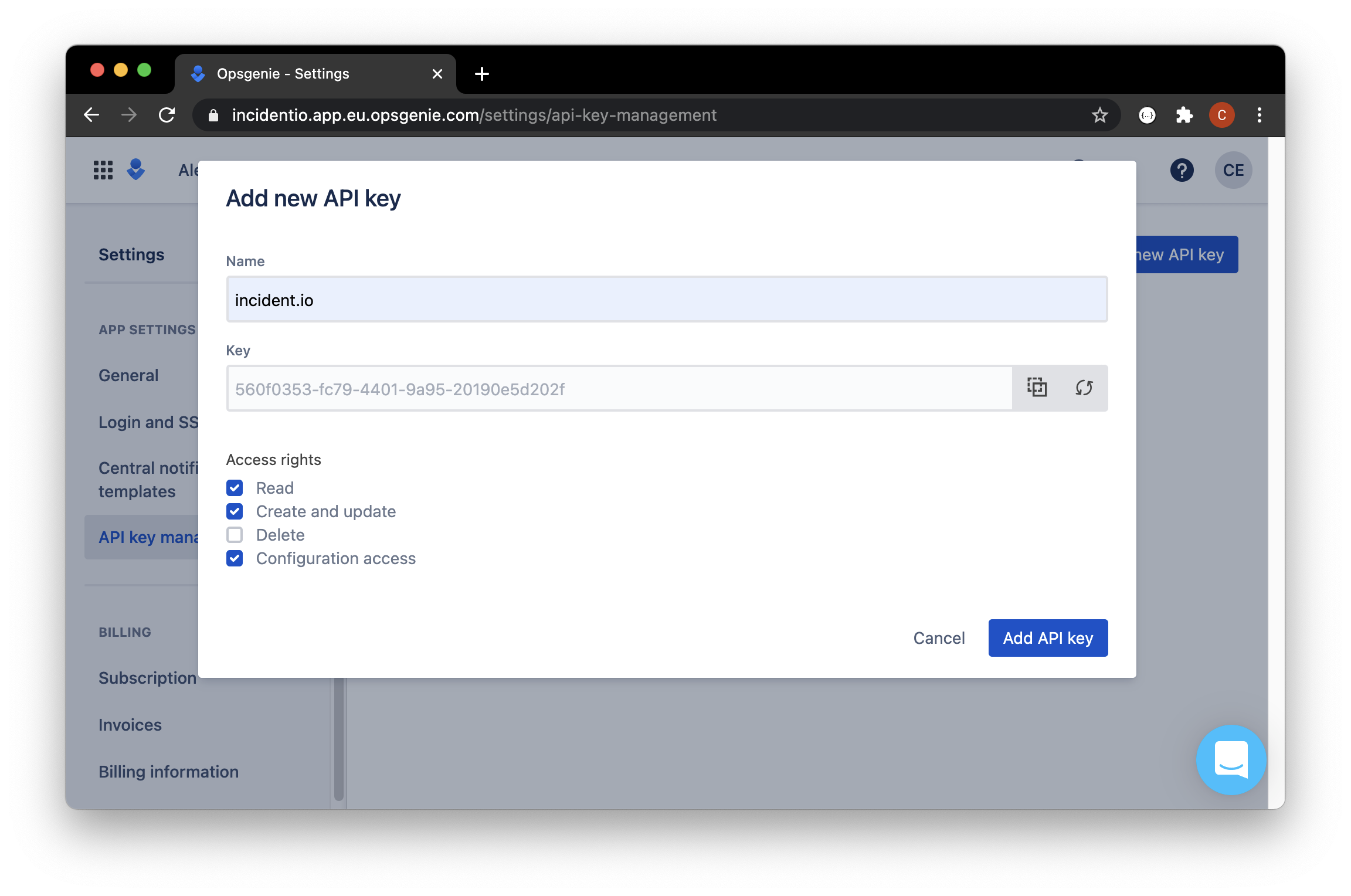 Copy the key to your clipboard.
4. **Paste the API key** from your clipboard into the incident.io modal
Copy the key to your clipboard.
4. **Paste the API key** from your clipboard into the incident.io modal
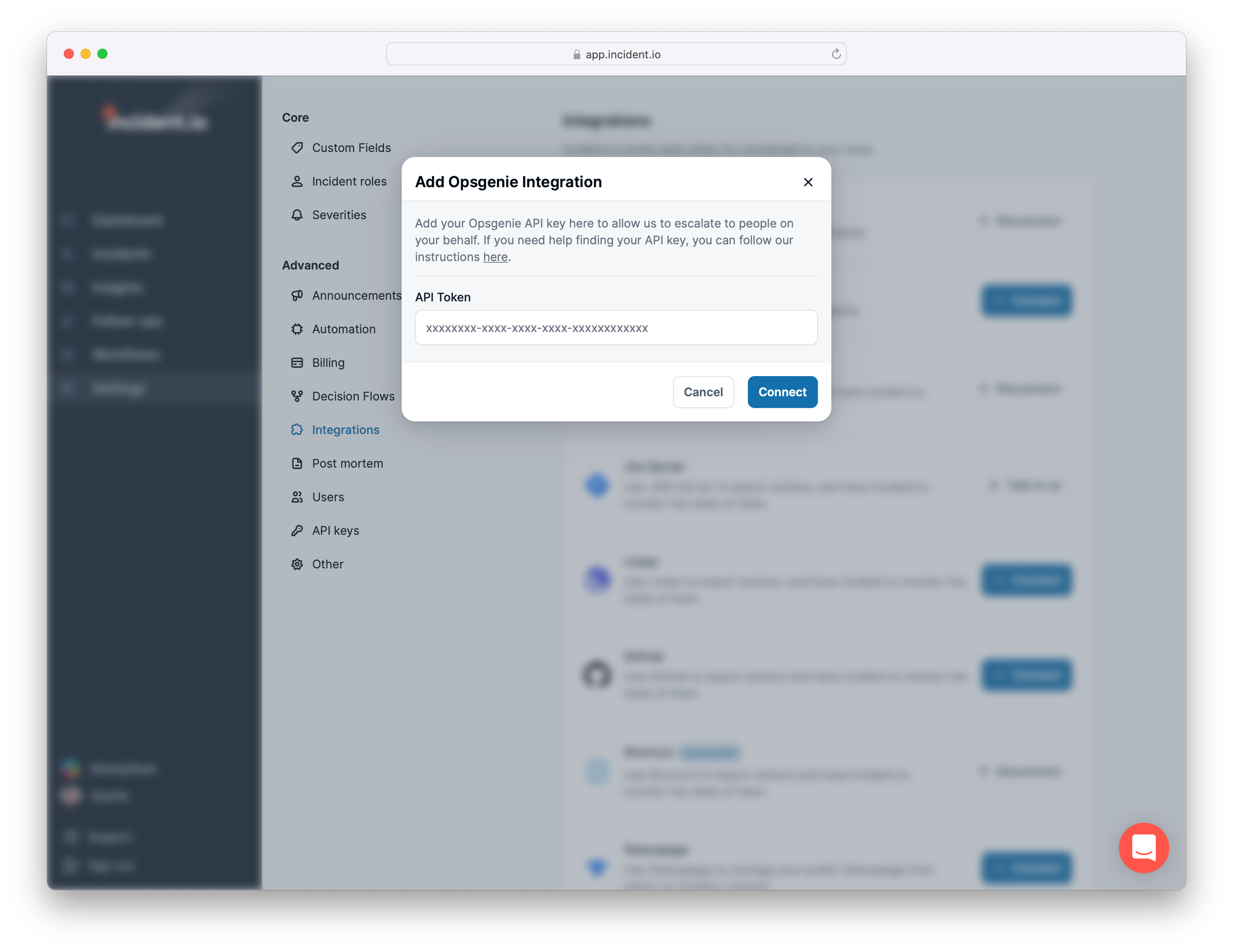 Hit Save, and you're all set up with Opsgenie!
***
## Escalating an incident
Just head over to the incident's Slack channel and hit `/incident escalate`.
**Who can I page?**
* *A team* : we'll use the settings you've defined for the team to page whoever's on-call.
* *Any user on Opsgenie* : sometimes, you know that special someone that can help you out when you get stuck. Escalate to them directly, and bring them in to help.
* *Both the above at once!* In the middle of a particularly gnarly incident? You can page multiple teams and individuals all at once
Hit Save, and you're all set up with Opsgenie!
***
## Escalating an incident
Just head over to the incident's Slack channel and hit `/incident escalate`.
**Who can I page?**
* *A team* : we'll use the settings you've defined for the team to page whoever's on-call.
* *Any user on Opsgenie* : sometimes, you know that special someone that can help you out when you get stuck. Escalate to them directly, and bring them in to help.
* *Both the above at once!* In the middle of a particularly gnarly incident? You can page multiple teams and individuals all at once