> ## Documentation Index
> Fetch the complete documentation index at: https://docs.incident.io/llms.txt
> Use this file to discover all available pages before exploring further.
# How to export follow-ups to Jira Cloud
Follow-ups are a really important part of any incident management process, and with incident.io, you can export any remaining follow-ups to issue trackers, such as Jira Cloud.
After you've [integrated your incident.io account with your Jira Cloud account](/integrations/jira), navigate to [follow-ups within the dashboard](https://app.incident.io/~/follow-ups), here you'll be able to see any outstanding and completed follow-ups from incidents you've had. You'll also be able to see if anyone has been assigned the follow-up to complete.
Even better, if someone marks a follow-up as completed in Jira, the follow-ups dashboard in incident.io will reflect this, and vice versa.
## Exporting single follow-ups
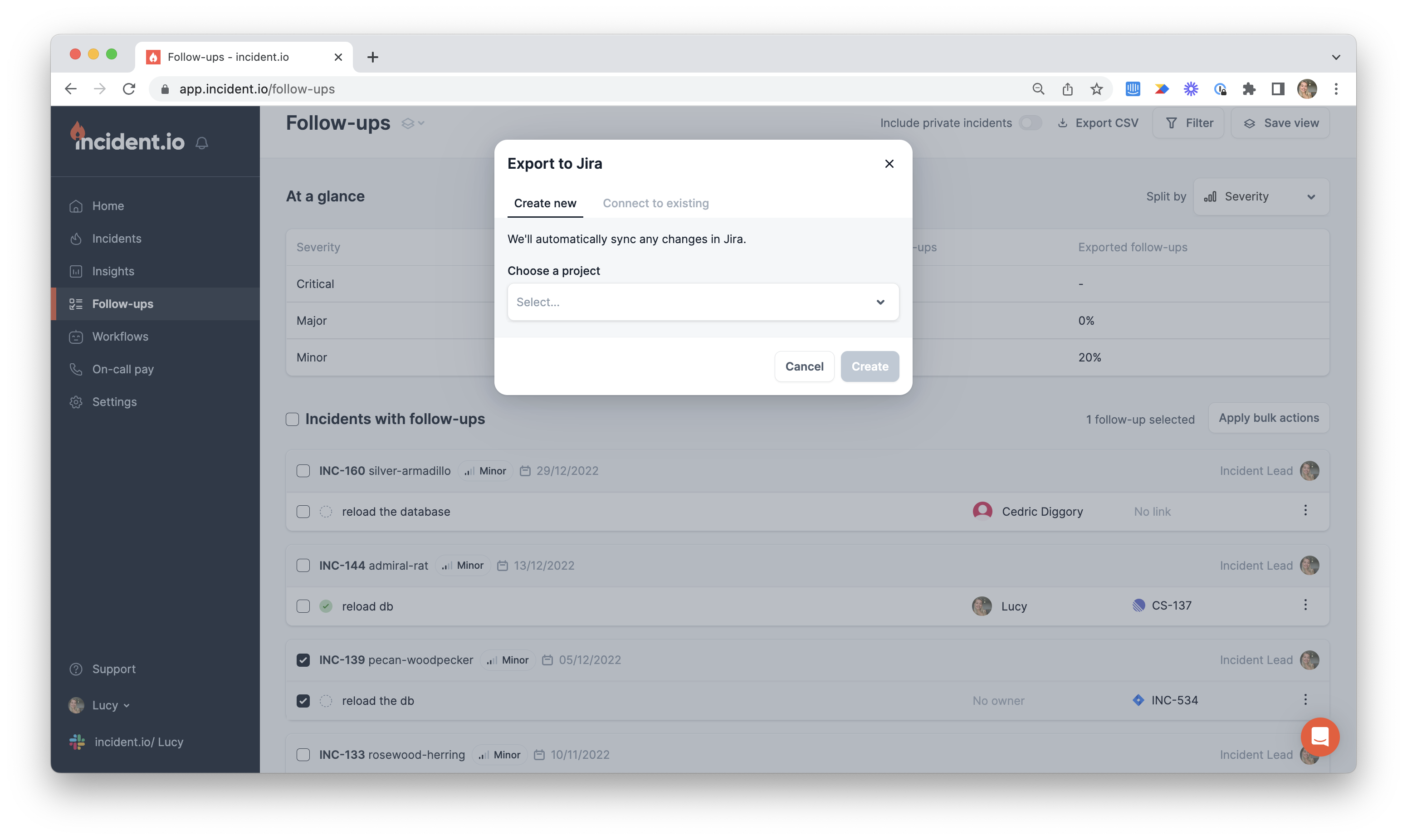
With your follow-ups dashboard, you can export single follow-ups as new tickets or connect them to existing tickets and choose which project they are exported to.
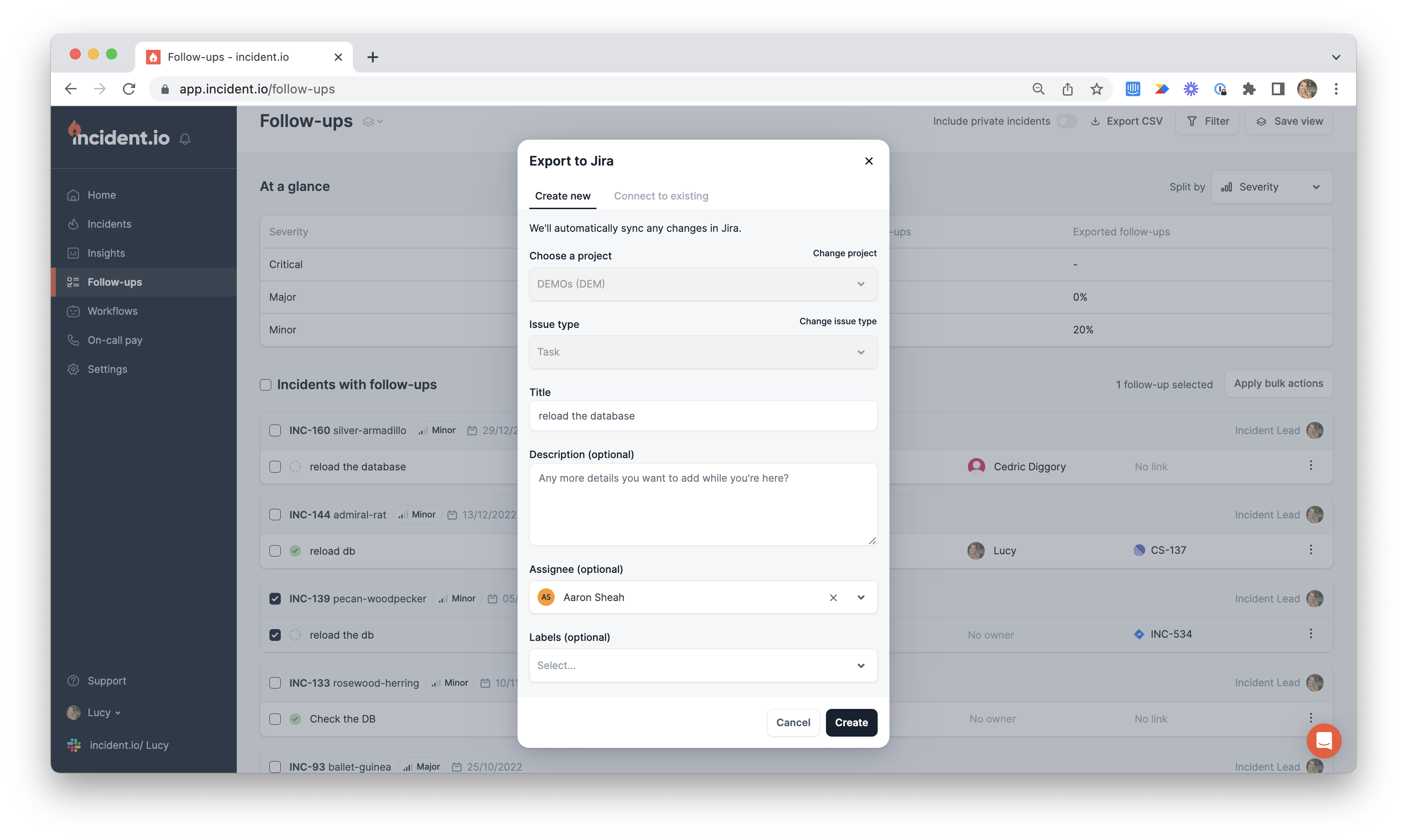
 If you're creating a new ticket, you can assign it to yourself, or someone else, as well as giving them a description.
 ## Connecting follow-ups to existing Jira tickets
Instead of creating a new ticket, you can connect a follow-up to an existing ticket, helping folks close the loop.
## Connecting follow-ups to existing Jira tickets
Instead of creating a new ticket, you can connect a follow-up to an existing ticket, helping folks close the loop.
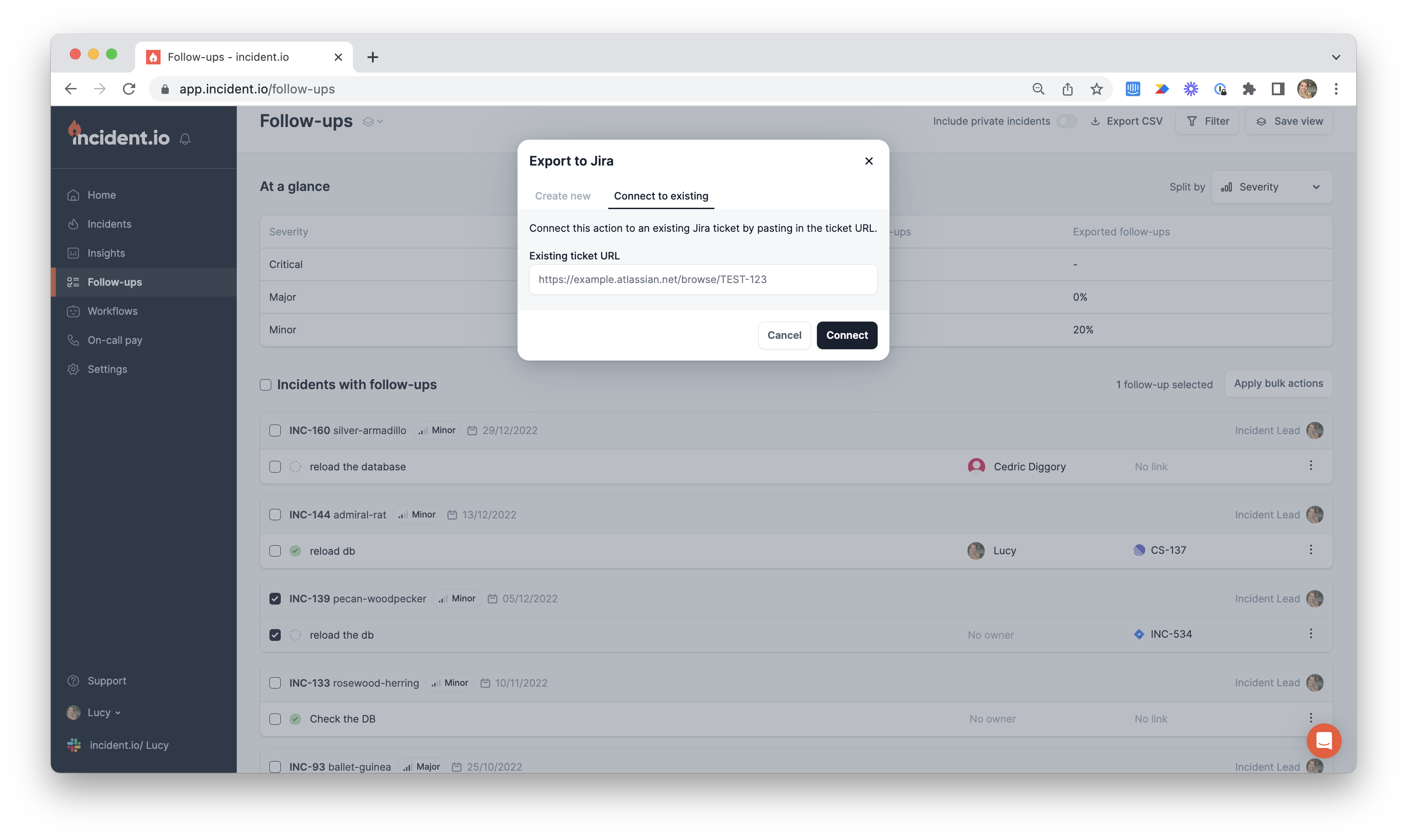 This can also be done by simply pasting a link to the Jira ticket in the incident's slack channel.
*Note: You can only link existing Jira issues that don't have a status of Done*
## Setting "paragraph" custom fields in Jira when exporting follow-ups
* If you're manually exporting follow-ups, you'll be prompted to enter a value for the "paragraph" field during the export process.
* For automatic follow-up exports, you can configure the field to populate based on incident properties when you set up your export template.
***
This can also be done by simply pasting a link to the Jira ticket in the incident's slack channel.
*Note: You can only link existing Jira issues that don't have a status of Done*
## Setting "paragraph" custom fields in Jira when exporting follow-ups
* If you're manually exporting follow-ups, you'll be prompted to enter a value for the "paragraph" field during the export process.
* For automatic follow-up exports, you can configure the field to populate based on incident properties when you set up your export template.
***