> ## Documentation Index
> Fetch the complete documentation index at: https://docs.incident.io/llms.txt
> Use this file to discover all available pages before exploring further.
# Intercom app for status pages
## Overview
If you’re an Intercom customer that’s using our status pages, you can now keep your customers informed by showing real-time status updates from your status page directly in the Intercom Messenger.
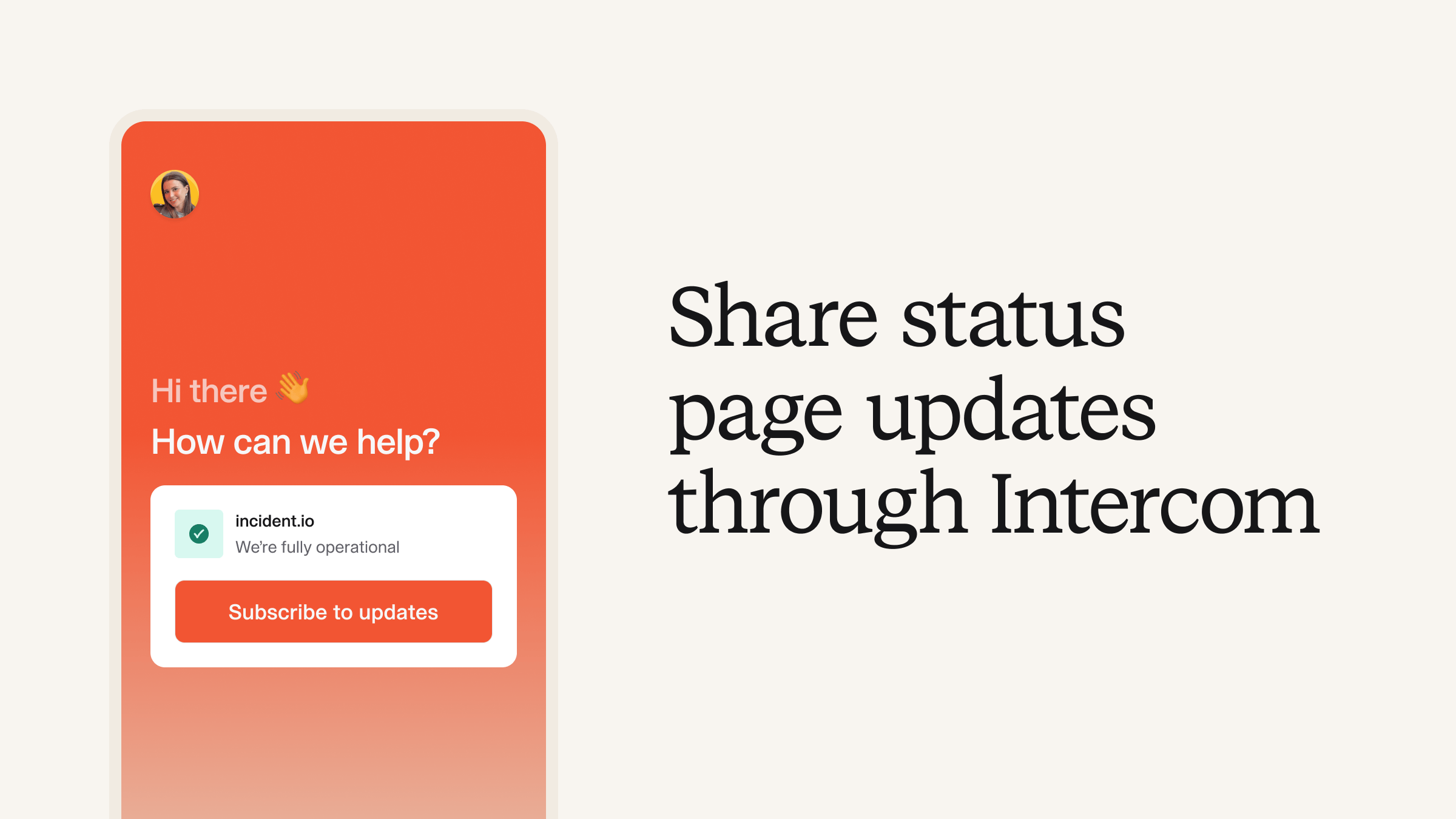 Customers can also directly subscribe to updates inside of Intercom Messenger, so they always know your service status without needing to ask. This reduces the number of questions about your system's status, allowing your support team to focus on more complex issues.
 Your support staff can also check system health directly from your internal Intercom Support Inbox, making it easy for your team to stay updated with what’s happening on your status page and improve customer satisfaction.
## Getting started
To get started, head over to [Settings > Integrations](https://app.incident.io/~/settings/integrations) to connect your Intercom account.
Next, on the Intercom side, go to Settings > Channels > Messenger > Web, hit "Customize Home with apps" and add incident.io.
Your support staff can also check system health directly from your internal Intercom Support Inbox, making it easy for your team to stay updated with what’s happening on your status page and improve customer satisfaction.
## Getting started
To get started, head over to [Settings > Integrations](https://app.incident.io/~/settings/integrations) to connect your Intercom account.
Next, on the Intercom side, go to Settings > Channels > Messenger > Web, hit "Customize Home with apps" and add incident.io.