> ## Documentation Index
> Fetch the complete documentation index at: https://docs.incident.io/llms.txt
> Use this file to discover all available pages before exploring further.
# Create and sync incident tickets
> Keep incidents connected to the issue trackers where your teams plan their work.
Incident tickets create a ticket for each matching incident and keep it updated as the incident changes. Use them with Jira Cloud, Jira Server and Data Center, Linear, Azure DevOps, GitHub, GitLab, ServiceNow, Freshservice, or Salesforce Service Cloud.
Templates control where tickets are created and which incident data is written to each field. Conditions let you route incidents to different templates based on severity, incident type, custom fields, and other incident data.
Once created, incident.io keeps fields controlled by the template up to date and posts incident updates as comments. incident.io is the source of truth, so changes made directly to controlled fields in the issue tracker can be overwritten by the next sync.
Incident tickets are separate from [follow-ups](/incidents/task-tracking), which track work that results from an incident and can be exported to issue trackers.
## Getting started
Connect the issue tracker you want to use from [**Settings → Integrations**](https://app.incident.io/~/settings/integrations), then open [**Settings → Incident tickets**](https://app.incident.io/~/settings/incident-tickets).
Each tracker has its own setup steps:
* [Jira Cloud](/integrations/jira)
* [Jira Server and Data Center](/integrations/jira-server)
* [Linear](/integrations/linear)
* [Azure DevOps](/integrations/azure-devops)
* [GitHub](/integrations/github)
* [GitLab](/integrations/gitlab)
* [ServiceNow](/integrations/servicenow)
* [Salesforce Service Cloud](/integrations/salesforce-service-cloud)
* [Freshservice](/integrations/freshservice)
If you already use legacy auto-export for Jira Server, disable it under **Settings → Integrations → Jira Server**
before enabling incident tickets. Leaving both enabled can create duplicate tickets.
## Creating and editing templates
Create at least one template before enabling incident tickets. Choose a connected issue tracker, then configure its destination and required fields.
Use fixed values, incident variables, or expressions to populate supported fields. For Jira, the available fields depend on the selected project and issue type.
Create multiple templates when incidents need different projects, issue types, or field mappings. For example, route security incidents to a restricted project and operational incidents to an engineering project.
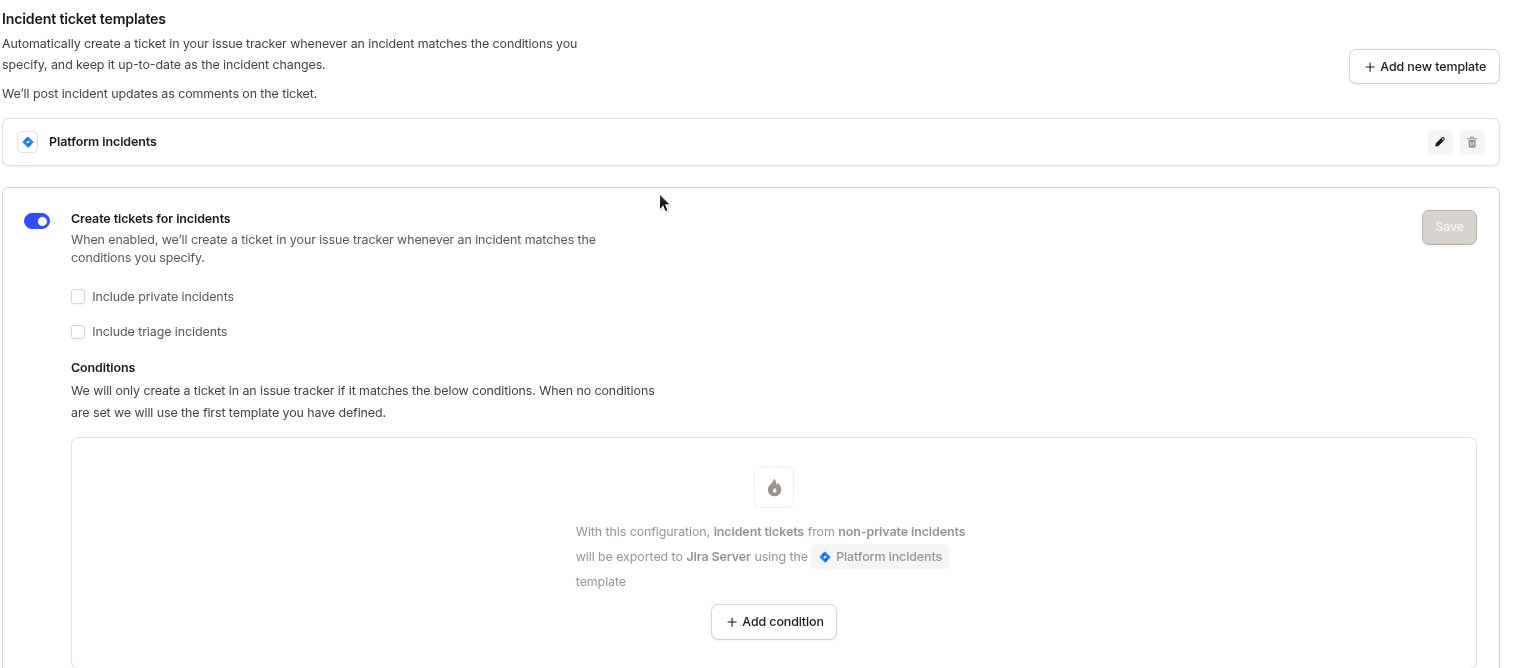 The number of templates available depends on your plan.
## Setting the ticket status
Add the status field to your template to move the ticket between statuses as the incident changes. Bind it like any other field, usually to an expression over the incident's status. For example, close the ticket when the incident is resolved.
We set the status when we create the ticket, and again on every sync after that.
What the field is called depends on the tracker:
| Tracker | Field | Values |
| --------------------------- | ---------- | ------------------------------------------------------------------- |
| Jira Cloud | **Status** | The statuses for the project and issue type your template targets |
| Jira Server and Data Center | **Status** | The statuses for the project and issue type your template targets |
| Linear | **Status** | The statuses for the team your template targets |
| Azure DevOps | **State** | The states for the project and work item type your template targets |
| GitHub | **State** | Open or closed |
| GitLab | **State** | Opened or closed |
| Freshservice | **Status** | The statuses configured in Freshservice |
| ServiceNow | **State** | The states on the ServiceNow incident table |
Linear statuses belong to a team, so the field appears once your template targets a team. Salesforce Service Cloud sets the Case status through the fields on your Case object rather than a dedicated field.
Both Jira Cloud and Jira Server move an issue between statuses using workflow transitions. Your Jira workflow may have no route to the status you asked for, or the transition may need a field we can't set such as **Resolution**. We show that on the incident's ticket in the dashboard, and keep the ticket's other fields in sync.
## Using conditions
After creating a template, enable **Create tickets for incidents**.
The number of templates available depends on your plan.
## Setting the ticket status
Add the status field to your template to move the ticket between statuses as the incident changes. Bind it like any other field, usually to an expression over the incident's status. For example, close the ticket when the incident is resolved.
We set the status when we create the ticket, and again on every sync after that.
What the field is called depends on the tracker:
| Tracker | Field | Values |
| --------------------------- | ---------- | ------------------------------------------------------------------- |
| Jira Cloud | **Status** | The statuses for the project and issue type your template targets |
| Jira Server and Data Center | **Status** | The statuses for the project and issue type your template targets |
| Linear | **Status** | The statuses for the team your template targets |
| Azure DevOps | **State** | The states for the project and work item type your template targets |
| GitHub | **State** | Open or closed |
| GitLab | **State** | Opened or closed |
| Freshservice | **Status** | The statuses configured in Freshservice |
| ServiceNow | **State** | The states on the ServiceNow incident table |
Linear statuses belong to a team, so the field appears once your template targets a team. Salesforce Service Cloud sets the Case status through the fields on your Case object rather than a dedicated field.
Both Jira Cloud and Jira Server move an issue between statuses using workflow transitions. Your Jira workflow may have no route to the status you asked for, or the transition may need a field we can't set such as **Resolution**. We show that on the incident's ticket in the dashboard, and keep the ticket's other fields in sync.
## Using conditions
After creating a template, enable **Create tickets for incidents**.
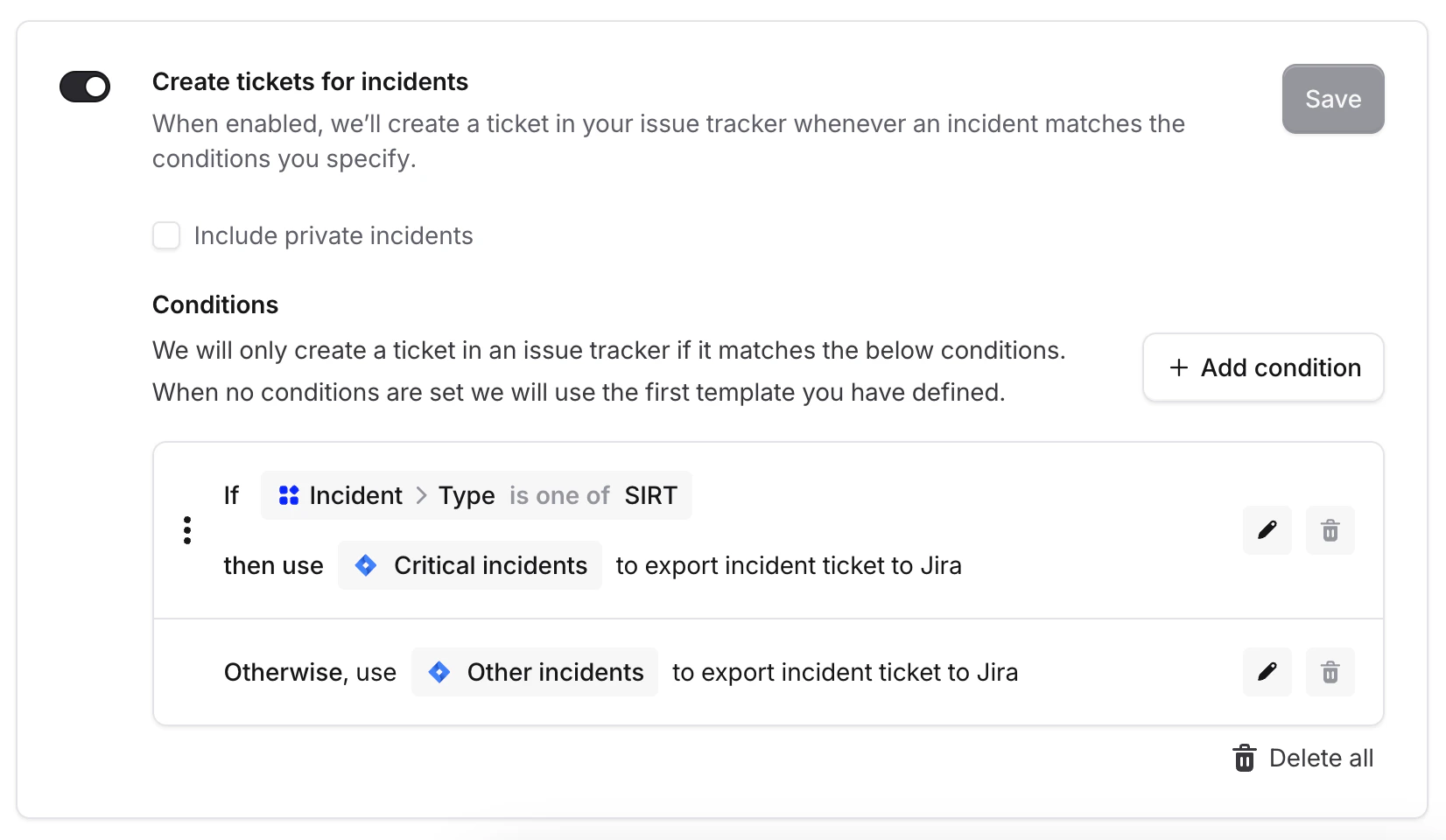
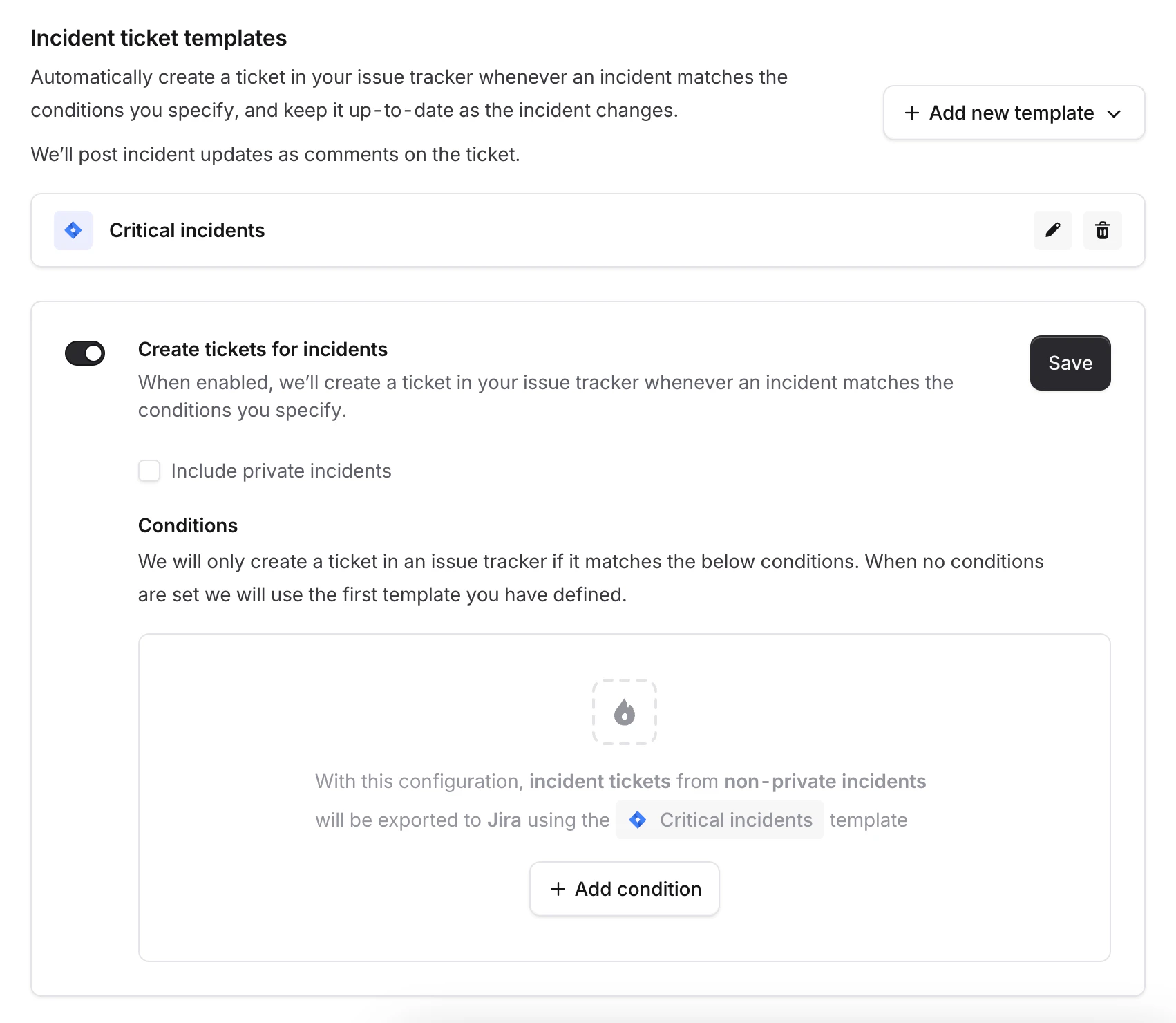 Without conditions, incident.io uses the first template for every eligible incident.
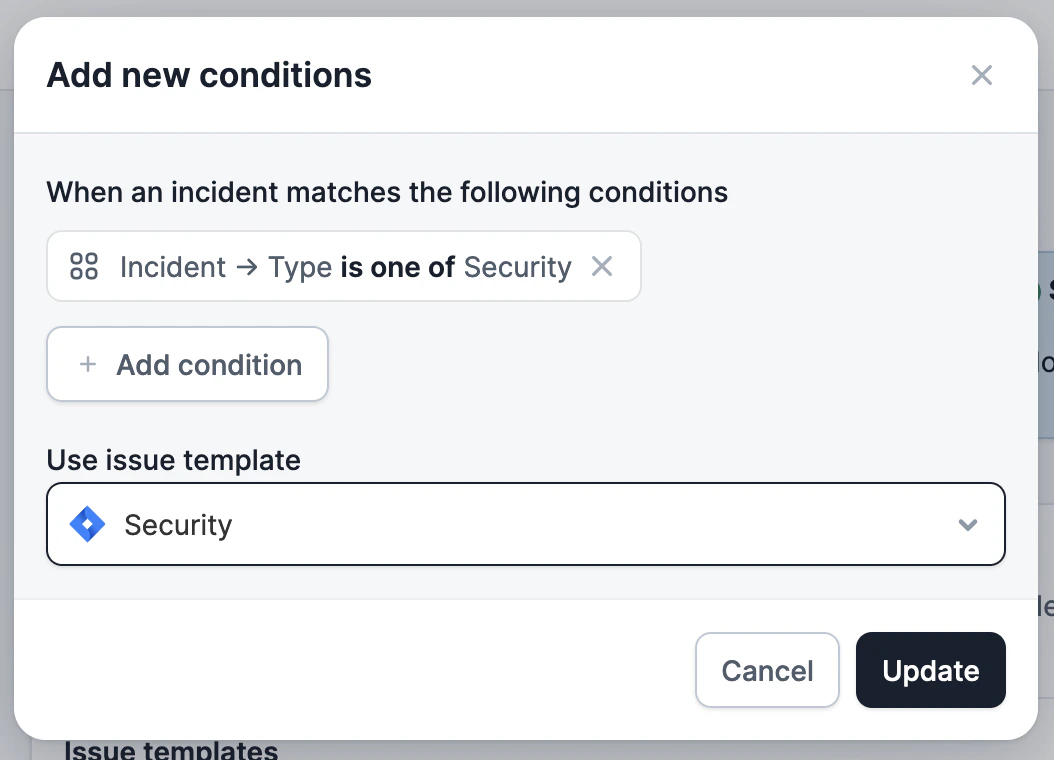
Add conditions to create tickets only for matching incidents or to select different templates.
For example, select a security template when the incident type is **Security**.
Without conditions, incident.io uses the first template for every eligible incident.
Add conditions to create tickets only for matching incidents or to select different templates.
For example, select a security template when the incident type is **Security**.
 And once saved see how it will affect the creation of tickets:
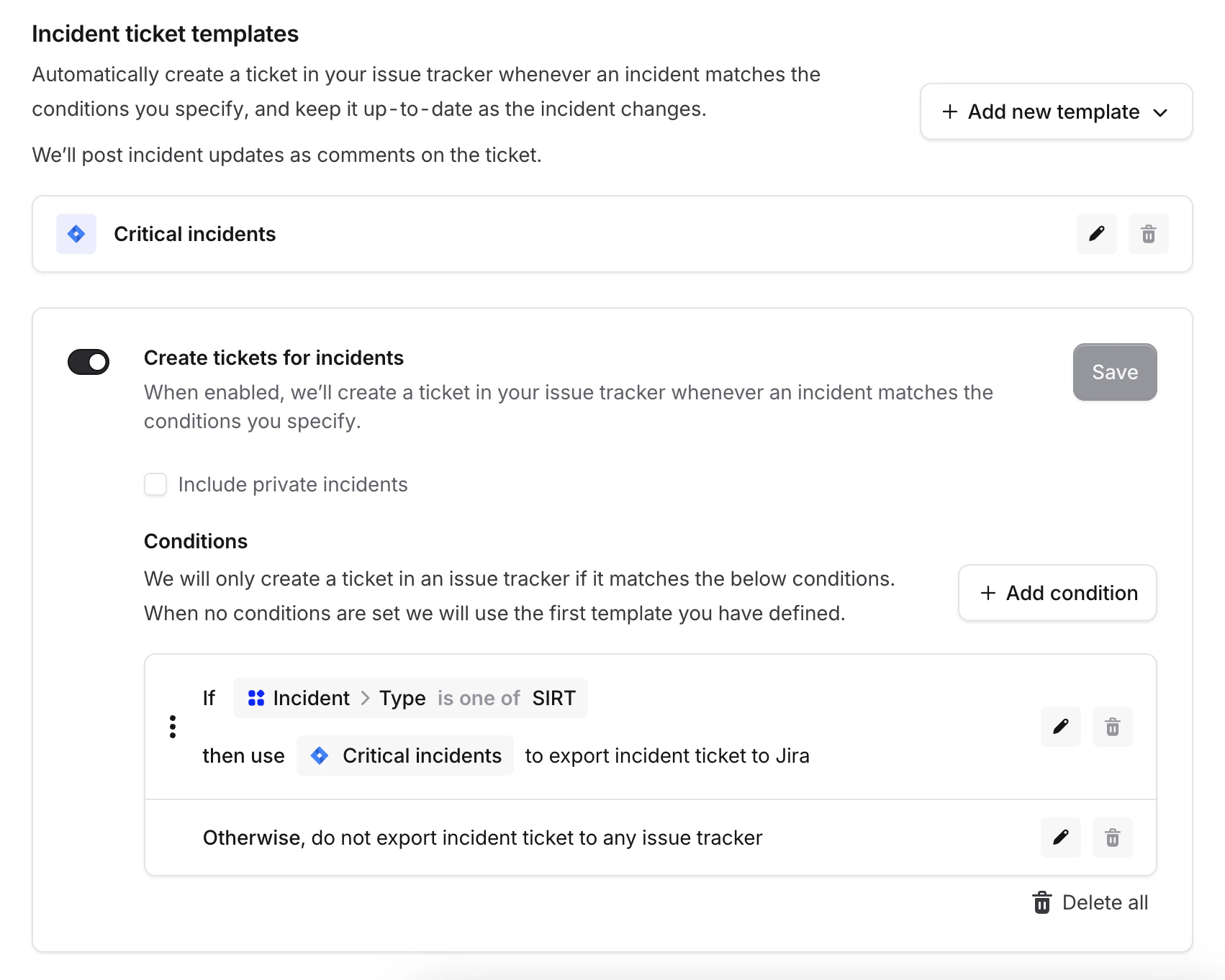 If you add at least one condition, incident.io does not create a ticket when no condition matches.
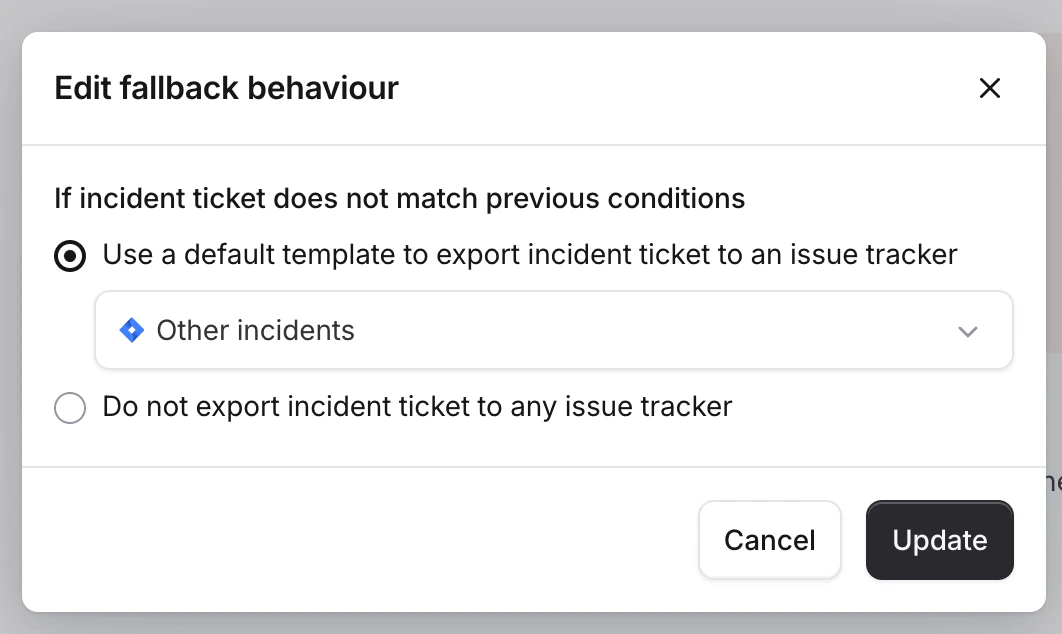
Configure the fallback behavior to select a default template when no condition matches.
If you add at least one condition, incident.io does not create a ticket when no condition matches.
Configure the fallback behavior to select a default template when no condition matches.
 ## Reuse a ticket from an alert
Jira Cloud, ServiceNow, and Azure DevOps can reuse the ticket an alert already created. If you use one of them as an [alert source](/alerts/alert-sources) and have incident tickets configured for it, an incident created from one of its alerts reuses that alert's ticket instead of creating a duplicate. We keep the existing ticket in sync like any other incident ticket.
This happens automatically when all of the following are true:
* The incident was created from a **single** alert from that tracker. If several are grouped into one incident we can't tell which ticket to use, so we create a new ticket instead.
* The ticket isn't already linked to another incident or follow-up, and still exists in the tracker.
* For Jira Cloud, the alert's issue is in the **same project** and of the **same issue type** that your incident ticket template targets.
If any of these aren't true, we fall back to creating a new incident ticket from your template as usual.
## Private incidents
Enable **Include private incidents** to create tickets for private incidents.
Anyone with access to the destination project can see the ticket and its incident data. Make sure the project has appropriate access controls before enabling this setting.
## Tracker specifics
### Azure DevOps
Each template targets a project and a work item type. Those two choices determine which fields the template offers.
Comments added to the work item sync back into incident.io once the [service hook](/integrations/azure-devops#service-hooks) is set up.
### ServiceNow
Incident tickets are created on the `incident` table, and the template offers that table's own columns as fields. The incident name becomes `short_description`, and `opened_by` is the integration user.
Where your template doesn't set them, we create the record with `state` 1 (New), `urgency` 2 (Medium), and `impact` 2 (Medium). Bind those fields in your template to choose your own values.
Work notes, comments, and image attachments added to the ServiceNow record sync back into incident.io.
### Linear
An incident ticket can be a Linear project instead of an issue. Set **Create as** to **Project** on the template, and that incident's follow-ups move into the project as they're linked. A follow-up whose own template sets a project keeps that project.
### Salesforce Service Cloud
Incident tickets are Salesforce Cases, and the template offers the fields on your Case object.
## Reuse a ticket from an alert
Jira Cloud, ServiceNow, and Azure DevOps can reuse the ticket an alert already created. If you use one of them as an [alert source](/alerts/alert-sources) and have incident tickets configured for it, an incident created from one of its alerts reuses that alert's ticket instead of creating a duplicate. We keep the existing ticket in sync like any other incident ticket.
This happens automatically when all of the following are true:
* The incident was created from a **single** alert from that tracker. If several are grouped into one incident we can't tell which ticket to use, so we create a new ticket instead.
* The ticket isn't already linked to another incident or follow-up, and still exists in the tracker.
* For Jira Cloud, the alert's issue is in the **same project** and of the **same issue type** that your incident ticket template targets.
If any of these aren't true, we fall back to creating a new incident ticket from your template as usual.
## Private incidents
Enable **Include private incidents** to create tickets for private incidents.
Anyone with access to the destination project can see the ticket and its incident data. Make sure the project has appropriate access controls before enabling this setting.
## Tracker specifics
### Azure DevOps
Each template targets a project and a work item type. Those two choices determine which fields the template offers.
Comments added to the work item sync back into incident.io once the [service hook](/integrations/azure-devops#service-hooks) is set up.
### ServiceNow
Incident tickets are created on the `incident` table, and the template offers that table's own columns as fields. The incident name becomes `short_description`, and `opened_by` is the integration user.
Where your template doesn't set them, we create the record with `state` 1 (New), `urgency` 2 (Medium), and `impact` 2 (Medium). Bind those fields in your template to choose your own values.
Work notes, comments, and image attachments added to the ServiceNow record sync back into incident.io.
### Linear
An incident ticket can be a Linear project instead of an issue. Set **Create as** to **Project** on the template, and that incident's follow-ups move into the project as they're linked. A follow-up whose own template sets a project keeps that project.
### Salesforce Service Cloud
Incident tickets are Salesforce Cases, and the template offers the fields on your Case object.