> ## Documentation Index
> Fetch the complete documentation index at: https://docs.incident.io/llms.txt
> Use this file to discover all available pages before exploring further.
# GitLab
## What our GitLab integration can do
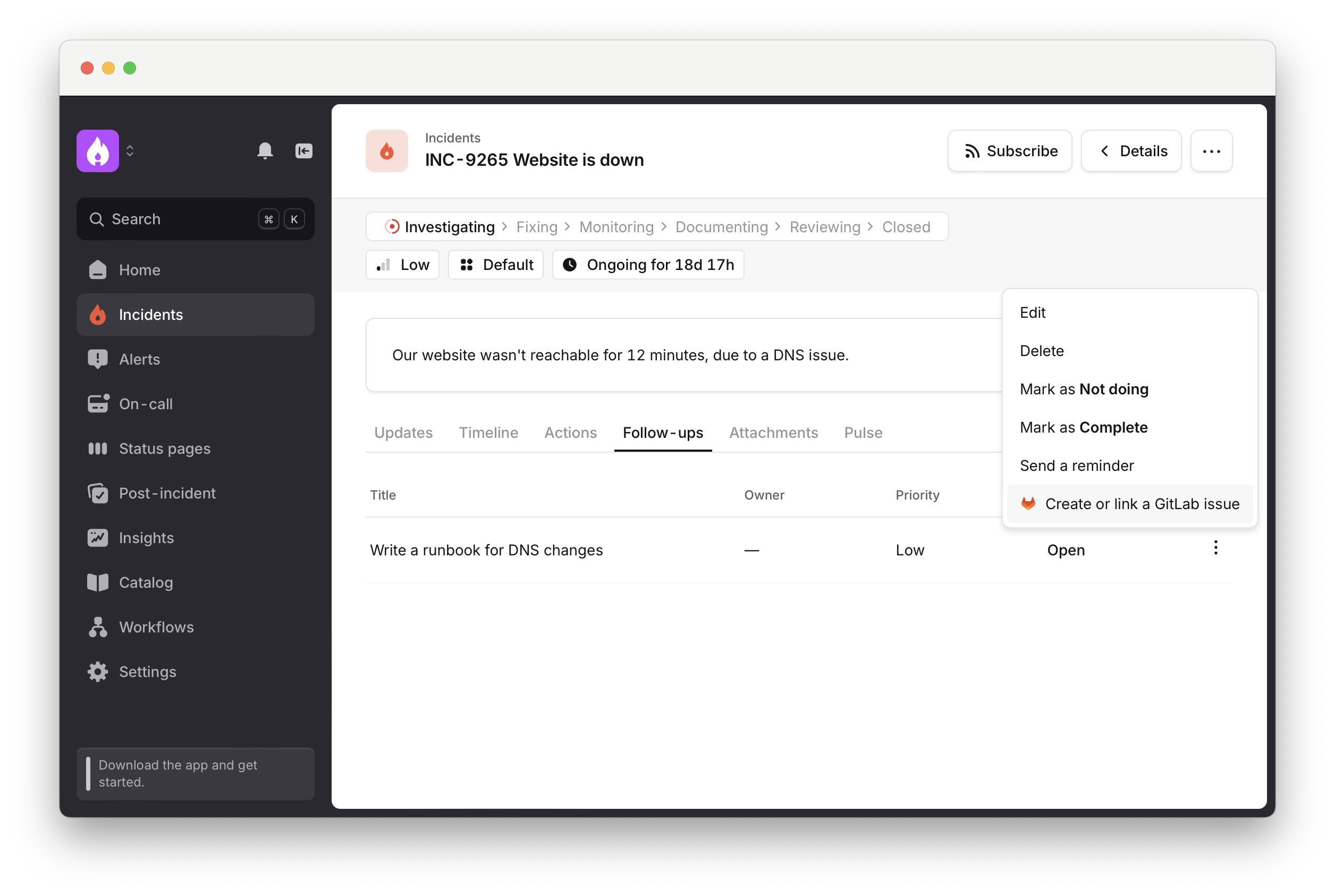
1. **Export** [your incident follow-ups](/post-incident/follow-ups) **to GitLab**
You can export your follow-ups to GitLab. We'll sync the status of your tasks, so you can work in GitLab without worrying about updating statuses manually in incident.io!
Use [auto-export follow-ups](/integrations/auto-export-follow-ups) to make sure all your follow-up tasks are tracked in GitLab
You'll see the option to export your follow-ups from the incident homepage:
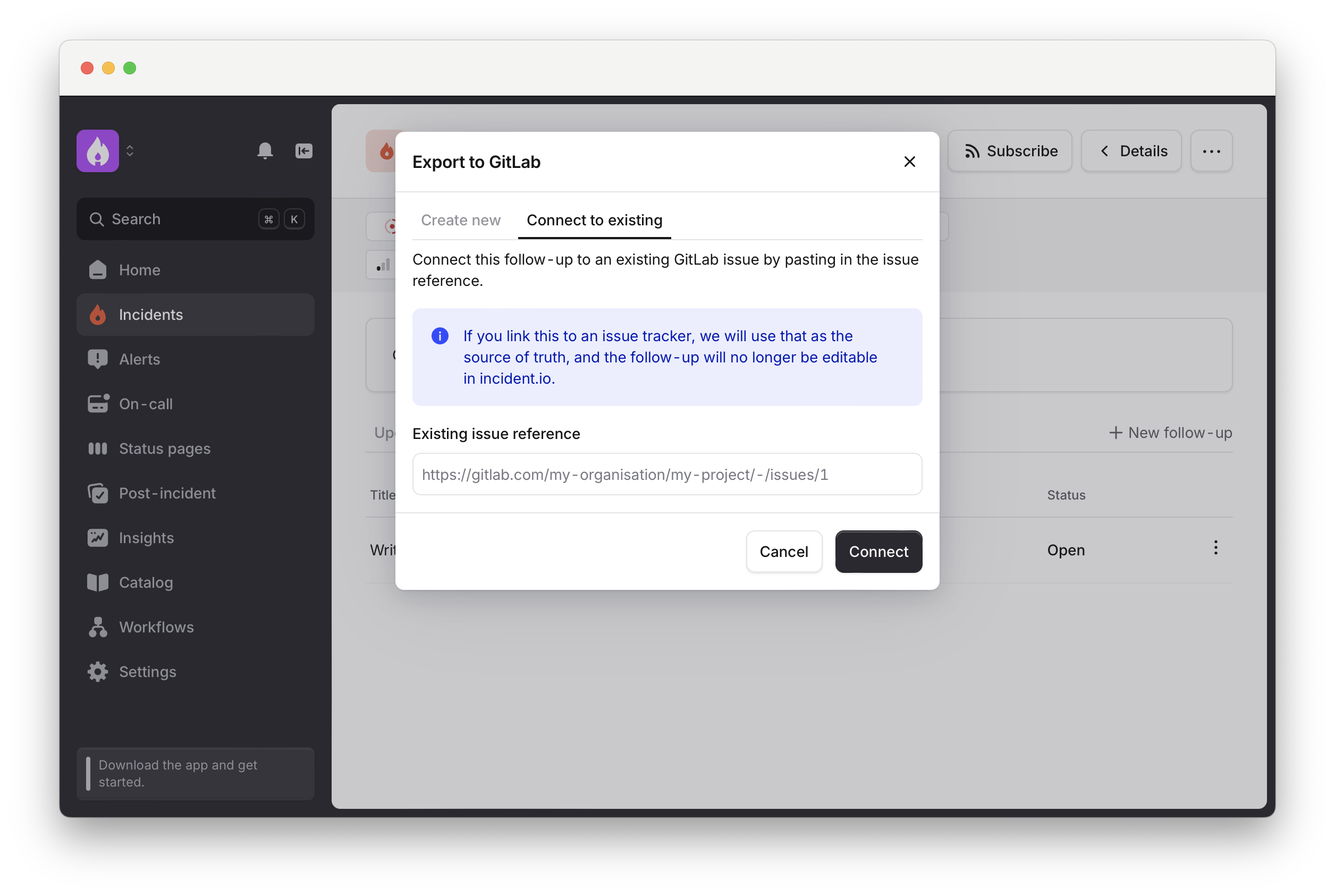
 2. **Link GitLab issues to your follow-ups.**
You can copy the reference of issues you already have and link them back to your incident.io follow-ups.
2. **Link GitLab issues to your follow-ups.**
You can copy the reference of issues you already have and link them back to your incident.io follow-ups.
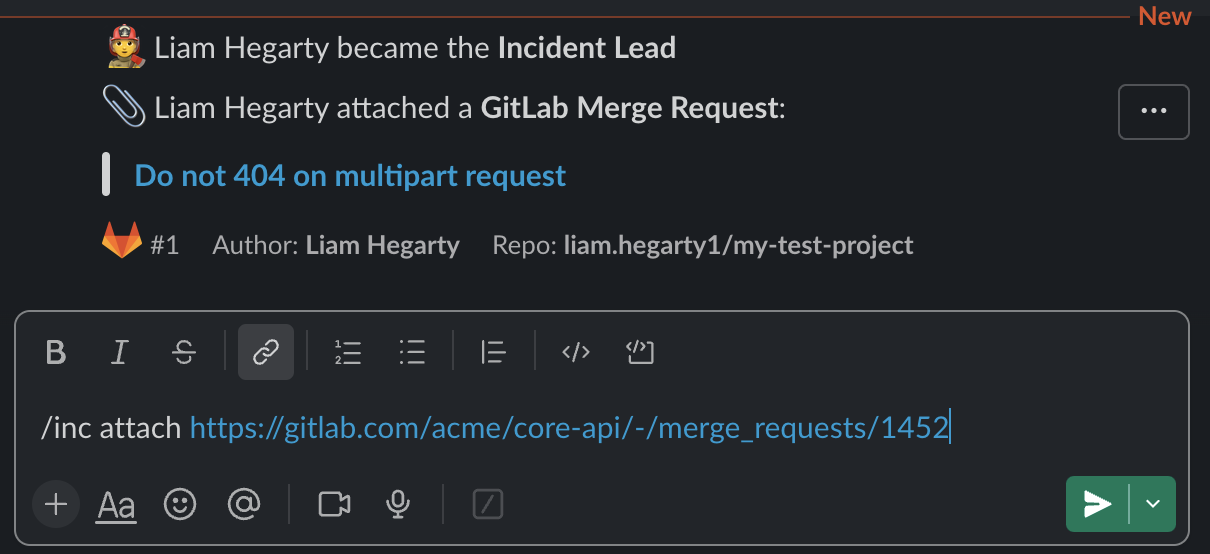
 3. **Attach GitLab Merge Requests to incidents from Slack**
You can attach GitLab MRs to your incident directly from the incident channel.
3. **Attach GitLab Merge Requests to incidents from Slack**
You can attach GitLab MRs to your incident directly from the incident channel.
 4. **Attach GitLab MRs to incidents from GitLab**
You can also attach an MR by mentioning the incident number in the MR title or source branch.
4. **Attach GitLab MRs to incidents from GitLab**
You can also attach an MR by mentioning the incident number in the MR title or source branch.
 5. **Post comments on GitLab issues via workflows**
Use [workflows](/workflows/getting-started) to automatically post internal comments on GitLab issues as incidents progress, keeping your team informed directly in GitLab.
## Setting Up
Adding GitLab to incident.io is simple.
You'll need a GitLab top-level group owner to perform some of these steps.
#### 1. Create a Service Account user in GitLab
Follow [GitLab's guide to creating a service account](https://docs.gitlab.com/ee/user/profile/service_accounts.html#create-a-service-account).
We recommend using 'incident.io' for the `name`, since this will show up in the UI on issues and comments created by the integration.
Make sure the bot user has access to create and edit issues, and view and comment on merge requests in all relevant projects.
We recommend assigning the `Reporter` role to your incident.io service account user.
If connecting the GitLab integration for Investigations you should instead assign the `Developer` role. This allows Investigations to open Merge Requests when users request it.
See GitLab.com: [Permissions and roles](https://docs.gitlab.com/ee/user/permissions.html)
#### 2. Create a Personal Access Token
Follow [GitLab's guide here](https://docs.gitlab.com/ee/user/profile/personal_access_tokens.html#create-a-service-account-personal-access-token-with-no-expiry-date).
For **scopes** the integration requires the `api` scope.
5. **Post comments on GitLab issues via workflows**
Use [workflows](/workflows/getting-started) to automatically post internal comments on GitLab issues as incidents progress, keeping your team informed directly in GitLab.
## Setting Up
Adding GitLab to incident.io is simple.
You'll need a GitLab top-level group owner to perform some of these steps.
#### 1. Create a Service Account user in GitLab
Follow [GitLab's guide to creating a service account](https://docs.gitlab.com/ee/user/profile/service_accounts.html#create-a-service-account).
We recommend using 'incident.io' for the `name`, since this will show up in the UI on issues and comments created by the integration.
Make sure the bot user has access to create and edit issues, and view and comment on merge requests in all relevant projects.
We recommend assigning the `Reporter` role to your incident.io service account user.
If connecting the GitLab integration for Investigations you should instead assign the `Developer` role. This allows Investigations to open Merge Requests when users request it.
See GitLab.com: [Permissions and roles](https://docs.gitlab.com/ee/user/permissions.html)
#### 2. Create a Personal Access Token
Follow [GitLab's guide here](https://docs.gitlab.com/ee/user/profile/personal_access_tokens.html#create-a-service-account-personal-access-token-with-no-expiry-date).
For **scopes** the integration requires the `api` scope.
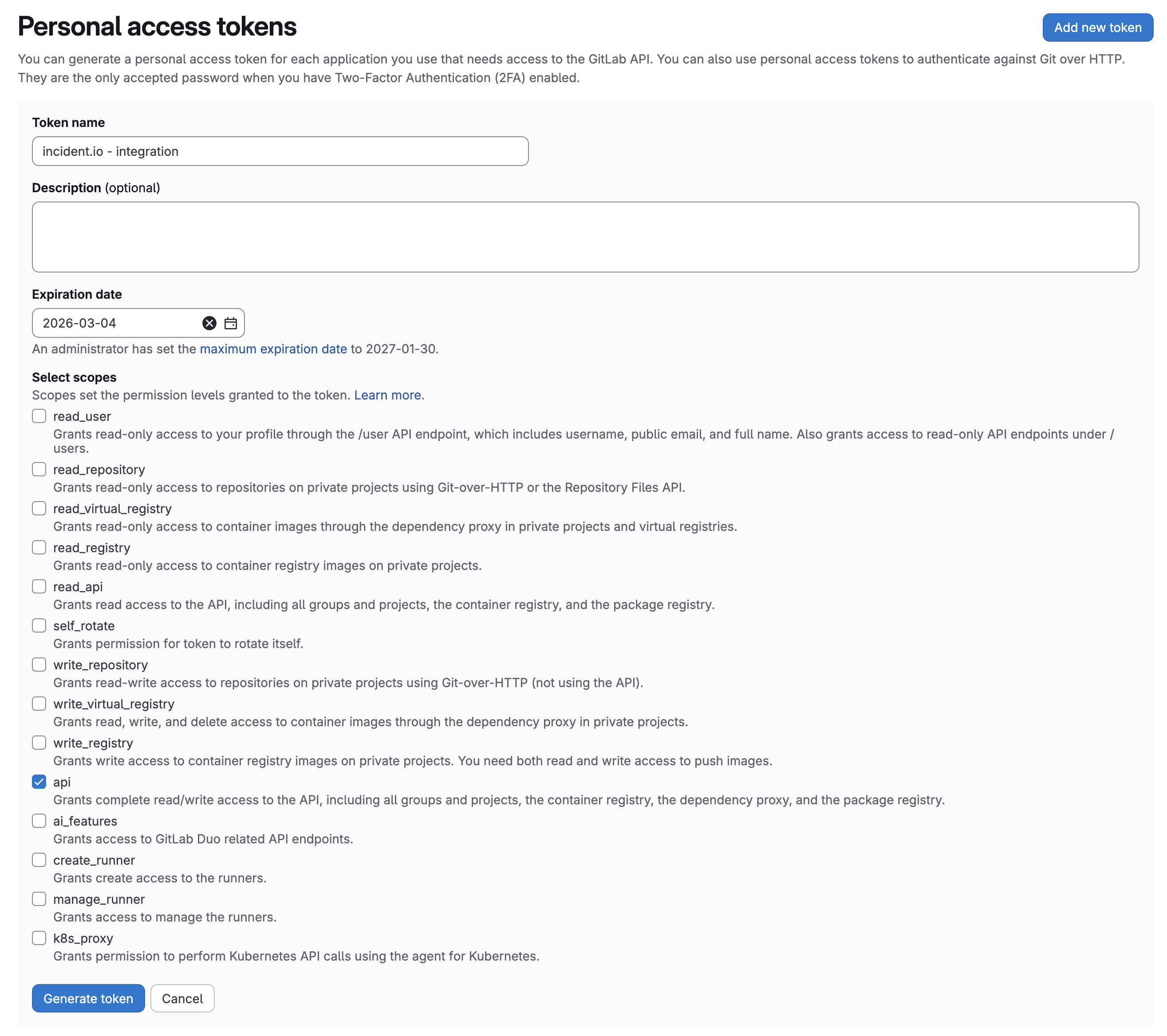 After generating the token, make sure to copy the token value for the next step!
#### 3. Connect the integration
Go to [Settings → Integrations](https://app.incident.io/~/settings/integrations), click on GitLab, then Connect.
After generating the token, make sure to copy the token value for the next step!
#### 3. Connect the integration
Go to [Settings → Integrations](https://app.incident.io/~/settings/integrations), click on GitLab, then Connect.
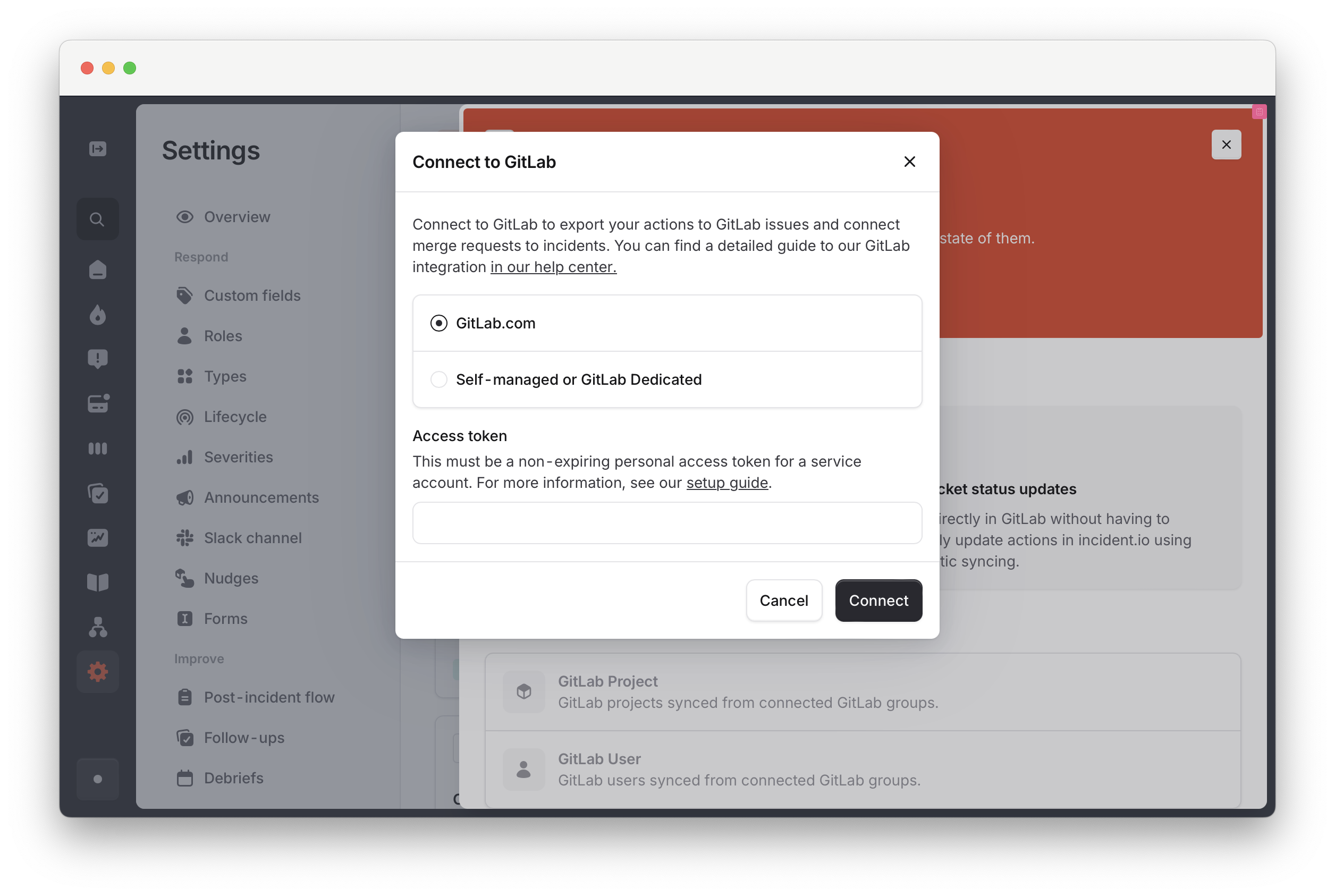 Paste in the access token created in step 2. and click **Connect**. That's it
For GitLab users to connect with their incident.io accounts, their GitLab public email must:
1. Match their incident.io user email
2. Be visible on their GitLab profile
Paste in the access token created in step 2. and click **Connect**. That's it
For GitLab users to connect with their incident.io accounts, their GitLab public email must:
1. Match their incident.io user email
2. Be visible on their GitLab profile
 If you're using self-managed GitLab, make sure traffic from [our IPs](/integrations/ip-allowlist) can reach your instance.
#### → Next up
We recommend adding a Group Hook in GitLab, which allows us to sync changes in GitLab back to incident.io. Read our [setup guide here](/integrations/gitlab-group-hook).
If you run into any issues, [get in touch](https://incident.io/community)
If you're using self-managed GitLab, make sure traffic from [our IPs](/integrations/ip-allowlist) can reach your instance.
#### → Next up
We recommend adding a Group Hook in GitLab, which allows us to sync changes in GitLab back to incident.io. Read our [setup guide here](/integrations/gitlab-group-hook).
If you run into any issues, [get in touch](https://incident.io/community)