> ## Documentation Index
> Fetch the complete documentation index at: https://docs.incident.io/llms.txt
> Use this file to discover all available pages before exploring further.
# Setting up a GitLab Group Hook
We rely on a GitLab Group Hook to enable:
1. **Syncing changes to follow-ups in GitLab back to incident.io**
2. **Linking merge requests to incidents automatically** when you mention the incident reference (e.g. `INC-123`) in a merge request.
3. **Posting updates to merge requests in the incident channel**, for example when a linked MR is merged.
## Setting up
You'll need a GitLab Group Owner to do this setup.
#### 1. Find your secret token
Under [Settings → Integrations → GitLab](https://app.incident.io/~/settings/integrations/gitlab), you'll find a unique secret token. Copy this down - you'll need it to successfully configure the hook.
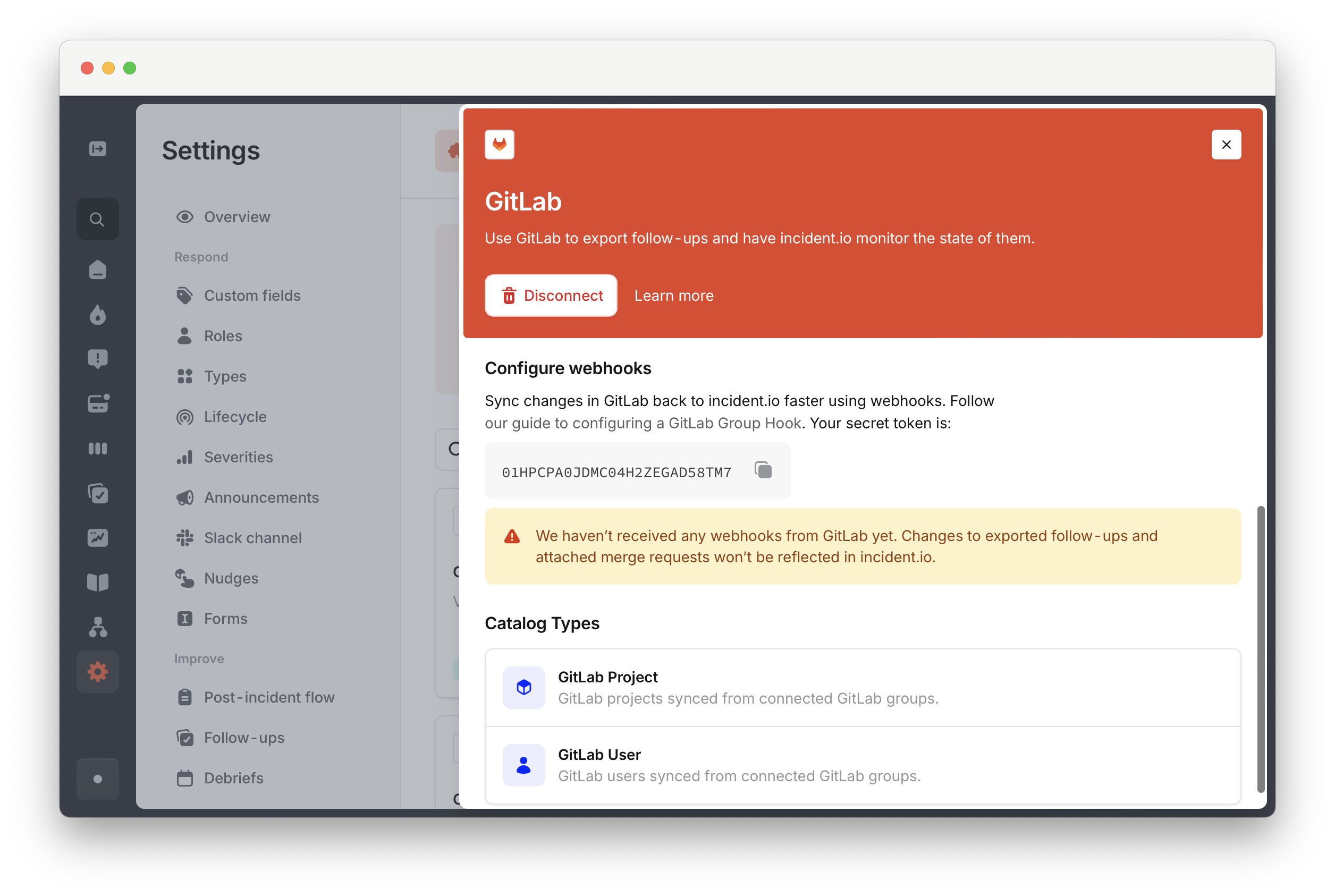 #### 2. Create the hook
Within your top-level group, click **Settings** then **Webhooks** :
#### 2. Create the hook
Within your top-level group, click **Settings** then **Webhooks** :
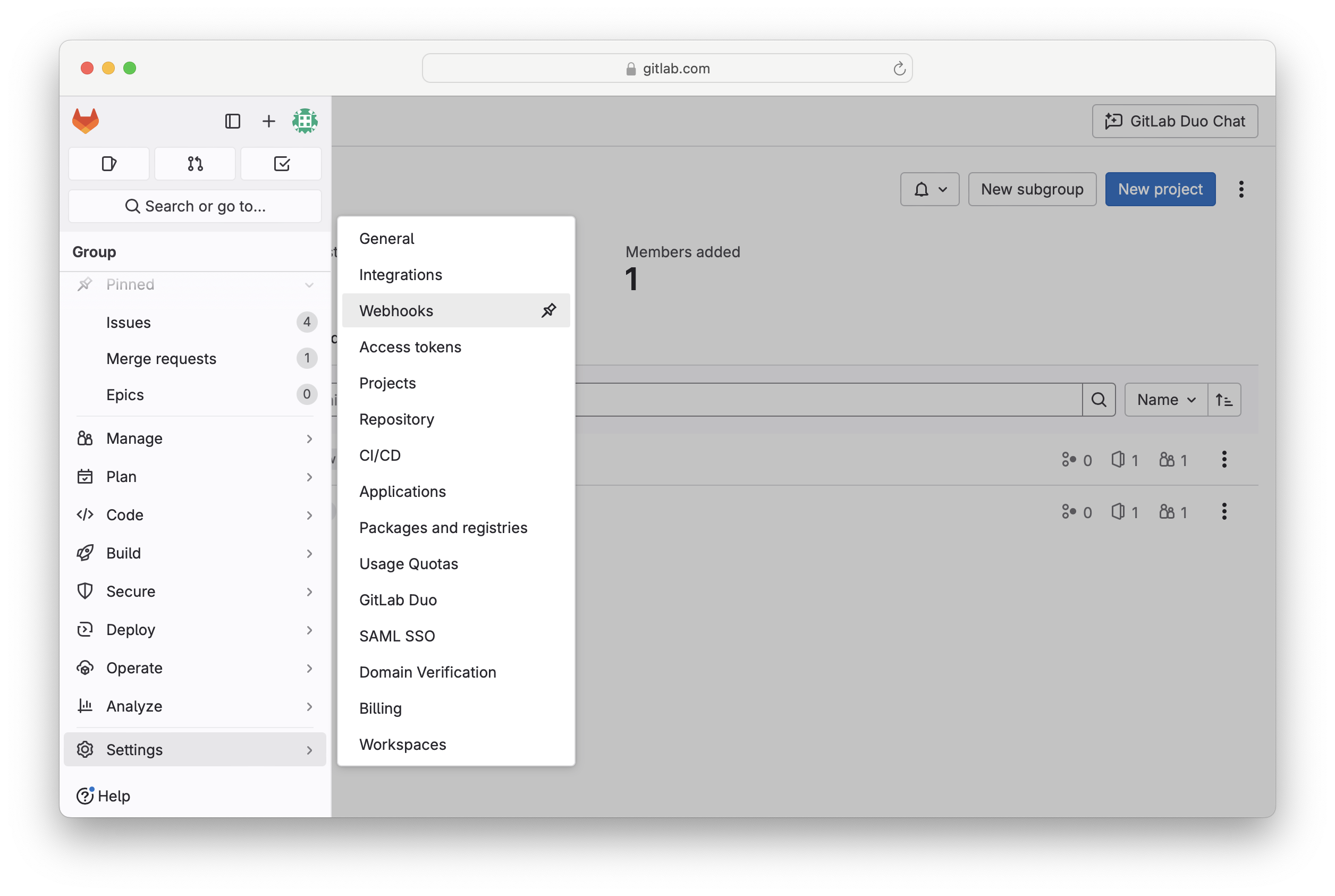 Then ' **Add new webhook** '.
For the **URL** use `https://app.incident.io/webhooks/gitlab`.
For the **Secret token**, paste in the secret token from the incident.io dashboard.
Under **Trigger**, select:
**Work item events** (or **Issues events** on older GitLab versions — the screenshot below shows the older label)
**Merge request events**
Then ' **Add new webhook** '.
For the **URL** use `https://app.incident.io/webhooks/gitlab`.
For the **Secret token**, paste in the secret token from the incident.io dashboard.
Under **Trigger**, select:
**Work item events** (or **Issues events** on older GitLab versions — the screenshot below shows the older label)
**Merge request events**
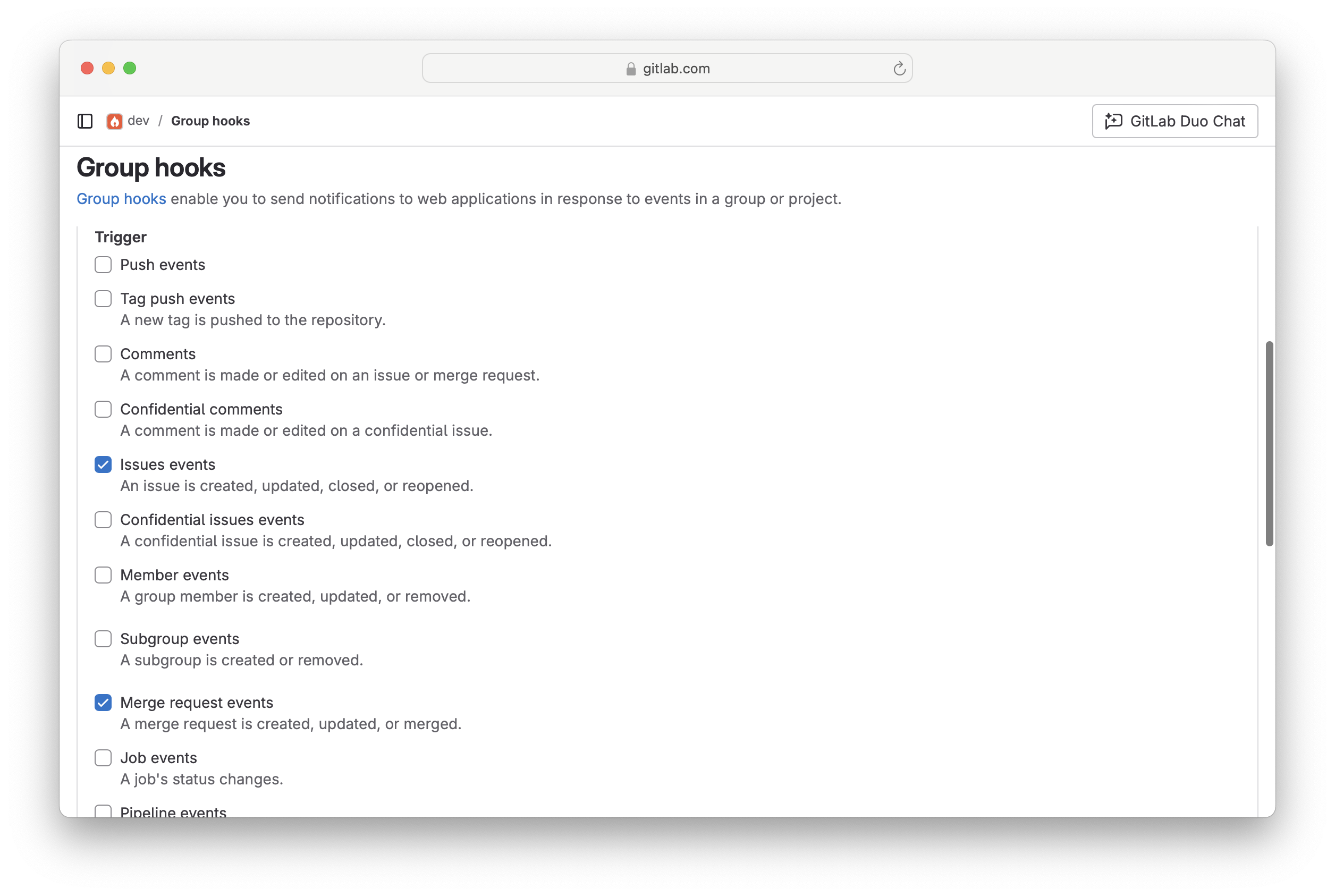 Everything else can be left as the default. Click **Add webhook**.
#### 3. Verify the connection
In [Settings → Integrations → GitLab](https://app.incident.io/~/settings/integrations/gitlab), you can see when the last webhook was received. Make a small change to an issue to trigger a webhook:
Everything else can be left as the default. Click **Add webhook**.
#### 3. Verify the connection
In [Settings → Integrations → GitLab](https://app.incident.io/~/settings/integrations/gitlab), you can see when the last webhook was received. Make a small change to an issue to trigger a webhook:
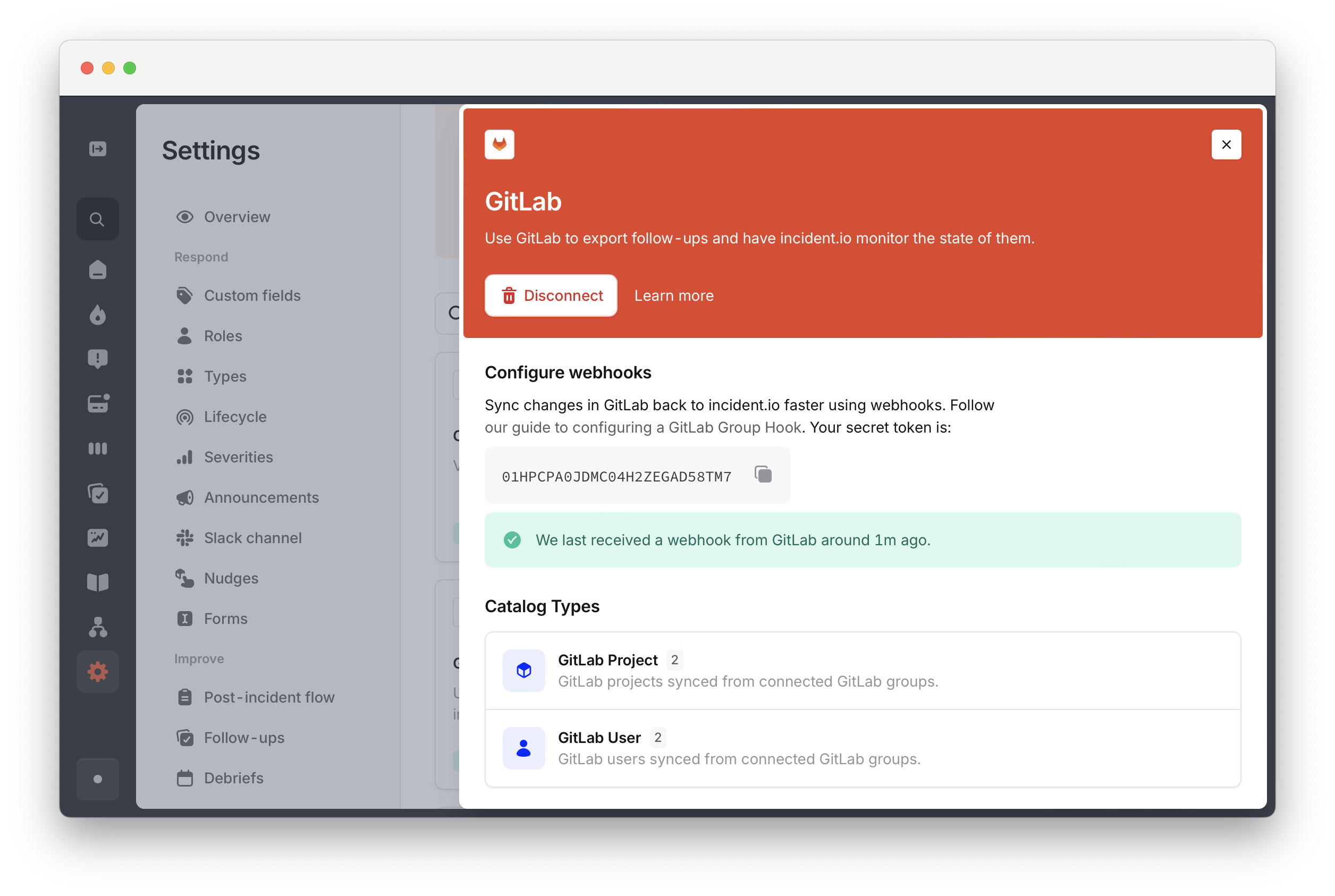 **You're all set**