> ## Documentation Index
> Fetch the complete documentation index at: https://docs.incident.io/llms.txt
> Use this file to discover all available pages before exploring further.
# Freshservice
> Keep Freshservice tickets in step with incidents and follow-ups
## Connecting Freshservice
incident.io authenticates with a Freshservice API key. Actions in Freshservice appear as the agent who owns that key, so we'd recommend use a dedicated 'service account' agent (for example `incident.io`) rather than a personal account.
The user needs permission to read ticket fields, and to create, read, and update tickets and notes.
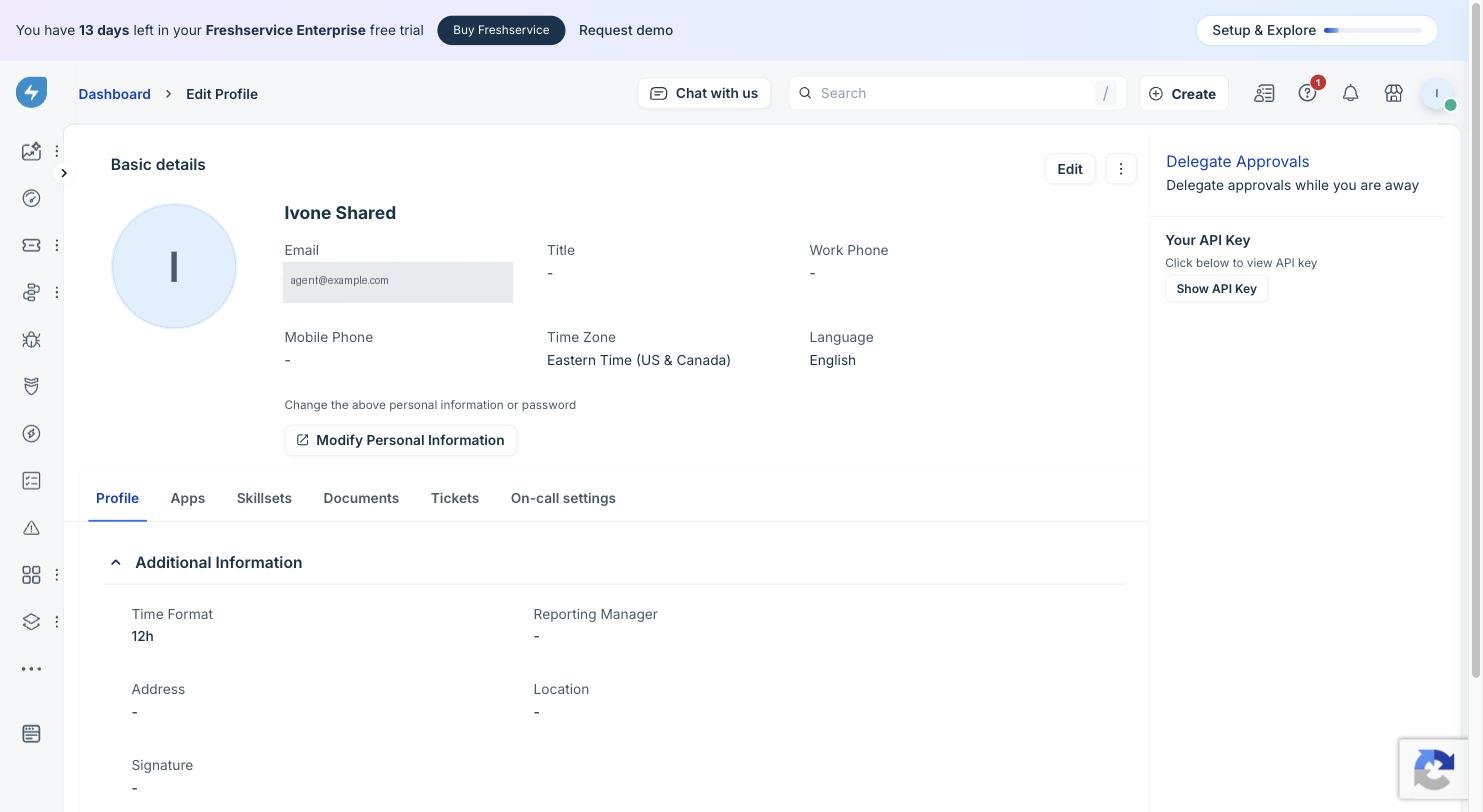
In Freshservice, open your profile picture in the top-right corner and go to **Profile Settings**. The API key is on the right, below **Delegate Approvals**. Click **Show API Key** to reveal it.
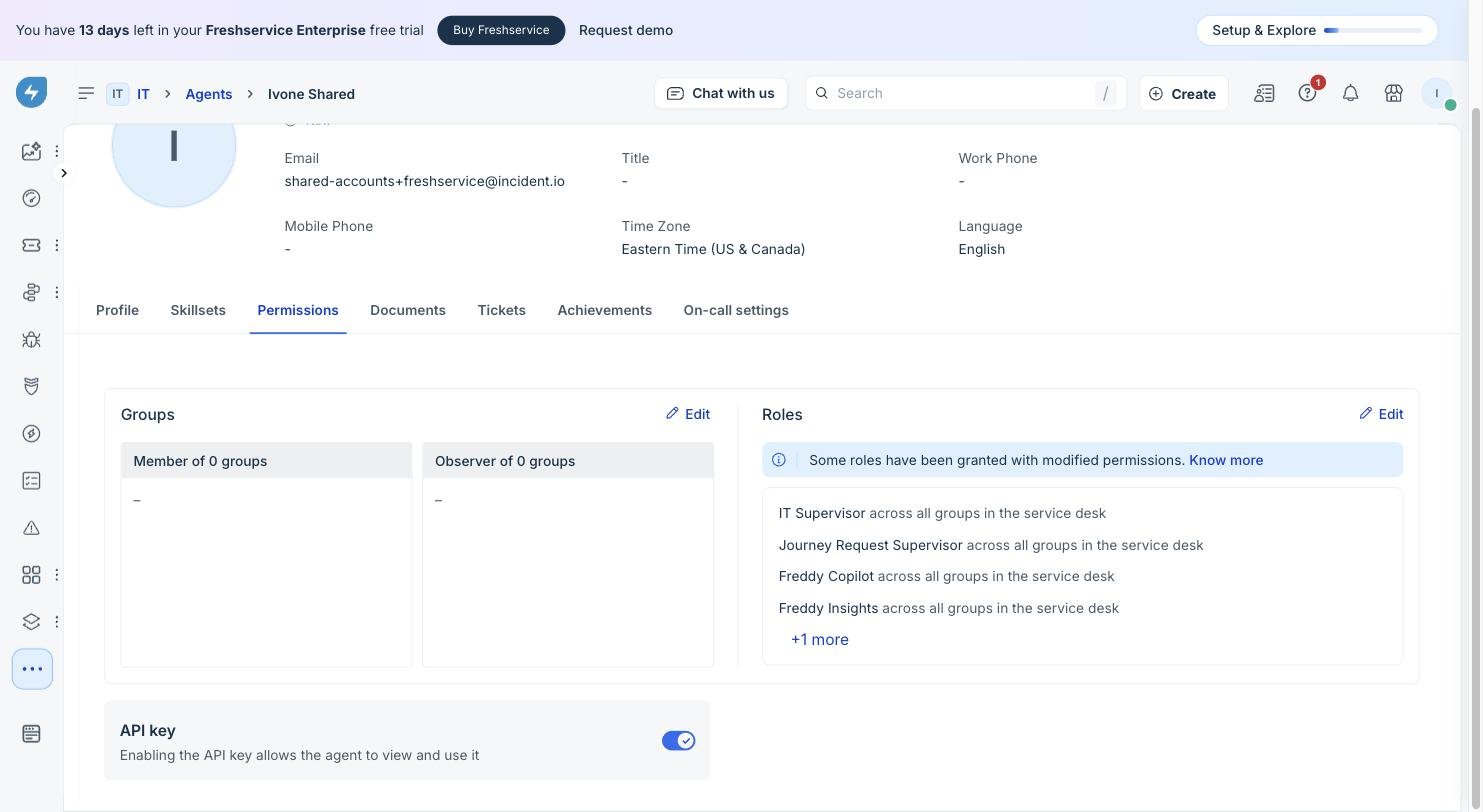
 If the key is missing, an Account Admin needs to open **Admin → User Management → Agents**, edit the agent, and enable **API key** on the **Permissions** tab.
 Go to [Settings → Integrations → Freshservice](https://app.incident.io/~/settings/integrations) and enter:
* **Domain**: your Freshservice host, for example `acme.freshservice.com`. Only domains ending in `.freshservice.com` are accepted.
* **API key**: the key you copied.
Click **Connect**. We validate the credentials by reading your ticket fields, and store the key encrypted at rest.
Once connected, we sync your Freshservice agents into Catalog every hour as the **Freshservice User** type. We'll attempt to match them to your incident.io users using their email address, and use that to assign tickets to the right users.
***
## Set up a Workflow Automator rule (a webhook)
For incident.io to get updates from Freshservice in real time, you'll need to set up a Workflow Automator rule. Without this, follow-ups won't sync back into incident in real time, and comments on incident tickets may not come through for hours.
Open the Freshservice integration settings and find **Configure webhook**. Click **Generate secret**. A secret is only created when you ask for it, so there is nothing to copy until you do. Then copy the webhook URL, the header name, and the secret.
Go to [Settings → Integrations → Freshservice](https://app.incident.io/~/settings/integrations) and enter:
* **Domain**: your Freshservice host, for example `acme.freshservice.com`. Only domains ending in `.freshservice.com` are accepted.
* **API key**: the key you copied.
Click **Connect**. We validate the credentials by reading your ticket fields, and store the key encrypted at rest.
Once connected, we sync your Freshservice agents into Catalog every hour as the **Freshservice User** type. We'll attempt to match them to your incident.io users using their email address, and use that to assign tickets to the right users.
***
## Set up a Workflow Automator rule (a webhook)
For incident.io to get updates from Freshservice in real time, you'll need to set up a Workflow Automator rule. Without this, follow-ups won't sync back into incident in real time, and comments on incident tickets may not come through for hours.
Open the Freshservice integration settings and find **Configure webhook**. Click **Generate secret**. A secret is only created when you ask for it, so there is nothing to copy until you do. Then copy the webhook URL, the header name, and the secret.
 In Freshservice, go to **Admin → Workflow Automator**. Choose **Event Based Workflow** on **Tickets**, then **Create → Workflow**.
In the **Event** node, add the events you care about:
* `Ticket is` → `updated`
* `Note added is of type` → `Any`
Freshservice has no separate "reply added" event. A public note is the requester-visible reply, so `Any` covers both replies and internal notes.
In Freshservice, go to **Admin → Workflow Automator**. Choose **Event Based Workflow** on **Tickets**, then **Create → Workflow**.
In the **Event** node, add the events you care about:
* `Ticket is` → `updated`
* `Note added is of type` → `Any`
Freshservice has no separate "reply added" event. A public note is the requester-visible reply, so `Any` covers both replies and internal notes.
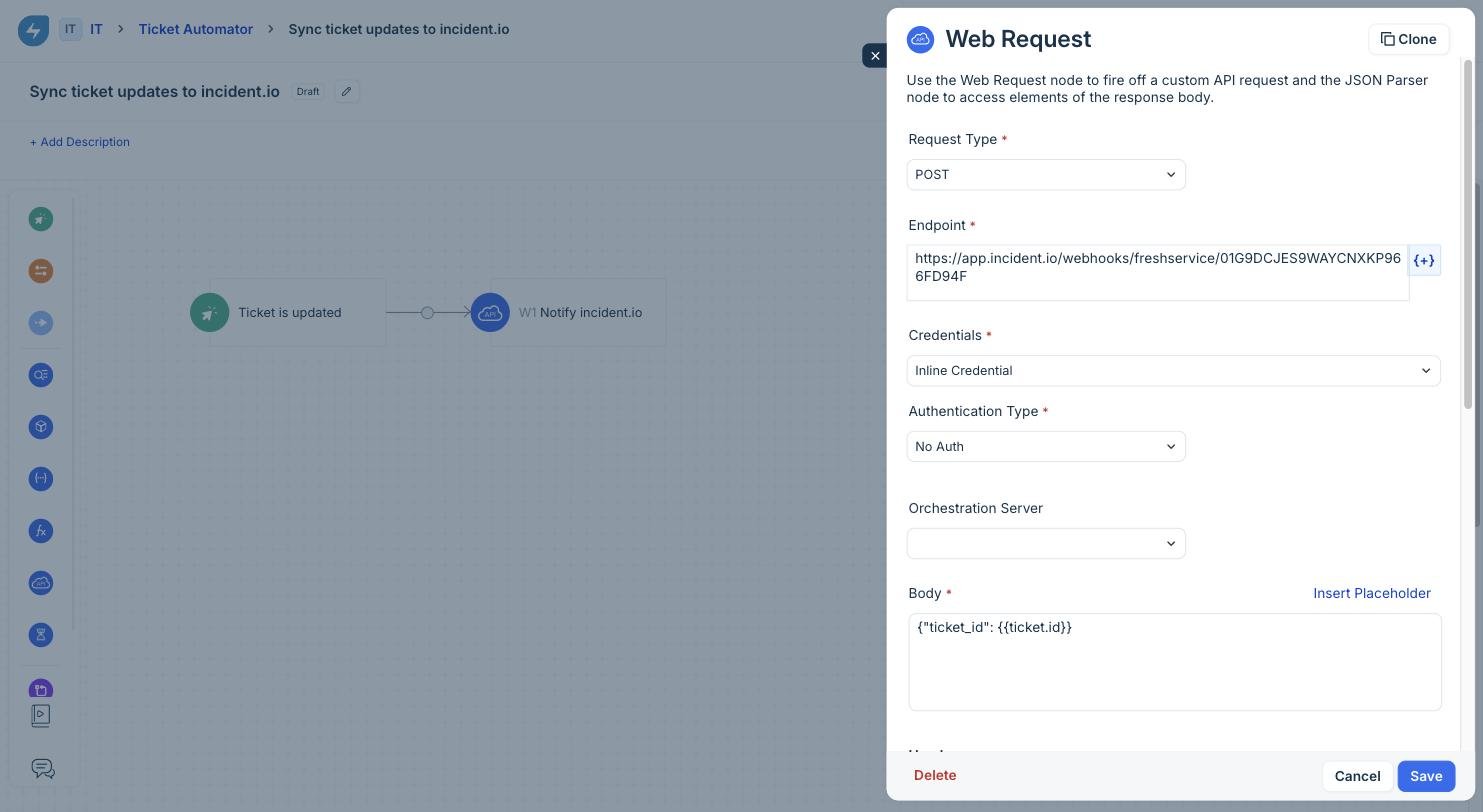
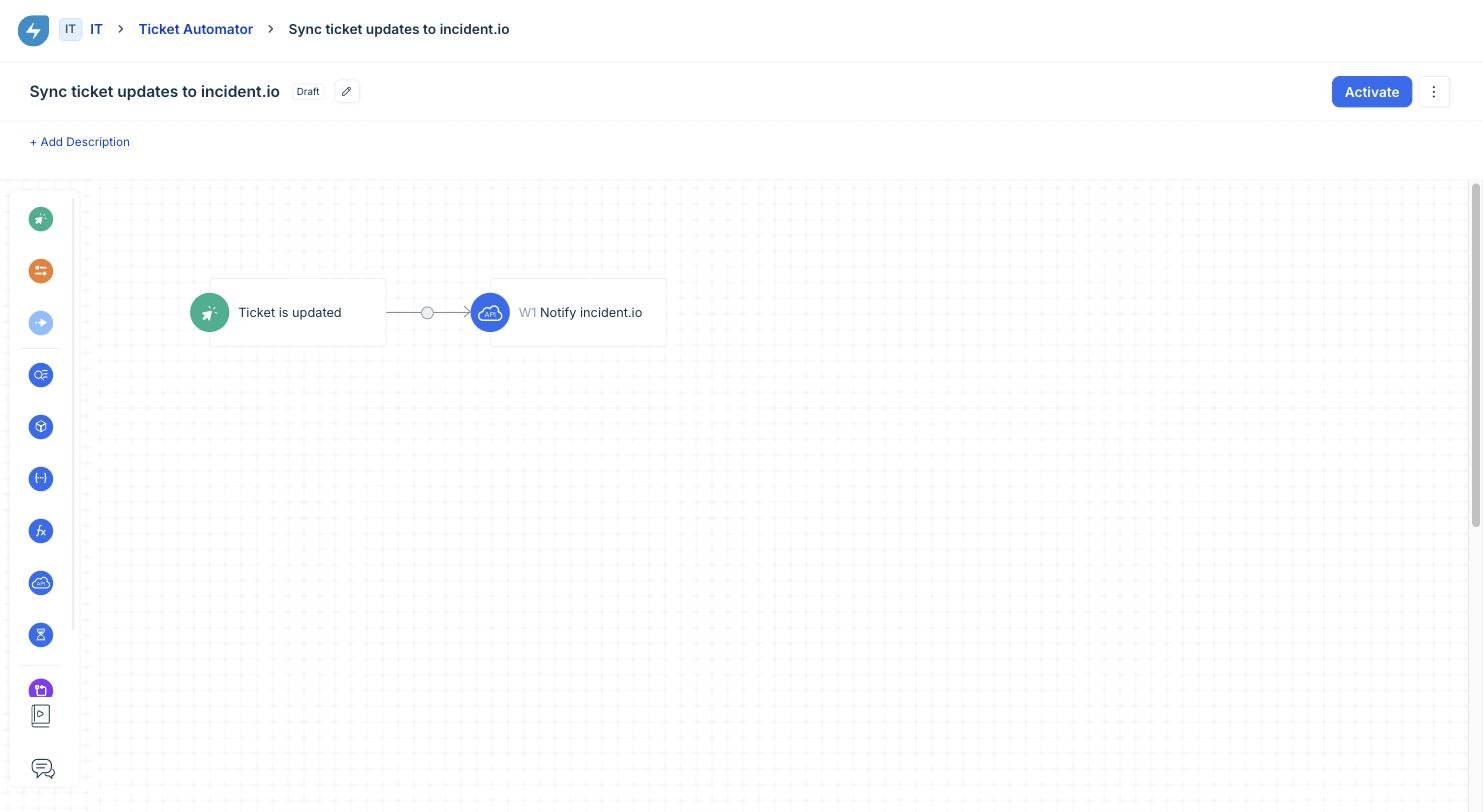 Drag a **Web Request** node onto the canvas and connect it to the event.
Configure it with:
* **Request Type**: `POST`
* **Endpoint**: the webhook URL from incident.io
* **Credentials**: `Inline Credential`
* **Authentication Type**: `No Auth`
* **Body**:
```json theme={null}
{ "ticket_id": {{ticket.id}} }
```
Use **Insert Placeholder → Ticket ID** to add `{{ticket.id}}` rather than typing it, so the placeholder binds correctly.
Drag a **Web Request** node onto the canvas and connect it to the event.
Configure it with:
* **Request Type**: `POST`
* **Endpoint**: the webhook URL from incident.io
* **Credentials**: `Inline Credential`
* **Authentication Type**: `No Auth`
* **Body**:
```json theme={null}
{ "ticket_id": {{ticket.id}} }
```
Use **Insert Placeholder → Ticket ID** to add `{{ticket.id}}` rather than typing it, so the placeholder binds correctly.
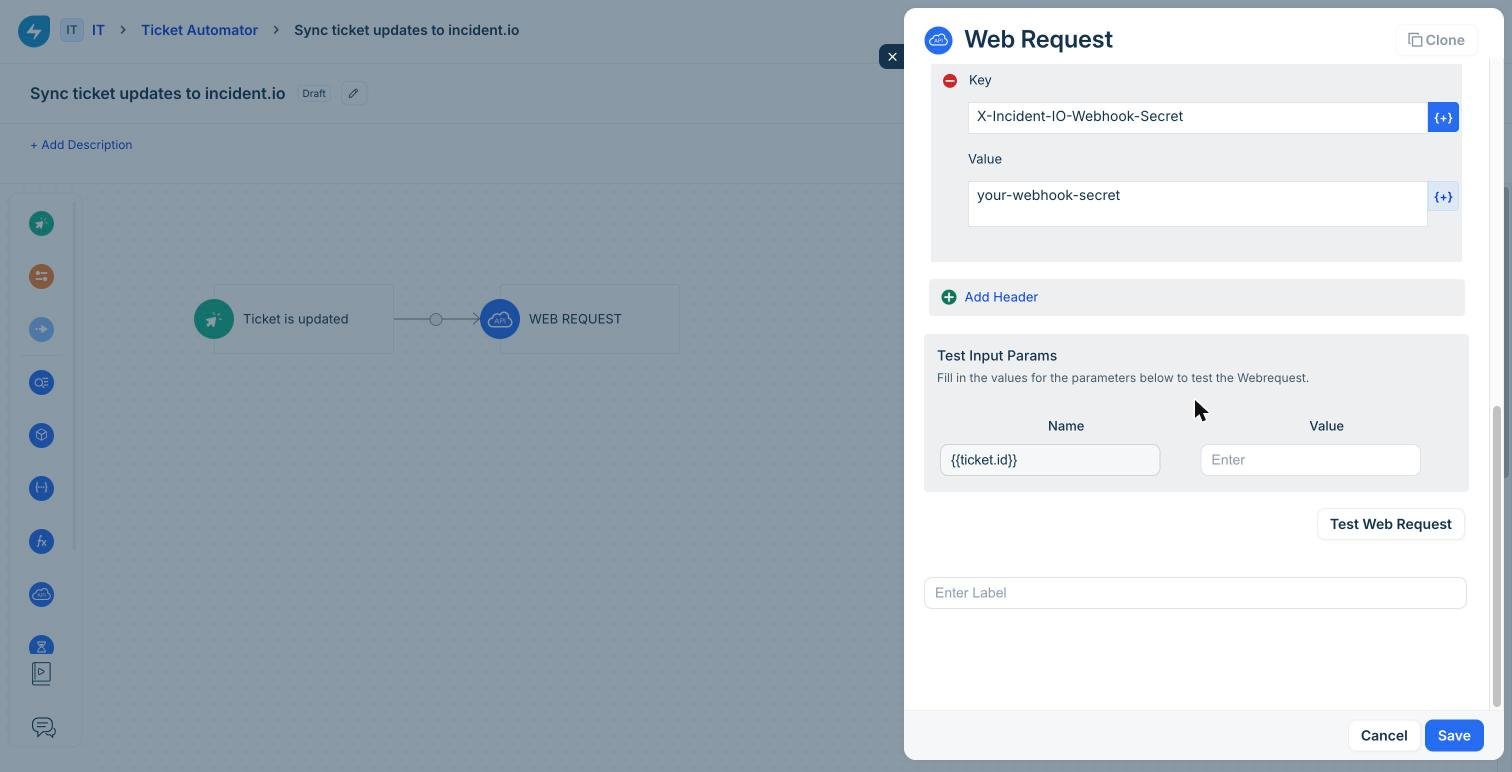
 Then scroll down to **Headers**, click **Add Header**, and add:
* **Key**: `X-Incident-IO-Webhook-Secret`
* **Value**: the secret from incident.io
The **Headers** section only appears once **Request Type** is set to `POST`. If you go looking for it while the node is still on the default `GET`, it will not be there.
Then scroll down to **Headers**, click **Add Header**, and add:
* **Key**: `X-Incident-IO-Webhook-Secret`
* **Value**: the secret from incident.io
The **Headers** section only appears once **Request Type** is set to `POST`. If you go looking for it while the node is still on the default `GET`, it will not be there.
 Do not use Freshservice's Basic Auth or API key authentication types here. incident.io authenticates with the custom header, which is why **Authentication Type** stays on `No Auth`.
Give the node a **Label**. It is required, and the node will not save without one. Save, then activate the workflow.
***
## Incident tickets
An incident ticket is a single Freshservice ticket representing the incident, created when the incident starts and kept current as it progresses. Service Desk and auditors see the incident in Freshservice, with status and updates on it, while responders keep working in Slack.
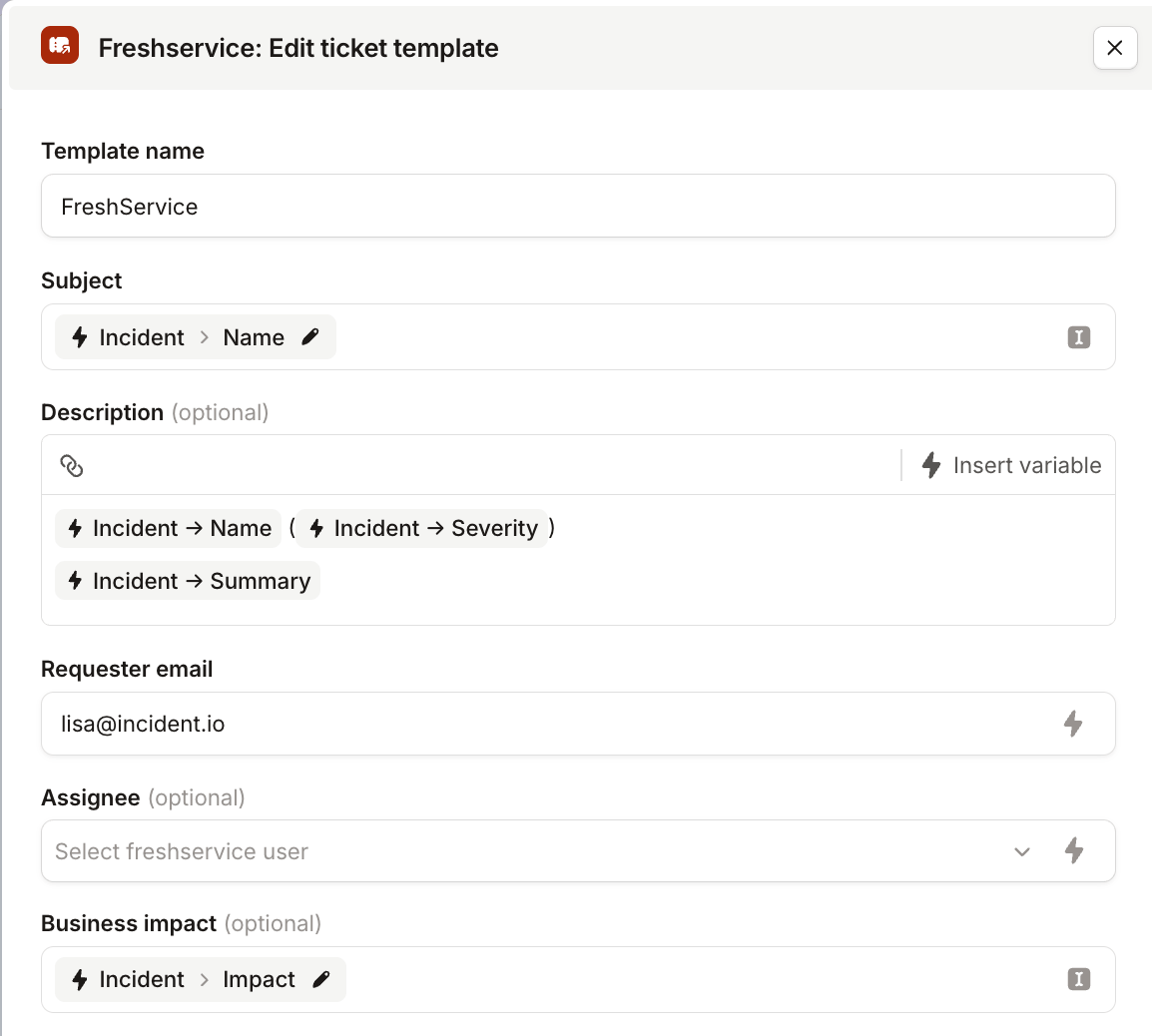
Go to [Settings → Incident tickets](https://app.incident.io/~/settings/incident-tickets) and create a template so we know how to populate your ticket fields. Use conditions to pick which template applies, for example only exporting Critical incidents, or routing security incidents somewhere different
### 2-way sync
incident.io is the source of truth for the state of the incident, and any custom fields. Resolving or editing the Freshservice ticket does not change the incident's status, severity, or title, and we write your template values back over conflicting edits.
We sync content in both directions to help everyone stay in the loop
* Sharing an incident update posts a **private note** on the ticket, so the requester doesn't see it. The first update on an incident is skipped.
* Notes and public replies on the ticket appear on the incident timeline as ticket comments, once we sync that ticket.
***
## Follow-ups
You can also export [follow-ups](/post-incident/follow-ups) as Freshservice tickets, so the work sits in the same queue as everything else your team is tracking. When someone resolves or closes the ticket in Freshservice, the follow-up completes in incident.io.
You can export them manually from the dashboard or from Slack / Microsoft Teams, or set up an export template to send them automatically based on incident attributes.
If the incident already has a Freshservice incident ticket, we try to create the follow-up as a child of it. Some Freshservice plans and parent ticket types don't support children, so if Freshservice rejects it we create a standalone ticket instead.
You can attach an existing Freshservice ticket as a follow-up by pasting its URL into the incident channel. Agent, helpdesk, and support ticket URLs all work.
### What syncs
* Resolving or closing the ticket completes the linked follow-up in incident.io.
* Title, description, priority, and assignee changes update the follow-up.
* Comments on follow-up tickets are not synced.
Only the default **Resolved** and **Closed** statuses complete a follow-up. Custom terminal statuses don't.
***
## FAQs
Not on its own: this integration exports incidents and follow-ups *to* Freshservice.
To go the other way, point Freshservice at a [custom HTTP alert source](/alerts/custom-http-sources). Create the source in incident.io, then add a Workflow Automator rule that fires a **Web Request** at it when a ticket you care about is raised, the same way you would for the [webhook above](#set-up-a-webhook). From there an [alert route](/alerts/escalations-from-alerts) decides which alerts page someone and which create an incident, so Freshservice tickets get the same filtering and grouping as any other alert source.
Freshservice cannot register webhooks via API. Without a Workflow Automator rule pointing at our webhook URL, we only pick up follow-up changes on a poll, and incident-ticket notes wait until a sync is triggered. Set up the [webhook](#set-up-a-webhook) so updates land as they happen.
Do not use Freshservice's Basic Auth or API key authentication types here. incident.io authenticates with the custom header, which is why **Authentication Type** stays on `No Auth`.
Give the node a **Label**. It is required, and the node will not save without one. Save, then activate the workflow.
***
## Incident tickets
An incident ticket is a single Freshservice ticket representing the incident, created when the incident starts and kept current as it progresses. Service Desk and auditors see the incident in Freshservice, with status and updates on it, while responders keep working in Slack.
Go to [Settings → Incident tickets](https://app.incident.io/~/settings/incident-tickets) and create a template so we know how to populate your ticket fields. Use conditions to pick which template applies, for example only exporting Critical incidents, or routing security incidents somewhere different
### 2-way sync
incident.io is the source of truth for the state of the incident, and any custom fields. Resolving or editing the Freshservice ticket does not change the incident's status, severity, or title, and we write your template values back over conflicting edits.
We sync content in both directions to help everyone stay in the loop
* Sharing an incident update posts a **private note** on the ticket, so the requester doesn't see it. The first update on an incident is skipped.
* Notes and public replies on the ticket appear on the incident timeline as ticket comments, once we sync that ticket.
***
## Follow-ups
You can also export [follow-ups](/post-incident/follow-ups) as Freshservice tickets, so the work sits in the same queue as everything else your team is tracking. When someone resolves or closes the ticket in Freshservice, the follow-up completes in incident.io.
You can export them manually from the dashboard or from Slack / Microsoft Teams, or set up an export template to send them automatically based on incident attributes.
If the incident already has a Freshservice incident ticket, we try to create the follow-up as a child of it. Some Freshservice plans and parent ticket types don't support children, so if Freshservice rejects it we create a standalone ticket instead.
You can attach an existing Freshservice ticket as a follow-up by pasting its URL into the incident channel. Agent, helpdesk, and support ticket URLs all work.
### What syncs
* Resolving or closing the ticket completes the linked follow-up in incident.io.
* Title, description, priority, and assignee changes update the follow-up.
* Comments on follow-up tickets are not synced.
Only the default **Resolved** and **Closed** statuses complete a follow-up. Custom terminal statuses don't.
***
## FAQs
Not on its own: this integration exports incidents and follow-ups *to* Freshservice.
To go the other way, point Freshservice at a [custom HTTP alert source](/alerts/custom-http-sources). Create the source in incident.io, then add a Workflow Automator rule that fires a **Web Request** at it when a ticket you care about is raised, the same way you would for the [webhook above](#set-up-a-webhook). From there an [alert route](/alerts/escalations-from-alerts) decides which alerts page someone and which create an incident, so Freshservice tickets get the same filtering and grouping as any other alert source.
Freshservice cannot register webhooks via API. Without a Workflow Automator rule pointing at our webhook URL, we only pick up follow-up changes on a poll, and incident-ticket notes wait until a sync is triggered. Set up the [webhook](#set-up-a-webhook) so updates land as they happen.