> ## Documentation Index
> Fetch the complete documentation index at: https://docs.incident.io/llms.txt
> Use this file to discover all available pages before exploring further.
# Customising your debrief invitees
[Running an incident debrief](/post-incident/debriefs) is often a helpful way to make sure that everyone is on the same page. You might go over your post-mortem, ensure that you've recorded all follow-up tasks, or distilled and shared any important learnings.
But how do you know who to invite?
This might vary based on the size and impact of your incident but it could include people directly involved in the incident, members from the teams of services that were affected, and any senior execs that express an interest.
You can set up custom rules to automatically invite the right people to your debrief based on incident fields, custom fields, and even data you keep in your catalog.
This helps avoid having to remember who to invite, what teams were affected, and manually typing in their emails each time to the calendar invite.
## Adding an invitee
To set up automated lists of invitees for your debriefs, [navigate to the debrief settings page](https://app.incident.io/~/settings/debriefs).
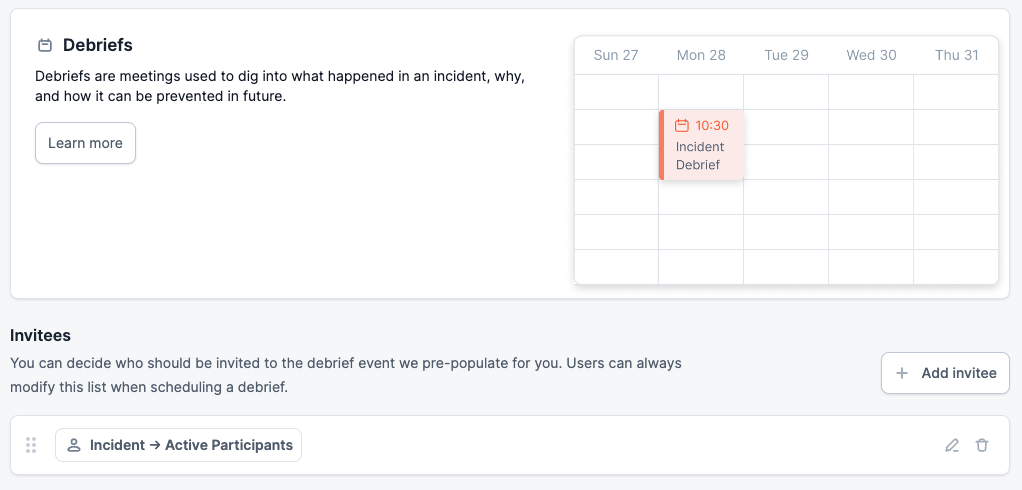 By default, we'll add the active responders from the incident to your debrief. You can edit this or add additional invitees using the `Add invitee` button.
When adding an invitee you can choose for them to be invited only under certain conditions. For example, you might only want to invite the team leads for a critical incident:
By default, we'll add the active responders from the incident to your debrief. You can edit this or add additional invitees using the `Add invitee` button.
When adding an invitee you can choose for them to be invited only under certain conditions. For example, you might only want to invite the team leads for a critical incident:
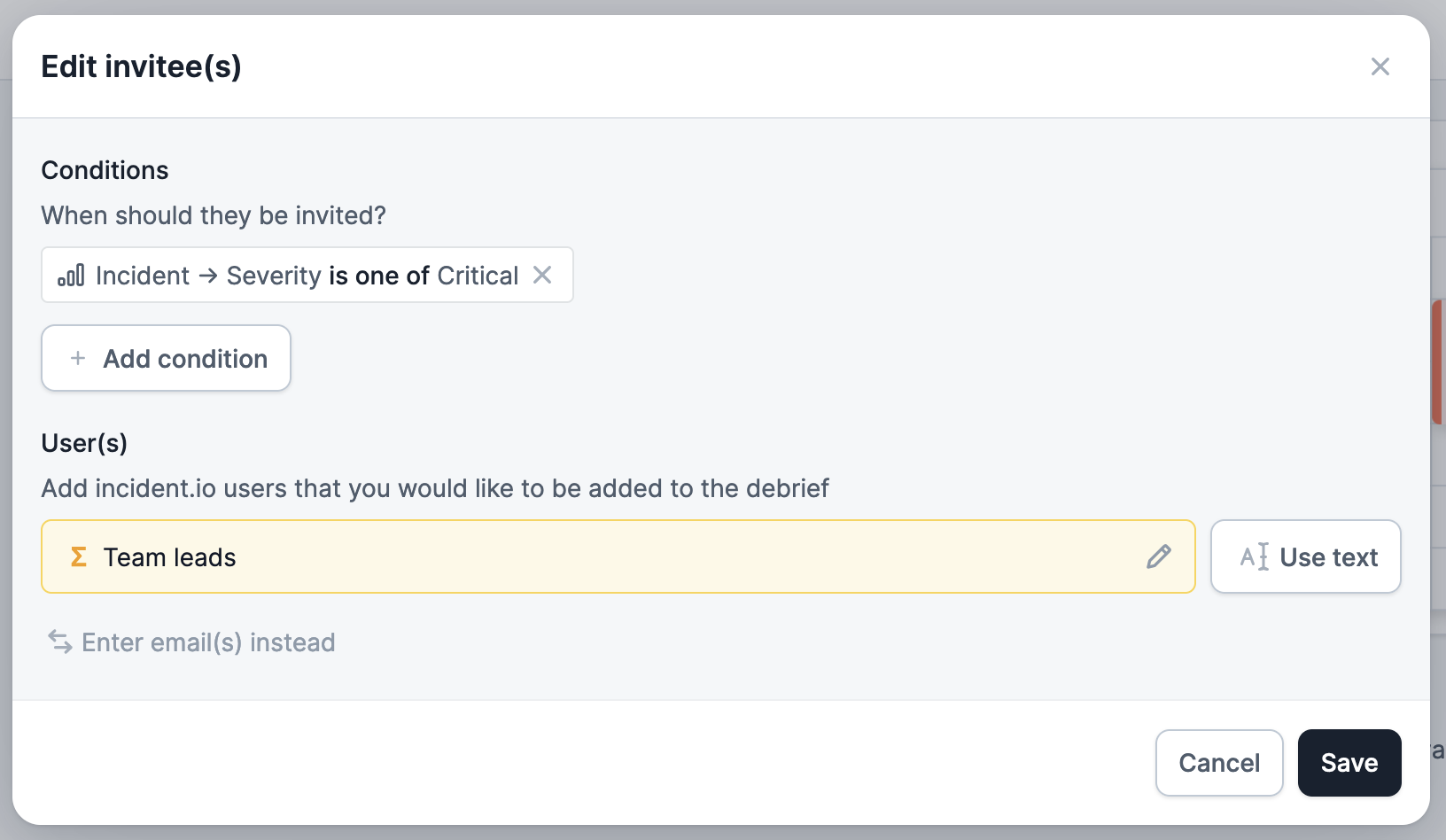 The invitees can be the active participants in the incident, observers, particular roles or even custom expressions and fields that return a list of users.
If you cannot find the user within our system, you can alternatively type a raw email address by clicking `Enter email(s) instead`. This is handy for group / team emails which may not appear in the users list:
The invitees can be the active participants in the incident, observers, particular roles or even custom expressions and fields that return a list of users.
If you cannot find the user within our system, you can alternatively type a raw email address by clicking `Enter email(s) instead`. This is handy for group / team emails which may not appear in the users list:
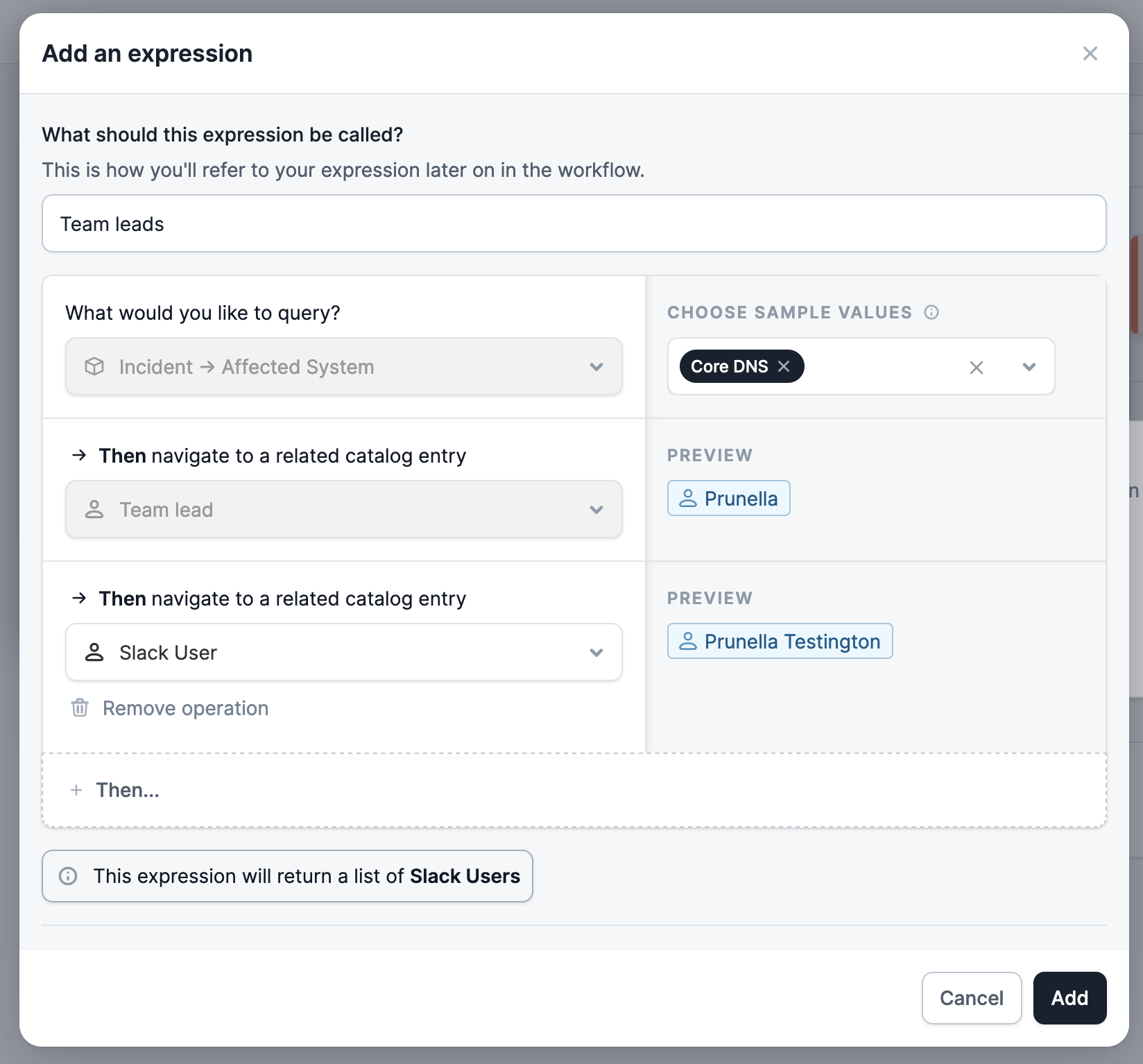
 If you use [the catalog](https://incident.io/catalog) (and you're missing out if you aren't!) this can become very powerful. You could invite all the team leads of components or features that were affected - like in the above example - all powered by your own custom catalog entries.
To add your own expression just click `Use variable`.
In the below you can see how (with a few catalog entries configured) you might want to select the team leads of any service affected by the incident:
If you use [the catalog](https://incident.io/catalog) (and you're missing out if you aren't!) this can become very powerful. You could invite all the team leads of components or features that were affected - like in the above example - all powered by your own custom catalog entries.
To add your own expression just click `Use variable`.
In the below you can see how (with a few catalog entries configured) you might want to select the team leads of any service affected by the incident:
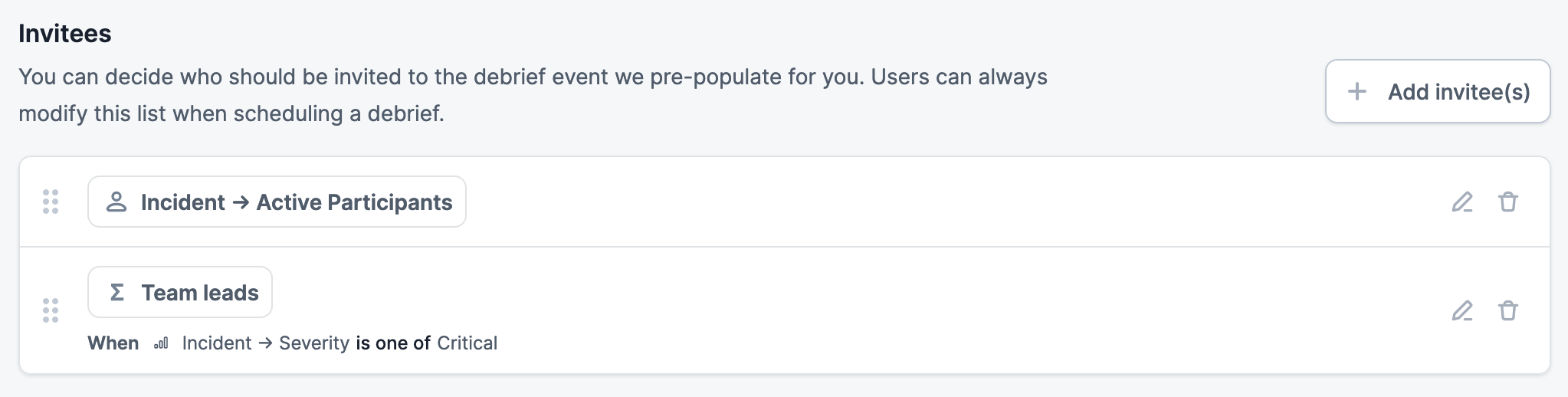
 Once created you will see your new entry in the list of invitees and any conditions that apply to that list:
 ## Creating a debrief with invitees
Once you're set up - you can create a debrief by clicking **Schedule a debrief** from the incident homepage. This will take you to a pre-filled event in Google Calendar.
Here we have 2 guests added who were active participants in the incident and our custom group email - all automatically added for us, neat!
## Creating a debrief with invitees
Once you're set up - you can create a debrief by clicking **Schedule a debrief** from the incident homepage. This will take you to a pre-filled event in Google Calendar.
Here we have 2 guests added who were active participants in the incident and our custom group email - all automatically added for us, neat!
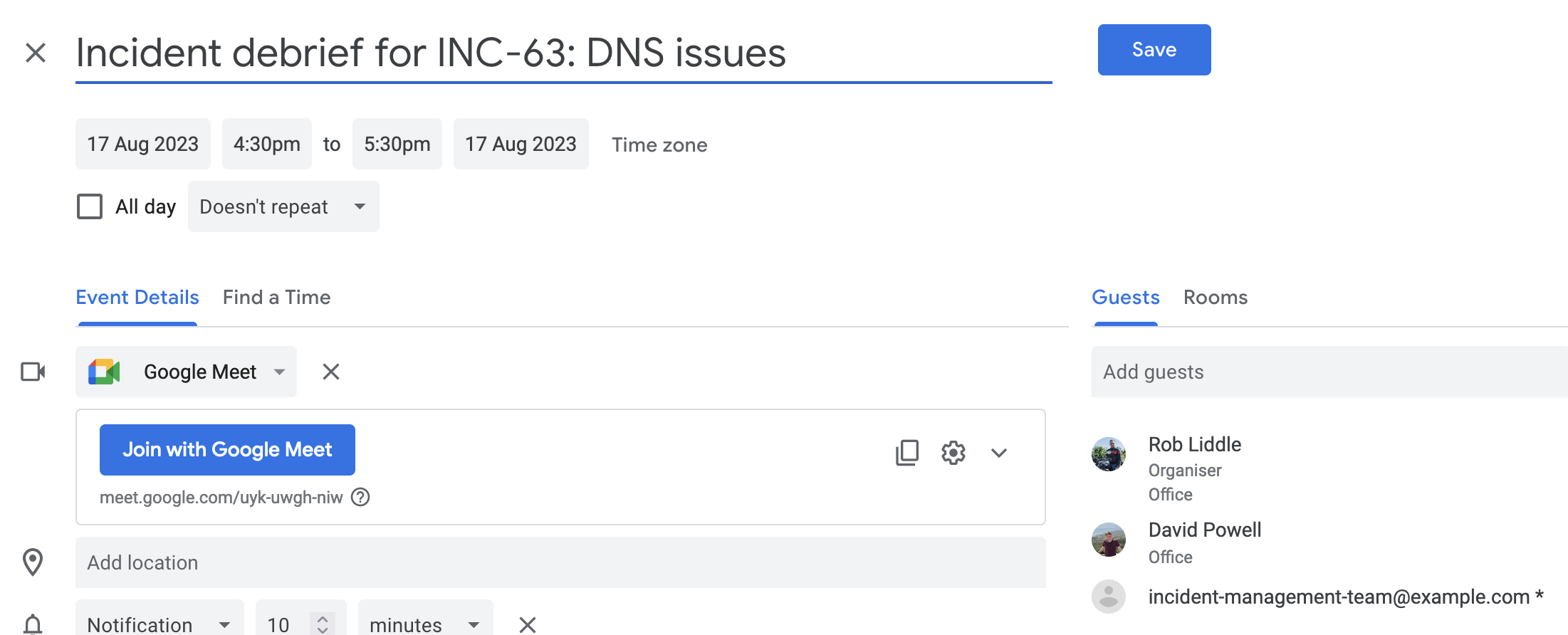 If you install our [Google Calendar integration](/integrations/google-calendar), we'll automatically attach this event for you when you hit `Save`, so everyone will know when it is.