> ## Documentation Index
> Fetch the complete documentation index at: https://docs.incident.io/llms.txt
> Use this file to discover all available pages before exploring further.
# Scheduling debriefs in a specific calendar
## Why would you use this feature?
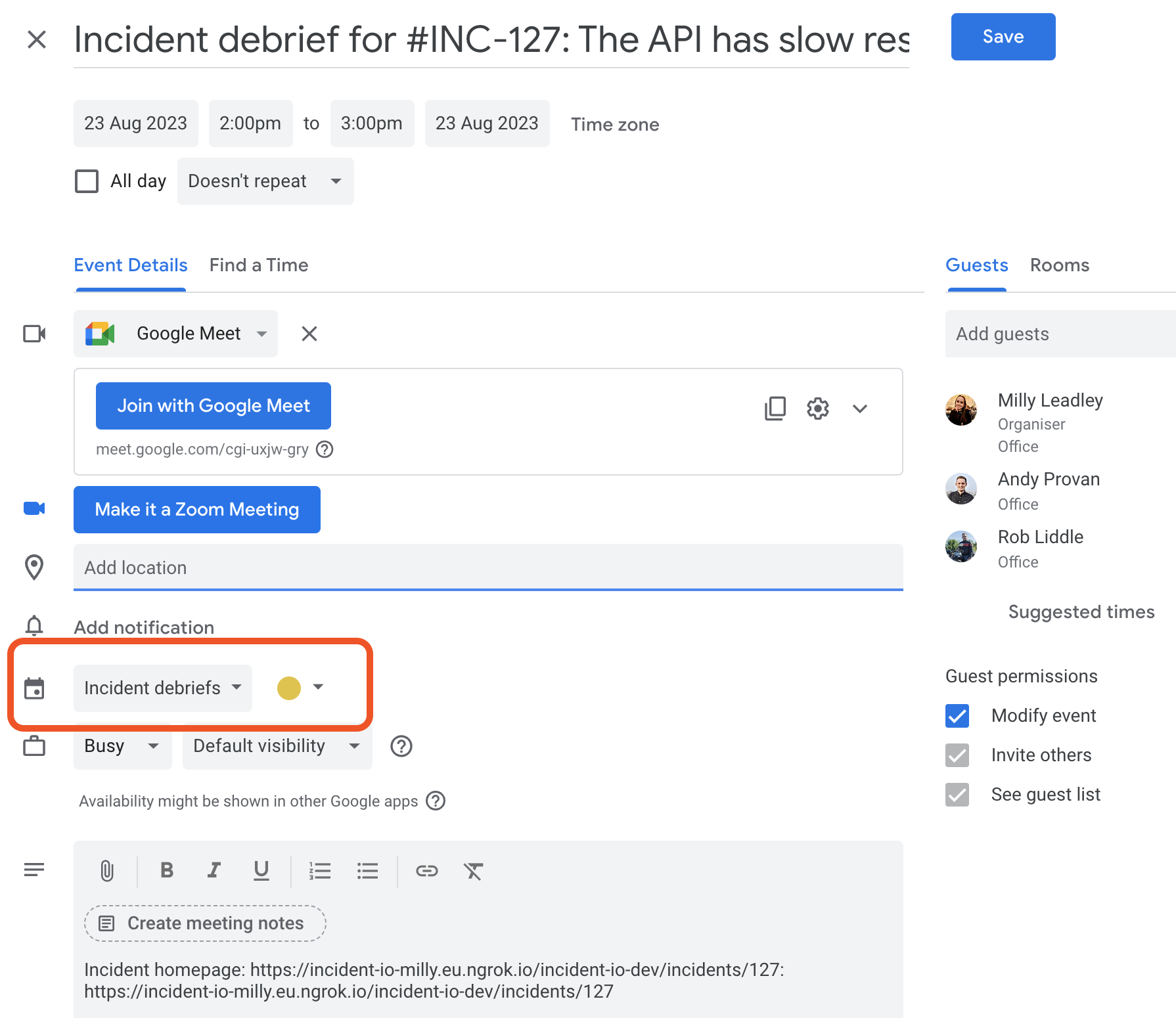
It's possible for us to pre-fill the debrief event so that it will be created in a specific Google Calendar.
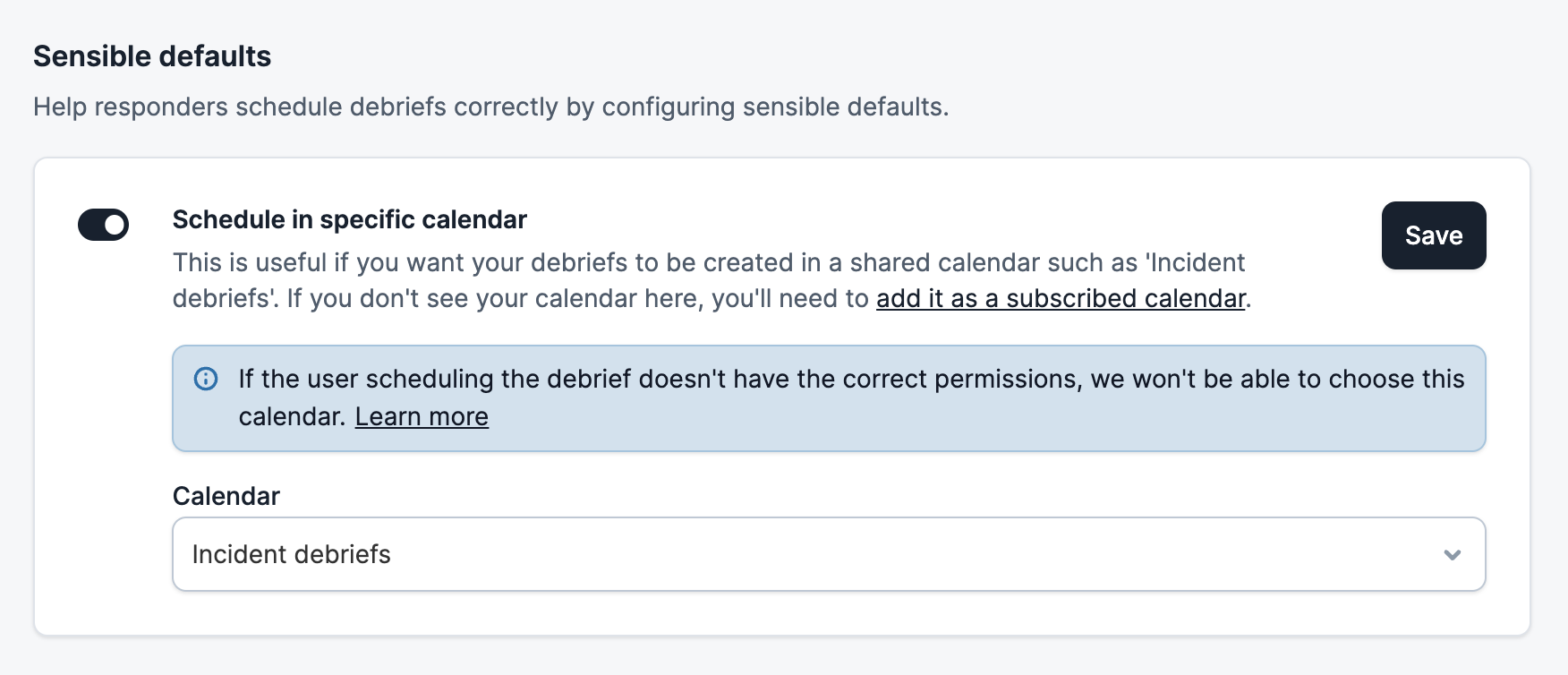 This means that if you always expect debriefs to be scheduled in a shared calendar such as `Incident debriefs`, we'll default to creating the event in that calendar rather than the calendar of the user who's scheduling the event.
 ## How do I set it up?
In order for this to work successfully, your responders need to have:
1. Permission to create events in this calendar
2. Subscribed to this calendar within Google Calendar
## 1. Permissions
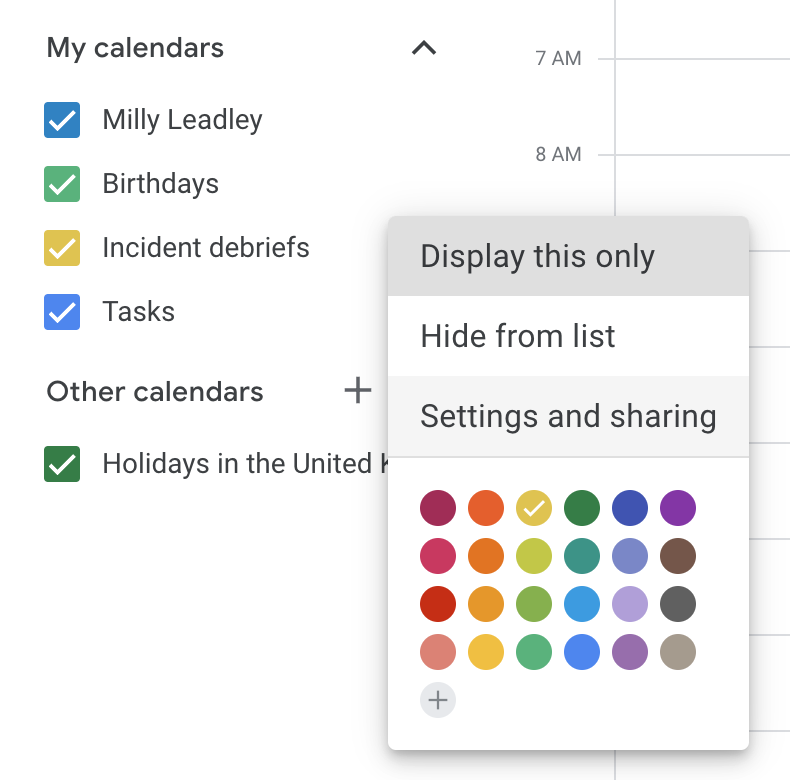
To ensure that everyone has the correct permission, you'll need to click the three dots next to your calendar and choose `Settings and sharing`.
## How do I set it up?
In order for this to work successfully, your responders need to have:
1. Permission to create events in this calendar
2. Subscribed to this calendar within Google Calendar
## 1. Permissions
To ensure that everyone has the correct permission, you'll need to click the three dots next to your calendar and choose `Settings and sharing`.
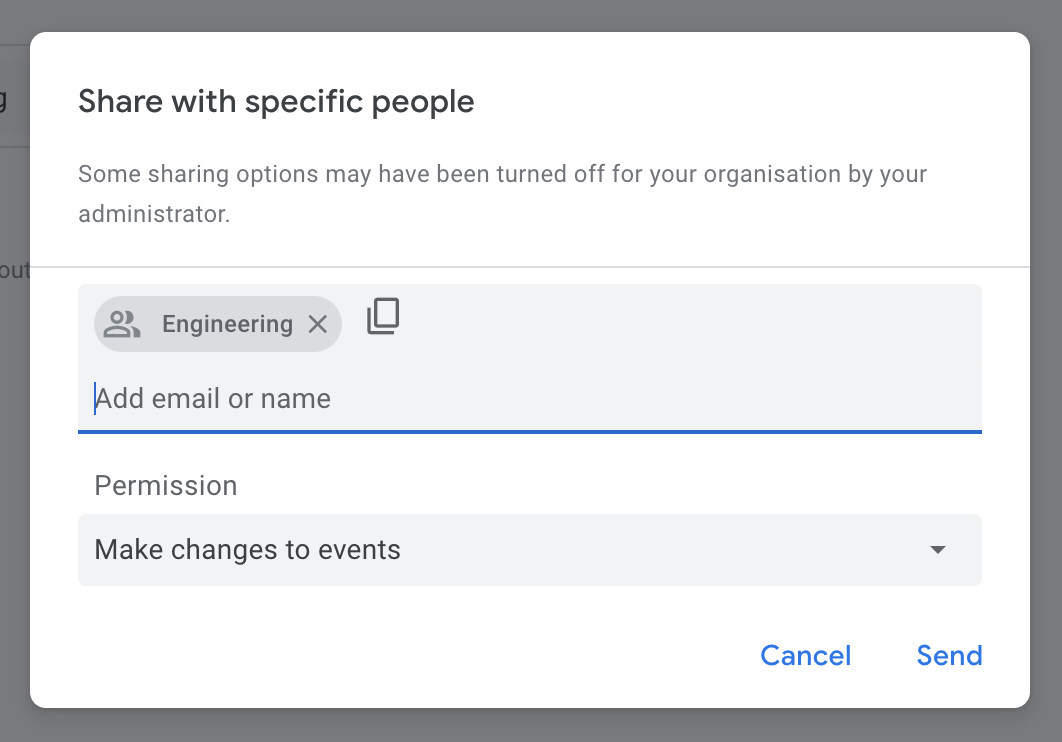
 Under the `Share with specific people or groups` section, hit `Add people or groups`. Then you can choose a user group (such as `engineering@incident.io`), and you'll need to select the `Make changes to event` permission from the dropdown.
 ## 2. Subscriptions
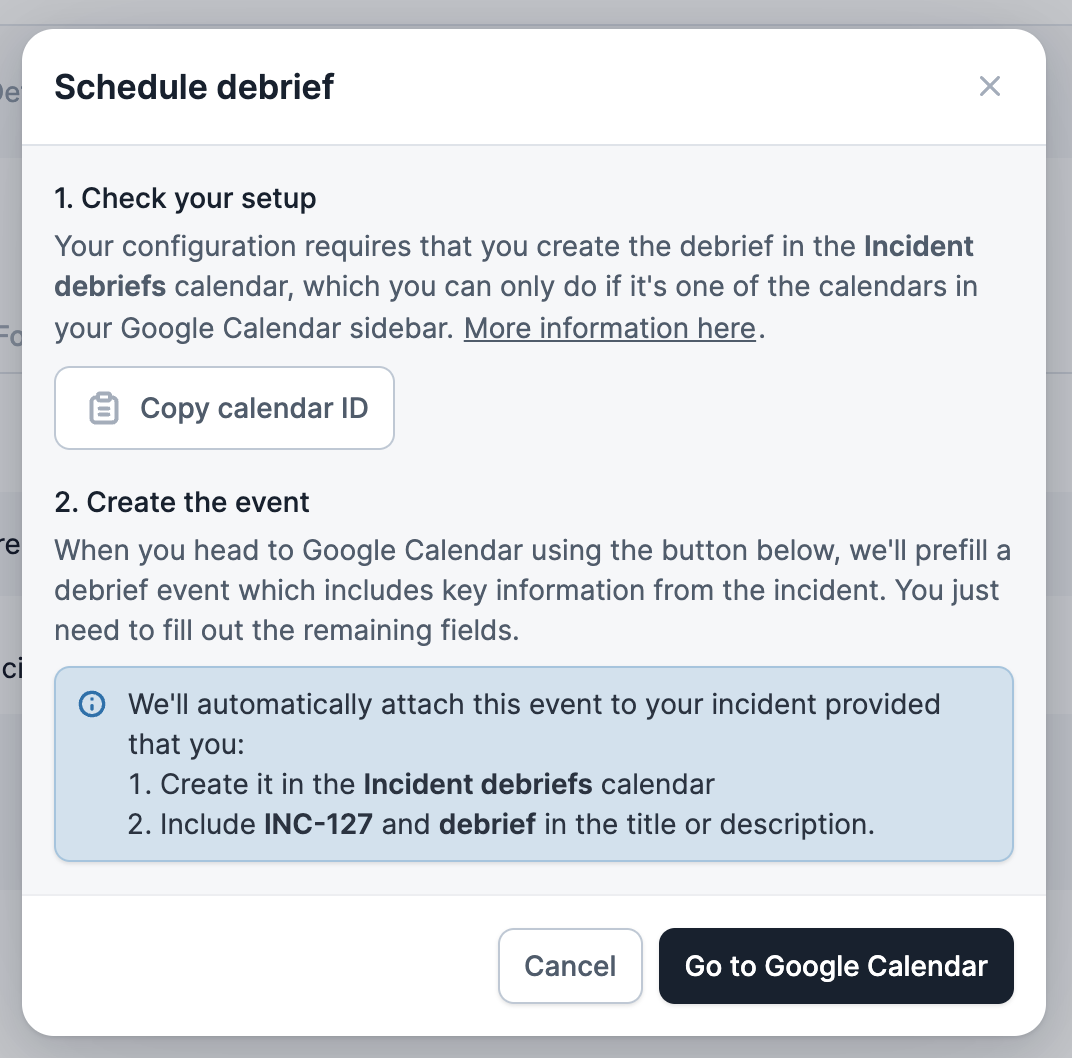
Unfortunately every user needs to subscribe to this calendar manually. We prompt users to do this when they click `Schedule debrief` from within our app. We'll point them to [this article](/status-pages/sub-page-setup) for getting set up.
## 2. Subscriptions
Unfortunately every user needs to subscribe to this calendar manually. We prompt users to do this when they click `Schedule debrief` from within our app. We'll point them to [this article](/status-pages/sub-page-setup) for getting set up.