> ## Documentation Index
> Fetch the complete documentation index at: https://docs.incident.io/llms.txt
> Use this file to discover all available pages before exploring further.
# Confluence
You can now add multiple destinations for post-mortems, using different Confluence folders.
## Setting up
We connect to Confluence as a specific user. That means that actions taken by incident.io in Confluence will show up as by the connecting user.
We therefore recommend you create a Confluence user called something like "incident.io", and sign in to Confluence with that account before you begin (you can remain signed in to incident.io as your usual account!)
1. Head to [Settings → Integrations → Confluence](https://app.incident.io/~/settings/integrations/confluence)
2. Click on " **Connect** ": you'll be redirected in to Confluence to approve our access
If you run into any issues, [get in touch](http://incident.io/community)
We also support Confluence on Atlassian GovCloud. The setup process is the same as for standard Confluence Cloud
instances.
## Getting started
## 1. Add Confluence as your document destination for post-mortems
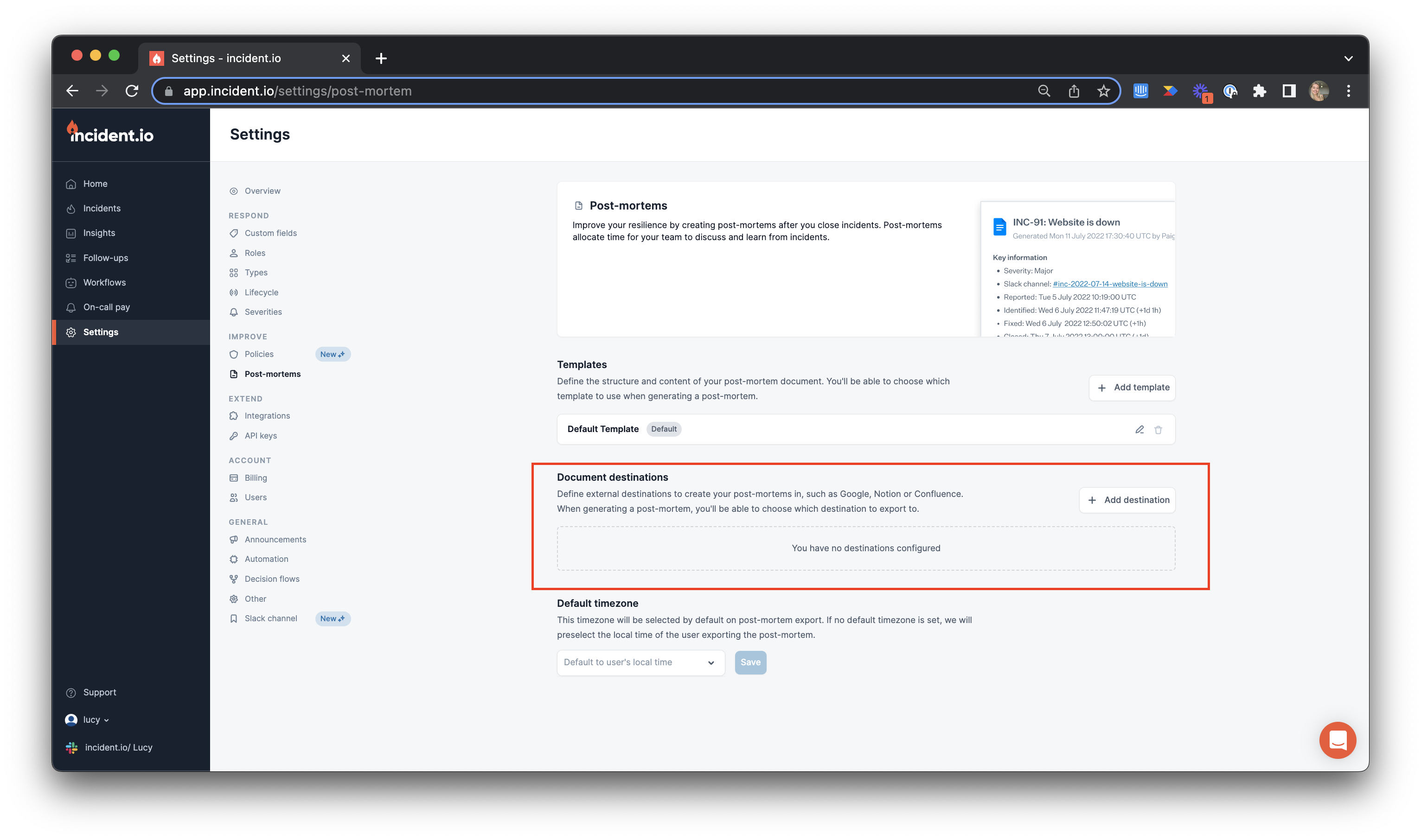
Within the [Post-Mortem setting tab](https://app.incident.io/~/settings/post-mortem), add Confluence as your document destination by clicking 'Add destination'.
 2. You can then configure the default destination for your post-mortems - we'll then create post-mortems as children of the page you select. This will be the default destination for your post-mortems.
Can't see the page destination you are looking for? You can simply search the page name in the drop-down to find the right one!
***
## Creating custom post-mortem destinations for different teams or services
You can create different post-mortem destinations for different teams or services by adding further destinations.
2. You can then configure the default destination for your post-mortems - we'll then create post-mortems as children of the page you select. This will be the default destination for your post-mortems.
Can't see the page destination you are looking for? You can simply search the page name in the drop-down to find the right one!
***
## Creating custom post-mortem destinations for different teams or services
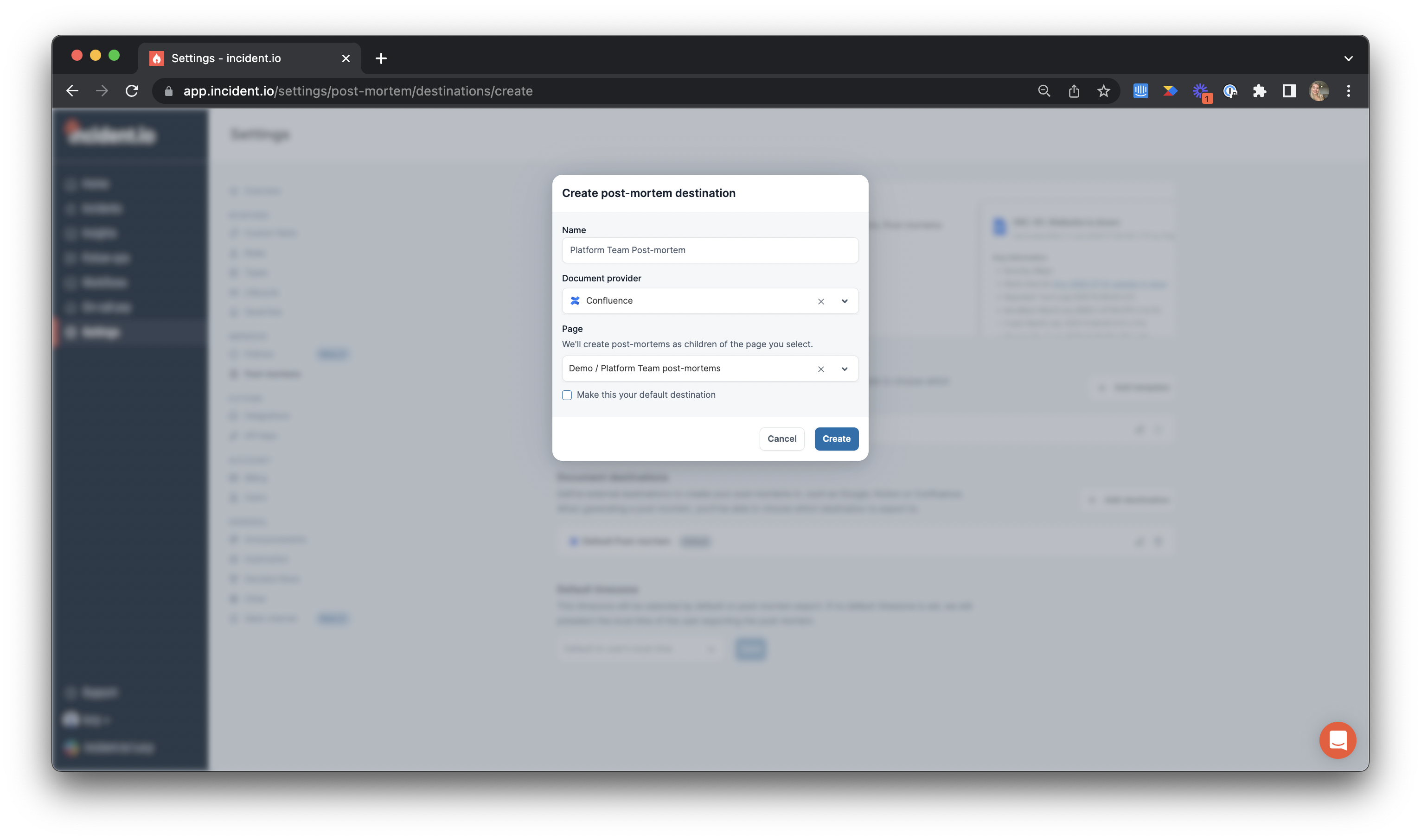
You can create different post-mortem destinations for different teams or services by adding further destinations.
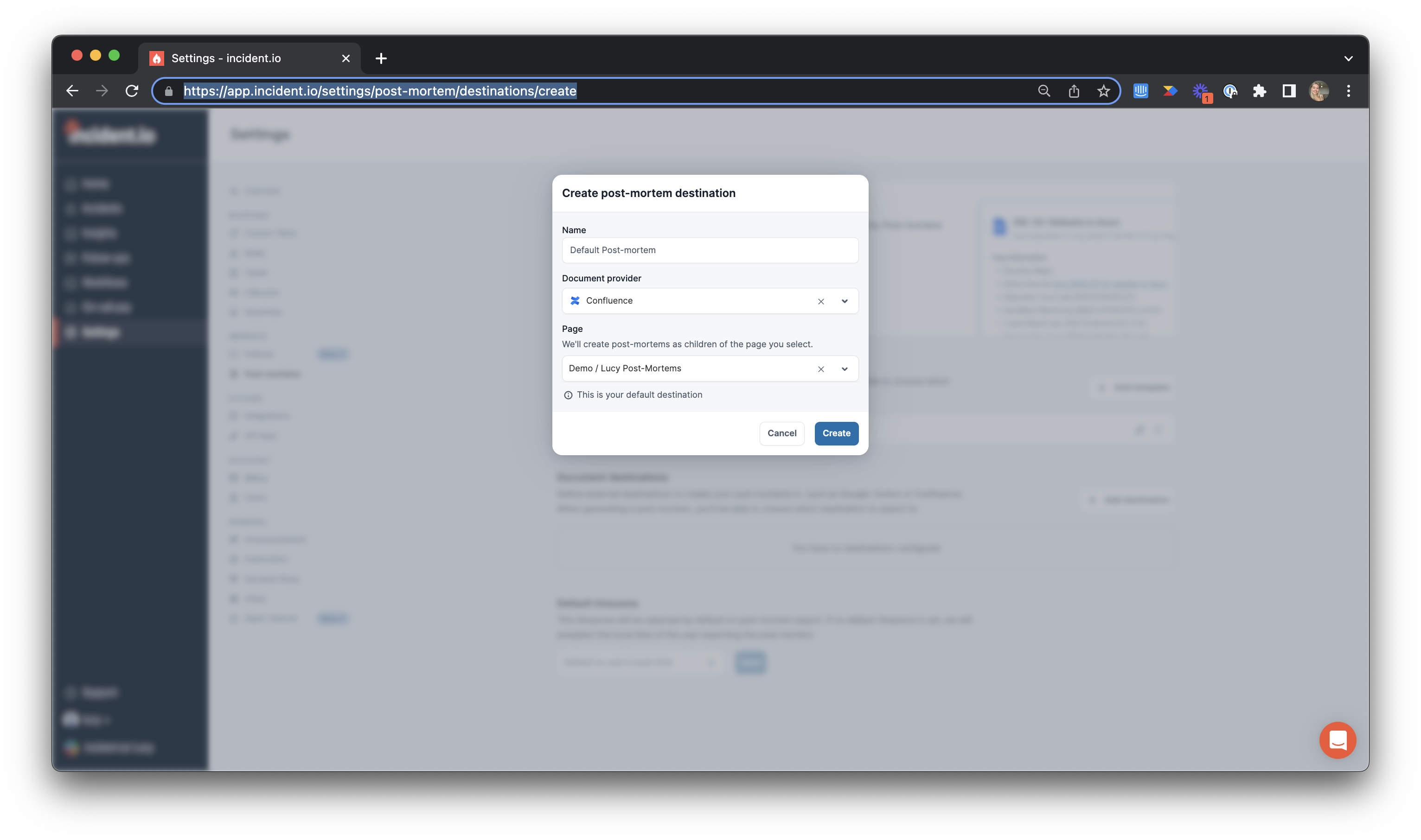 When you go to create and export a post-mortem, you can choose the correct destination depending on the team or service. Your default post-mortem destination will be used if you don't select a different destination!
 ## I've installed the Jira integration but I'm now having trouble installing the Confluence one
No worries! This can be sorted but the trick here might be that you need to hit **Get it now** twice - [here](/integrations/i-ve-installed-the-jira-integration-but-i-m-now-having-trouble-installing-the-confluence-one) is an article outlining this step-by-step.
Still have questions? Let us know at [help@incident.io](mailto:help@incident.io) and we'll be happy to help.
## I've installed the Jira integration but I'm now having trouble installing the Confluence one
No worries! This can be sorted but the trick here might be that you need to hit **Get it now** twice - [here](/integrations/i-ve-installed-the-jira-integration-but-i-m-now-having-trouble-installing-the-confluence-one) is an article outlining this step-by-step.
Still have questions? Let us know at [help@incident.io](mailto:help@incident.io) and we'll be happy to help.