> ## Documentation Index
> Fetch the complete documentation index at: https://docs.incident.io/llms.txt
> Use this file to discover all available pages before exploring further.
# Scheduling an event in a specific calendar
## What should this look like?
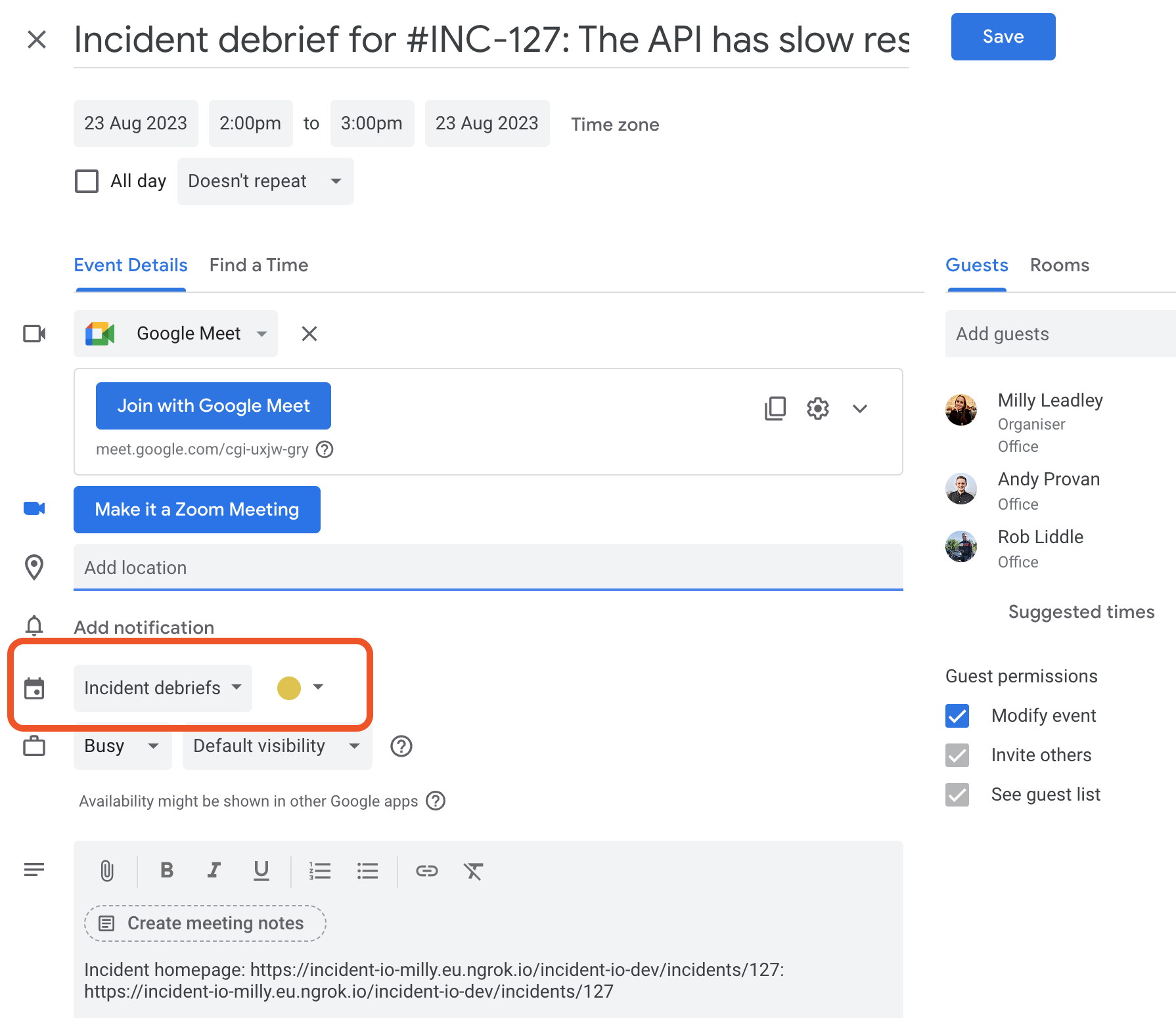
When you're successfully set up, you should be able to schedule an event within a specific shared calendar, such as `Incident debriefs` :
 ## What if I don't see this?
There are two reasons you might not be able to do this:
1. You're not subscribed to the calendar
2. You don't have the correct permissions to create an event within this calendar
### 1. Checking you're subscribed
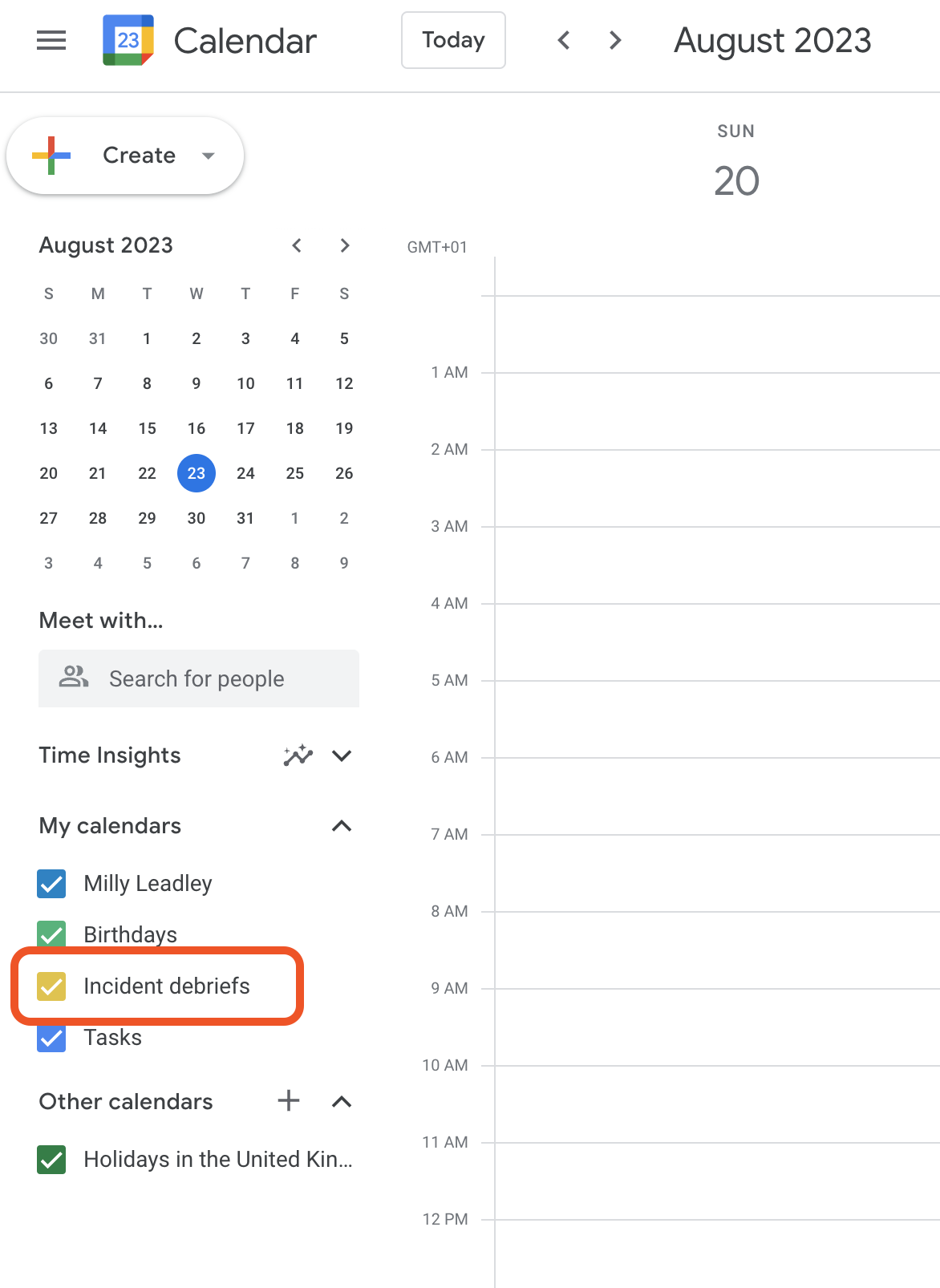
Head to Google Calendar. If you can see the calendar you're required to create the debrief in in the sidebar (under `Other calendars` or `My calendar`), you are successfully subscribed.
## What if I don't see this?
There are two reasons you might not be able to do this:
1. You're not subscribed to the calendar
2. You don't have the correct permissions to create an event within this calendar
### 1. Checking you're subscribed
Head to Google Calendar. If you can see the calendar you're required to create the debrief in in the sidebar (under `Other calendars` or `My calendar`), you are successfully subscribed.
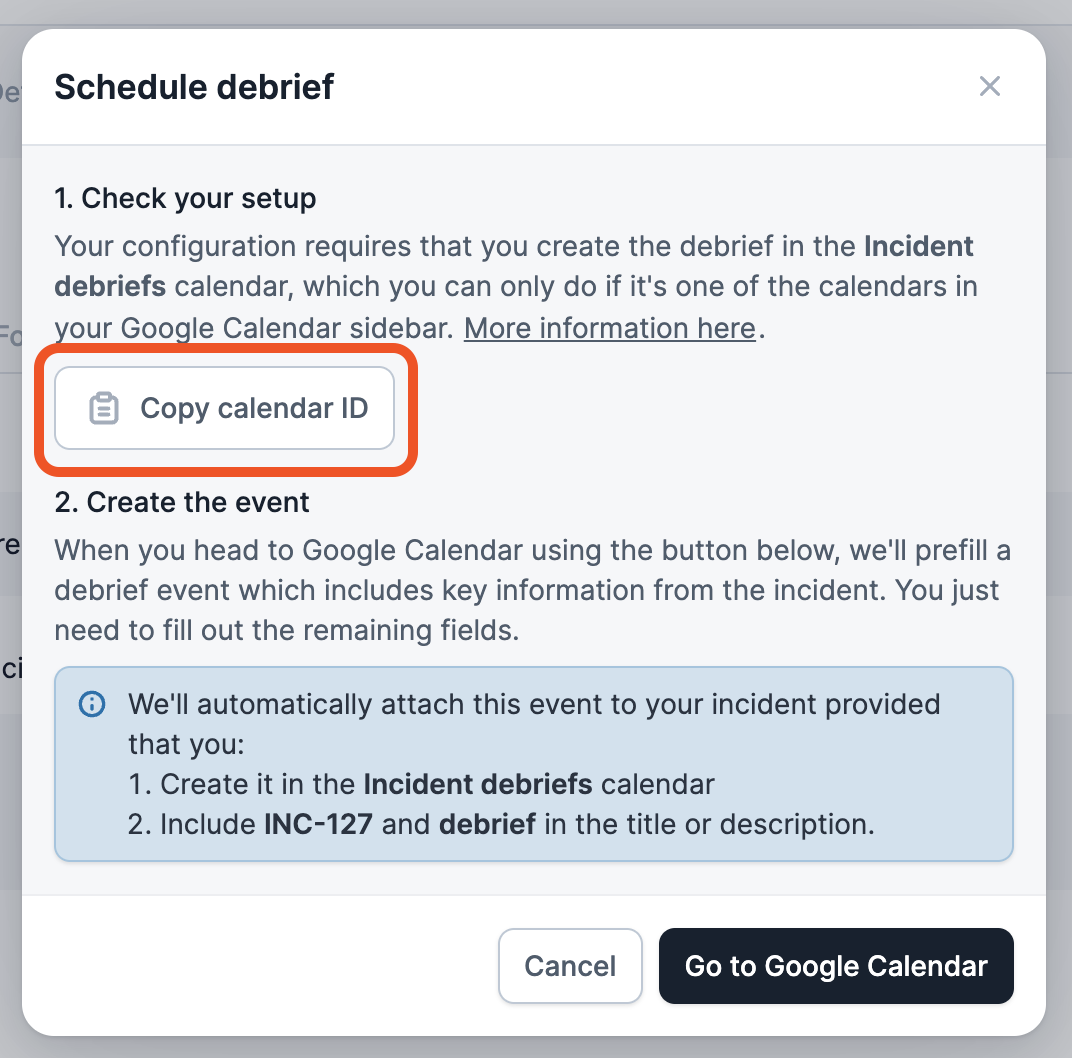
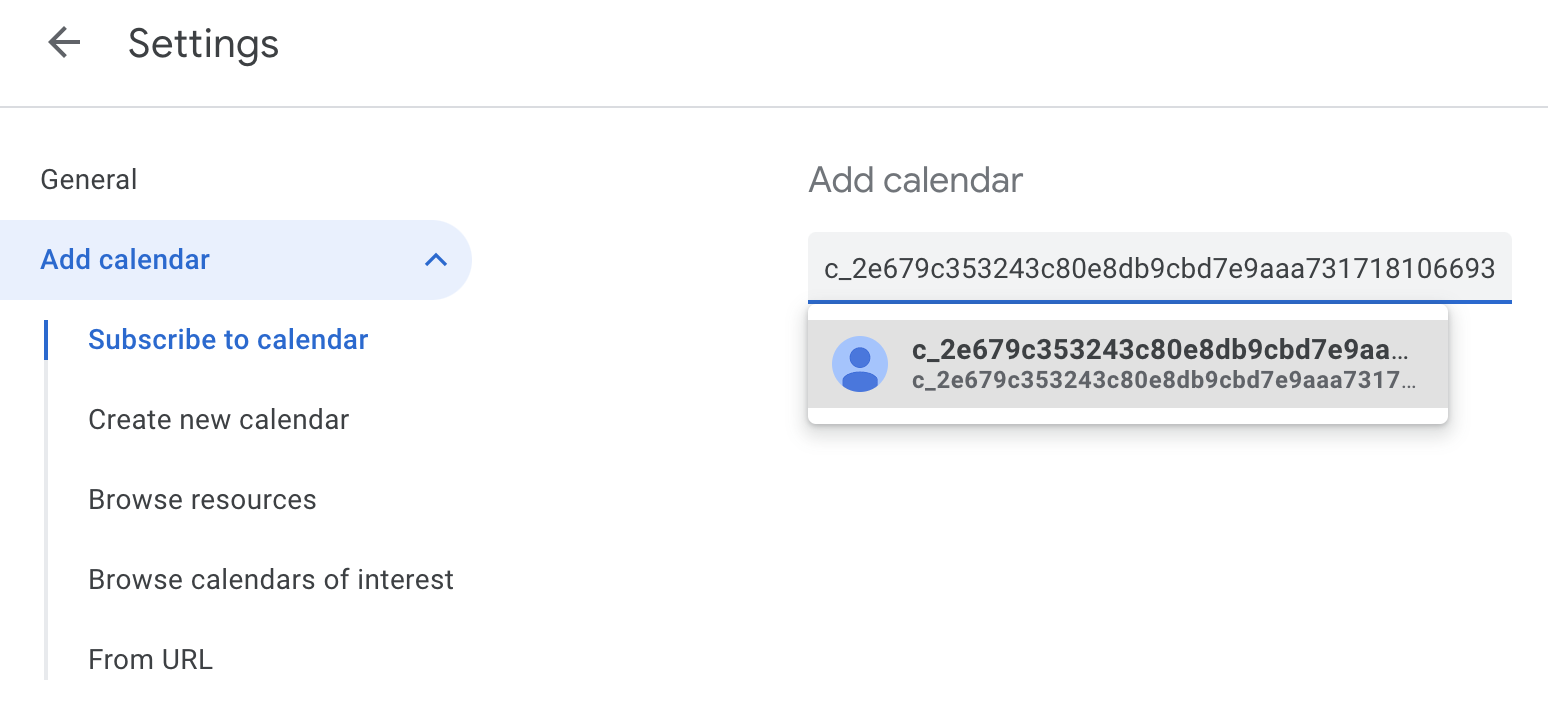
 If you cannot see the correct calendar, copy the calendarID we provided in the app.
 Then head back to Google Calendar and hit `+` next to `Other calendars` and choose `Subscribe to calendar`. Paste the calendar ID here.
 ### 2. Checking you have the right permission
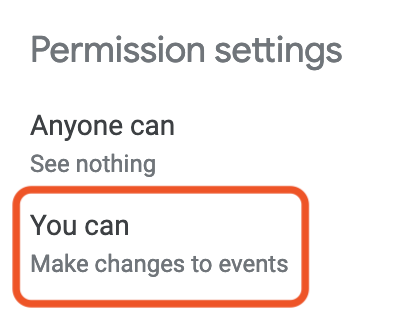
Click the three dots next to the specific calendar and choose `Settings`. You'll have the correct permission if it says you can `Make changes to events`. If you see something else, you'll need to ask the calendar owner to grant permission to you (or more helpfully, your whole user group) - instructions are [here](/integrations/debrief-calendar).
### 2. Checking you have the right permission
Click the three dots next to the specific calendar and choose `Settings`. You'll have the correct permission if it says you can `Make changes to events`. If you see something else, you'll need to ask the calendar owner to grant permission to you (or more helpfully, your whole user group) - instructions are [here](/integrations/debrief-calendar).