> ## Documentation Index
> Fetch the complete documentation index at: https://docs.incident.io/llms.txt
> Use this file to discover all available pages before exploring further.
# Syncing incidents with Azure DevOps
[incident.io](http://incident.io/) allows you to automatically track your incidents in Azure DevOps by creating and maintaining "Issue" work items.
This is helpful if Azure DevOps is your source of truth, and you need everything to be in one place.
Each issue will be updated in real-time with the latest title and description, and comments will be added for each incident update. We will also sync any comments added to your Azure DevOps work item back into incident.io.
You can also use templates and conditions to create different issues in different projects depending on custom fields and incident types within incident.io. For example:
* Create issues in your Security project where Incident Type = Security
* Create issues in your Engineering project where Incident Type = Production
## Getting started
First, you'll need to enable the integration. Ensure you are logged in as an Azure DevOps user with access to the relevant projects.
Navigate to Settings > Integrations, locate Azure DevOps via the search bar, and click "Connect".
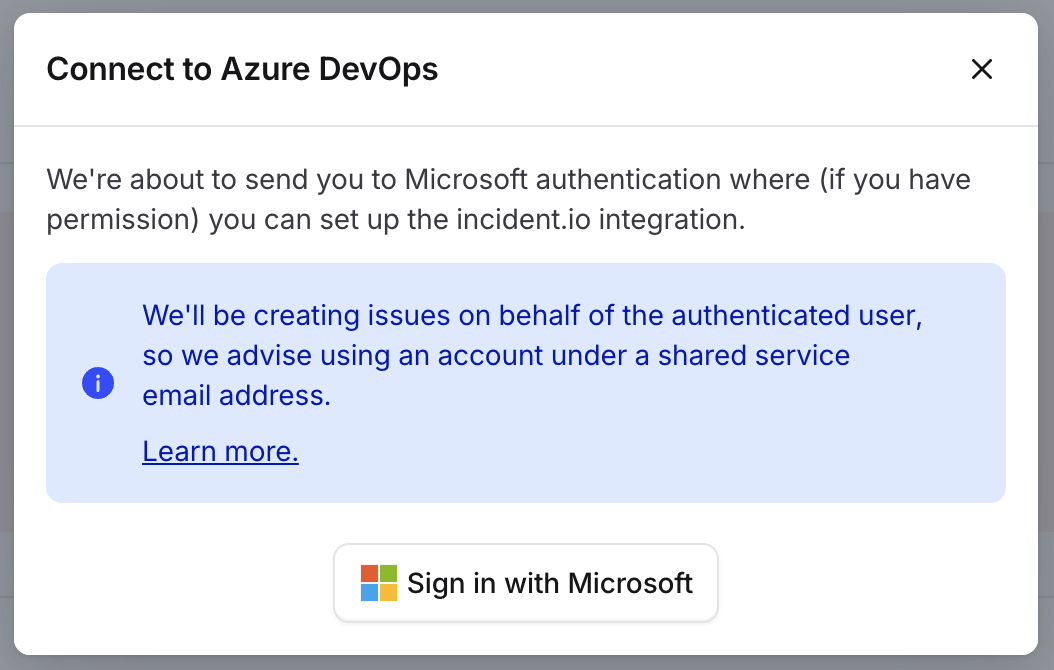
A modal will appear. Click "Sign in with Microsoft" to be redirected to Microsoft for the authorisation flow.
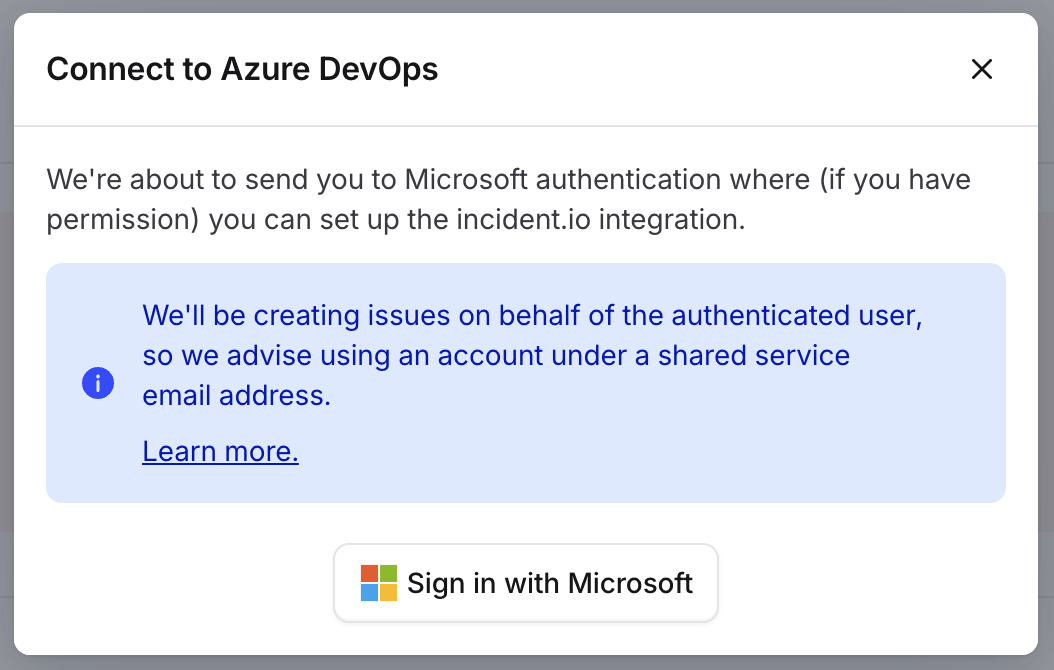 We do not support authentication via Azure service accounts due to differences in API behavior. We suggest creating a personal account under a shared "service" email for authentication purposes
## Service Hooks
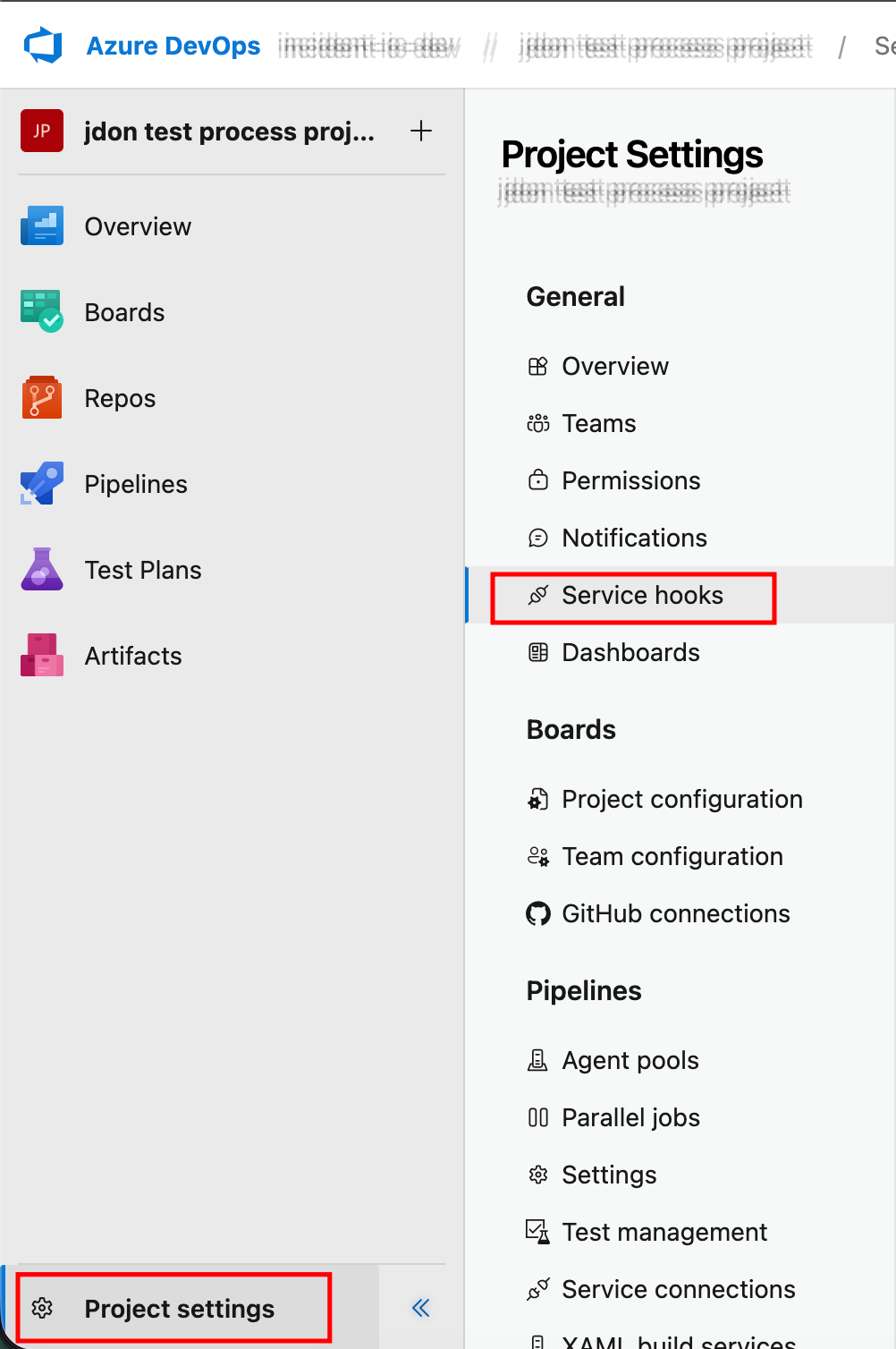
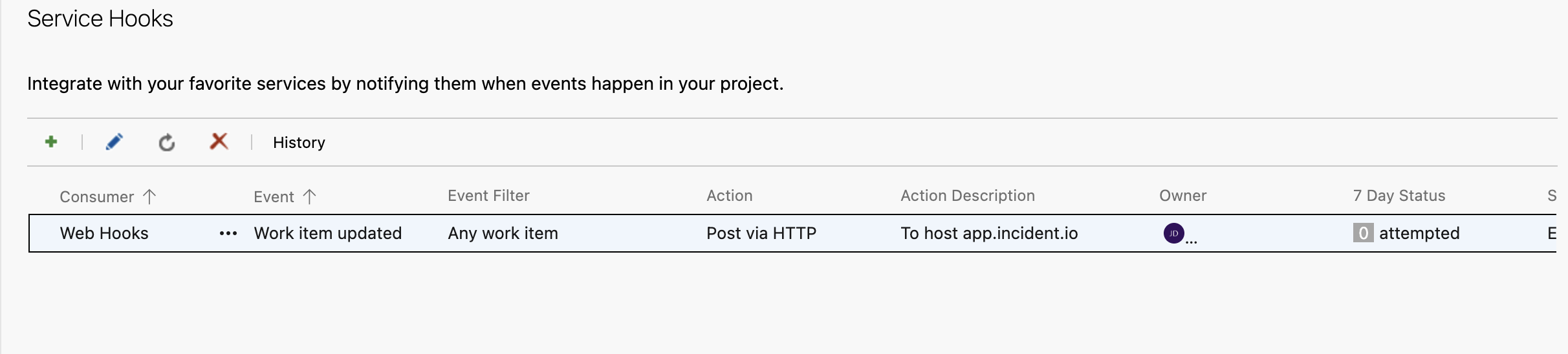
1. Go to your project, select **Project settings**, and then select **Service hooks**.
We do not support authentication via Azure service accounts due to differences in API behavior. We suggest creating a personal account under a shared "service" email for authentication purposes
## Service Hooks
1. Go to your project, select **Project settings**, and then select **Service hooks**.
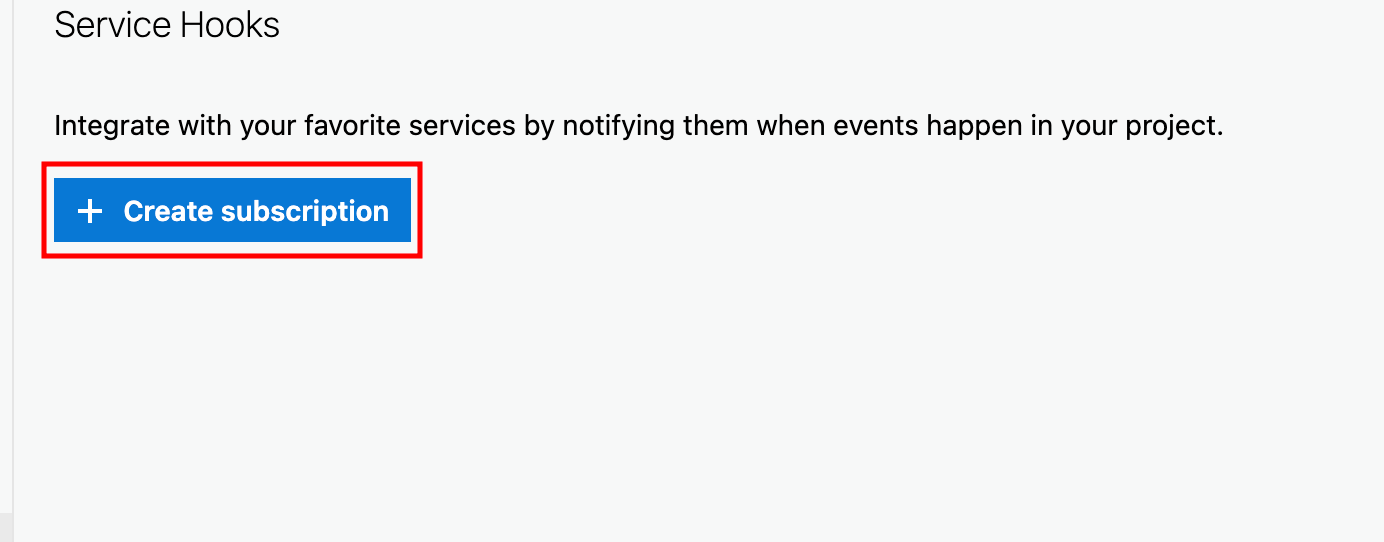
 2. Select **Create subscription**.
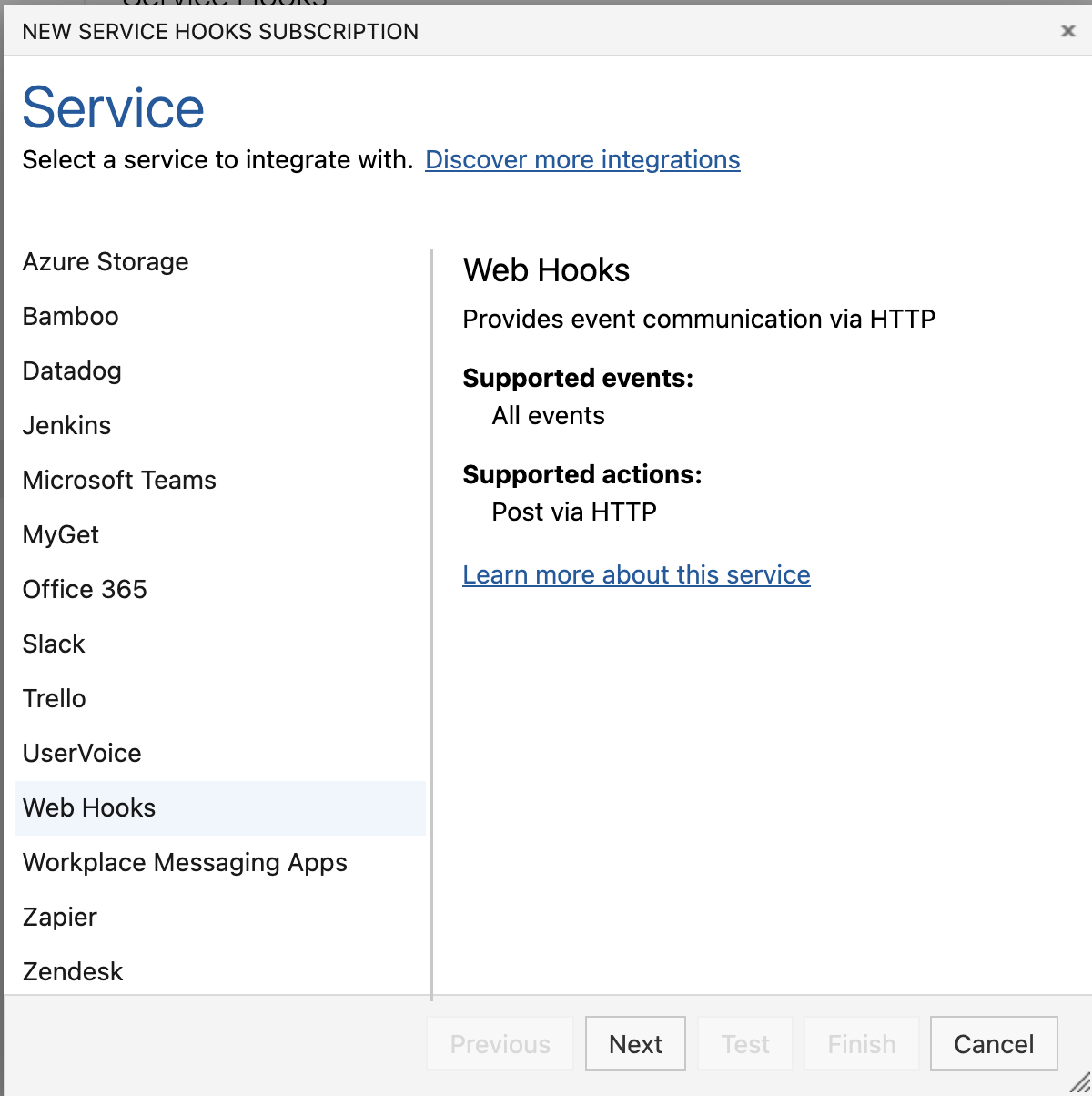
 3. Select **Web Hooks** and then click **next**
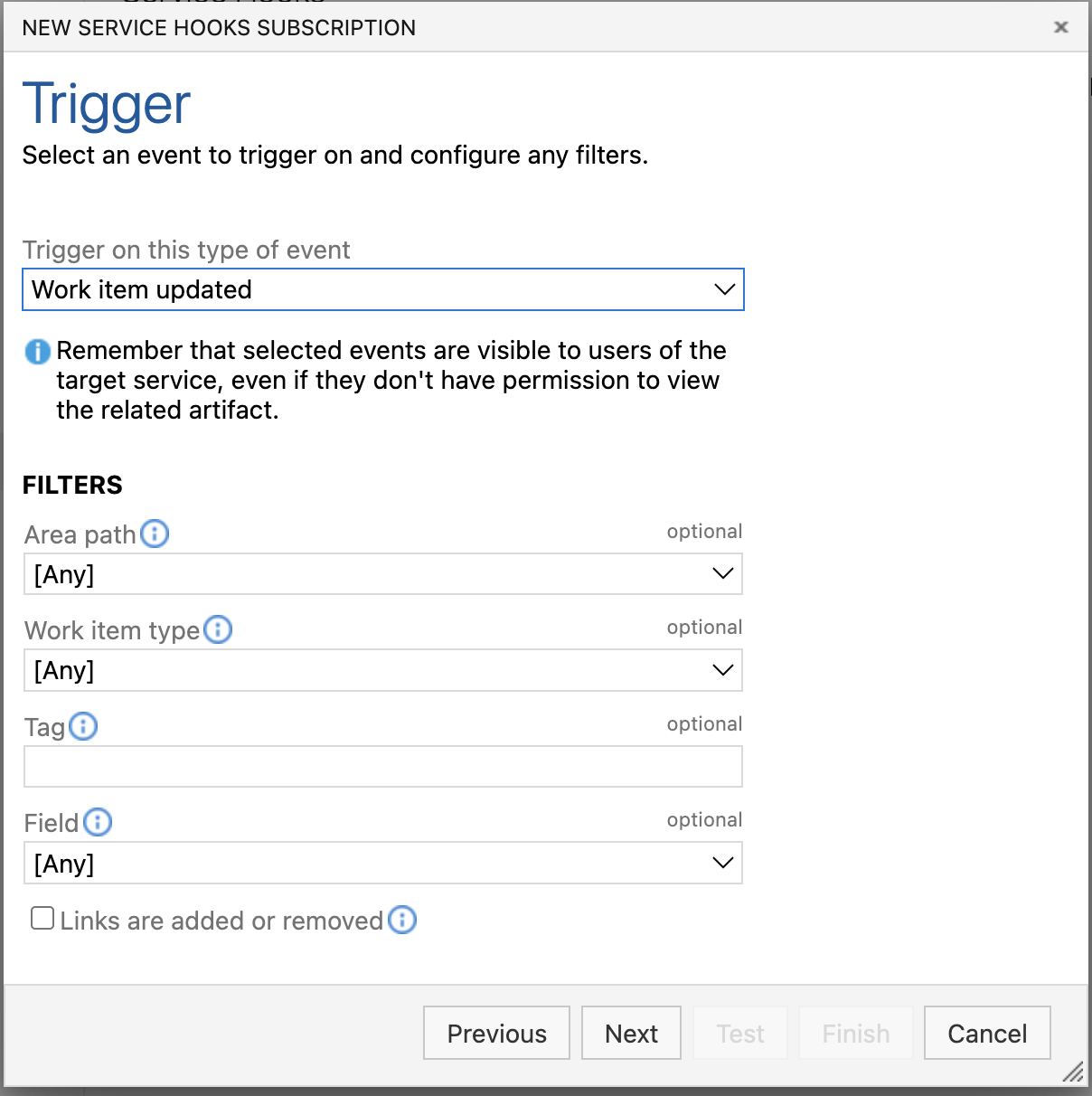
 4. Change the trigger to be **Work item updated** and then click **next**
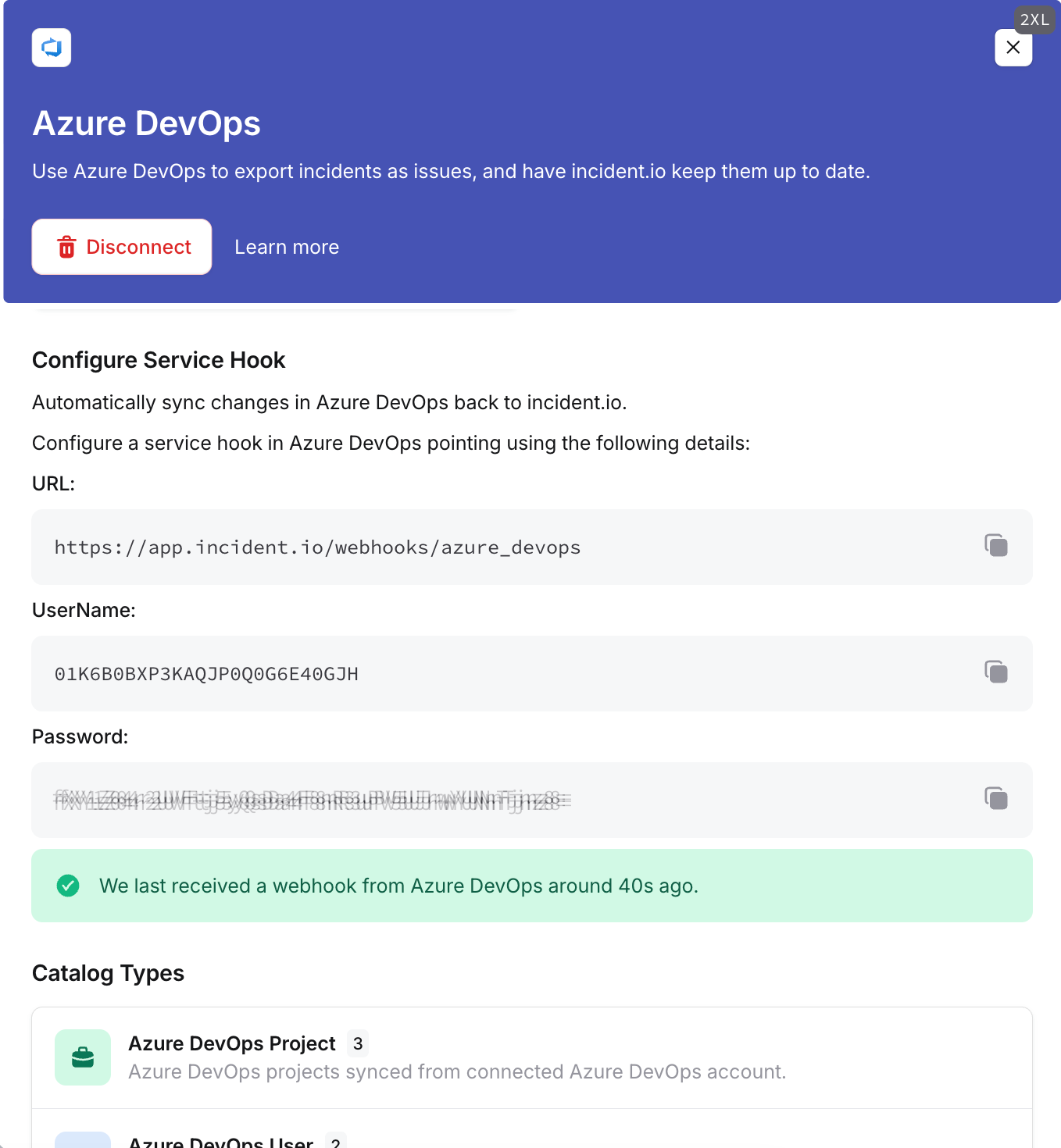
 5. Copy the service hooks details from the dashboard into the service hook config
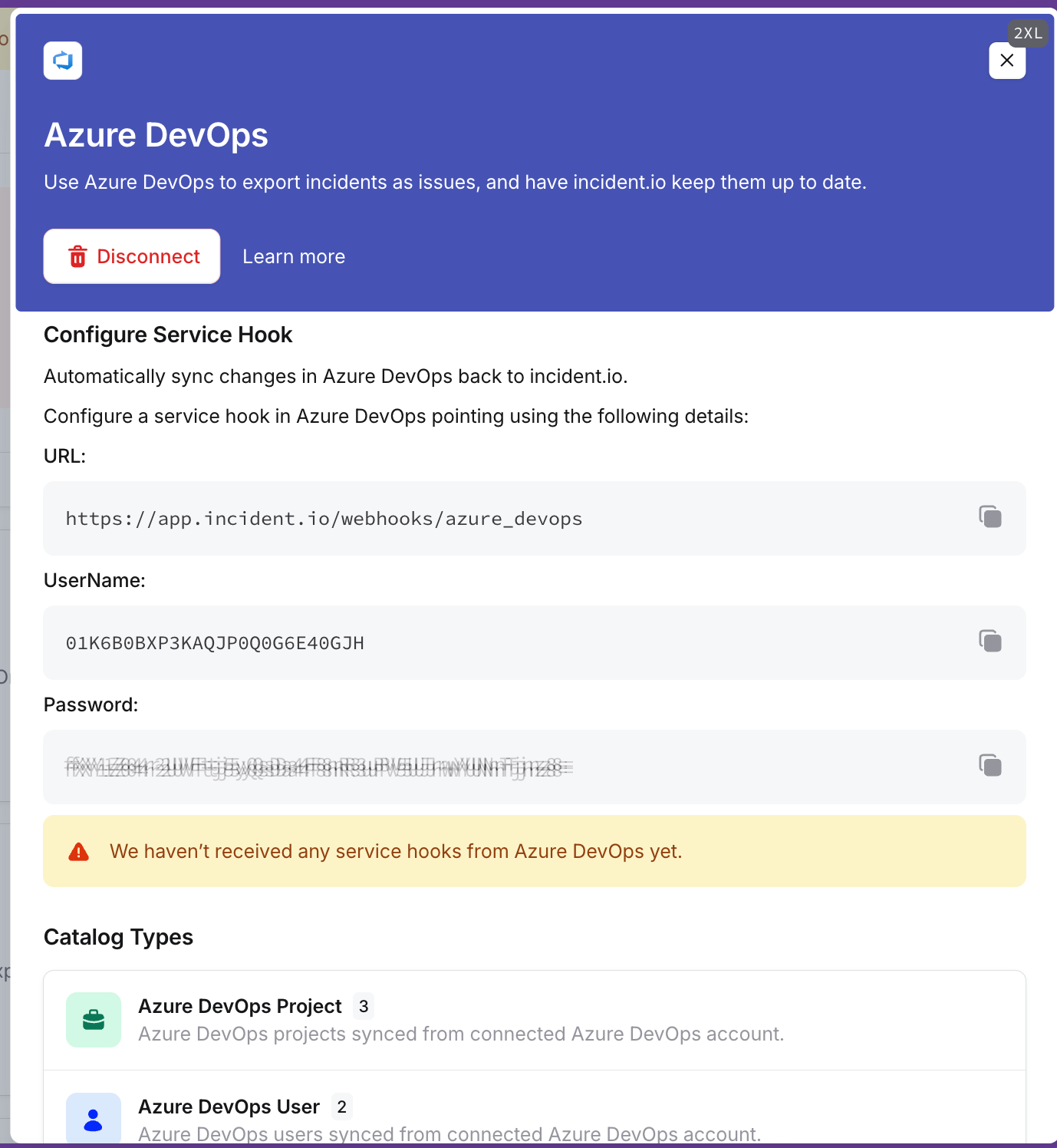 6. Click **Test** and you should see a success in the dashboard
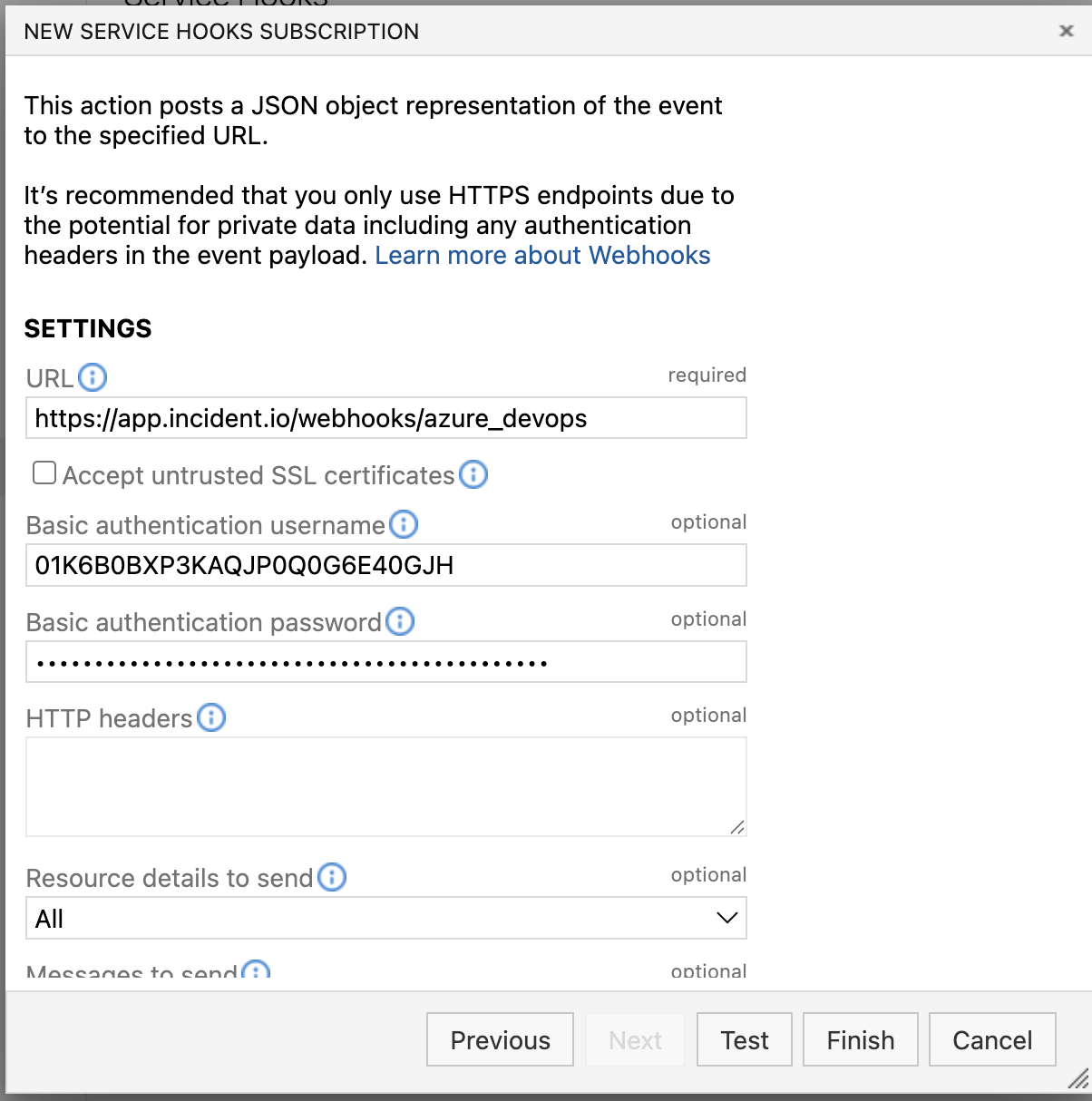 7. Click **Finish** in azure devops to complete the setup
 ## Creating a template
Next, we need to define what the contents of each issue should be.
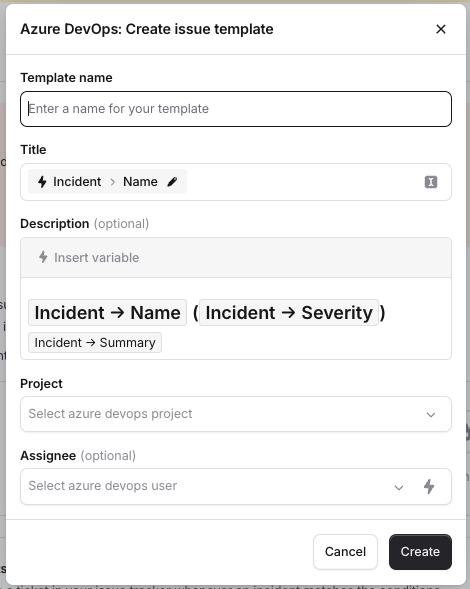
Navigate to Settings > Incident Tickets, and click "+ Add a new template"
The issue template determines which project the issue will be created in, and who it should be assigned to. It also allows for customisation of the issue title and description, using variables and custom fields on the incident.
## Creating a template
Next, we need to define what the contents of each issue should be.
Navigate to Settings > Incident Tickets, and click "+ Add a new template"
The issue template determines which project the issue will be created in, and who it should be assigned to. It also allows for customisation of the issue title and description, using variables and custom fields on the incident.
 ## Enabling the feature
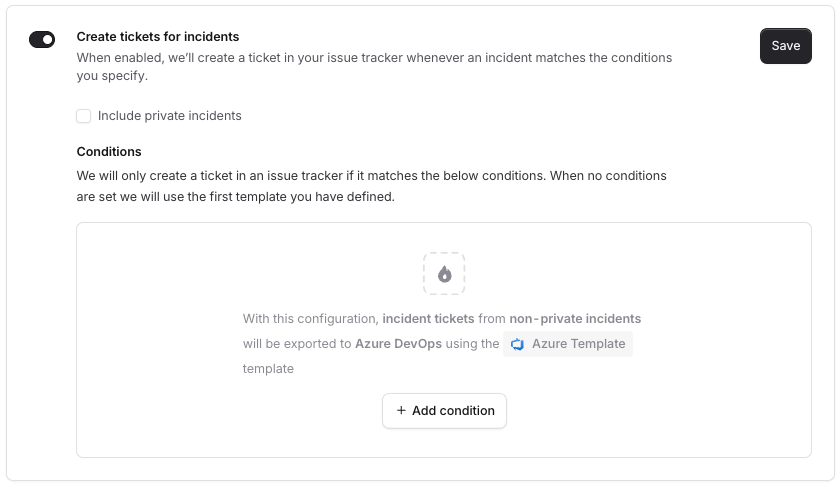
Once your template has been configured, use the toggle to 'Create tickets for incidents'.
## Enabling the feature
Once your template has been configured, use the toggle to 'Create tickets for incidents'.
 If there are no conditions specified we will use the first template in the list and create a ticket for all new, active incidents.
Conditions can be used to control which template should be used for any given incident. For example, incidents of type "Security" may need to be directed to a security-specific Azure DevOps project.
## Private incidents
If you wish to create tickets for private incidents, then tick this checkbox.
If there are no conditions specified we will use the first template in the list and create a ticket for all new, active incidents.
Conditions can be used to control which template should be used for any given incident. For example, incidents of type "Security" may need to be directed to a security-specific Azure DevOps project.
## Private incidents
If you wish to create tickets for private incidents, then tick this checkbox.
 Note: Anyone with access to the chosen Azure DevOps project will be able to see these tickets.