> ## Documentation Index
> Fetch the complete documentation index at: https://docs.incident.io/llms.txt
> Use this file to discover all available pages before exploring further.
# Auto-exporting follow-ups
Eliminate the hassle of manually exporting follow-ups by configuring them to export automatically to your issue tracker.
This guide walks through the configuration process and demonstrates how to auto-export follow-ups to specific projects based on incident details, like custom field values.
## Setup Integrations
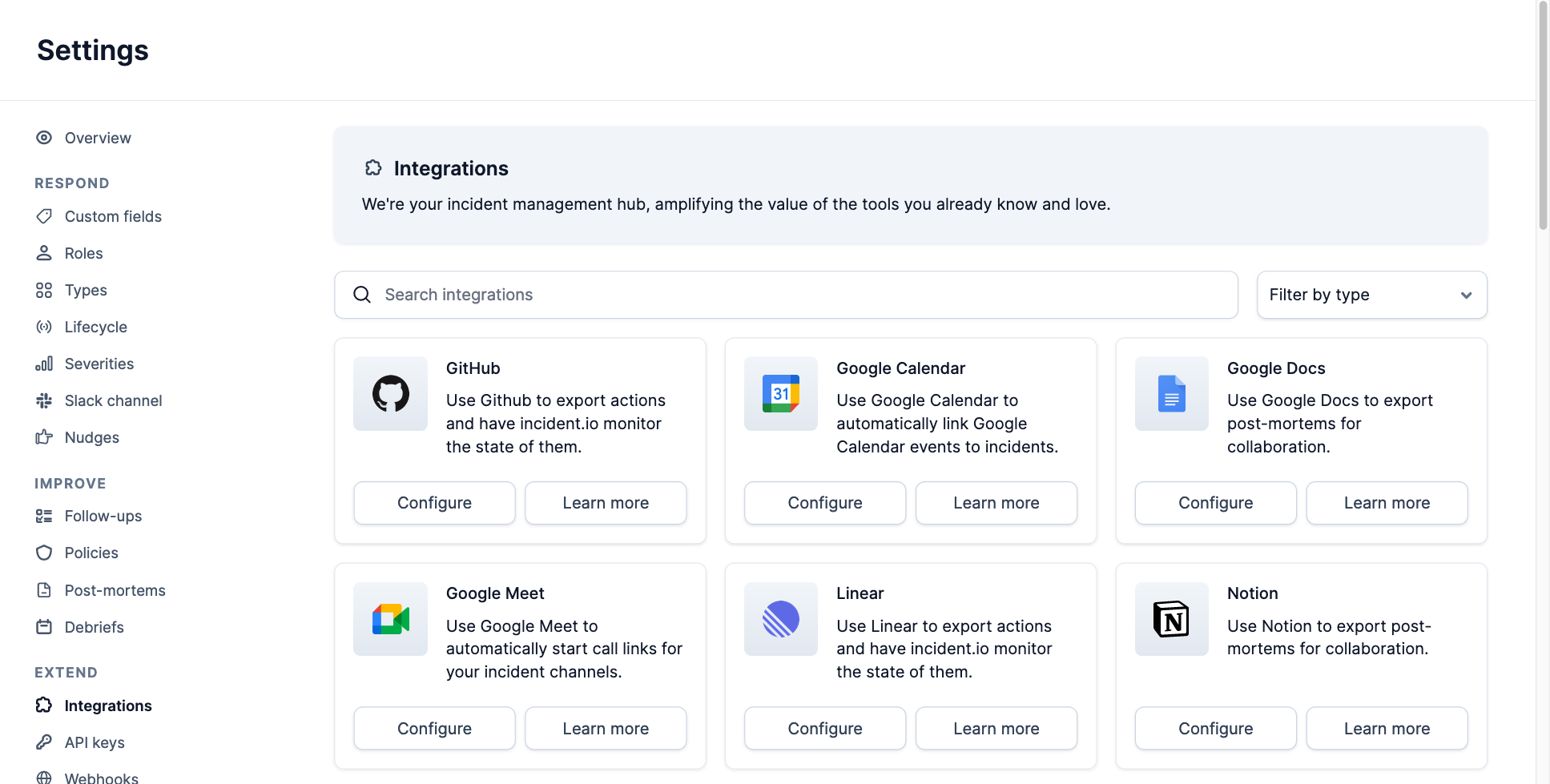
Before configuring the auto-export rules, ensure that you have the correct issue tracker providers installed as integrations.
Navigate to [Settings → Integrations](https://app.incident.io/~/settings/integrations), and install your issue tracker.
 ## Configure Export Templates
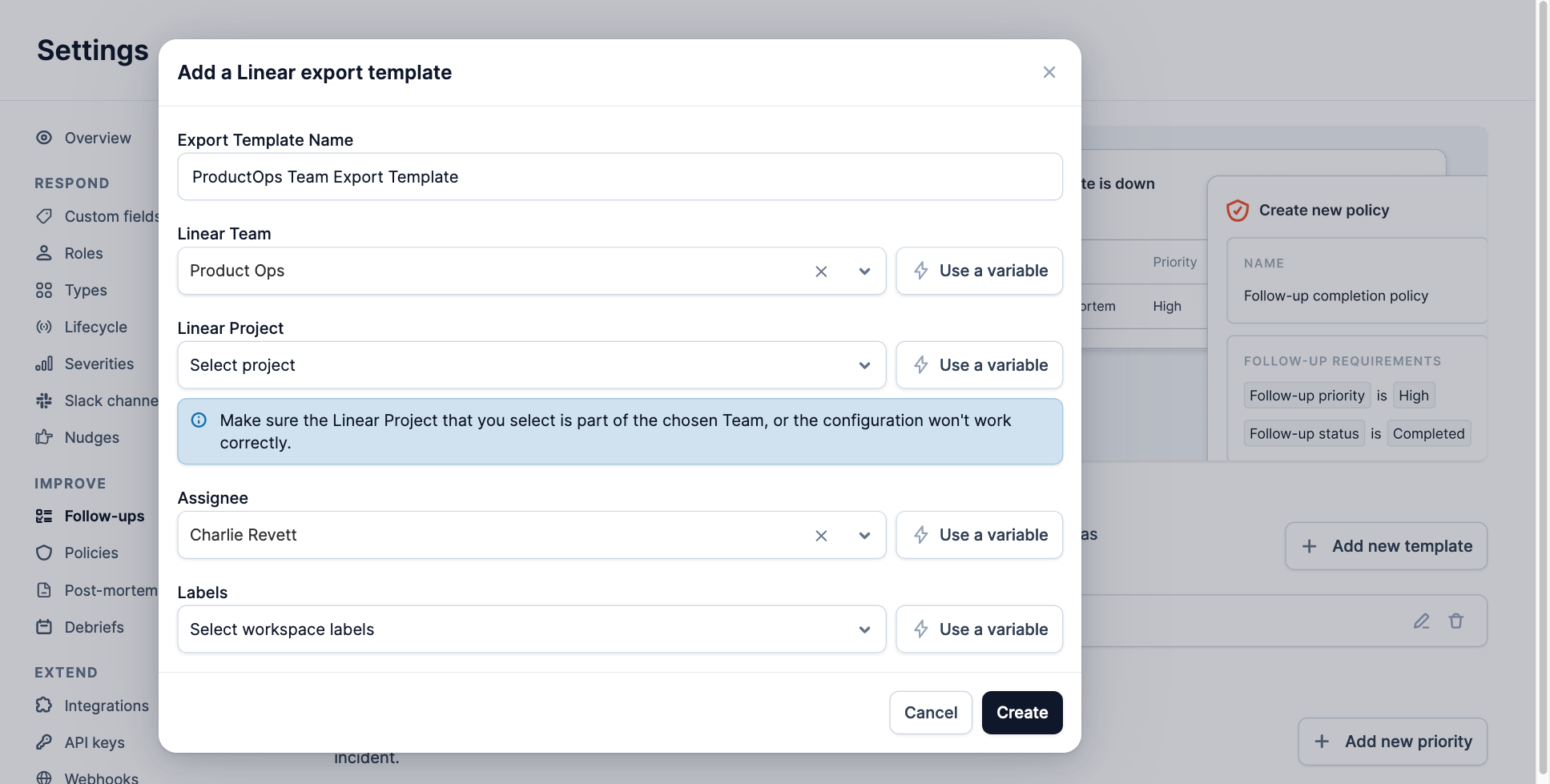
When auto-exporting a follow-up, an **export template** will be used to set certain properties of the issue, for example:
* The project the issue is assigned to
* The user that owns the issue
* Labels that are added to the issue
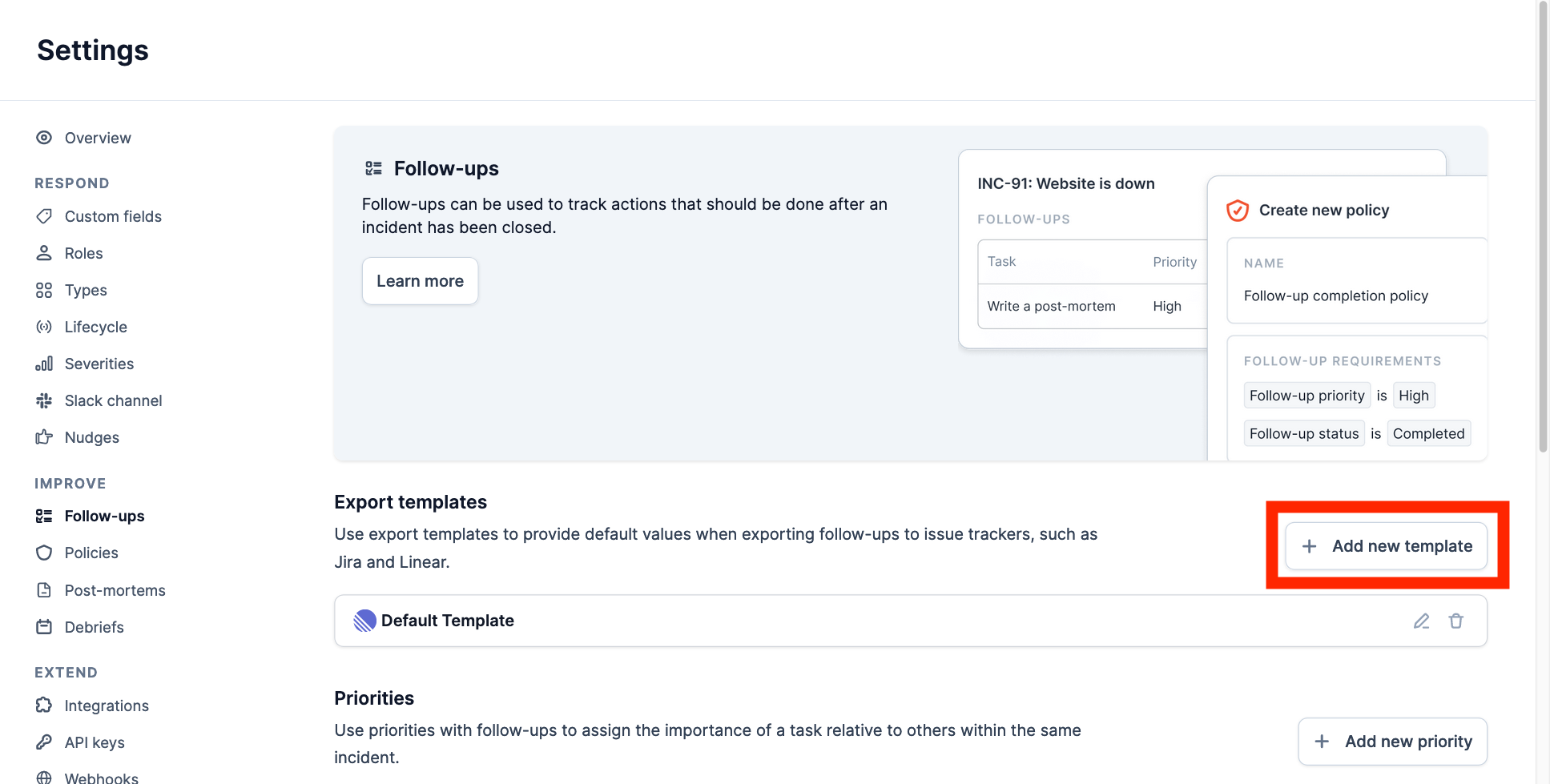
Navigate to [Settings → Follow-ups](https://app.incident.io/~/settings/follow-ups), and add a new **export template**.
## Configure Export Templates
When auto-exporting a follow-up, an **export template** will be used to set certain properties of the issue, for example:
* The project the issue is assigned to
* The user that owns the issue
* Labels that are added to the issue
Navigate to [Settings → Follow-ups](https://app.incident.io/~/settings/follow-ups), and add a new **export template**.
 ## Configure Conditions
Navigate to [Settings → Follow-ups](https://app.incident.io/~/settings/follow-ups), and enable **auto-export**.
## Configure Conditions
Navigate to [Settings → Follow-ups](https://app.incident.io/~/settings/follow-ups), and enable **auto-export**.
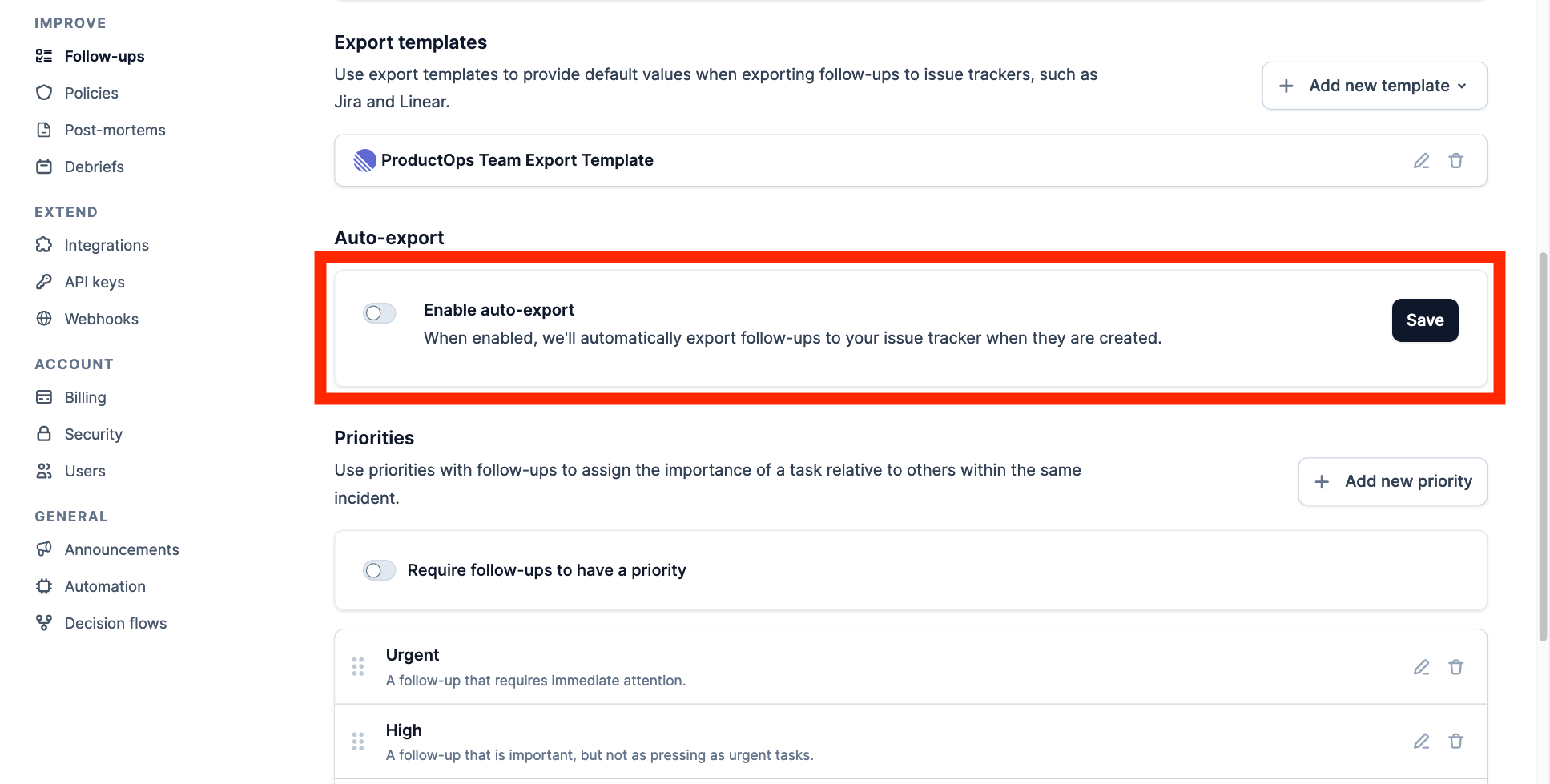 Out of the box, the **export template** you just created will be used to automatically export all follow-ups from all non-private incidents.
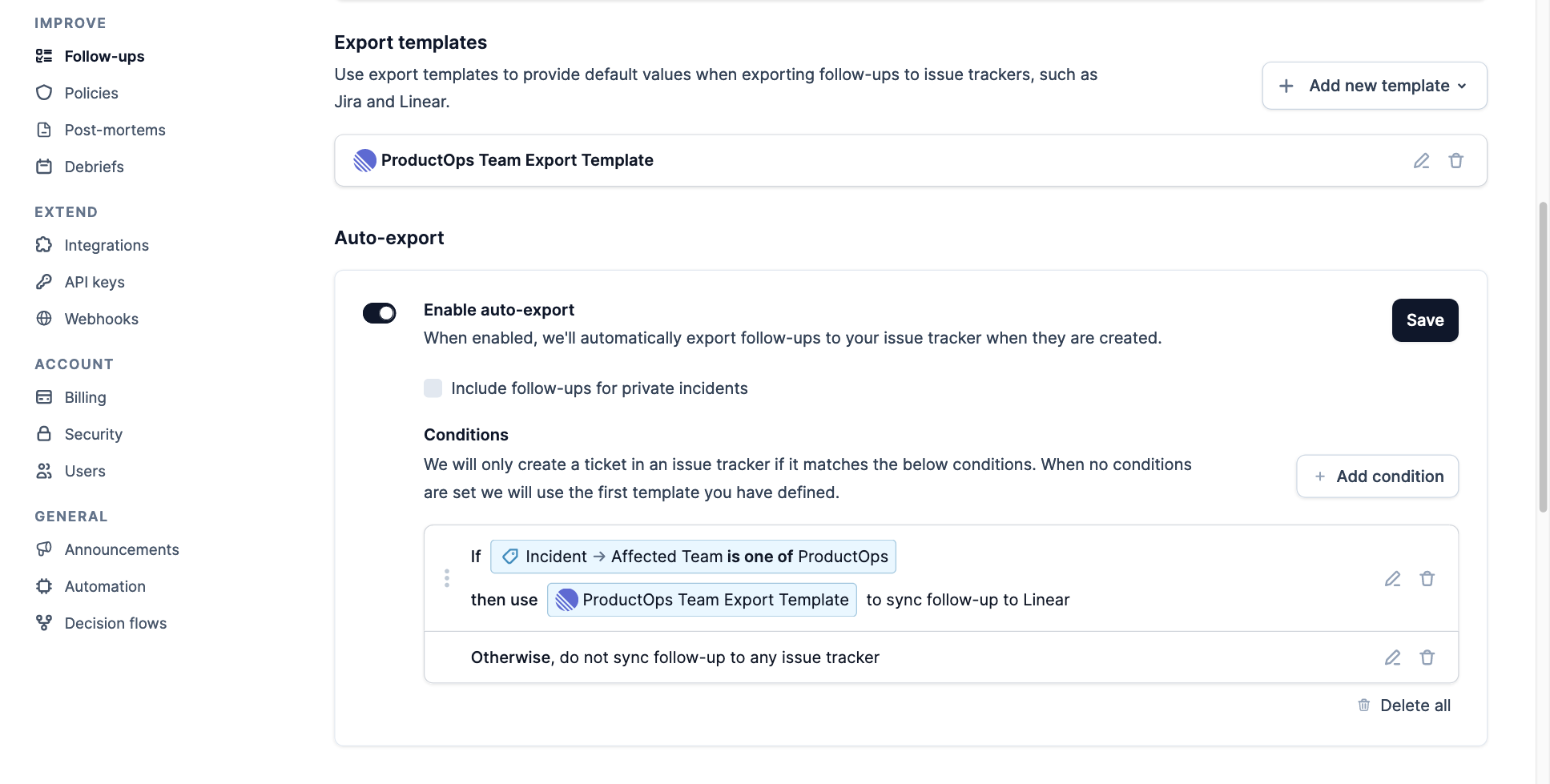
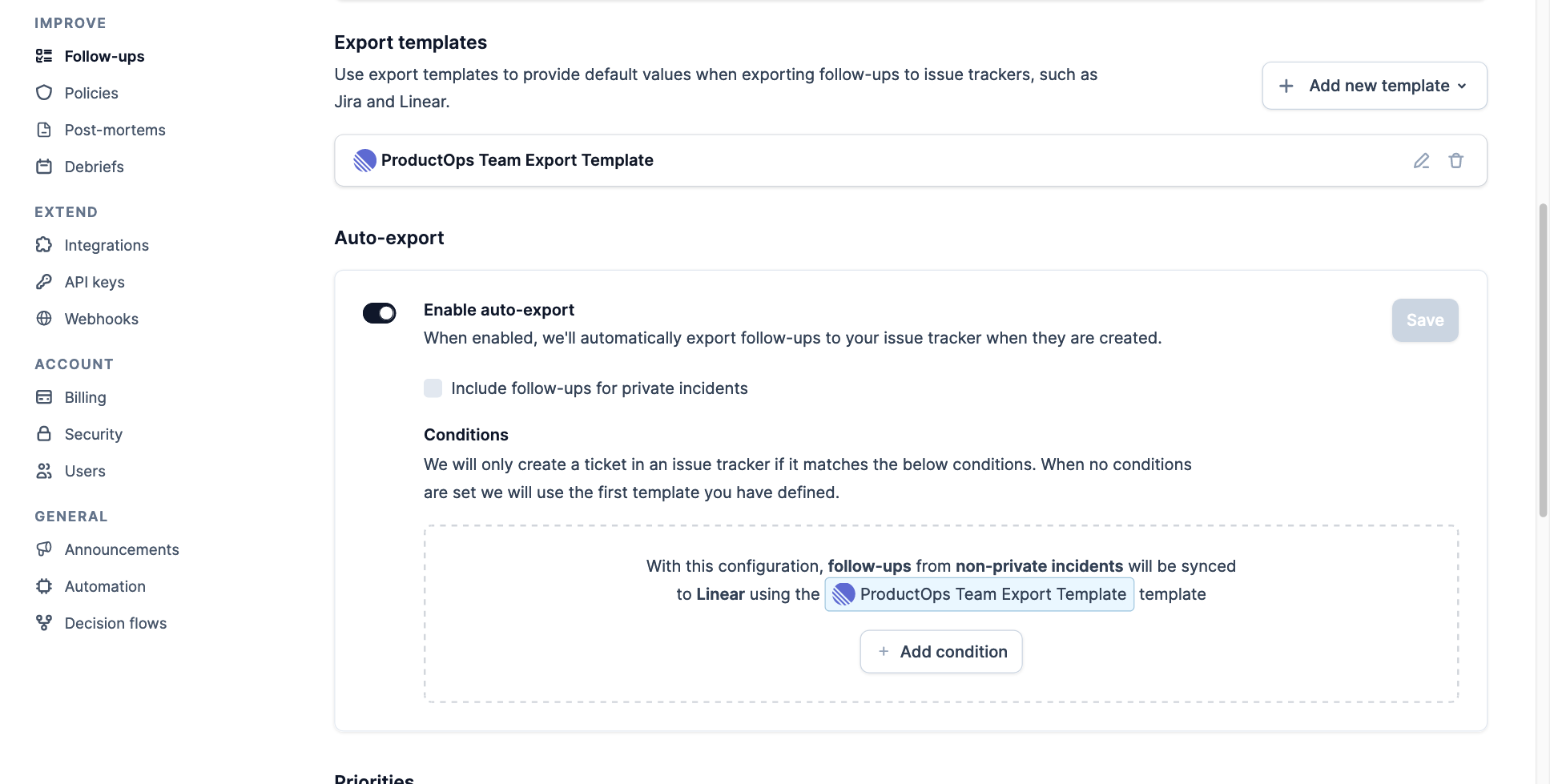 If you would like to configure when follow-ups should be automatically exported, and which **export template** should be used, then you will need to add a new condition.
In the example below:
* If the incident's `Affected Team` custom field is set to `ProductOps`
* Then automatically export the incident's follow-ups using the `ProductOps Team Export Template`
* If the custom field does not match, then do not automatically export follow-ups for the incident
If you would like to configure when follow-ups should be automatically exported, and which **export template** should be used, then you will need to add a new condition.
In the example below:
* If the incident's `Affected Team` custom field is set to `ProductOps`
* Then automatically export the incident's follow-ups using the `ProductOps Team Export Template`
* If the custom field does not match, then do not automatically export follow-ups for the incident
 ## Fallback Behavior
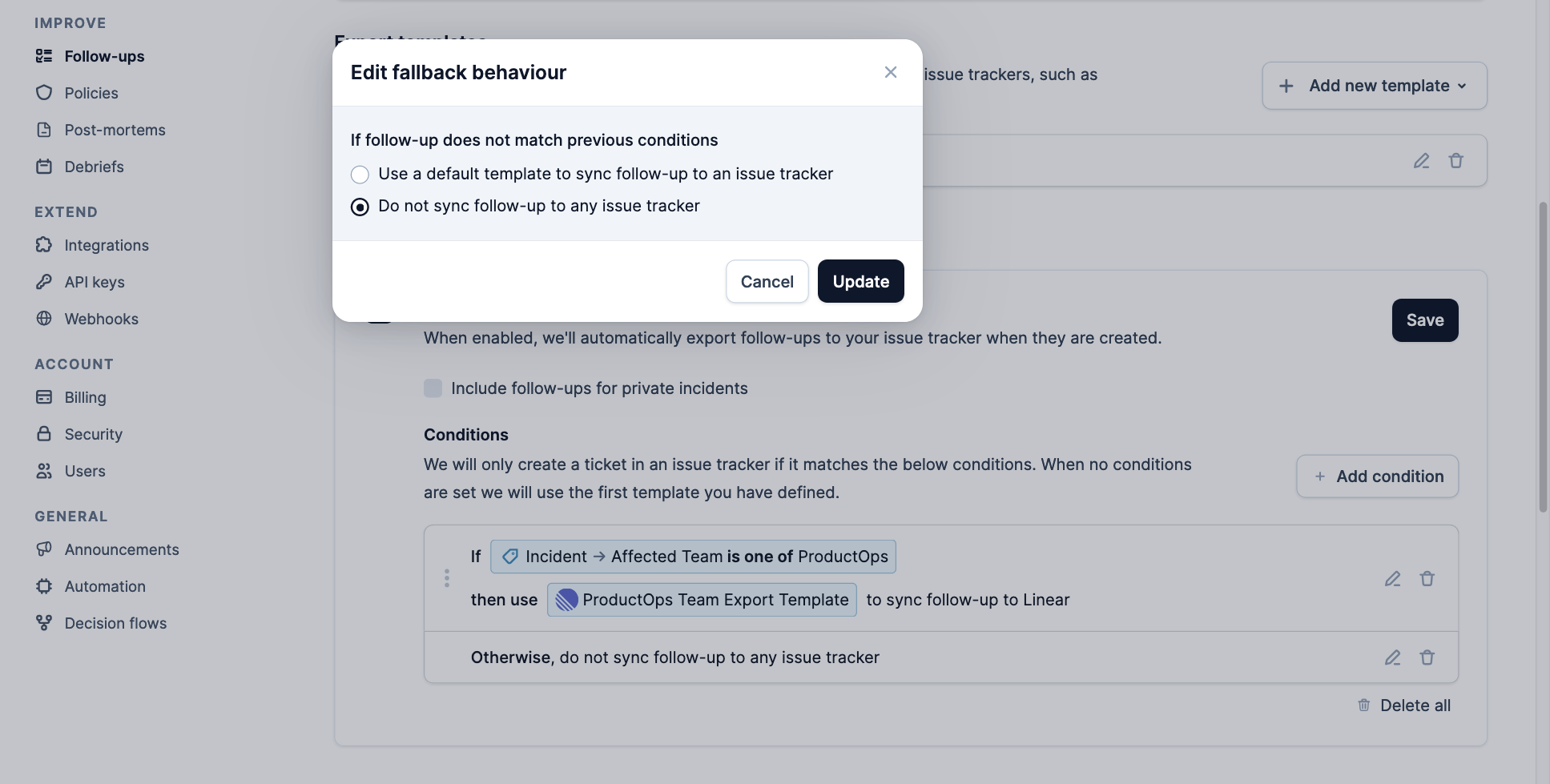
The example above has configured the fallback behavior to not automatically export follow-ups if conditions do not match, however you can instead select a default template to be used.
This will ensure that follow-ups will always be automatically exported for each incident.
## Fallback Behavior
The example above has configured the fallback behavior to not automatically export follow-ups if conditions do not match, however you can instead select a default template to be used.
This will ensure that follow-ups will always be automatically exported for each incident.
 ## Private Incidents
By default, auto-exporting of follow-ups is disabled for private incidents, however you can enable this on the [Settings → Follow-ups](https://app.incident.io/~/settings/follow-ups) page.
## Private Incidents
By default, auto-exporting of follow-ups is disabled for private incidents, however you can enable this on the [Settings → Follow-ups](https://app.incident.io/~/settings/follow-ups) page.