{caption}
} ; }; Major incidents can have hundreds of responders, and even more following updates along the way. In incidents like these there are lots of moving parts: * Teams like engineering, communications, legal... * Different impacts across products, services or regions with different groups working on mitigations * Groups exploring independent approaches towards resolution, or investigations on root causes Manage the complexity by breaking large scale incidents into 'Streams', each of which will have its own Slack channel, Zoom/Meet call, and distinct leads and participants. *** ## Creating a stream To create a stream, simply type `/incident stream` in an incident channel. You'll be presented with a modal to: * Set a **name** for the stream * Assign someone as the **stream lead** - this will usually be a different person to the main incident lead to avoid splitting their focus * Invite anyone else who should collaborate on the stream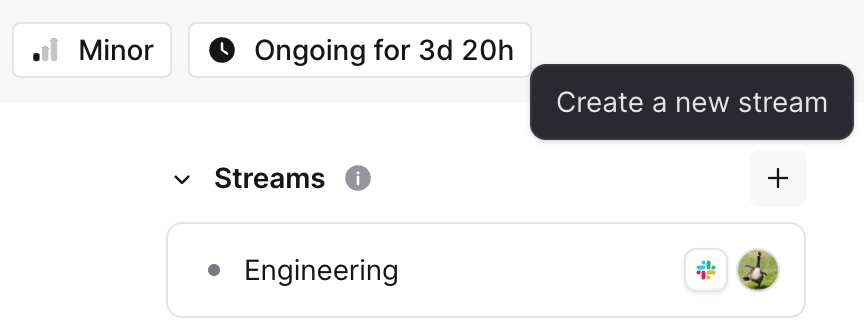 We'll create a new Slack channel for the stream, and invite the stream lead and any participants.
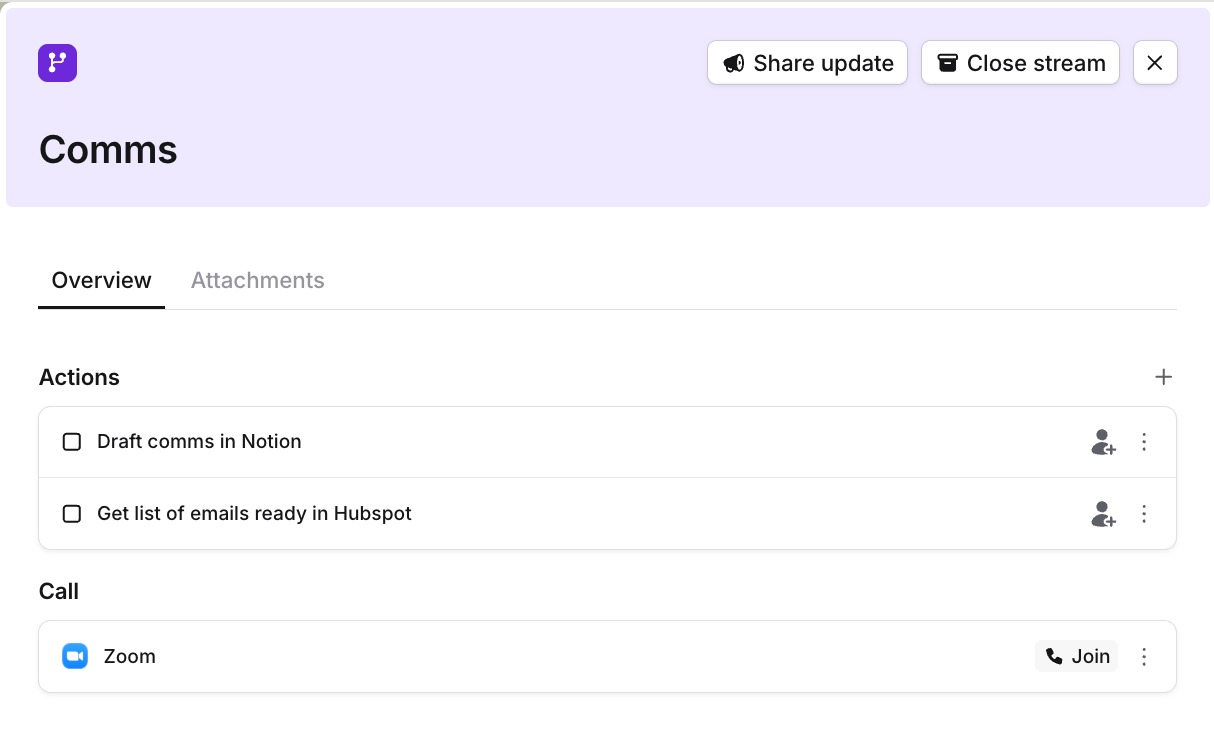 Actions you create in a stream stay scoped to that stream, so each stream keeps its own focused list of work without cluttering the main incident. For public streams, action activity also flows into the parent [incident timeline](/post-incident/timeline), labeled with the stream it came from.
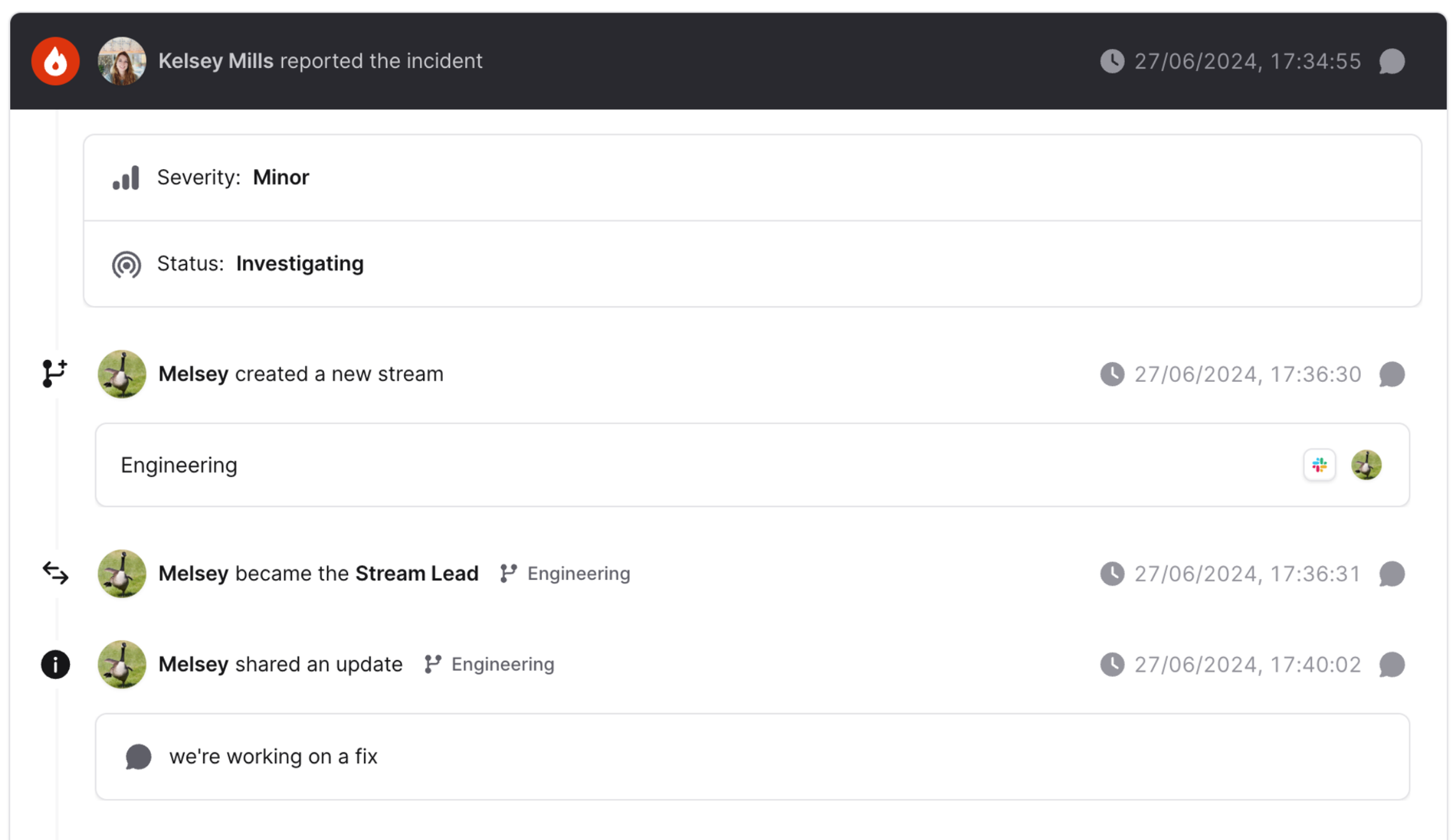 We’ll detect the same types of events automatically as incidents, for example updates and role changes within a stream. You can also pin messages in a stream channel and these will be pinned to the incident timeline.
***
## Restricting access to streams
This can be done by making a private stream from a public incident. Read more about that [here](/incidents/private-streams).
***
## Streams shortcuts cheatsheet
If you've [learnt just one command](/incidents/shortcuts) you can use it in streams too!
`/inc` while in a stream's Slack channel will pop up a menu of all the actions you can run in a stream.
## Emojis
From a stream's Slack channel, you can react to messages with:
| Emoji | Action |
| --------------------------------------------------- | -------------------------------------------------------------------------------------- |
| `:pushpin:` `:bookmark:` `:round_pushpin:` `:star:` | Pins the message from the stream to the incident's [timeline](/post-incident/timeline) |
| `:mega:` `:speech_balloon:` | Turns the message into an [Update](/incidents/status-updates) |
| `:boom:` | Turns the message into an [Action](/incidents/actions) |
## Slack Commands
| Command | Description |
| ---------------------------------------------- | ---------------------------------------------------------------------------------- |
| **ROLES** | |
| `/incident lead` | Make someone the stream lead. `/incident lead [me \| @user]` to auto-fill the lead |
| `/incident roles` `/incident role` | View, assign and unassign roles in the stream |
| `/inc handover` | Hand over responsibilities in a stream to another user. |
| **WORK** | |
| `/incident action` `/incident actions` | Create and manage actions for the stream |
| **COMMUNICATION** | |
| `/incident update` | Provide an internal status update to your team about the stream |
| `/incident close` | Provide a closing update, and mark the stream as closed |
| `/incident request` `/incident request-update` | Request an internal status update from the stream lead |
| `/incident escalate` `/incident page` | Pull in other teammates for help |
| `/incident call` | Set a call link `/incident call [link]` to auto-fill the link |
| `/incident statuspage` | Post or update an incident on your status page |
We’ll detect the same types of events automatically as incidents, for example updates and role changes within a stream. You can also pin messages in a stream channel and these will be pinned to the incident timeline.
***
## Restricting access to streams
This can be done by making a private stream from a public incident. Read more about that [here](/incidents/private-streams).
***
## Streams shortcuts cheatsheet
If you've [learnt just one command](/incidents/shortcuts) you can use it in streams too!
`/inc` while in a stream's Slack channel will pop up a menu of all the actions you can run in a stream.
## Emojis
From a stream's Slack channel, you can react to messages with:
| Emoji | Action |
| --------------------------------------------------- | -------------------------------------------------------------------------------------- |
| `:pushpin:` `:bookmark:` `:round_pushpin:` `:star:` | Pins the message from the stream to the incident's [timeline](/post-incident/timeline) |
| `:mega:` `:speech_balloon:` | Turns the message into an [Update](/incidents/status-updates) |
| `:boom:` | Turns the message into an [Action](/incidents/actions) |
## Slack Commands
| Command | Description |
| ---------------------------------------------- | ---------------------------------------------------------------------------------- |
| **ROLES** | |
| `/incident lead` | Make someone the stream lead. `/incident lead [me \| @user]` to auto-fill the lead |
| `/incident roles` `/incident role` | View, assign and unassign roles in the stream |
| `/inc handover` | Hand over responsibilities in a stream to another user. |
| **WORK** | |
| `/incident action` `/incident actions` | Create and manage actions for the stream |
| **COMMUNICATION** | |
| `/incident update` | Provide an internal status update to your team about the stream |
| `/incident close` | Provide a closing update, and mark the stream as closed |
| `/incident request` `/incident request-update` | Request an internal status update from the stream lead |
| `/incident escalate` `/incident page` | Pull in other teammates for help |
| `/incident call` | Set a call link `/incident call [link]` to auto-fill the link |
| `/incident statuspage` | Post or update an incident on your status page |