> ## Documentation Index
> Fetch the complete documentation index at: https://docs.incident.io/llms.txt
> Use this file to discover all available pages before exploring further.
# Private incidents
> Lock sensitive incidents down to the people and teams who need them.
We're strong proponents of [normalizing incidents](https://incident.io/blog/why-more-incidents-is-no-bad-thing): when everyone can see what's happening, everyone has the information they need to do their best work. That's why **incidents in incident.io are public by default**.
But sometimes privacy isn't optional. Compliance or legal obligations, security breaches, HR matters, or securities law can all call for an incident to be locked down. For those cases, you can make an incident **private**, so only the people and teams you choose can see it.
If only part of an incident needs to be confidential, consider a [private stream](/incidents/private-streams) within a public incident instead.
## What private incidents do
Private incidents hold sensitive information, so we apply some extra protections by default:
* **They're visible only to people and teams with access.** That means people you invite directly, [members of teams you've granted access](#grant-access-to-a-team), and anyone with the org-wide **Manage private incidents** permission. Everyone else can't see the incident at all.
* **They aren't announced by default.** Private incidents are skipped by [announcement rules](/incidents/announcing-private-incidents) unless you explicitly opt a rule, workflow, or `/inc announce` into announcing them.
* **Workflows don't run by default.** You can [enable workflows on private incidents](/incidents/private-incident-workflows) when you need them.
* **They're excluded from CSV exports and most Insights.** A few private-aware dashboards can include them, but only for people who can already see every private incident.
* **Escalations don't leak details.** When you escalate a private incident, we include only a link to the dashboard, not the incident's information.
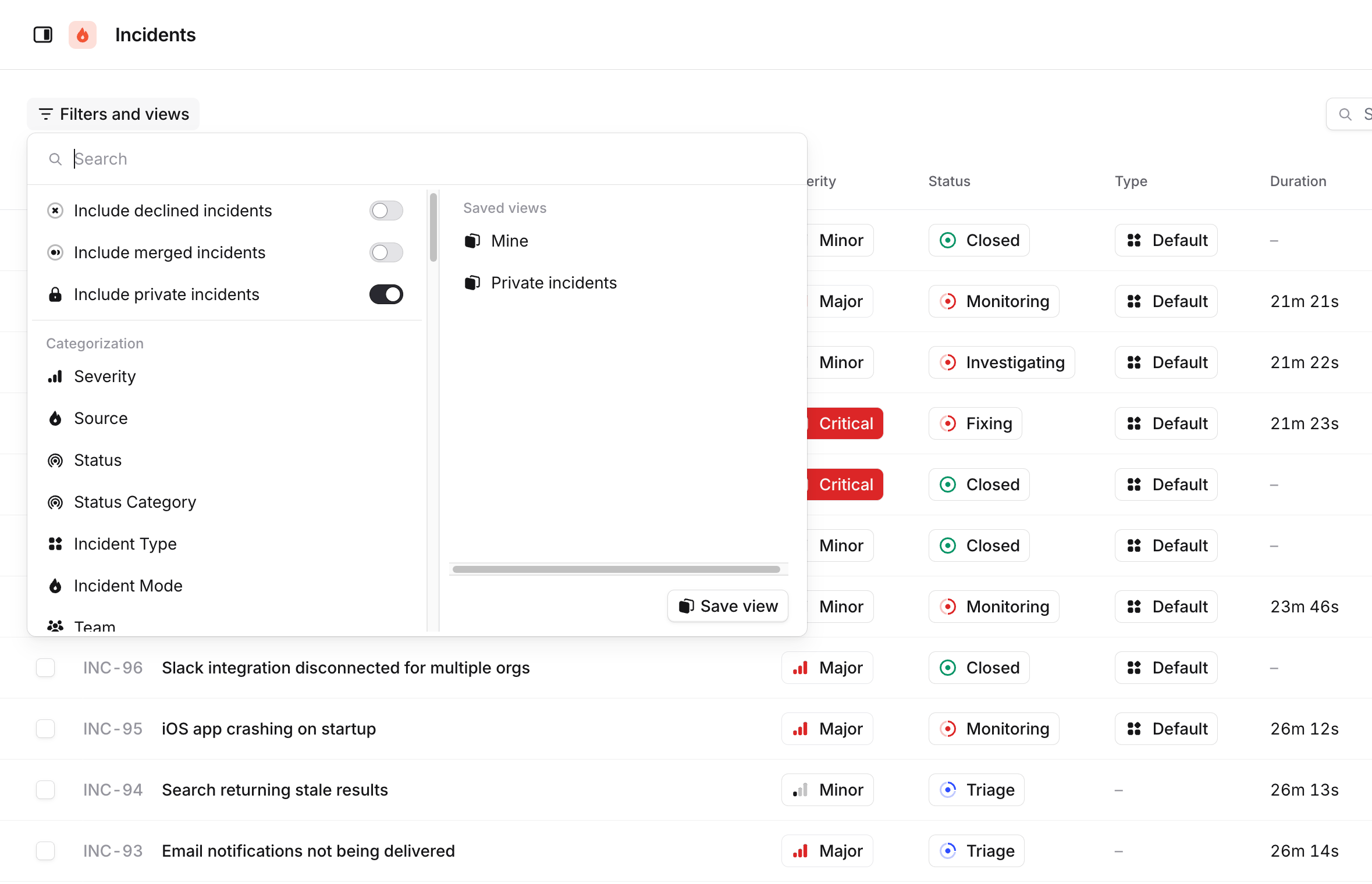
Because private incidents are meant to be discreet, you may need to turn on the **Include private incidents** option to see the ones you have access to.
 ## Enabling private incidents
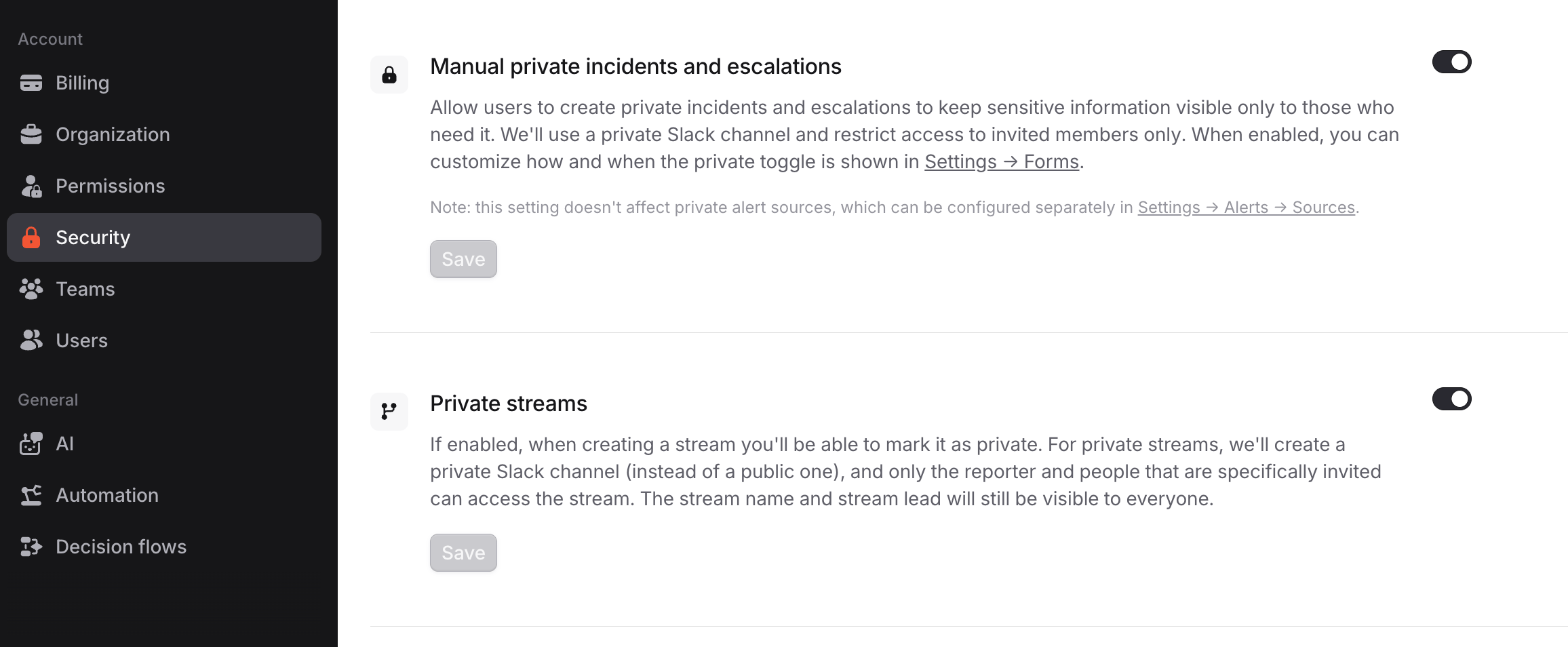
If you're an [Admin or Owner](/admin/user-permissions), opt in to private incidents from **Settings → [Security](https://app.incident.io/~/settings/security)**.
## Enabling private incidents
If you're an [Admin or Owner](/admin/user-permissions), opt in to private incidents from **Settings → [Security](https://app.incident.io/~/settings/security)**.
 Using Microsoft Teams? Private incidents run as private group chats, and enabling them may require re-authorizing our
bot. See [using private incidents in Microsoft Teams](/getting-started/teams-private-incidents).
## Making an incident private
You can make an incident private when you declare it, automatically from an alert, or by converting an existing public incident.
### Declare a private incident
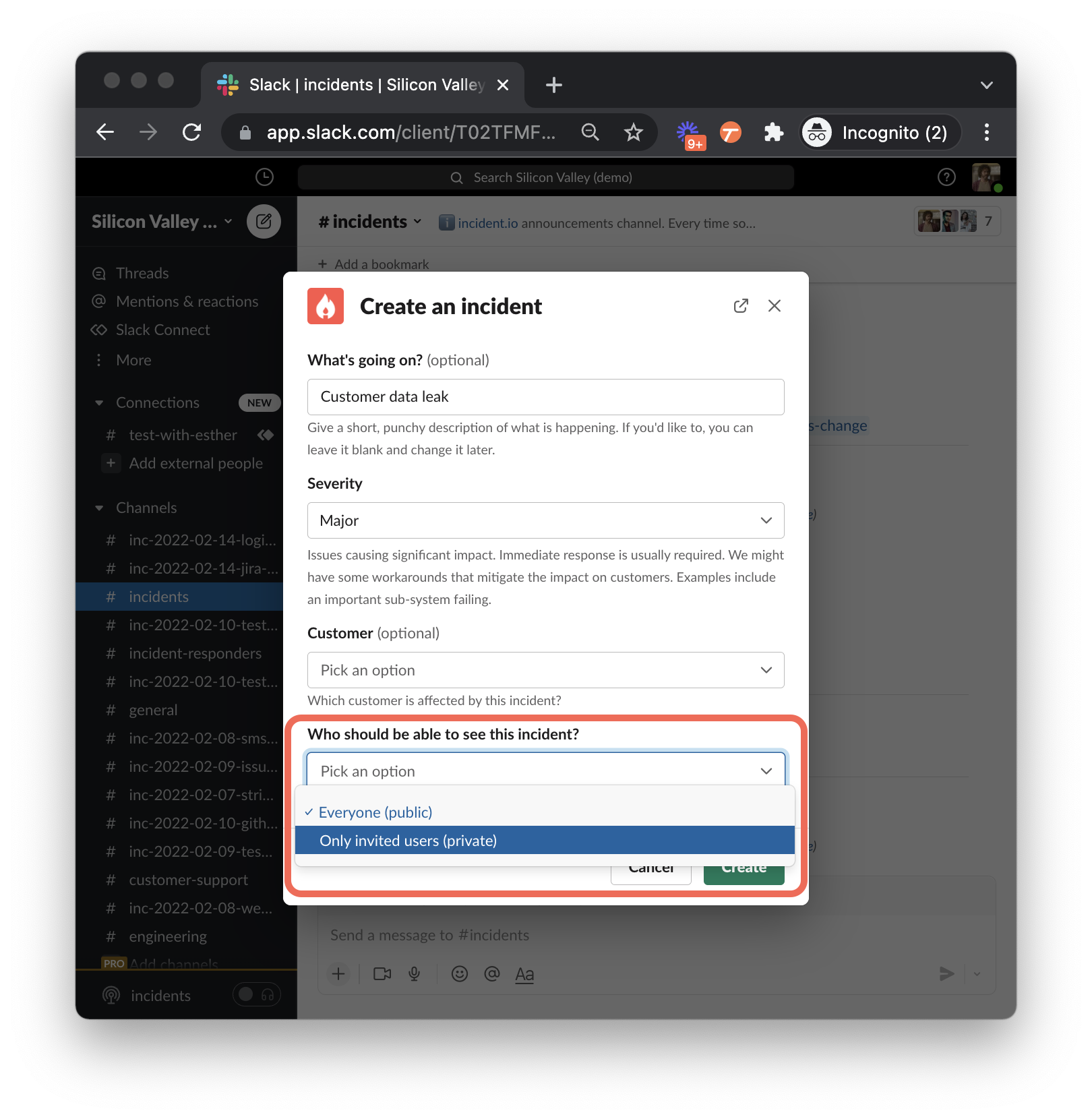
Declare an incident using the `/incident` Slack command (or any [other method](/incidents/declaring)). In the declaration form, set **Who should be able to see this incident?** to **Only invited users (private)**.
Using Microsoft Teams? Private incidents run as private group chats, and enabling them may require re-authorizing our
bot. See [using private incidents in Microsoft Teams](/getting-started/teams-private-incidents).
## Making an incident private
You can make an incident private when you declare it, automatically from an alert, or by converting an existing public incident.
### Declare a private incident
Declare an incident using the `/incident` Slack command (or any [other method](/incidents/declaring)). In the declaration form, set **Who should be able to see this incident?** to **Only invited users (private)**.
 Use [incident types](/incidents/incident-types) to make an entire category of incident private by default, such as
every Security incident. You can also pre-authorize the teams that should see them. See [default team
access](#set-default-team-access).
### Create a private incident from an alert
You can create private incidents automatically from alerts using private alert routes. Any incoming alerts then create private incidents by default. See [private alerts](/alerts/private-incidents).
### Convert between public and private
If you're not sure whether an incident should be private when you declare it, you can change your mind later:
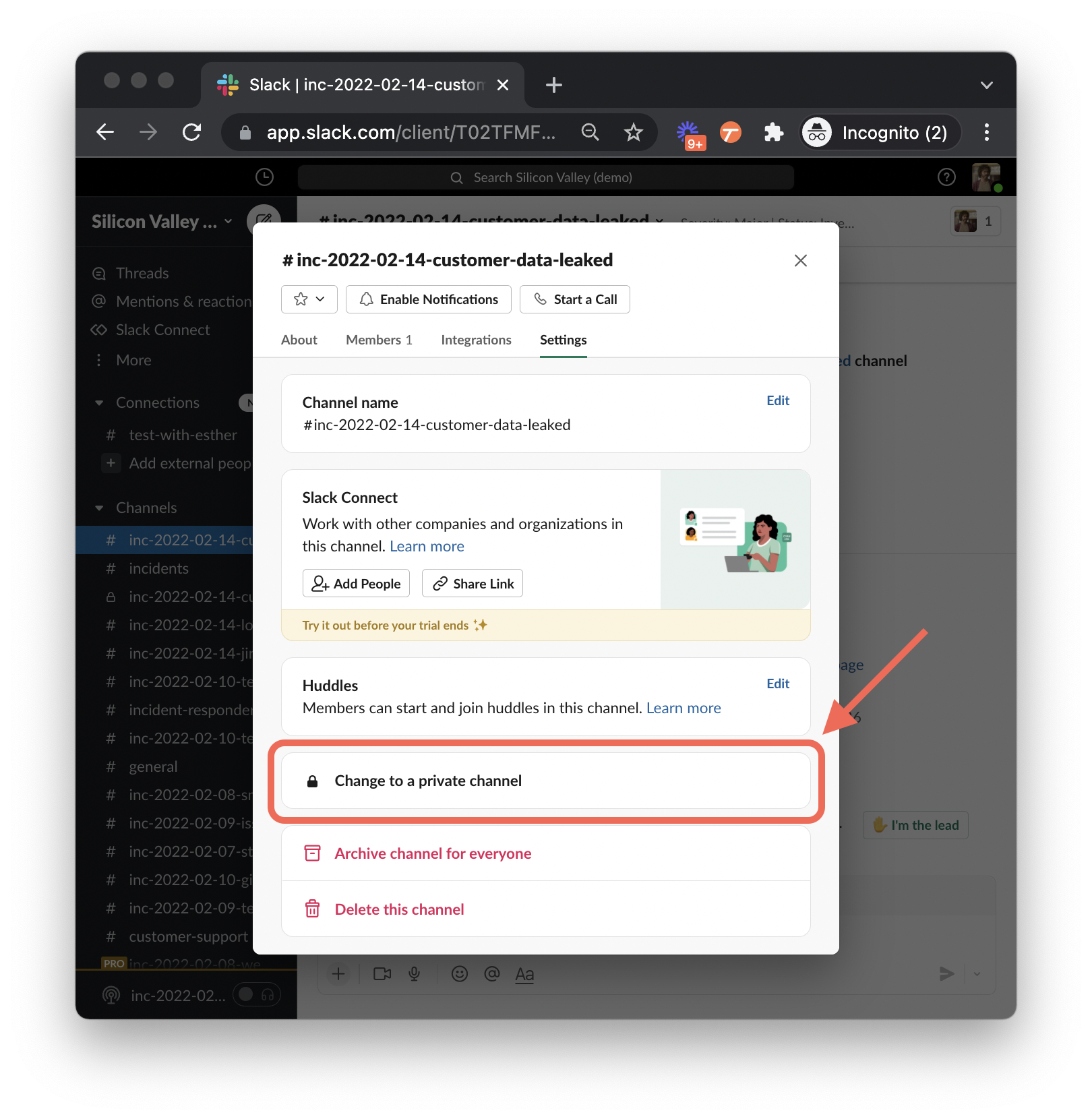
* **Public to private:** make the incident's `#inc-...` channel private in Slack, and we'll lock the incident down to match.
* **Private to public:** [convert the channel back to public](https://slack.com/intl/en-gb/help/articles/213185467-Convert-a-channel-to-private-or-public), and we'll do the same to the incident.
Use [incident types](/incidents/incident-types) to make an entire category of incident private by default, such as
every Security incident. You can also pre-authorize the teams that should see them. See [default team
access](#set-default-team-access).
### Create a private incident from an alert
You can create private incidents automatically from alerts using private alert routes. Any incoming alerts then create private incidents by default. See [private alerts](/alerts/private-incidents).
### Convert between public and private
If you're not sure whether an incident should be private when you declare it, you can change your mind later:
* **Public to private:** make the incident's `#inc-...` channel private in Slack, and we'll lock the incident down to match.
* **Private to public:** [convert the channel back to public](https://slack.com/intl/en-gb/help/articles/213185467-Convert-a-channel-to-private-or-public), and we'll do the same to the incident.
 ## Who can see a private incident
A person can see a private incident if any of the following are true:
| Access | How they get it |
| ------------------------- | ------------------------------------------------------------------------------------------------------------------------------------ |
| **Direct access** | They were invited to the incident individually. |
| **Team access** | They belong to a [team that's been granted access](#grant-access-to-a-team) (including its [sub-teams](/catalog/team-structure)). |
| **Org-wide access** | They hold the **Manage private incidents** permission, which grants access to every private incident in your organization. |
| **Slack workspace admin** | Slack workspace admins can access all private channels, so they can reach any private incident regardless of their incident.io role. |
Direct and team access sit alongside each other. Someone might have access because they were invited directly, because one of their teams was granted access, or both.
## Managing access
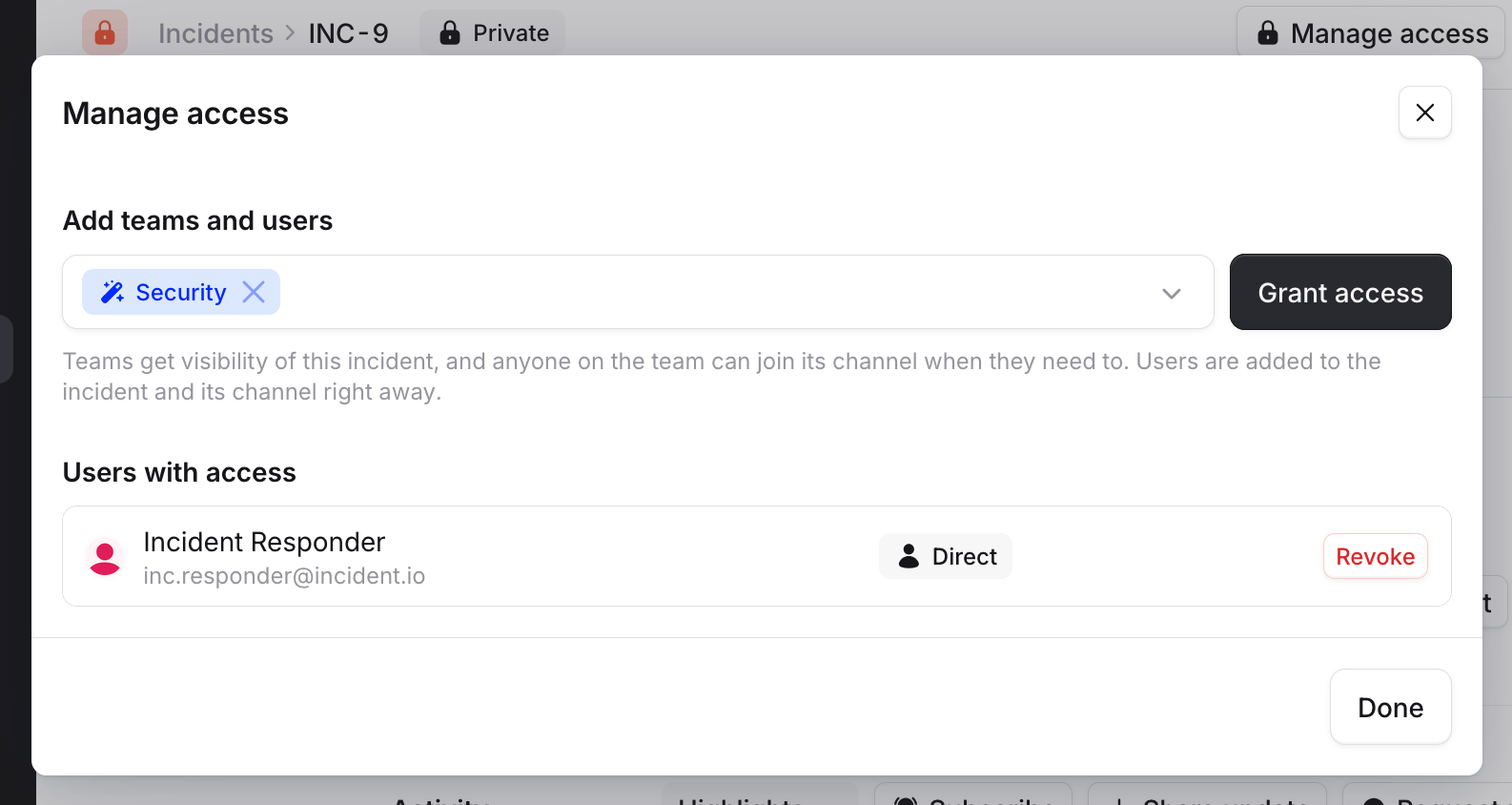
Open the incident and select **Manage access** to see who has access and to grant or revoke it. The incident's homepage also shows who has taken part: **Active participants** and **Observers** remain listed even if their access is later revoked.
## Who can see a private incident
A person can see a private incident if any of the following are true:
| Access | How they get it |
| ------------------------- | ------------------------------------------------------------------------------------------------------------------------------------ |
| **Direct access** | They were invited to the incident individually. |
| **Team access** | They belong to a [team that's been granted access](#grant-access-to-a-team) (including its [sub-teams](/catalog/team-structure)). |
| **Org-wide access** | They hold the **Manage private incidents** permission, which grants access to every private incident in your organization. |
| **Slack workspace admin** | Slack workspace admins can access all private channels, so they can reach any private incident regardless of their incident.io role. |
Direct and team access sit alongside each other. Someone might have access because they were invited directly, because one of their teams was granted access, or both.
## Managing access
Open the incident and select **Manage access** to see who has access and to grant or revoke it. The incident's homepage also shows who has taken part: **Active participants** and **Observers** remain listed even if their access is later revoked.
 ### Grant access to a person
Invite individual users from **Manage access**. People you invite are added to the incident's Slack channel automatically and can view the incident homepage.
When you revoke someone's access, they're removed from the Slack channel and can no longer see the incident or find it on their dashboard.
If your Slack workspace restricts who can remove people from channels, we can't automatically remove a user. You'll
need to ask them to leave, or have a workspace admin remove them, before their access is fully revoked.
### Grant access to a team
Instead of inviting people one at a time, you can grant access to a whole team. This is useful when a team routinely handles confidential work, like a security team that owns every sensitive incident. Grant the team once, and new members get access automatically without anyone having to remember to invite them.
Team access gives members **visibility**, not an automatic seat in the Slack channel. People aren't pulled in. They
add themselves from the [announcement post](/incidents/announcing-private-incidents) or from the incident's dashboard
when they need to get involved.
When a team is granted access:
* Every member of the team, and of its [sub-teams](/catalog/team-structure), can view the incident in the dashboard.
* Members can self-join the incident's Slack channel, but aren't added automatically.
* The incident can be [announced](/incidents/announcing-private-incidents) to a channel the team watches, so they can discover incidents they have access to.
To grant team access, open **Manage access**, add the teams (and any individual users) you want, then select **Grant access**.
Before access is granted, we show a preview of exactly who will be affected, so you can be confident you're sharing with the right people:
* A per-team breakdown of how many members each team has.
* The people who will newly gain access.
* Members who **already have access**, annotated with how: directly, via another team, or because they hold the **Manage private incidents** permission (shown as **Global**).
\[include screenshot: the Grant access preview modal, with a team (e.g. Security) expanded to show its members, one badged as already having access via the Manage private incidents permission]
The **Manage access** dialog lists everyone with access, showing whether each person has it directly or via a team, so you can revoke when needed.
\[include screenshot: the Manage access dialog showing a team chip, the users-with-access list with Direct and "joined via team" badges, and Revoke actions]
### Revoke a team
Revoke a team from **Manage access**, or via the [API](#public-api). As with granting, we preview who's affected first.
Revoking a team removes its members' access, including removing them from the incident's Slack channel. We won't remove anyone who still has another valid route to the incident, though: a direct invitation, another team that still has access, or the org-wide **Manage private incidents** permission. Those people keep their access, and the revoke preview shows you exactly who.
To remove someone who keeps access through another route, revoke that route too. For example, revoke their direct access individually.
If you revoke a team you belong to and you have no other route to the incident, you'll lose your own access. Check the
revoke preview before confirming.
## Set default team access
Rather than granting the same team access to every incident of a kind, you can pre-authorize teams so they get access automatically. There are three ways to do this.
### Incident types
Make every incident of a given type private, and choose which teams get access by default.
Navigate to **Settings → [Incident types](https://app.incident.io/~/settings/incident-types)**, edit a type, and under **Privacy** enable **Private by default**. Then add the teams that should be able to view private incidents of this type. We show a running count of how many people across how many teams that covers.
\[include screenshot: the Privacy section of the incident type form, with Private by default enabled and a Security team added, showing the "X people across Y teams" count]
Once default teams are configured, you can't turn off **Private by default** unless you hold the **Manage default team
access for incident types** permission, because doing so would silently remove those teams' access.
### Workflows
Use the **Grant team access to private incident** [workflow step](/incidents/private-incident-workflows) to grant teams access based on incident conditions. For example, grant your security team access to any incident tagged as a security issue. See [workflows on private incidents](/incidents/private-incident-workflows).
### Public API
Grant and revoke team access programmatically with the [Incident Team Memberships API](https://docs.incident.io/api-reference), so you can wire private-incident access into your own tooling. **Create** grants a team access to a private incident; **Revoke** removes it.
## Requesting access
Only people who already have access can see a private incident, so private incidents are undiscoverable to everyone else. If someone outside the incident is [paged about it](/incidents/escalating), or sent a link to the channel, they can request access from a placeholder page.
### Grant access to a person
Invite individual users from **Manage access**. People you invite are added to the incident's Slack channel automatically and can view the incident homepage.
When you revoke someone's access, they're removed from the Slack channel and can no longer see the incident or find it on their dashboard.
If your Slack workspace restricts who can remove people from channels, we can't automatically remove a user. You'll
need to ask them to leave, or have a workspace admin remove them, before their access is fully revoked.
### Grant access to a team
Instead of inviting people one at a time, you can grant access to a whole team. This is useful when a team routinely handles confidential work, like a security team that owns every sensitive incident. Grant the team once, and new members get access automatically without anyone having to remember to invite them.
Team access gives members **visibility**, not an automatic seat in the Slack channel. People aren't pulled in. They
add themselves from the [announcement post](/incidents/announcing-private-incidents) or from the incident's dashboard
when they need to get involved.
When a team is granted access:
* Every member of the team, and of its [sub-teams](/catalog/team-structure), can view the incident in the dashboard.
* Members can self-join the incident's Slack channel, but aren't added automatically.
* The incident can be [announced](/incidents/announcing-private-incidents) to a channel the team watches, so they can discover incidents they have access to.
To grant team access, open **Manage access**, add the teams (and any individual users) you want, then select **Grant access**.
Before access is granted, we show a preview of exactly who will be affected, so you can be confident you're sharing with the right people:
* A per-team breakdown of how many members each team has.
* The people who will newly gain access.
* Members who **already have access**, annotated with how: directly, via another team, or because they hold the **Manage private incidents** permission (shown as **Global**).
\[include screenshot: the Grant access preview modal, with a team (e.g. Security) expanded to show its members, one badged as already having access via the Manage private incidents permission]
The **Manage access** dialog lists everyone with access, showing whether each person has it directly or via a team, so you can revoke when needed.
\[include screenshot: the Manage access dialog showing a team chip, the users-with-access list with Direct and "joined via team" badges, and Revoke actions]
### Revoke a team
Revoke a team from **Manage access**, or via the [API](#public-api). As with granting, we preview who's affected first.
Revoking a team removes its members' access, including removing them from the incident's Slack channel. We won't remove anyone who still has another valid route to the incident, though: a direct invitation, another team that still has access, or the org-wide **Manage private incidents** permission. Those people keep their access, and the revoke preview shows you exactly who.
To remove someone who keeps access through another route, revoke that route too. For example, revoke their direct access individually.
If you revoke a team you belong to and you have no other route to the incident, you'll lose your own access. Check the
revoke preview before confirming.
## Set default team access
Rather than granting the same team access to every incident of a kind, you can pre-authorize teams so they get access automatically. There are three ways to do this.
### Incident types
Make every incident of a given type private, and choose which teams get access by default.
Navigate to **Settings → [Incident types](https://app.incident.io/~/settings/incident-types)**, edit a type, and under **Privacy** enable **Private by default**. Then add the teams that should be able to view private incidents of this type. We show a running count of how many people across how many teams that covers.
\[include screenshot: the Privacy section of the incident type form, with Private by default enabled and a Security team added, showing the "X people across Y teams" count]
Once default teams are configured, you can't turn off **Private by default** unless you hold the **Manage default team
access for incident types** permission, because doing so would silently remove those teams' access.
### Workflows
Use the **Grant team access to private incident** [workflow step](/incidents/private-incident-workflows) to grant teams access based on incident conditions. For example, grant your security team access to any incident tagged as a security issue. See [workflows on private incidents](/incidents/private-incident-workflows).
### Public API
Grant and revoke team access programmatically with the [Incident Team Memberships API](https://docs.incident.io/api-reference), so you can wire private-incident access into your own tooling. **Create** grants a team access to a private incident; **Revoke** removes it.
## Requesting access
Only people who already have access can see a private incident, so private incidents are undiscoverable to everyone else. If someone outside the incident is [paged about it](/incidents/escalating), or sent a link to the channel, they can request access from a placeholder page.
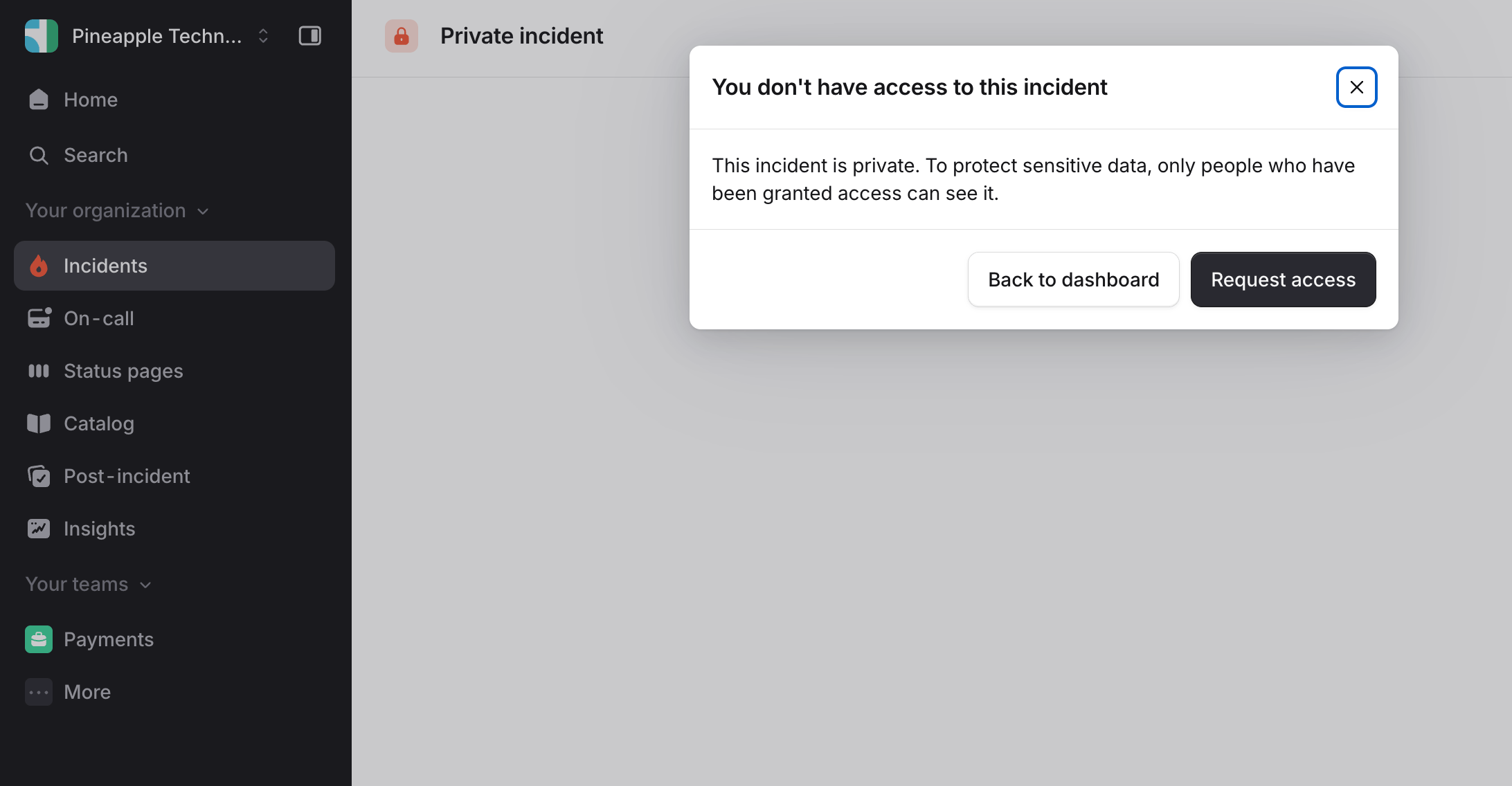 Requesting access sends a message to the incident channel, where someone with access can approve or deny it.
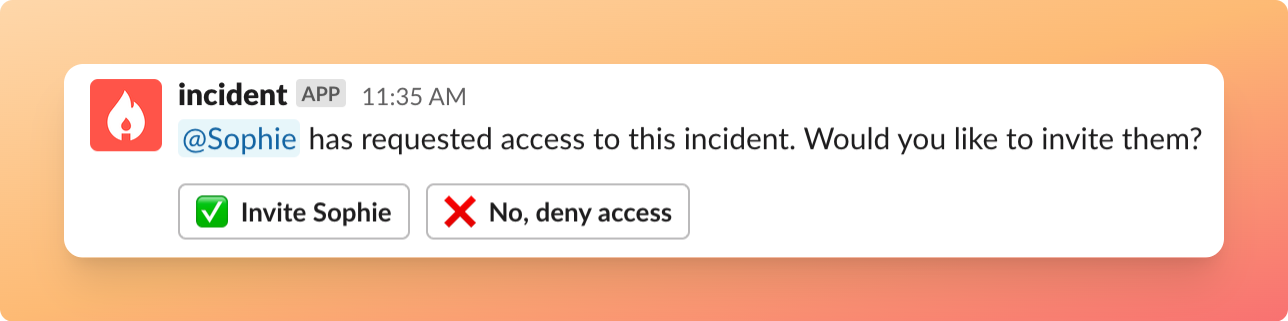 If you deny a request, we won't tell the user. A user can only request access once every 15 minutes.
## Permissions
| Action | Permission required |
| ----------------------------------------------- | ----------------------------------------------------------------------- |
| Grant or revoke access for an individual | **Manage private incident membership** (or the relevant incident role) |
| Grant or revoke access for a team | **Manage private incident team access** (or the relevant incident role) |
| Configure default teams on an incident type | **Manage default team access for incident types** |
| Announce private incidents | **Manage announcement rules that run on private incidents** |
| Run workflows on private incidents | **Manage workflows involving private incidents** |
| View every private incident in the organization | **Manage private incidents** |
See [user roles and permissions](/admin/user-permissions) for how permissions are assigned to roles.
## FAQs
If a member leaves a private channel on their own, we send a message to the channel asking whether you'd like to
remove their access to the incident. If you dismiss it, they keep their access and can rejoin from the incident
homepage at any time.
No. **Active participants** and **Observers** reflect anyone who has taken part or observed at any stage, so they
remain in the list even after their access is revoked.
Yes. You can opt specific announcement rules, workflows, or `/inc announce` into announcing private incidents, most
often to a private channel watched by the team that has access. Anyone in the channel you choose will see the
announcement, so choose carefully. See [announcing private incidents](/incidents/announcing-private-incidents).
## Related
* [Announcing private incidents](/incidents/announcing-private-incidents): announce private incidents safely
* [Workflows on private incidents](/incidents/private-incident-workflows): automate response on private incidents
* [Private alerts](/alerts/private-incidents): create private incidents automatically from alerts
* [Team structure](/catalog/team-structure): how teams and sub-teams work
If you deny a request, we won't tell the user. A user can only request access once every 15 minutes.
## Permissions
| Action | Permission required |
| ----------------------------------------------- | ----------------------------------------------------------------------- |
| Grant or revoke access for an individual | **Manage private incident membership** (or the relevant incident role) |
| Grant or revoke access for a team | **Manage private incident team access** (or the relevant incident role) |
| Configure default teams on an incident type | **Manage default team access for incident types** |
| Announce private incidents | **Manage announcement rules that run on private incidents** |
| Run workflows on private incidents | **Manage workflows involving private incidents** |
| View every private incident in the organization | **Manage private incidents** |
See [user roles and permissions](/admin/user-permissions) for how permissions are assigned to roles.
## FAQs
If a member leaves a private channel on their own, we send a message to the channel asking whether you'd like to
remove their access to the incident. If you dismiss it, they keep their access and can rejoin from the incident
homepage at any time.
No. **Active participants** and **Observers** reflect anyone who has taken part or observed at any stage, so they
remain in the list even after their access is revoked.
Yes. You can opt specific announcement rules, workflows, or `/inc announce` into announcing private incidents, most
often to a private channel watched by the team that has access. Anyone in the channel you choose will see the
announcement, so choose carefully. See [announcing private incidents](/incidents/announcing-private-incidents).
## Related
* [Announcing private incidents](/incidents/announcing-private-incidents): announce private incidents safely
* [Workflows on private incidents](/incidents/private-incident-workflows): automate response on private incidents
* [Private alerts](/alerts/private-incidents): create private incidents automatically from alerts
* [Team structure](/catalog/team-structure): how teams and sub-teams work