> ## Documentation Index
> Fetch the complete documentation index at: https://docs.incident.io/llms.txt
> Use this file to discover all available pages before exploring further.
# Incident Lifecycle
Your incidents go through a lifecycle, for example:
Declared → Investigating → Fixing → Monitoring → Closed
You can customize the lifecycle of your incidents, to match your organization's process at [Settings > Respond > Lifecycle](https://app.incident.io/~/settings/lifecycle)
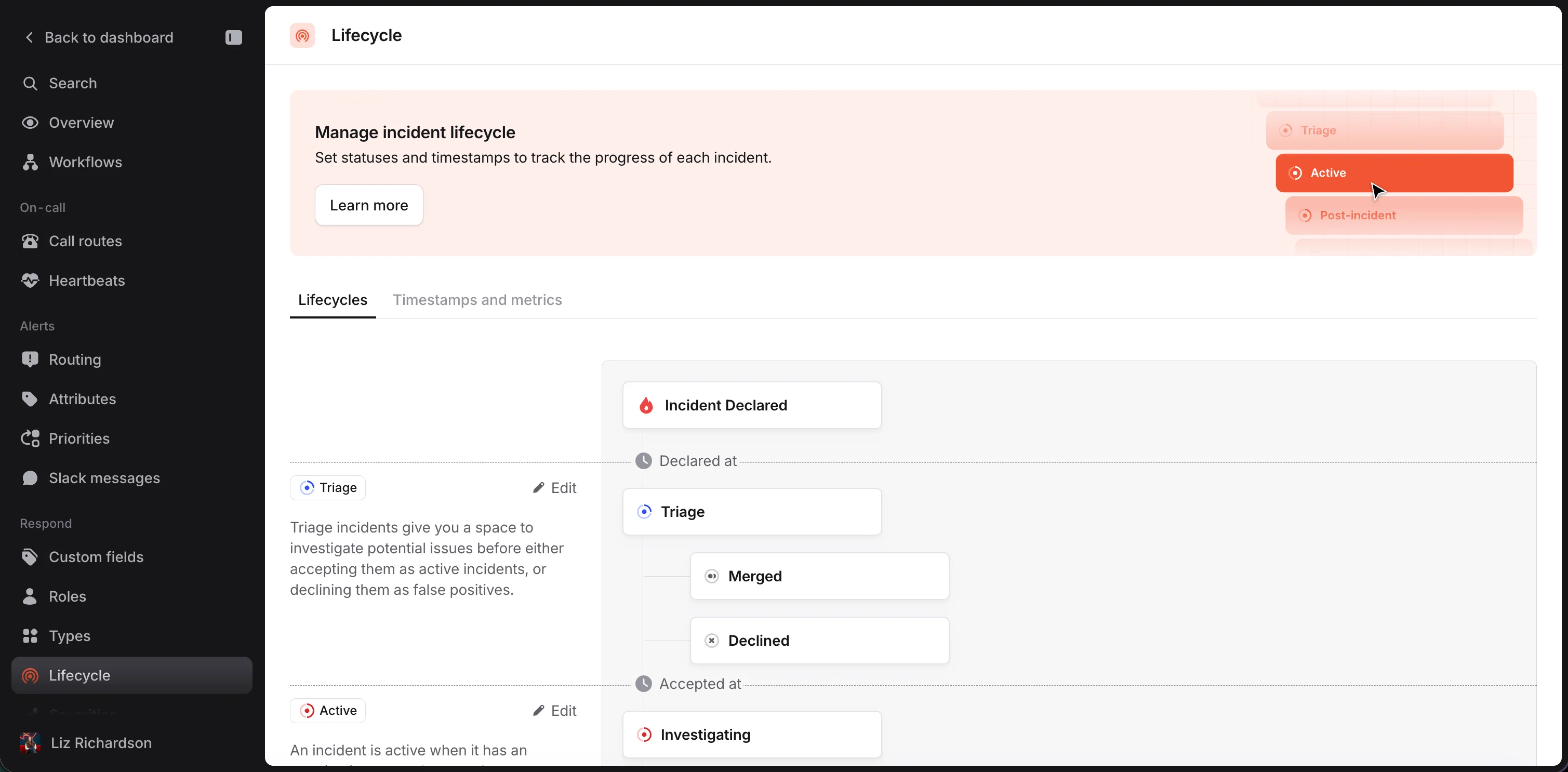 There are three main stages of the incident lifecycle you can configure: **triage**, **active**, and **post-incident**.
You can also configure how **timestamps** are set when an incident moves between statuses.
***
## 1. Triage
You can learn more about triage incidents [here](/incidents/triaging). Incidents created [automatically from an alert](/incidents/auto-create) or via [our API](/integrations/api-overview) will start in triage. You can configure whether or not incidents created manually can go through triage [here](https://app.incident.io/~/settings/lifecycle).
***
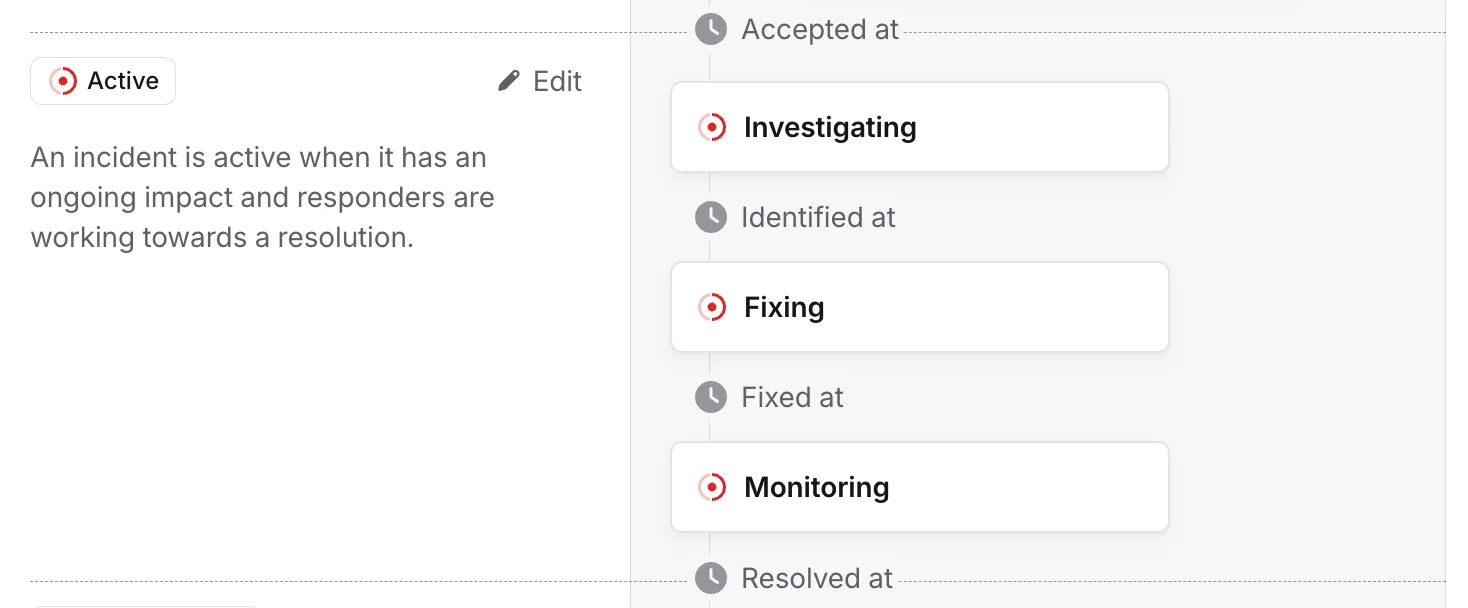
## 2. Active
These statuses indicate the condition of your incident at a single point in time, while there's still ongoing impact and responders are working towards a resolution. The default statuses are: Investigating, Fixing, and Monitoring.
There are three main stages of the incident lifecycle you can configure: **triage**, **active**, and **post-incident**.
You can also configure how **timestamps** are set when an incident moves between statuses.
***
## 1. Triage
You can learn more about triage incidents [here](/incidents/triaging). Incidents created [automatically from an alert](/incidents/auto-create) or via [our API](/integrations/api-overview) will start in triage. You can configure whether or not incidents created manually can go through triage [here](https://app.incident.io/~/settings/lifecycle).
***
## 2. Active
These statuses indicate the condition of your incident at a single point in time, while there's still ongoing impact and responders are working towards a resolution. The default statuses are: Investigating, Fixing, and Monitoring.
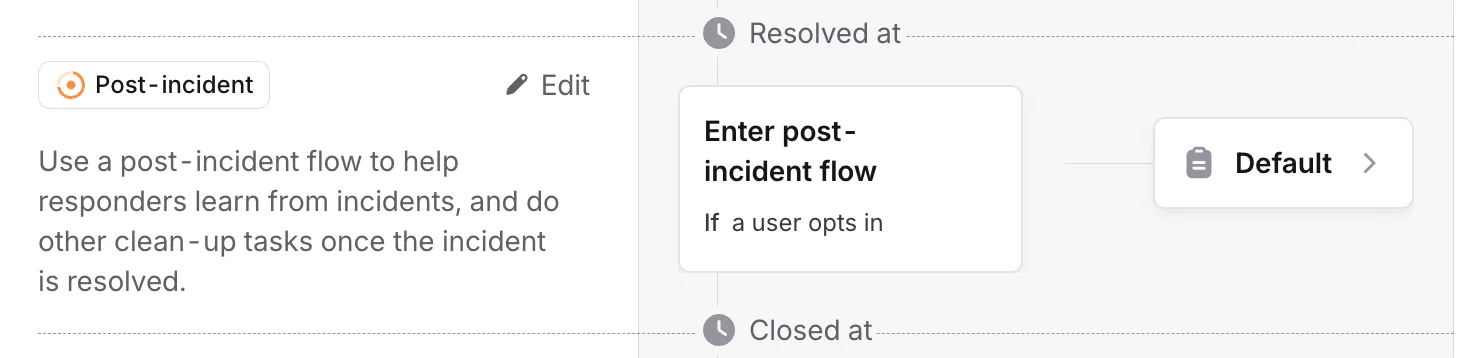
 ## 3. Post-incident
Once the immediate impact is over, an incident can then enter a [post-incident flow](/post-incident/post-incident-flow), where you can define tasks for responders to complete now that there's time to reflect on what went wrong, and how to prevent it happening again.
Define your process in [Settings > Improve > Post-incident flow](https://app.incident.io/~/settings/post-incident-flow), and set the rules for which incidents should automatically enter the flow. Responders can always opt-in or opt-out of the flow.
## 3. Post-incident
Once the immediate impact is over, an incident can then enter a [post-incident flow](/post-incident/post-incident-flow), where you can define tasks for responders to complete now that there's time to reflect on what went wrong, and how to prevent it happening again.
Define your process in [Settings > Improve > Post-incident flow](https://app.incident.io/~/settings/post-incident-flow), and set the rules for which incidents should automatically enter the flow. Responders can always opt-in or opt-out of the flow.
 ***
## Team ownership and permissions
If you run different lifecycles for different teams, you can give a lifecycle an **owning team** so that only that team can change it. When editing a lifecycle, use the **Lifecycle owner** field to choose which team (or teams) own it.
Once a lifecycle has an owning team, only the following can change its statuses, post-incident flow, and other configuration:
* Anyone with the **Manage incident lifecycles** permission granted globally, such as an admin
* Members of an owning team who have the permission granted to that [team](/admin/team-roles)
Your **default** lifecycle can't be owned by a team: it applies to every incident across your organization, so changes to it always require the permission granted globally. The same goes for reassigning ownership of any lifecycle.
For how to set this up, see [Restrict incident type management to a team](/admin/restrict-incident-type-management), which covers lifecycles too.
***
## 4. Timestamps and metrics
***
## Team ownership and permissions
If you run different lifecycles for different teams, you can give a lifecycle an **owning team** so that only that team can change it. When editing a lifecycle, use the **Lifecycle owner** field to choose which team (or teams) own it.
Once a lifecycle has an owning team, only the following can change its statuses, post-incident flow, and other configuration:
* Anyone with the **Manage incident lifecycles** permission granted globally, such as an admin
* Members of an owning team who have the permission granted to that [team](/admin/team-roles)
Your **default** lifecycle can't be owned by a team: it applies to every incident across your organization, so changes to it always require the permission granted globally. The same goes for reassigning ownership of any lifecycle.
For how to set this up, see [Restrict incident type management to a team](/admin/restrict-incident-type-management), which covers lifecycles too.
***
## 4. Timestamps and metrics
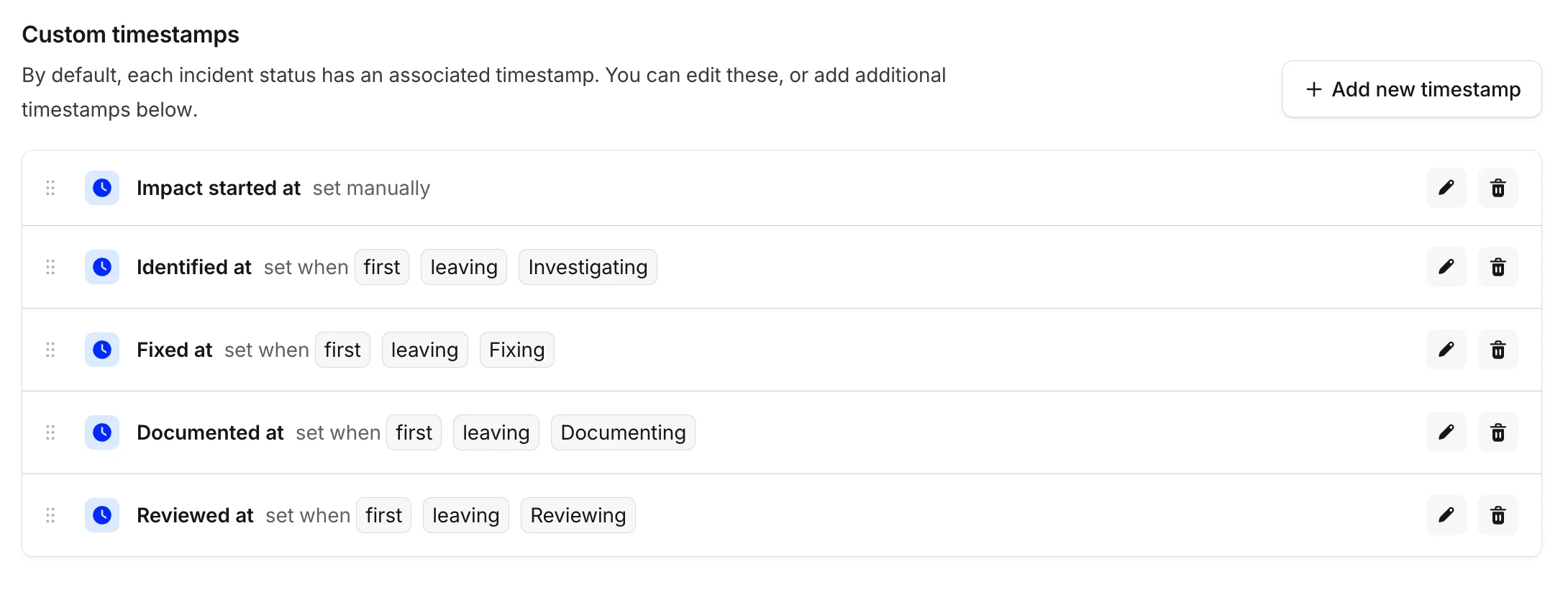 **Timestamps** are a way to store structured data about your incidents. These are useful for reporting and analysis.
By default, there's a corresponding **timestamp** for each **status**. For example, "Fixed At" is set to the first time the incident changed to the "Monitoring" status.
**Timestamps** can be set in two ways:
1. **Manually** - set by a responder, [from the Incident Homepage](/incidents/edit-timeline)
2. **Automatically** - based on an incident status transition
Often, the impact will begin sometime before an incident is declared, so a good example of an additional timestamp could be "Impact Started At", which would be manually set by a human. So, if you wish to calculate the time to resolution for your incidents, it would be more accurate to measure from when the impact started, as opposed to when the incident was declared.
You can define **custom metrics** here too, as the difference between two timestamps:
**Timestamps** are a way to store structured data about your incidents. These are useful for reporting and analysis.
By default, there's a corresponding **timestamp** for each **status**. For example, "Fixed At" is set to the first time the incident changed to the "Monitoring" status.
**Timestamps** can be set in two ways:
1. **Manually** - set by a responder, [from the Incident Homepage](/incidents/edit-timeline)
2. **Automatically** - based on an incident status transition
Often, the impact will begin sometime before an incident is declared, so a good example of an additional timestamp could be "Impact Started At", which would be manually set by a human. So, if you wish to calculate the time to resolution for your incidents, it would be more accurate to measure from when the impact started, as opposed to when the incident was declared.
You can define **custom metrics** here too, as the difference between two timestamps:
 These are available in the MTTX tab in [Insights](https://app.incident.io/~/insights).