> ## Documentation Index
> Fetch the complete documentation index at: https://docs.incident.io/llms.txt
> Use this file to discover all available pages before exploring further.
# Inviting teammates to incidents
***
## Inviting new members to incident.io
Pulling your team into incident.io is very simple:
* **Slack -** add them to the `#incidents` channel
* **Web App -** invite them through the [Users list](http://app.incident.io/~/settings/users)
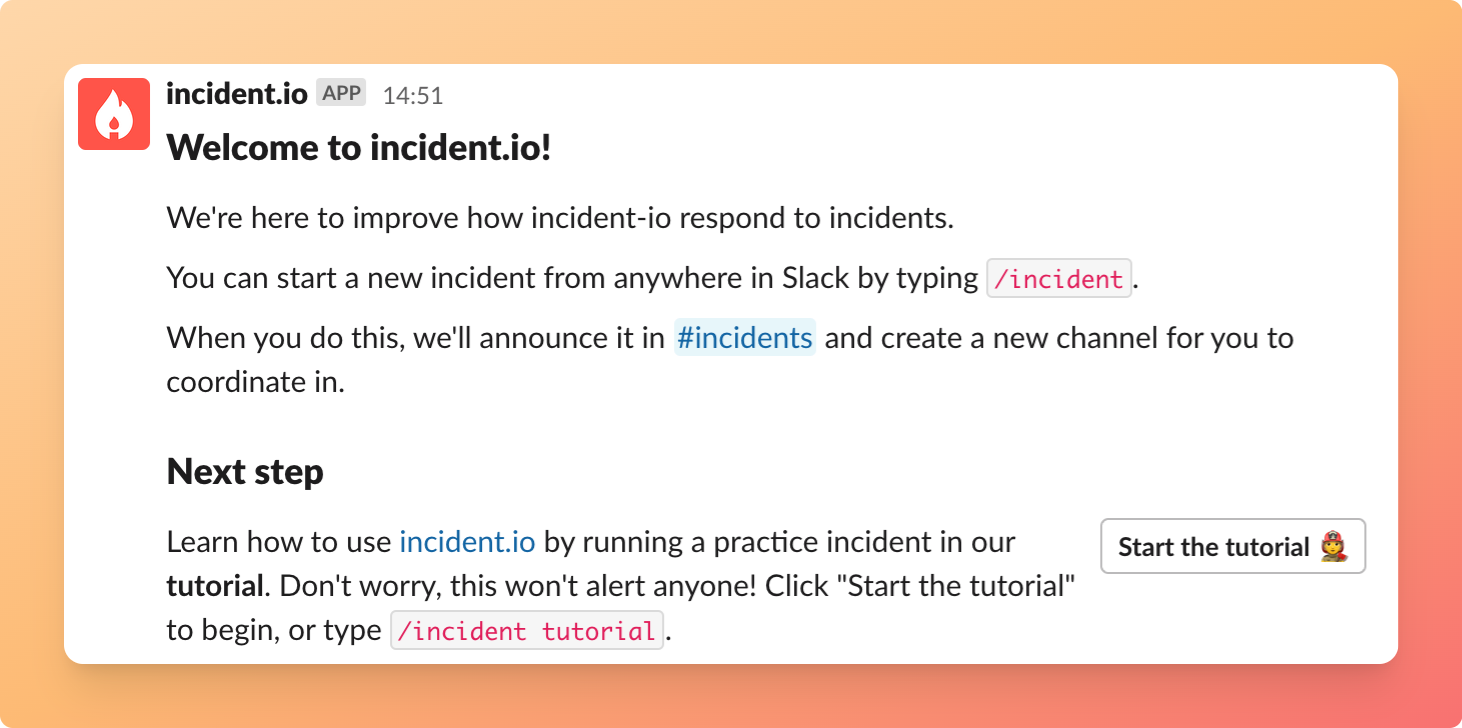
They will receive a private message from us to get them started 👇🏼
 *If you want to give new members specific* [roles and permissions](/admin/user-permissions) *, you can do so in the* [Settings > Users](http://app.incident.io/~/settings/users) *section.*
***
## Inviting teammates to a specific incident
Once you've declared an incident, we'll create a dedicated #inc-... channel for it. From there, you can invite your team of responders by simply adding them to that incident's Slack channel.
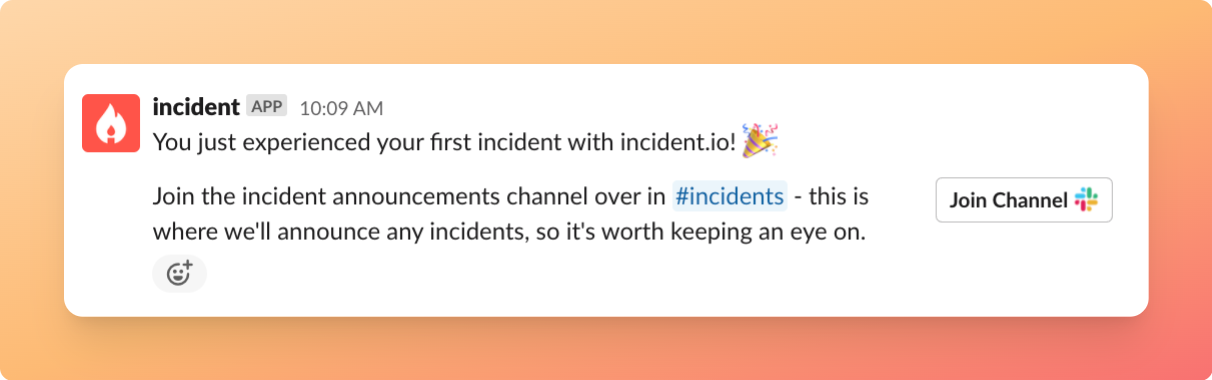
They'll receive a message to help them get going and follow our tutorial
*If you want to give new members specific* [roles and permissions](/admin/user-permissions) *, you can do so in the* [Settings > Users](http://app.incident.io/~/settings/users) *section.*
***
## Inviting teammates to a specific incident
Once you've declared an incident, we'll create a dedicated #inc-... channel for it. From there, you can invite your team of responders by simply adding them to that incident's Slack channel.
They'll receive a message to help them get going and follow our tutorial
 If you run into any issue, [get in touch](http://incident.io/community)