> ## Documentation Index
> Fetch the complete documentation index at: https://docs.incident.io/llms.txt
> Use this file to discover all available pages before exploring further.
# Escalating incidents
Sometimes, you just need to pull in someone else to help resolve an incident, or when you realise the blast radius is a little larger than anticipated...
There are 2 ways you can escalate in incident.io:
* **Hard escalation** : if you're managing an on-call rota, we can help you page someone directly from within Slack or via automations
* **Soft escalation** : you can send an email, SMS, Slack Direct Message or Slack ephemeral message to the right person
***
## Hard escalations
incident.io's [On-call](https://incident.io/on-call) solution is your best friend here and allows you to configure schedules and escalation paths which can then be used to page someone to help resolve an incident.
It's then as simple as typing `/incident escalate` or `/incident page` within an incident channel to manually escalate to the right individual or team that you need. You can also escalate from the web dashboard — and if an escalation is already in progress, click **Escalate to next level** to advance to the next tier in the escalation path with a preview of who will be paged.
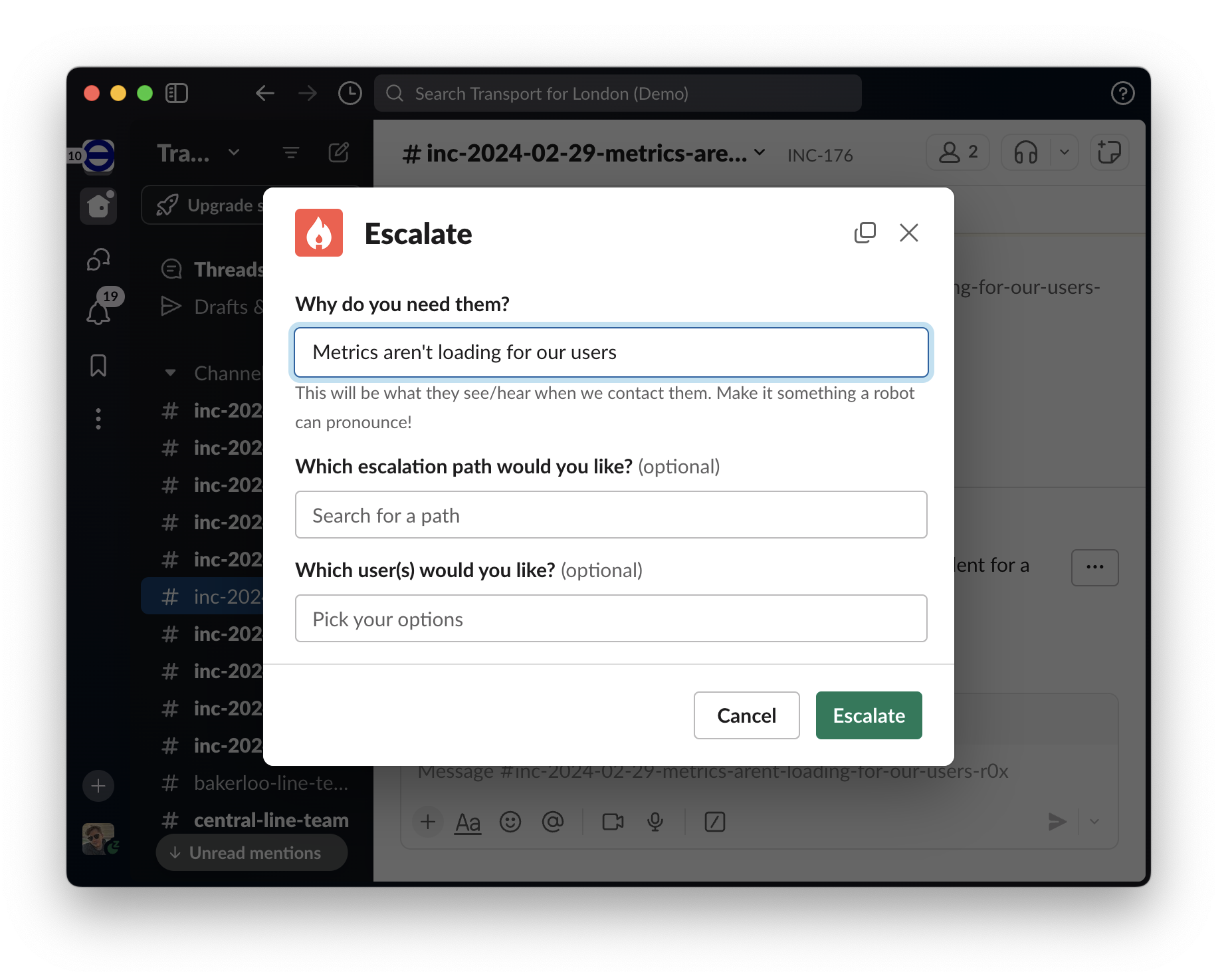 For more information on getting started with On-call including how to automate these escalations, please take a look at [this article](/on-call/getting-started).
If you already use a tool like [OpsGenie](/integrations/opsgenie), [PagerDuty](/integrations/pagerduty) or [Splunk](/integrations/splunk) as your on-call solution, you can also install an integration for either which would then let you do exactly the same thing.
Where we can, **we'll show whatever is configured in OpsGenie and PagerDuty**, so if you've set different escalation policies for different services, we'll show you those by default.
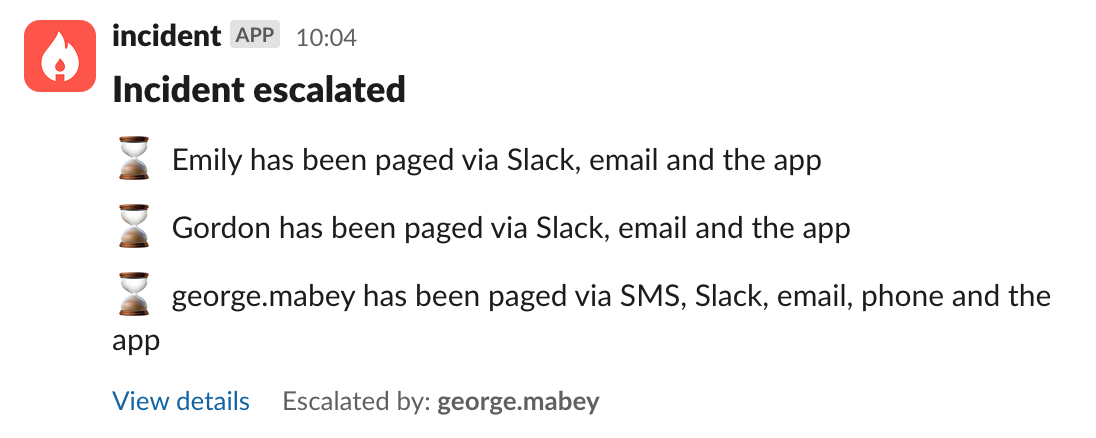
Once you've escalated, we **keep you updated on what we've done**, and when you can expect someone to join.
For more information on getting started with On-call including how to automate these escalations, please take a look at [this article](/on-call/getting-started).
If you already use a tool like [OpsGenie](/integrations/opsgenie), [PagerDuty](/integrations/pagerduty) or [Splunk](/integrations/splunk) as your on-call solution, you can also install an integration for either which would then let you do exactly the same thing.
Where we can, **we'll show whatever is configured in OpsGenie and PagerDuty**, so if you've set different escalation policies for different services, we'll show you those by default.
Once you've escalated, we **keep you updated on what we've done**, and when you can expect someone to join.
 If you're using PagerDuty, and want to hide some Services and/or Escalation Policies from the available options, you can do that by adding the tag `incident-io-ignore`. This might be useful if you have certain services or escalation policies that you only use for testing. You can read more about tagging in PagerDuty's documentation [here](https://support.pagerduty.com/docs/contextual-search).
***
## Soft escalations via email/SMS/DMs
Sometimes, an escalation can be as simple as sending someone a text message or a direct Slack message.
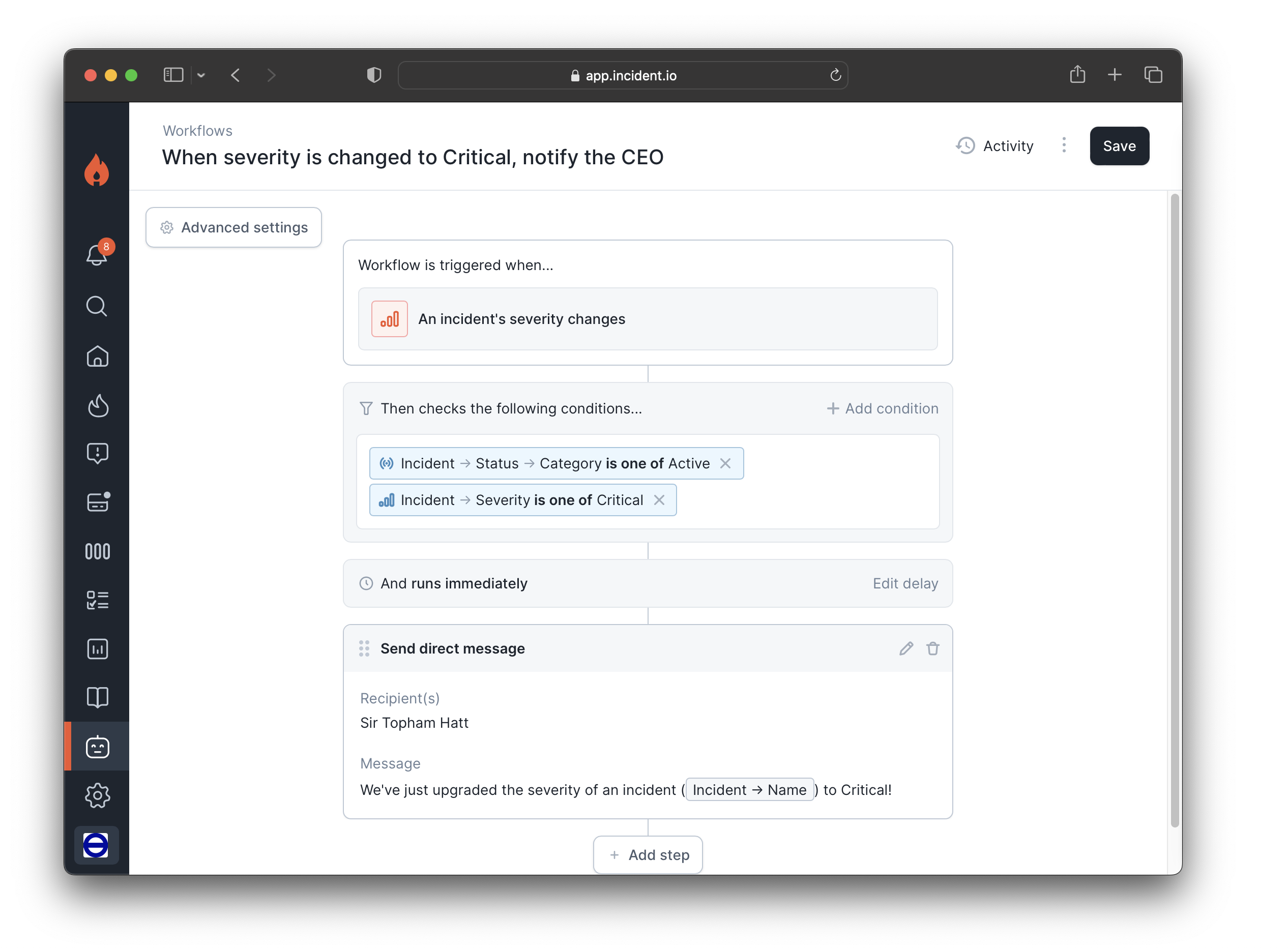
You can do that with incident.io's [Workflows](https://app.incident.io/~/workflows) directly: the `Trigger` might be e.g. the severity of the incident (Critical incidents get escalated), and the `Steps` might be an SMS to the CTO, an email to the Director of Platform...or all at the same time!
If you're using PagerDuty, and want to hide some Services and/or Escalation Policies from the available options, you can do that by adding the tag `incident-io-ignore`. This might be useful if you have certain services or escalation policies that you only use for testing. You can read more about tagging in PagerDuty's documentation [here](https://support.pagerduty.com/docs/contextual-search).
***
## Soft escalations via email/SMS/DMs
Sometimes, an escalation can be as simple as sending someone a text message or a direct Slack message.
You can do that with incident.io's [Workflows](https://app.incident.io/~/workflows) directly: the `Trigger` might be e.g. the severity of the incident (Critical incidents get escalated), and the `Steps` might be an SMS to the CTO, an email to the Director of Platform...or all at the same time!