> ## Documentation Index
> Fetch the complete documentation index at: https://docs.incident.io/llms.txt
> Use this file to discover all available pages before exploring further.
# Customizing your incident creation form using Custom Fields
You've [declared your first incident](/incidents/declaring) with our default settings and now you're wondering if you can **edit the incident declaration form to categorize incidents and track additional dimensions** such as which teams were involved, what systems were affected, or how many customers were impacted.
You've come to the right place, and yes you can!
***
## Using Custom Fields
Maybe you have different teams that look after different products, customer journeys or different systems? All these can be turned into custom fields, and there are a few reasons incident.io customers use custom fields.
## Enriching their retros & reporting
You might be looking to enrich your understanding of your incidents and narrow down on systemic issues. Or you might just need additional information for compliance or internal reporting purposes.
Either way, custom fields can help you answer questions like:
* *'Which system is most incident-prone?'*
* *'Which customers suffer the most incidents?'*
* *'Which team reacts to incidents the fastest?'*
* *'Which product is most vulnerable?'*
* ' *How many incidents involved personal data?* '
* ...
You can capture and visualize all this directly from the [incident.io Insights](https://app.incident.io/~/insights), by applying filters off the back of custom fields in the [Incidents tab](https://app.incident.io/~/incidents), and when you export a CSV of your incidents.
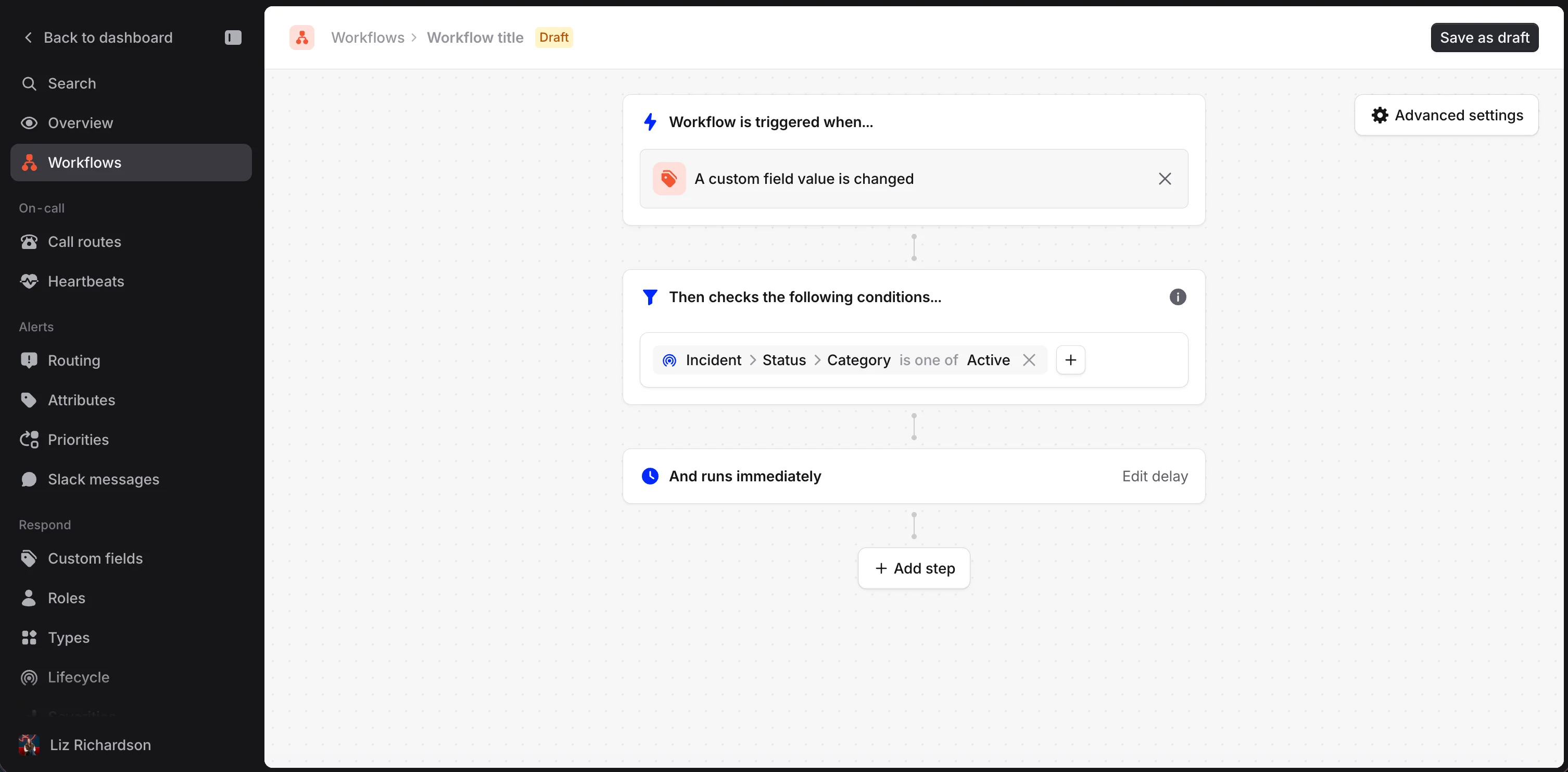
## Triggering specific automation
A very popular use case for custom fields is to use them as triggers in [Workflows](https://app.incident.io/~/workflows).
For example:
* [Escalate to specific teams/teammates](/incidents/escalating) based on the severity of an incident, or the product it affects
* Send an email to only the 3rd parties affected by an incident
* Message the `#customer-support` channel [when high-value customers are affected by an incident](/incidents/customer-updates)
* Send a Slack message to a specific Account Executive [when their customer is affected by an incident](/incidents/customer-updates)
 ***
## Setting Up Custom Fields
*Only* [Admins and Owners](/admin/user-permissions) *can edit custom fields.*
1. **Head to Settings >** [Custom Fields](https://app.incident.io/~/settings/custom-fields)
***
## Setting Up Custom Fields
*Only* [Admins and Owners](/admin/user-permissions) *can edit custom fields.*
1. **Head to Settings >** [Custom Fields](https://app.incident.io/~/settings/custom-fields)
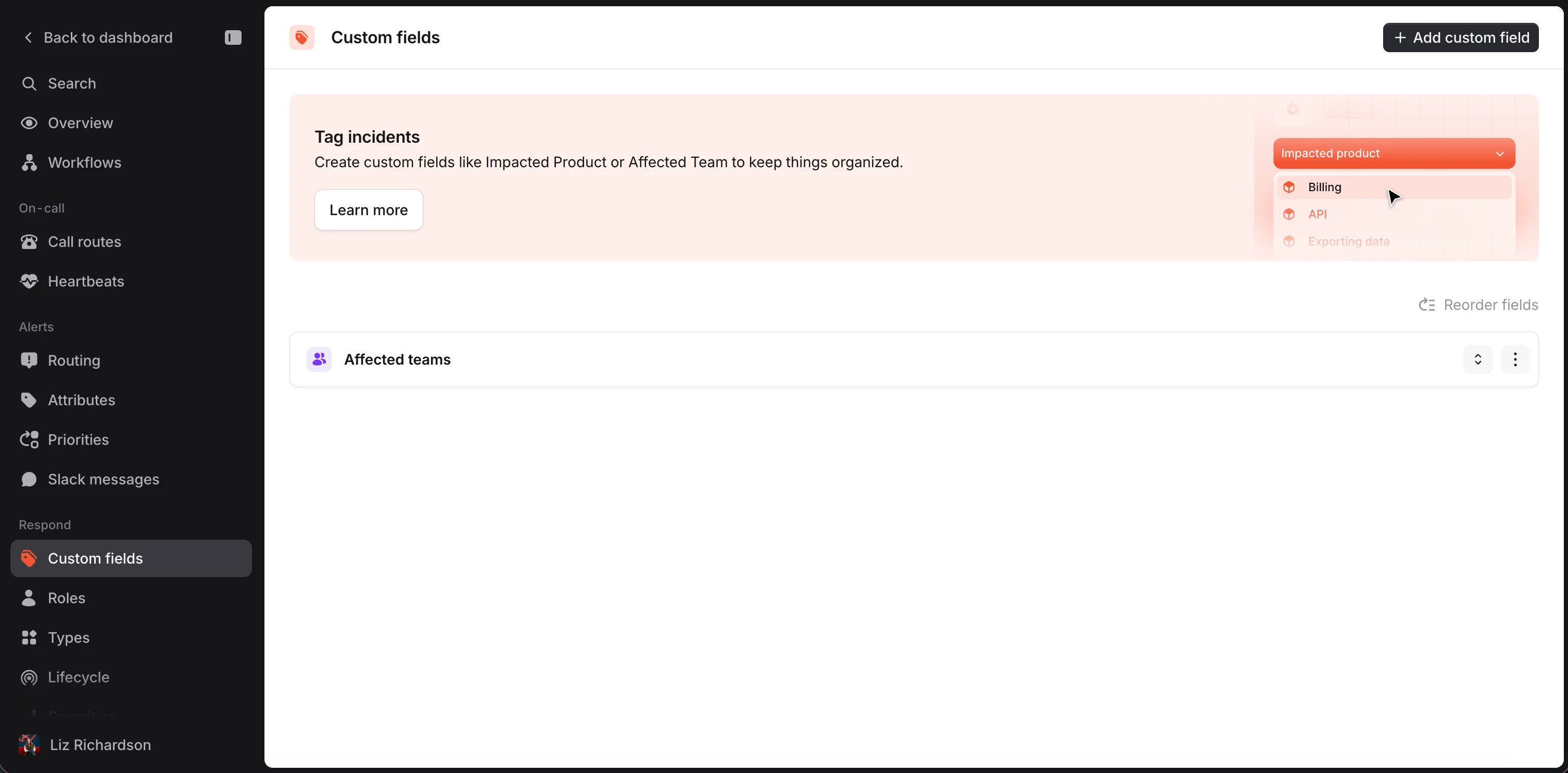 2. **Add and tweak your custom field**
Clicking on `Add New Custom Field` will pop up a creation modal from which you can control:
1. What information to collect
2. How custom field options are managed (From catalog, fixed list, dynamic list)
3. Where the custom field will be available
2. **Add and tweak your custom field**
Clicking on `Add New Custom Field` will pop up a creation modal from which you can control:
1. What information to collect
2. How custom field options are managed (From catalog, fixed list, dynamic list)
3. Where the custom field will be available
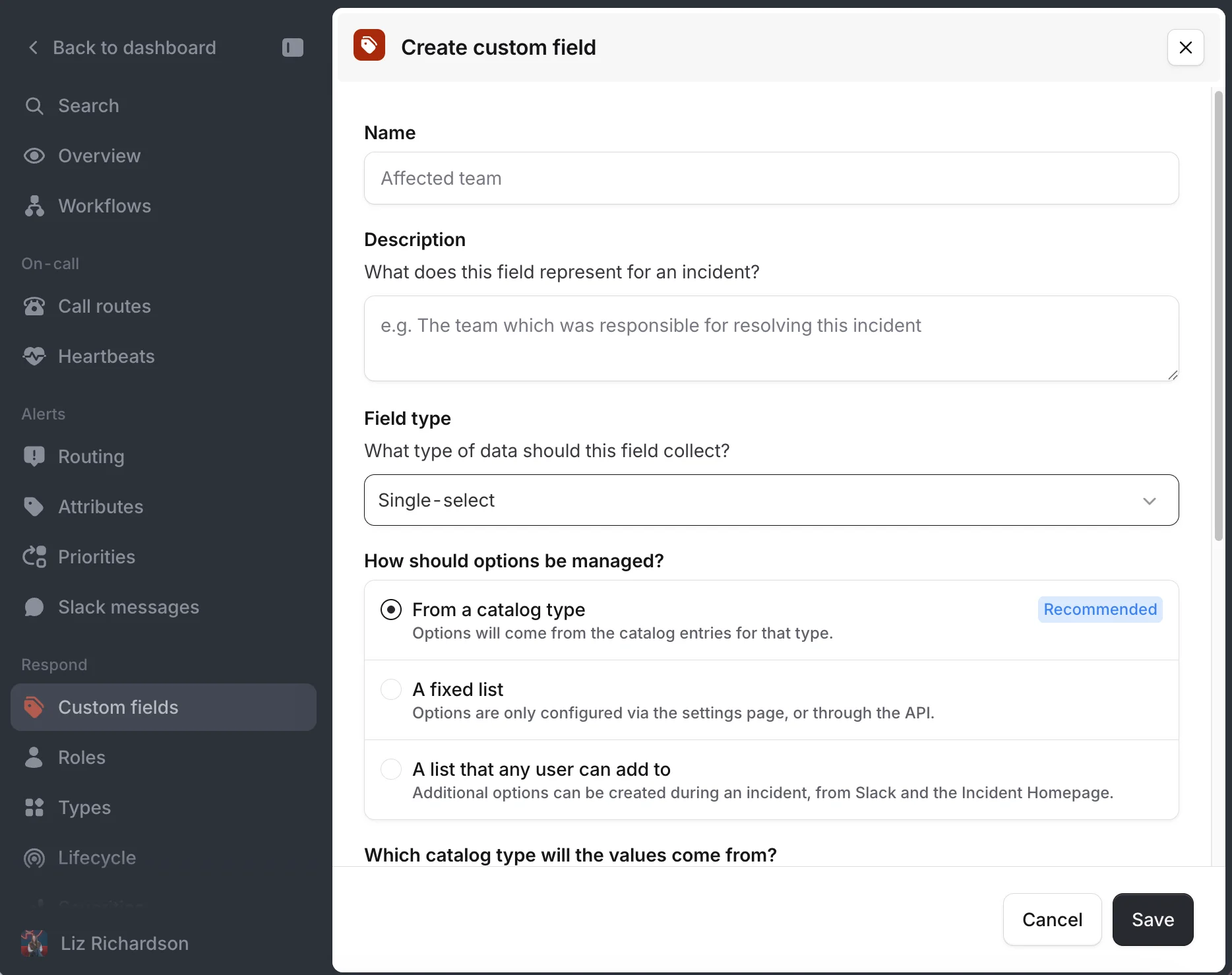 `Field Types`
The field types we support are:
* Single-select
* Multi-select
* Text
* Link
* Number
If there are any more you'd like us to add, please let us know!
`Name`
The title will appear on the incident declaration form. The shorter and more explicit, the better!
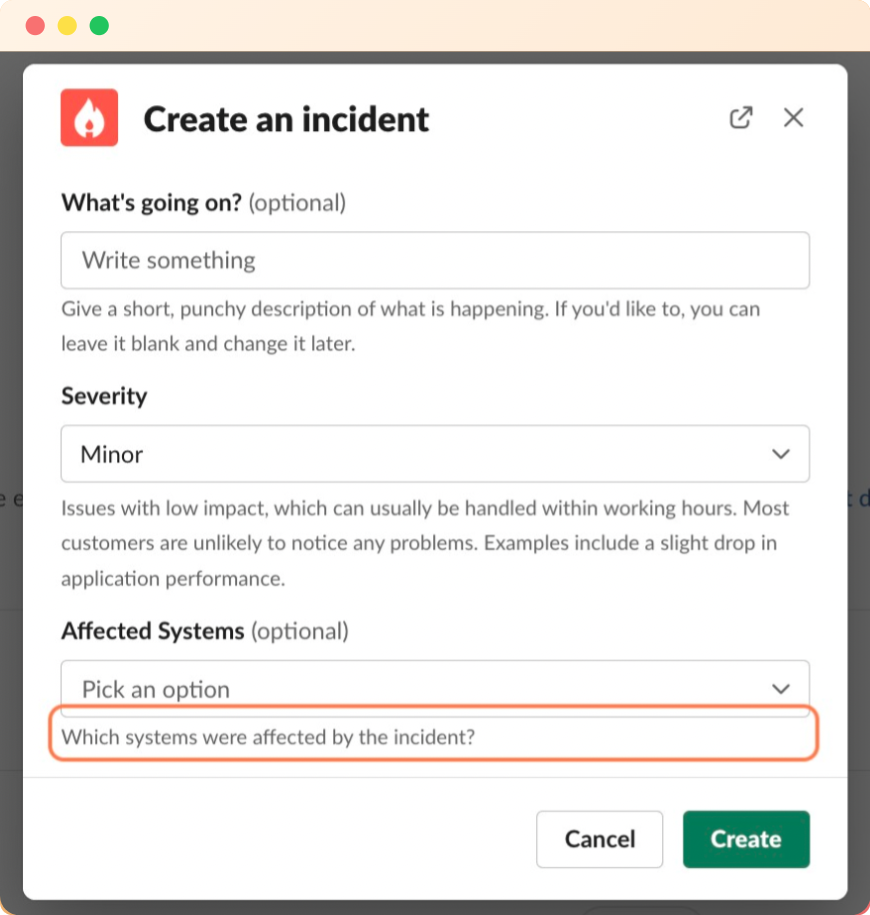
`Description`
This will appear as a tooltip for your team in the modal, like so 👇🏼
`Field Types`
The field types we support are:
* Single-select
* Multi-select
* Text
* Link
* Number
If there are any more you'd like us to add, please let us know!
`Name`
The title will appear on the incident declaration form. The shorter and more explicit, the better!
`Description`
This will appear as a tooltip for your team in the modal, like so 👇🏼
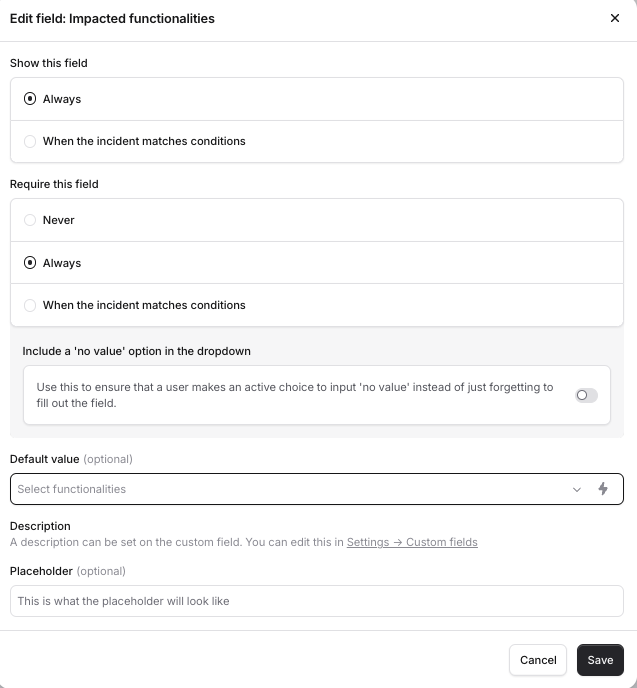
 3. Conditionally require or show this custom field - This can be found within [Incident Forms](https://app.incident.io/~/settings/forms), more information in this [article](/admin/incident-forms). Here you can set conditions to conditionally render the fields in Forms such as create, accept, update, or resolve forms.
 ## FAQs
Check out this article on [Automatically setting custom fields](/catalog/auto-custom-fields).
## FAQs
Check out this article on [Automatically setting custom fields](/catalog/auto-custom-fields).