> ## Documentation Index
> Fetch the complete documentation index at: https://docs.incident.io/llms.txt
> Use this file to discover all available pages before exploring further.
# What does incident.io need privileged Slack access for?
Depending on your Slack workspace settings, bots and regular users may be restricted from taking certain actions and one should ensure two sections of settings are set in a specific way: **Channel Management** and **User Groups**. Let's tackle them one at a time below!
## Channel Management
You can check these settings at [https://app.slack.com/admin/permissions/account-types](http://slack.com/admin/permissions/account-types).
Alternatively you can access the settings directly from Slack if you click on the workspace per se → **Tools\&settings** → **Workspace settings.** On the left side of the screen select **Administration** → **Manage permissions**. Proceed with selecting **Account types**.
Using the filtering option on the right side, you should search for:
* Create private channels - Workspace admins and owners only
* Create public channels - Everyone (except guests by default)
 * Archive channels - Workspace admins and owners only
 * Remove users from private channels - Workspace admins and owners only
* Remove users from public channels - Workspace admins and owners only (by default)
* Remove users from private channels - Workspace admins and owners only
* Remove users from public channels - Workspace admins and owners only (by default)
 * Edit channel posting permissions - Everyone (except guests by default)
 In this section the most relevant settings for [incident.io](http://incident.io/) are:
## People who can create private channels
If this is set to "Workspace admins and owners only" or "Workspace owners only", we won't be able to create private incident channels. If you'd like to use [private incidents](/incidents/sensitive-incidents) you'll need to connect a Slack Workspace Owner.
The connected user will be invited to all private incidents, so we recommend creating a Slack user just for this purpose. [Learn how here](/getting-started/slack-admin-setup).
## People who can create public channels
If this is set to "Workspace admins and owners only" or "Workspace owners only", we won't be able to create incident channels. You'll need to connect a Slack Workspace Admin or Workspace Owner to get started.
The connected user will be invited to all incidents, and appear as the "channel creator" in Slack:
In this section the most relevant settings for [incident.io](http://incident.io/) are:
## People who can create private channels
If this is set to "Workspace admins and owners only" or "Workspace owners only", we won't be able to create private incident channels. If you'd like to use [private incidents](/incidents/sensitive-incidents) you'll need to connect a Slack Workspace Owner.
The connected user will be invited to all private incidents, so we recommend creating a Slack user just for this purpose. [Learn how here](/getting-started/slack-admin-setup).
## People who can create public channels
If this is set to "Workspace admins and owners only" or "Workspace owners only", we won't be able to create incident channels. You'll need to connect a Slack Workspace Admin or Workspace Owner to get started.
The connected user will be invited to all incidents, and appear as the "channel creator" in Slack:
 To avoid confusion, we recommend creating a Slack user just for this purpose. [Learn how here](/getting-started/slack-admin-setup).
## People who can archive channels
If this is set to "Workspace admins and owners only" or "Workspace owners only", we won't be able to automatically archive old incident channels. Connect a Slack admin or owner to enable this feature.
The connected Slack admin will be added to incident channels to archive them, so we recommend creating a Slack user just for this purpose. [Learn how here](/getting-started/slack-admin-setup).
The connected Slack user will only be invited to private incidents if they are a Slack Workspace Owner.
## People who can remove users from private channels
If this is set to "Workspace admins and owners only" or "Workspace owners only" the incident.io bot won't be able to remove access to private incidents automatically: they must be removed from the channel first, either by an admin, or by leaving voluntarily.
Connect a Slack Workspace Owner to have incident.io automatically remove private incident participants with `/incident revoke`.
Note that the connected Workspace Owner will be invited to private incidents. We recommend creating a Slack user just for this purpose. [Learn how here](/getting-started/slack-admin-setup).
***
## User groups
You can check these settings at [https://app.slack.com/admin/user\_groups](http://slack.com/admin/user_groups)
Alternatively you can access the settings directly from Slack if you click on the workspace per se → **Tools\&settings** → **Workspace settings.** On the left side of the screen select **Administration** → **User groups**.
To avoid confusion, we recommend creating a Slack user just for this purpose. [Learn how here](/getting-started/slack-admin-setup).
## People who can archive channels
If this is set to "Workspace admins and owners only" or "Workspace owners only", we won't be able to automatically archive old incident channels. Connect a Slack admin or owner to enable this feature.
The connected Slack admin will be added to incident channels to archive them, so we recommend creating a Slack user just for this purpose. [Learn how here](/getting-started/slack-admin-setup).
The connected Slack user will only be invited to private incidents if they are a Slack Workspace Owner.
## People who can remove users from private channels
If this is set to "Workspace admins and owners only" or "Workspace owners only" the incident.io bot won't be able to remove access to private incidents automatically: they must be removed from the channel first, either by an admin, or by leaving voluntarily.
Connect a Slack Workspace Owner to have incident.io automatically remove private incident participants with `/incident revoke`.
Note that the connected Workspace Owner will be invited to private incidents. We recommend creating a Slack user just for this purpose. [Learn how here](/getting-started/slack-admin-setup).
***
## User groups
You can check these settings at [https://app.slack.com/admin/user\_groups](http://slack.com/admin/user_groups)
Alternatively you can access the settings directly from Slack if you click on the workspace per se → **Tools\&settings** → **Workspace settings.** On the left side of the screen select **Administration** → **User groups**.
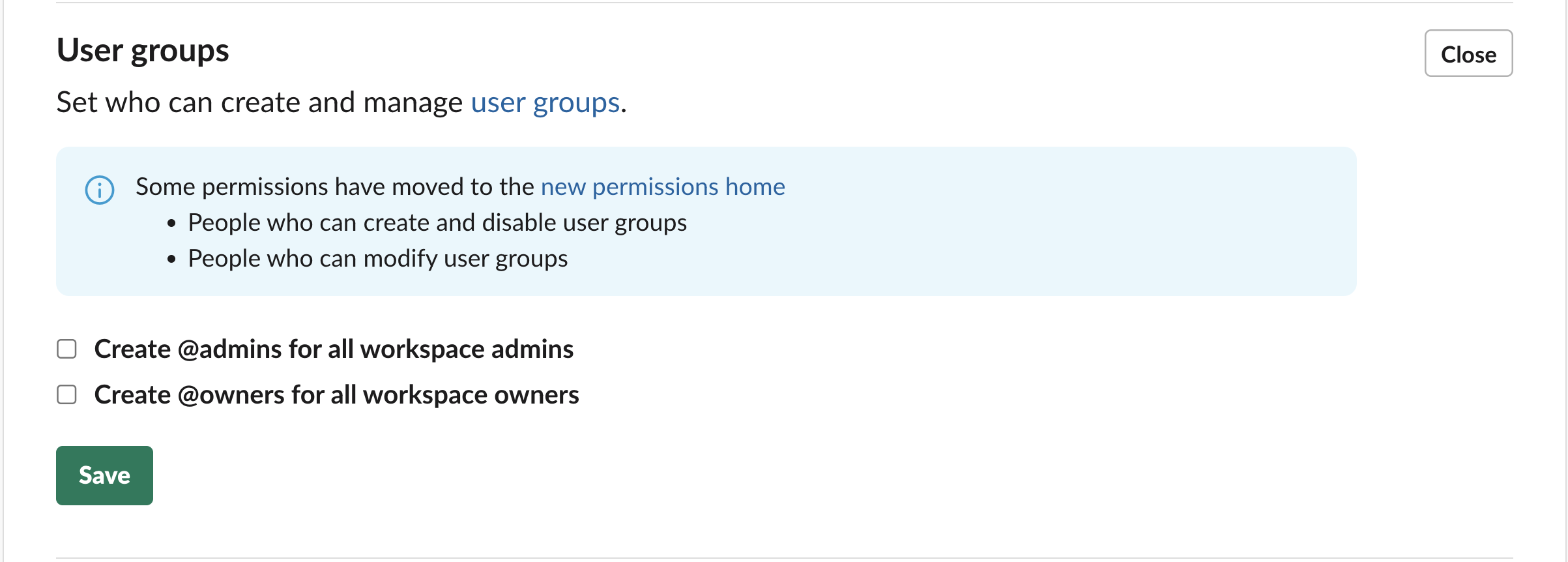
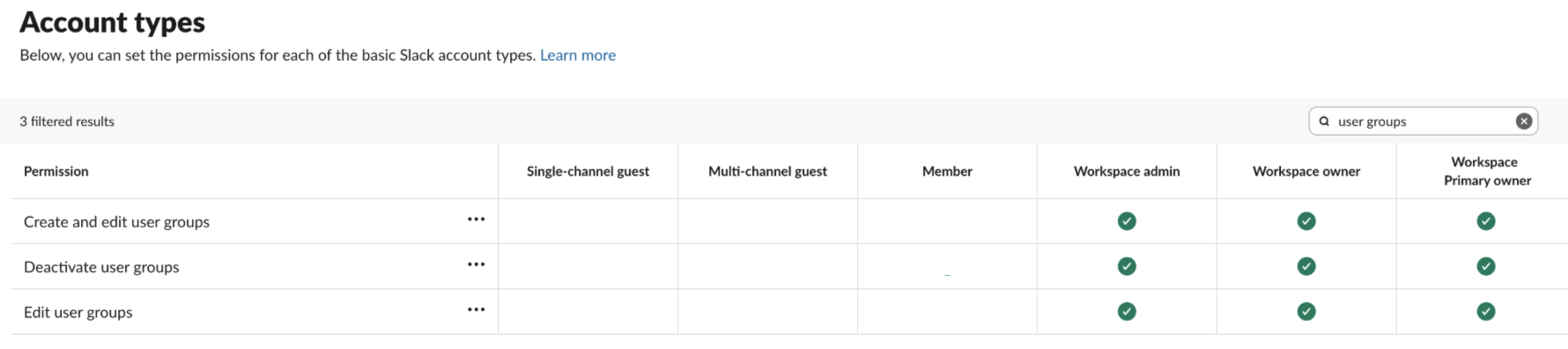 The settings under User groups are also relevant to [incident.io](http://incident.io/) :
## People who can create and disable user groups
If this is set to "Workspace admins and owners only" or "Workspace owners only", we won't be able to create user groups that reflect the responders currently on call for a schedule.
You'll need to connect a Slack admin or owner to enable [this feature](/on-call/sync-slack-groups).
## People who can modify/edit user groups
If this is set to "Workspace admins and owners only" or "Workspace owners only", we won't be able to sync the user groups that reflect the current on call responders when there's a shift change.
You'll need to connect a Slack admin or owner to enable [this feature](/on-call/sync-slack-groups).
The settings under User groups are also relevant to [incident.io](http://incident.io/) :
## People who can create and disable user groups
If this is set to "Workspace admins and owners only" or "Workspace owners only", we won't be able to create user groups that reflect the responders currently on call for a schedule.
You'll need to connect a Slack admin or owner to enable [this feature](/on-call/sync-slack-groups).
## People who can modify/edit user groups
If this is set to "Workspace admins and owners only" or "Workspace owners only", we won't be able to sync the user groups that reflect the current on call responders when there's a shift change.
You'll need to connect a Slack admin or owner to enable [this feature](/on-call/sync-slack-groups).