> ## Documentation Index
> Fetch the complete documentation index at: https://docs.incident.io/llms.txt
> Use this file to discover all available pages before exploring further.
# Tools to make migrating from Opsgenie easier
## Overview
We know that migrating from Opsgenie to [incident.io](http://incident.io/) can feel intimidating, as there can be a lot of configuration that you have in place that you don’t want to lose. So, we’ve built (and continue to build) tooling to make this process easier for you.
Below is a list of tools that you can leverage to make your testing phase and official migration / onboarding easier, including:
* Opsgenie alert source
* Pull Opsgenie information into Catalog
* Importing schedules
* Importing escalation paths
* Importing user notification preferences
* Terraform provider
* Datadog migration tool
* On-call readiness support
* Preferred provider for manual escalations
Also, let us know if there is something else that you’d need help with migrating! We are here to make this as painless as possible - so we can always work together to figure out what else we can provide.
## Opsgenie alert source
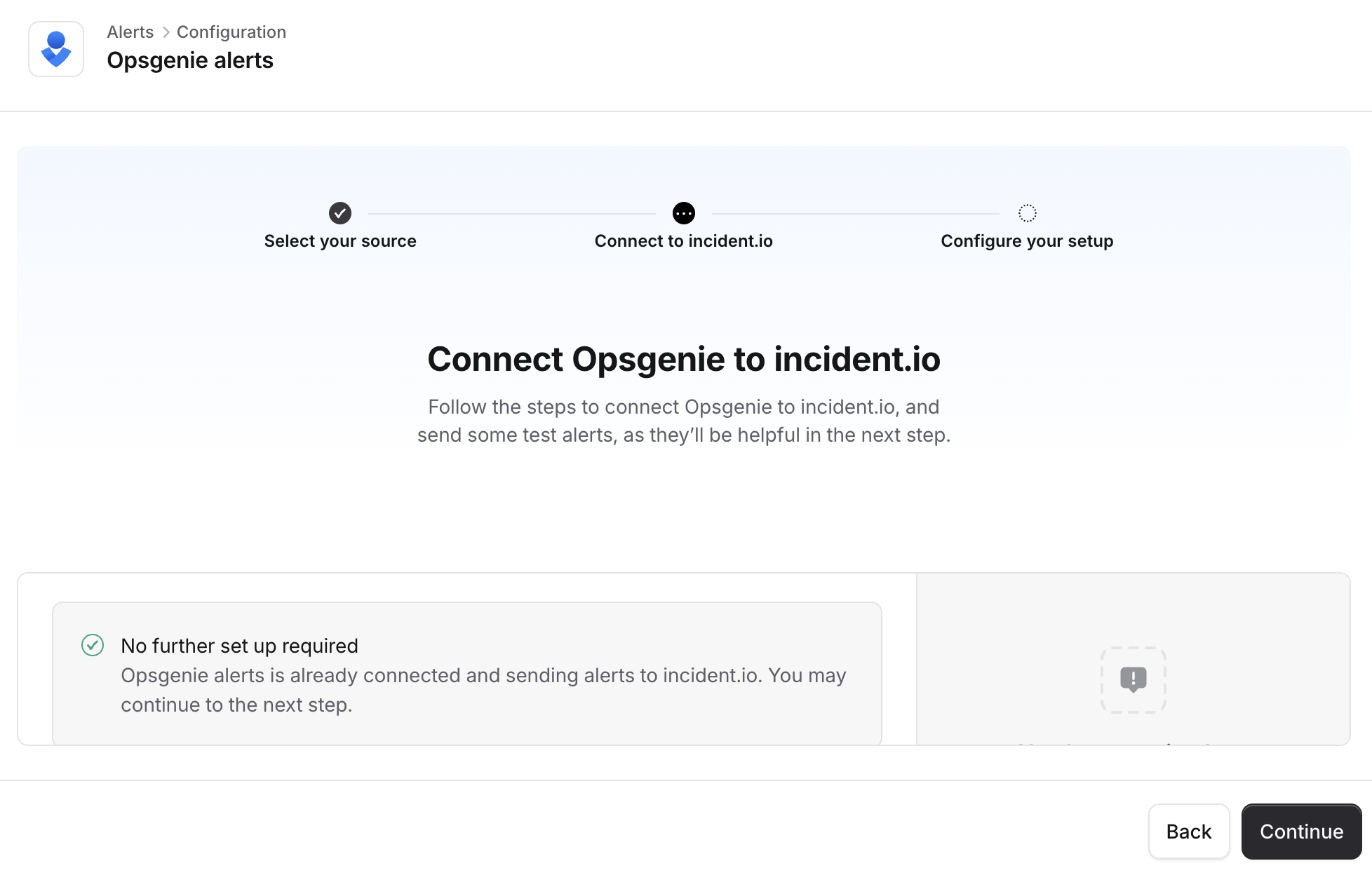 You are able to connect your Opsgenie instance directly to [incident.io](http://incident.io/) as an alert source. What this allows you to do is test our On-call features such as schedules and escalation paths without having to move over your alert providers (ie. Datadog, Grafana), which can decrease the time to testing.
So, you can have a simplified testing set-up like:
Grafana → Opsgenie → escalate via [incident.io](http://incident.io/)
Once you are ready to fully migrate or onboard, you would move to a set-up that looks like:
Grafana → escalate via [incident.io](http://incident.io/)
Related help docs:
[Opsgenie help docs](/integrations/opsgenie)
[Extracting alert source information help doc](/integrations/json-alert-data)
## Pull Opsgenie information into Catalog
You are able to connect your Opsgenie instance directly to [incident.io](http://incident.io/) as an alert source. What this allows you to do is test our On-call features such as schedules and escalation paths without having to move over your alert providers (ie. Datadog, Grafana), which can decrease the time to testing.
So, you can have a simplified testing set-up like:
Grafana → Opsgenie → escalate via [incident.io](http://incident.io/)
Once you are ready to fully migrate or onboard, you would move to a set-up that looks like:
Grafana → escalate via [incident.io](http://incident.io/)
Related help docs:
[Opsgenie help docs](/integrations/opsgenie)
[Extracting alert source information help doc](/integrations/json-alert-data)
## Pull Opsgenie information into Catalog
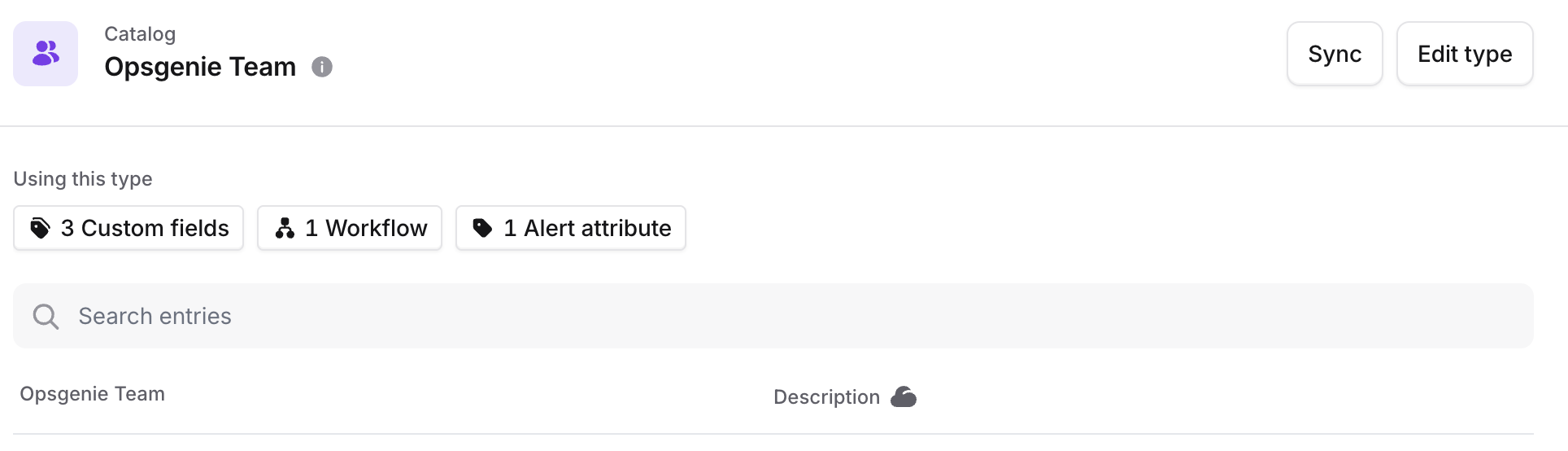 If you have connected Opsgenie into [incident.io](http://incident.io/), we will automatically pull in your Opsgenie schedules, services, teams, and users into the Catalog.
This allows you to use the Opsgenie catalog with the rest of your catalog data. For example, you can determine what should still be paged via Opsgenie vs. [incident.io](http://incident.io/).
Related help docs:
[How to get data into the catalog help doc](/catalog/importing-data)
[Using the catalog help doc](/catalog/catalog-setup)
## Importing schedules
If you have connected Opsgenie into [incident.io](http://incident.io/), we will automatically pull in your Opsgenie schedules, services, teams, and users into the Catalog.
This allows you to use the Opsgenie catalog with the rest of your catalog data. For example, you can determine what should still be paged via Opsgenie vs. [incident.io](http://incident.io/).
Related help docs:
[How to get data into the catalog help doc](/catalog/importing-data)
[Using the catalog help doc](/catalog/catalog-setup)
## Importing schedules
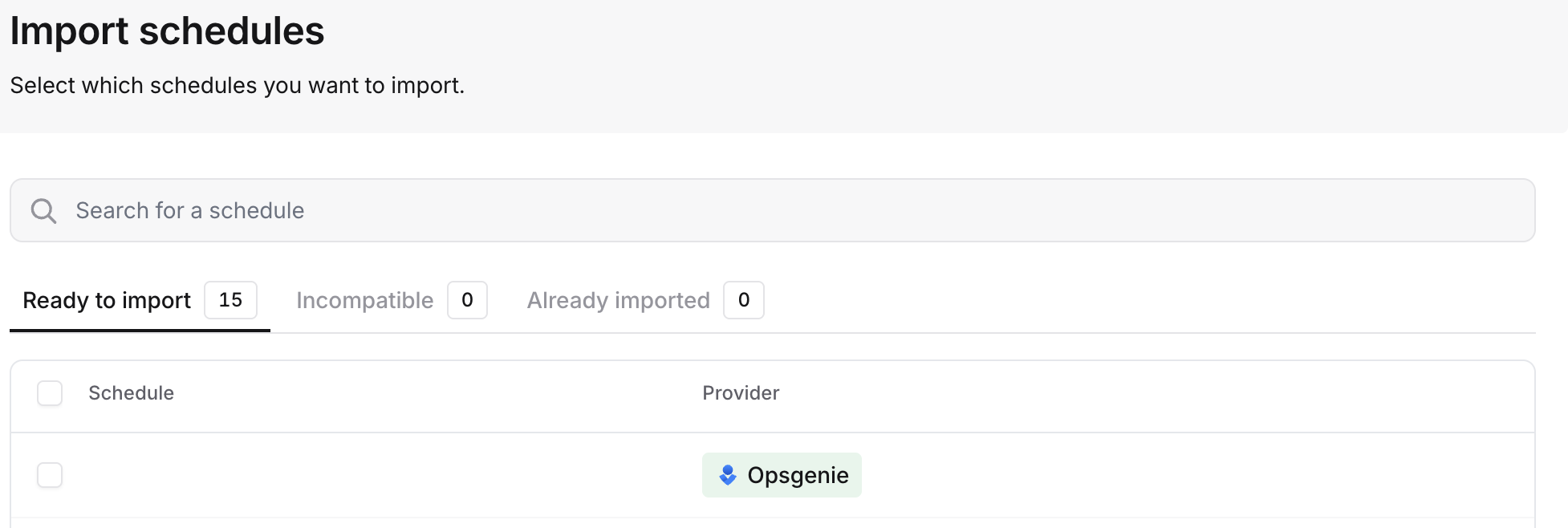 We allow you to import (including bulk import!) schedules directly from Opsgenie.
## Importing escalation paths
We allow you to import (including bulk import!) schedules directly from Opsgenie.
## Importing escalation paths
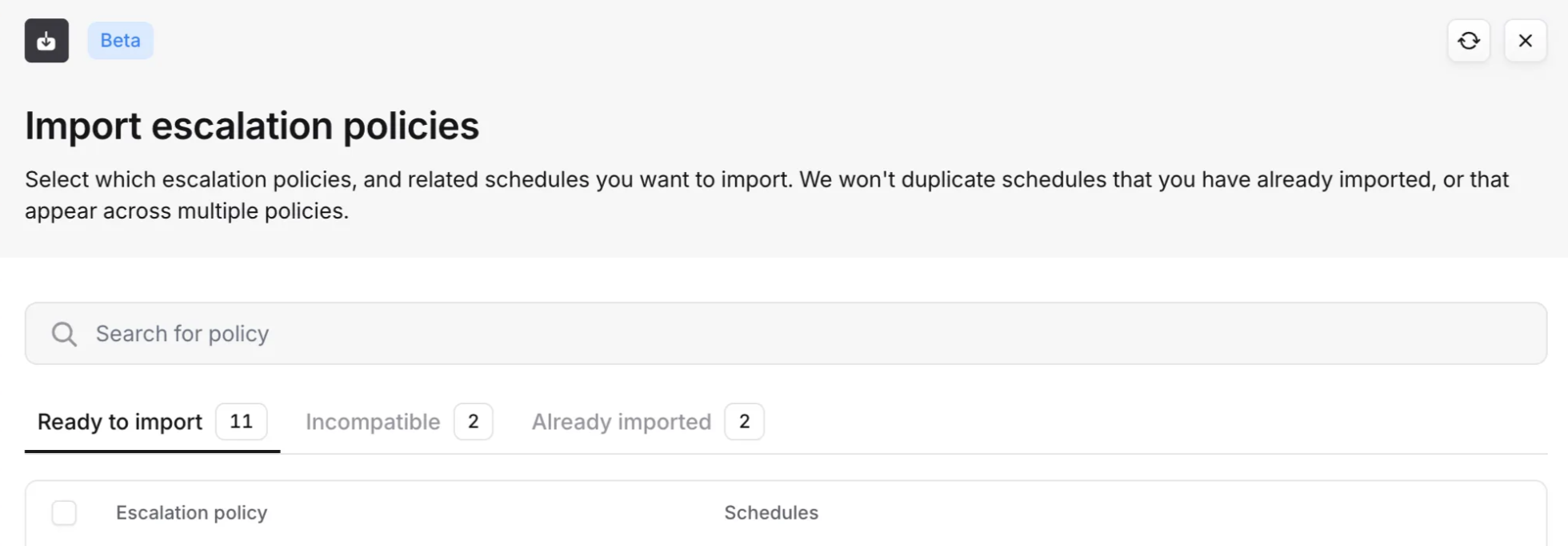 We allow you to import (including bulk import!) escalation policies directly from Opsgenie.
### Skipping onboarding notifications during import
When you import schedules or escalation paths, any users going on-call for the first time will normally receive an onboarding notification (via email, Slack, and push notification) letting them know they've been added to on-call and prompting them to set up their contact methods and notification preferences.
We allow you to import (including bulk import!) escalation policies directly from Opsgenie.
### Skipping onboarding notifications during import
When you import schedules or escalation paths, any users going on-call for the first time will normally receive an onboarding notification (via email, Slack, and push notification) letting them know they've been added to on-call and prompting them to set up their contact methods and notification preferences.
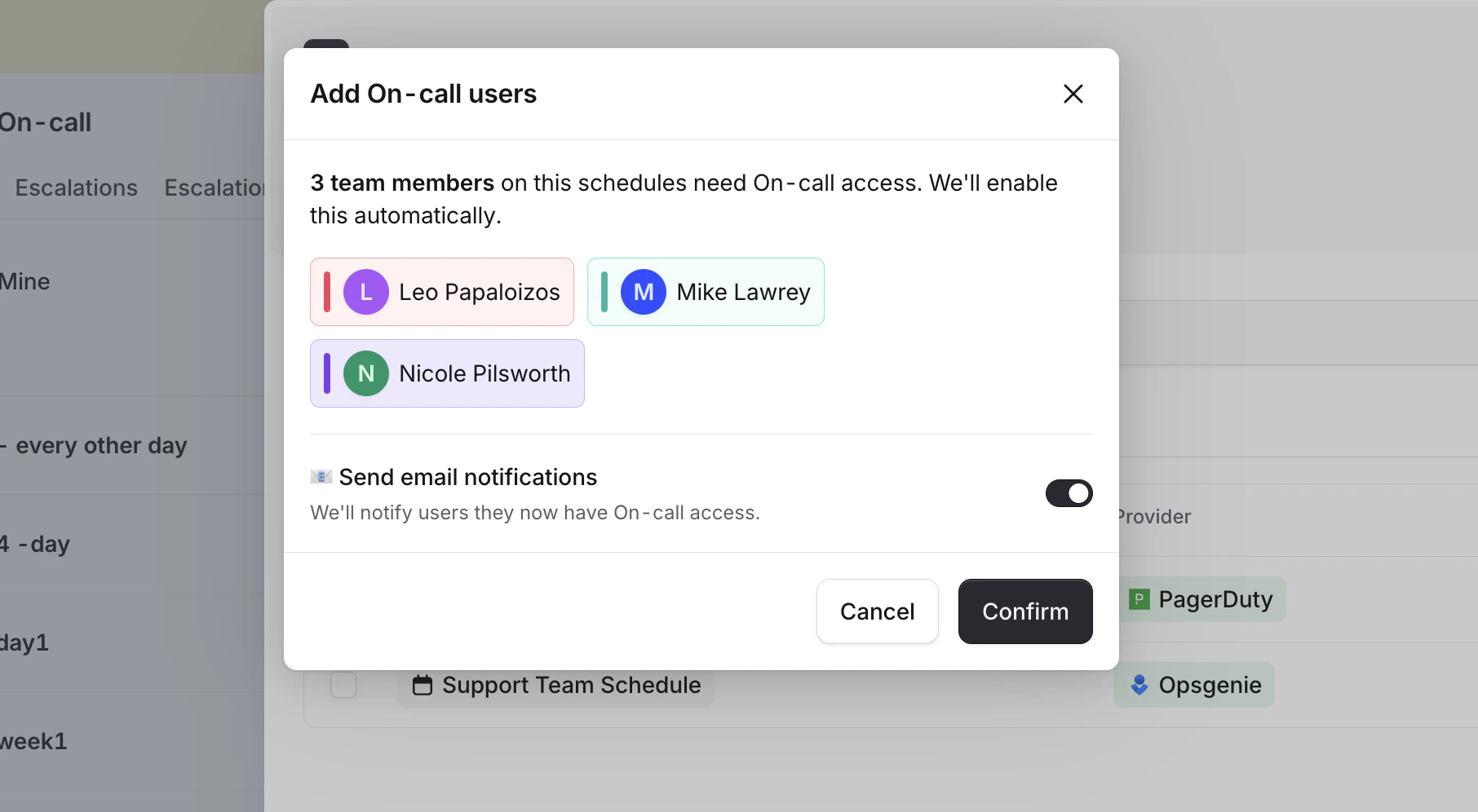 If you'd prefer not to send these notifications during import, you can turn them off. When confirming the import and promoting users to on-call responders, you'll see a **Send onboarding email notifications** toggle. Turn this off to skip sending the onboarding notification.
Even when notifications are skipped, users are still marked as onboarded internally — so they won't receive duplicate
notifications if you import additional schedules later. Users will still receive the standard "You are currently on
call" notification at the start of their first on-call shift, whenever that may first happen.
This option is not available for SCIM customers, as users need to be imported manually before they can be added to
schedules.
## Importing user notification preferences
If you'd prefer not to send these notifications during import, you can turn them off. When confirming the import and promoting users to on-call responders, you'll see a **Send onboarding email notifications** toggle. Turn this off to skip sending the onboarding notification.
Even when notifications are skipped, users are still marked as onboarded internally — so they won't receive duplicate
notifications if you import additional schedules later. Users will still receive the standard "You are currently on
call" notification at the start of their first on-call shift, whenever that may first happen.
This option is not available for SCIM customers, as users need to be imported manually before they can be added to
schedules.
## Importing user notification preferences
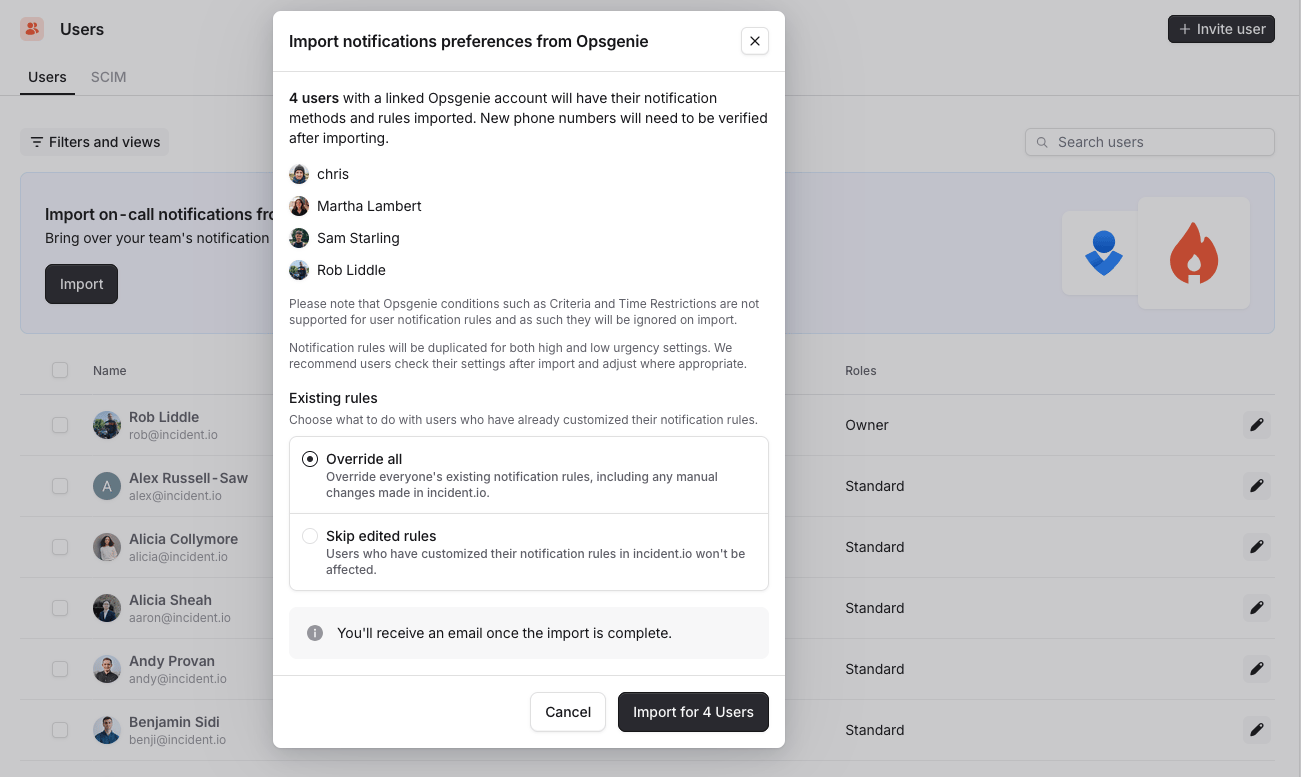 You can import a users notification preferences either individually or in bulk. To import in bulk, click the banner on the users page or when viewing
a teams members. Users can individually import their own settings if they wish using the button in their notification preferences.
Please note that we do not support conditions such as Opsgenie's Criteria or Time Restrictions on a users preferences and as such these will not be imported.
We will also create rules for all methods for both high and low urgency. We recommend individual users check their settings and edit accordingly.
This is useful for organisations that have a short time to migrate over to [incident.io](http://incident.io/)
## Terraform provider support
You can import a users notification preferences either individually or in bulk. To import in bulk, click the banner on the users page or when viewing
a teams members. Users can individually import their own settings if they wish using the button in their notification preferences.
Please note that we do not support conditions such as Opsgenie's Criteria or Time Restrictions on a users preferences and as such these will not be imported.
We will also create rules for all methods for both high and low urgency. We recommend individual users check their settings and edit accordingly.
This is useful for organisations that have a short time to migrate over to [incident.io](http://incident.io/)
## Terraform provider support
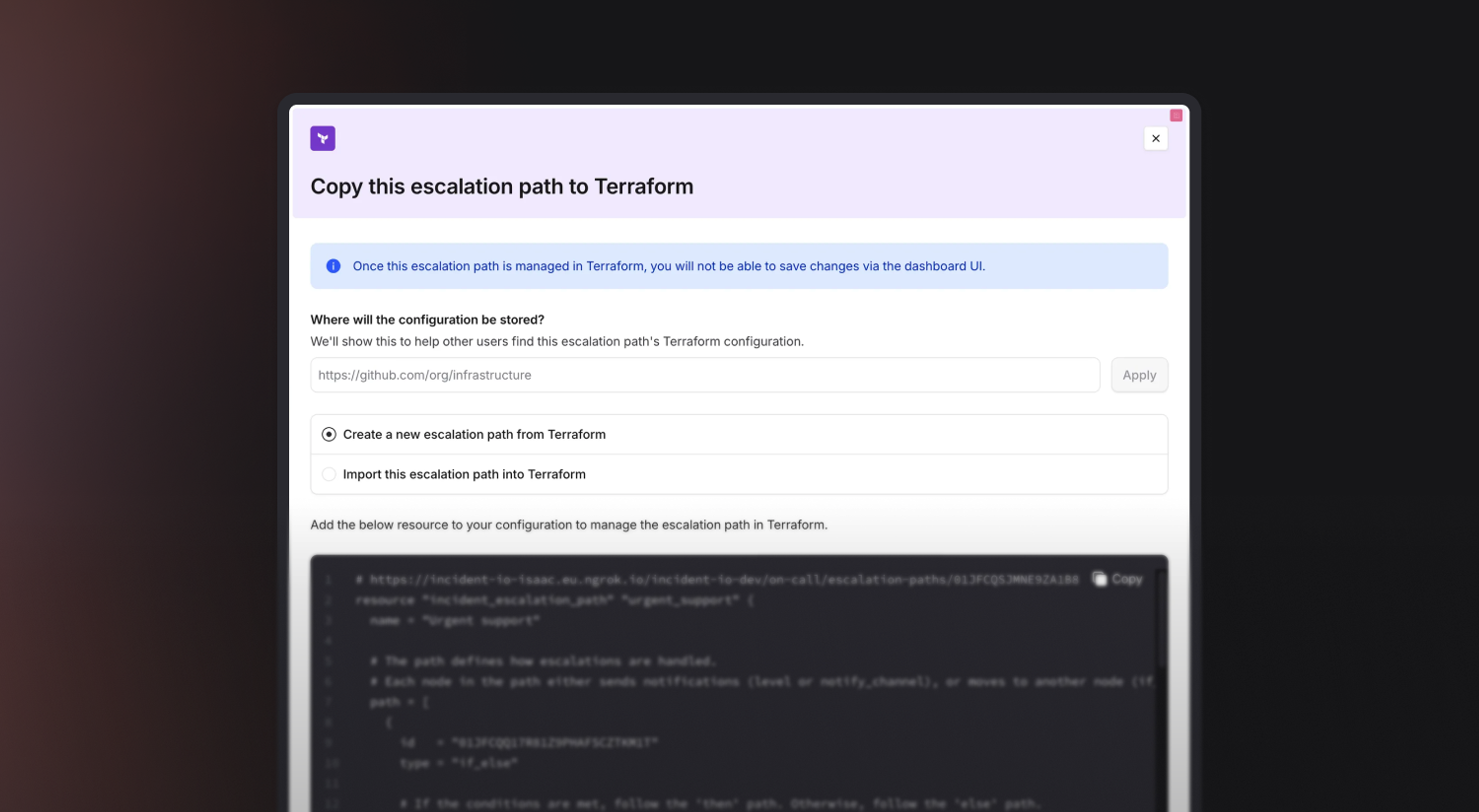 If you use Terraform to manage your on-call configuration, we also support Terraform for alert sources, alert routes, escalation paths and schedules.
Additionally, Terraform can help with migrating alert sources. For example: If you have loads of monitors in Datadog that point to Opsgenie. You can quickly and easily update the Terraform config to have those monitors point to [incident.io](http://incident.io/) instead.
Related docs:
[Terraform documentation](https://registry.terraform.io/providers/incident-io/incident/latest/docs)
## Datadog migration tool (beta)
If you use Terraform to manage your on-call configuration, we also support Terraform for alert sources, alert routes, escalation paths and schedules.
Additionally, Terraform can help with migrating alert sources. For example: If you have loads of monitors in Datadog that point to Opsgenie. You can quickly and easily update the Terraform config to have those monitors point to [incident.io](http://incident.io/) instead.
Related docs:
[Terraform documentation](https://registry.terraform.io/providers/incident-io/incident/latest/docs)
## Datadog migration tool (beta)
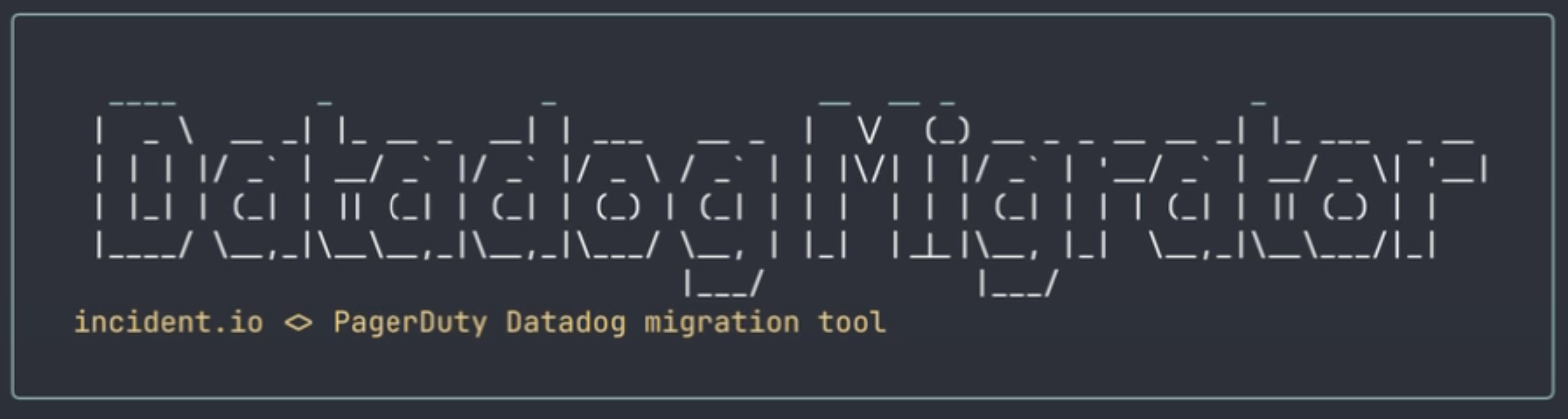 If you do not use Terraform, and have loads of Datadog monitors, you can leverage our migration tool to update everything to point to [incident.io](http://incident.io/).
Download the tool from us, plug in your Datadog API keys and you’ll be able to:
* Talk you through the options for one webhook in Datadog or multiple webhooks
* Automatically create the webhook configurations in Datadog
* Automatically update your monitors to point to [incident.io](http://incident.io/)
* Automatically remove Opsgenie when we are successful
It's on GitHub [here](http://github.com/incident-io/datadog-migrator) (currently private until out of beta), and have a helpful Loom for reference [here](https://www.loom.com/share/1f0a862752054bb0a1a8830f5bd9c500).
## On-call readiness report
If you do not use Terraform, and have loads of Datadog monitors, you can leverage our migration tool to update everything to point to [incident.io](http://incident.io/).
Download the tool from us, plug in your Datadog API keys and you’ll be able to:
* Talk you through the options for one webhook in Datadog or multiple webhooks
* Automatically create the webhook configurations in Datadog
* Automatically update your monitors to point to [incident.io](http://incident.io/)
* Automatically remove Opsgenie when we are successful
It's on GitHub [here](http://github.com/incident-io/datadog-migrator) (currently private until out of beta), and have a helpful Loom for reference [here](https://www.loom.com/share/1f0a862752054bb0a1a8830f5bd9c500).
## On-call readiness report
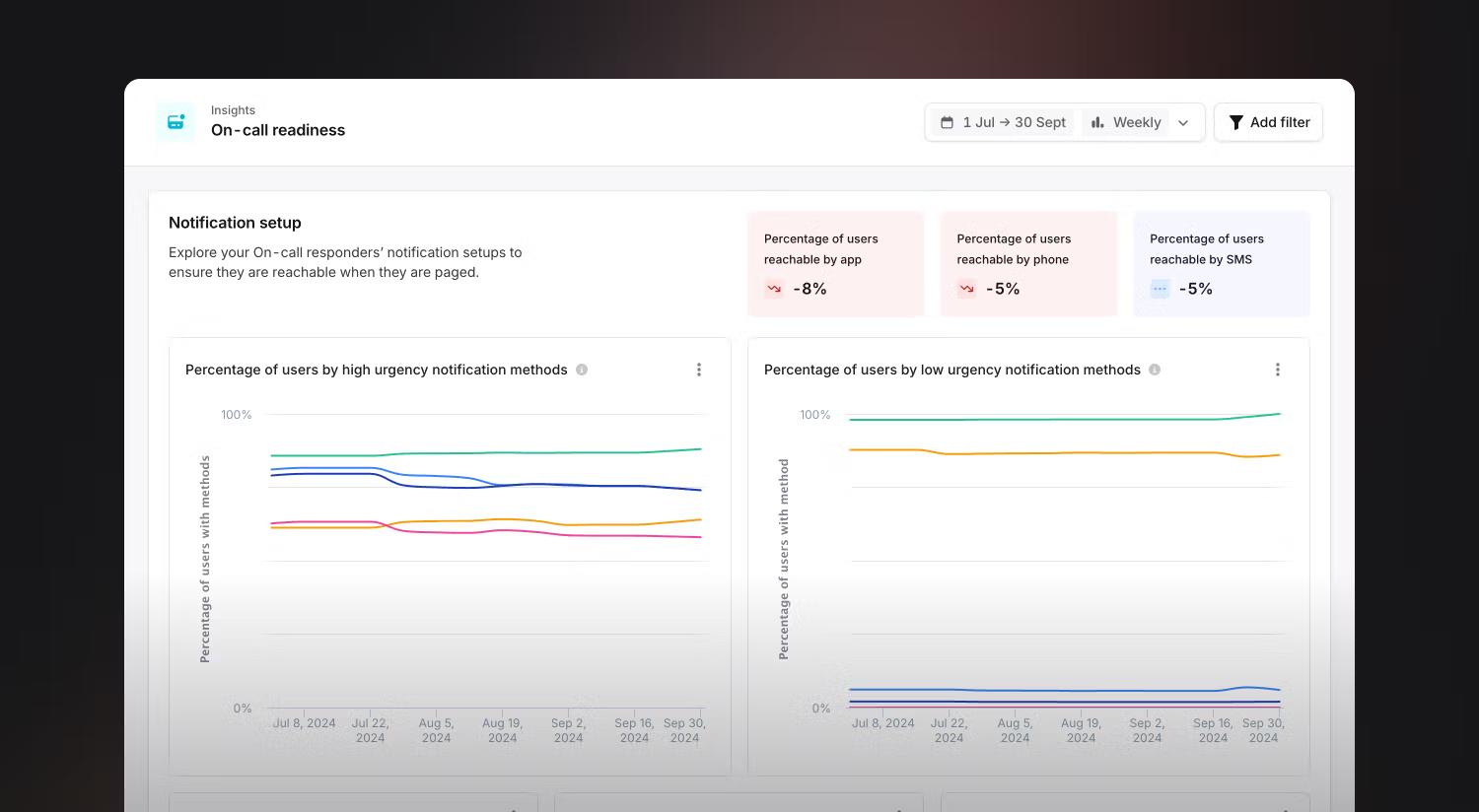 You can use the On-call readiness report to understand how prepared your team is to start receiving pages from [incident.io](http://incident.io/). These insights will help you track your migration and onboarding of new responders going on-call. At a glance, you can see responder adoption with different notification methods:
* How people are reachable (via the app, phone, etc.)
* What percentage of your on-call responders are reachable through different methods
You’ll also be able to drill down into individual responder setups so that you can contact the right people if necessary.
We also have on-call readiness available via the Members tab of your teams page(s), and you can leverage On-call readiness [policies](/admin/policies) to enforce a particular set up.
## Preferred provider for manual escalations
You can use the On-call readiness report to understand how prepared your team is to start receiving pages from [incident.io](http://incident.io/). These insights will help you track your migration and onboarding of new responders going on-call. At a glance, you can see responder adoption with different notification methods:
* How people are reachable (via the app, phone, etc.)
* What percentage of your on-call responders are reachable through different methods
You’ll also be able to drill down into individual responder setups so that you can contact the right people if necessary.
We also have on-call readiness available via the Members tab of your teams page(s), and you can leverage On-call readiness [policies](/admin/policies) to enforce a particular set up.
## Preferred provider for manual escalations
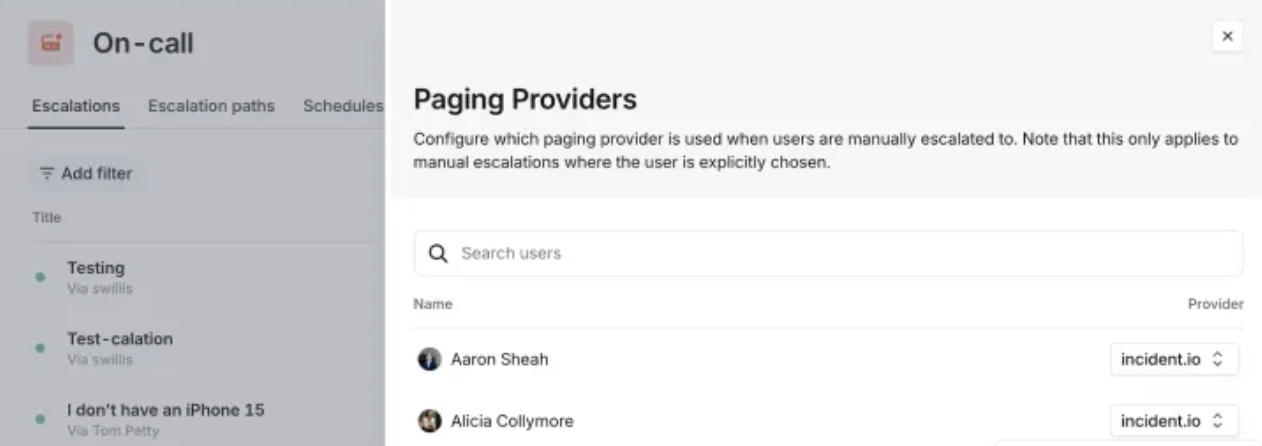 If you have connected Opsgenie to your account, we will now allow individual users to identify if they want to be paged via Opsgenie or [incident.io](http://incident.io/). Previously, we made the person initiating the manual escalation decide which provider to use - which wasn’t a great experience, as they wouldn’t have a way to know which one to use (ie. is that user set up with [incident.io](http://incident.io/) ? what is Opsgenie?).
This work will allow individuals to configure which paging solution they want to be paged by, so when a manual escalation comes through they are appropriately paged via that solution.
Once Opsgenie is removed from [incident.io](http://incident.io/), we will default all escalations to [incident.io](http://incident.io/).
Related help docs:
[How do I manually escalate?](/on-call/manual-escalation)
If you have connected Opsgenie to your account, we will now allow individual users to identify if they want to be paged via Opsgenie or [incident.io](http://incident.io/). Previously, we made the person initiating the manual escalation decide which provider to use - which wasn’t a great experience, as they wouldn’t have a way to know which one to use (ie. is that user set up with [incident.io](http://incident.io/) ? what is Opsgenie?).
This work will allow individuals to configure which paging solution they want to be paged by, so when a manual escalation comes through they are appropriately paged via that solution.
Once Opsgenie is removed from [incident.io](http://incident.io/), we will default all escalations to [incident.io](http://incident.io/).
Related help docs:
[How do I manually escalate?](/on-call/manual-escalation)