> ## Documentation Index
> Fetch the complete documentation index at: https://docs.incident.io/llms.txt
> Use this file to discover all available pages before exploring further.
# Installing incident.io in 30 seconds
There are just **3 steps** :
1. Sign Up (via Slack)
2. Select your integrations
3. Add incident.io to Slack
**A couple of notes** *You will need a Slack admin to install us due to Slack's permissioning model.* *The app uses* `/inc` *and* `/incident` *as slash commands. If you already have an app installed or install one after ours that uses either of these commands*, *then just note that Slack will default to using the most recently installed app when that command is run.*
***
## 1. Sign Up (via Slack)
From the [sign-up page](https://app.incident.io/), you'll be asked to ' *Sign in with Slack* '.
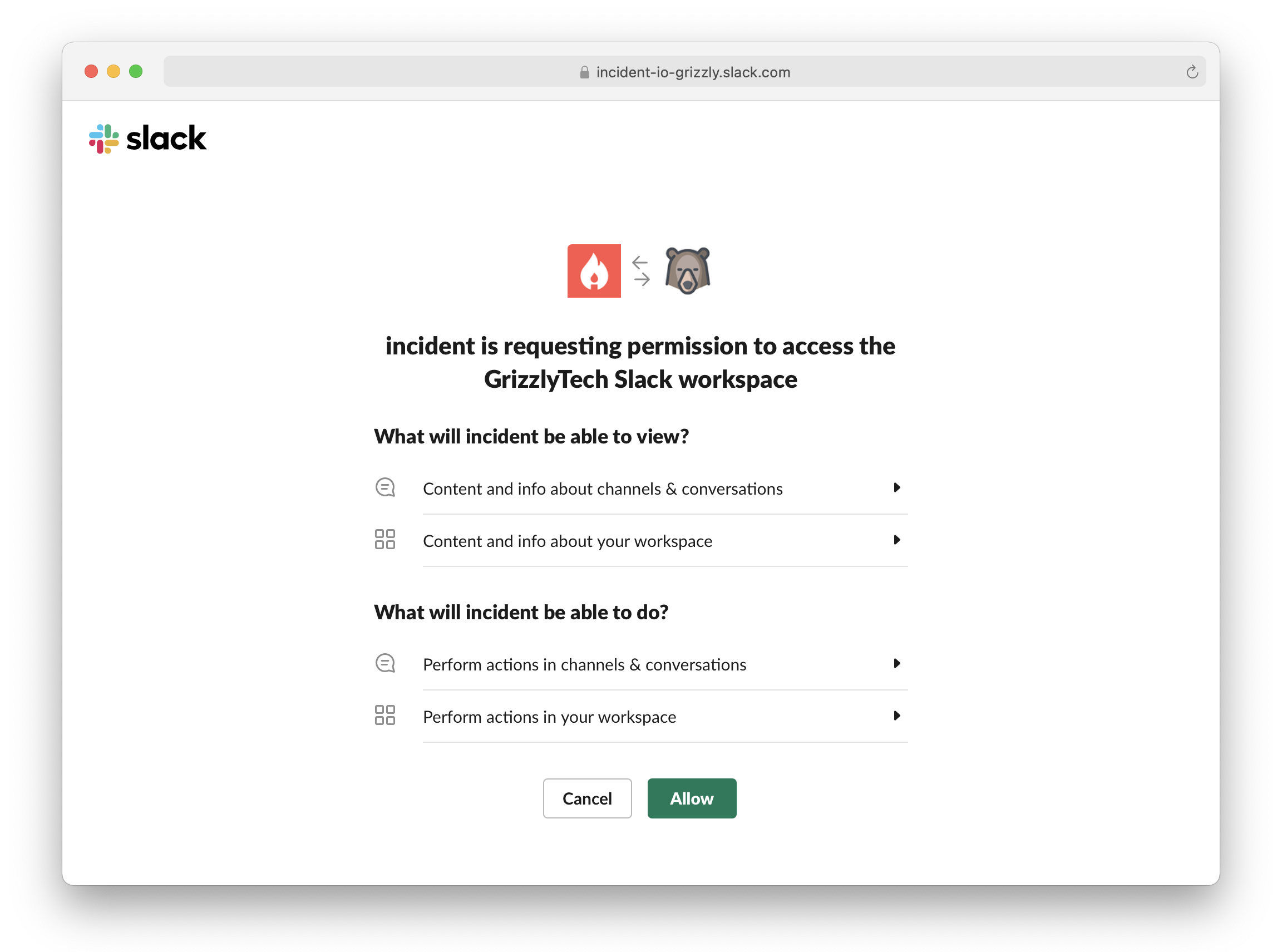
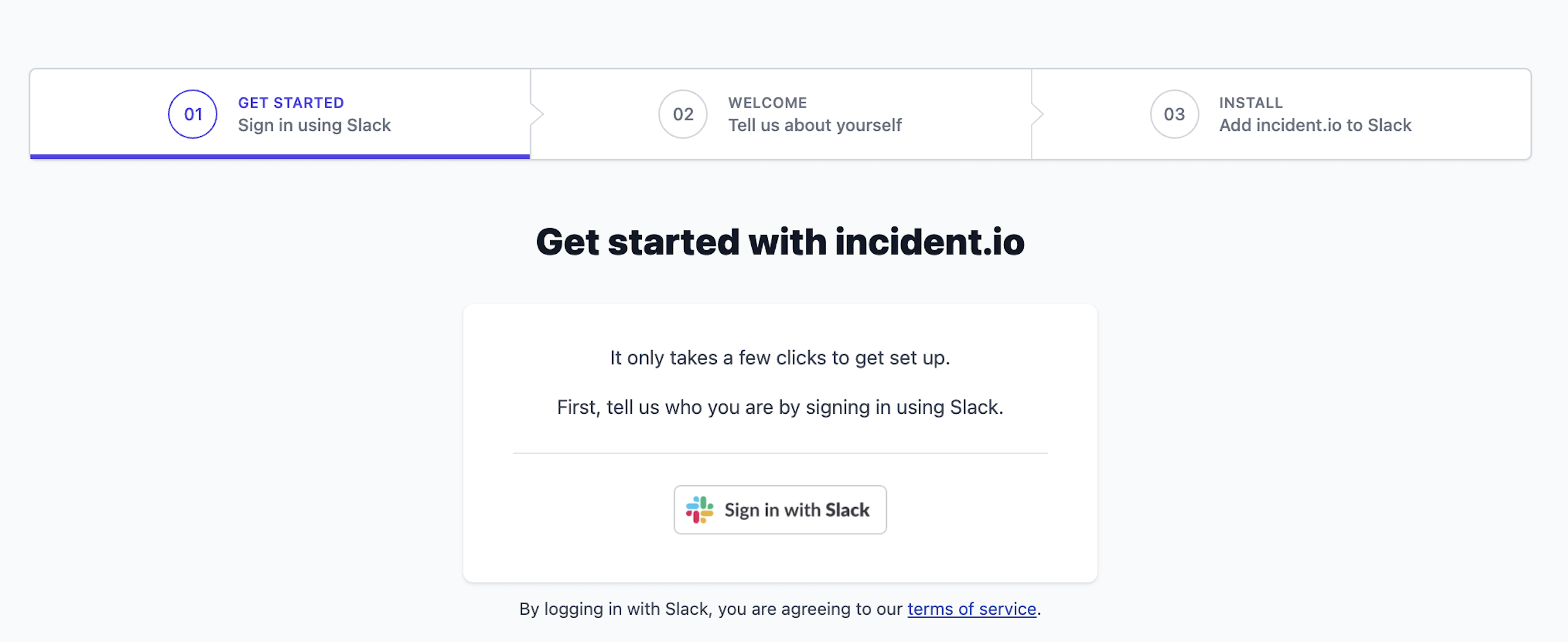 We'll create an account for you and store some basic information, like your name and avatar. We'll also ask for a restricted set of permissions in order for [incident.io](http://incident.io/) to work. Read more in our [Security FAQs](https://docs.incident.io/security-faqs).
 ## 2. Select your integrations
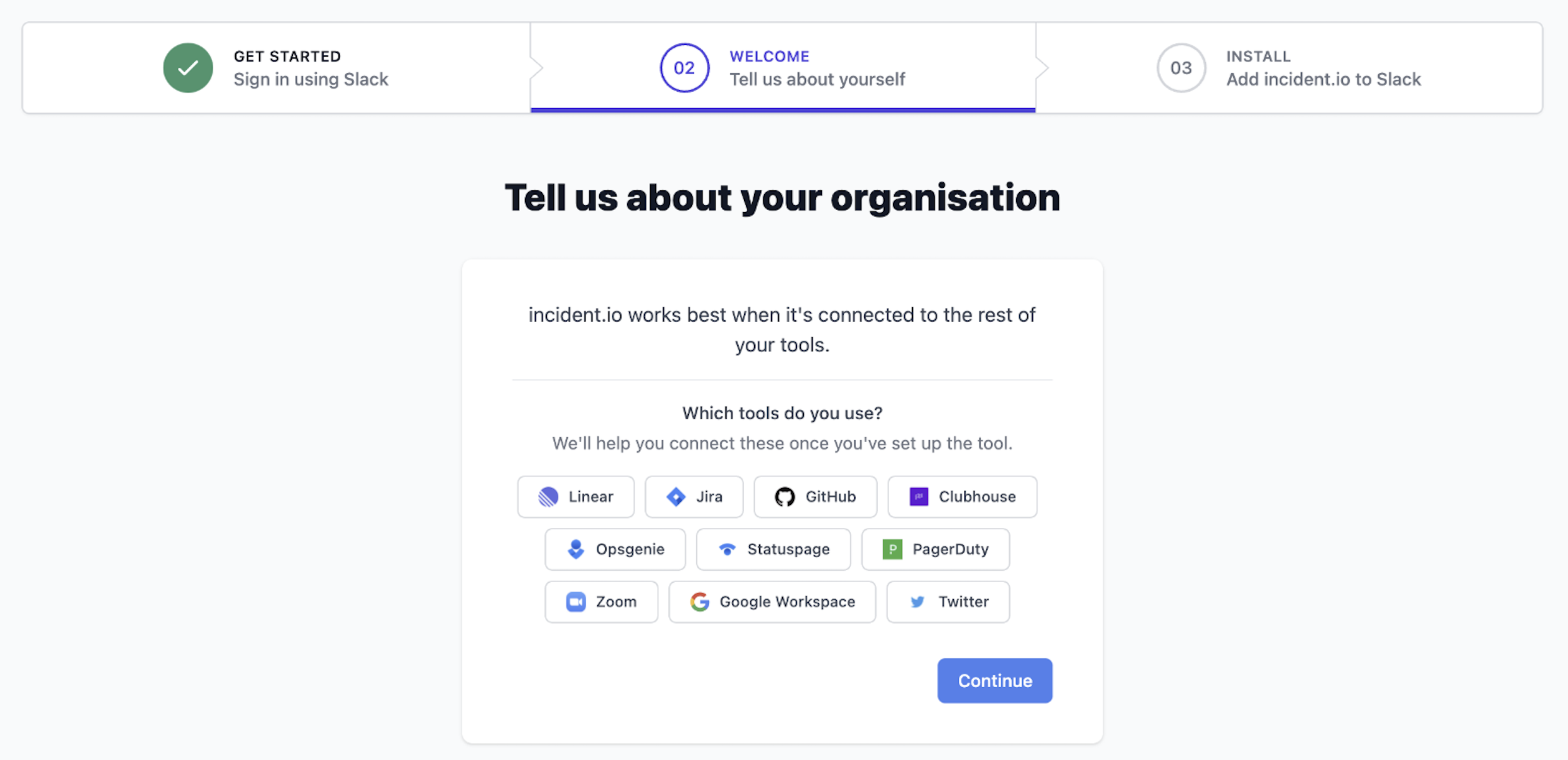
This is just so we get a sense of the most-used tools in our user base. We explain how to set up your integrations → [here](/integrations/api-overview).
## 2. Select your integrations
This is just so we get a sense of the most-used tools in our user base. We explain how to set up your integrations → [here](/integrations/api-overview).
 ## 3. Add incident.io to Slack
Last step: ' *Add incident.io to Slack* '.
## 3. Add incident.io to Slack
Last step: ' *Add incident.io to Slack* '.
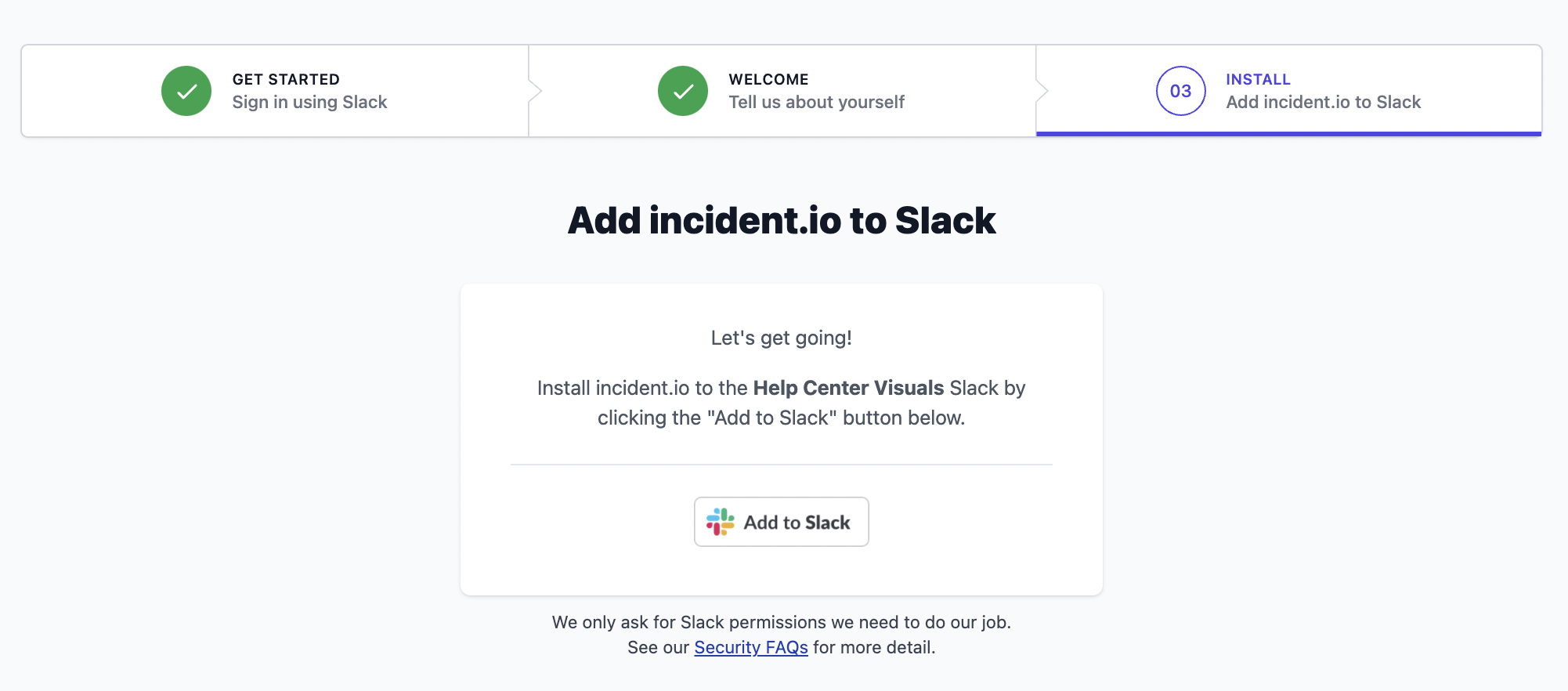 When you've done this, we'll create you an #incidents channel, and install the incident.io app into your workspace.
...all done!
**Everyone in your Slack workspace can now use** [incident.io](http://incident.io/) — they simply need to go through the same '[Login with Slack](http://app.incident.io/)' flow. They will not be asked to '*Add incident.io to Slack*' - that step only happens once.
Let's go declare some incidents!
***
**Having issues installing?** [Email our support team directly](mailto:support@incident.io) or [jump on a 1:1 call](https://incident.io/demo) and we'll get it sorted in no time!
***
## Troubleshooting
Signing up to incident.io is restricted to those using a corporate or company email address. Our product is designed for companies rather than individuals, and this helps us avoid abuse.
If you see a sign-up error, try again using your company email address. If you're still having trouble, [get in touch](mailto:support@incident.io).
incident.io has two slash commands: `/inc` and `/incident`. Slack only lets one application listen to a particular command, so if you have an existing app that uses either of these, incident.io will take over those commands when installed (the most recently installed app wins).
Installing incident.io won't remove the other application. If you're migrating from an app that uses `/inc` and want to avoid disruption, re-install that application after installing incident.io.
You can find a cheatsheet of all `/inc` commands [here](/incidents/shortcuts).
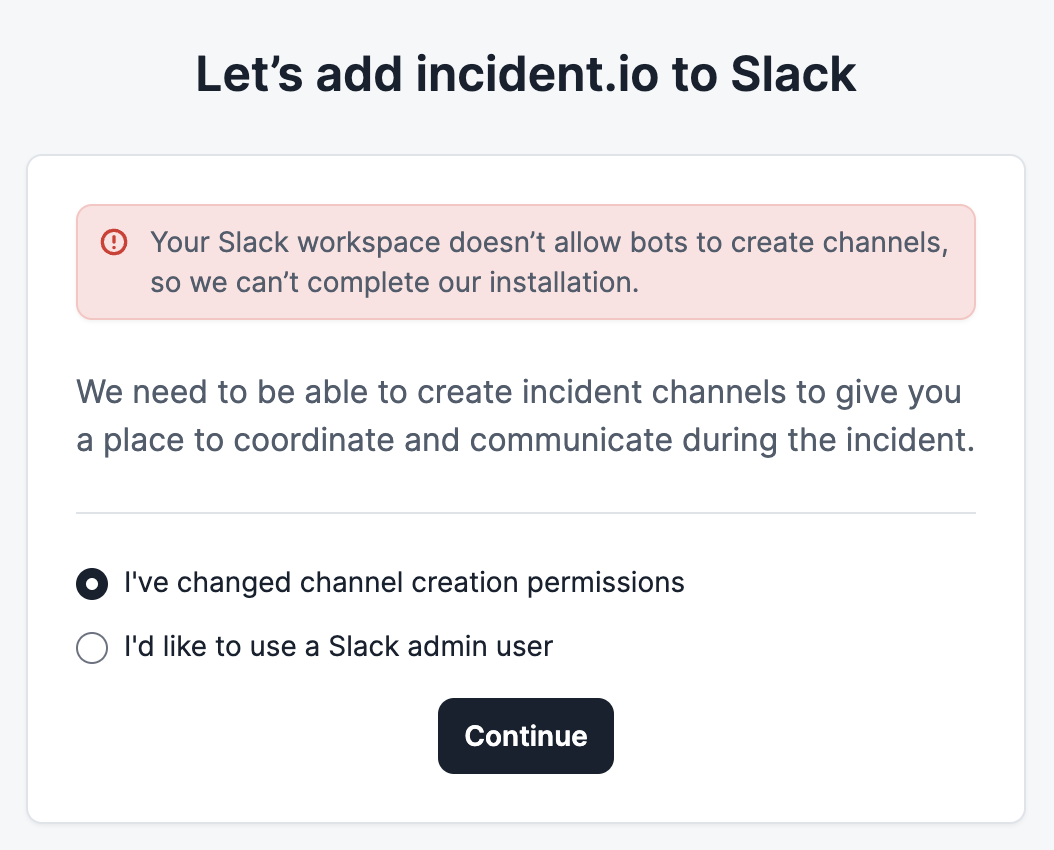
incident.io needs to create channels in your Slack workspace — a main `#incidents` announcement channel during install, and individual `#inc-...` channels for each incident. If your workspace restricts channel creation, installation will be blocked.
**You'll need a workspace admin to fix this.**
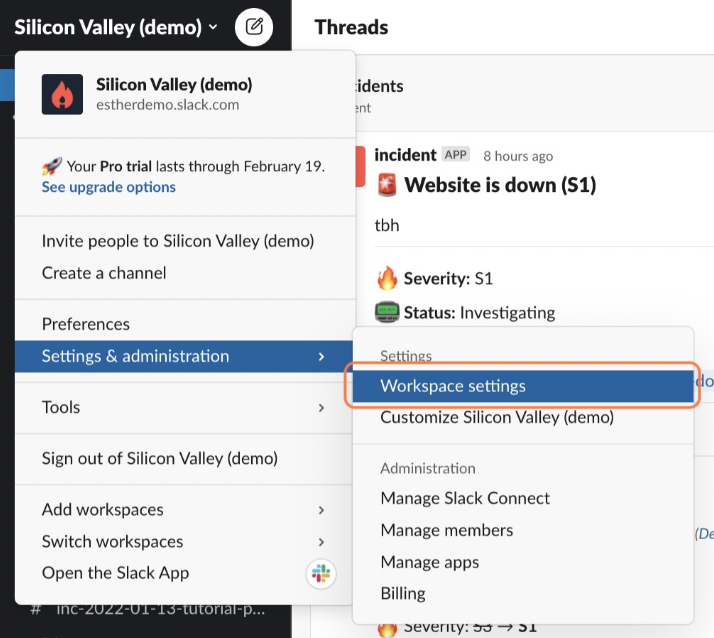
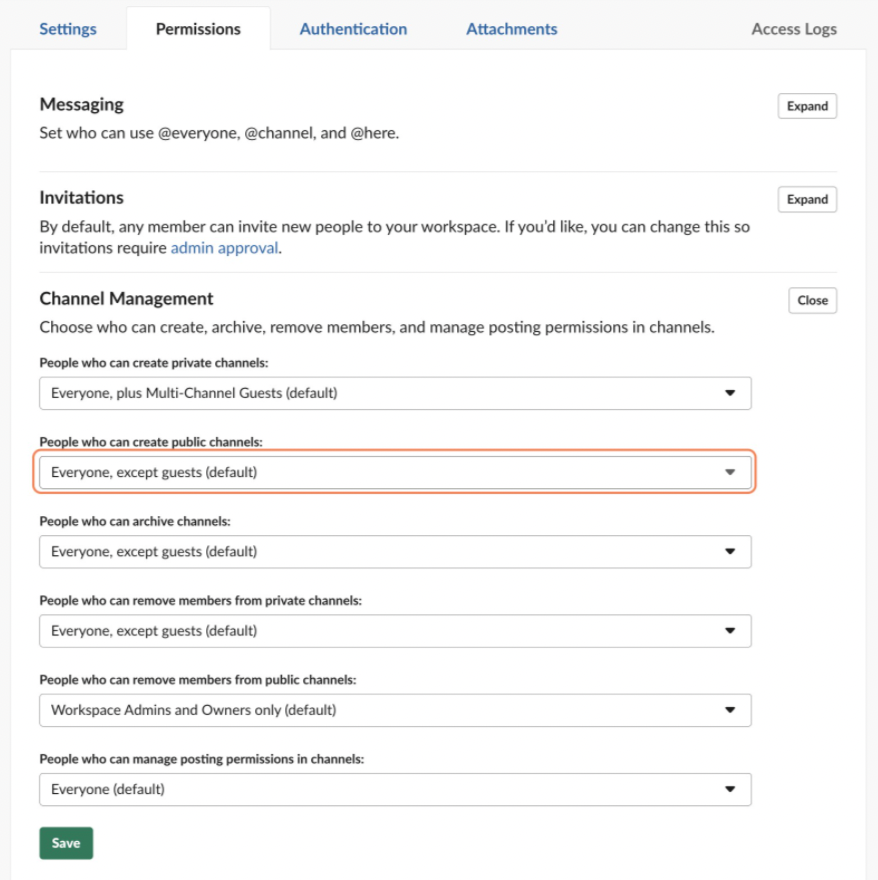
**Option 1: Allow all members to create channels**
Go to your Slack workspace settings and set *People who can create public channels* to *Everyone except guests*. Then select "I've changed channel creation permissions" and complete the installation.
When you've done this, we'll create you an #incidents channel, and install the incident.io app into your workspace.
...all done!
**Everyone in your Slack workspace can now use** [incident.io](http://incident.io/) — they simply need to go through the same '[Login with Slack](http://app.incident.io/)' flow. They will not be asked to '*Add incident.io to Slack*' - that step only happens once.
Let's go declare some incidents!
***
**Having issues installing?** [Email our support team directly](mailto:support@incident.io) or [jump on a 1:1 call](https://incident.io/demo) and we'll get it sorted in no time!
***
## Troubleshooting
Signing up to incident.io is restricted to those using a corporate or company email address. Our product is designed for companies rather than individuals, and this helps us avoid abuse.
If you see a sign-up error, try again using your company email address. If you're still having trouble, [get in touch](mailto:support@incident.io).
incident.io has two slash commands: `/inc` and `/incident`. Slack only lets one application listen to a particular command, so if you have an existing app that uses either of these, incident.io will take over those commands when installed (the most recently installed app wins).
Installing incident.io won't remove the other application. If you're migrating from an app that uses `/inc` and want to avoid disruption, re-install that application after installing incident.io.
You can find a cheatsheet of all `/inc` commands [here](/incidents/shortcuts).
incident.io needs to create channels in your Slack workspace — a main `#incidents` announcement channel during install, and individual `#inc-...` channels for each incident. If your workspace restricts channel creation, installation will be blocked.
**You'll need a workspace admin to fix this.**
**Option 1: Allow all members to create channels**
Go to your Slack workspace settings and set *People who can create public channels* to *Everyone except guests*. Then select "I've changed channel creation permissions" and complete the installation.
 **Option 2: Use a Slack admin account**
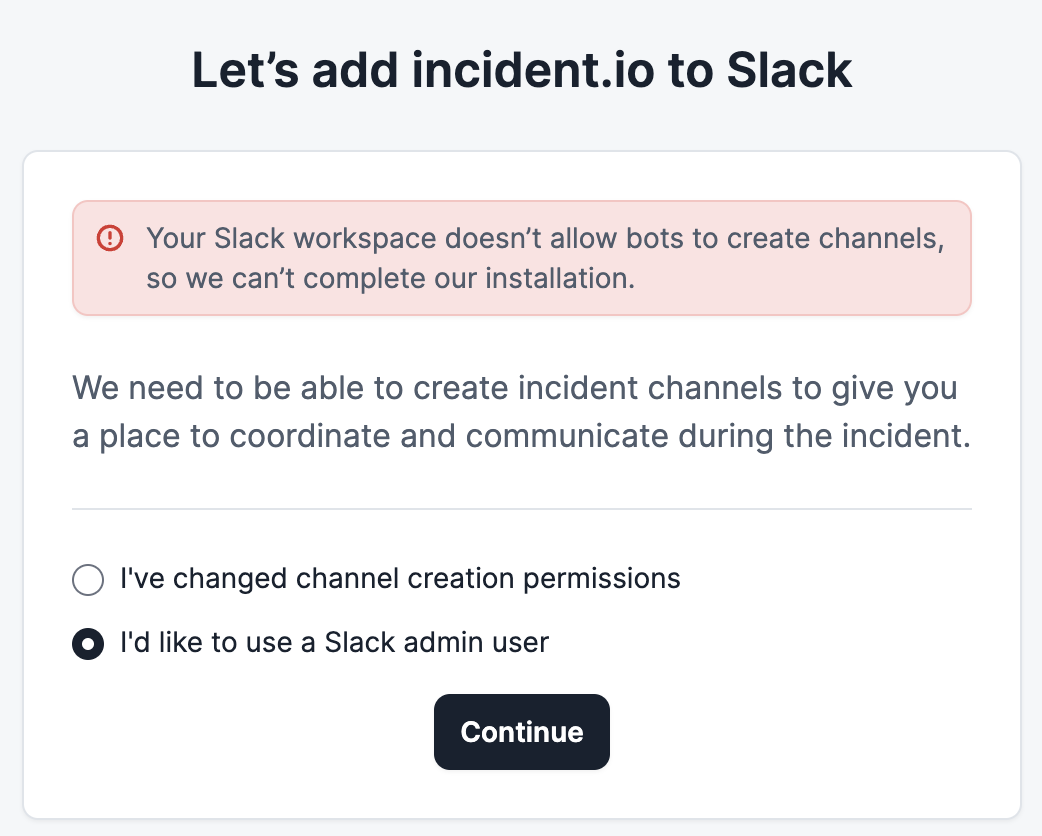
If you'd prefer to keep your channel management settings, you can connect a Slack admin user for incident.io to use when creating and managing incident channels. We recommend creating a dedicated user account for incident.io, as this user will appear as the channel creator and will appear to archive channels.
Once you've created the user, log in to Slack as that user in your browser, then select "I'd like to use a Slack admin user" and click "Continue".
**Option 2: Use a Slack admin account**
If you'd prefer to keep your channel management settings, you can connect a Slack admin user for incident.io to use when creating and managing incident channels. We recommend creating a dedicated user account for incident.io, as this user will appear as the channel creator and will appear to archive channels.
Once you've created the user, log in to Slack as that user in your browser, then select "I'd like to use a Slack admin user" and click "Continue".
 This error appears when you try to sign in with a Slack Enterprise (organization) instead of a Slack Workspace.
To fix it, click the dropdown in the top right of the Slack sign-in screen and select a Workspace rather than an Organization.
This error appears when you try to sign in with a Slack Enterprise (organization) instead of a Slack Workspace.
To fix it, click the dropdown in the top right of the Slack sign-in screen and select a Workspace rather than an Organization.
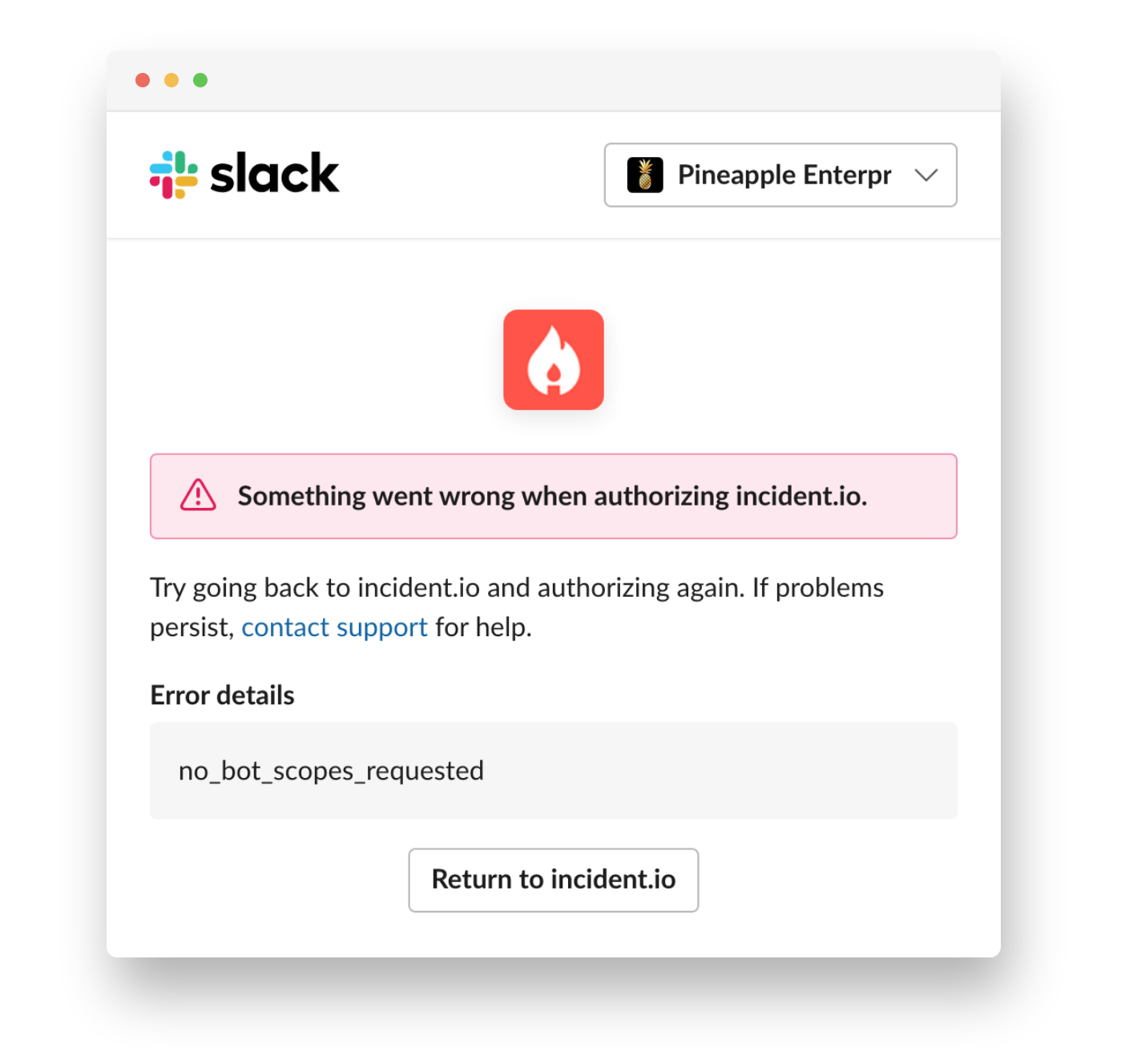
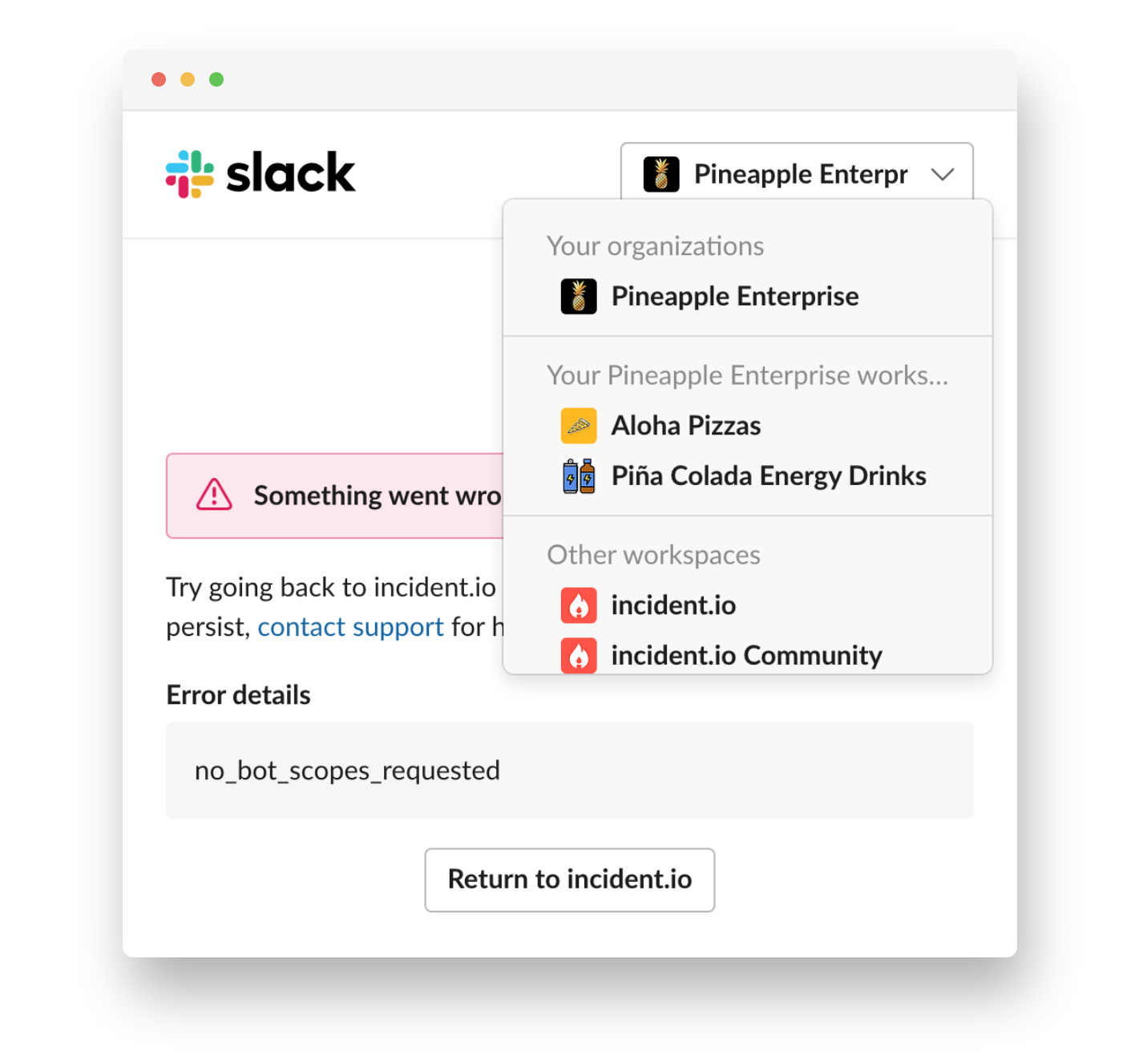 If you don't see any Workspaces, log in to Slack in your browser first, then try again.
This usually means the incident's Slack channel has been archived. There are two ways to resolve it:
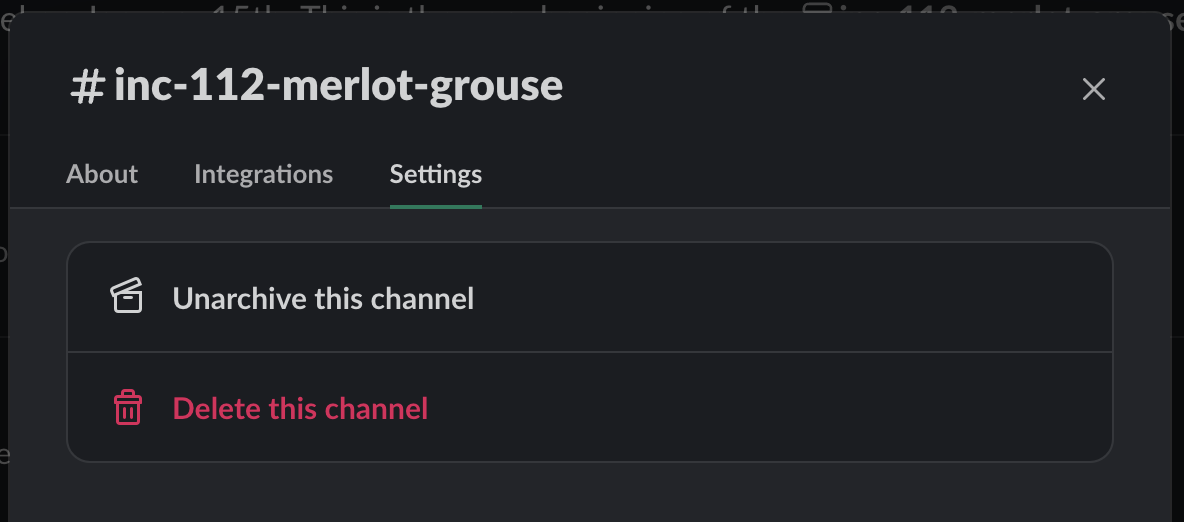
**Option 1: Unarchive the channel**
In Slack, click the channel name and select "Unarchive channel" in the Settings tab. Then refresh the incident page.
If you don't see any Workspaces, log in to Slack in your browser first, then try again.
This usually means the incident's Slack channel has been archived. There are two ways to resolve it:
**Option 1: Unarchive the channel**
In Slack, click the channel name and select "Unarchive channel" in the Settings tab. Then refresh the incident page.
 **Option 2: Store incident channel messages in incident.io**
Under [Settings > Security](https://app.incident.io/~/settings/security#store-incident-channel-messages), enable "Store incident channel messages". This keeps a copy of pinned messages in incident.io so you can review the timeline even after a channel is archived.
To import messages from already-archived channels, enable [privileged Slack access](/getting-started/slack-privileged-access). incident.io will temporarily unarchive those channels to import the messages, then re-archive them.
**Option 2: Store incident channel messages in incident.io**
Under [Settings > Security](https://app.incident.io/~/settings/security#store-incident-channel-messages), enable "Store incident channel messages". This keeps a copy of pinned messages in incident.io so you can review the timeline even after a channel is archived.
To import messages from already-archived channels, enable [privileged Slack access](/getting-started/slack-privileged-access). incident.io will temporarily unarchive those channels to import the messages, then re-archive them.