> ## Documentation Index
> Fetch the complete documentation index at: https://docs.incident.io/llms.txt
> Use this file to discover all available pages before exploring further.
# Team structure
> Organize teams into parent and sub-teams to see everything in one place.
Teams can be organized into parent and sub-teams. When you view a parent team's page, information about that team (including incidents, on-call schedules, and follow-ups) from all sub-teams are rolled up into a single view.
This is useful for managers and directors who need visibility across multiple teams without having to check each team individually.
## What changes when you set up team structure
* **Team pages show sub-team data.** A parent team's page shows incidents, schedules, follow-ups, post-mortems, and alerts from all teams beneath it.
* **"Is part of" filter.** The team filter gains an "is part of" operator. Selecting a team shows results for that team and all of its sub-teams.
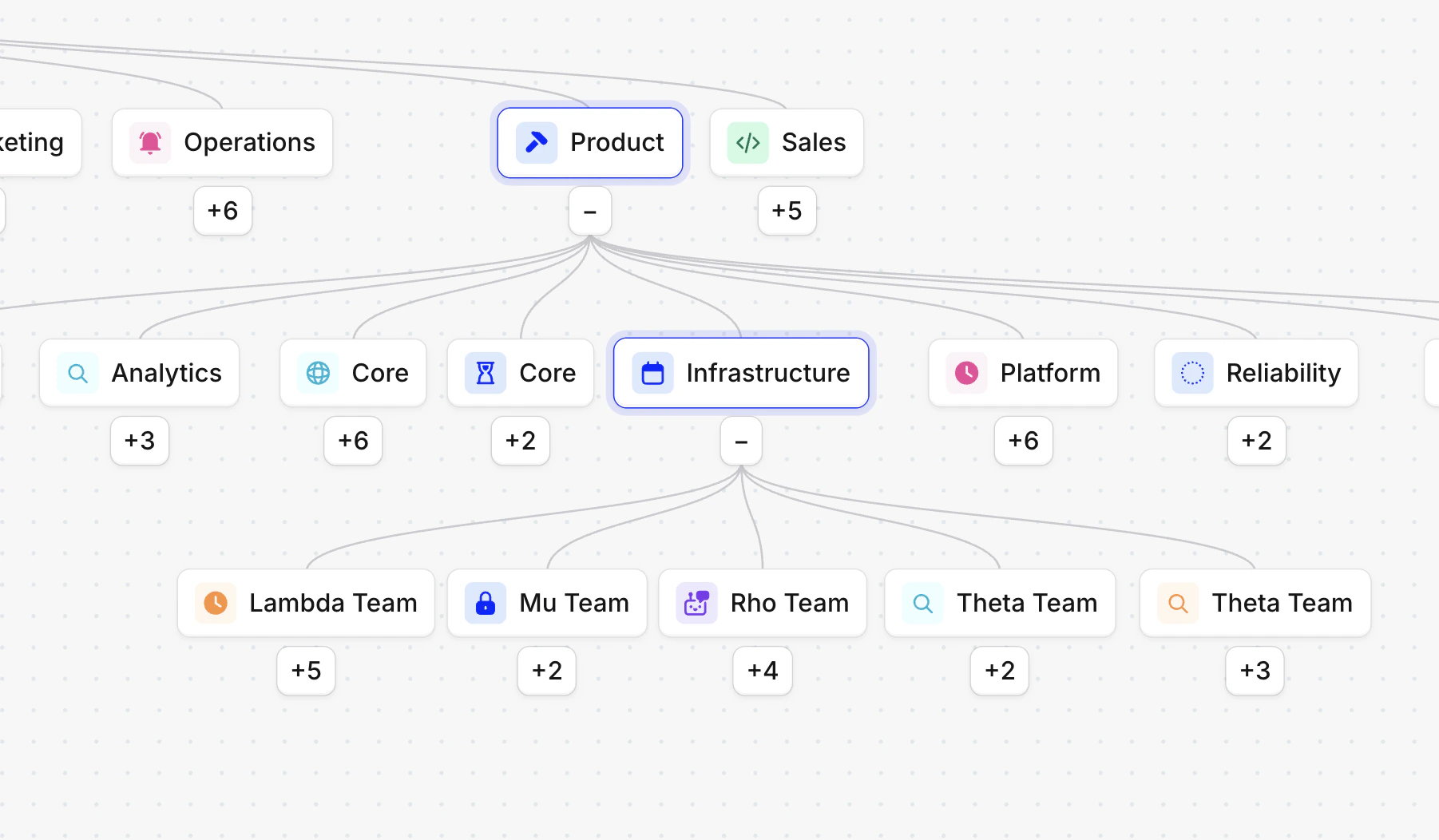
* **Org chart.** A **View structure** button appears in **Settings → Teams → Configure** and on individual team pages, showing your teams as an interactive diagram.
* **Users belong to parent teams automatically.** A user's Team attribute now includes not just their direct team, but all parent teams up the hierarchy. This means expressions that reference a user's teams will automatically account for the full team structure.
* **Permissions flow down the hierarchy.** Roles assigned to a parent team are automatically inherited by all sub-teams beneath it. This means you can grant access or responsibilities at a higher level without having to duplicate role assignments across every sub-team.
## Setting it up
Team structure is powered by the catalog. To define your hierarchy, your Team catalog type needs a "Parent team" attribute that references itself - i.e., an attribute on the Team type whose value is also a Team. This is how incident.io knows which teams sit beneath which.
You only need to set each team's direct parent — incident.io builds the full hierarchy from there.
### Configure the parent attribute
1. Navigate to **Settings → Teams → Configure**
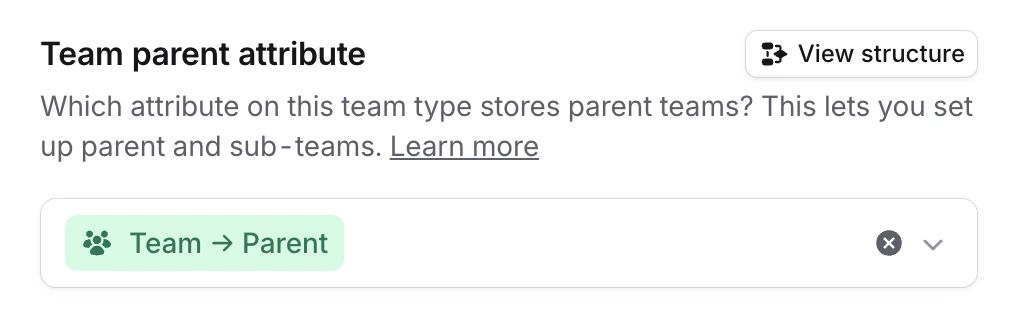
2. Under **Team parent attribute**, select the attribute on your team type that stores parent teams
The attribute must reference the same team type. Both singular and array attributes are supported.
If you're importing teams from an external source, the parent attribute likely already exists on your team type. Check
your team type's schema in **Catalog** before creating a new one.
 ### Import sources
The parent attribute is a catalog attribute, so however you get data into catalog works here.
Several integrations sync a `parent_team` attribute automatically when the external source has its own team hierarchy:
* [GitHub](/catalog/github)
* [Linear](/catalog/linear)
* [OpsLevel](/catalog/opslevel)
* [PagerDuty](/catalog/pagerduty)
* [Cortex](/catalog/cortex) (syncs as `parent_teams`, supporting multiple parents)
If your teams come from one of these, you likely already have the attribute — just select it in the parent attribute setting above.
For other sources, set the parent attribute value to the parent team's external ID or catalog entry ID:
* **[catalog-importer](/catalog/importing-data)**
* **[Terraform](https://registry.terraform.io/providers/incident-io/incident/latest)**
* **Manual**: Edit the attribute directly in **Catalog** or from a team's settings page.
### View the org chart
Once configured, click **View structure** in **Settings → Teams → Configure** to see the full team tree. You can expand and collapse nodes to explore, and click any team to see its details.
On individual team pages, click the team structure button in the header to see where that team sits in the tree.
### Import sources
The parent attribute is a catalog attribute, so however you get data into catalog works here.
Several integrations sync a `parent_team` attribute automatically when the external source has its own team hierarchy:
* [GitHub](/catalog/github)
* [Linear](/catalog/linear)
* [OpsLevel](/catalog/opslevel)
* [PagerDuty](/catalog/pagerduty)
* [Cortex](/catalog/cortex) (syncs as `parent_teams`, supporting multiple parents)
If your teams come from one of these, you likely already have the attribute — just select it in the parent attribute setting above.
For other sources, set the parent attribute value to the parent team's external ID or catalog entry ID:
* **[catalog-importer](/catalog/importing-data)**
* **[Terraform](https://registry.terraform.io/providers/incident-io/incident/latest)**
* **Manual**: Edit the attribute directly in **Catalog** or from a team's settings page.
### View the org chart
Once configured, click **View structure** in **Settings → Teams → Configure** to see the full team tree. You can expand and collapse nodes to explore, and click any team to see its details.
On individual team pages, click the team structure button in the header to see where that team sits in the tree.
 ## Use case: manager role inheritance
Parent and sub-team relationships work with [team roles](/admin/team-roles) to give managers access across sub-teams without being added to each one individually.
**To set this up:**
1. Navigate to **Settings → Teams → Team roles**
2. Create a **Manager** role with the permissions you want (e.g. manage members, view private incidents)
3. Go to the parent team and add the manager as a member with the Manager role
The manager now has those permissions for the parent team and all sub-teams beneath it. A VP assigned as Manager on the top-level Engineering team can manage members, view private incidents, and perform other role actions across every child team — without being explicitly added to any of them.
Assign managers once at the appropriate level and permissions flow down. No need to maintain role assignments on every
sub-team.
## Use case: simplifying on-call schedule ownership
Without team structure, the only way to see all of a division's on-call schedules in one place was to assign every schedule to both its owning team and the parent team. This meant maintaining duplicate assignments and keeping them in sync whenever teams or schedules changed.
With parent and sub-teams, the parent team's on-call page automatically includes schedules from all sub-teams. Assign each schedule to the team that owns it — the parent team page rolls them up.
**If you've been duplicating schedule assignments to get a unified view:**
1. Go to each schedule that's assigned to both a team and its parent
2. Remove the parent team assignment — the schedule only needs its owning team
3. The parent team's on-call page still shows all schedules from sub-teams
## Use case: manager role inheritance
Parent and sub-team relationships work with [team roles](/admin/team-roles) to give managers access across sub-teams without being added to each one individually.
**To set this up:**
1. Navigate to **Settings → Teams → Team roles**
2. Create a **Manager** role with the permissions you want (e.g. manage members, view private incidents)
3. Go to the parent team and add the manager as a member with the Manager role
The manager now has those permissions for the parent team and all sub-teams beneath it. A VP assigned as Manager on the top-level Engineering team can manage members, view private incidents, and perform other role actions across every child team — without being explicitly added to any of them.
Assign managers once at the appropriate level and permissions flow down. No need to maintain role assignments on every
sub-team.
## Use case: simplifying on-call schedule ownership
Without team structure, the only way to see all of a division's on-call schedules in one place was to assign every schedule to both its owning team and the parent team. This meant maintaining duplicate assignments and keeping them in sync whenever teams or schedules changed.
With parent and sub-teams, the parent team's on-call page automatically includes schedules from all sub-teams. Assign each schedule to the team that owns it — the parent team page rolls them up.
**If you've been duplicating schedule assignments to get a unified view:**
1. Go to each schedule that's assigned to both a team and its parent
2. Remove the parent team assignment — the schedule only needs its owning team
3. The parent team's on-call page still shows all schedules from sub-teams