> ## Documentation Index
> Fetch the complete documentation index at: https://docs.incident.io/llms.txt
> Use this file to discover all available pages before exploring further.
# Linking Salesforce Accounts and Opportunities in Catalog
For most Salesforce organizations, an Account can be linked to many Opportunities, but each Opportunity only references a single Account. In Salesforce, this relationship must be modelled by your Opportunity having an Account ID field, rather than the other way around.
However, thanks to our recent addition of [Backlinks](/internal/catalog-teams), Catalog can model the relationship *both* ways, meaning you can go from your Account to Opportunity, and also Opportunity to Account in a single-click. Here's how to set that up.
## Adding the Opportunity type
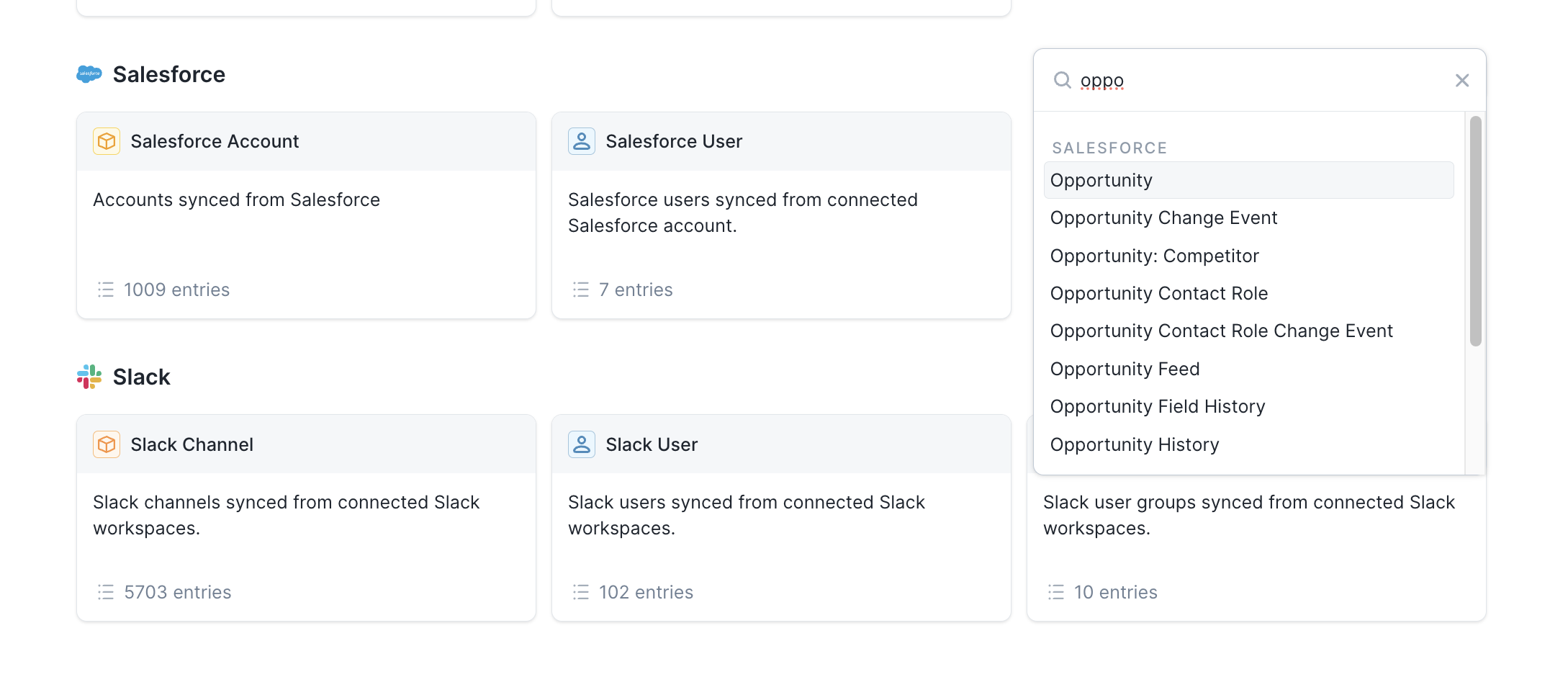
First, you'll need to sync the Opportunity object to Catalog. Head to the Salesforce section of the Catalog home, click the "Import another type" button, and search for Opportunity.
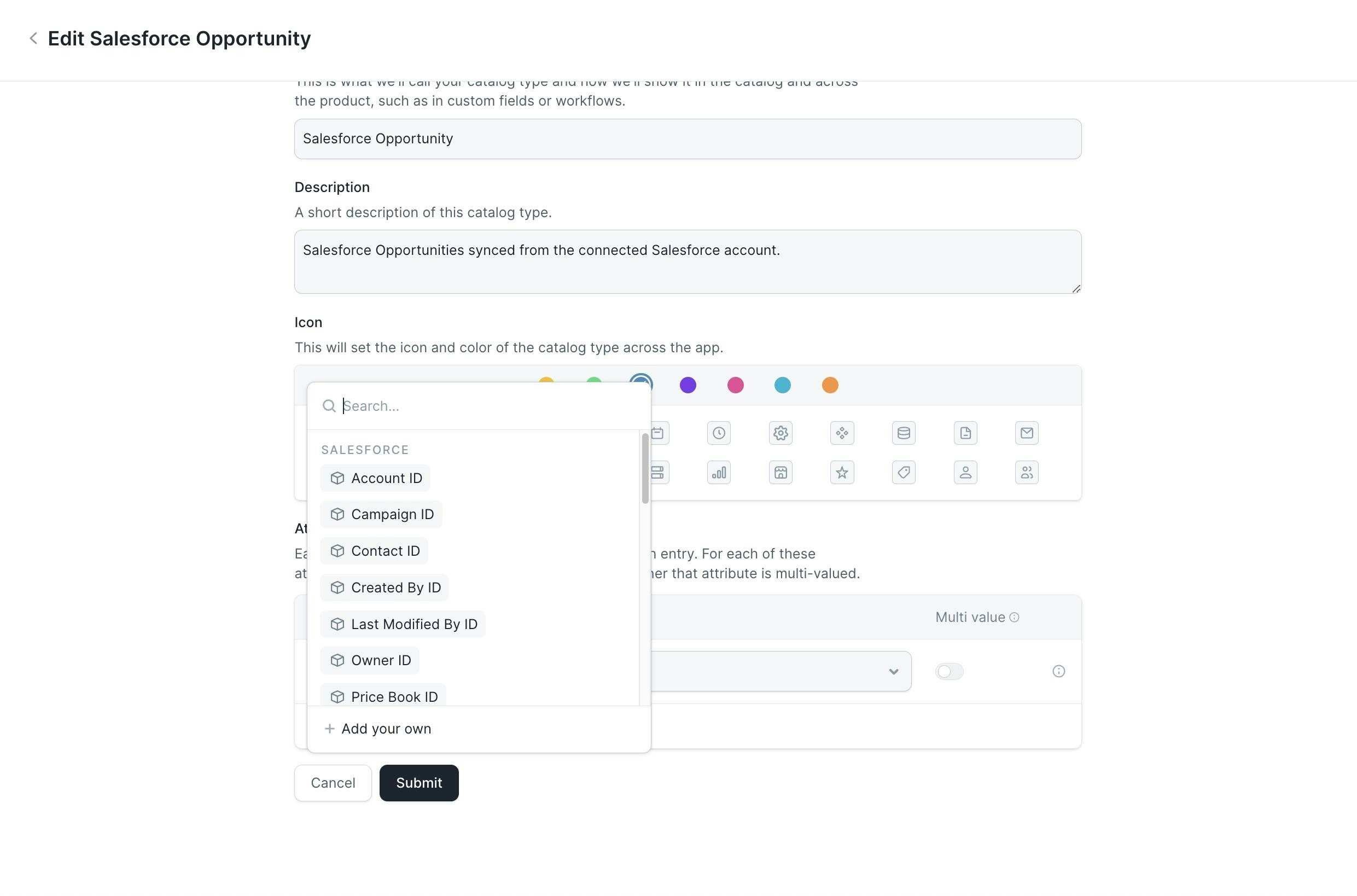
 You'll be redirected to the edit page of the new Salesforce Opportunity Catalog type. Scroll down to the attributes section and click "Add new attribute" to open a menu of all the fields on your Opportunity object in Salesforce.
Add Account ID and any other fields you'd like to sync to Catalog here.
You'll be redirected to the edit page of the new Salesforce Opportunity Catalog type. Scroll down to the attributes section and click "Add new attribute" to open a menu of all the fields on your Opportunity object in Salesforce.
Add Account ID and any other fields you'd like to sync to Catalog here.
 ## Setting up the Backlink
Finally, return to the Catalog homepage, select your Salesforce Account type, and click Edit. Scroll to the Attributes section and click "Add new attribute" again. This time, scroll right to the bottom of the list and you'll see Salesforce Opportunity under the available Backlinks.
## Setting up the Backlink
Finally, return to the Catalog homepage, select your Salesforce Account type, and click Edit. Scroll to the Attributes section and click "Add new attribute" again. This time, scroll right to the bottom of the list and you'll see Salesforce Opportunity under the available Backlinks.
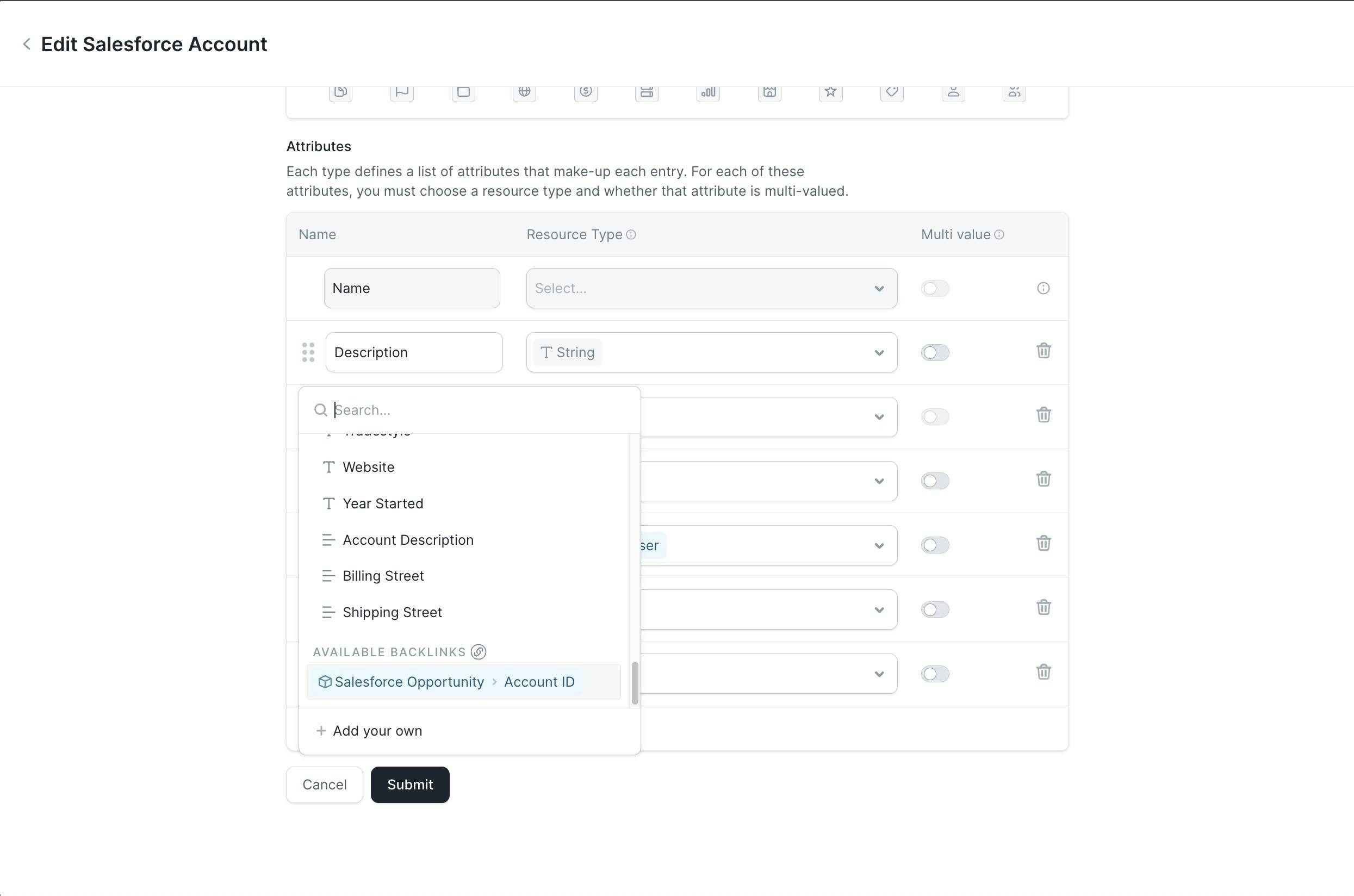 Now just click "Submit" and you'll easily be able to see which Opportunities reference each of your accounts.