> ## Documentation Index
> Fetch the complete documentation index at: https://docs.incident.io/llms.txt
> Use this file to discover all available pages before exploring further.
# How to re-sync Catalog data
Catalog is powerful because it allows you to bring data from any source system into incident.io. There are multiple ways to keep that data in sync.
When you update your upstream data e.g. your Slack users, or your Salesforce customers; Catalog will need to be synced before the upstream changes are visible.
Syncs can happen in any of the following ways:
1. Automatic sync (e.g: Github, Slack)
2. Manually force a sync (e.g: Slack)
3. Re-run `catalog-importer` (e.g: Backstage)
## 1. Automatic sync
We keep lots of data sources in-sync with a scheduled automatic sync. Typically this runs every three hours and doesn't require any input from you.
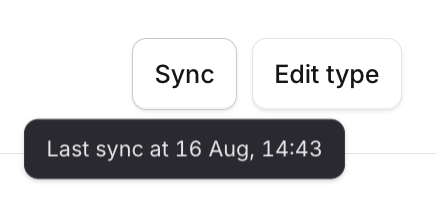
In the dashboard, when you open a specific Catalog type, you'll see a button called `Sync`. If you hover, we'll tell you when the type was last synced.
 ## 2. Manually force a sync
We've already given away how you can force a sync - Pressing the sync button mentioned above will trigger a sync for that catalog type. This does the same work as the automatic sync job; but can be useful if you want to get upstream changes into your catalog quickly. Be aware that sync jobs can take a few minutes for very large collections of upstream resources.
## 3. Re-run the catalog-importer
If you're managing your catalog type externally, e.g. with `catalog-importer`; just trigger another run.
It'll be clear if you're managing your catalog types externally as we'll show you in the UI, you won't be able to make edits directly via the UI.
If you need a refresher, you can find documentation on how to run the `catalog-importer` in its repository [README](https://github.com/incident-io/catalog-importer/blob/master/README.md) file.
## 2. Manually force a sync
We've already given away how you can force a sync - Pressing the sync button mentioned above will trigger a sync for that catalog type. This does the same work as the automatic sync job; but can be useful if you want to get upstream changes into your catalog quickly. Be aware that sync jobs can take a few minutes for very large collections of upstream resources.
## 3. Re-run the catalog-importer
If you're managing your catalog type externally, e.g. with `catalog-importer`; just trigger another run.
It'll be clear if you're managing your catalog types externally as we'll show you in the UI, you won't be able to make edits directly via the UI.
If you need a refresher, you can find documentation on how to run the `catalog-importer` in its repository [README](https://github.com/incident-io/catalog-importer/blob/master/README.md) file.