> ## Documentation Index
> Fetch the complete documentation index at: https://docs.incident.io/llms.txt
> Use this file to discover all available pages before exploring further.
# Filter custom fields based on another custom field
It can be useful to filter on a custom field based on the value of another custom field.
Take the following example, of an organization with multiple divisions, where each division has multiple teams.
An area where this is very useful is in building forms. You can have a form field (say "Affected Teams") to require another field to be previously set (say "Division") before you can set it.
Let's walk through how this works in practice using those example fields.
1. Configure your "Affected Teams" field to filter options based on the value of the "Division" field.
2. Change the form so that we only show an "Affected Teams" dropdown if an incident has a "Division" set.
3. Try your new incident form to see how it plays out.
## Configure your "Affected Teams" field
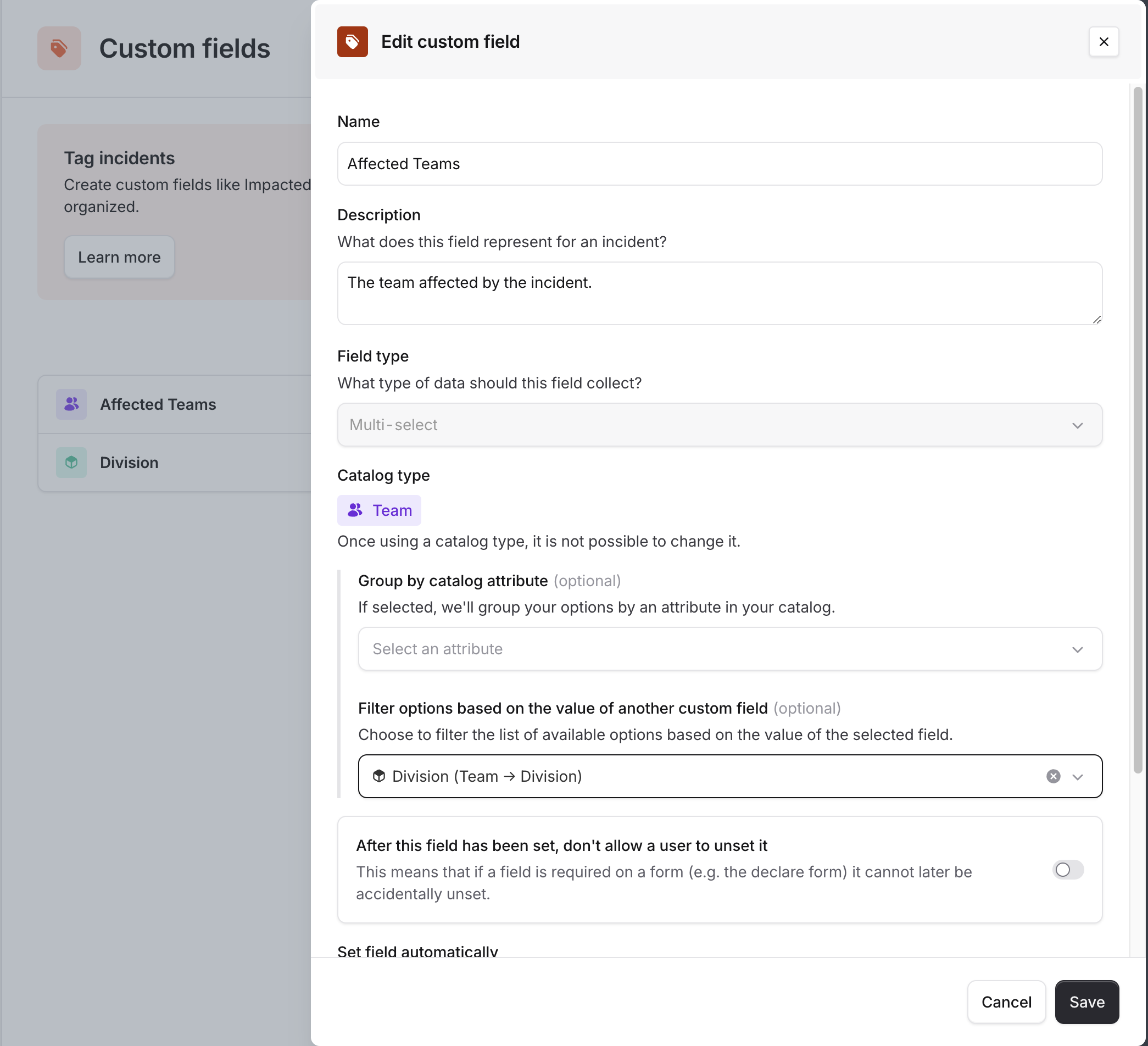
Go to Settings > Custom fields > Edit "Affected Teams".
Set the **Filter options based on the value of another custom field** to the custom field you want to depend on. In this case, we have an attribute "Division" in the catalog entry for "Affected Teams" so that is what we select.
 ## Change a form to only show "Affected Teams" when "Division" is set
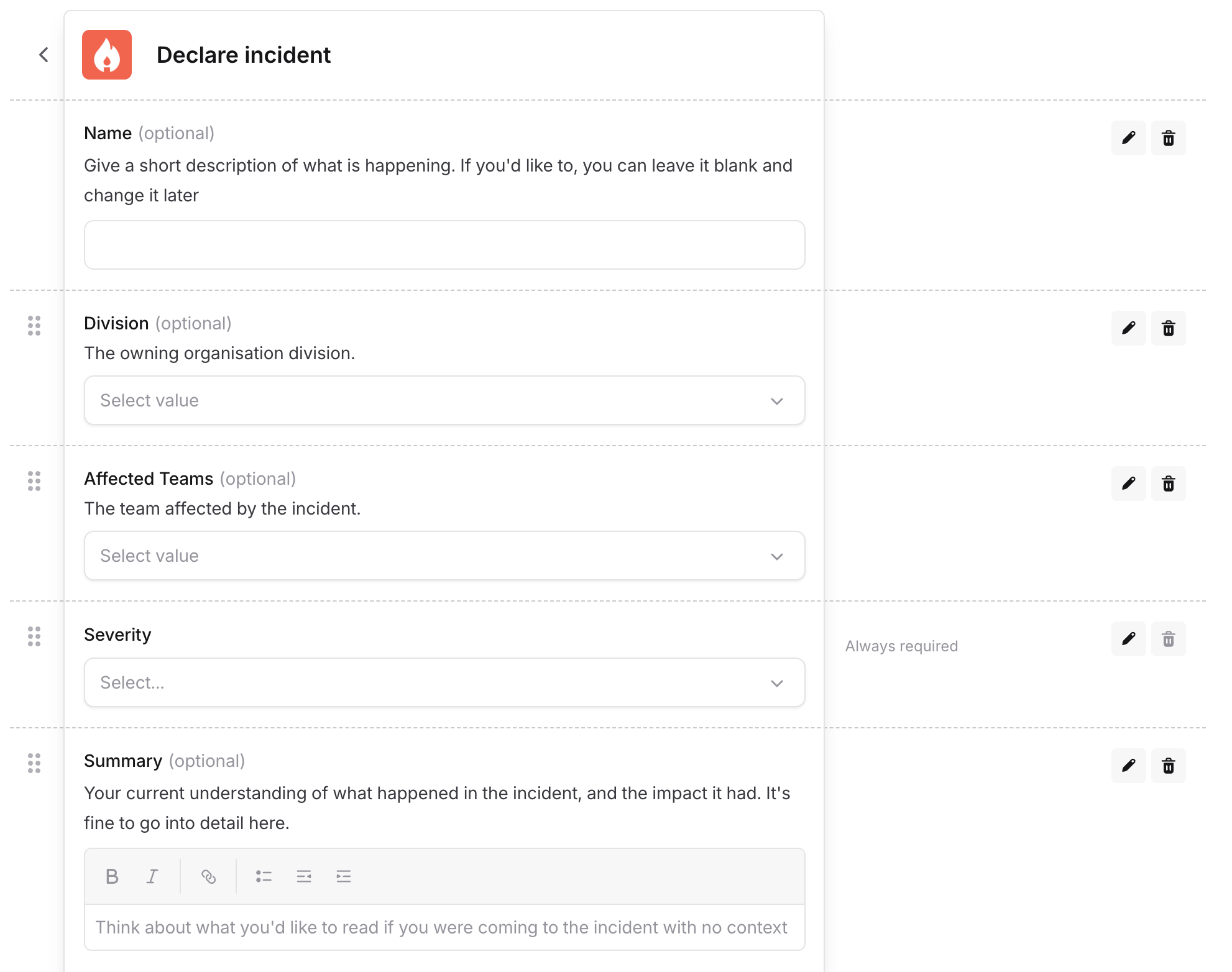
Say you have the following form setup, which is getting a bit long. What you want is to show the user the picker for "Affected Teams" only when "Division" has been set.
## Change a form to only show "Affected Teams" when "Division" is set
Say you have the following form setup, which is getting a bit long. What you want is to show the user the picker for "Affected Teams" only when "Division" has been set.
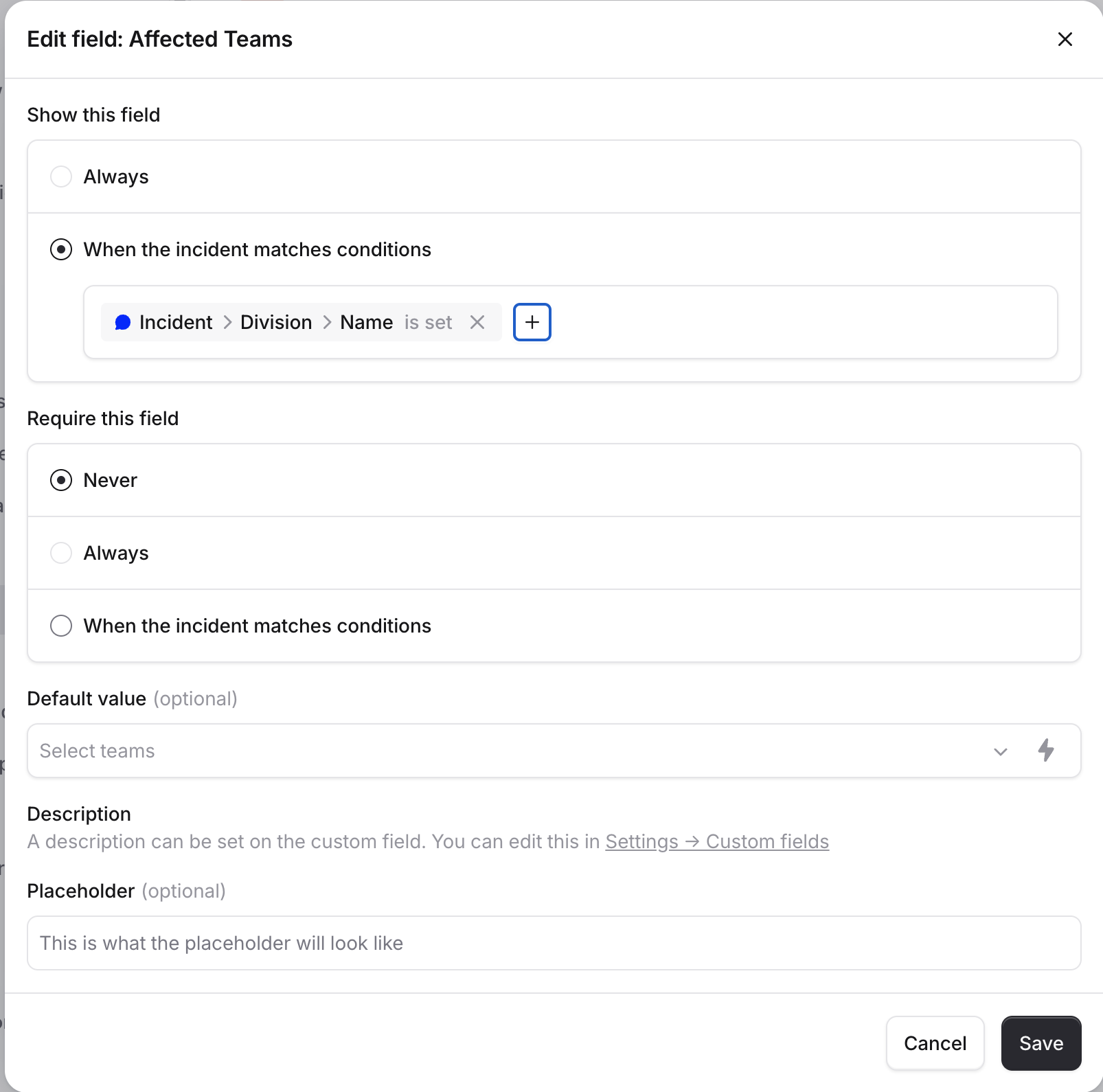
 The way we filter a custom field ("Affected Teams") based on another custom field ("Division") is to edit the "Affected Teams" field so that it only shows when the incident has "Division" set.
 ## Try your new incident form to see how it plays out
Below you'll see that "Affected Teams" won't appear until a "Division" has been selected.
## Try your new incident form to see how it plays out
Below you'll see that "Affected Teams" won't appear until a "Division" has been selected.